

 v1.1.0
animated_widgets
AnimatedWidgets を使って、画面に簡単にアニメーションを追加できます。コンポーネントツリーに常にアニメーション付きウィジェットを追加し、必要に応じてアニメーションを有効化してください。
171いいね 971030日間ダウンロード70Pub ポイント
プラットフォーム情報なし
AnimatedWidgets を使って、画面に簡単にアニメーションを追加できます。Bloc パターン用に作られています。

以下は英語原文のスナップショットです。最新版は GitHub をご覧ください。
Easily add animations on your screen with AnimatedWidgets.
Optimized for MVVM using Bloc, updating the enabled value of the widget will forward or reverse the animation.
Available widgets : TranslationAnimatedWidget, OpacityAnimatedWidget, RotationAnimatedWidget, ScaleAnimatedWidget, SizeAnimatedWidget
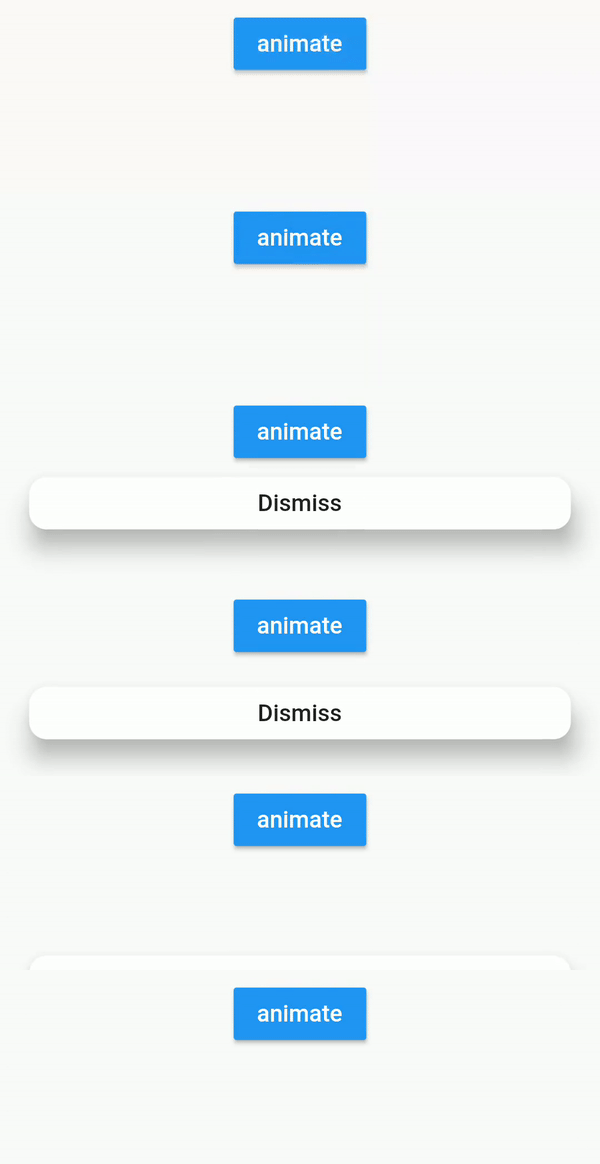
For example : add a TranslationAnimatedWidget on a button, then activate it to display it !
TranslationAnimatedWidget(
    enabled: this.displayMyWidget, //update this boolean to forward/reverse the animation
    values: [
        Offset(0, 200), // disabled value value
        Offset(0, 250), //intermediate value
        Offset(0, 0) //enabled value
    ],
    child: /* your widget */
),
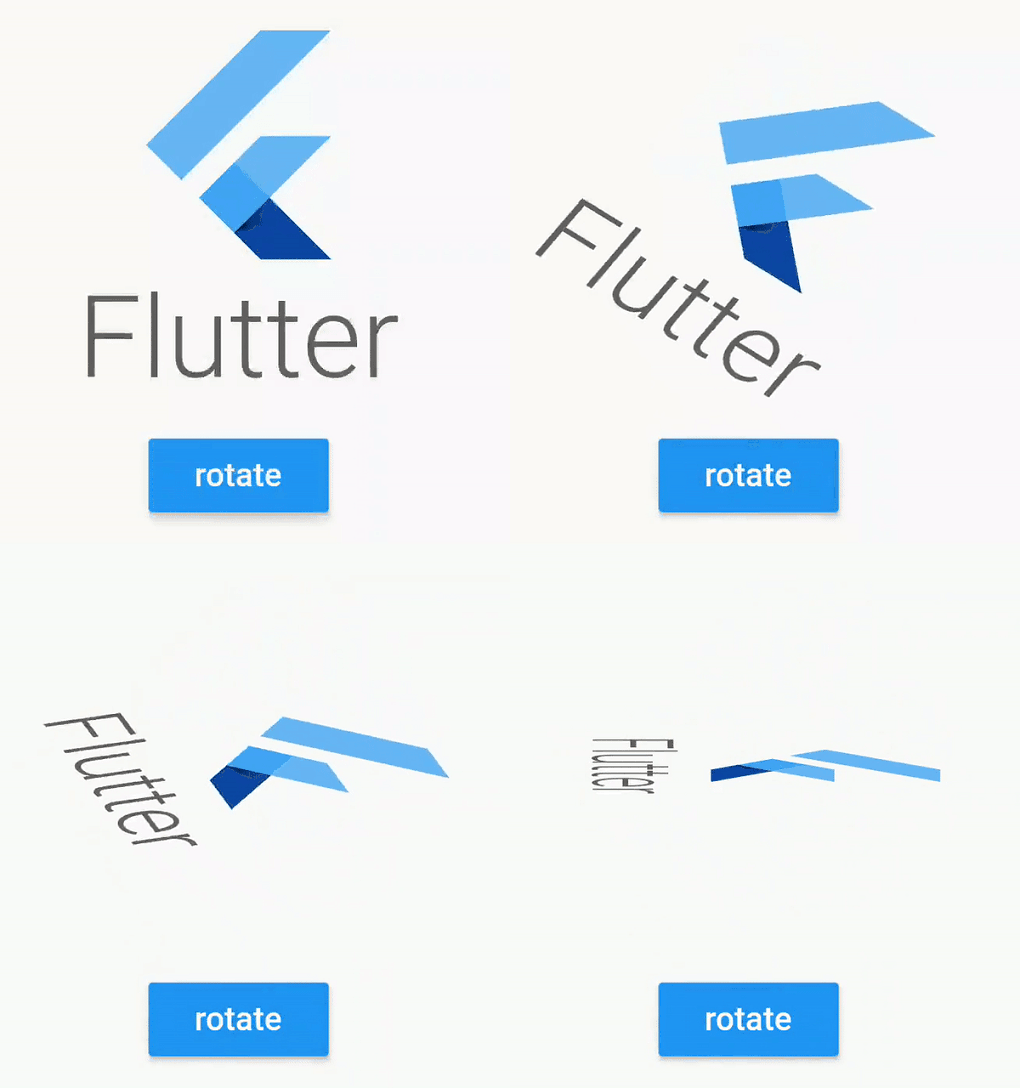
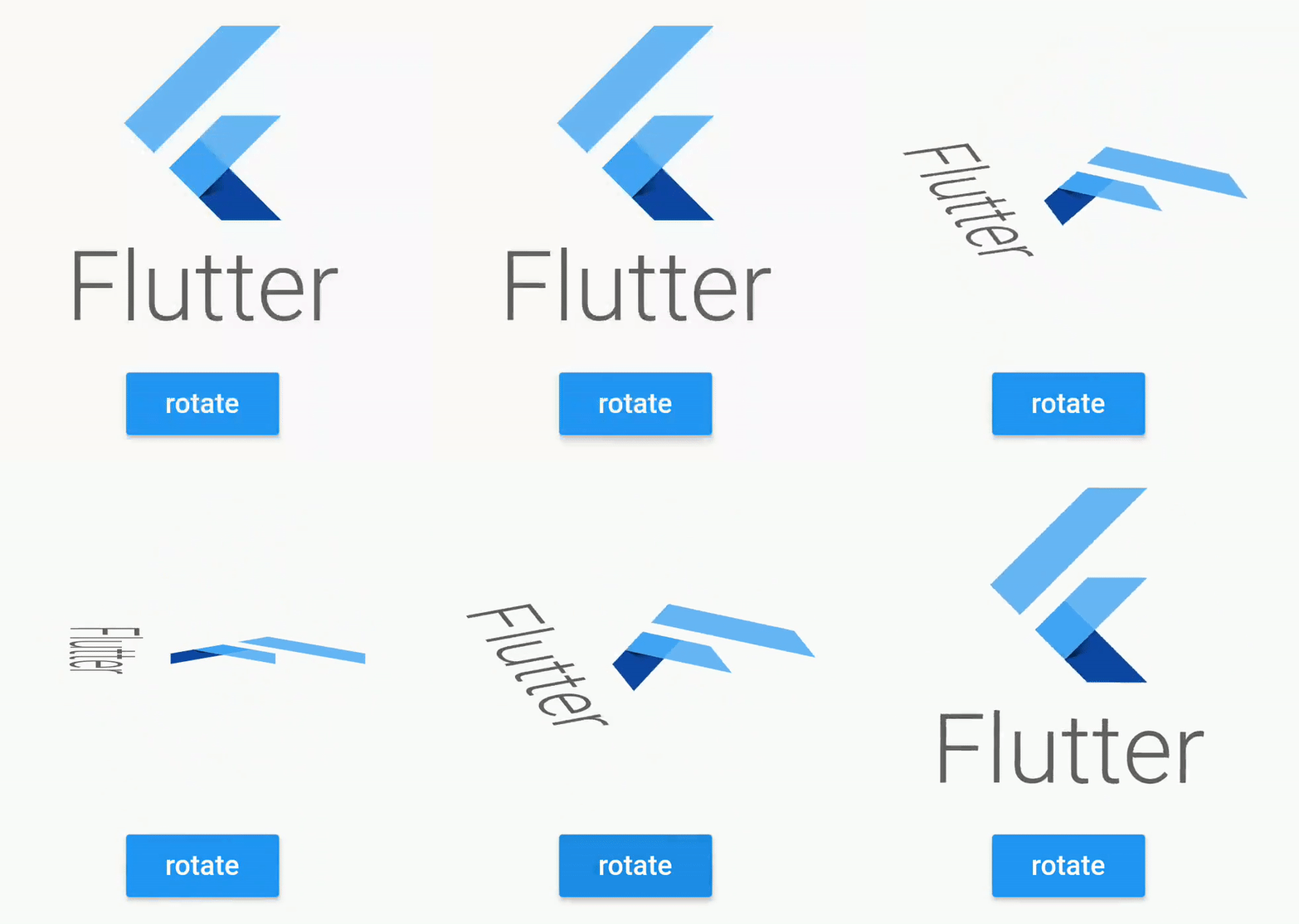
or using a tween constructor
RotationAnimatedWidget.tween(
    enabled: this.displayMyWidget, //update this boolean to forward/reverse the animation
    rotationDisabled: Rotation.degrees(z: 0),
    rotationEnabled: Rotation.degrees(z: 90),
    child: /* your widget */
),
Don't hesitate to compose them
TranslationAnimatedWidget.tween(
    enabled: this.displayMyWidget,
    translationDisabled: Offset(0, 200),
    translationEnabled: Offset(0, 0),
    child:
        OpacityAnimatedWidget.tween(
        enabled: this.displayMyWidget,
        opacityDisabled: 0,
        opacityEnabled: 1,
        child: /* your widget */
    ),
),
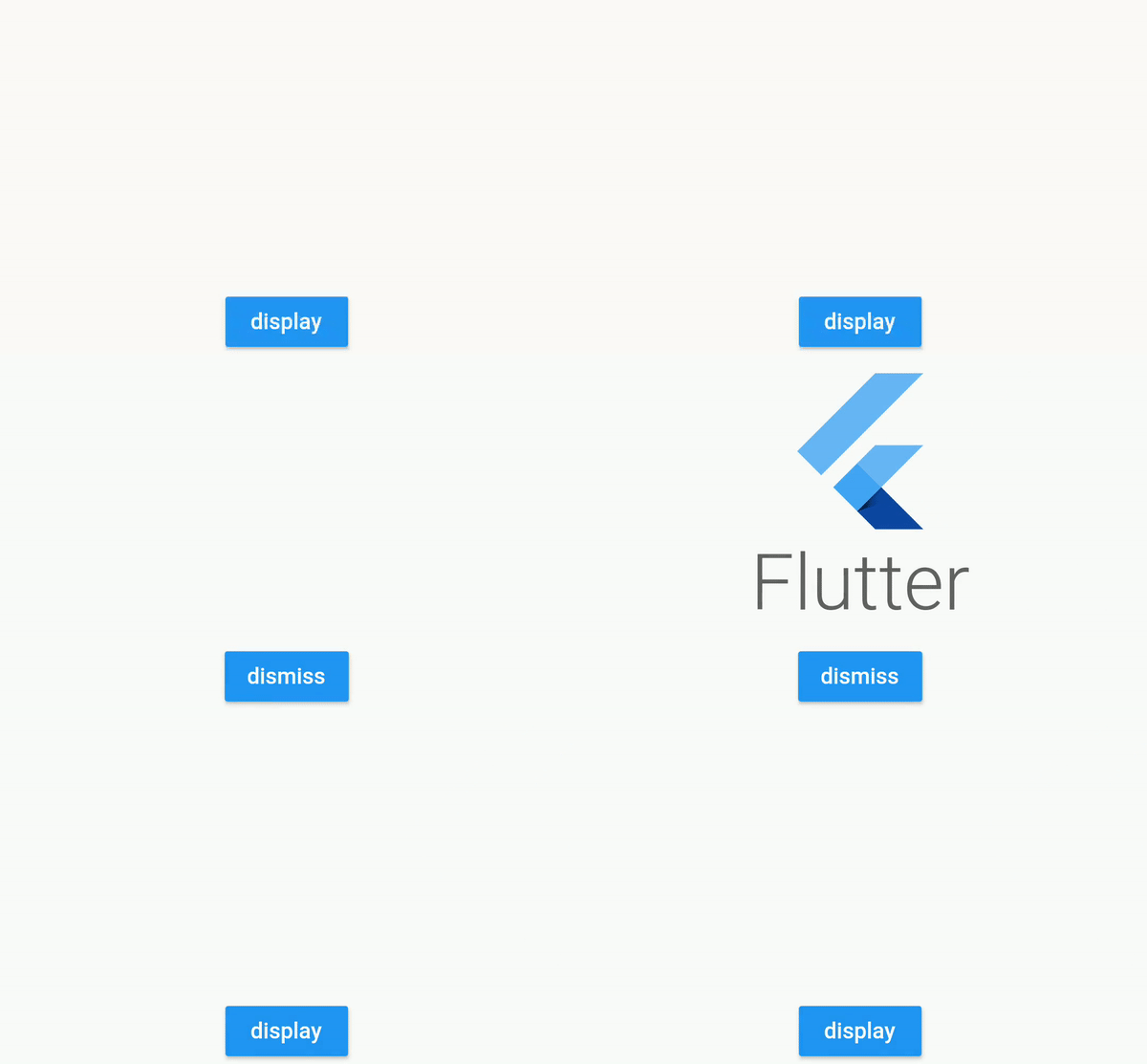
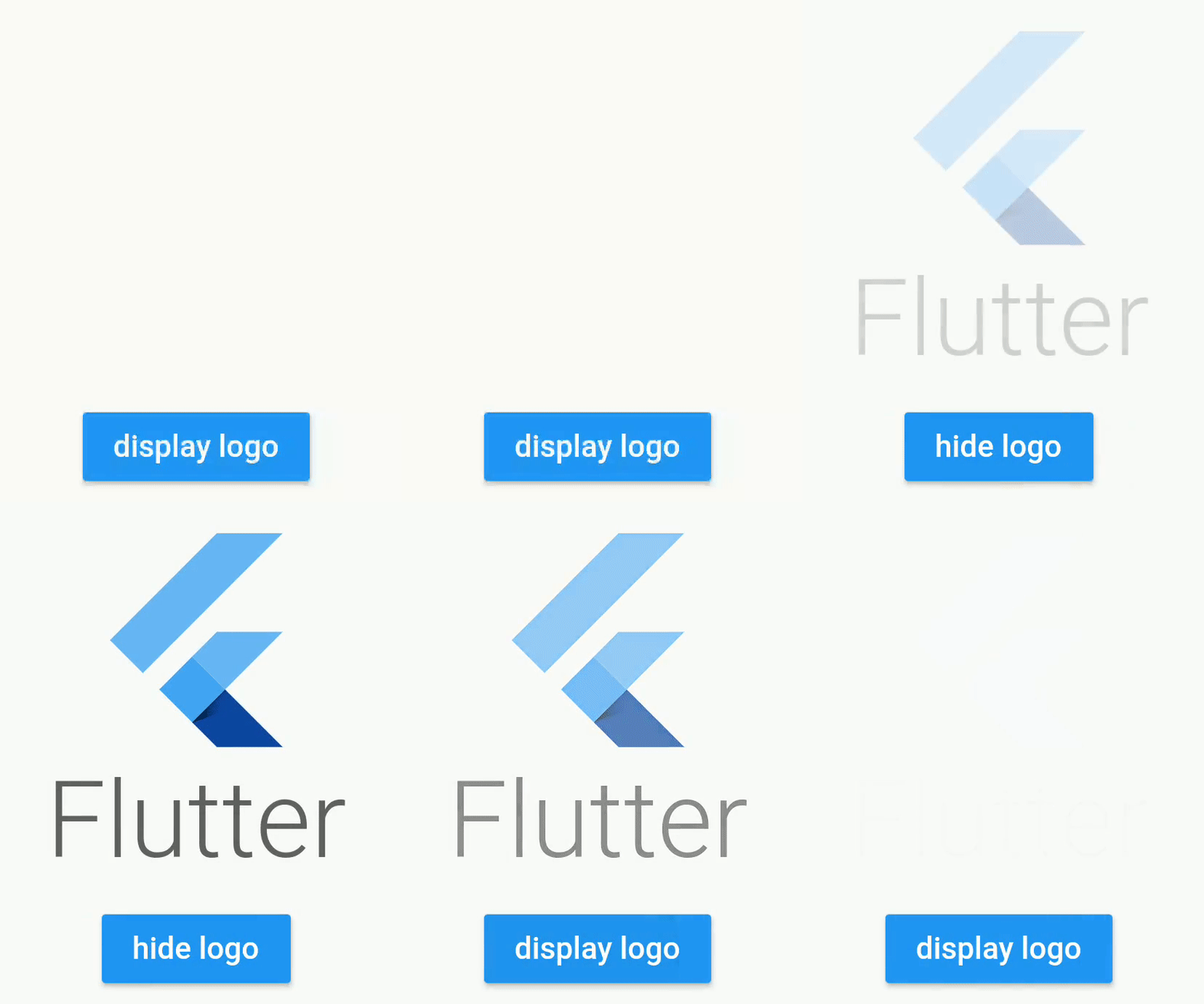
Example using a Stateful Widget
class _StatefulScreenState extends State<StatefulScreen> {

  // will determine if the opacity animation is launched
  bool _display = false;

  @override
  Widget build(BuildContext context) {
    return Scaffold(
      appBar: AppBar(),
      body: Column(
        crossAxisAlignment: CrossAxisAlignment.stretch,
        mainAxisAlignment: MainAxisAlignment.center,
        mainAxisSize: MainAxisSize.max,
        children: [

          //wrap your widget with OpacityAnimatedWidget
          OpacityAnimatedWidget.tween(
            opacityEnabled: 1, //define start value
            opacityDisabled: 0, //and end value
            enabled: _display, //bind with the boolean
            child: Container(
               height: 200,
               width: 200,
               child: FlutterLogo(
                 style: FlutterLogoStyle.stacked,
               ),
            ),
          ),

          RaisedButton(
            color: Colors.blue,
            child: Text(
              _display ? "hide logo" : "display logo",
              style: TextStyle(color: Colors.white),
            ),
            onPressed: () {
              setState(() {

                //will fire the animation
                _display = !_display;

              });
            },
          )
        ],
      ),
    );
  }
}
Example using bloc pattern
class FirstScreenBloc extends Bloc {
  final _viewState = BehaviorSubject<FirstScreenViewState>.seeded(FirstScreenViewState());
  Observable<FirstScreenViewState> get viewState => _viewState;

  void onClicked() {
    _viewState.add(FirstScreenViewState(buttonVisible: true));
  }

  void onDismissClicked() {
    _viewState.add(FirstScreenViewState(buttonVisible: false));
  }

  @override
  void dispose() {
    _viewState.close();
  }
}

class FirstScreenViewState {
  final bool buttonVisible;

  const FirstScreenViewState({
    this.buttonVisible = false,
  });
}
class FirstScreenView extends StatelessWidget {
  @override
  Widget build(BuildContext context) {
    final bloc = BlocProvider.of<FirstScreenBloc>(context);

    return StreamBuilder<FirstScreenViewState>(
            stream: bloc.viewState,
            builder: (context, snapshot) {

                final viewState = snapshot.data;

                return Stack(
                  fit: StackFit.expand,
                  children: [
                    _buildInputButton(onClicked: () {
                      bloc.onClicked();
                    }),
                    Positioned(
                      bottom: 20,
                      left: 20,
                      right: 20,

                      child: TranslationAnimatedWidget(
                        enabled: viewState.buttonVisible, //will forward/reverse the animation
                        curve: Curves.easeIn,
                        duration: Duration(seconds: 1),
                        values: [
                          Offset(0, 200),
                          Offset(0, -50),
                          Offset(0, 0),
                        ],
                        child: RaisedButton(
                          onPressed: () {
                            bloc.onDismissClicked();
                          },
                          child: Text("Dismiss"),
                        ),

                      ),
                    ),
                  ],
               );
            }
        );
  }
}
RotationAnimatedWidget.tween(
    enabled: enabled,
    rotationDisabled: Rotation.deg(),
    rotationEnabled: Rotation.deg(z: 90, x: 80),
    child: /* your widget */
),

RotationAnimatedWidget.tween(
    enabled: enabled,
    rotation: Rotation.deg(),
    rotationEnabled: Rotation.deg(z: 90, x: 80),
    child: /* your widget */
),
ScaleAnimatedWidget.tween(
      enabled: this._enabled,
      duration: Duration(milliseconds: 600),
      scaleDisabled: 0.5,
      scaleEnabled: 1,

      //your widget
      child: Container(
        height: 200,
        width: 200,
        child: FlutterLogo(
          style: FlutterLogoStyle.stacked,
        ),
      ),
    ),
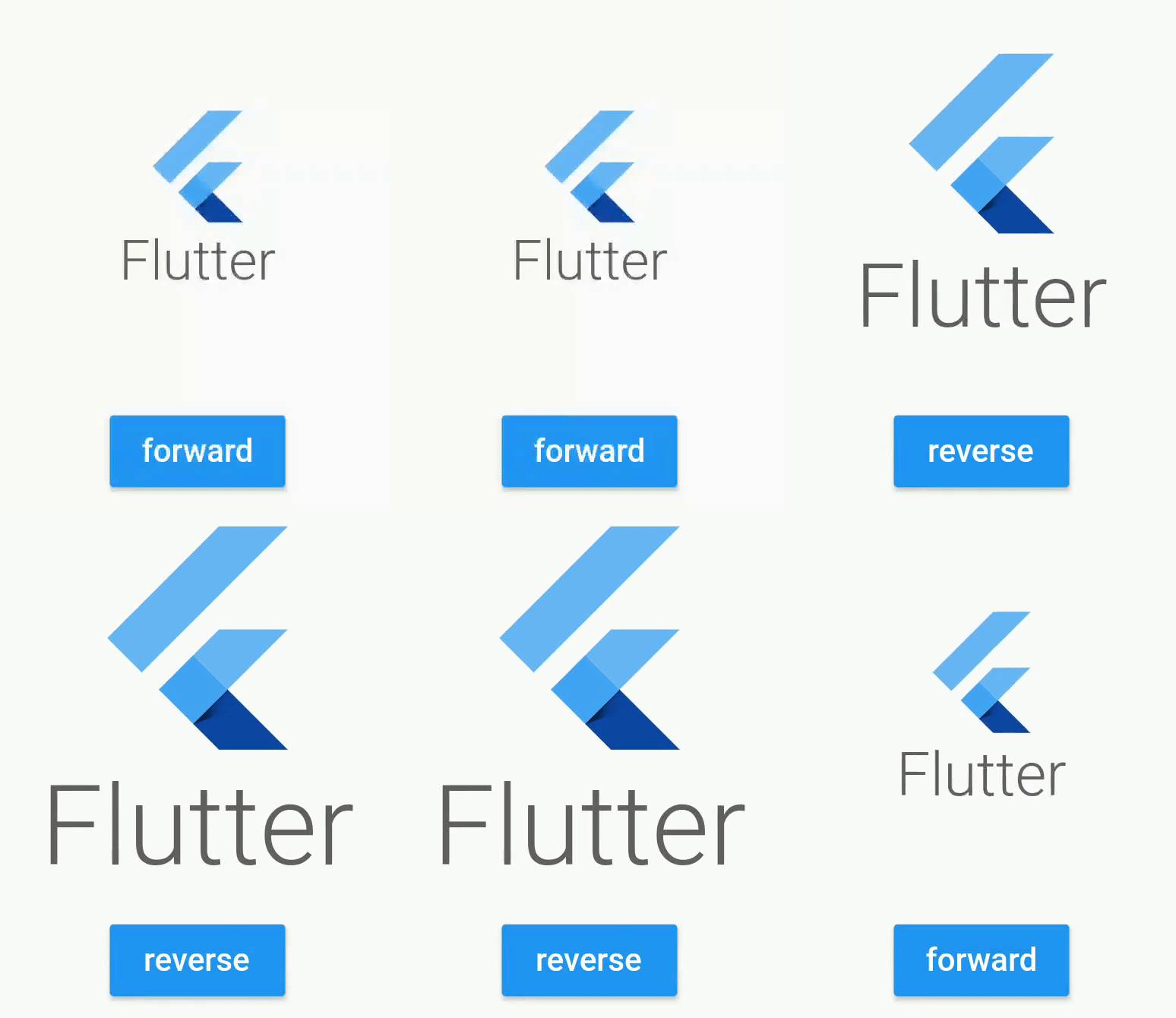
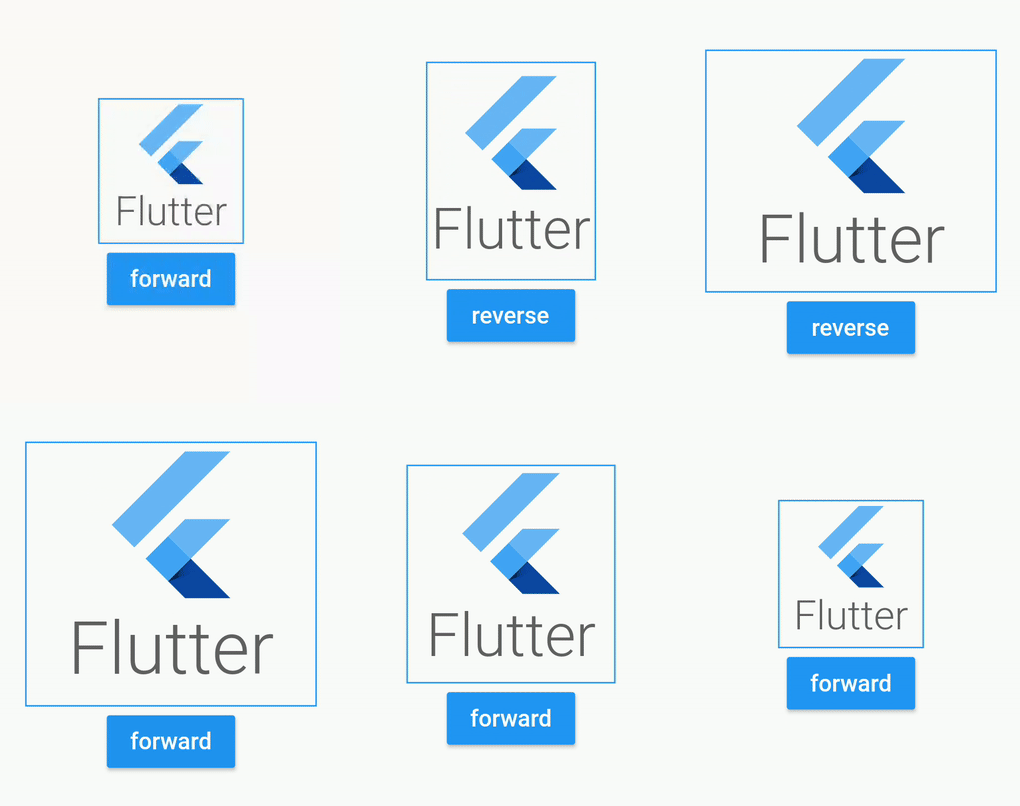
SizeAnimatedWidget(
      enabled: this._enabled,
      duration: Duration(milliseconds: 1500),
      values: [Size(100, 100),  Size(100, 150), Size(200, 150), Size(200, 200)],
      curve: Curves.linear,

      //your widget
      child: Container(
        decoration: BoxDecoration(
          border: Border.all(color: Colors.blue)
        ),
        child: FlutterLogo(
          style: FlutterLogoStyle.stacked,
        ),
      ),
    ),
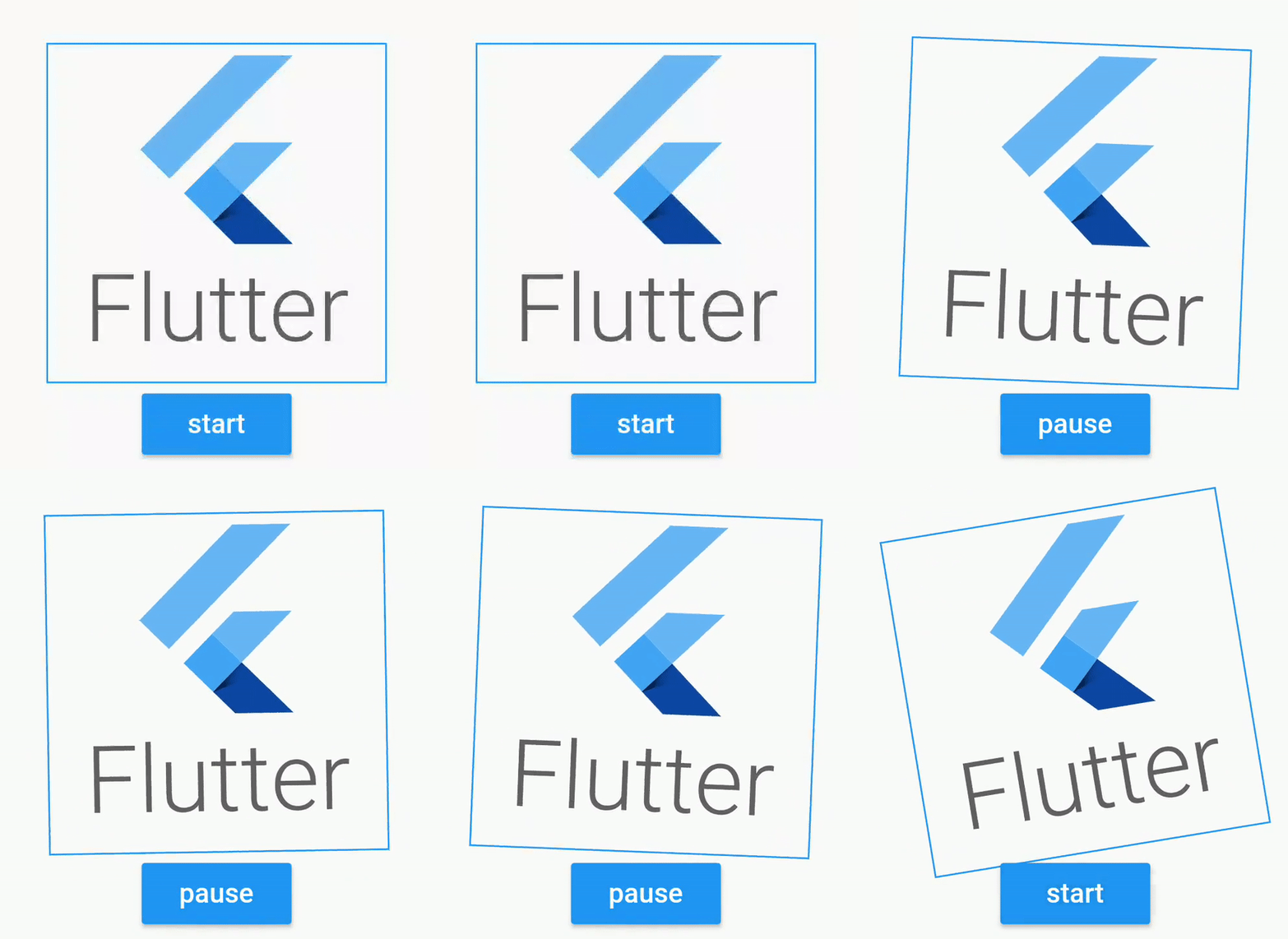
ShakeAnimatedWidget(
      enabled: this._enabled,
      duration: Duration(milliseconds: 1500),
      shakeAngle: Rotation.deg(z: 40),
      curve: Curves.linear,
      child: FlutterLogo(
        style: FlutterLogoStyle.stacked,
      ),
    ),
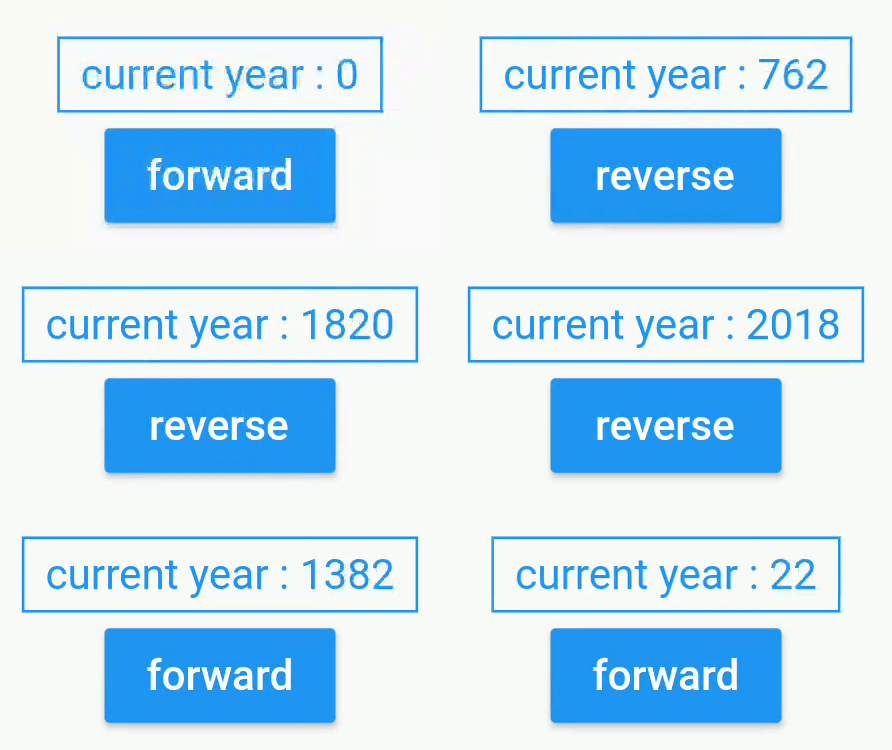
CustomAnimatedWidget(
      enabled: this._enabled,
      duration: Duration(seconds: 3),
      curve: Curves.easeOut,
      builder: (context, percent) { //for custom animation, use builders
        final int displayedDate = (2018 * percent).floor();
        return Text(
              "current year : $displayedDate",
              style: TextStyle(color: Colors.blue),
        );
      },
),
Animated widget is available at https://pub.dev/packages/animated_widgets
dependencies:
  animated_widgets:
For help getting started with Flutter, view our online documentation, which offers tutorials, samples, guidance on mobile development, and a full API reference.
Copyright 2019 florent37, Inc.

Licensed under the Apache License, Version 2.0 (the "License");
you may not use this file except in compliance with the License.
You may obtain a copy of the License at

   http://www.apache.org/licenses/LICENSE-2.0

Unless required by applicable law or agreed to in writing, software
distributed under the License is distributed on an "AS IS" BASIS,
WITHOUT WARRANTIES OR CONDITIONS OF ANY KIND, either express or implied.
See the License for the specific language governing permissions and
limitations under the License.
依存関係一覧 3 件
{"sdk":"flutter"}^2.0.8{"sdk":"flutter"}用途で絞り込み、開発状況を比較し、採用前に元のリポジトリで要件を確認しましょう。
“A repository is the most basic element of GitHub.”
GitHub Docs — About repositories ↗