

 v3.0.0
cupertino_calendar_picker
このパッケージには、iOSのデザイン原則に準拠した日付と時刻の選択をスムーズかつ視覚的に統一感を持たせるためのCupertinoスタイルのコンポーネントが含まれています。
148いいね 1.3万30日間ダウンロード160Pub ポイント
AndroidiOSWebmacOSWindowsLinux
iOSのデザイン原則に準拠した日付と時刻の選択をスムーズかつ視覚的に一貫性を持たせる、Cupertinoスタイルのコンポーネントを多数含むFlutterパッケージ。

以下は英語原文のスナップショットです。最新版は GitHub をご覧ください。
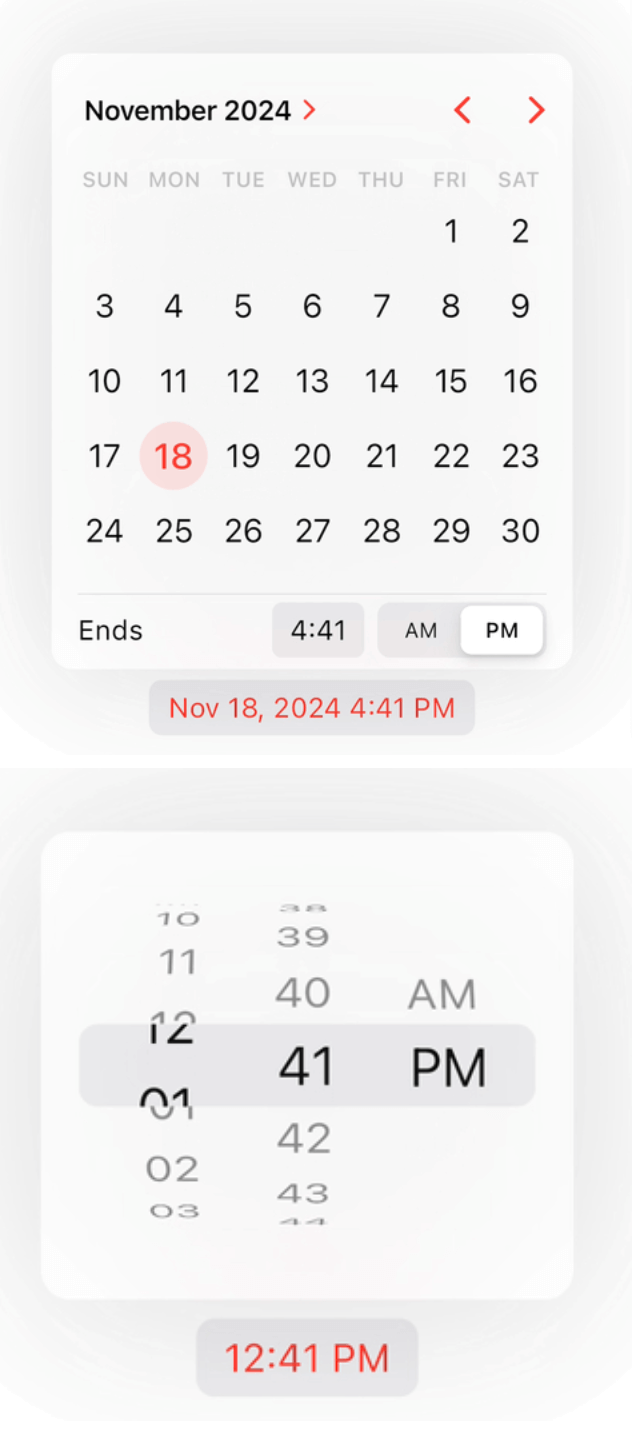
The package provides a sleek and stylish cupertino calendar widgets designed to mimic the aesthetics of iOS. With smooth animations and intuitive user interactions, it seamlessly integrates into your Flutter app to deliver a delightful user experience.

In the pubspec.yaml of your flutter project, add the following dependency:
dependencies:
  cupertino_calendar_picker: ^2.2.6
Import it:
import 'package:cupertino_calendar_picker/cupertino_calendar_picker.dart';
In your CupertinoApp or MaterialApp add the localizationsDelegates
CupertinoApp(
  localizationsDelegates: const [
    GlobalMaterialLocalizations.delegate,
    GlobalWidgetsLocalizations.delegate,
    GlobalCupertinoLocalizations.delegate,
  ],
);
This package offers three convenient widgets for integrating pickers directly into your app.
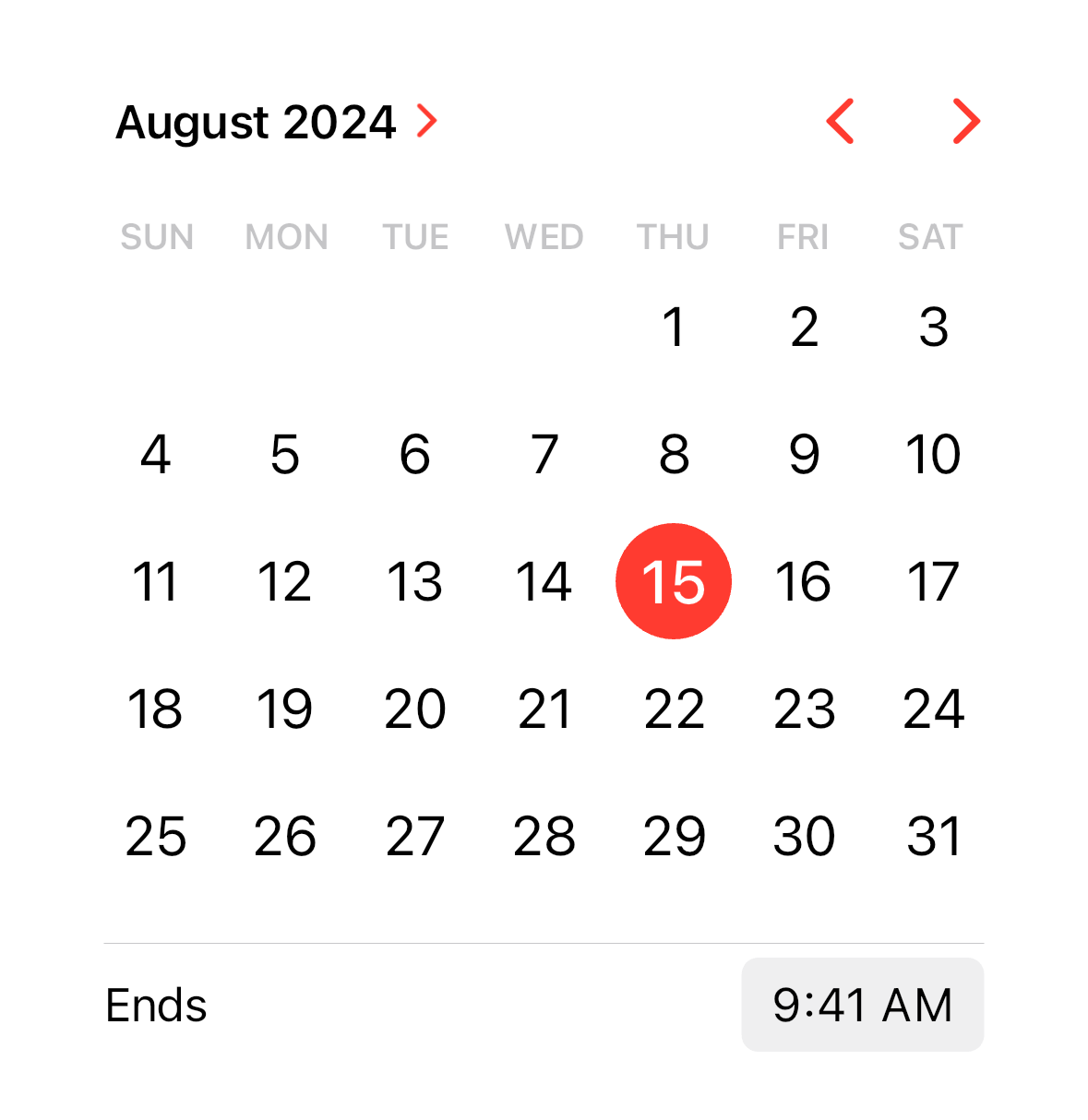
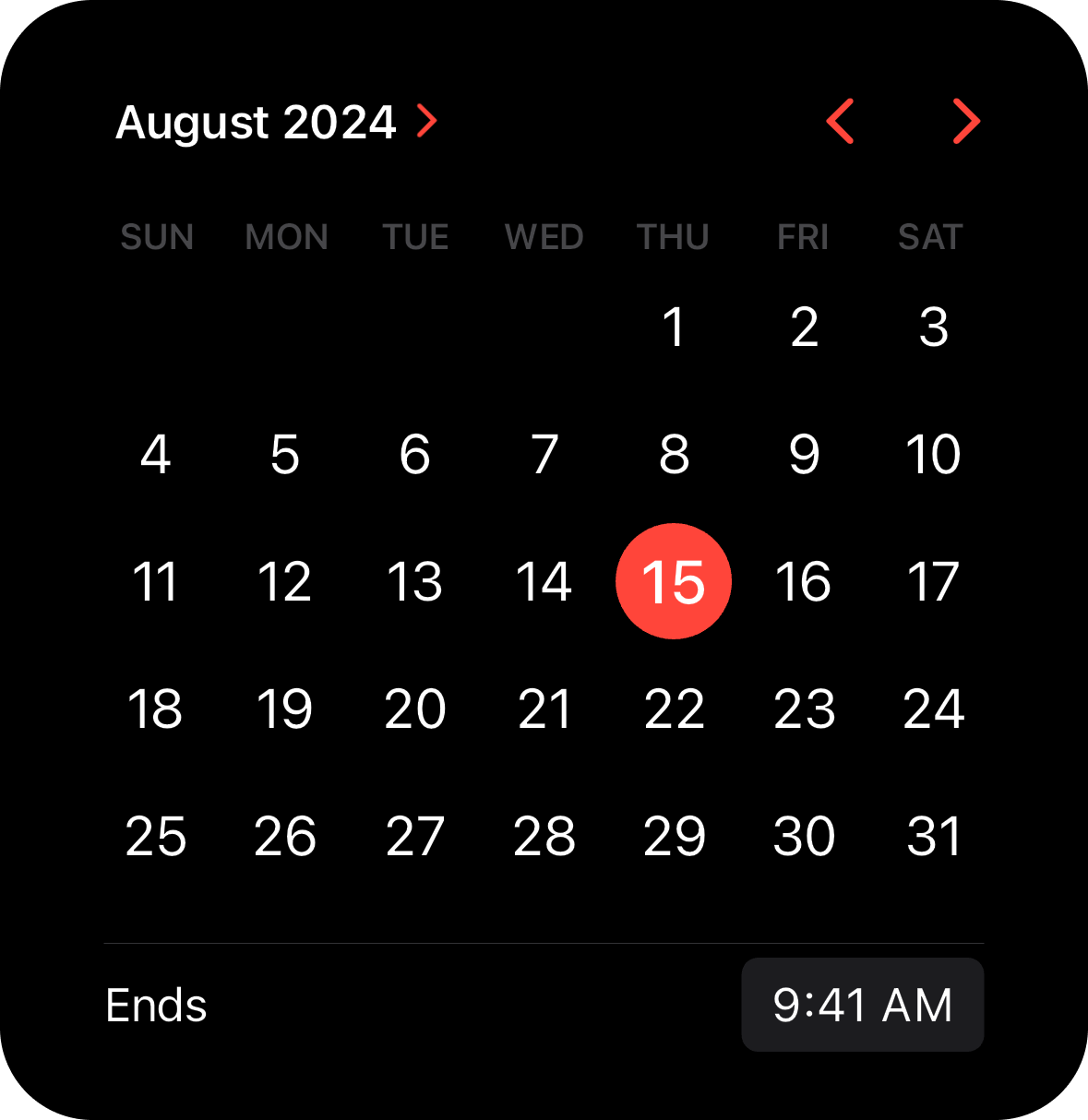
CupertinoCalendar Widget.The CupertinoCalendar widget provides an inline calendar that can be displayed directly within your screen.
SizedBox(
  width: 350,
  child: CupertinoCalendar(
    minimumDateTime: DateTime(2024, 7, 10),
    maximumDateTime: DateTime(2025, 7, 10),
    initialDateTime: DateTime(2024, 8, 15, 9, 41),
    currentDateTime: DateTime(2024, 8, 15),
    timeLabel: 'Ends',
    mode: CupertinoCalendarMode.dateTime,
  ),
),
CupertinoCalendarPickerButton Widget.The CupertinoCalendarPickerButton widget allows users to open a cupertino calendar picker when the button is pressed.
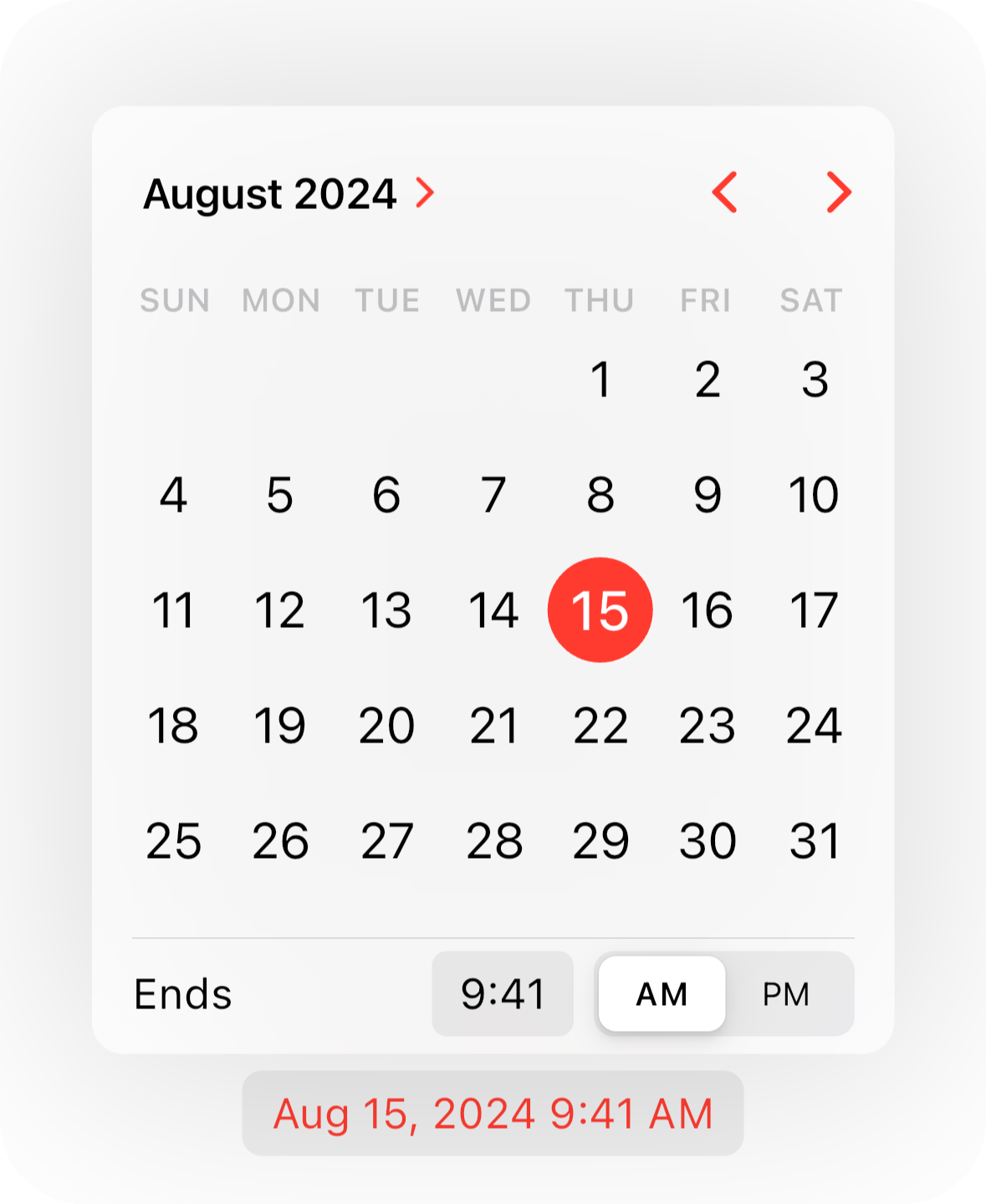
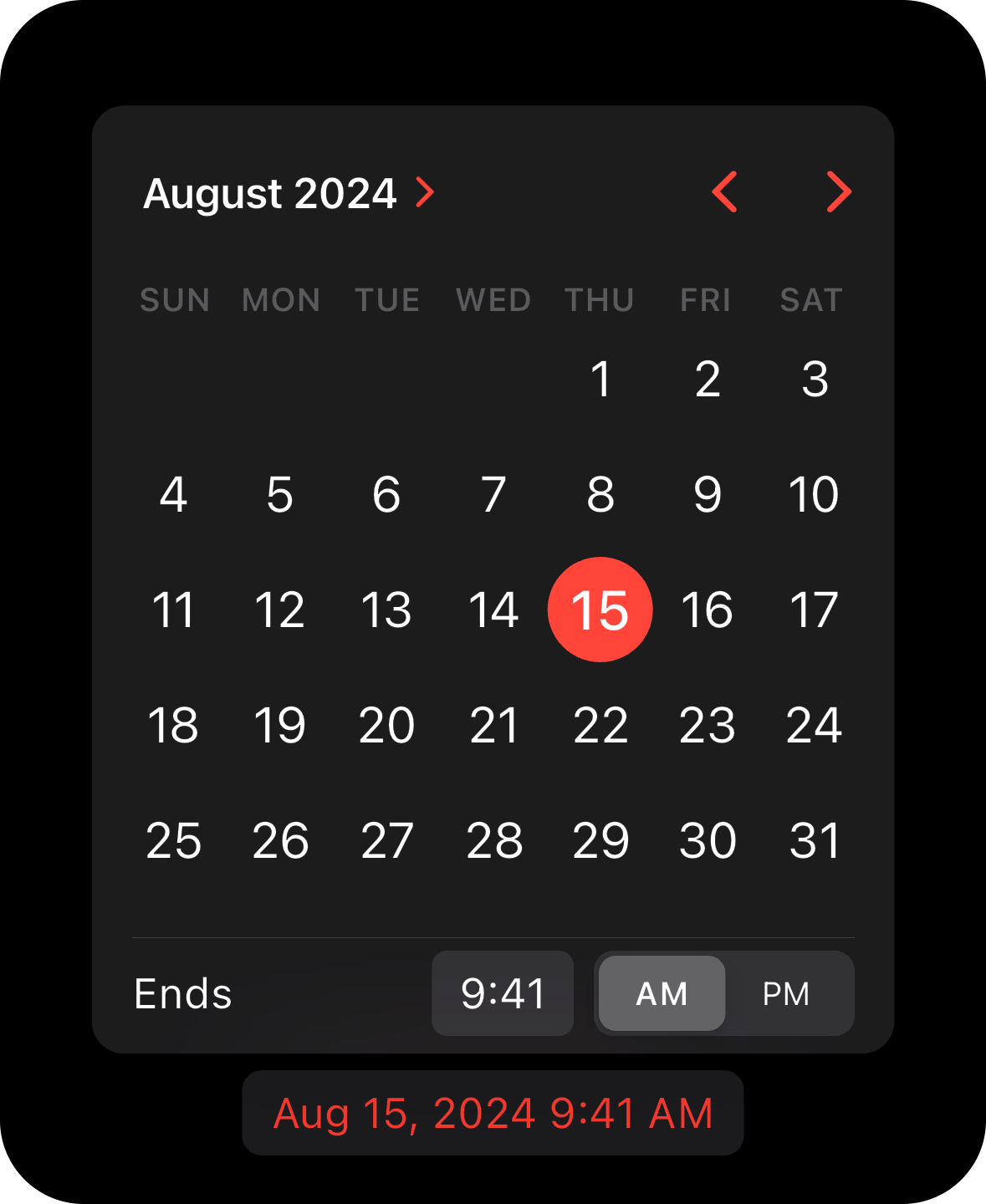
CupertinoCalendarPickerButton(
  minimumDateTime: DateTime(2024, 7, 10),
  maximumDateTime: DateTime(2025, 7, 10),
  initialDateTime: DateTime(2024, 8, 15, 9, 41),
  currentDateTime: DateTime(2024, 8, 15),
  mode: CupertinoCalendarMode.dateTime,
  timeLabel: 'Ends',
  onDateTimeChanged: (date) {},
),
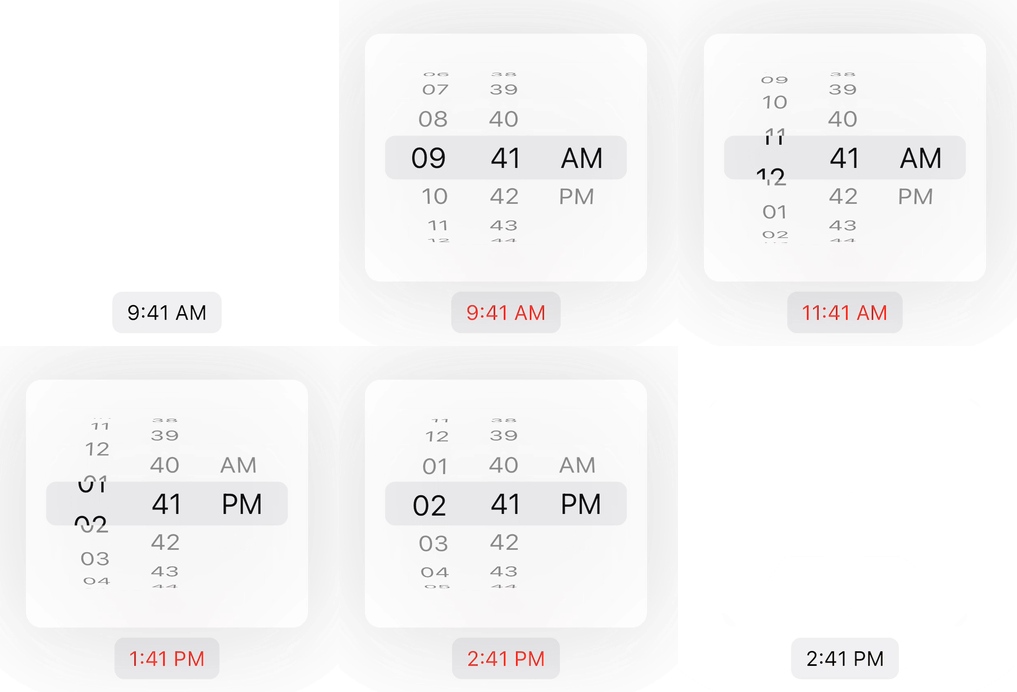
CupertinoTimePickerButton Widget.The CupertinoTimePickerButton widget lets users select a time via the calendar time picker that appears when the button is pressed.
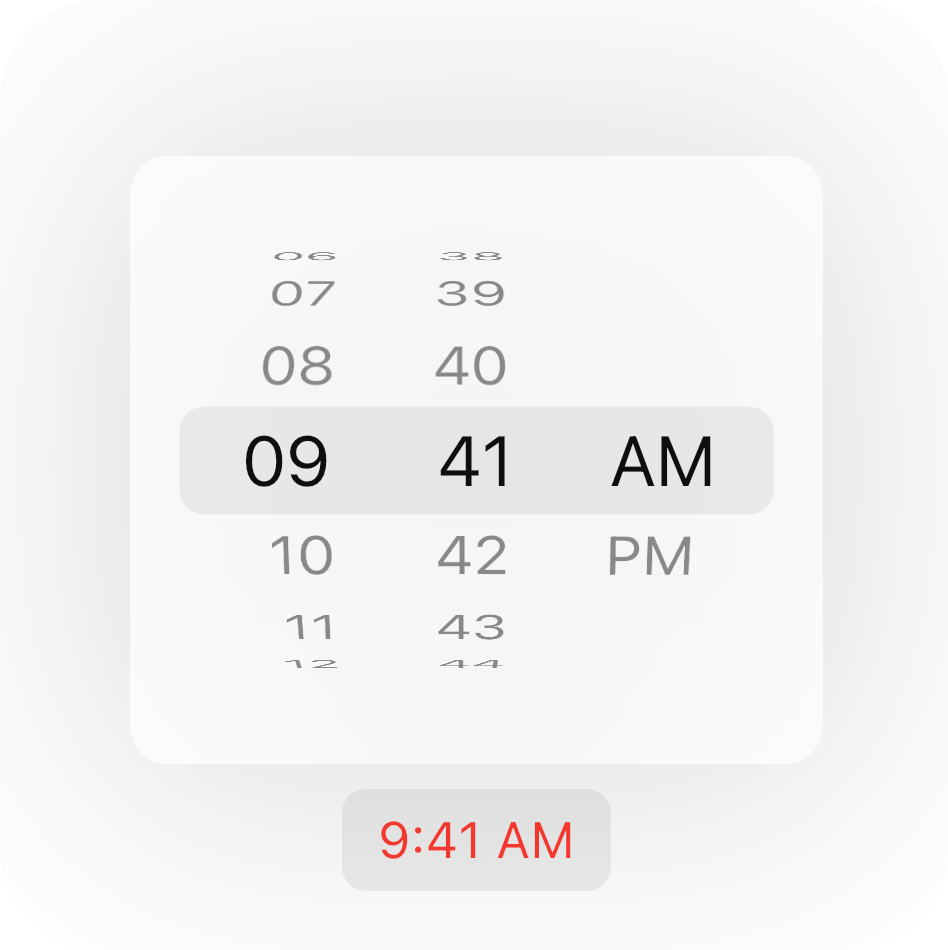
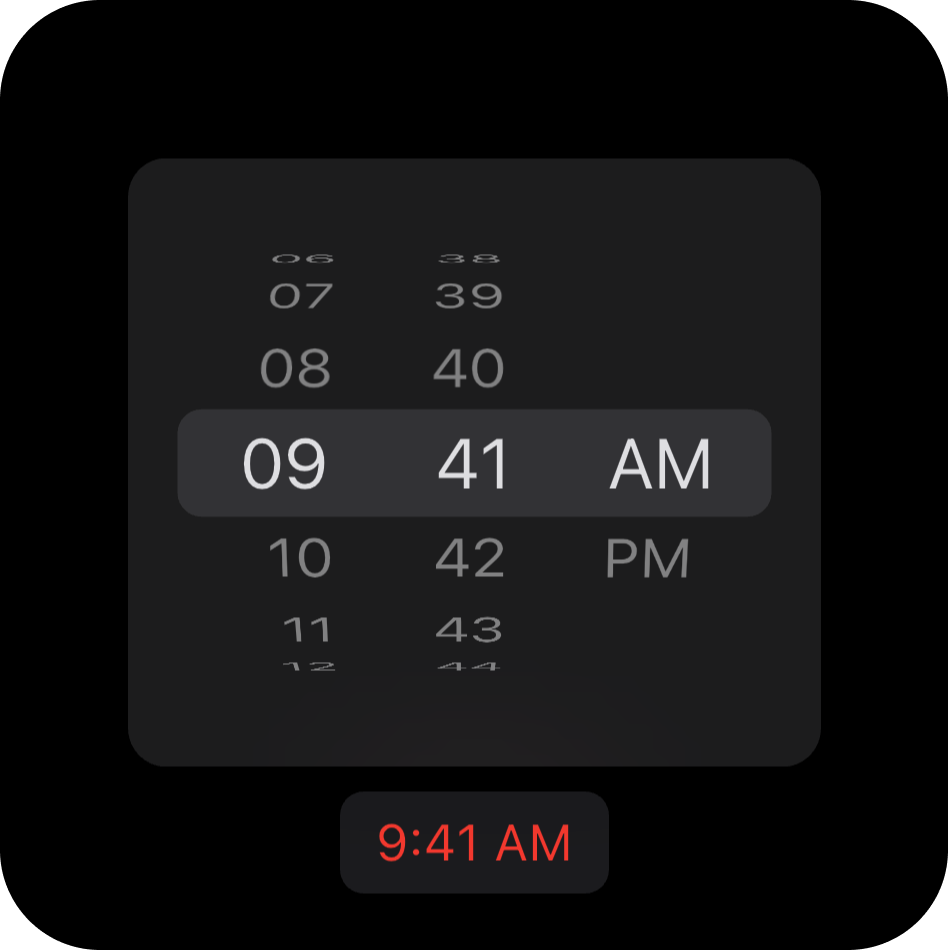
CupertinoTimePickerButton(
  initialTime: const TimeOfDay(hour: 9, minute: 41),
  onTimeChanged: (time) {},
),
This package also includes two functions for displaying pickers from your widgets.
showCupertinoCalendarPicker function.The showCupertinoCalendarPicker function displays a calendar picker around your widget.
CupertinoCalendarMode to allow selection of both date and time.Future<DateTime?> onCalendarWidgetTap(BuildContext context) async {
final RenderBox? renderBox = context.findRenderObject() as RenderBox?;
final nowDate = DateTime.now();
return showCupertinoCalendarPicker(
context,
widgetRenderBox: renderBox,
minimumDateTime: nowDate.subtract(const Duration(days: 15)),
initialDateTime: nowDate,
maximumDateTime: nowDate.add(const Duration(days: 360)),
mode: CupertinoCalendarMode.dateTime,
timeLabel: 'Ends',
onDateTimeChanged: (dateTime) {},
);
}
You can add actions to the calendar picker by passing a list of CupertinoCalendarAction objects.
The package provides two built-in actions: CancelCupertinoCalendarAction and ConfirmCupertinoCalendarAction.
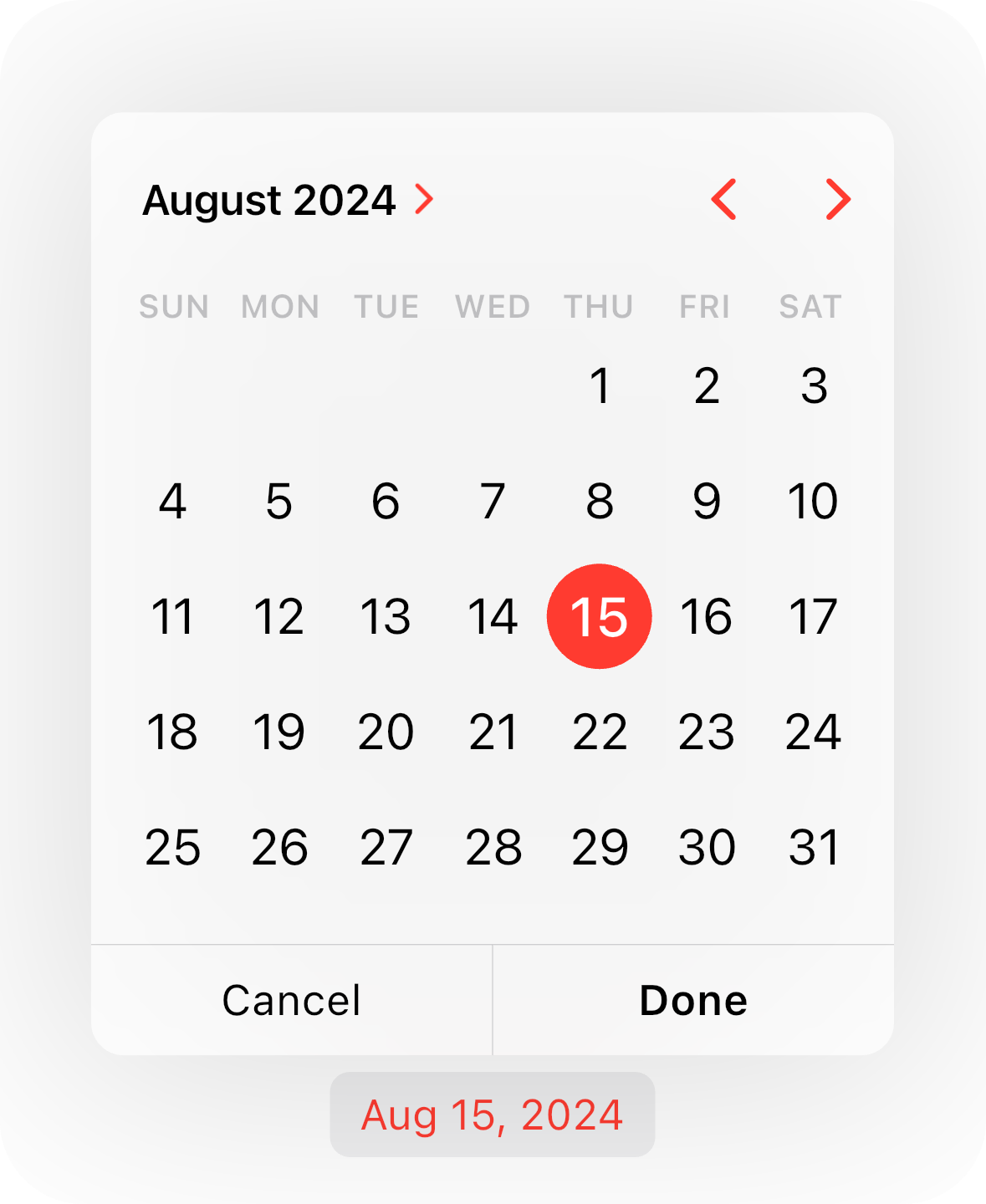
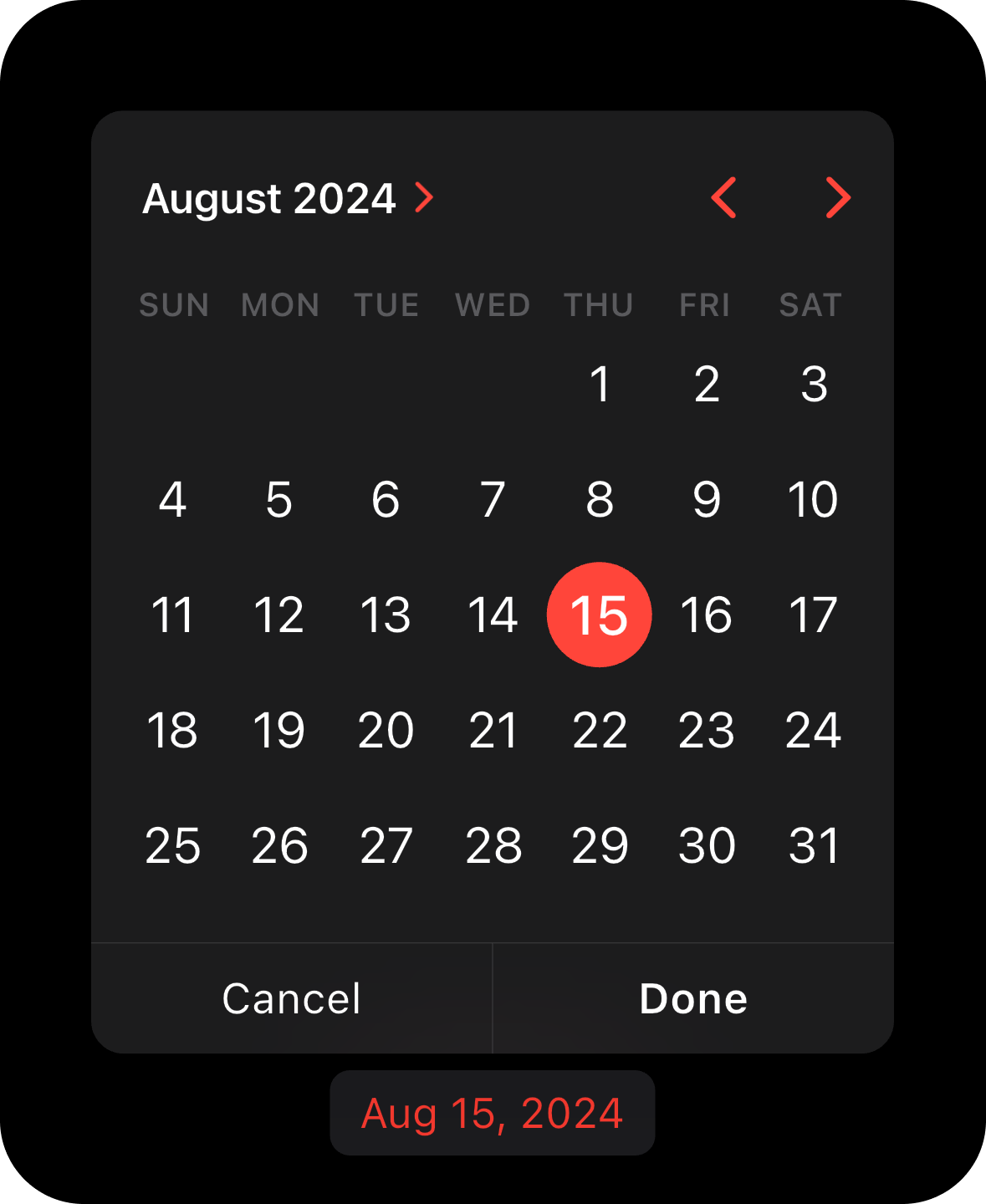
Future<DateTime?> onCalendarWidgetTap(BuildContext context) async {
  final RenderBox? renderBox = context.findRenderObject() as RenderBox?;
  final nowDate = DateTime.now();

  return showCupertinoCalendarPicker(
    context,
    widgetRenderBox: renderBox,
    minimumDateTime: nowDate.subtract(const Duration(days: 15)),
    initialDateTime: nowDate,
    maximumDateTime: nowDate.add(const Duration(days: 360)),
    timeLabel: 'Ends',
    actions: [
      CancelCupertinoCalendarAction(
        label: 'Cancel',
        onPressed: () {},
      ),
      ConfirmCupertinoCalendarAction(
        label: 'Done',
        isDefaultAction: true,
        onPressed: (dateTime) {},
      ),
    ],
  );
}
[!NOTE] Works only when the calendar is in the
CupertinoCalendarType.compactmode.
showCupertinoTimePicker function.The showCupertinoTimePicker function shows a time picker around your widget.
Future<TimeOfDay?> onTimeWidgetTap(BuildContext context) async {
  final RenderBox? renderBox = context.findRenderObject() as RenderBox?;

  return showCupertinoTimePicker(
    context,
    widgetRenderBox: renderBox,
    onTimeChanged: (time) {},
  );
}
Call the showCupertinoCalendarPicker passing date constrains and widget's RenderBox of the widget above/below which you wish to display the calendar.
@override
Widget build(BuildContext context) {
  return CupertinoApp(
    localizationsDelegates: const [
      GlobalMaterialLocalizations.delegate,
      GlobalWidgetsLocalizations.delegate,
      GlobalCupertinoLocalizations.delegate,
    ],
    home: CupertinoPageScaffold(
      child: Builder(
        builder: (context) {
          /// Passing exactly this `BuildContext` is mandatory here to
          /// get the `RenderBox` of the appropriate widget.
          return YourWidget(
            onTap: () => onTap(context),
          );
        },
      ),
    ),
  );
}

/// The `BuildContext` comes from the `Builder` above the widget tree.
Future<void> onTap(BuildContext context) {
  final renderBox = context.findRenderObject() as RenderBox?;
  final nowDate = DateTime.now();

  return showCupertinoCalendarPicker(
    context,
    widgetRenderBox: renderBox,
    minimumDate: nowDate.subtract(const Duration(days: 15)),
    initialDate: nowDate,
    maximumDate: nowDate.add(const Duration(days: 360)),
  );
}
RenderBox?There are 3 simple ways of how you can get the widget's render box to pass it to the showCupertinoCalendarPicker or showCupertinoTimePicker function.
You can choose any of these.
Builder widget.Builder(
builder: (context) {
return YourWidget(
onTap: () => onTap(context),
);
},
);
Future<void> onTap(BuildContext context) {
/// And here you can get the `RenderBox` of your widget
/// using the `Builder`s `BuildContext`
final renderBox = context.findRenderObject() as RenderBox?;
return showCupertinoCalendarPicker(...);
}
GlobalKey.final globalKey = GlobalKey();
@override
Widget build(BuildContext context) {
return CupertinoApp(
localizationsDelegates: const [
GlobalMaterialLocalizations.delegate,
GlobalWidgetsLocalizations.delegate,
GlobalCupertinoLocalizations.delegate,
],
home: CupertinoPageScaffold(
child: YourWidget(
key: globalKey,
onTap: onTap,
),
),
);
}
Future<void> onTap(BuildContext context) {
/// And here you can get the `RenderBox` of your widget using the `GlobalKey`.
final renderBox = globalKey.currentContext?.findRenderObject() as RenderBox?;
return showCupertinoCalendarPicker(...);
}
BuildContext directly from your widget's build method.class YourWidget extends StatelessWidget {
const YourWidget({
required this.onTap,
});
final void Function(BuildContext context) onTap;
@override
Widget build(BuildContext context) {
return GestureDetector(
onTap: () => onTap(context),
child: ...,
);
}
}
Future<void> onTap(BuildContext context) {
/// And here you can get the `RenderBox` of your widget's `build` method.
final renderBox = context.findRenderObject() as RenderBox?;
return showCupertinoCalendarPicker(...);
}
依存関係一覧 6 件
^1.0.8{"sdk":"flutter"}{"sdk":"flutter"}>=0.19.0 <0.21.0^5.0.0{"sdk":"flutter"}用途で絞り込み、開発状況を比較し、採用前に元のリポジトリで要件を確認しましょう。
“A repository is the most basic element of GitHub.”
GitHub Docs — About repositories ↗