

 v1.0.2
animated_icon_button
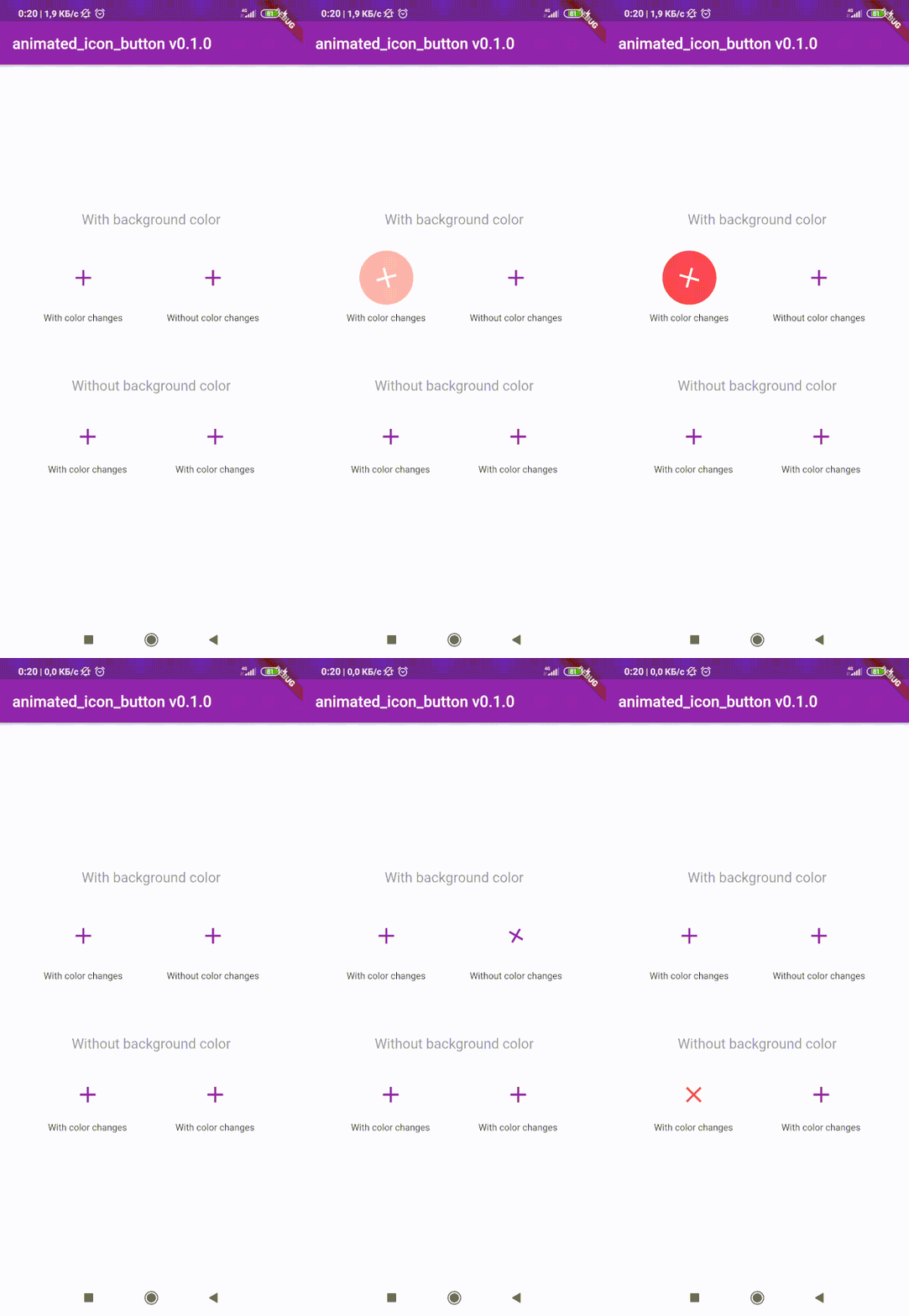
사용자 정의 애니메이션 IconButton를 생성하기 위한 Flutter 패키지입니다. 사용 가능한 모든 아이콘을 포함하고 있으며, 기본 IconButton 기반입니다.
295좋아요 2만30일 다운로드160Pub 점수
AndroidiOSWebmacOSWindowsLinux
:rainbow: 사용자 정의 애니메이션 IconButton를 만들기 위한 Flutter 패키지입니다. 모든 사용 가능한 아이콘을 포함합니다.

아래는 영문 원문 스냅샷입니다. 최신 내용은 GitHub에서 확인하세요.
😵 Includes all available icons. Based on native IconButton.


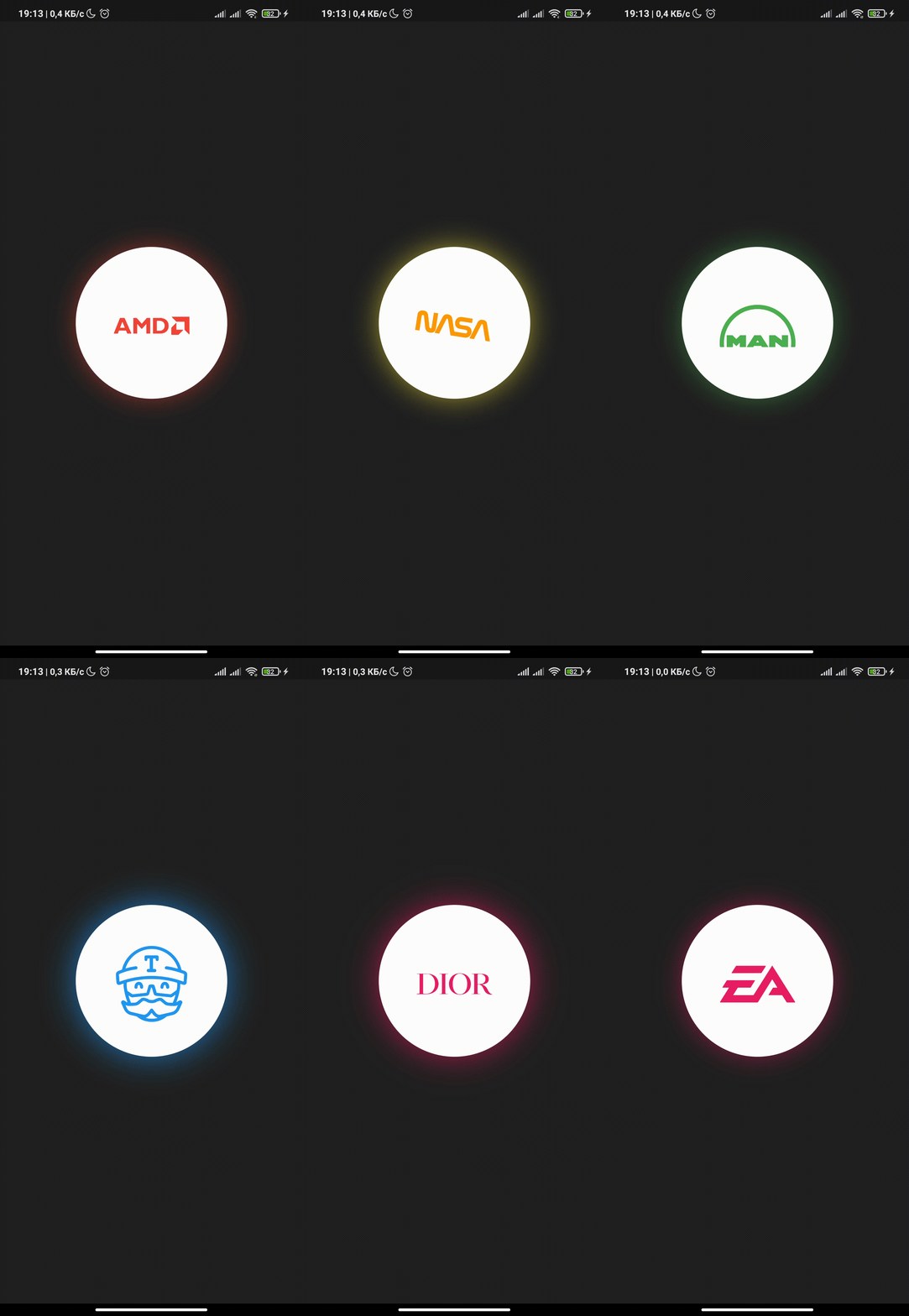
After 1.0.2 version you can use multiple icons.
Follow these steps to use this library
dependencies:
  animated_icon_button: ^1.0.2 #latest version
import 'package:animated_icon_button/animated_icon_button.dart';
Simple example of use AnimatedIconButton
Put this code in your project at an screen and wait for magic 😊
    AnimatedIconButton(
        onPressed: () => print('all icons pressed'),
        icons: [
            AnimatedIconButtonEntry(
                icon: Icon(Icons.add),
                onPressed: () => print('add pressed'),
            ),
            AnimatedIconButtonEntry(
                icon: Icon(Icons.close),
            ),
        ],
    ),
Now you can use more than 2 icons Add new icons to your list and they will change one by one
    AnimatedIconButton(
        size: 35,
        onPressed: () {
            print('all icons pressed');
        },
        duration: const Duration(milliseconds: 200),
        icons: <AnimatedIconButtonEntry>[
            AnimatedIconButtonEntry(
                icon: Icon(
                    Icons.mic,
                    color: Colors.purple,
                ),
                onPressed: () => print('mic pressed'),
                backgroundColor: Colors.white,
            ),
            AnimatedIconButtonEntry(
                icon: Icon(
                    Icons.g_translate,
                    color: Colors.purple,
                ),
                backgroundColor: Colors.white,
            ),
            AnimatedIconButtonEntry(
                icon: Icon(
                    Icons.collections_sharp,
                    color: Colors.purple,
                ),
                backgroundColor: Colors.white,
            ),
        ],
    ),
In order to animate your icons in a custom way, like on text changed or when pressing a button, just use the animationController property as follows.
    var animationController = AnimationController(
        vsync: this,
        duration: Duration(milliseconds: 200),
        reverseDuration: Duration(milliseconds: 200),
    );

    AnimatedIconButton(
        animationController: animationController,
        size: 35,
        onPressed: () {
            print('all icons pressed');
        },
        duration: const Duration(milliseconds: 200),
        icons: <AnimatedIconButtonEntry>[
            AnimatedIconButtonEntry(
                icon: Icon(
                    Icons.mic,
                    color: Colors.purple,
                ),
                onPressed: () => print('mic pressed'),
                backgroundColor: Colors.white,
            ),
            AnimatedIconButtonEntry(
                icon: Icon(
                    Icons.g_translate,
                    color: Colors.purple,
                ),
                backgroundColor: Colors.white,
            ),
            AnimatedIconButtonEntry(
                icon: Icon(
                    Icons.collections_sharp,
                    color: Colors.purple,
                ),
                backgroundColor: Colors.white,
            ),
        ],
    ),
Then, whenever you want, execute your animationController.forward() and animationController.reverse() methods to get your icons animated.
Don't forget when you use this property duration is not used, so it can be emitted.
의존성 목록 5 개
{"sdk":"flutter"}—^1.11.5{"sdk":"flutter"}—사용 목적에 따라 검색하고 개발 활동을 비교한 뒤 원본 저장소에서 요구 사항을 확인하세요.
“A repository is the most basic element of GitHub.”
GitHub Docs — About repositories ↗