
v6.1.5+1
provider
InheritedWidget를 둘러싸는 래퍼로, 사용하기 쉽게 하고 재사용 가능하게 만듭니다.
1.1만좋아요 110만30일 다운로드150Pub 점수
AndroidiOSWebmacOSWindowsLinux
Windows Subsystem for Android (WSA)용 GUI 패키지 관리자 및 패키지 설치 프로그램

InheritedWidget를 둘러싸는 래퍼로, 사용하기 쉽게 하고 재사용 가능하게 만듭니다.
 v4.16.1
Flutter에서 마이크로소프트의 Windows 사용자 인터페이스를 구현합니다.
 v0.1.6
Flutter 데스크톱에서 사용자 정의 창(사용자 정의 테두리, 제목 표시줄 및 최소화/최대화/닫기 버튼)을 만들고 Windows 및 macOS용 일반적인 데스크톱 창 작업(화면에 표시/숨기기/위치)을 도와주는 패키지
FFI를 사용하여 Dart에서 일반적인 Windows API를 직접 호출합니다.
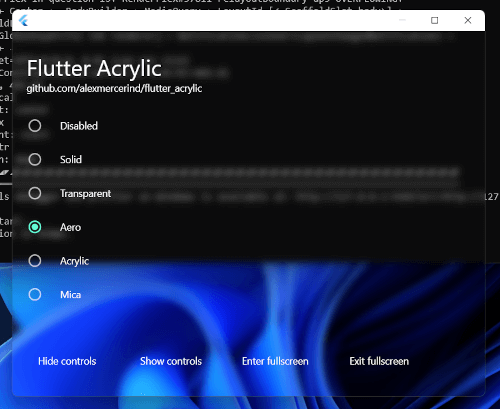 v1.1.4
Flutter용 Windows, macOS 및 Linux의 윈도우 아크릴, 미카 및 투명 효과.
프로토콜 버퍼 지원을 위한 런타임 라이브러리입니다. '.proto' 파일용 Dart 코드를 생성하려면 package:protoc_plugin와 함께 사용하세요.
zip, tar, bzip2, gzip 및 zlib과 같은 다양한 아카이브 및 압축 형식에 대한 인코더와 디코더를 제공합니다.
비동기 코드에 대한 동시 액세스를 방지하기 위한 잠금 메커니즘입니다.
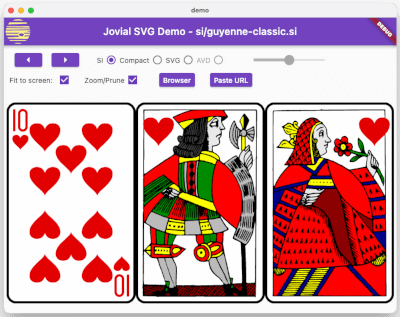 v1.1.31
SVG - 확장 가능한 벡터 그래픽 이미지의 강력한 렌더링을 지원하며, 명확하게 정의된 SVG 프로파일과 빠르게 로드되는 이진 저장 형식, 애니메이션을 모두 지원합니다.
YAML을 위한 파서, 인간 친화적인 데이터 직렬화 표준
시스템의 강조 색상을 검색하고 듣기 위한 플러터 플러그인입니다. 안드로이드, iOS, 웹, 윈도우, 맥OS 및 리눅스를 지원합니다.
문자 집합 인코딩 및 디코딩 라이브러리로, iso-(2-15), windows 시리즈, gbk, euc-jp, euc-kr, shift-jis를 포함합니다. 또한 문자 집합 감지, canEncode, canDecode를 지원합니다.
{"sdk":"flutter"}{"sdk":"flutter"}3.12.0^2.1.2^3.0.0^6.0.02.0.0{"git":{"url":"https://github.com/alesimula/bitsdojo_window.git","path":"bitsdojo_window","ref":"master"}}{"git":"https://github.com/alesimula/dyn_mouse_scroll.git"}^1.0.0+2^0.2.0^3.1.0{"git":"https://github.com/brendan-duncan/archive.git"}{"git":"https://github.com/alesimula/jovial_svg.git"}^2.0.0^5.0.0-nullsafety.0^3.0.0^2.1.1^0.1.1{"sdk":"flutter"}^1.0.4아래는 영문 원문 스냅샷입니다. 최신 내용은 GitHub에서 확인하세요.
Installer
A GUI package manager and package installer for Windows Subsystem for Android (WSA).
Currently provides a double-click GUI installer for .apk and .xapk files that shows app information (package, icon, version and permissions), allows normal installations as well as upgrades and downgrades.
The app additionally provides a button to open Android settings and one to open the "Manage Applications" Android settings page, from which you can uninstall or disable applications and grant or revoke permissions
Q: WSA PacMan is always showing the Offline status, why is that?
A: First things first make sure WSA is installed (duh); Open the 'Windows Subsystem for Android™ Settings' app, in the Developer tab and make sure the 'Developer mode' switch is enabled; inside manage developer settings, make sure the 'USB debugging' option is enabled.
Should all of the above fail, try following this procedure; make sure to check the 'always allow' option.
Q: Can I use WSA PacMan on older versions of Windows (eg. Windows 10)?
A: WSA PacMan depends on Windows Subsystem for Linux, which is only officially supported on Windows 11.
However, you may be able to install WSA on Windows 10 using this project by JimDude7404 and following the step-by-step guide on the GitHub page.
Q: Can i install the Play Store?
A: The play store is not officially supported on WSA, and at the moment it is only possible to install it using an unofficial WSA build. I recommend installing the Aurora Store instead, which is an unofficial Play Store client; but if you really want the Play Store and other Google apps, check out this project.
Installing Installed Downgrade Main screen Settings