
 v0.1.6
flutter_image_slideshow
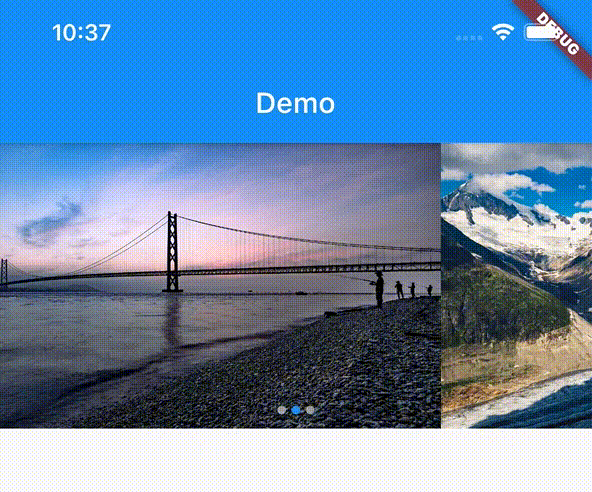
간단한 이미지 슬라이드쇼 위젯입니다. 주로 이미지 위젯용이지만 다른 위젯도 사용할 수 있습니다.
202좋아요 7.1천30일 다운로드160Pub 점수
AndroidiOSWebmacOSWindowsLinux
간단한 이미지 슬라이드쇼 위젯입니다. 주로 이미지 위젯용이지만 다른 위젯도 사용할 수 있습니다.
아래는 영문 원문 스냅샷입니다. 최신 내용은 GitHub에서 확인하세요.
A simple image slideshow widget. Mainly intended for image widget, but other widgets can also be used.

In the pubspec.yaml of your flutter project, add the following dependency:
dependencies:
  flutter:
    sdk:
  flutter_image_slideshow: any
In your library add the following import:
import 'package:flutter_image_slideshow/flutter_image_slideshow.dart';
These are The ImageSlideshow properties.
/// The widgets to display in the [ImageSlideshow].
///
/// Mainly intended for image widget, but other widgets can also be used.
List<Widget> children

/// Width of the [ImageSlideshow].
double width

/// Height of the [ImageSlideshow].
double height

/// The page to show when first creating the [ImageSlideshow].
int initialPage

/// The color to paint the indicator.
Color indicatorColor

/// The color to paint behind th indicator.
Color indicatorBackgroundColor

/// Called whenever the page in the center of the viewport changes.
ValueChanged<int> onPageChanged

/// Auto scroll interval.
///
/// Do not auto scroll with null or 0.
int autoPlayInterval

/// Loops back to first slide.
bool isLoop

/// Radius of circle indicator.
double indicatorRadius

/// Disable page changes by the user.
bool disableUserScrolling
Create the ImageSlideshow widget. And pass the parameters.
import 'package:flutter/material.dart';
import 'package:flutter_image_slideshow_test/flutter_image_slideshow.dart';

void main() {
  runApp(MyApp());
}

class MyApp extends StatelessWidget {
  @override
  Widget build(BuildContext context) {
    return MaterialApp(
      home: Scaffold(
        appBar: AppBar(
          title: Text('Demo'),
        ),
        body: ImageSlideshow(

          /// Width of the [ImageSlideshow].
          width: double.infinity,

          /// Height of the [ImageSlideshow].
          height: 200,

          /// The page to show when first creating the [ImageSlideshow].
          initialPage: 0,

          /// The color to paint the indicator.
          indicatorColor: Colors.blue,

          /// The color to paint behind th indicator.
          indicatorBackgroundColor: Colors.grey,

          /// The widgets to display in the [ImageSlideshow].
          /// Add the sample image file into the images folder
          children: [
            Image.asset(
              'images/sample_image_1.jpg',
              fit: BoxFit.cover,
            ),
            Image.asset(
              'images/sample_image_2.jpg',
              fit: BoxFit.cover,
            ),
            Image.asset(
              'images/sample_image_3.jpg',
              fit: BoxFit.cover,
            ),
          ],

          /// Called whenever the page in the center of the viewport changes.
          onPageChanged: (value) {
            print('Page changed: $value');
          },

          /// Auto scroll interval.
          /// Do not auto scroll with null or 0.
          autoPlayInterval: 3000,

          /// Loops back to first slide.
          isLoop: true,
        ),
      ),
    );
  }
}

의존성 목록 3 개
{"sdk":"flutter"}{"sdk":"flutter"}^1.19.2사용 목적에 따라 검색하고 개발 활동을 비교한 뒤 원본 저장소에서 요구 사항을 확인하세요.
“A repository is the most basic element of GitHub.”
GitHub Docs — About repositories ↗