Package selection guidance compiled from public package information, community data, and project usage.
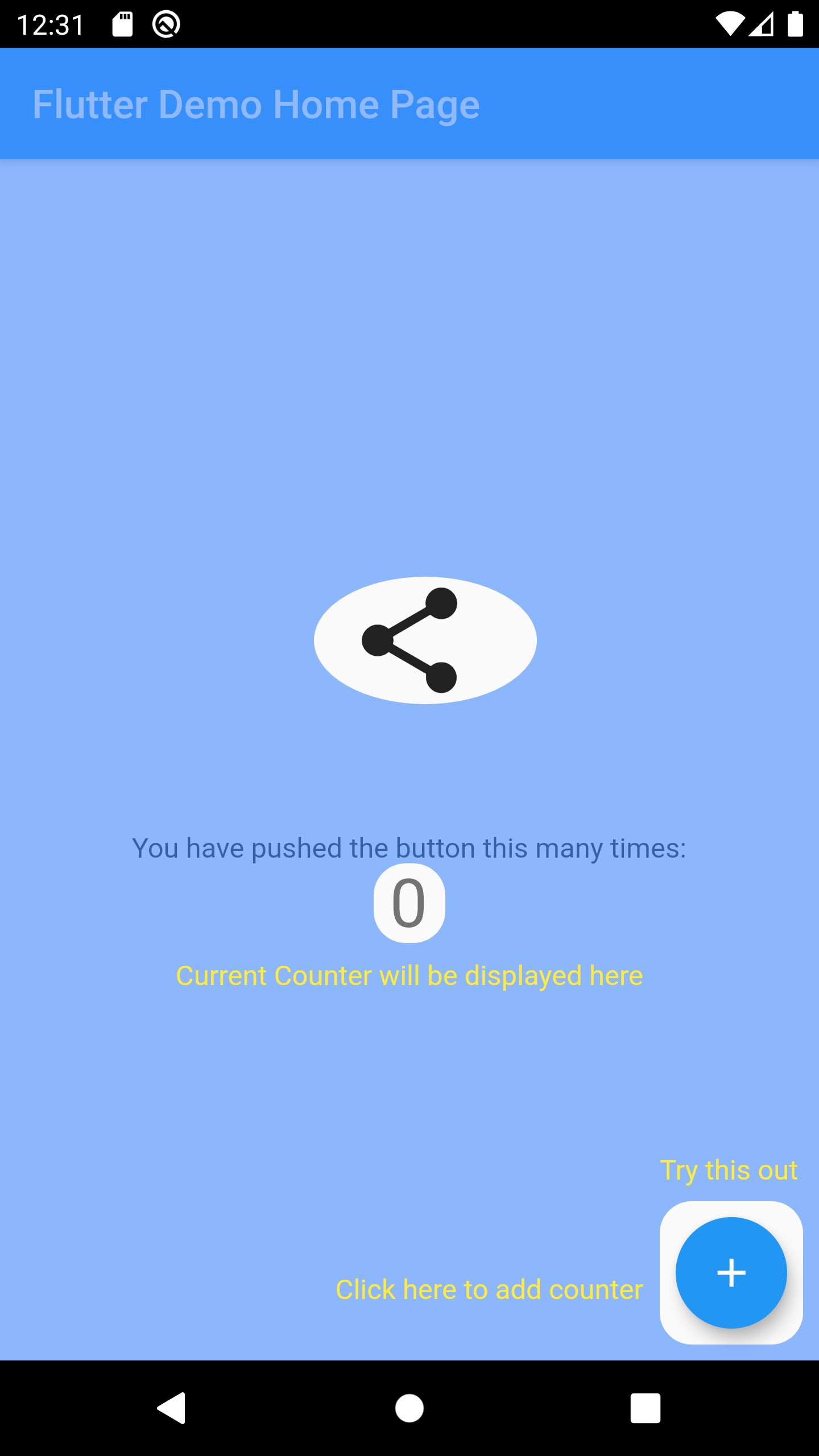
OverlayTutorial is a Flutter package designed to guide users through app features by highlighting specific widgets with a cut-out overlay. It enables developers to display interactive hints next to the highlighted area, improving onboarding and user engagement. The package supports multiple platforms including Android, iOS, Web, macOS, Windows, and Linux, making it versatile for cross-platform applications. With simple integration via pub add, it enhances feature discovery without disrupting the UI.
Use cases
Onboarding new users
Highlighting key UI elements
Guiding users through complex workflows
Improving app usability
Introducing new features
Educating users on app functionality
Key features
Cut-out hole over target widget
Customizable hint placement
Cross-platform support
Easy integration with pub
Configurable overlay appearance
Supports multiple platform targets
Suitable for
App onboarding flows
Feature discovery tools
User education interfaces
Mobile and web applications
UX improvement projects
Interactive tutorials
Considerations
May require careful positioning for optimal UX
Performance impact with many overlays
Limited customization beyond basic styling
Depends on correct widget hierarchy
Not suitable for static documentation
Requires testing across all target platforms
Original README
Original README snapshot from the linked source repository. Visit the repository for the latest content.
overlay_tutorial
A Flutter package for displaying overlay tutorial.
Feature
Allow to display an overlay tutorial with hole cropping.
Allow to display hint aside hole.
Allow to customize hole shape.
Usage
Wrap the widget that you want to create a hole using OverlayTutorialHole. Ensure you have OverlayTutorialScope as a parent of these holes.
Use OverlayTutorialScope.enabled property to control the visibility of the overlay tutorial. If this is false, the entire overlay tutorial will be hidden.
Use OverlayTutorialHole.enabled property to control the visibility of the holes.
OverlayTutorialCustomShapeEntry allows to draw a customized shape
Disabling Widget
Disabling widget is not provided by this package out of the box. You can achieve this using one of the Flutter widget: AbsorbPointer or IgnorePointer. Make sure you do not wrap the OverlayTutorialScope with these widgets as this will disable the widget in OverlayTutorialWidgetHint.