
 v1.1.1
flutter_staggered_animations
轻松为您的 ListView、GridView、Column 和 Row 子项添加交错动画,如 Material Design 指南所示
2190喜欢 15.5万近 30 天下载160Pub 分数
AndroidiOSWebmacOSWindowsLinux
Laser Slides 是一个简单而强大的跨平台应用程序,支持 OSC(开放声音控制),允许用户通过平板设备操控 BEYOND 软件中的激光幻灯片。
 v1.1.1
轻松为您的 ListView、GridView、Column 和 Row 子项添加交错动画,如 Material Design 指南所示
 v2.0.10
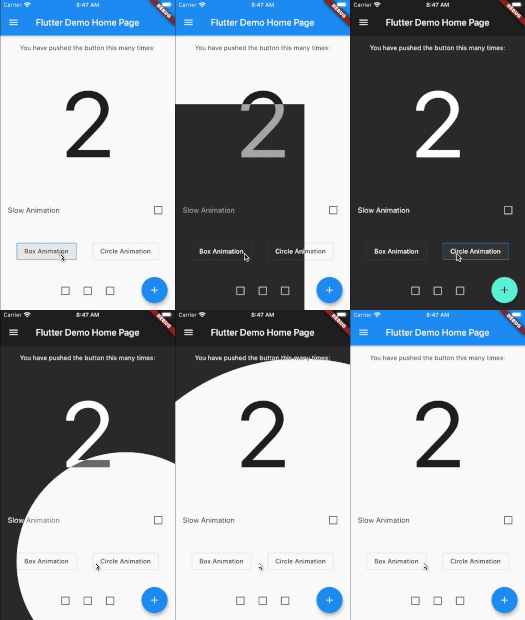
Flutter 动画主题切换器,可帮助创建美观的主题切换动画。
 v1.3.0
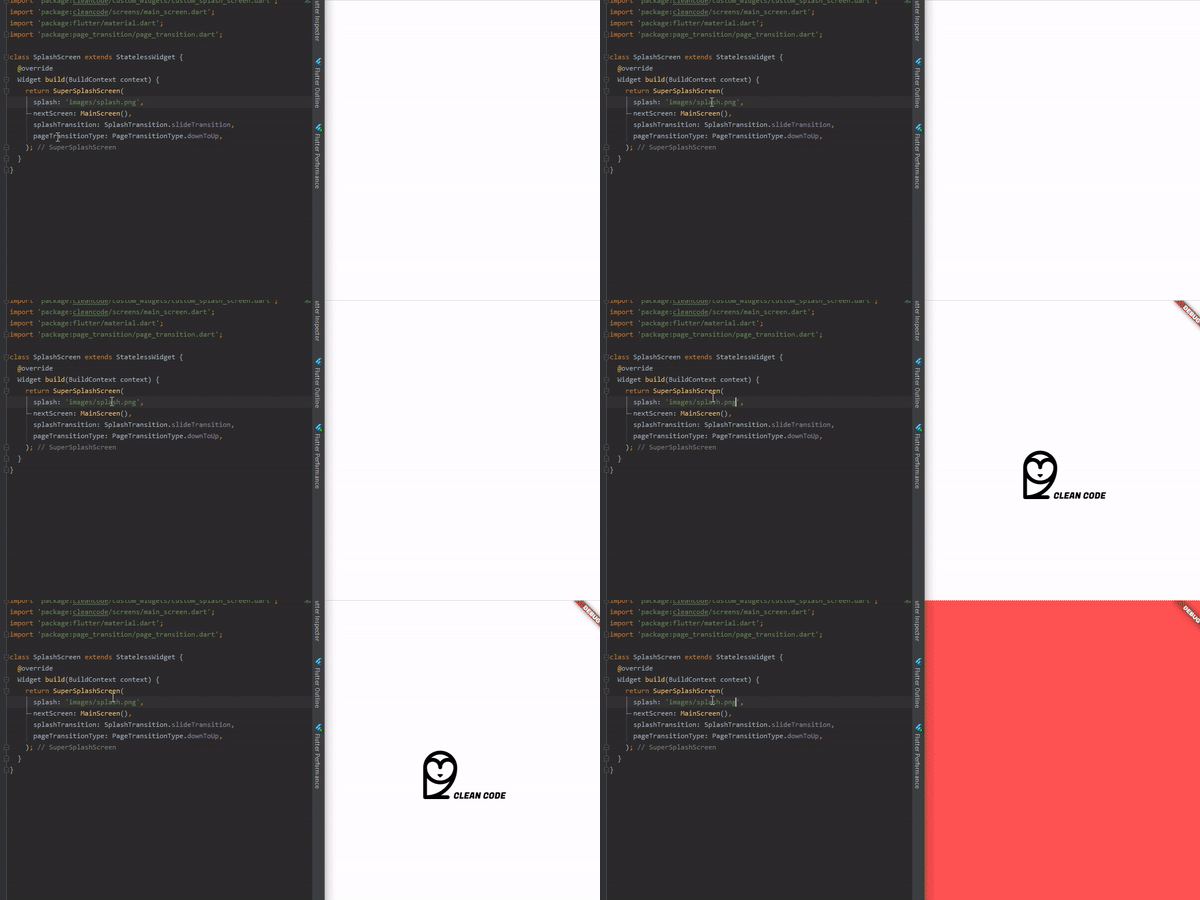
以完全可自定义的方式创建动画启动画面的最简单方法。
一个为您的项目提供自定义浮动式消息提示的包。
^6.2.0^1.3.0^2.0.10^2.4.7^0.2.0+1^1.0.3+1{"sdk":"flutter"}^0.13.1^1.1.1^4.6.6^2.2.3^1.1.0^2.0.1^1.0.0^2.2.2^1.1.0{"sdk":"flutter"}^2.0.0以下为英文项目原文快照,最新内容请访问 GitHub。
**Laser Slides Application **
Introduction: Laser Slides is a simple yet powerful cross-platform application which works with OSC(Open Sound Control), and allows users to manipulate the laser slides in the BEYOND software from a tablet device.
Getting Started: The application is compatible with all the latest android versions of android starting from v4.4. The laser slides application can be best viewed in Tablet devices with a minimum screen size of 8” inches.
Instructions:
-- Firstly, in order to use the laser slides application the system should have BEYOND software installed in the system.
-- On the BEYOND application we must go to the “setting” -> “OSC” -> “OSC settings” and then look up for the IP address such as “192.168.29.219”.
-- Once we know the IP address, start the laser slides application on a tablet device. We should configure the settings to control the slides in BEYOND software.
-- Now go to settings in the application enter the IP address and PORT as “8000”, After entering the values in the fields click on the “Save” button, if you see a popup with message “Connection Successful” you are good to go!!.
-- Now that we have made a successful connection with BEYOND, Go to the “Home” section in the app. Here you can control the slides with various buttons and customize with your desired functionality as well.
-- The Slides are generally manipulated using OSC commands, which you can assign to each button on “double tapping” on any button.
-- You can see a popup on your screen by double tapping on any button. The popup has various fields, Here enter the desired button name, and the OSC command such as “0 1” or “0 3” etc. once entered click on save button and the settings will be saved.
-- The initial digit in the OSC command represents the row number and the second number represents the cell number in that row.
All the OSC commands can be found at : OSC command
UI UX: On the start up of the laser slides application we could see an on-boading page with a quick introduction of the application. In the home page we could see 3 navigation buttons, “Home” directing to the buttons page, “About”button directing to the instructions page and “settings” page which will lead to opening of a bottom sheet to configure the settings of the application. The home page has buttons to manipulate the slides, the buttons are designed to showcase a 3d button press animation. On double tapping on any button it leads to opening of a popup with HERO animation enabling the user to edit the button.
Screenshot 2024-01-26 213803 1 Screenshot 2024-01-26 214146 1 Screenshot 2024-01-26 214242 1