Orientação gerada a partir de informações públicas. Apenas para referência.
Um plugin Flutter que integra soluções de pagamento Paytabs em aplicativos móveis, permitindo o processamento seguro de cartões e métodos de pagamento alternativos (APMs). Ele suporta plataformas Android e iOS, oferecendo uma maneira fluida de lidar com pagamentos dentro de aplicativos Flutter. O plugin atua como uma ponte entre o framework Flutter e os SDKs nativos do Paytabs, garantindo compatibilidade e desempenho. Desenvolvedores podem aproveitá-lo para implementar fluxos de checkout com configuração mínima. O código-fonte está disponível publicamente no GitHub para transparência e personalização.
Casos de uso
Compras no aplicativo
Checkout de comércio eletrônico
Faturamento de assinatura
Integração de carteira móvel
Integração de gateway de pagamento
Principais recursos
Suporta pagamentos com cartão e APM
Plataforma cruzada (Android e iOS)
Ponte oficial do SDK Paytabs
Gerenciamento de transação seguro
Integração fácil com o Flutter
Indicado para
Aplicativos de comércio eletrônico
provedores de serviço digital
Carteiras móveis
Plataformas baseadas em assinatura
processamento global de pagamentos
Considerações
Requer configuração da conta Paytabs
Precisa de chaves e credenciais de API adequadas
Pode exigir configuração adicional para regiões específicas
Dependente da disponibilidade do servidor Paytabs
Limitado aos métodos de pagamento suportados pelo Paytabs
README original
Snapshot do README original do repositório-fonte vinculado. Consulte o repositório para o conteúdo mais recente.
Flutter PayTabs Bridge
Flutter paytabs plugin is a wrapper for the native PayTabs Android and iOS SDKs, It helps you integrate with PayTabs payment gateway.
Options to set expiry timeout for the card payment screen
/** To establish a timeout of 2 minutes.
* Set to zero to deactivate the timeout feature.
* Note that the expiryTime cannot be set to less than 60 seconds.
* */PaymentSdkConfigurationDetails(...,expiryTime:120);
You have the option to close the payment screen if there are no ongoing transactions.
FlutterPaytabsBridge.cancelPayment((_) {});
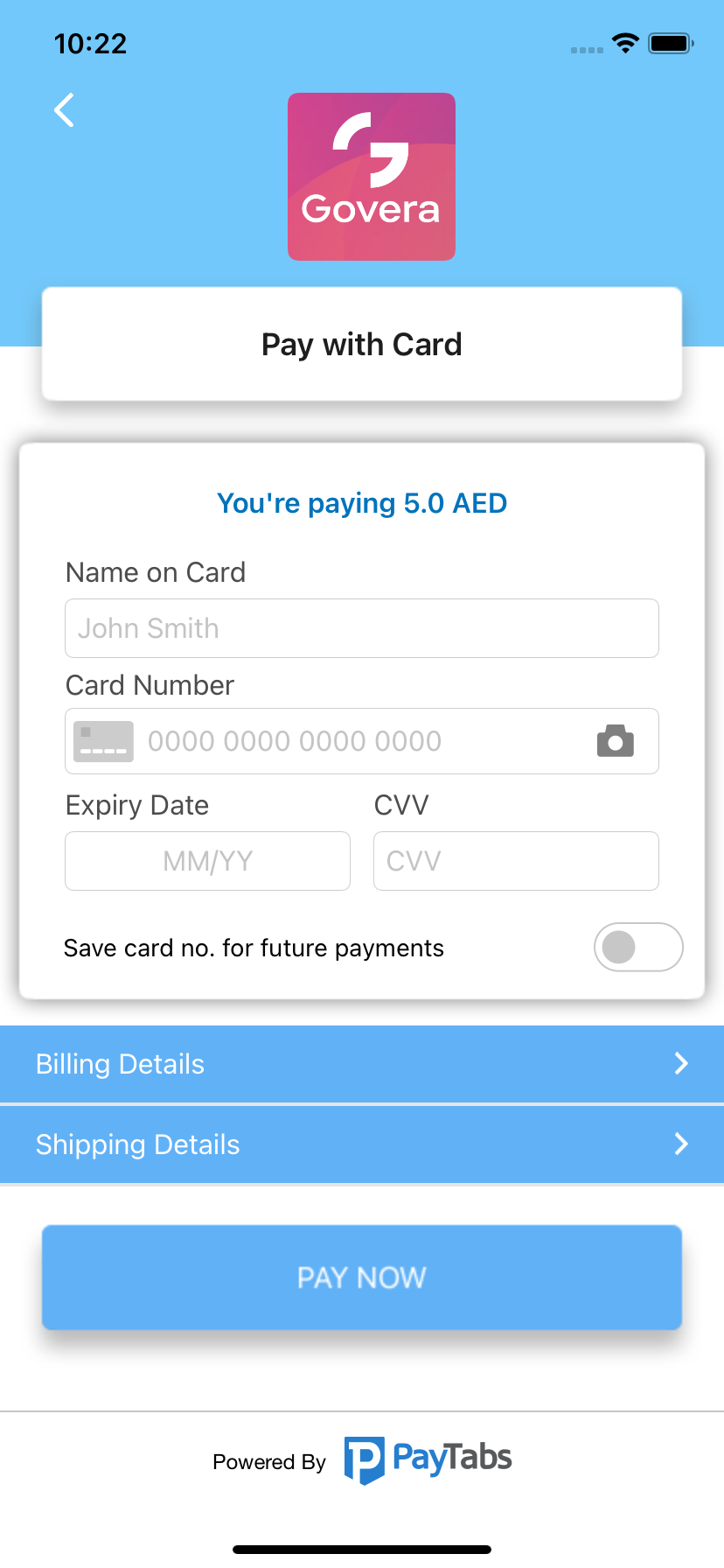
Set merchant logo from the project assets:
create 'assets' directory and put the image inside it.
be sure you add in the Runner iOS Project in the infor.plist the image usage description.
NSPhotoLibraryUsageDescription
Get Logo From Assets
under flutter section in the pubspec.yaml declare your logo.
flutter:assets:-assets/logo.png
be sure you pass the image path like this:-
var configuration = PaymentSdkConfigurationDetails();
var theme = IOSThemeConfigurations();
theme.logoImage = "assets/logo.png";
configuration.iOSThemeConfigurations = theme;
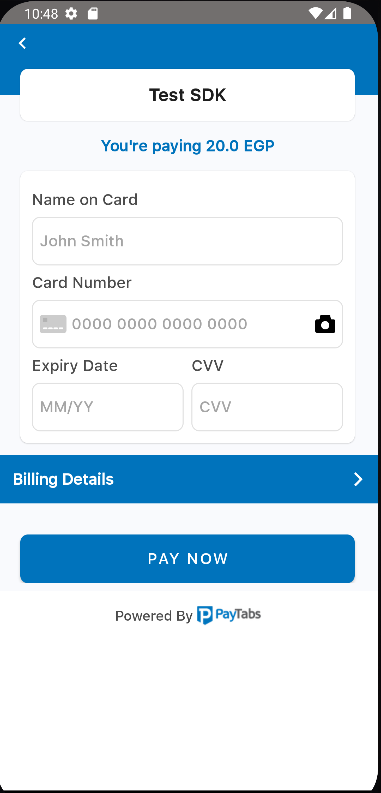
1-Pay with Card
Start payment by calling startCardPayment method and handle the transaction details
To enable tokenization please follow the below instructions.
 // to request token and transaction reference pass tokeniseType and Format
 tokeniseType: PaymentSdkTokeniseType.MERCHANT_MANDATORY,
 tokenFormat: PaymentSdkTokenFormat.AlphaNum20Format,

 // you will receive token and reference after the first transaction
 // to pass the token and transaction reference returned from sdk
 token: "token returned from the last trx",
 transactionReference: "last trx reference returned",
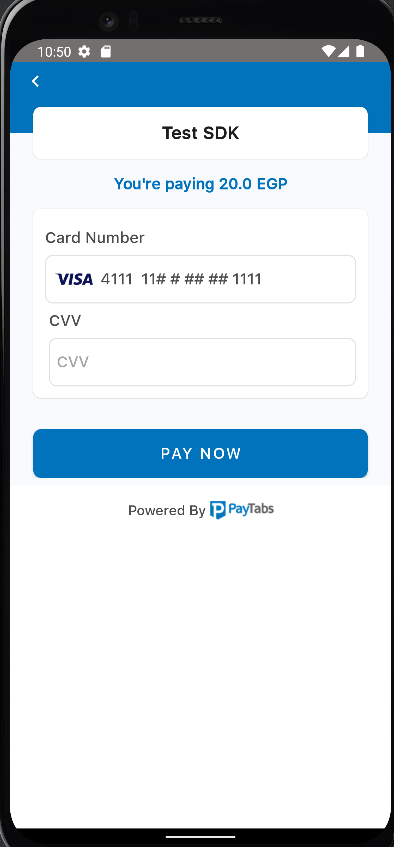
Then payment by calling startTokenizedCardPayment method and handle the transaction details
Do the steps 1 and 2 from Pay with Card although you can ignore Billing & Shipping details and Apple Pay will handle it, also you must pass the merchant name and merchant identifier.
//ignore this part if you want to use default networksList<PaymentSDKNetworks> networks = [];
networks.add(PaymentSDKNetworks.visa);
networks.add(PaymentSDKNetworks.amex);
var configuration = PaymentSdkConfigurationDetails(
profileId: "profile id",
serverKey: "your server key",
clientKey: "your client key",
cartId: "cart id",
cartDescription: "cart desc",
merchantName: "merchant name",
screentTitle: "Pay with Card",
locale: PaymentSdkLocale.AR, //PaymentSdkLocale.EN or PaymentSdkLocale.DEFAULT
amount: "amount in double",
currencyCode: "Currency code",
merchantCountryCode: "2 chars iso country code",
merchantApplePayIndentifier: "merchant.com.bundleID",
linkBillingNameWithCardHolderName: true,
paymentNetworks: networks);
To simplify ApplePay validation on all user's billing info, pass simplifyApplePayValidation parameter in the configuration with true.
Pass Samsung Pay token to the configuration and call startSamsungPayPayment
configuration.samsungToken = "{Json token returned from the samsung pay payment}"
Pay with Alternative Payment Methods
It becomes easy to integrate with other payment methods in your region like STCPay, OmanNet, KNet, Valu, Fawry, UnionPay, and Meeza, to serve a large sector of customers.
Do the steps 1 and 2 from Pay with Card
Choose one or more of the payment methods you want to support, check the available APMs in the enum section.
 List<PaymentSdkAPms> apms = [];
 apms.add(PaymentSdkAPms.STC_PAY);

 var configuration = PaymentSdkConfigurationDetails(
     * Your configuration *
     alternativePaymentMethods: apms); // add the Payment Methods here
Call startAlternativePaymentMethod to start payment
you can use event["data"]["isSuccess"] to ensure a successful transaction ..
if the transaction is not successful you should check for the corresponding failure code you will receive the code in
responseCode .. all codes can be found in Payment Response Codes
Link billing name with card holder name
By default, the billing name is linked with card holder name, if you set its flag to false the billing name and the card holder name will be seperated
 var configuration = PaymentSdkConfigurationDetails(
        ...
        ...
        linkBillingNameWithCardHolderName: true
        );
Customize the Theme:
iOS Theme
Use the following guide to cusomize the colors, font, and logo by configuring the theme and pass it to the payment configuration.
	var theme = IOSThemeConfigurations();
	theme.backgroundColor = "e0556e"; // Color hex value
	theme.backgroundColorDark = "520f3a"; // Dark Mode Color hex value
	configuration.iOSThemeConfigurations = theme;
Android Theme
Use the following guide to customize the colors, font, and logo by configuring the theme and pass it to the payment configuration.