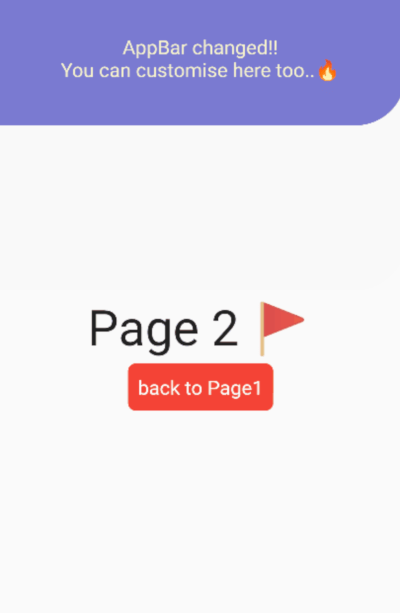
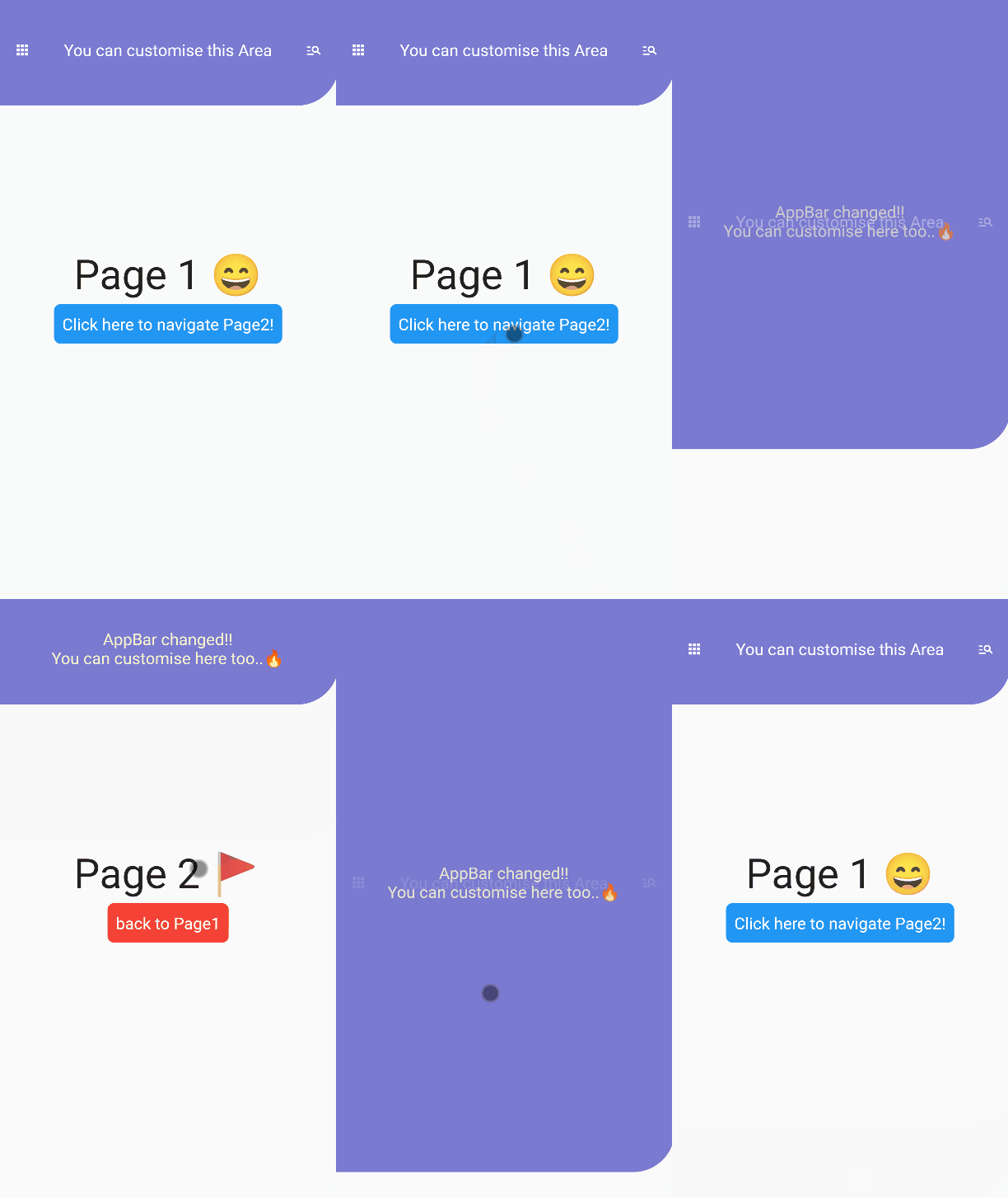
AppBar which can dynamically change height with page navigation.
Usage
This package is expected to be used with BaseLayout and AnimatedAppBar
// In this scenario// we have to pages.// In Page1, We will navigate to Page2 with dynamic animations.// In Page2, We will back to Page1 with dynamic animations.import'package:flutter/material.dart';
import'package:animated_appbar/animated_appbar.dart';
voidmain() {
runApp(MyApp());
}
classMyAppextendsStatefulWidget{
@override_MyAppStatecreateState() => _MyAppState();
}
class_MyAppStateextendsState<MyApp> withTickerProviderStateMixin{
@overrideWidgetbuild(BuildContext context) {
returnMaterialApp(
debugShowCheckedModeBanner: false,
// BaseLayout is declared in this package// If you wanna using AnimatedAppBar, You must use [BaseLayout]
home: BaseLayout(
// AnimatedAppBar is declared in this package
appBar: AnimatedAppBar(
initHeight: 135.0,
backgroundColor: Color(0xff7a7ad1),
child: Container(
// If you want to change your appbar,// You must set key like this.// If you don't set this properties,// You couldn't see beautiful animation.
key: UniqueKey(),
child:Center(
child: Row(
mainAxisAlignment: MainAxisAlignment.spaceAround,
crossAxisAlignment: CrossAxisAlignment.center,
children: [
Icon(
Icons.apps,
color: Colors.white,
size: 20.0,
),
Text(
"You can customise this Area",
style: TextStyle(
color: Colors.white,
fontSize: 20.0,
),
),
Icon(
Icons.manage_search,
color: Colors.white,
size: 20.0,
),
],
),
),
),
),
// Setting initial Page in here!!!!!
scaffold: Page1(),
),
);
}
}
// When routing page with this package,// You must write [with RoutePage] like below.// In this class, routing methods are defined.classPage1extendsStatelessWidgetwithRoutePage{
// This variable is Page2's new AppBar widget.// You have not using AnimatedAppBar// Just use any other Widget without AnimatedAppBarWidget newAppBar = Container(
// You must set key like this.// If you don't set this properties,// You couldn't see beautiful animation.
key:UniqueKey(),
child:Column(
mainAxisAlignment: MainAxisAlignment.center,
children: [
Text(
"AppBar changed!!",
style: TextStyle(
color: Color(0xfff7f4cc),
fontSize: 20,
),
),
Text(
"You can customise here too..🔥",
style: TextStyle(
color: Color(0xfff7f4cc),
fontSize: 20,
),
),
],
),
);
@overrideWidgetbuild(BuildContext context) {
returnScaffold(
body: Center(
child:Column(
mainAxisAlignment:MainAxisAlignment.center,
children: [
Text(
"Page 1 😄",
style:TextStyle(
fontSize: 50,
),
),
SizedBox(height: 5),
Container(
decoration:BoxDecoration(
color: Colors.blue,
borderRadius: BorderRadius.all(
Radius.circular(8)
),
),
padding: EdgeInsets.all(10.0),
child: TextButton(
// If you wanna route page, Using routePage(Widget page)!// Ig you wannt route page with new appbar, Using routePageWithNewAppBar(widget page, widget appBar)
onPressed: ()=> routePageWithNewAppBar(Page2(),newAppBar),
child: Text(
"Click here to navigate Page2!",
style: TextStyle(
fontSize: 20,
color: Colors.white
),
),
),
),
],
),
),
);
}
}
classPage2extendsStatelessWidgetwithRoutePage{
@overrideWidgetbuild(BuildContext context) {
returnScaffold(
body: Center(
child:Column(
mainAxisAlignment:MainAxisAlignment.center,
children: [
Text(
"Page 2 🚩",
style:TextStyle(
fontSize: 50,
),
),
SizedBox(height: 5),
Container(
decoration:BoxDecoration(
color: Colors.red,
borderRadius: BorderRadius.all(
Radius.circular(8)
),
),
padding: EdgeInsets.all(10.0),
child: TextButton(
// If you wanna back to previous page, Just using [previousPage()] method.
onPressed: () => previousPage(),
child: Text(
"back to Page1",
style: TextStyle(
fontSize: 20,
color: Colors.white
),
),
),
),
],
),
),
);
}
}
If you have any requests / contributes or questions, please feel free to visit github.