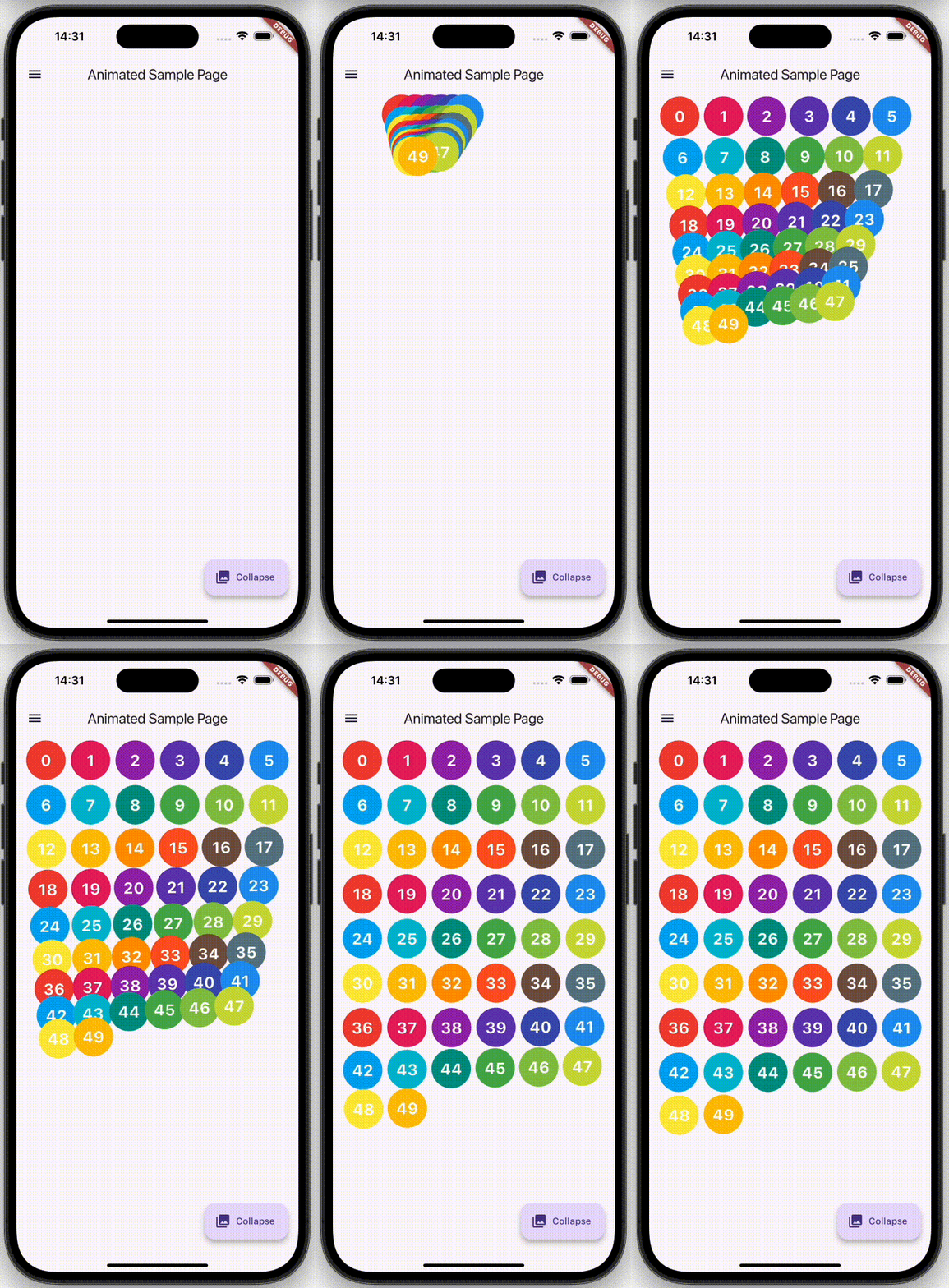
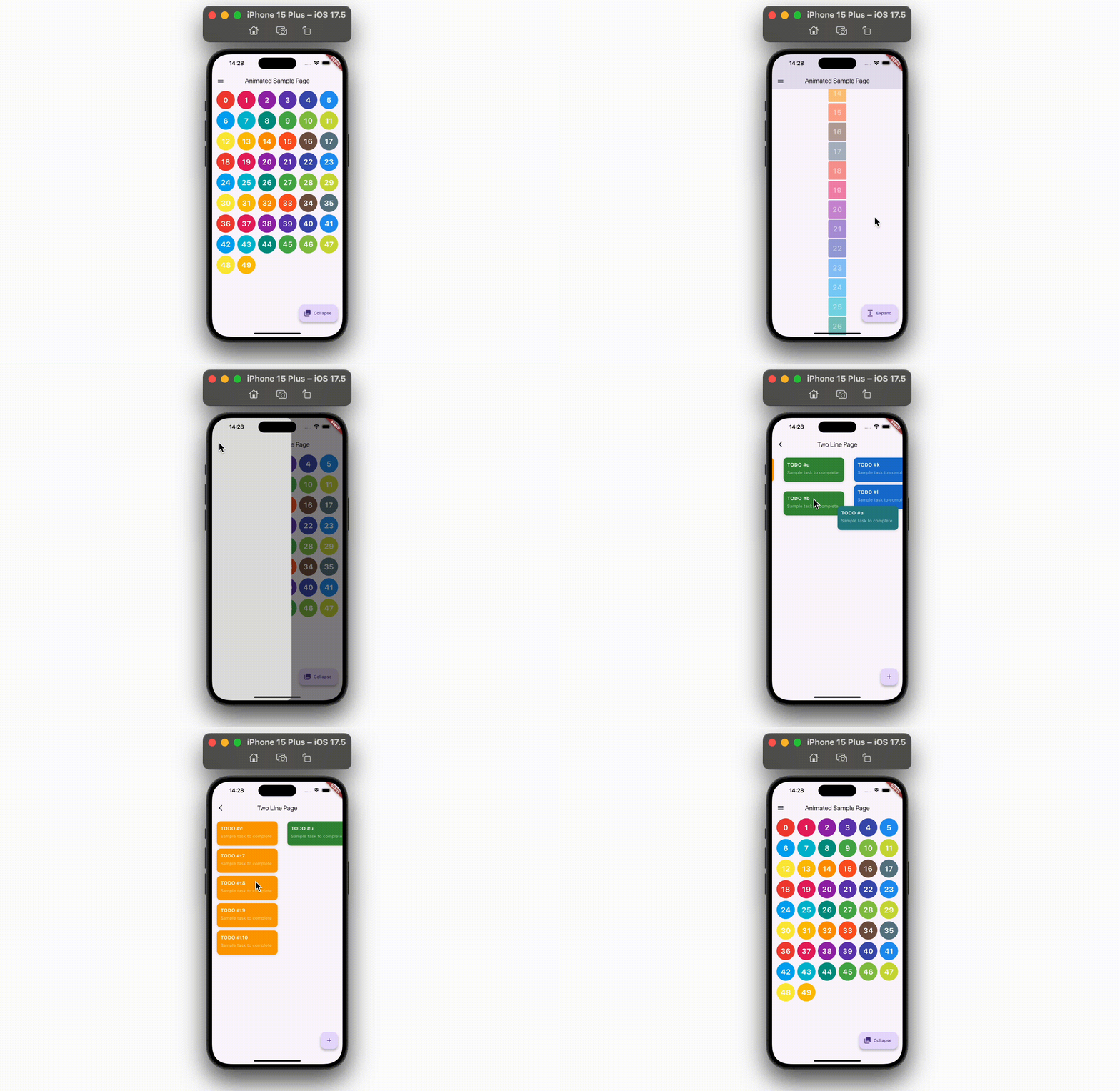
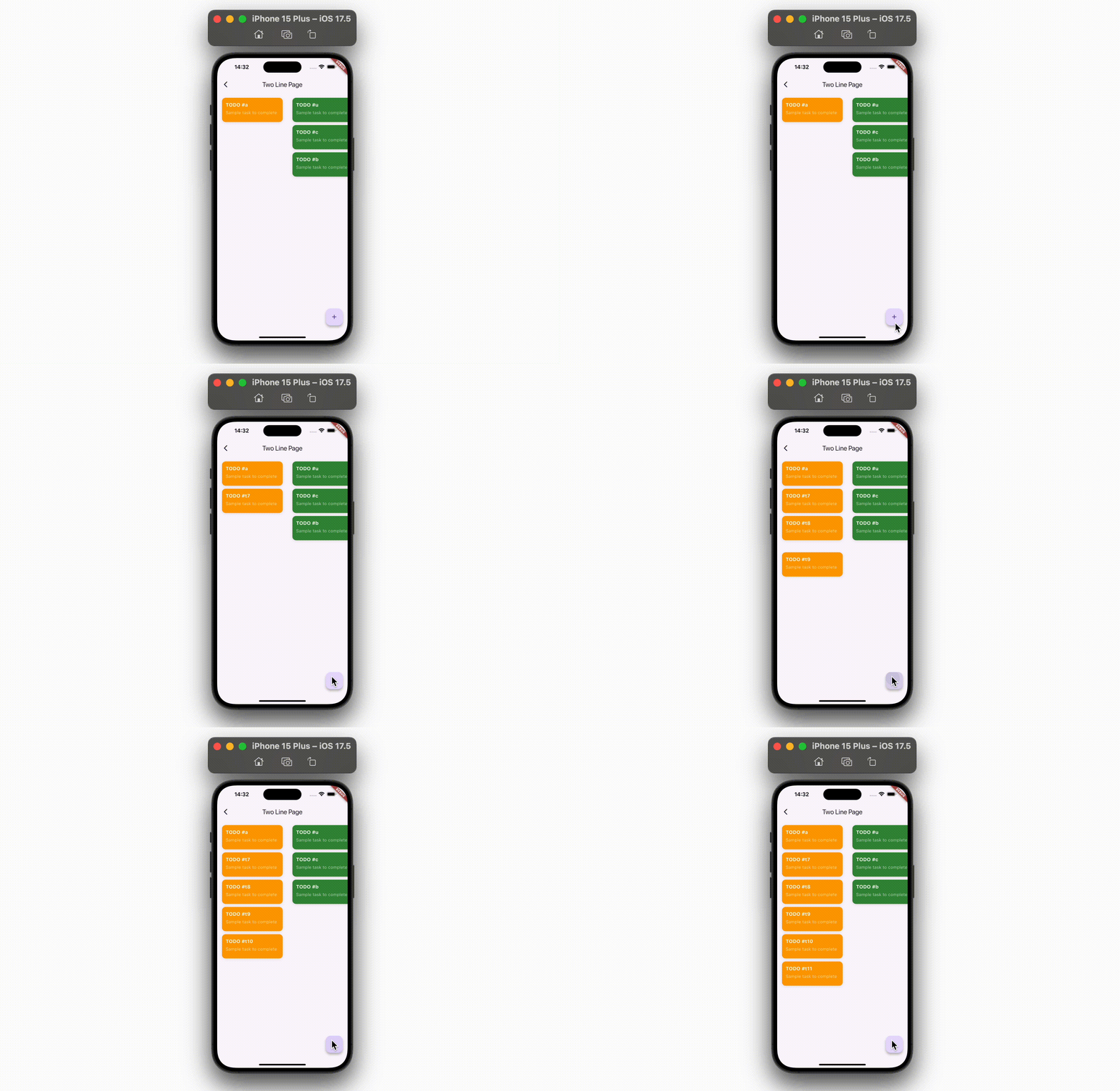
animated_to provides a widget named AnimatedTo which enables its child widget to change its position with animation when its position is updated for any reason, typically for rebuilding.
No calculation is required. Because every calculation is RenderObject's business in the Flutter framework, AnimatedTo just hires the calculated position and starts animation there.
Usage
First, place whatever widget you want to animate when its position changes.
Note that GlobalKey is necessary to keep its RenderObject alive even when the widget's depth or position changes.
And, that's it!
All what you need to do is causing rebuilds using whatever state management packages or just setState and change its position. AnimatedTo will automatically leads the child to the new position with animation.
Spring animation
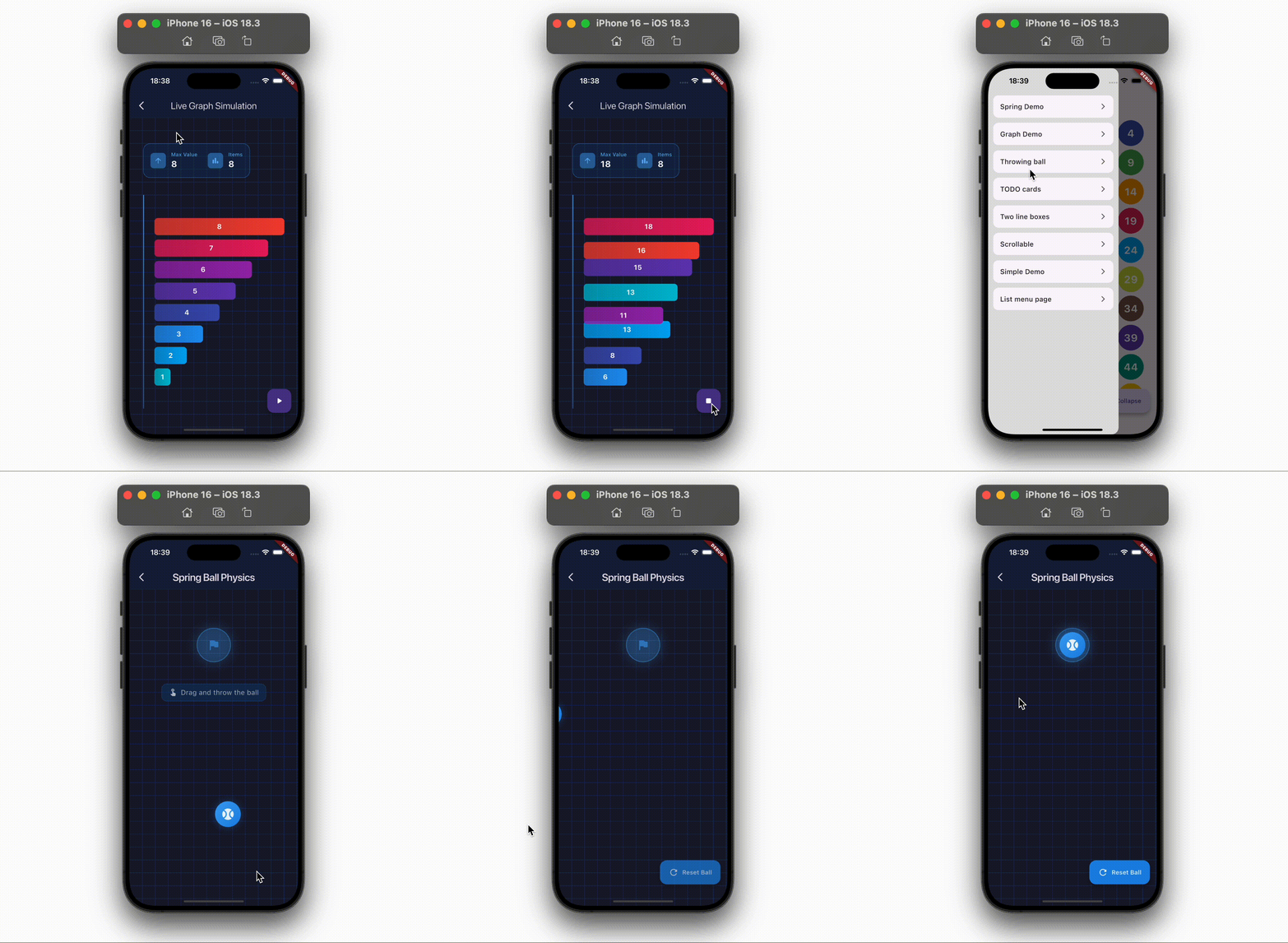
animated_to provides AnimatedTo.spring which animates its child using SpringSimulation.
This simulates its position transition based on the physical simulation, which make the animations smooth and natural.
What you have to do is just switch AnimatedTo.curve into AnimatedTo.spring to activate spring simulation. You can also configure your own SpringDescription using description argument, or you can use pre-defined configuration using @timcreatedit's motor package.
https://pub.dev/packages/motor
AnimatedTo.spring(
  globalKey: _globalKey,
  // you can retrieve SpringDescription from CupertinoMotion like below
  description: CupertinoMotion.smooth().description,
),
As motor is also used inside animated_to package(thanks @timcreatedit!), make sure you may have potential risk of dependency conflicts when directly depending on the package on your app side.
Some more features
appearingFrom lets you specify the start position of the animation in the first frame. By providing an absolute position in the global coordinate system, the widget will appear there and then animate to the original position.
slidingFrom lets you specify the start position of the animation in the first frame as well. By providing a relative position to the child's intrinsic position, the widget will slide from the specified position and then animate to the original position.
Hit Testing and Coordinate System
By default, AnimatedTo widgets can only receive gestures (taps, drags, etc.) at their layout position, not at their animated position. This is because Flutter's hit testing system checks widgets at their natural layout position, even though AnimatedTo visually paints them at a different location during animation.
AnimatedToBoundary
AnimatedToBoundary serves two important purposes:
1. Enable Hit Testing During Animation
To enable gesture detection at the animated position, wrap your widget tree with AnimatedToBoundary. This boundary intercepts hit tests and properly forwards them to animating widgets at their current animated positions.
voidmain() => runApp(
AnimatedToBoundary( // Place near root
child: MaterialApp(
home: MyHomePage(),
),
),
);
AnimatedToBoundary is optional. If you don't need to detect gestures on your AnimatedTo widgets during animation, you can omit it completely. The animations will work perfectly fine without it.
2. Establish Stable Coordinate Origin
AnimatedToBoundary can be used to prevent AnimatedTo from unexpected behavior by clarifying the "origin" of the coordinate system. By wrapping a page widget (typically Scaffold) with AnimatedToBoundary, AnimatedTo is not affected by animations of the whole screen, such as Navigator.push().
Without this isolation, when you navigate to a new page, the entire screen slides (the navigation transition), and AnimatedTo would incorrectly interpret this screen movement as a position change. This causes unexpected animations when you want to start an animation during the navigation transition.
By establishing a coordinate boundary, AnimatedToBoundary ensures that AnimatedTo only responds to position changes within that boundary, ignoring ancestor animations like page transitions.
Near the root of your widget tree for global hit testing coverage
Around individual page widgets to isolate navigation transition effects
Note that AnimatedToBoundary can be nested, so you don't have to remove other AnimatedToBoundary widgets you placed at the root when adding a new one around a page.
Limitations
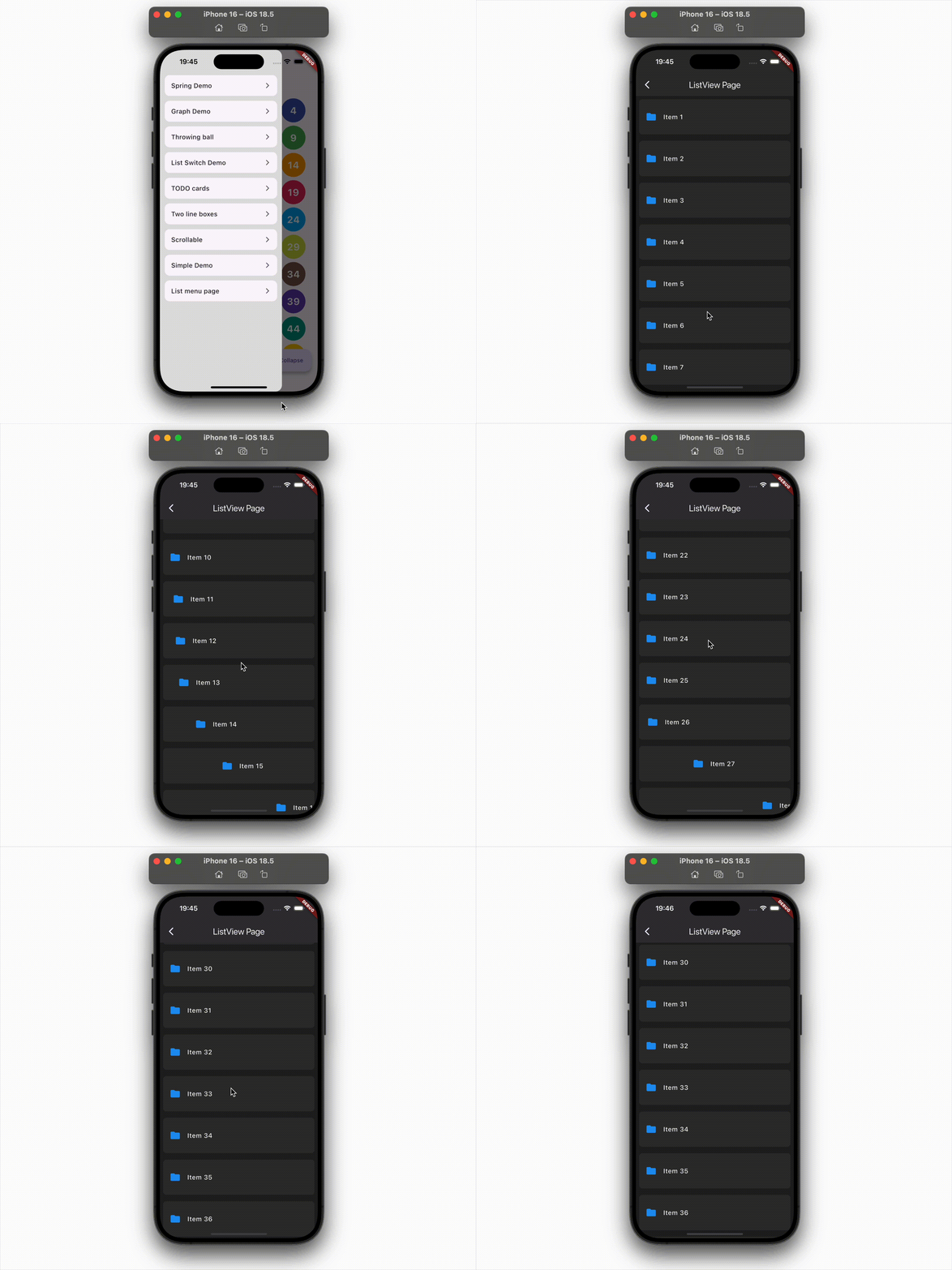
AnimatedTo doesn't work when it is on Sliver-related widgets, such as ListView, and the animation happens across slivers. It is because RenderSliver's layout system is totally different from RenderBox's and there is no way to detect the exact from/to. If the animation happened inside a single sliver, it works.
All arguments
Argument
Type
Description
globalKey
GlobalKey
A key to keep the widget alive even when its depth or position changes.
child
Widget
The widget you want to animate when its position changes.
duration
Duration
(curve only) The duration of the animation.
curve
Curve
(curve only) The curve of the animation.
description
SpringDescription
(spring only) The configuration of the spring simulation.
velocityBuilder
Offset Function()?
(spring only) A function to provide initial velocity to start spring animation.
verticalController
AnimationController?
Required if AnimatedTo is on the subtree of vertical SingleChildScrollView. Share the controller with the SingleChildScrollView to properly animate the widget. Don't provide one when AnimatedTo is on ListView.
horizontalController
AnimationController?
Required if AnimatedTo is on the subtree of horizontal SingleChildScrollView. Share the controller with the SingleChildScrollView to properly animate the widget. Don't provide one when AnimatedTo is on ListView.
appearingFrom`
Offset?
The start position of the animation in the first frame. This offset is an absolute position in the global coordinate system.
slidingFrom
Offset?
The start position of the animation in the first frame. This offset is a relative position to the child's intrinsic position.
enabled
bool
Whether the animation is enabled.
onEnd
void Function(AnimationEndCause cause)?
The callback when the animation is completed. cause shows the reason why the animation is completed.
sizeWidget
Widget
A widget for calculating desired size and position regardless of animations.
Author's X account @tsuyoshi_chujo also posts some example screenshots.
Contact
If you have anything you want to inform me (@chooyan-eng), such as suggestions to enhance this package or functionalities you want etc, feel free to make issues on GitHub or send messages on X @tsuyoshi_chujo (Japanese @chooyan_i18n).