搜尋套件、儲存庫與 APP 分類

套件詳情v3.2.0

compdfkit_flutter

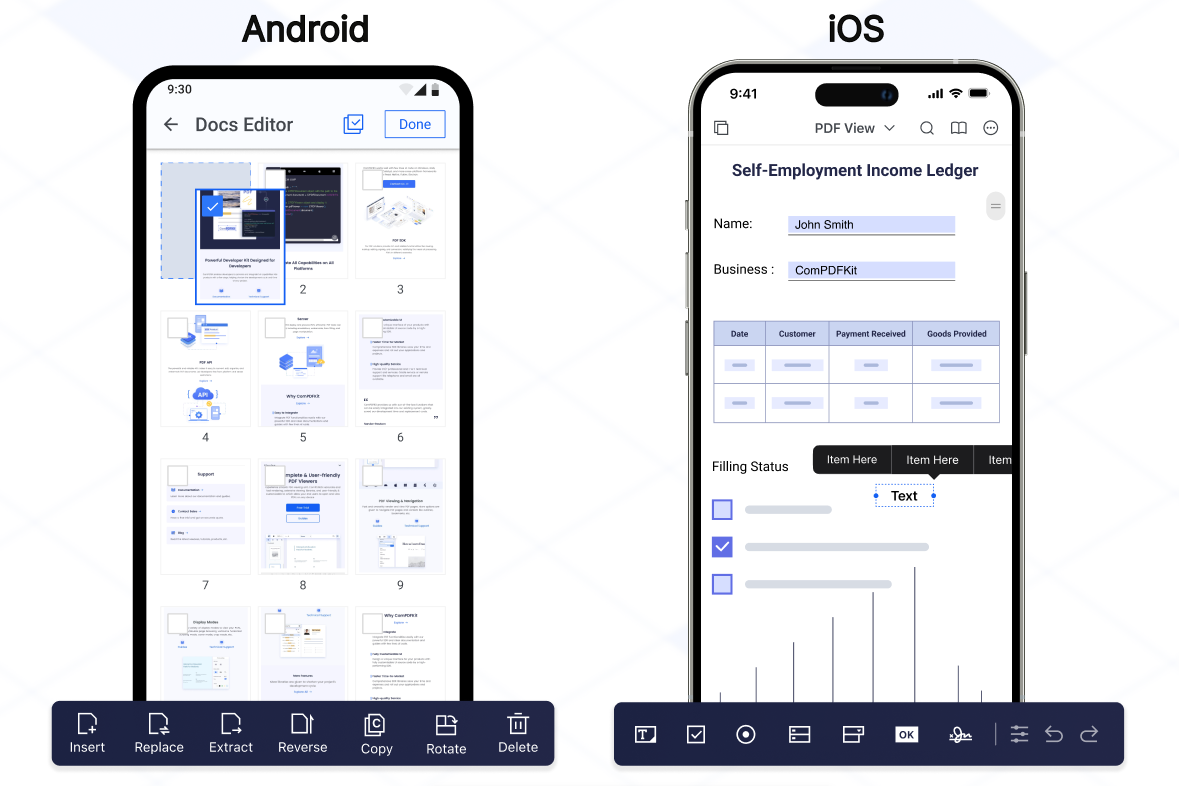
ComPDFKit for Flutter 是一個全面的 SDK,可讓您快速為 Android 和 iOS Flutter 應用程式新增 PDF 功能。

AndroidiOS
近 30 天下載
810
喜歡數
52
Pub 分數
130

安裝套件

flutter pub add compdfkit_flutter

套件介紹

根據套件公開資料產生的選型評估,僅供參考。

ComPDFKit for Flutter 是一個功能強大的 SDK,旨在將先進的 PDF 功能無縫整合到 Android 和 iOS 上的 Flutter 應用程式中。它讓開發者能夠在其應用程式內直接檢視、註解、編輯和管理 PDF 文件。該 SDK 專注於效能與易用性,提供一整套豐富的工具來處理 PDF 檔案,且不需要外部依賴。該套件支援常見的文件操作,例如渲染、文字提取、表單填寫和數位簽章。基於 Flutter 的跨平台優勢設計,確保在各個平台上的行為一致。

適用情境

  • 在移動應用中嵌入PDF檢視器
  • 在PDF上啟用用戶註釋
  • 建立文件編輯功能
  • 整合表單填寫工作流程
  • 支援數位簽章功能

主要特色

  • 跨平台 PDF 渲染
  • 互動式註釋工具
  • 文字提取與搜尋
  • 表單處理和填寫
  • 安全文件簽名

適合對象

  • 使用 Flutter 的移動應用開發者
  • 需要PDF操作的應用程式
  • 企業文件管理系統
  • 電子學習和電子簽名平台

使用建議

  • 需要原生平台設定才能實現完整功能
  • 由於內建 SDK,可能會增加應用程式大小
  • 僅限 Android 和 iOS 平台
  • 取決於第三方授權條款

原始 README

以下為關聯原始碼儲存庫的 README 原文快照,最新內容請造訪原始碼儲存庫。

ComPDF SDK for Flutter

As part of the KDAN ecosystem, ComPDF SDK for Flutter helps developers integrate PDF viewing, annotation, editing, form, and signing capabilities into cross-platform mobile apps.

It provides a production-ready Flutter wrapper around native ComPDF SDK capabilities for both Android and iOS projects.

If you find ComPDF SDK useful, please consider giving us a ⭐ Star on GitHub — it helps us grow and improve! Got questions or ideas? Join the conversation in our Discussions.

UI-1

Why ComPDF SDK for Flutter?

  • Easy to Integrate: Integrate PDF functionalities easily with our powerful SDK and clear documentation and guides with few lines of code.

  • Fully Customizable UI: Design a unique interface for your products with fully customizable UI source code by a high-performing SDK.

  • Comprehensive PDF Features: Supports generation, viewing, annotation, page editing, content editing, conversion, OCR, redaction, signing, forms, parsing, measurement, compression, comparison, color separation, batch processing, and more.

  • Faster Time-to-Market: Comprehensive SDK libraries save your time and expenses and roll out your applications and projects.

  • High-quality Service: We provide 24/7 professional one-to-one technical support, including onsite service and remote assistance via phone and email.

Table of Contents

Supported Features

Viewer: Fast and smooth PDF rendering and viewing

  • Display Modes - single/double page, vertical & horizontal scrolling, cover mode, crop mode
  • Text Search & Selection
  • PDF Navigation - outlines, bookmarks

Annotations:

  • Notes - add longer comments with adjustable icon shape and color

  • Ink - freehand drawing with customizable color, opacity, line thickness

  • Text - add, move, resize text directly on page

  • Inspector - adjust annotation looks (line styles, borders, colors, opacity, font)

  • Comment on Annotations and Update Status

  • Import & Export & Flatten Annotations (XFDF, FDF, JSON)

  • Highlight, Underline, Strikeout, Squiggly

  • Shapes - Rectangle, Oval, Line, Arrow, Polygon, Polyline, Cloud

  • Stamps, Sound, Movie, File Attachment, Link, Distance, Perimeter, Area

Forms:

  • Process fillable and static PDF forms

  • Form filling, form creation, form flattening

Document Editor:

  • Page manipulation - insert, delete, rotate, reorder, extract, crop

  • Split PDF, Merge PDF

Content Editor: Edit PDF text and images directly like in Word

Security:

  • Encryption - set open password, permission password

  • Restrict printing, copying, editing

Signatures:

  • Electronic Signatures - draw, type, image signatures

  • Digital Signatures - certificate-based signature validation

Watermark:

  • Add Text or Image Watermarks

  • Delete Watermarks

  • Customize Watermarks

OCR:

  • AI OCR

  • Recognize Tables, Graphics, Images

  • Support recognition in 80+ Languages

Compare Documents: Side-by-side document comparison to highlight differences

Redaction: Permanently remove sensitive content from PDFs

Measurement: Distance, area, perimeter measurement tools

Compress: Optimize and reduce PDF file size

Convert Files:

  • Convert PDF to Word, Excel, PPT, HTML, CSV, images (PNG,JPEG, JPEG, JPEG2000, BMP, TIFF, TGA, GIF), RTF, TXT, JSON, XML, markdown, searchable PDF, searchable OFD.

  • Convert images (PNG,JPEG, JPEG, JPEG2000, BMP, TIFF, TGA, GIF) to Word, Excel, PPT, HTML, CSV, RTF, TXT, JSON, XML.

  • Convert Word, Excel, PPT, HTML, CSV, PNG, RTF, TXT to PDF

UI Customization:

  • Toolbar Customization

  • UI Personalization

  • Ready-Made UI Options

  • Out-of-the-box Source Code

Requirements

Before starting, please make sure that you have already met the following prerequisites:

Get ComPDF License Key

ComPDF offers two types of license keys: a free 30-day trial license and a commercial license.

  • Trial License – You can request a 30-day free trial online.
  • Commercial License – For advanced features, custom requirements, or quote inquiries, feel free to contact our sales.

For the Flutter PDF SDK, the commercial license must be bound to your application’s ApplicationId and iOS BundleId.

System Requirements

Android

Please install the following required packages:

Operating Environment Requirements:

  • A minSdkVersion of 23 or higher.
  • A compileSdkVersion of 34 or higher.
  • A targetSdkVersion of 34 or higher.
  • Android ABI(s): x86, x86_64, armeabi-v7a, arm64-v8a.

iOS

Please install the following required packages:

Operating Environment Requirements:

  • The iOS 12.0 or higher.
  • The Xcode 12.0 or newer for Objective-C or Swift.

How to Build the Flutter PDF Editor

image

Create a new project
Android
  1. Create a Flutter project called example with the flutter CLI:
flutter create --org com.compdfkit.flutter example
  1. In the terminal app, change the location of the current working directory to your project:
cd example
  1. open example/android/app/src/main/AndroidManifest.xml , add Internet Permission and Storage Permission:
<manifest xmlns:android="http://schemas.android.com/apk/res/android"
    package="com.compdfkit.flutter.example">

+    <uses-permission android:name="android.permission.INTERNET"/>

    <!-- Required to read and write documents from device storage -->
+    <uses-permission android:name="android.permission.READ_EXTERNAL_STORAGE"/>
+    <uses-permission android:name="android.permission.WRITE_EXTERNAL_STORAGE"/>

    <!-- Optional settings -->
+    <uses-permission android:name="android.permission.MANAGE_EXTERNAL_STORAGE"/>


    <application
+      android:requestLegacyExternalStorage="true">

    </application>   
</manifest>
  1. Open the app's Gradle build file, android/app/build.gradle:
open android/app/build.gradle
  1. Modify the minimum SDK version, All this is done inside the android section:
 android {
     defaultConfig {
-        minSdkVersion flutter.minSdkVersion
+        minSdkVersion 23
         ...
     }
 }
  1. Open the project’s main activity class, android/app/src/main/java/com/example/compdfkit/flutter/example/MainActivity.java, Change the base Activity to extend FlutterFragmentActivity:
- import io.flutter.embedding.android.FlutterActivity;
+ import io.flutter.embedding.android.FlutterFragmentActivity;

- public class MainActivity extends FlutterActivity {
+ public class MainActivity extends FlutterFragmentActivity {
}

Alternatively you can update the AndroidManifest.xml file to use FlutterFragmentActivity as the launcher activity:

<activity
-     android:name=".MainActivity" 
+     android:name="io.flutter.embedding.android.FlutterFragmentActivity"
      android:exported="true"
      android:hardwareAccelerated="true"
      android:launchMode="singleTop"
      android:theme="@style/LaunchTheme"
      android:windowSoftInputMode="adjustPan">

Note: FlutterFragmentActivity is not an official part of the Flutter SDK. If you need to use CPDFReaderWidget in ComPDF for Flutter, you need to use this part of the code. You can skip this step if you don't need to use.

  1. Add the ComPDF dependency in pubspec.yaml
 dependencies:
   flutter:
     sdk: flutter
+  compdfkit_flutter: ^3.0.0
  1. Add the PDF documents you want to display in the project
  • create a pdf directory

    mkdir pdfs
    
  • Copy your example document into the newly created pdfs directory and name it PDF_Document.pdf

  1. Specify the assets directory in pubspec.yaml
 flutter:
+  assets:
+    - pdfs/
  1. From the terminal app, run the following command to get all the packages:
flutter pub get
iOS
  1. Create a Flutter project called example with the flutter CLI:
flutter create --org com.compdfkit.flutter example
  1. In the terminal app, change the location of the current working directory to your project:
cd example
  1. Add the ComPDF dependency in pubspec.yaml
 dependencies:
   flutter:
     sdk: flutter
+  compdfkit_flutter: ^3.0.0
  1. Open your project's Podfile in a text editor:
open ios/Podfile

Note: If SSL network requests fail to download the ComPDFKit library when you run pod install, you can see the processing method in Troubleshooting).

  1. Update the platform to iOS 12 and add the ComPDF Podspec:
- platform :ios, '9.0'
+ platform :ios, '12.0' 
 ...
 target 'Runner' do
   use_frameworks!
   use_modular_headers!`

   flutter_install_all_ios_pods File.dirname(File.realpath(__FILE__))
+  pod 'ComPDFKit', :git => 'https://github.com/ComPDFKit/compdfkit-pdf-sdk-ios-swift.git', :tag => '3.0.0'
+  pod 'ComPDFKit_Tools', :git => 'https://github.com/ComPDFKit/compdfkit-pdf-sdk-ios-swift.git', :tag => '3.0.0'
 end
  1. Go to the example/ios folder and run the pod install command:
pod install
  1. Add the PDF documents you want to display in the project
  • create a pdf directory

    mkdir pdfs
    
  • Copy your example document into the newly created pdfs directory and name it PDF_Document.pdf

  1. Specify the assets directory in pubspec.yaml
 flutter:
+  assets:
+    - pdfs/
  1. To protect user privacy, before accessing the sensitive privacy data, you need to find the "*Info*" configuration in your iOS 10.0 or higher iOS project and configure the relevant privacy terms as shown in the following picture.

1-8

<key>NSCameraUsageDescription</key>
<string>Your consent is required before you could access the function.</string>

<key>NSMicrophoneUsageDescription</key>
<string>Your consent is required before you could access the function.</string>

<key>NSPhotoLibraryAddUsageDescription</key>
<string>Your consent is required before you could access the function.</string>

<key>NSPhotoLibraryUsageDescription</key>
<string>Your consent is required before you could access the function.</string>

<key>NSAppTransportSecurity</key>
    <dict>
        <key>NSAllowsArbitraryLoads</key>
        <true/>
    </dict>
  1. From the terminal app, run the following command to get all the packages:
flutter pub get
Apply the License Key

ComPDF SDK currently supports two authentication methods to verify license keys: online authentication and offline authentication.

Learn about:

Accurately obtaining the license key is crucial for the application of the license.

  1. In the email you received, locate the XML file containing the license key.
  2. Copy the License.xml file into the assets directory of your Flutter project.

3_1

  1. Open the pubspec.yaml file of your project and configure the flutter: section to enable the assets directory.

3_2

  1. Initialize the SDK:
// Include the license in Flutter assets and copy to device storage
// Add `license_key_flutter.xml` to your Flutter project’s assets directory;
File licenseFile = await CPDFFileUtil.extractAsset(context, 'assets/license_key_flutter.xml');
ComPDFKit.initWithPath(licenseFile.path);

Alternative methods (optional)

// Android
// Copy the license_key_flutter.xml file into the `android/app/src/main/assets` directory of your Android project:
ComPDFKit.initWithPath('assets://license_key_flutter.xml');

// iOS
// Copy the license_key_flutter.xml file into your iOS project directory (or a readable location):
ComPDFKit.initWithPath('license_key_flutter.xml');
Run Project

There are 2 different ways to use ComPDF Flutter API:

  • Present a document via a plugin.
  • Show a ComPDF document view via a Widget.
Usage Plugin

Open lib/main.dart,replace the entire file with the following:

import 'dart:io';

import 'package:compdfkit_flutter/compdfkit.dart';
import 'package:compdfkit_flutter/configuration/cpdf_configuration.dart';
import 'package:compdfkit_flutter/util/cpdf_file_util.dart';
import 'package:flutter/material.dart';

const String _documentPath = 'pdfs/PDF_Document.pdf';

void main() {
  runApp(const MyApp());
}

class MyApp extends StatefulWidget {
  const MyApp({super.key});

  @override
  State<MyApp> createState() => _MyAppState();
}

class _MyAppState extends State<MyApp> {
  @override
  void initState() {
    super.initState();
    _init();
  }

  void _init() async {
    File licenseFile = await CPDFFileUtil.extractAsset(context, 'assets/license_key_flutter.xml');
    ComPDFKit.initWithPath(licenseFile.path);
  }

  @override
  Widget build(BuildContext context) {
    return MaterialApp(
      home: Scaffold(
        body: SafeArea(
          child: Center(
            child: ElevatedButton(
              onPressed: () async {
                showDocument(context);
              },
              child: const Text(
                'Open Document',
              )),
          ))),
    );
  }

  void showDocument(BuildContext context) async {
    var pdfFile = await CPDFFileUtil.extractAsset(_documentPath);
    var configuration = CPDFConfiguration();
    // Present a document via a plugin.
    ComPDFKit.openDocument(pdfFile.path,
                           password: '', configuration: configuration);
  }
}
Usage Widget

Open lib/main.dart,replace the entire file with the following:

import 'dart:io';

import 'package:compdfkit_flutter/compdfkit.dart';
import 'package:compdfkit_flutter/configuration/cpdf_configuration.dart';
import 'package:compdfkit_flutter/widgets/cpdf_reader_widget.dart';
import 'package:compdfkit_flutter/util/cpdf_file_util.dart';
import 'package:flutter/material.dart';

const String _documentPath = 'pdfs/PDF_Document.pdf';

void main() {
  runApp(const MyApp());
}

class MyApp extends StatefulWidget {
  const MyApp({super.key});

  @override
  State<MyApp> createState() => _MyAppState();
}

class _MyAppState extends State<MyApp> {
  String? _document;

  @override
  void initState() {
    super.initState();
    _init();
    _getDocumentPath().then((value) {
      setState(() {
        _document = value;
      });
    });
  }

  void _init() async {
    /// Please replace it with your ComPDFKit license
    File licenseFile = await CPDFFileUtil.extractAsset(context, 'assets/license_key_flutter.xml');
    ComPDFKit.initWithPath(licenseFile.path);
  }

  Future<String> _getDocumentPath() async {
    var file = await CPDFFileUtil.extractAsset('pdfs/PDF_Document.pdf');
    return file.path;
  }

  @override
  Widget build(BuildContext context) {
    return MaterialApp(
      home: Scaffold(
        resizeToAvoidBottomInset: false,
        appBar: AppBar(
          title: const Text('CPDFReaderWidget Example'),
        ),
        body: _document == null
        ? Container()
        : CPDFReaderWidget(
          document: _document!,
          configuration: CPDFConfiguration(),
          onCreated: (_create) => {})));
  }
}

Start your Android emulator, or connect a device, Run the app with:

flutter run
Example APP

To see ComPDF for Flutter in action, check out our Flutter example app and API reference.

Showing a PDF document inside your Flutter app is as simple as this:

/// First. Please replace it with your ComPDFKit license

// Include the license in Flutter assets and copy to device storage
// Add `license_key_flutter.xml` to your Flutter project’s assets directory;
File licenseFile = await CPDFFileUtil.extractAsset('assets/license_key_flutter.xml');
ComPDFKit.initWithPath(licenseFile.path);

/// open pdf document
ComPDFKit.openDocument(tempDocumentPath, password: '', configuration:  CPDFConfiguration());

/// Here’s how you can open a PDF document using CPDFReaderWidget:
Scaffold(
  resizeToAvoidBottomInset: false,
  appBar: AppBar(title: const Text('CPDFReaderWidget Example'),),
  body: CPDFReaderWidget(
    document: widget.documentPath,
    configuration: CPDFConfiguration()
  ));

Free Trial and License

ComPDF SDK for Flutter offers a 30-day free trial so you can evaluate core PDF capabilities in your own application.

To get started:

  1. Apply for a free trial
  2. Review supported trial features and licensing details
  3. Follow the integration and license steps above to activate the SDK in your project

For custom deployments, advanced features, or volume licensing, please contact our sales team

Support

ComPDF has a professional R&D team that produces comprehensive technical documentation and guides to help developers. Also, you can get an immediate response when reporting your problems to our support team.

  • For detailed information, please visit our Guides page.
  • For technical assistance, please reach out to our Technical Support.
  • To get more details and an accurate quote, please contact our Sales Team or [send an email](mailto:support@compdf.com).

Changelog

Keep up with the latest updates, improvements, and bug fixes for ComPDF SDK for Flutter: View Flutter Changelog

Related

所屬分類

依賴

依賴清單 1 項

  • plugin_platform_interface^2.0.2

原始碼儲存庫

使用此套件的專案

暫無相關資料。