搜尋套件、儲存庫與 APP 分類

connectycube_flutter_call_kit 封面
套件詳情v2.8.2

connectycube_flutter_call_kit

一個 Flutter 插件,用於在應用程式處於背景或終止時顯示通話螢幕。

AndroidiOS
近 30 天下載
1200
喜歡數
132
Pub 分數
130

安裝套件

flutter pub add connectycube_flutter_call_kit

套件介紹

根據套件公開資料產生的選型評估,僅供參考。

Connectycube Flutter Call Kit 是一個插件,可在應用程式處於背景或終止狀態時顯示原生通話畫面,確保即時通訊的無縫體驗。它與 iOS 和 Android 系統層級通話介面整合,讓使用者在來電時能使用熟悉的通話 UI。此插件支援視訊與音訊通話,即使應用程式未啟動也能維持通話可見性,從而提升使用者體驗。專為開發人員建構 Flutter 應用中的即時通訊功能而設計。

適用情境

  • 即時語音和視頻通話
  • 處理背景來電
  • 在應用終止期間保持通話可見性
  • 在 iOS 和 Android 上整合原生通話 UI
  • 啟用來電推送通知

主要特色

  • 原生來電螢幕顯示
  • 背景和已終止的應用程式支援
  • iOS 和 Android 平台相容性
  • 推送通知整合
  • 支援影片和音訊通話

適合對象

  • 即時通訊應用
  • 視訊會議應用
  • 具備通話功能的即時通訊應用
  • 需要持久化通話介面的應用
  • 使用 Connectycube 後端的 Flutter 開發人員

使用建議

  • 需要 Connectycube 後端設定
  • 需要正確的推送通知設定
  • 原生通話UI的自定義功能有限
  • 平台特定權限需要
  • 依賴於 Connectycube Flutter SDK

原始 README

以下為關聯原始碼儲存庫的 README 原文快照,最新內容請造訪原始碼儲存庫。

Stand With Ukraine

ConnectyCube Flutter Call Kit plugin

A Flutter plugin for displaying call screen when the app is in the background or terminated. It provides a complex solution for implementation the background calls feature in your app including getting token and displaying the Incoming call screen.

Supported platforms

  • Android
  • iOS

Features

  • access device token (FCM for Android and VoIP for iOS)
  • notifying the app about token refreshing via callback
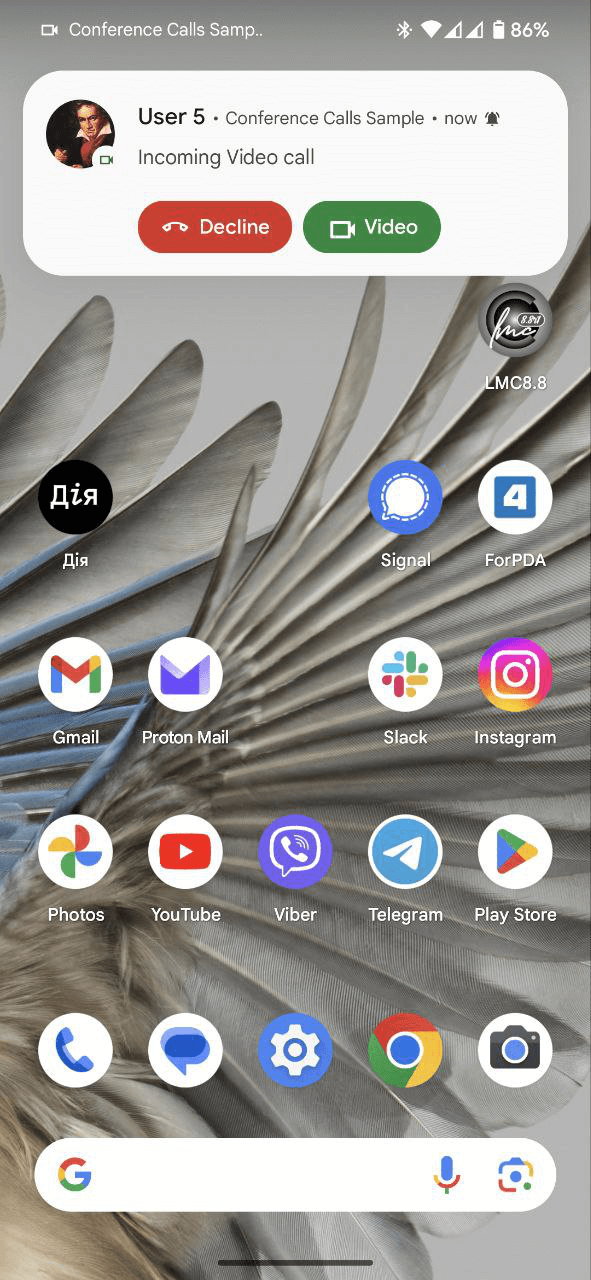
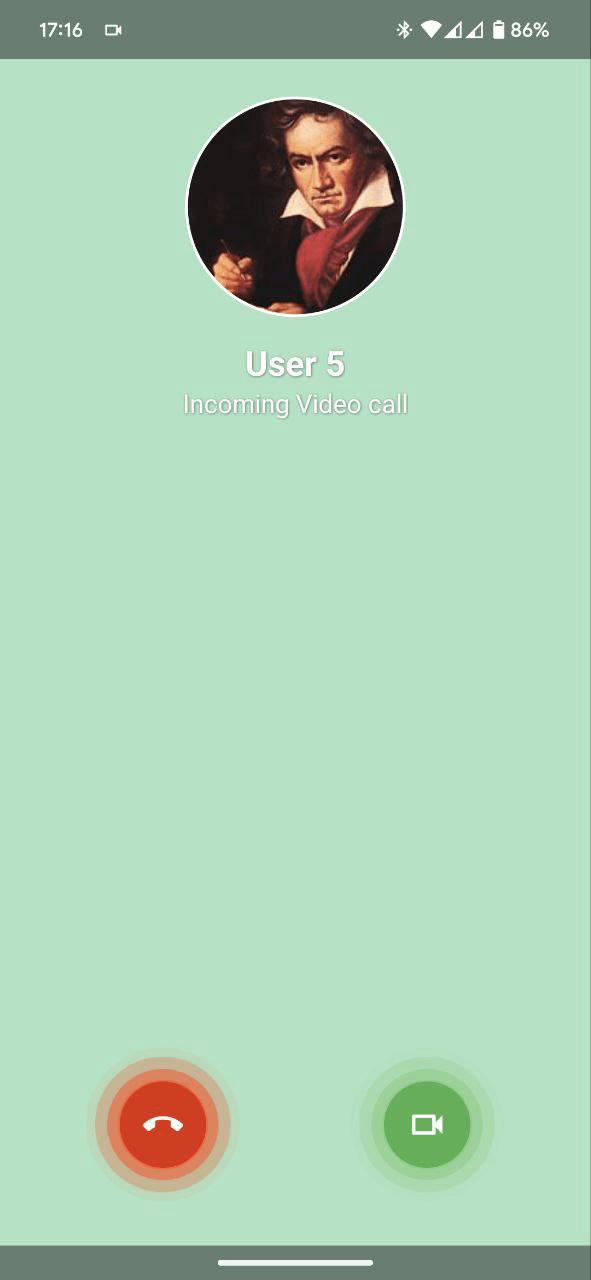
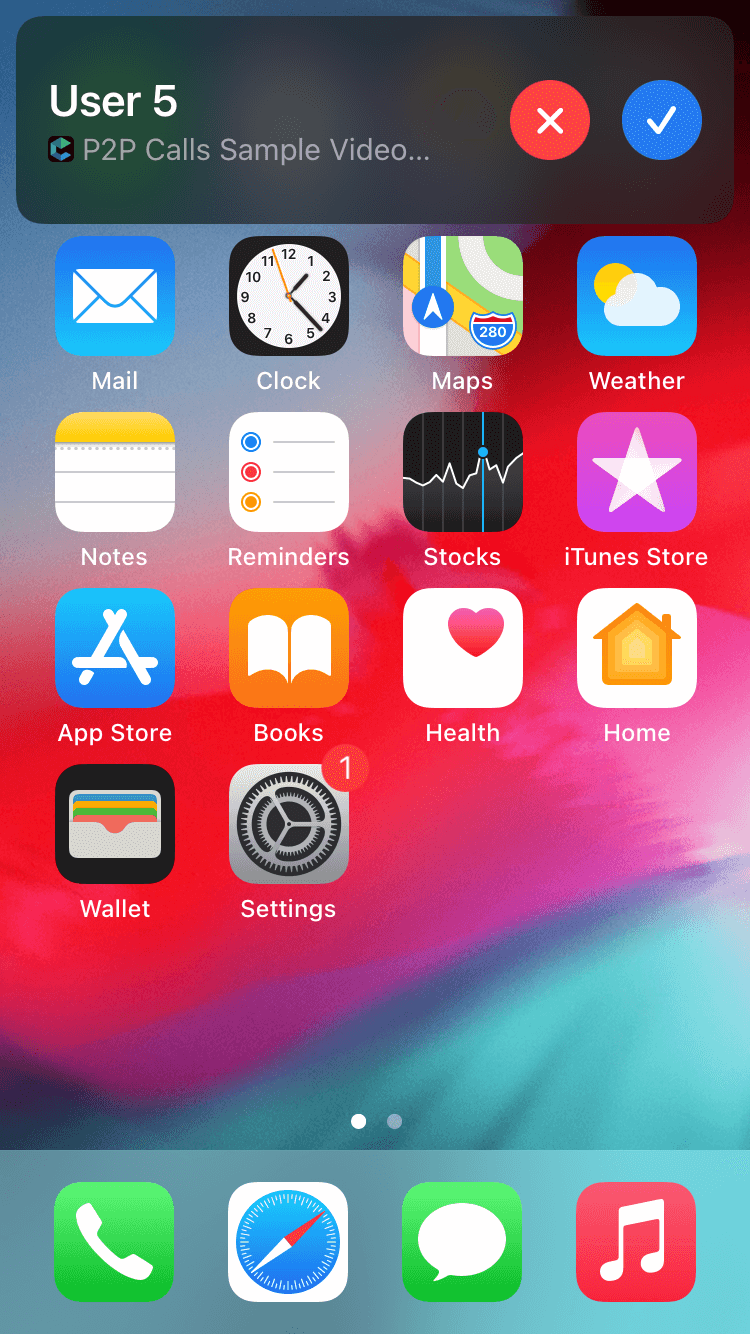
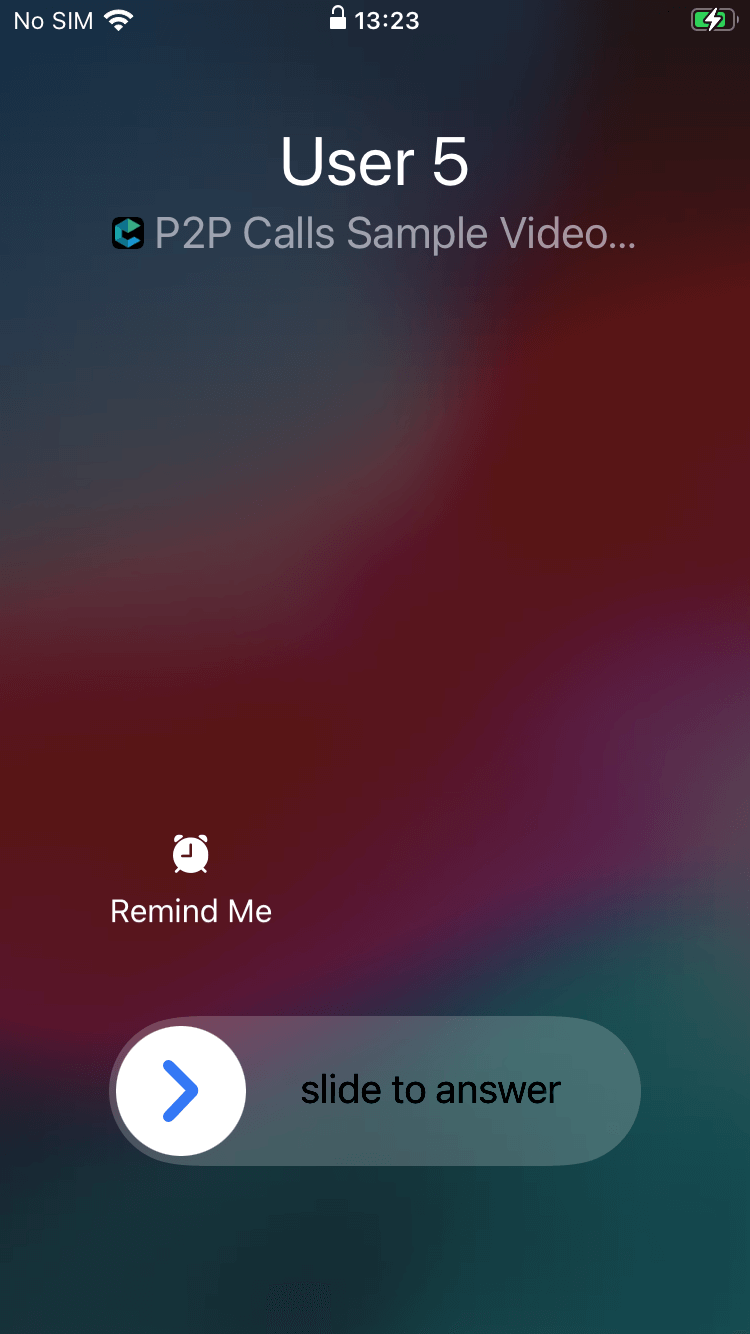
  • displaying the Incoming call screen when push notification was delivered on the device
  • notifying the app about user action performed on the Incoming call screen (accept, reject, mute (for iOS))
  • providing the methods for manual managing of the Incoming screen including the manual showing the Incoming call screen
  • getting the data about the current call during the call session
  • some customizations according to your app needs (ringtone, app icon, accent color(for Android))
  • checking and changing the access to the Manifest.permission.USE_FULL_SCREEN_INTENT permission (for Android 14 and above)

Flutter P2P Calls code sample, incoming call in background Android Flutter P2P Calls code sample, incoming call locked Android Flutter P2P Calls code sample, incoming call in background iOS Flutter P2P Calls code sample, incoming call locked iOS

Configure your project

This plugin doesn't require complicated configs, just connect it as usual flutter plugin to your app and do the next simple actions:

Prepare Android
  • add the Google services config file google-services.json by path your_app/android/app/
  • add next string at the end of your build.gradle file by path your_app/android/app/build.gradle:
apply plugin: 'com.google.gms.google-services'

If your app is targeted to targetSdkVersion 31 and above and you need to start the app by clicking the Accept button you should request the permission SYSTEM_ALERT_WINDOW from the user first. For it, you can use the plugin permission_handler.

If your app is targeted to targetSdkVersion 33 and above you should request the permission POST_NOTIFICATIONS from the user first.

Prepare iOS
  • add next strings to your Info.plist file by path your_app/ios/Runner/Info.plist:
<key>UIBackgroundModes</key>
<array>
    <string>remote-notification</string>
    <string>voip</string>
</array>

API and callbacks

Get token

The plugin returns the VoIP token for the iOS platform and the FCM token for the Android platform.

Get token from the system:

ConnectycubeFlutterCallKit.getToken().then((token) {
    // use received token for subscription on push notifications on your server
});

Listen to the refresh token event:

ConnectycubeFlutterCallKit.onTokenRefreshed = (token) {
    // use refreshed token for resubscription on your server
};
Customize the plugin

We added a helpful method for customization the plugin according to your needs. At this moment you can customize the ringtone, application icon, noitification small icon (Android only) and notification accent color (Android only). Use the next method for it:

ConnectycubeFlutterCallKit.instance.updateConfig(
  ringtone: 'custom_ringtone', 
  icon: Platform.isAndroid ? 'default_avatar' : 'CallKitIcon', // is used as an avatar placeholder for Android and as the app icon for iOS
  color: '#07711e');
[Android only] Notification icon customisation

You can set different icons for Audion and Video calls, add suitable resources to your android/app/src/main/AndroidManifest.xml to the application section for it:

<meta-data
    android:name="com.connectycube.flutter.connectycube_flutter_call_kit.audio_call_notification_icon"
    android:resource="@drawable/ic_notification_audio_call" />

<meta-data
    android:name="com.connectycube.flutter.connectycube_flutter_call_kit.video_call_notification_icon"
    android:resource="@drawable/ic_notification_video_call" />

If you don't need it, add only the default notification icon:

<meta-data
    android:name="com.connectycube.flutter.connectycube_flutter_call_kit.app_notification_icon"
    android:resource="@drawable/ic_notification" />
Show Incoming call notification
P2PCallSession incomingCall; // the call received somewhere

CallEvent callEvent = CallEvent(
    sessionId: incomingCall.sessionId,
    callType: incomingCall.callType,
    callerId: incomingCall.callerId,
    callerName: 'Caller Name',
    opponentsIds: incomingCall.opponentsIds,
    callPhoto: 'https://i.imgur.com/KwrDil8b.jpg',
    userInfo: {'customParameter1': 'value1'});
ConnectycubeFlutterCallKit.showCallNotification(callEvent);
Listen to the user action from the Incoming call screen:
Listen in the foreground

Add the listeners during initialization of the plugin:

ConnectycubeFlutterCallKit.instance.init(
    onCallAccepted: _onCallAccepted,
    onCallRejected: _onCallRejected,
    onCallIncoming: _onCallIncoming,
);

Future<void> _onCallAccepted(CallEvent callEvent) async {
    // the call was accepted
}

Future<void> _onCallRejected(CallEvent callEvent) async {
    // the call was rejected
}

Future<void> _onCallRejected(CallEvent callEvent) async {
    // the Incoming call screen/notification was shown for user
}
Listen in the background or terminated state (Android only):
ConnectycubeFlutterCallKit.onCallRejectedWhenTerminated = onCallRejectedWhenTerminated;
ConnectycubeFlutterCallKit.onCallAcceptedWhenTerminated = onCallAcceptedWhenTerminated;
ConnectycubeFlutterCallKit.onCallIncomingWhenTerminated = onCallIncomingWhenTerminated;

!> Attention: the functions onCallRejectedWhenTerminated, onCallAcceptedWhenTerminated and onCallIncomingWhenTerminated must be a top-level functions and cannot be anonymous. Mark these callbacks with the @pragma('vm:entry-point') annotation to allow using them from the native code.

Listen for the actions performed on the CallKit screen (iOS only):
Listening for the muting/unmuting the call
ConnectycubeFlutterCallKit.onCallMuted = onCallMuted;

Future<void> onCallMuted(bool mute, String uuid) async {
  // [mute] - `true` - the call was muted on the CallKit screen, `false` - the call was unmuted
  // [uuid] - the id of the muted/unmuted call
}
Get the call state
var callState = await ConnectycubeFlutterCallKit.getCallState(sessionId: sessionId);
Get the call data
ConnectycubeFlutterCallKit.getCallData(sessionId: sessionId).then((callData) {
      
});
Get the id of the latest call

It is helpful for some cases to know the id of the last received call. You can get it via:

var sessionId = await ConnectycubeFlutterCallKit.getLastCallId();

Then you can get the state of this call using getCallState.

Notify the plugin about user actions concerning the call on the Flutter app side

For dismissing the Incoming call screen (or the Call Kit for iOS) you should notify the plugin about these events. Use next functions for it:

ConnectycubeFlutterCallKit.reportCallAccepted(sessionId: uuid);
ConnectycubeFlutterCallKit.reportCallEnded(sessionId: uuid);

Notifying the plugin about muting/unmuting the call (iOS only):

var muted = true; // set `true` if the call was muted or `false` if the call was unmuted

ConnectycubeFlutterCallKit.reportCallMuted(sessionId: uuid, muted: muted);
Clear call data

After finishing the call you can clear all data on the plugin side related to this call, call the next code for it

await ConnectycubeFlutterCallKit.clearCallData(sessionId: sessionId);
Manage the app visibility on the lock screen (Android only)

In case you need to show your app after accepting the call from the lock screen you can do it using the method

ConnectycubeFlutterCallKit.setOnLockScreenVisibility(isVisible: true);

After finishing that call you should hide your app under the lock screen, do it via

ConnectycubeFlutterCallKit.setOnLockScreenVisibility(isVisible: false);
Check the permission Manifest.permission.USE_FULL_SCREEN_INTENT state (Android 14 and above)
var canUseFullScreenIntent = await ConnectycubeFlutterCallKit.canUseFullScreenIntent();
Request the access to the Manifest.permission.USE_FULL_SCREEN_INTENT permission (Android 14 and above)
ConnectycubeFlutterCallKit.provideFullScreenIntentAccess();

The function moves the user to the specific setting for your app where you can grant or deny this permission for your app.

Show Incoming call screen by push notification

In case you want to display the Incoming call screen automatically by push notification you can do it easily. For it, the caller should send the push notification to all call members. This push notification should contain some required parameters. If you use the Connectycube Flutter SDK, you can do it using the next code:

CreateEventParams params = CreateEventParams();
params.parameters = {
    'message': "Incoming ${currentCall.callType == CallType.VIDEO_CALL ? "Video" : "Audio"} call",
    'call_type': currentCall.callType,
    'session_id': currentCall.sessionId,
    'caller_id': currentCall.callerId,
    'caller_name': callerName,
    'call_opponents': currentCall.opponentsIds.join(','),
    'photo_url': 'https://i.imgur.com/KwrDil8b.jpg'
    'signal_type': 'startCall',
    'ios_voip': 1,
 };

params.notificationType = NotificationType.PUSH;
params.environment = CubeEnvironment.DEVELOPMENT; // not important
params.usersIds = currentCall.opponentsIds.toList();

createEvent(params.getEventForRequest()).then((cubeEvent) {
      // event was created
}).catchError((error) {
      // something went wrong during event creation
});

For hiding the Incoming call screen via push notification use a similar request but with a different signal_type, it can be 'endCall' or 'rejectCall'.

Android 14 features

Starting from Android Build.VERSION_CODES.UPSIDE_DOWN_CAKE, apps may not have permission to use Manifest.permission.USE_FULL_SCREEN_INTENT. If permission is denied, the call notification will show up as an expanded heads up notification on lockscreen. The plugin provides the API for checking the access state and moves to the System setting for enabling it. Please follow the next code snippet to manage it:

var canUseFullScreenIntent = await ConnectycubeFlutterCallKit.canUseFullScreenIntent();

if (!canUseFullScreenIntent){
  ConnectycubeFlutterCallKit.provideFullScreenIntentAccess();
}

You can check how this plugin works in our P2P Calls code sample.

Have an issue?

Join our Discord for quick answers to your questions

Community

Want to support our team:
Buy Me A Coffee

License

See LICENSE

所屬分類

依賴

依賴清單 1 項

原始碼儲存庫

使用此套件的專案

暫無相關資料。