搜尋套件、儲存庫與 APP 分類

套件詳情v0.4.0

cue

以物理為基礎的 Flutter 動畫,具有可組合的、基於時間線的 API

AndroidiOSWebmacOSWindowsLinux
近 30 天下載
1.2萬
喜歡數
218
Pub 分數
160

安裝套件

flutter pub add cue

套件介紹

根據套件公開資料產生的選型評估,僅供參考。

Cue 是一個以物理為基礎的 Flutter 動畫庫,透過可組合且基於時間線的 API 強調自然、真實的運動。以效能與開發者體驗為設計考量,讓開發者能透過直覺地控制時間、緩動與基於物理的行為,鏈結並組合動畫序列來創造複雜的動畫。Cue 適用於簡單的轉場與複雜的互動式動畫,可無縫整合至各主要平台的 Flutter 應用中。

適用情境

  • 建立順暢的基於物理的 UI 過渡
  • 構建互動式手勢驅動動畫
  • 組合複雜的動畫時間線
  • 實現響應式微互動
  • 設計可重用的動畫組件
  • 以真實感動畫呈現佈局變更

主要特色

  • 基於物理的動畫引擎
  • 可組合的動畫建構區塊
  • 基於時間線的序列化
  • 自然緩動與動量模擬
  • 跨平台一致性
  • 複雜動畫的最小範本程式碼

適合對象

  • 尋求真實動畫的Flutter開發者
  • 需要互動式或手勢回應式運動的應用程式
  • 優先考慮動畫可維護性的團隊
  • 具有複雜動畫工作流程的專案
  • 想要採用宣告式動畫方法的開發者

使用建議

  • 需要理解基於物理的動畫原理
  • 對初學者來說可能有學習曲線
  • 最適合用於動畫品質至關重要的專案
  • 不適合非常簡單、靜態的過渡
  • 效能取決於動畫的複雜度

原始 README

以下為關聯原始碼儲存庫的 README 原文快照,最新內容請造訪原始碼儲存庫。


Cue

MIT License stars pub version

Buy Me A Coffee

Physics-first Flutter animations with a composable, timeline-driven API for building polished transitions, expressive UI motion, and reusable animation systems without wiring imperative controllers through your widget tree.

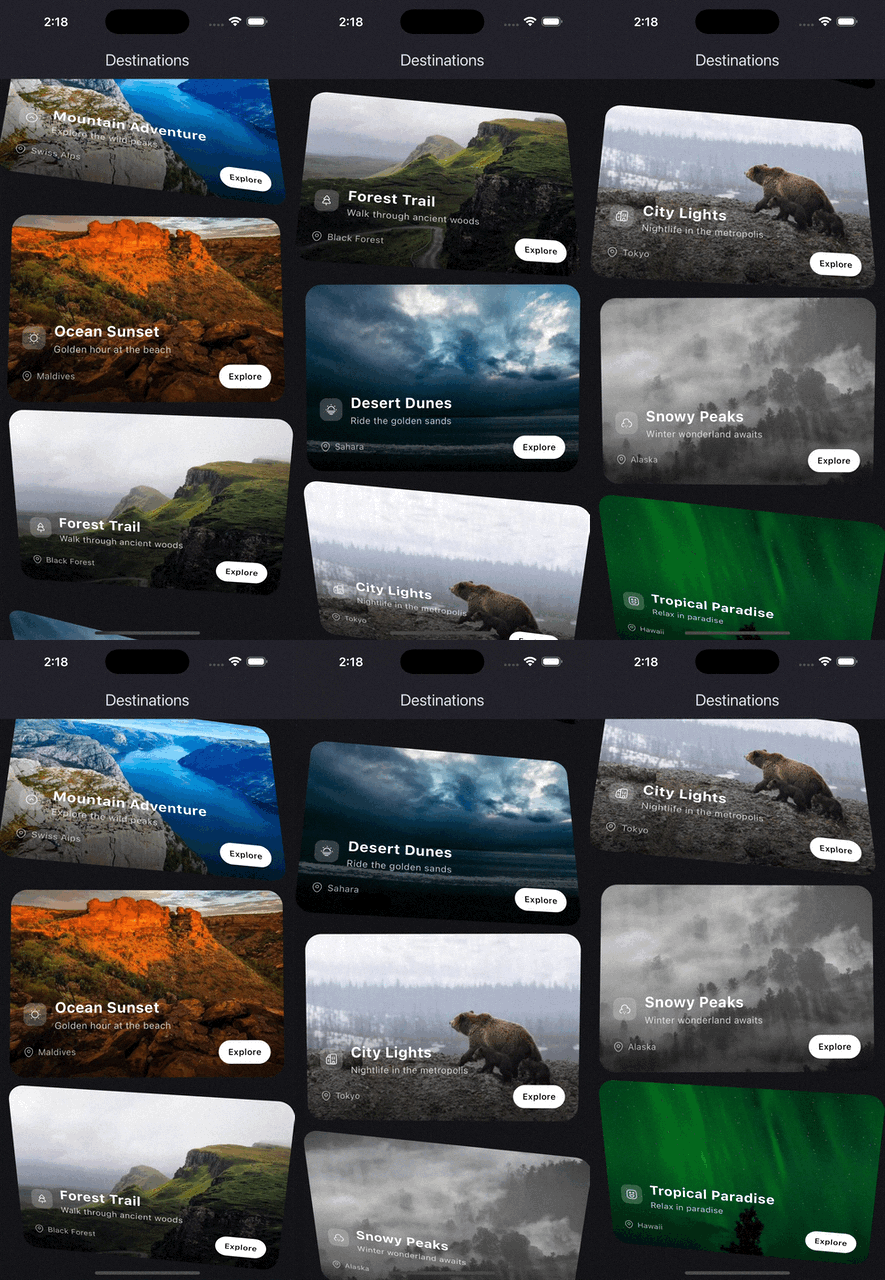
On scroll demo
source
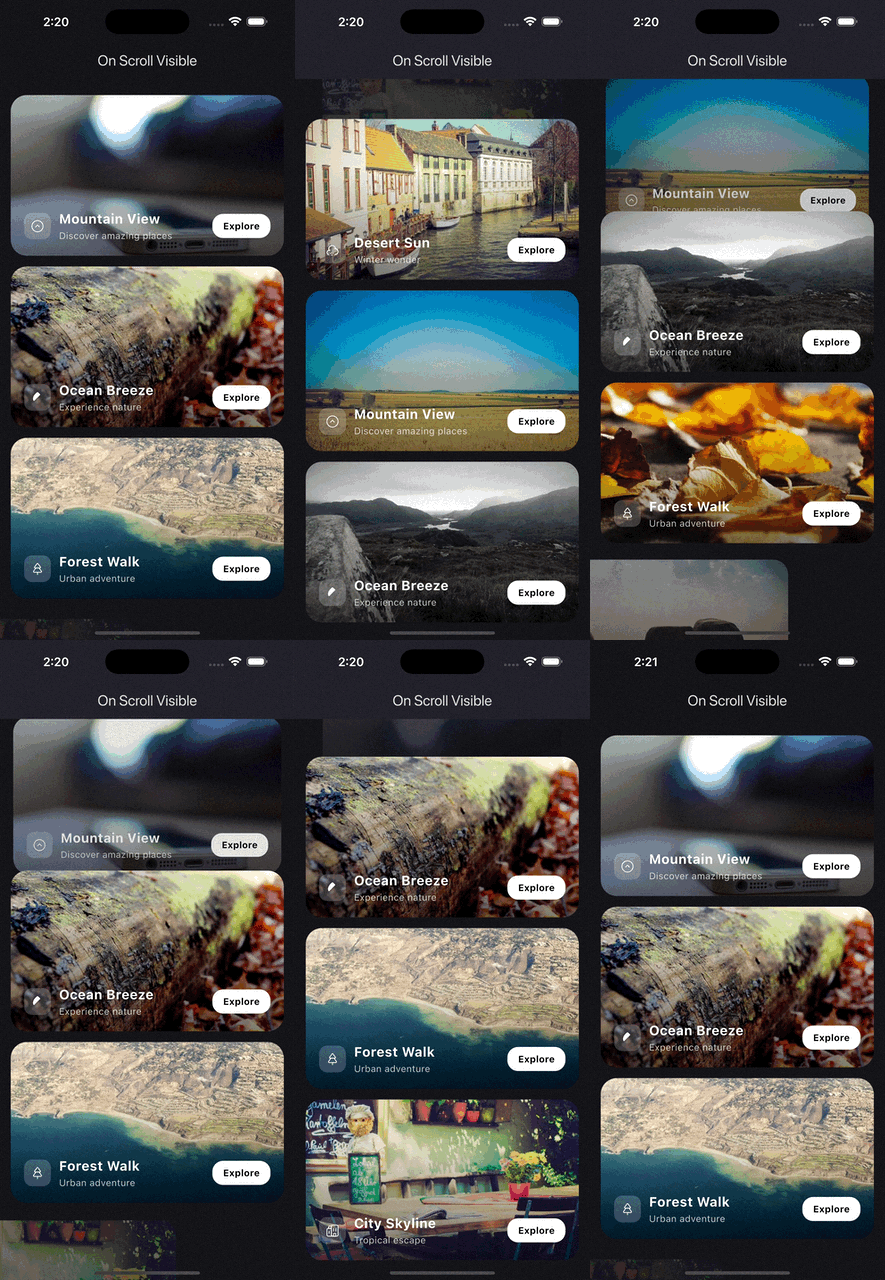
On scroll visible demo
source
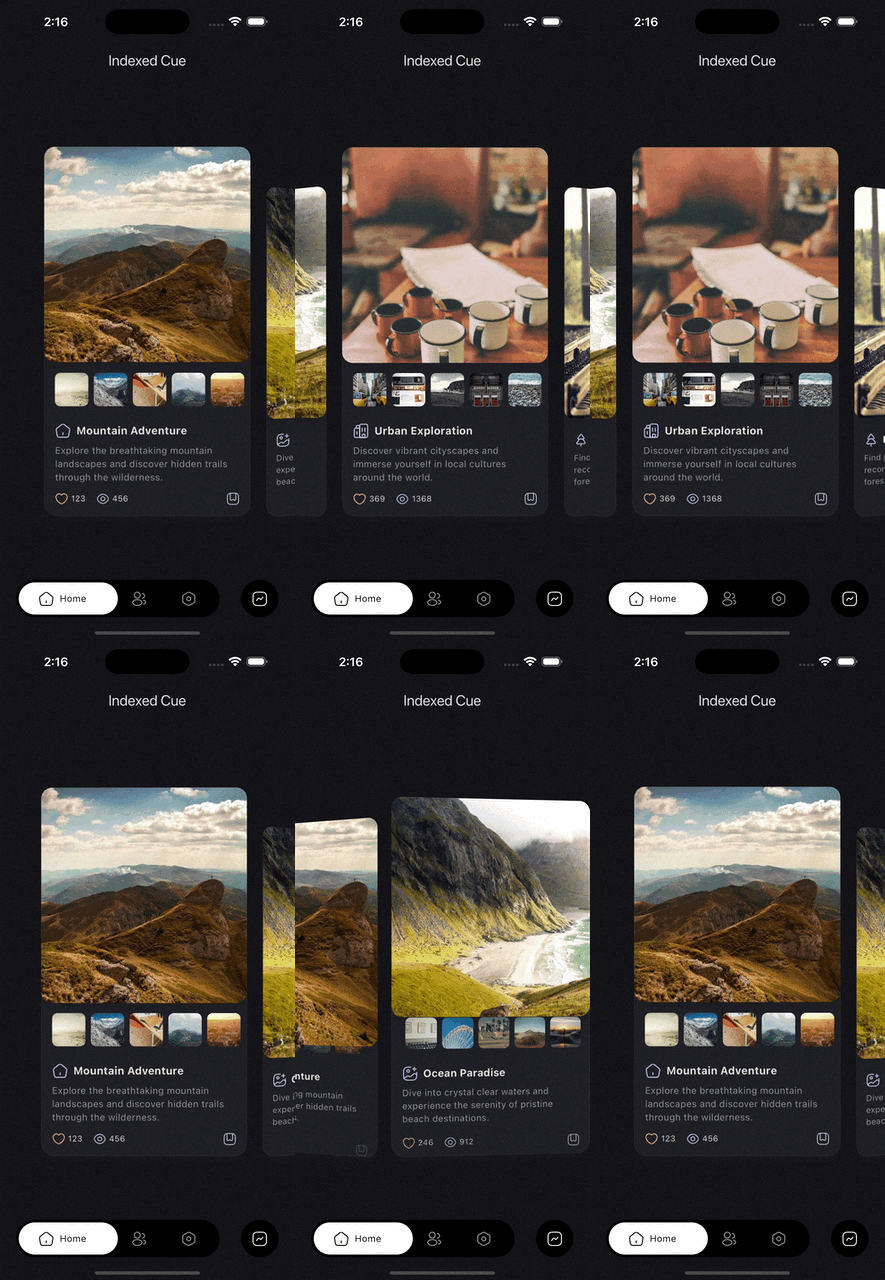
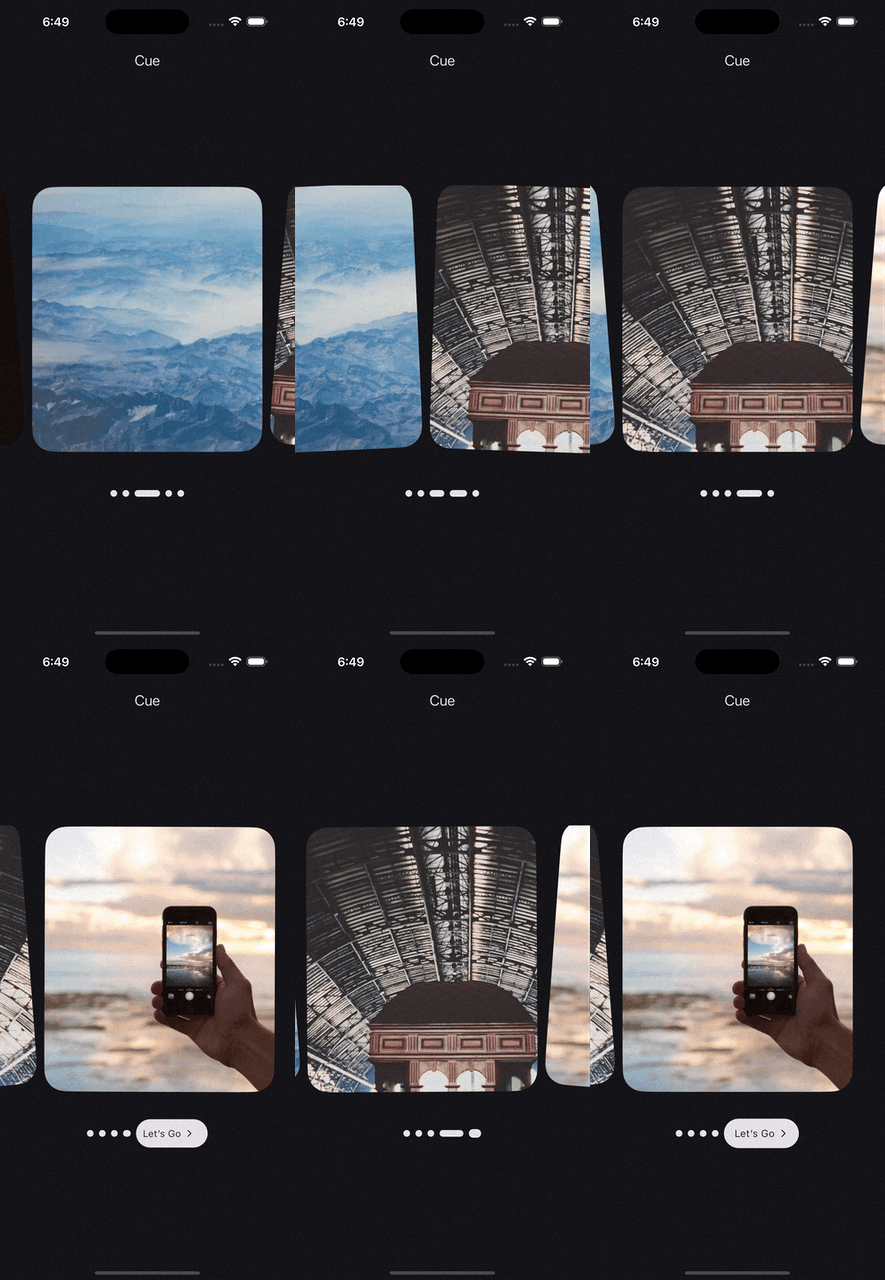
Page view demo
source
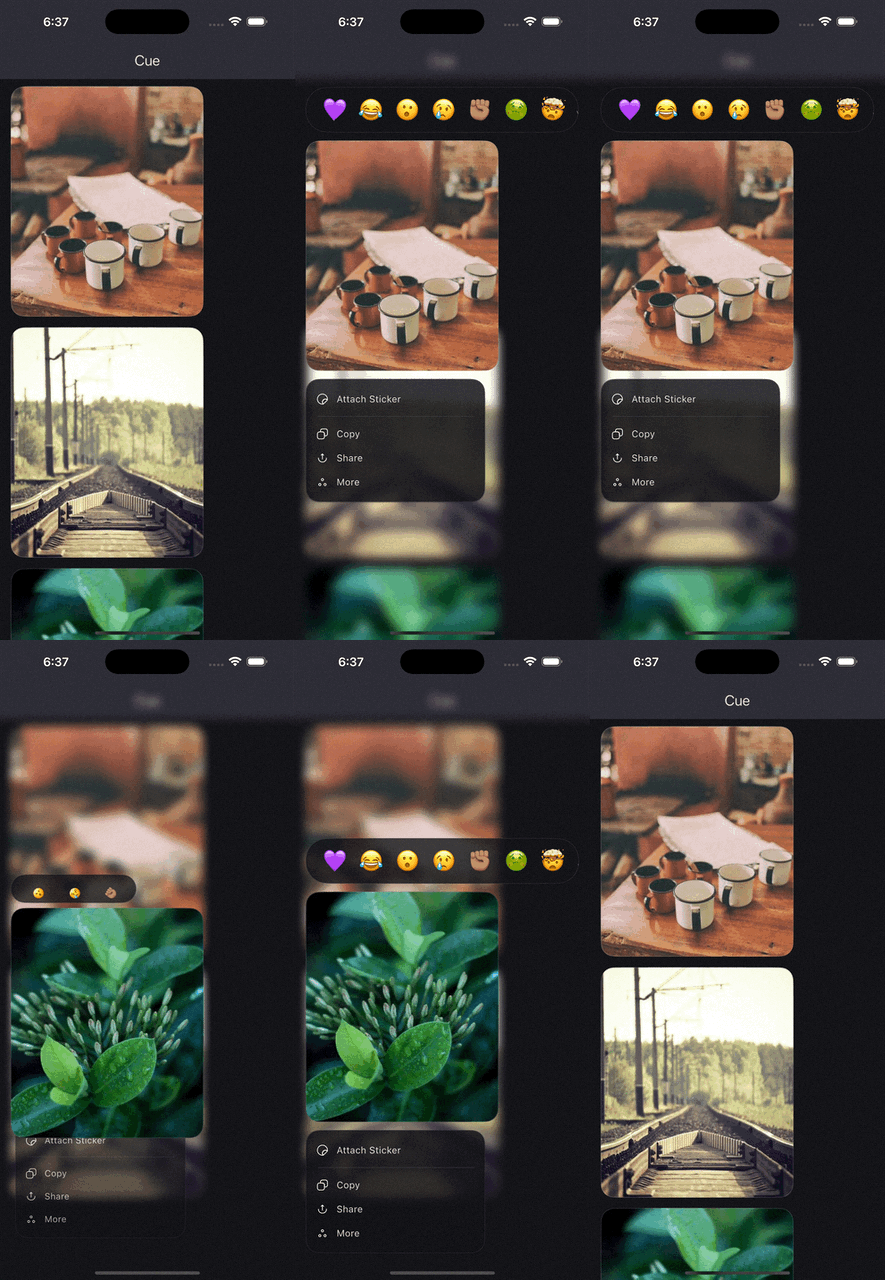
iOS context menu demo
source
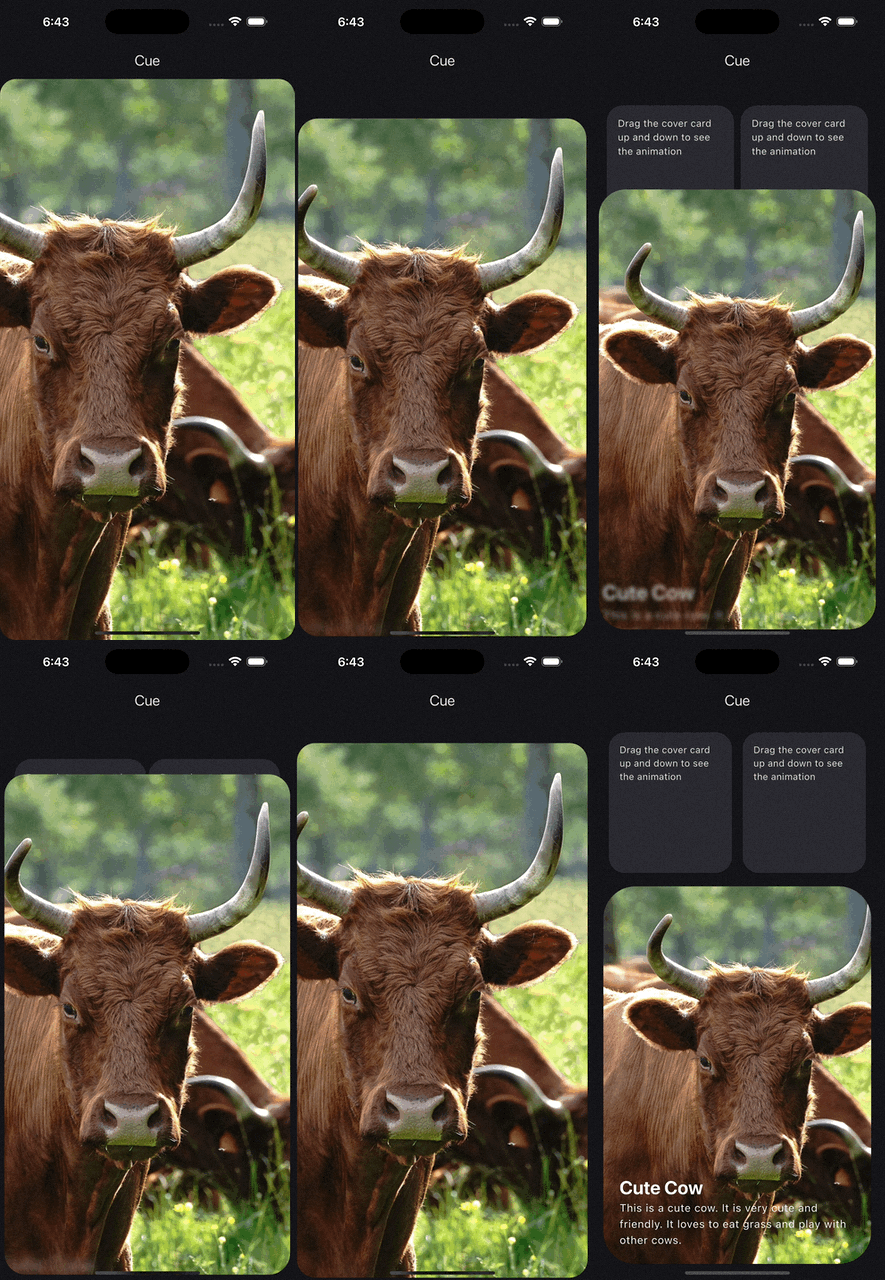
Draggable panel demo
source
Indicator to button demo
source
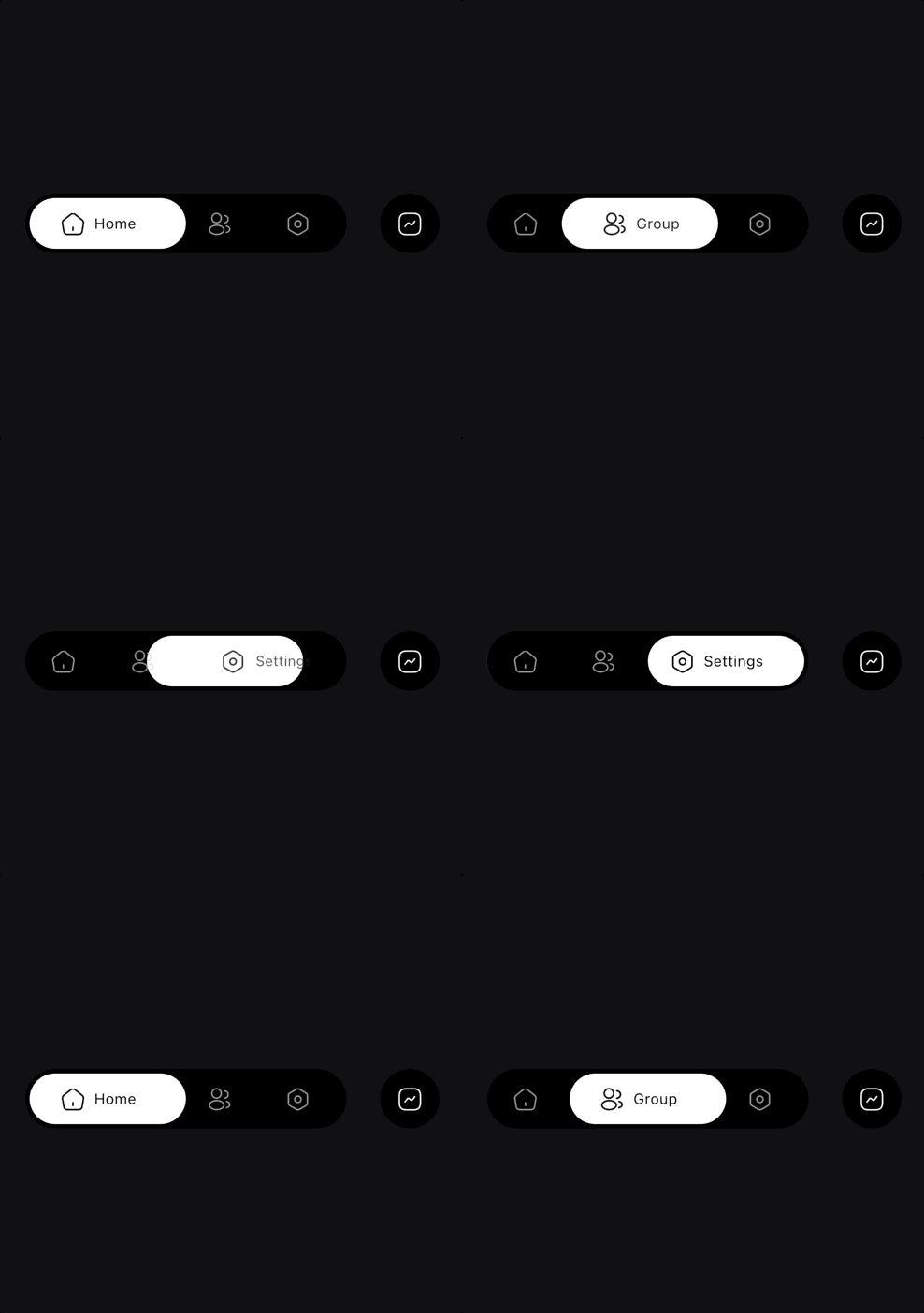
Bottom bar demo
source
Delete confirmation demo
source
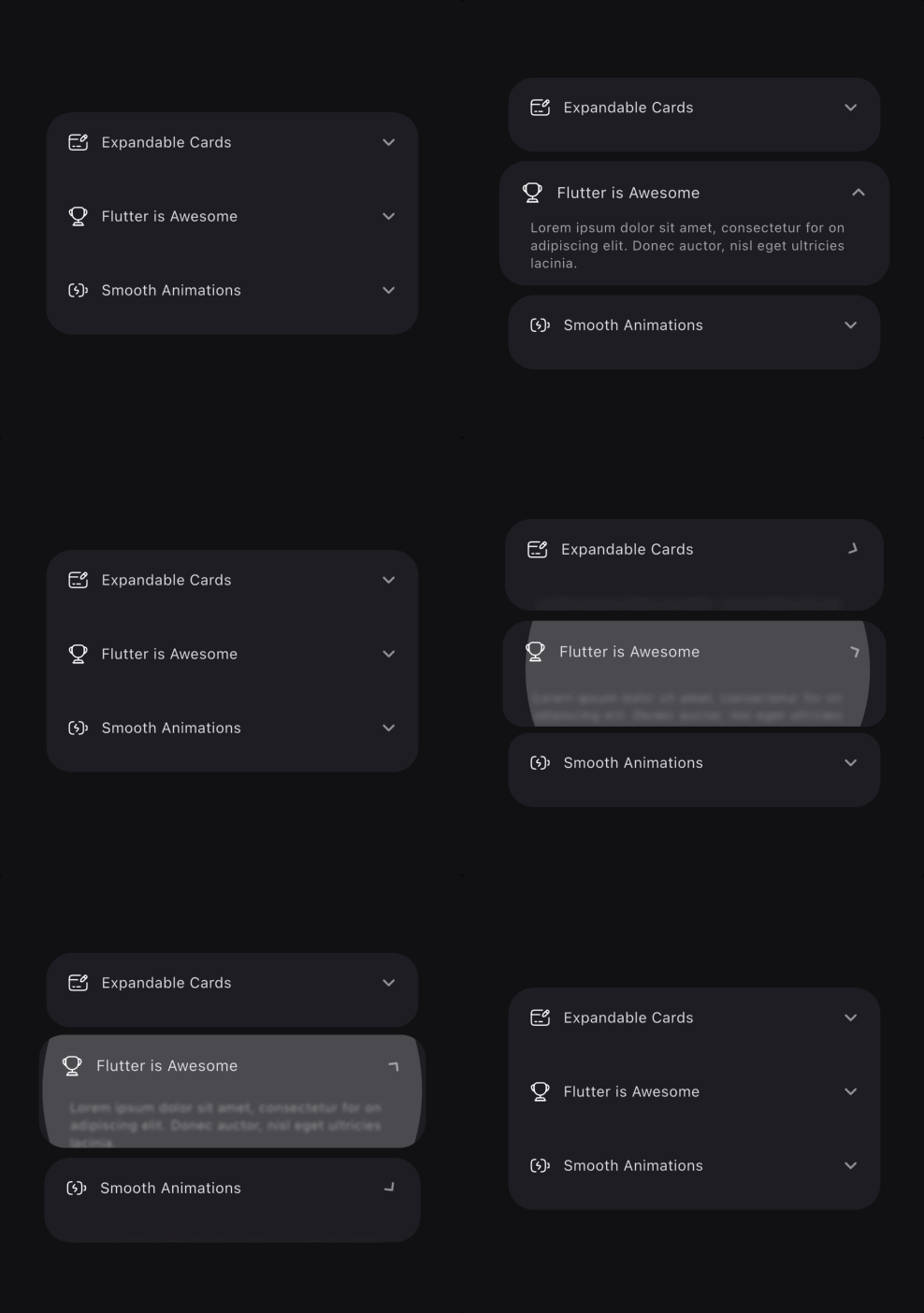
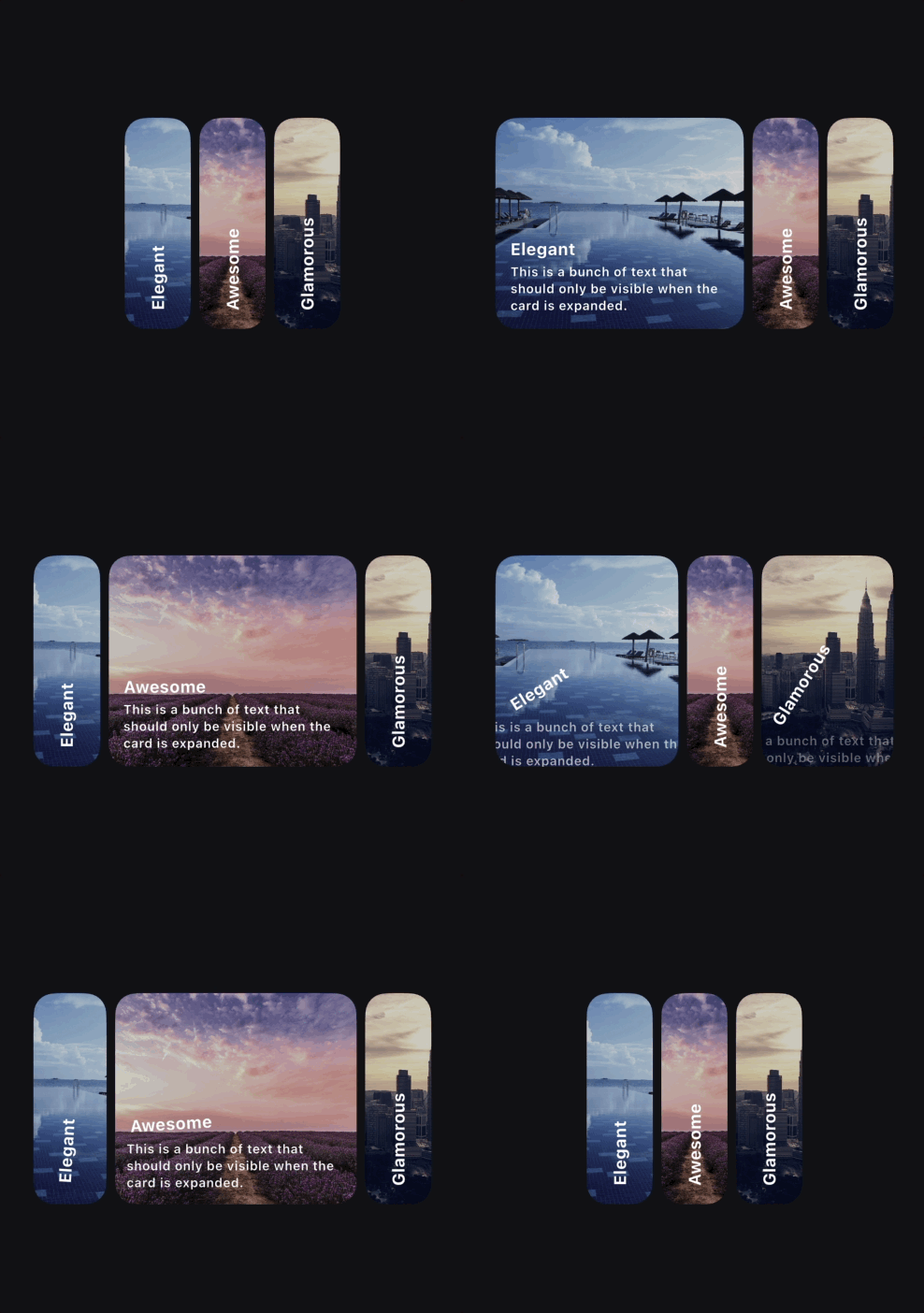
Expanding cards demo
source
Horizontally expanding cards demo
source
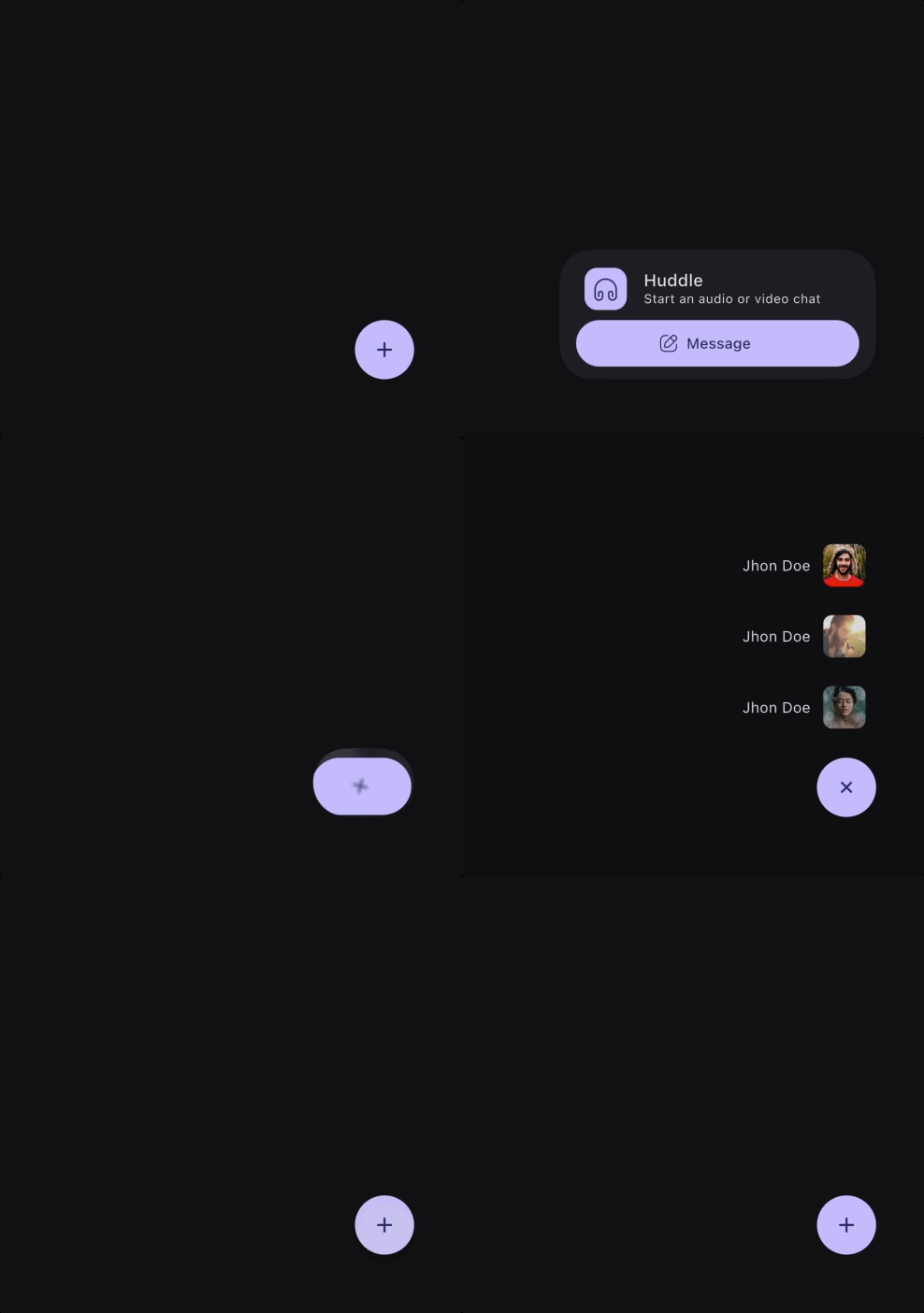
Slack style fab demo
source
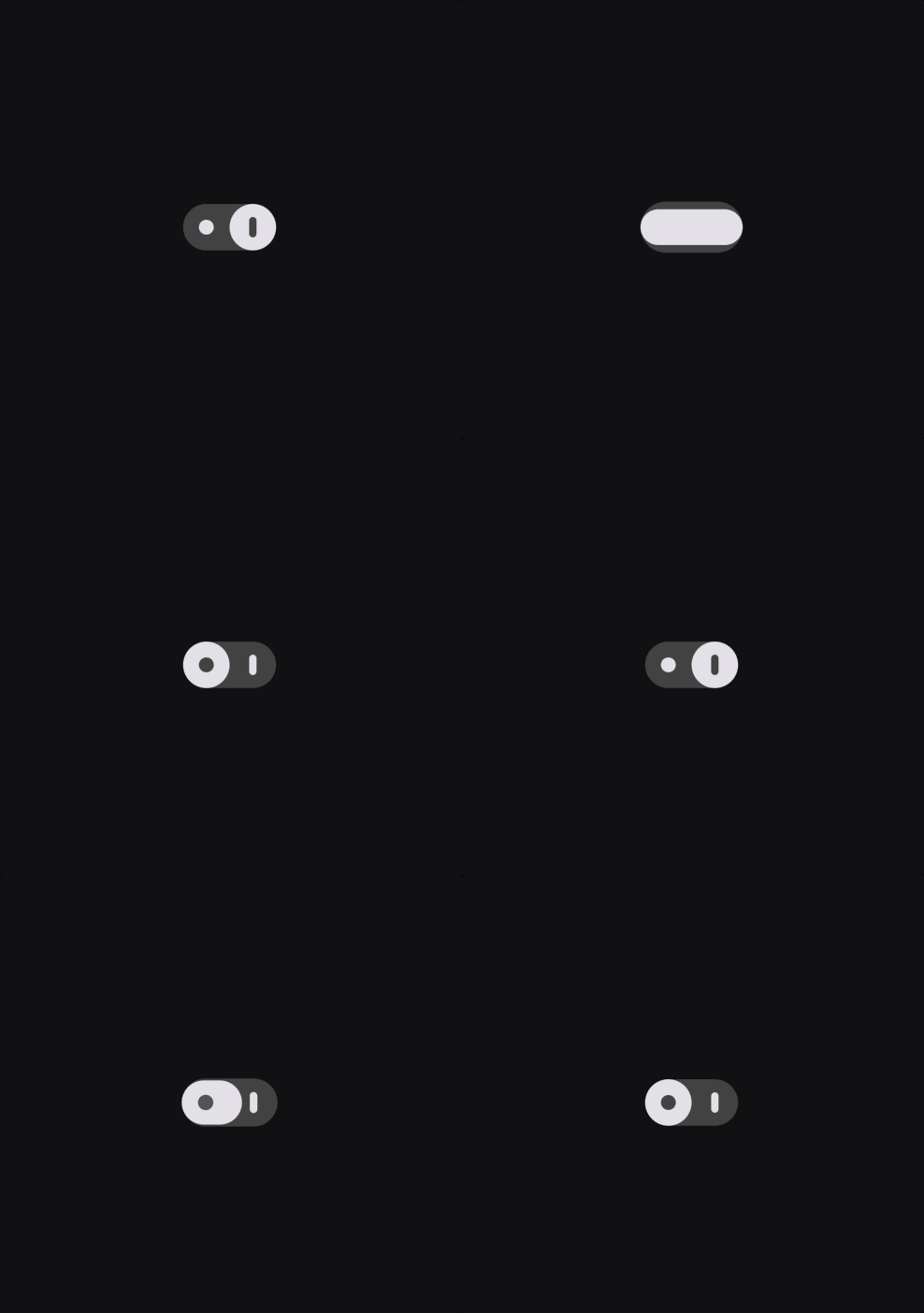
Smooth switch demo

source
Three dots action demo
source

Usage

Cue separates animation into a few small pieces:

  • Cue decides when an animation should run.
  • Actor decides which widget is animated.
  • Act describes the effect that is applied.
  • CueMotion describes how it moves, whether that is spring-based or timed with a curve.
  • Keyframes describe multi-step motion.

That separation keeps animation code readable, reusable, and easy to scale across a subtree.

Quick Start

Cue.onMount(
  motion: .smooth(),
  child: Actor(
    acts: [
      .fadeIn(),
      .slideY(from: 0.2),
      .scale(from: 0.96),
    ],
    child: const Text('Hello Cue'),
  ),
)

For a single animated child, you can skip the explicit Actor and pass acts directly to Cue:

Cue.onMount(
  motion: .smooth(),
  acts: [
    .fadeIn(),
    .slideY(from: 0.2),
  ],
  child: const Text('Hello Cue'),
)

If you are exploring animations during development, enable CueDebugTools right after you get the basic setup working. It gives you a scrubber for completed Cue animations and is best wrapped in a kDebugMode check:

MaterialApp(
  builder: (context, child) {
    if (kDebugMode) {
      return CueDebugTools(child: child!);
    }
    return child!;
  },
)

The Building Blocks

1. Cue: the trigger

Cue publishes a CueController to its subtree through CueScope. Any Actor below it can use it to build animations.

Use the factory that matches the trigger you want:

Direction matters here:

  • Cue.onMount plays forward when the widget is inserted into the tree. It is a one-way entrance trigger unless you opt into repeat behavior.
  • Cue.onToggle plays forward when toggled becomes true, and plays in reverse when toggled becomes false.
  • Cue.onChange restarts from 0 and plays forward each time the tracked value changes. It does not reverse based on the old and new values.
  • Cue.onHover plays forward on pointer enter, and reverses on pointer exit.
  • Cue.onFocus plays forward when the widget gains focus, and reverses when it loses focus.
  • Cue.onScroll is scrubbed by scroll position. It does not simply fire forward or reverse once; progress is continuously mapped to where the widget is in the viewport.
  • Cue.onScrollVisible maps visibility to animation progress. It moves forward as the widget enters the viewport and reverses as the widget exits it.
  • Cue.onProgress is scrubbed by an external progress source. The listenable drives the current value directly, so direction depends on whether the external progress is increasing or decreasing.
  • Cue.indexed is driven by an indexed controller. Items ahead of the active offset move forward, while items behind it move in reverse as the controller moves between indices.
  • Cue(...) gives you full imperative control. You decide the direction by calling methods such as forward, reverse, animateTo, or by setting progress directly on your controller.

In sliver layouts (for example CustomScrollView), animate the non-sliver widget you render inside each sliver (such as a SliverToBoxAdapter child or SliverList item). For SliverAppBar headers, use CueFlexibleSpaceBar.

Example:

Cue.onToggle(
  toggled: isExpanded,
  motion: .smooth(),
  reverseMotion: .snappy(),
  child: Column(
    children: [
      Actor(
        acts: [.rotate(to: 180)],
        child: const Icon(Icons.expand_more),
      ),
      Actor(
        delay: 50.ms,
        acts: [.fadeIn(), .slideY(from: 0.15)],
        child: const Text('Details'),
      ),
    ],
  ),
)
2. Actor: the renderer

Actor is the visual building block. It takes a child plus one or more acts and applies them using the nearest Cue.

Important rules:

  • Actor is passive. Without an ancestor Cue, it will throw.
  • One Actor can apply multiple acts at once.
  • Acts eventually resolve into nested widget wrappers around the child, so ordering matters. For example, clipping before transforming is not always the same as transforming before clipping.
  • Only one act per act key is allowed in the same Actor. For example, two slide variants in one Actor are not allowed because they share the same key.
  • motion on an act overrides Actor.motion, which overrides the parent Cue motion.

You can also attach acts inline with the widget extension:

ElevatedButton(
  onPressed: onPressed,
  child: const Text('Save'),
).act([
  .fadeIn(),
  .slideUp(),
])
3. Act: the effect

An Act is an immutable description of one animated property. Prefer the shorthand factories in normal app code.

Actor(
  acts: [
    .fadeIn(),
    .scale(from: 0.9),
    .slideY(from: 0.2),
  ],
  child: child,
)

The direct class constructors still exist, but the shorthand reads better and keeps call sites clean. Prefer:

  • .smooth() over Spring.smooth() when the type is inferred.
  • .fadeIn() over Act.fadeIn().
  • .key(...) over Keyframe(...).
  • .fractional([...]) where shorthand is available.

This is the style Cue is designed around.

4. CueMotion: how it moves

CueMotion controls timing and feel. In most UI, spring motion is the default choice because it handles interruption naturally.

Common presets:

  • .smooth() fast, clean, no overshoot. Best default.
  • .snappy() near-instant micro-interactions.
  • .bouncy() visible overshoot for emphasis.
  • .gentle() slower, softer motion.
  • .wobbly() exaggerated playful motion.
  • .interactive() responsive drag and hover feel.
  • .spatial() tuned for layout movement.
  • .effect() tuned for decorative changes.
  • .linear(250.ms), .easeIn(250.ms), .easeOut(250.ms) for fixed-duration timing.
Cue.onHover(
  motion: .interactive(),
  child: Actor(
    acts: [.scale(to: 1.03)],
    child: const Chip(label: Text('Hover me')),
  ),
)
5. Keyframes: multi-step animation

Use keyframes when a transition needs more than one target value.

Motion-based keyframes:

Actor(
  acts: [
    ScaleAct.keyframed(
      frames: Keyframes([
        .key(0.92),
        .key(1.06, motion: .bouncy()),
        .key(1.0),
      ], motion: .smooth()),
    ),
  ],
  child: child,
)

Fractional keyframes:

Actor(
  acts: [
    TranslateAct.keyframed(
      frames: .fractional([
        .key(const Offset(0, 24), at: 0.0),
        .key(const Offset(0, -8), at: 0.7),
        .key(Offset.zero, at: 1.0),
      ], duration: 450.ms),
    ),
  ],
  child: child,
)

Common Trigger Patterns

Enter on mount
Cue.onMount(
  motion: .smooth(),
  acts: [
    .fadeIn(),
    .slideY(from: 0.15),
  ],
  child: const Card(child: Padding(
    padding: EdgeInsets.all(16),
    child: Text('Mounted content'),
  )),
)
Animate state changes
Cue.onToggle(
  toggled: selected,
  motion: .smooth(),
  child: Actor(
    acts: [
      .scale(to: 1.04),
      .decorate(
        color: .tween(Colors.white, Colors.blue.shade50),
        borderRadius: .fixed(.circular(16)),
      ),
    ],
    child: child,
  ),
)
Re-animate when data changes

Cue.onChange is useful when the target value changes but the trigger is not a simple boolean.

Cue.onChange(
  value: currentTab,
  motion: .smooth(),
  fromCurrentValue: true,
  acts: [
    .fadeIn(),
    .slideY(from: 0.08),
  ],
  child: Text(labels[currentTab]),
)
Hover and focus
Cue.onHover(
  motion: .interactive(),
  acts: [.scale(to: 1.02)],
  child: Cue.onFocus(
    motion: .smooth(),
    acts: [.decorate(borderRadius: .fixed(.circular(14)))],
    child: child,
  ),
)
Animate pages with CuePageController

Cue.indexed is commonly used with CuePageController, where each page gets its own indexed cue and can animate multiple children as the page moves in and out.

final controller = CuePageController(viewportFraction: 0.8);

PageView.builder(
  controller: controller,
  itemCount: pages.length,
  itemBuilder: (context, index) {
    final page = pages[index];
    return Cue.indexed(
      controller: controller,
      index: index,
      child: Column(
        mainAxisAlignment: MainAxisAlignment.center,
        children: [
          Actor(
            acts: [
              .fadeIn(),
              .slideY(from: 0.12),
            ],
            child: Text(page.title),
          ),
          Actor(
            delay: 60.ms,
            acts: [
              .scale(from: 0.96),
              .fadeIn(),
            ],
            child: Card(
              child: SizedBox(
                height: 220,
                child: Center(child: Text(page.subtitle)),
              ),
            ),
          ),
        ],
      ),
    );
  },
)

Common Act Families

Cue ships a large set of acts. Most apps can think about them in a few groups.

Transform
  • .scale(), .zoomIn(), .zoomOut()
  • .rotate(), .rotate3D(), .flipX(), .flipY()
  • .translate(), .translateX(), .translateY()
  • .slide(), .slideX(), .slideY(), .slideUp(), .slideDown()
  • .stretch(), .skew(), .transform()
  • .parallax()
Visual
  • .opacity(), .fadeIn(), .fadeOut()
  • .blur(), .focus(), .unfocus()
  • .backdropBlur()
  • .colorTint()
Layout and clipping
  • .sizedBox()
  • .sizedClip()
  • .fractionalSize()
  • .padding()
  • .align()
  • .clipHeight(), .clipWidth(), .clip(), .circularClip()
Style and decoration
  • .decorate()
  • .textStyle()
  • .iconTheme()
Positional and specialized
  • .position() for stack-based layout animation
  • CardAct and CardActor
  • PaintAct and PaintActor
  • PathMotionAct

Motion, Delay, and Reverse Behavior

Acts, Actors, and Cues can all contribute timing.

  • Use motion to control forward timing.
  • Use reverseMotion on Cue or Actor when reverse should feel different.
  • Use delay and reverseDelay to offset animation starts.
  • Use ReverseBehavior on an act when reverse should target a different value or be disabled.
Actor(
  motion: .smooth(),
  reverseMotion: .linear(160.ms),
  delay: 80.ms,
  acts: [
    .fadeIn(
      reverse: .mirror(delay: 40.ms),
    ),
    .scale(
      to: 1.06,
      reverse: .to(0.98),
    ),
  ],
  child: child,
)

Controllers and Imperative Use

Use the trigger factories first. Reach for controllers when you need explicit orchestration.

CueController is an AnimationController backed by a CueTimeline. It keeps Cue's motion and track system available even when you are driving animation manually.

Important differences from a normal AnimationController:

  • Duration is derived from the timeline motion. You do not set duration or reverseDuration directly.
  • The timeline manages tracks, and each track can have its own motion.
  • To remove a track from the timeline, every obtainer of that track must release it.
  • If you rebuild the timeline with a new default motion, previously obtained tracks become stale and must be obtained again.

Available controller types include:

  • CueController for direct control.
  • CuePageController and CueTabController for navigation-driven progress.
  • CueIndexController and IndexedCueController for sequences and staggered lists.
  • SelfAnimatedCue for self-contained animation ownership.

When working manually with CueController, there are two levels of API:

  • High-level: pass the controller into Cue(controller: ...) and let Actors consume it through CueScope.
  • Low-level: obtain tracks with obtainTrack, tweenTrack, or keyframedTrack when you need typed imperative animations outside the normal widget helpers.
late final CueController controller;

@override
void initState() {
  super.initState();
  controller = CueController(vsync: this, motion: .smooth());
}


@override
Widget build(BuildContext context) {
  return Cue(
    controller: controller,
    acts: [.fadeIn(), .slideY(from: 0.2)],
    child: child,
  );
}

If you obtain typed animations directly, remember that they hold timeline tracks underneath:

late final CueController controller;
late final CueAnimation<double> opacity;
late final CueAnimation<double> scale;

@override
void initState() {
  super.initState();
  controller = CueController(vsync: this, motion: .smooth());
  opacity = controller.tweenTrack<double>(
    from: 0,
    to: 1,
  );
  scale = controller.keyframedTrack<double>(
    frames: Keyframes([
      .key(0.92),
      .key(1.06),
      .key(1.0),
    ], motion: .smooth()),
  );
}

@override
void dispose() {
  controller.dispose();
  super.dispose();
}

If the controller itself is being disposed, you do not need to release those tracks manually. Disposing the controller disposes the timeline and everything attached to it.

If the controller stays alive but a specific imperative animation is no longer needed, release that animation so its underlying track can be removed when no other obtainers still hold it.

Track lifecycle matters here:

  • obtainTrack returns a track plus a ReleaseToken.
  • tweenTrack and keyframedTrack wrap that same mechanism and expose CueAnimation.release().
  • A track is only removed after every token for it has been released.

If you call rebuildTimeline(...) because the default motion changed, all previously obtained tracks become stale, including tracks that had their own motion override. Re-obtain them after rebuilding.

Cue widgets handle all of this automatically. These details only matter when you use the controller as a low-level imperative API.

Higher-Level Helpers

Cue also includes higher-level widgets for common transition patterns.

showCueDialog and CueDialogRoute

Use Cue-powered route transitions for dialogs and overlays. Actors inside the route automatically pick up the route controller through CueScope.

showCueDialog(
  context: context,
  motion: .smooth(),
  reverseMotion: .snappy(),
  builder: (context) => Actor(
    acts: [
      .fadeIn(),
      .slideY(from: 0.12),
    ],
    child: const AlertDialog(title: Text('Hello')),
  ),
)
CueModalTransition

Use this when a trigger should expand into contextual modal content. The builder receives the trigger rectangle, so it is easy to animate size and position from the original source.

CueModalTransition(
  motion: .smooth(),
  reverseMotion: .snappy(),
  hideTriggerOnTransition: true,
  triggerBuilder: (context, open) {
    return IconButton(
      onPressed: open,
      icon: const Icon(Icons.more_horiz),
    );
  },
  builder: (context, rect) {
    return Actor(
      acts: [
        .translateFromGlobalRect(rect),
        .sizedClip(from: .size(rect.size), to: .width(240)),
      ],
      child: const Card(child: SizedBox(height: 180)),
    );
  },
)
CueModalRouteMixin

Use route integration when modal transitions should be driven by Cue instead of a one-off animation builder.

CueDragScrubber

Attach drag-based scrubbing to any subtree driven by a Cue controller.

Cue(
  controller: _controller,
  child: CueDragScrubber(
    scrubForwardDirection: CueScrubAxis.down,
    distance: 200,
    child: DecoratedBoxActor(...),
  ),
)
  • scrubForwardDirection (required) defines which drag direction maps to forward progress. Use CueScrubAxis.start/.end for logical directions that adapt to text direction (LTR/RTL), or .left/.right/.up/.down for absolute physical directions.
  • distance must be positive. To reverse the drag direction, use the opposite CueScrubAxis instead of a negative distance.
CueFlexibleSpaceBar

A drop-in replacement for Flutter's FlexibleSpaceBar that provides cue animations driver through context, the animations are driven by the collapse progress of the flexible space bar.

CueFlexibleSpaceBar(
  background: Center(child: 
    Actor(
    acts: [.fadeIn(), .zomeIn()], 
    child: Image.asset('header.jpg'),
    ),
  ),
  title: const Text('Title'), // can animate anyting here as well
)

Does not react to SliverAppBar.expandedHeight changes at runtime. Use a ValueKey if you have dynamic heights.

Custom Animations

When the built-in acts are not enough, there are two main paths:

  • Build your own Act when you want a reusable effect that fits naturally into normal Actor(acts: [...]) composition.
  • Use TweenActor<T> when you want to animate a custom value and render it directly with a builder.

TweenActor is the simplest custom entry point. You provide from, to, and a builder, and Cue gives you an animation you can use to drive any widget tree:

TweenActor<double>(
  from: 0,
  to: 1,
  motion: .smooth(),
  builder: (context, animation) {
    return FadeTranstion(
      opacity: animation,
      child: const Text('Custom animation'),
    );
  },
)

Cue also ships composed actor helpers for common cases where the act and widget shape already belong together:

  • PositionedActor for animating Position inside a Stack
  • DecoratedBoxActor for animated box decoration
  • CardActor for animated card properties
  • PaintActor for painting with animation progress

Use those when they match the job, and build your own Act or TweenActor when they do not.

Recommended Style

Cue works best when call sites stay terse.

  • Prefer Cue.onToggle(motion: .smooth(), ...) over verbose class-qualified constructors when type inference is clear.
  • Prefer .fadeIn(), .slideY(), .scale() and other shorthand act factories in act lists.
  • Prefer Cue.acts or widget.act([...]) for single-child cases.
  • Use an explicit Actor when you need multiple animated descendants with different delays or motions.
  • Put one Cue high enough in the tree to coordinate related actors.

In short: use the shorthand named constructors whenever possible. That is the cleanest API Cue offers.

AI Agent Skills

Cue ships animation skills that give AI coding agents deep knowledge of the Cue API for accurate code generation, act suggestions, and motion guidance.

Quick Install (Recommended)

Install the skills package and get the cue animation skill:

skills get cue
Manual Installation

Copy the skill from the Cue/skills folder into your project's AI agent skills directory:

  • GitHub Copilot: Copy to .github/skills/cue-animations/SKILL.md
  • Kilo: Copy to .kilo/skill/cue-animations.md
  • Other agents: Check your agent's documentation for the correct skills path

所屬分類

依賴

依賴清單 1 項

原始碼儲存庫

使用此套件的專案

暫無相關資料。