搜尋套件、儲存庫與 APP 分類

floating_draggable_widget 封面
套件詳情v2.3.0

floating_draggable_widget

一個用於浮動可拖曳組件的 Flutter 套件。透過此套件,開發者可以實現可在螢幕上自由拖曳的組件。

AndroidiOSWebmacOSWindowsLinux
近 30 天下載
6580
喜歡數
133
Pub 分數
140

安裝套件

flutter pub add floating_draggable_widget

套件介紹

根據套件公開資料產生的選型評估,僅供參考。

一個 Flutter 套件,讓開發者能在應用介面中建立可浮動且可自由拖曳的元件。這允許使用者透過直覺的觸控或指標互動將元件移動到螢幕上的任何位置。非常適合用於互動式 UI 元件,例如浮動面板、快速存取工具或可自訂的覆疊層。此套件支援所有主要平台,包括 Android、iOS、Web、macOS、Windows 和 Linux,確保在各裝置上行為一致。

適用情境

  • 建立可移動的浮動面板
  • 實現拖放快速操作工具
  • 設計可自定義的使用者介面疊加層
  • 構建互動式儀表板元件
  • 啟用使用者控制的小工具定位

主要特色

  • 自由格式螢幕拖曳
  • 跨平台相容性
  • 與現有組件的簡單整合
  • 平滑拖曳動畫
  • 對多平台的支援

適合對象

  • 開發互動式 UI 的開發者
  • 需要可移動浮動元素的應用程式
  • 針對多個平台的專案
  • UX 設計師在原型設計動態版面

使用建議

  • 可能需要額外的邏輯來處理邊界約束
  • 複雜嵌套組件帶來的效能影響
  • 有限的內建手勢自訂
  • 未針對高頻率拖曳情境進行優化
  • 在拖動過程中需要小心處理元件生命週期

原始 README

以下為關聯原始碼儲存庫的 README 原文快照,最新內容請造訪原始碼儲存庫。

Features
  • Support Android, IOS, Web etc.
  • This package is used to make a widget movable or draggable around the screen freely;
  • Works fine for any Widget;
  • Does not affect the functionality or performance of the particular widget;
  • Used physics law supported animation to make it more attractive;

Demo

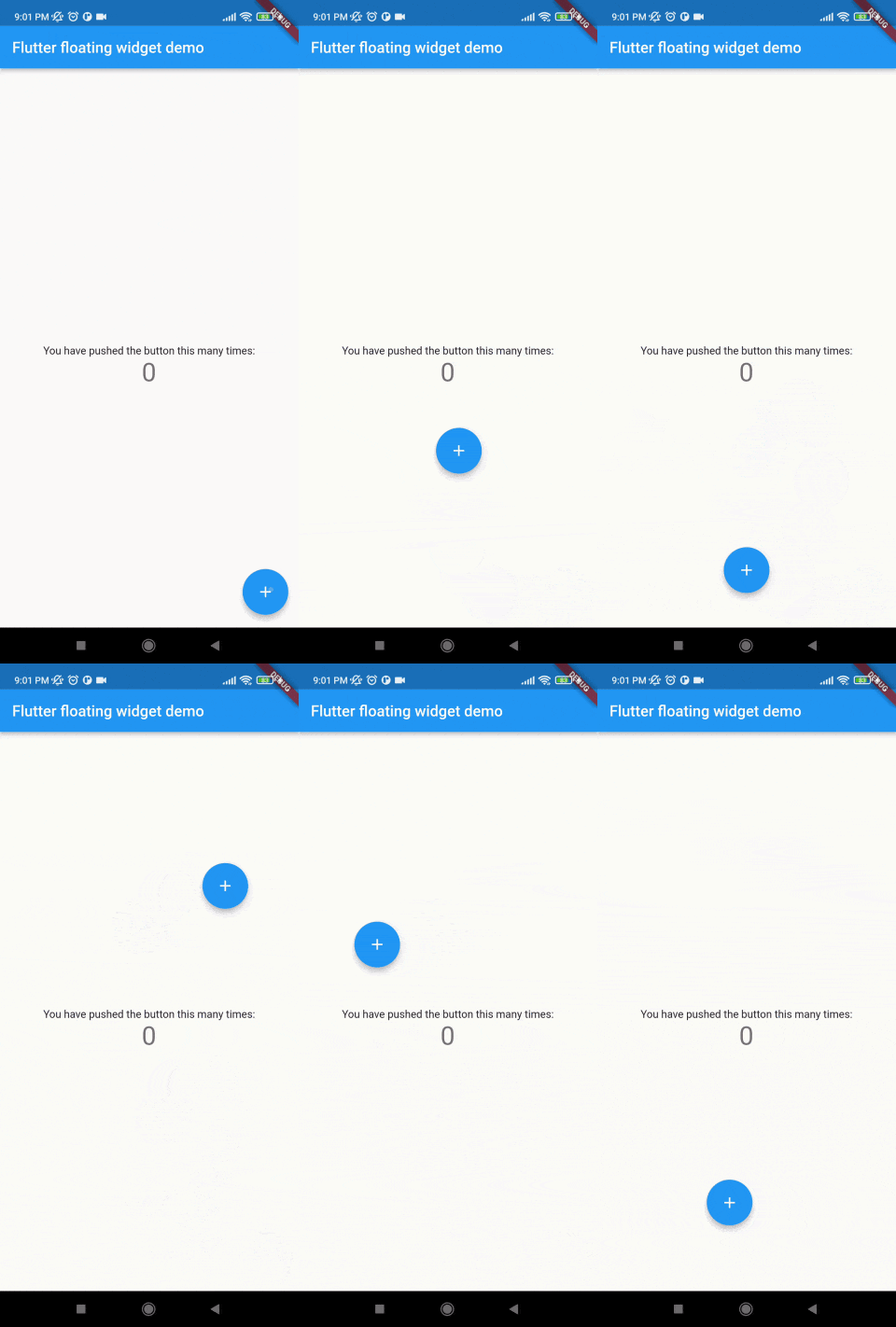
Without auto align Initially "autoAlign" is false.

    autoAlign = false

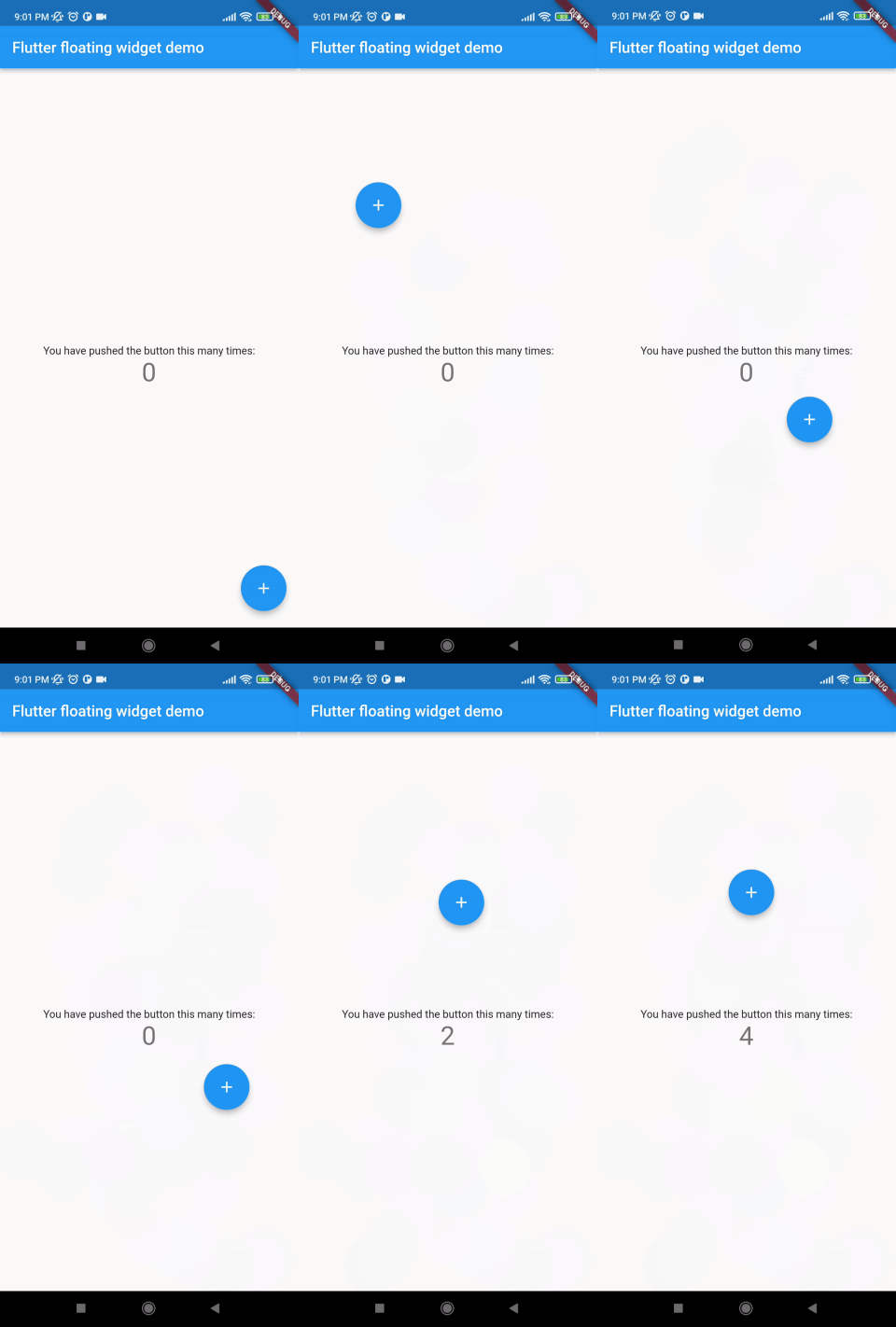
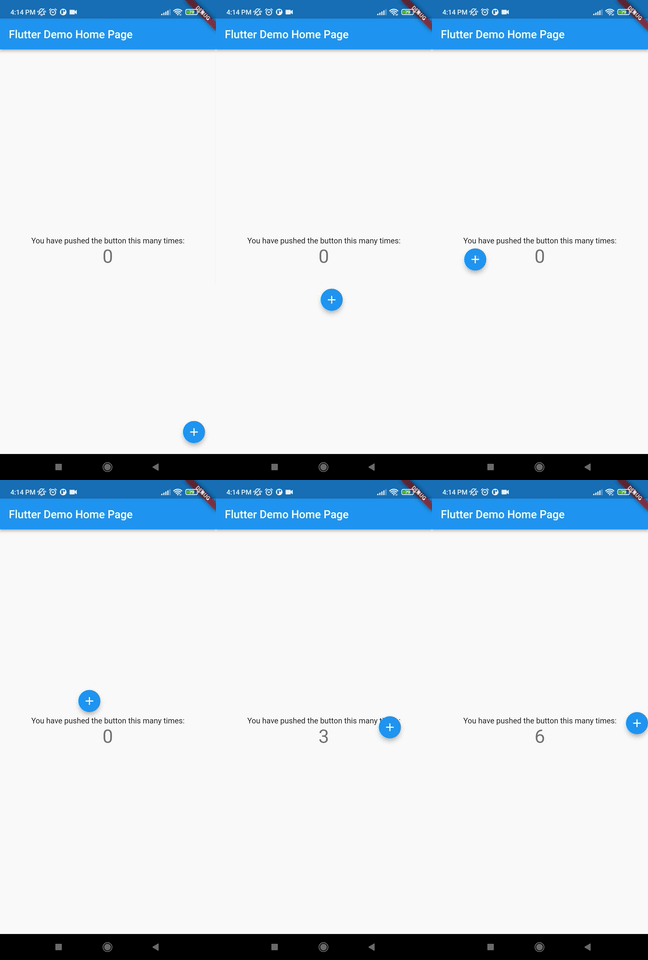
Auto align activated Add this to your code.

    autoAlign = true

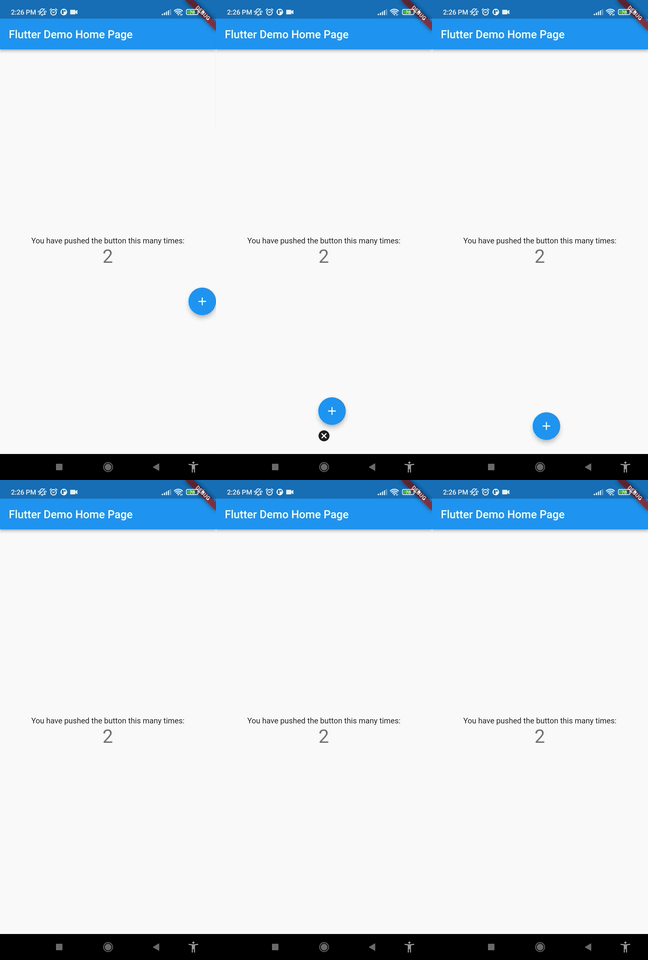
Deletion of the widget Add this to your code.

    deleteWidget: Icon(Icons.cancel),

Getting started
Install

add this in your pubspec.yaml floating_draggable_widget: ^latest_version

Class

This is the constructor of the class.

     FloatingDraggableWidget({
        required this.mainScreenWidget,
        required this.floatingWidget,
        required this.floatingWidgetWidth,
        required this.floatingWidgetHeight,
        this.dy,
        this.dx,
        this.screenHeight,
        this.screenWidth,
        this.speed,
        this.isDraggble = true,
        this.autoAlign = false,
        this.deleteWidgetAlignment = Alignment.bottomCenter,
        this.deleteWidgetAnimationDuration = 200,
        this.hasDeleteWidgetAnimationDuration = 300,
        this.deleteWidgetAnimationCurve = Curves.easeIn,
        this.deleteWidgetHeight = 50,
        this.deleteWidgetWidth = 50,
        this.isCollidingDeleteWidgetHeight = 70,
        this.isCollidingDeleteWidgetWidth = 70,
        this.deleteWidgetDecoration,
        this.deleteWidgetPadding = const EdgeInsets.only(bottom: 8),
        this.onDragging,
        this.widgetWhenDragging,
    });
Where:
  • mainScreenWidget is required and it accept any widget. This is actually the base Widget or the parent widget on where the floating widget will be dragged or moved.
  • floatingWidget is also required and it accept any widget. This is actually the particular widget which will be floated and can be mode or dragged around the screen.
  • floatingWidgetWidth is also required and it accepts a double value which is the width of the floating widget above mentioned.
  • floatingWidgetHeight is also required and it accepts a double value which is the height of the floating widget above mentioned.
  • onDragEvent is a function is not required, which is a event listener of the current position of floating widget, which provides only the x axis as dx and y axis as xy.
  • autoAlignType is a enum type. which has 3 type. onlyRight, onlyLeft, both. by default it is both. if autoAlign is true then this determines the on which side the floating widget will land after dragging ends.
  • disableBounceAnimation is a bool type. if autoAlign is true then then setting true to disableBounceAnimation can disable the bounce animation.
  • dy accepts a double value which is the distance from the top of the screen where floating widget will be positioned initially.
  • dx accepts a double value which is the distance from the left of the screen where floating widget will be positioned initially.
  • screenHeight accepts a double value which is the height of the screen initially.
  • screenWidth accepts a double value which is the width of the screen initially.
  • speed accepts a double value which is the speed factor of the floating widget after it will be let go. The more speed will be provided the slower the object will move after the user let the widget go freely.
  • isDraggable accepts a boolean value which determines if the widget is draggable or not.
  • autoAlign accepts a boolean value which determines if the widget will be auto aligns on the left or right after it is being dragged.
  • deleteWidget accepts a widget which is used to delete the floating widget.
  • onDeleteWidget accepts a function which is used to delete the floating widget.
  • deleteWidgetAlignment accepts an alignment value which is used to align the delete widget.
  • deleteWidgetAnimationCurve accepts an animation curve value which is used to animate the delete widget.
  • deleteWidgetAnimationDuration accepts an animation duration value which is used to animate the delete widget
  • hasDeleteWidgetAnimationDuration accepts an animation duration value which is used to animate the delete widget when it is dragging with the delete widget.
  • deleteWidgetHeight accepts a double value which is used to set the height of the delete widget.
  • deleteWidgetWidth accepts a double value which is used to set the width of the delete widget.
  • isCollidingDeleteWidgetHeight accepts a double value which is used to set the height of the delete widget.
  • isCollidingDeleteWidgetWidth accepts a double value which is used to set the width of the delete widget.
  • boxDecoration optionally accepts a box decoration value which is used to set the decoration of the delete widget.
  • deleteWidgetPadding optionally accepts a padding value which is used to set the padding of the delete widget.
Usage 
import 'package:flutter/material.dart';
import 'package:floating_animated_widget/floating_draggable_widget.dart';
void main() {
  runApp(const MyApp());
}

class MyApp extends StatelessWidget {
  const MyApp({Key? key}) : super(key: key);

  // This widget is the root of your application.
  @override
  Widget build(BuildContext context) {
    return MaterialApp(
      title: 'Flutter Demo',
      theme: ThemeData(

        primarySwatch: Colors.blue,
      ),
      home: const MyHomePage(title: 'Flutter Demo Home Page'),
    );
  }
}

class MyHomePage extends StatefulWidget {
  const MyHomePage({Key? key, required this.title}) : super(key: key);

  final String title;

  @override
  State<MyHomePage> createState() => _MyHomePageState();
}

class _MyHomePageState extends State<MyHomePage> {
  int _counter = 0;

  void _incrementCounter() {
    setState(() {

      _counter++;
    });
  }

  @override
  Widget build(BuildContext context) {

    return FloatingDraggableWidget(
      child: Scaffold(
        appBar: AppBar(

          title: Text(widget.title),
        ),
        body: Center(

          child: Column(

            mainAxisAlignment: MainAxisAlignment.center,
            children: <Widget>[
              const Text(
                'You have pushed the button this many times:',
              ),
              Text(
                '$_counter',
                style: Theme.of(context).textTheme.headline4,
              ),
            ],
          ),
        ),
      ),
      floatingWidget: FloatingActionButton(
        onPressed: _incrementCounter,
        tooltip: 'Increment',
        child: const Icon(Icons.add),
      ),
      floatingWidgetHeight: 40,
      floatingWidgetWidth: 40,
      dx: 200,
      dy: 300
    );
  }
}

Known Limitations
  • Doesn't have functionality of floating on other apps.
  • It does not automatically calculate the size of the parent widget it always takes the whole screen to float around.
  • It does not automatically calculate the size of the floating widget
End

所屬分類

原始碼儲存庫

使用此套件的專案

暫無相關資料。