import'package:highlight/languages/python.dart'; // Each language is defined in its file.final controller = CodeController(
text: '...', // Initial code
language: python,
);
Language can be dynamically changed on a controller:
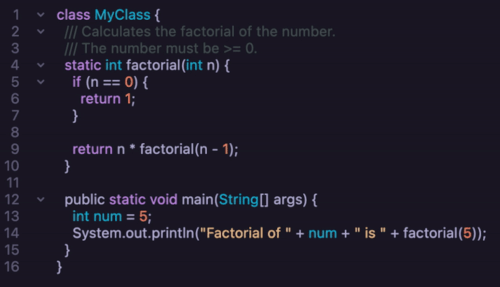
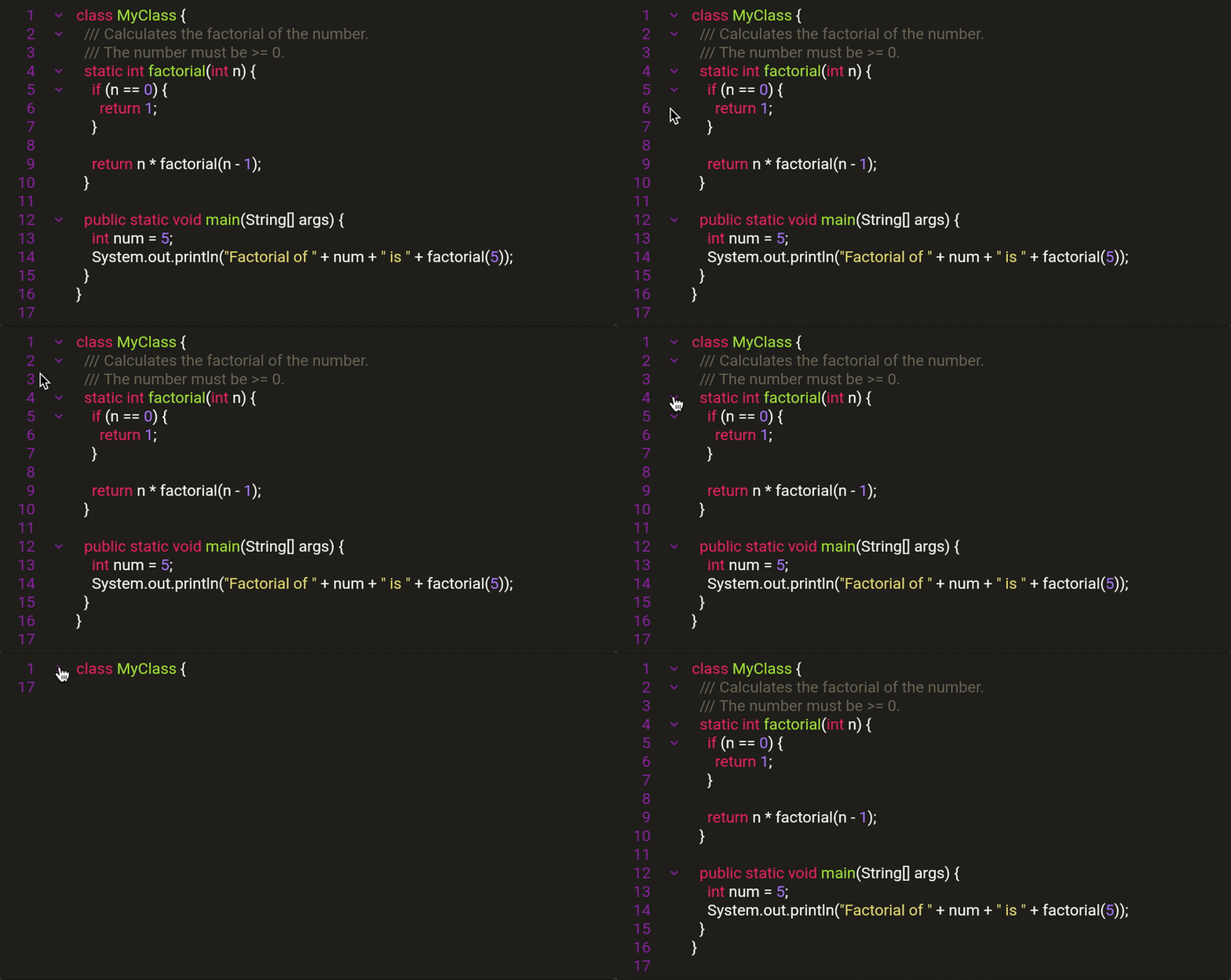
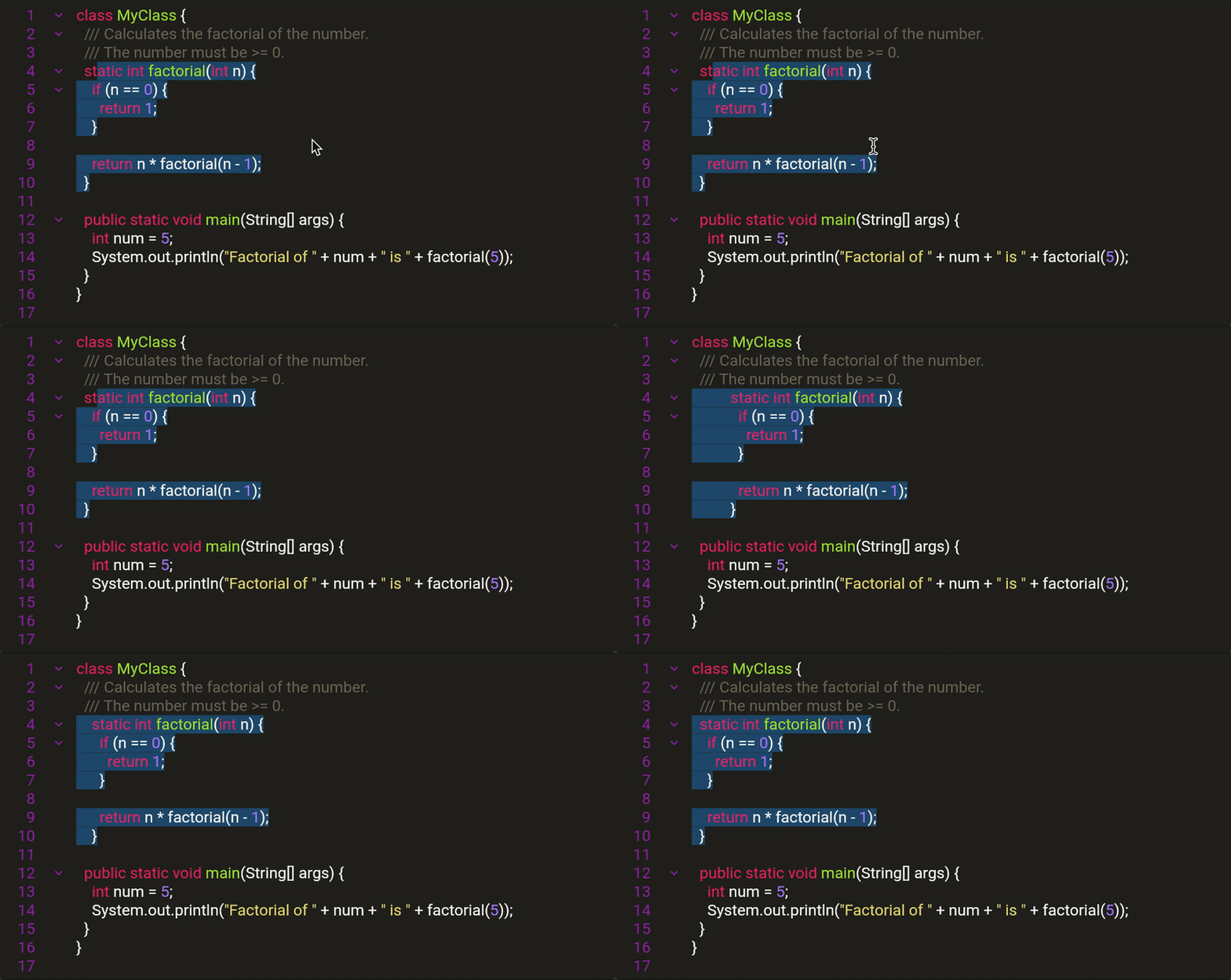
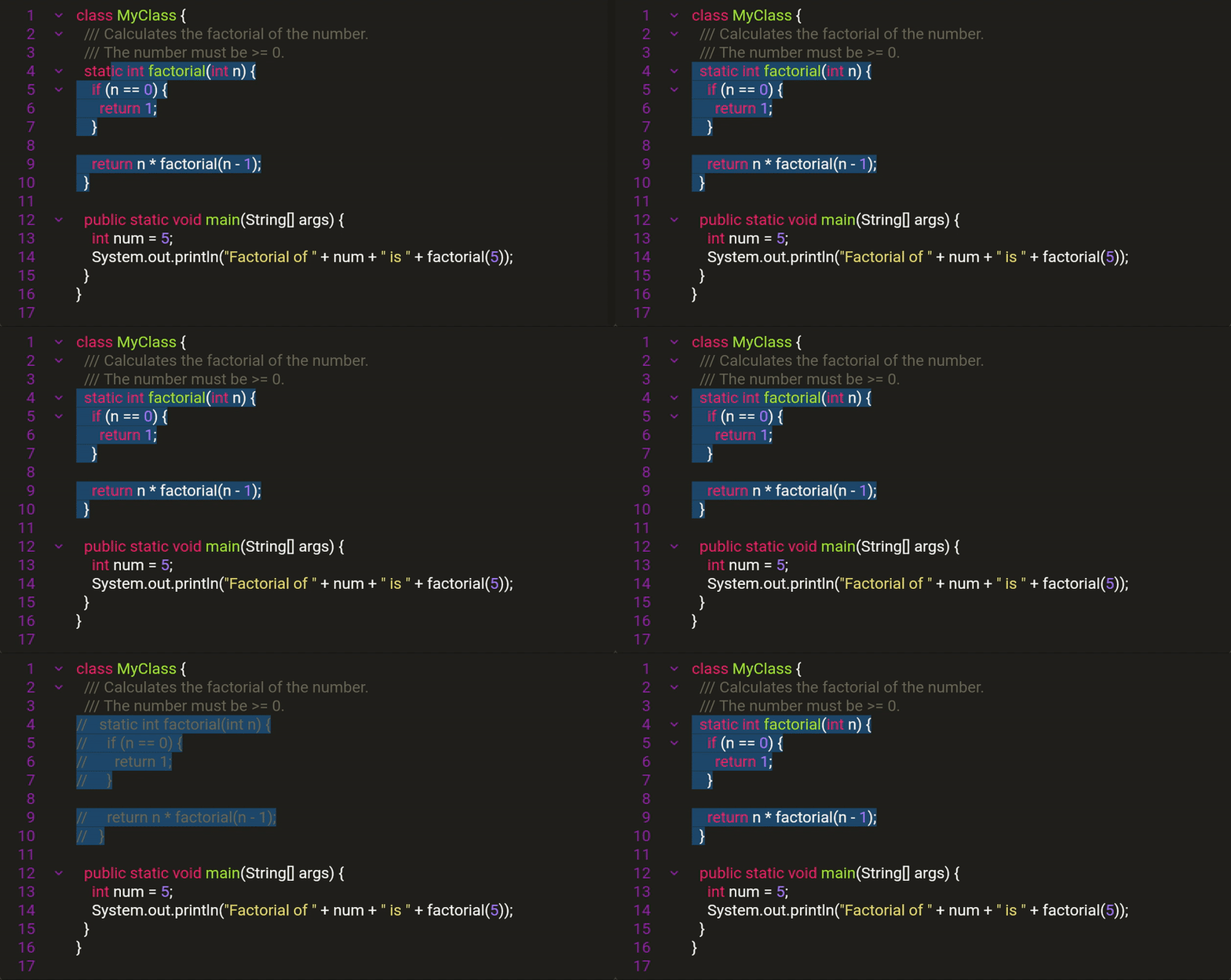
Flutter Code Editor can detect and fold code blocks. Code blocks folding is supported for the following languages:
Dart
Go
Java
Python
Scala
Code blocks folding may support other languages in experimental mode.
Code Analysis
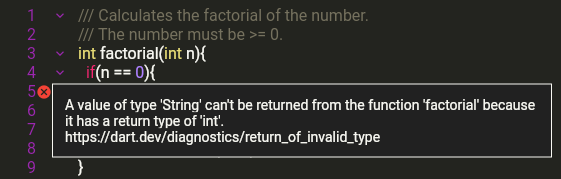
The editor supports pluggable analyzers to highlight errors and show error messages:
We ship the following analyzers:
DefaultLocalAnalyzer highlights unmatched pair characters for supported languages.
It works on the client locally,
and is selected by default on CodeController if no other analyzer is specified.
DartPadAnalyzer for Dart language, calls upon the DartPad backend for analysis.
For other languages, you can write custom analyzers that access your backend.
See the code for DartPadAnalyzer for the implementation example.
Note: Code analysis is an experimental feature.
We may introduce breaking changes to Analyzer subclasses without following the semver contract.
If you only use the analyzers we ship, then this will not affect you.
Themes
Pre-defined Themes
Flutter Code Editor supports themes from the highlight package —
see the full list of the pre-defined themes
here.
Use CodeTheme widget to set the theme for underlying editors:
To use a custom theme, create a map of styles under the pre-defined class names —
see this example.
Hiding Line Numbers, Errors, and Folding Handles
A lot of styling can be tuned with a GutterStyle object passed to a CodeField widget.
See
this example
that dynamically changes the properties listed here.
CodeController extends the Flutter's built-in TextEditingController and is immediately
usable as one. However, code folding and other features have impact on built-in properties:
text returns and sets the visible text. If any code is folded, it will not be returned.
value returns and sets the TextEditingValue with the visible text and selection.
If any code is folded, it will not be returned.
fullText returns and sets the entire text, including any folded blocks and hidden
service comments (see below).
Named Sections
To manipulate parts of the source code, Flutter Code Editor supports named sections.
They are defined in the code by adding tags that Flutter Code Editor recognizes.
To define a named section in your source code, add comments to tag the start and the end of the section:
Add comment [START section_name] to tag the beginning of the section.
Add comment [END section_name] to tag the end of the section.
Here is an example to define a named section section1:
final text = '''
class MyClass {
    public static void main(String[] args) {// [START section1]
        int num = 5;
        System.out.println("Factorial of " + num + " is " + factorial(5));
    }// [END section1]
}
''';
To process named sections in the Flutter Code Editor,
pass the named section parser to the controller:
final controller = CodeController(
text: text,
language: java,
namedSectionParser: constBracketsStartEndNamedSectionParser(), // NEW
);
The example above creates a section named section1.
The built-in BracketsStartEndNamedSectionParser class is designed to parse sections
from the code comments using the above syntax.
It also hides any single-line comment that has a section tag with the above syntax,
although such comments are still present in the editor's hidden state
and will be revealed when copying the text.
To customize section parsing using any other syntax, subclass AbstractNamedSectionParser.
Read-Only Code Blocks
Flutter Code Editor allows you to define read-only code blocks.
This may be useful for learning use cases when users are guided to modify certain code blocks
while other code is meant to be protected from changes.
To make a named section read-only, pass a set of named sections to the controller.readOnlySectionNames:
controller.readOnlySectionNames = {'section1'};
This locks the given sections from modifications in the Flutter Code Editor.
Any non-existent section names in this set are ignored.
To make the code editable again, pass an updated set to controller.readOnlySectionNames.
When using this feature, text and value properties cannot be used to change the text
programmatically because they have the same effect as the user input.
This means that locking affects them as well.
To change a partially locked controller, set the fullText property.
Advanced Code Blocks Folding
Folding the First Comment/License
Many code snippets contain a license as their first comment, which can distract readers.
To fold the first comment, use:
controller.foldCommentAtLineZero();
This method has no effect if there is no comment starting at the first line.
Folding Imports
In many languages, the editor recognizes sequential import lines
and an optional package line as one foldable block.
To fold such blocks:
controller.foldImports();
Named Sections
The editor supports folding all blocks except for specific named sections.
This helps the user focus on those sections while
all source code is still there and can be expanded and copied by the user.
To fold all blocks except those overlapping with the given named sections:
controller.foldOutsideSections(['section1']);
Folding Specific Blocks
To fold and unfold blocks at a given line number:
controller.foldAt(1);
controller.unfoldAt(1);
If there is no block at a given line, this has no effect.
Note: For the controller, line numbers start at 0 although
the widget displays them starting at 1.
Accessing Folded Blocks
To get the currently folded blocks, read controller.code.foldedBlocks.
Hiding Text
The editor allows you to completely hide all code except for a specific named section.
This is useful to achieve even more focus than with folding.
To hide all the code except the given named section:
controller.visibleSectionNames = {'section1'};
When hiding text, the full text is still preserved
and available via fullText property in the Flutter Code Editor.
Hiding text preserves line numbering, which is not possible by just showing a cropped snippet.
Preserving hidden text is also useful if you later need to send
the full code for further processing but still want to hide
non-informative parts.
Hiding text also makes the entire editor read-only
to prevent users from modifying the code, adding imports, etc.
which may conflict with the hidden parts.
Only one visible section at a time is currently supported. The behavior of passing more than
one section is undefined.
Autocompletion
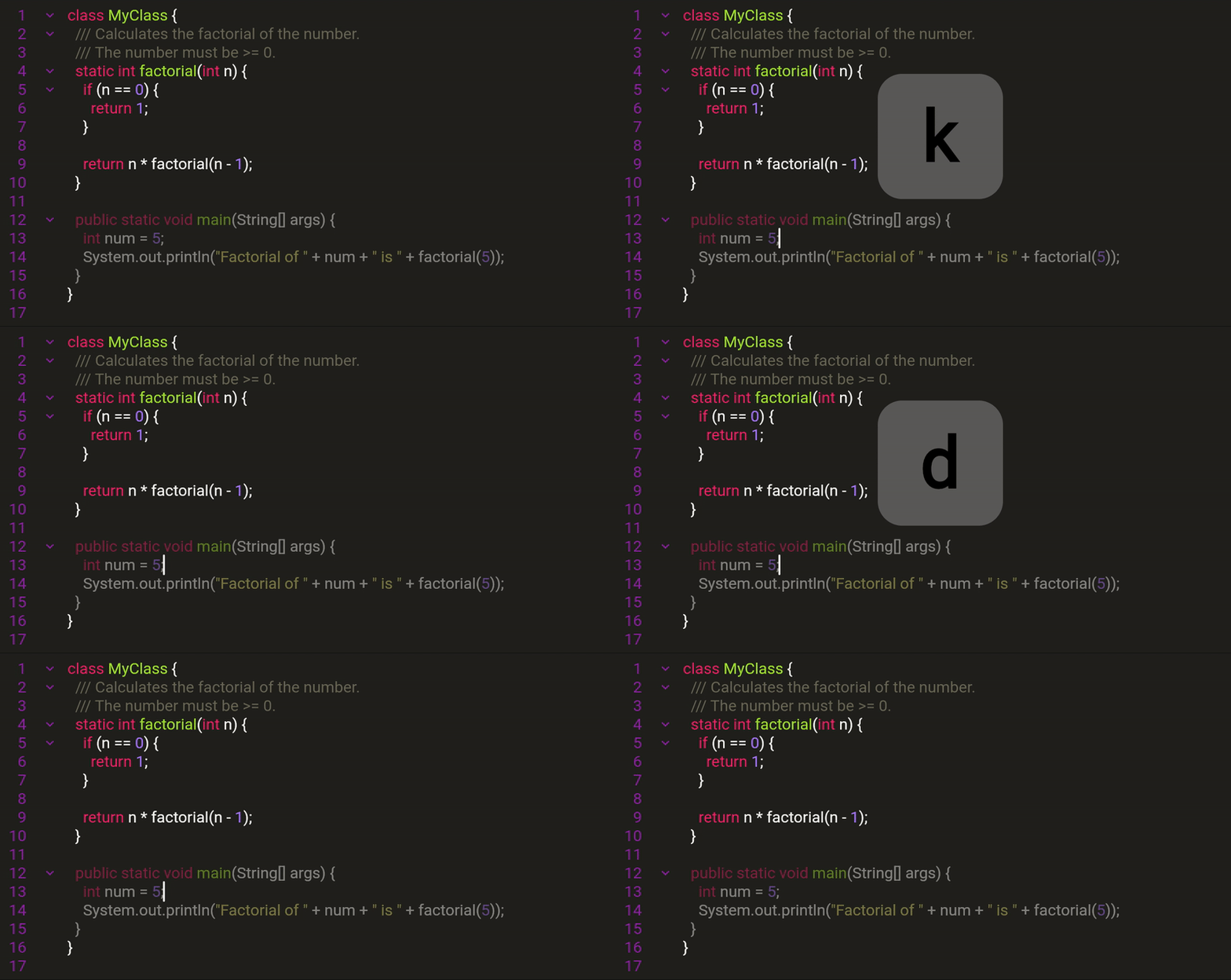
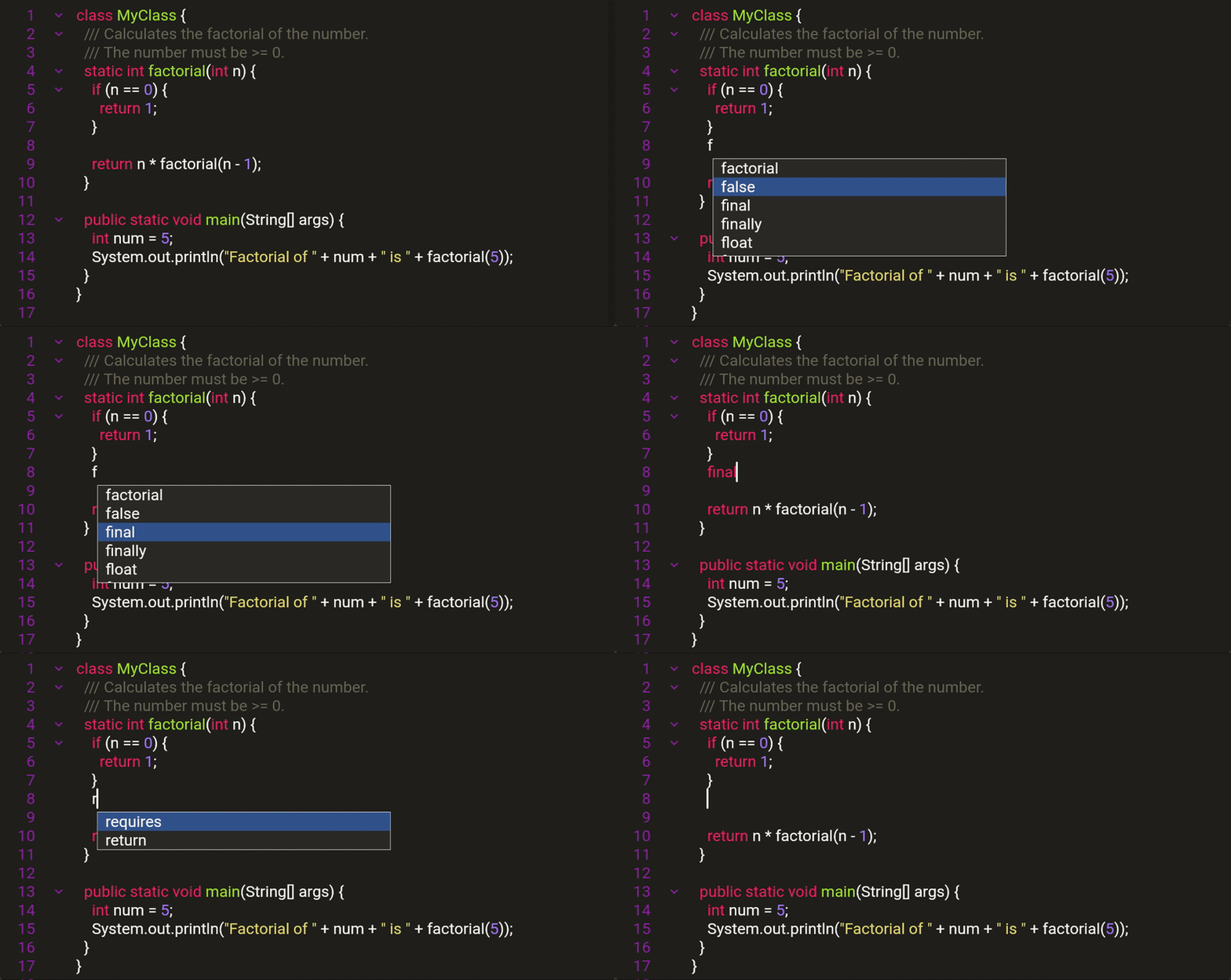
The editor suggests words as they are typed. Suggested words are:
All keywords of the current language.
All words already in the text.
Words set with controller.autocompleter.setCustomWords(['word1', 'word2'])
All those words are merged into an unstructured dictionary.
The editor does not perform any syntax analysis, so it cannot tell if a given class really has
the method the user is typing. This feature is meant to simplify typing, but should not be relied on
when exploring classes and methods.