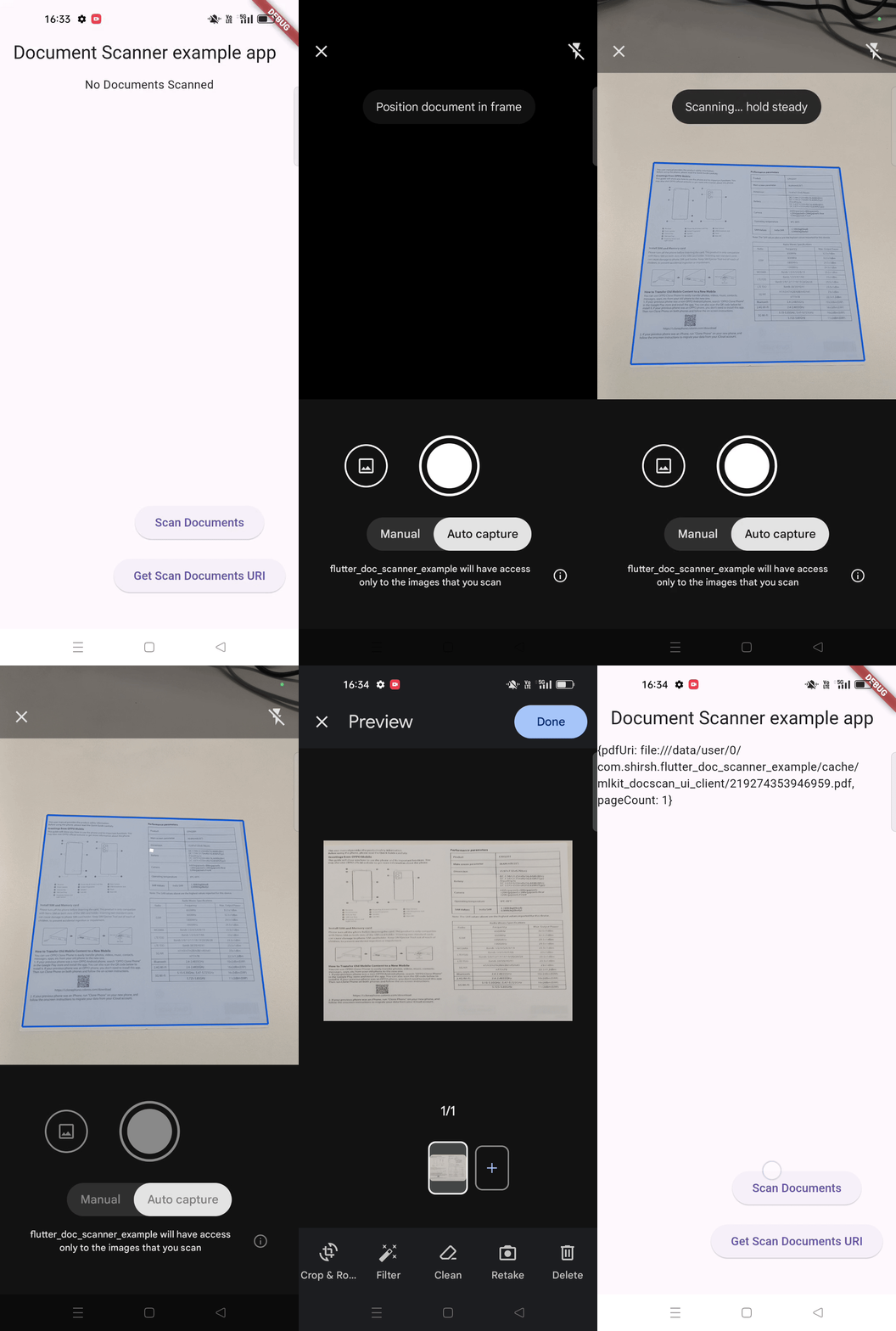
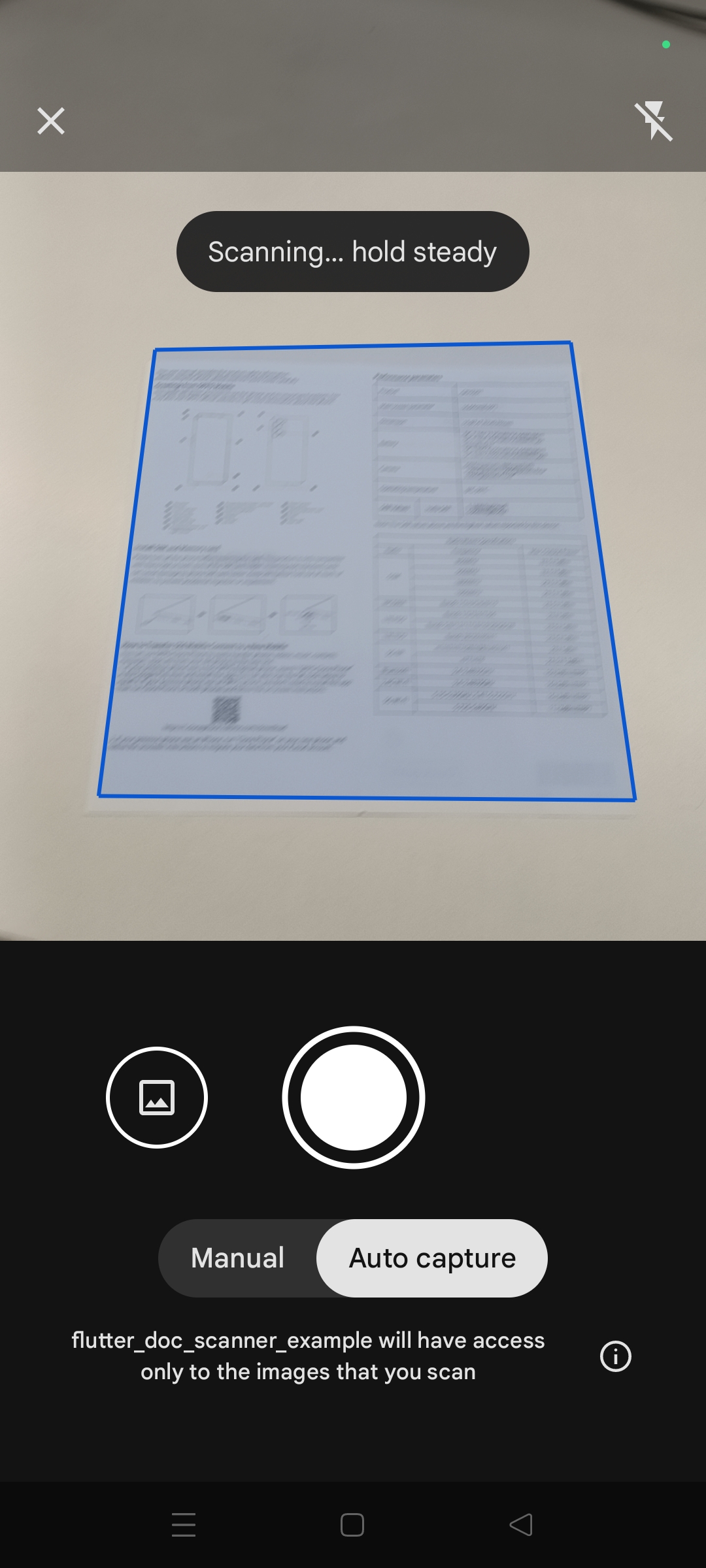
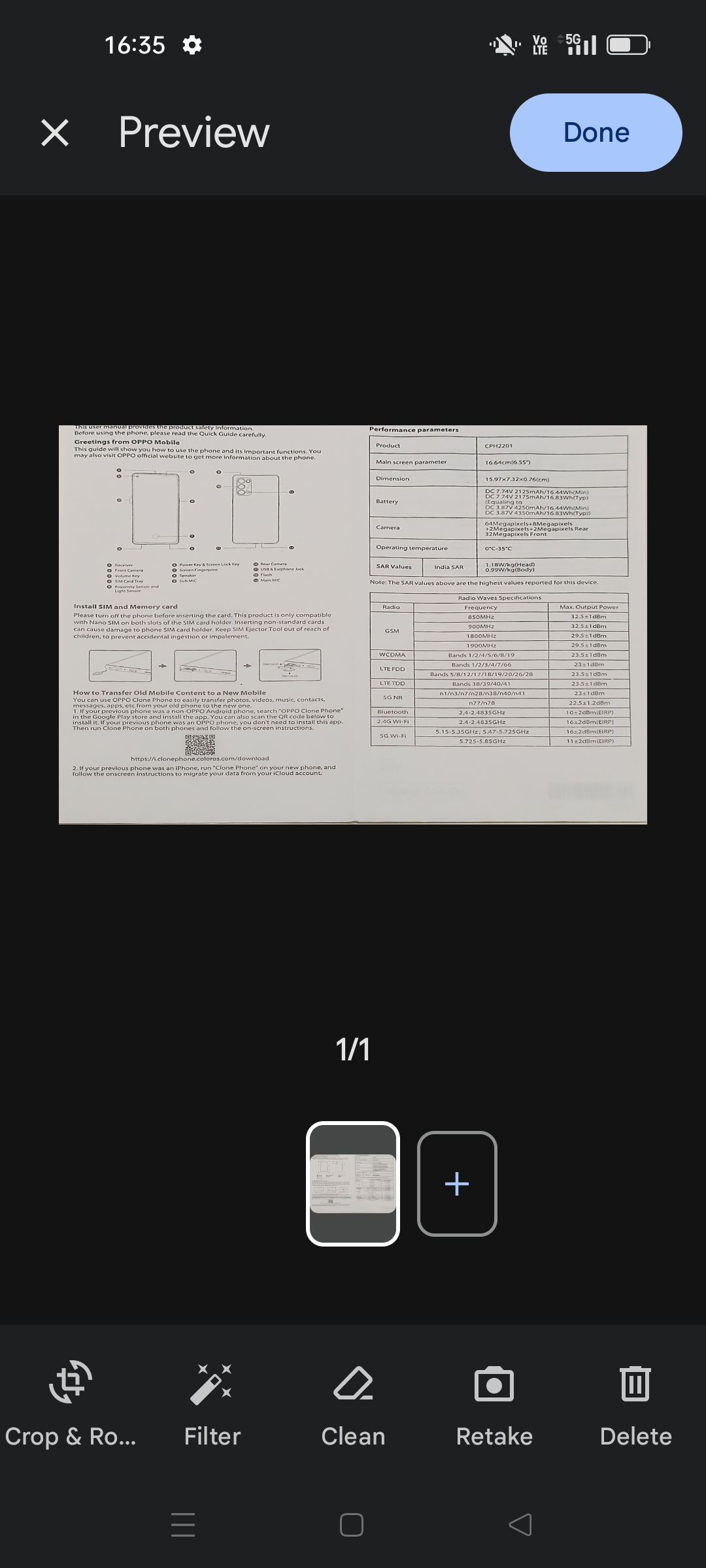
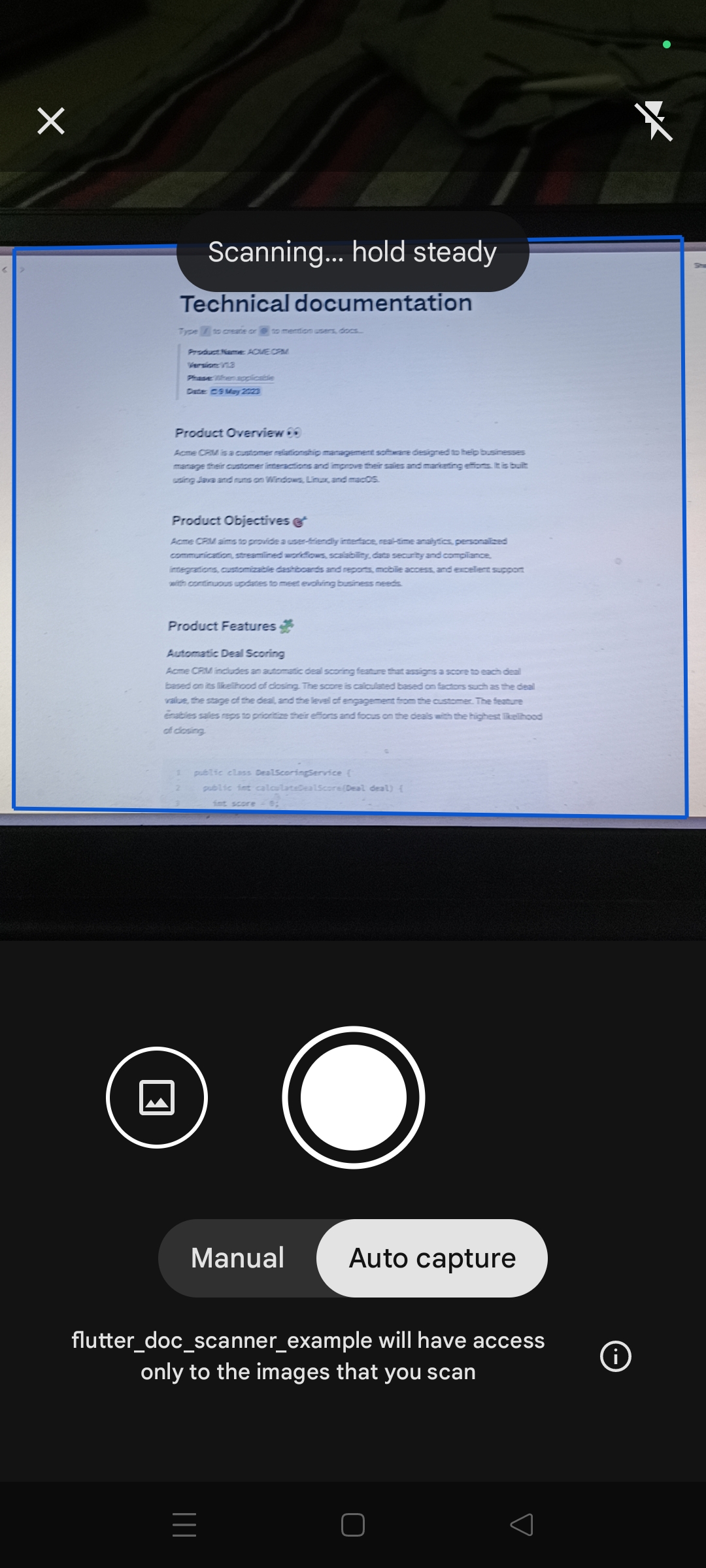
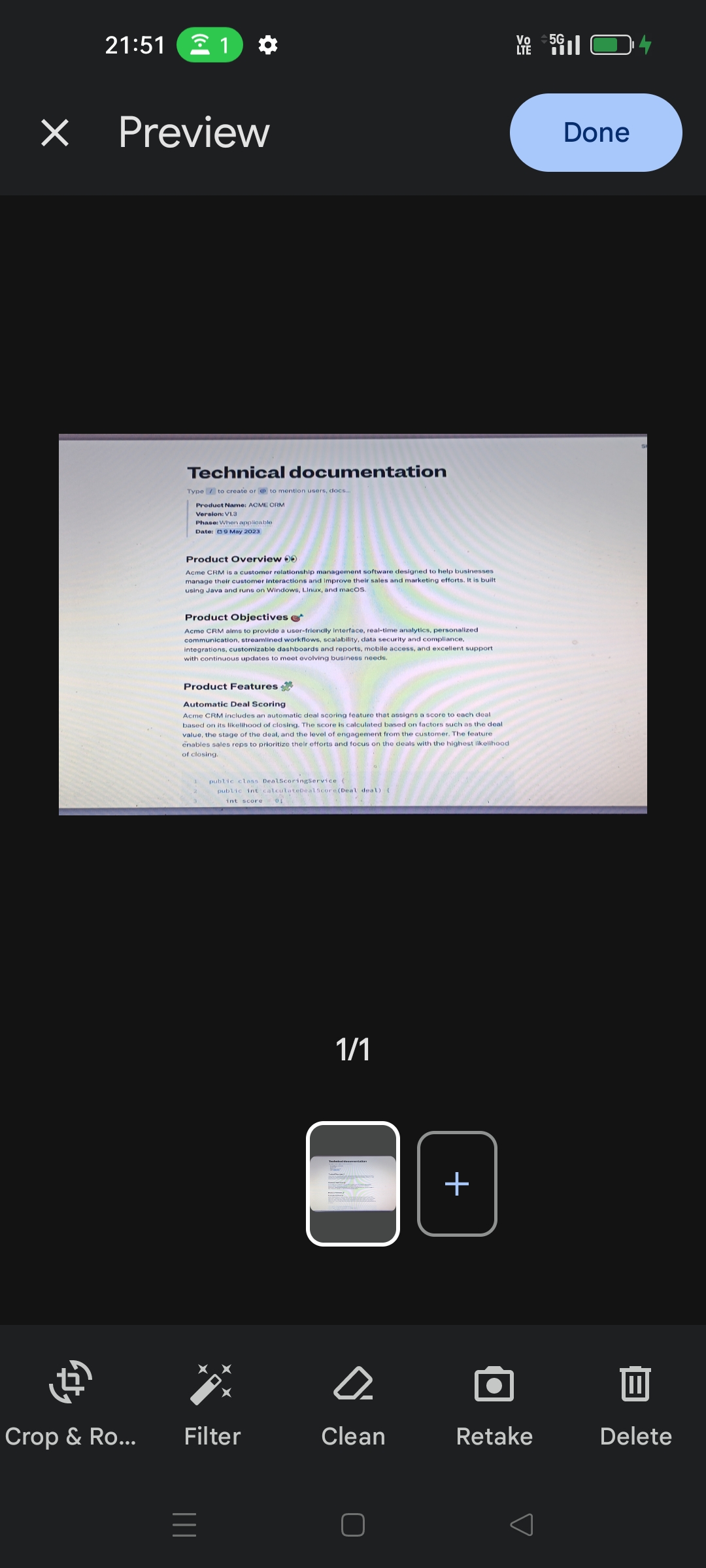
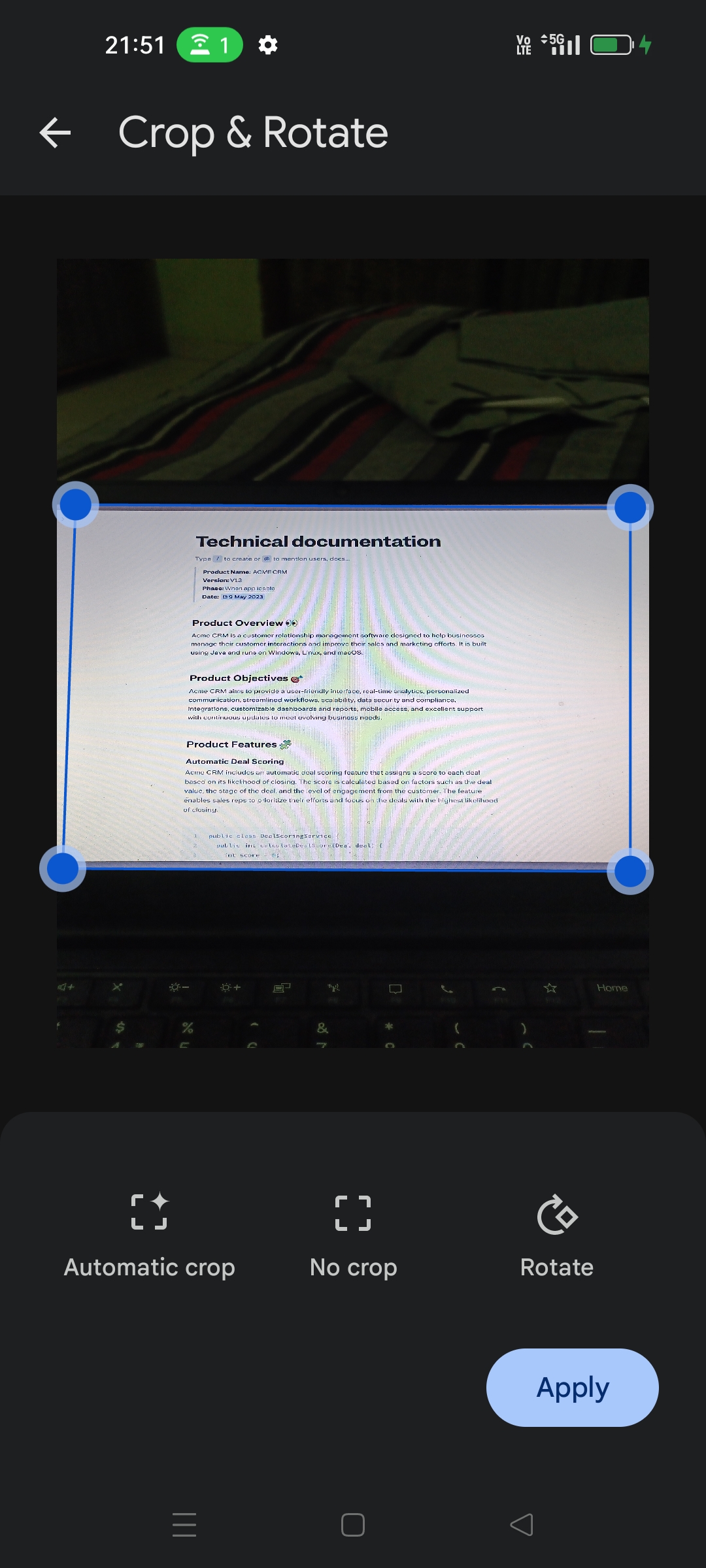
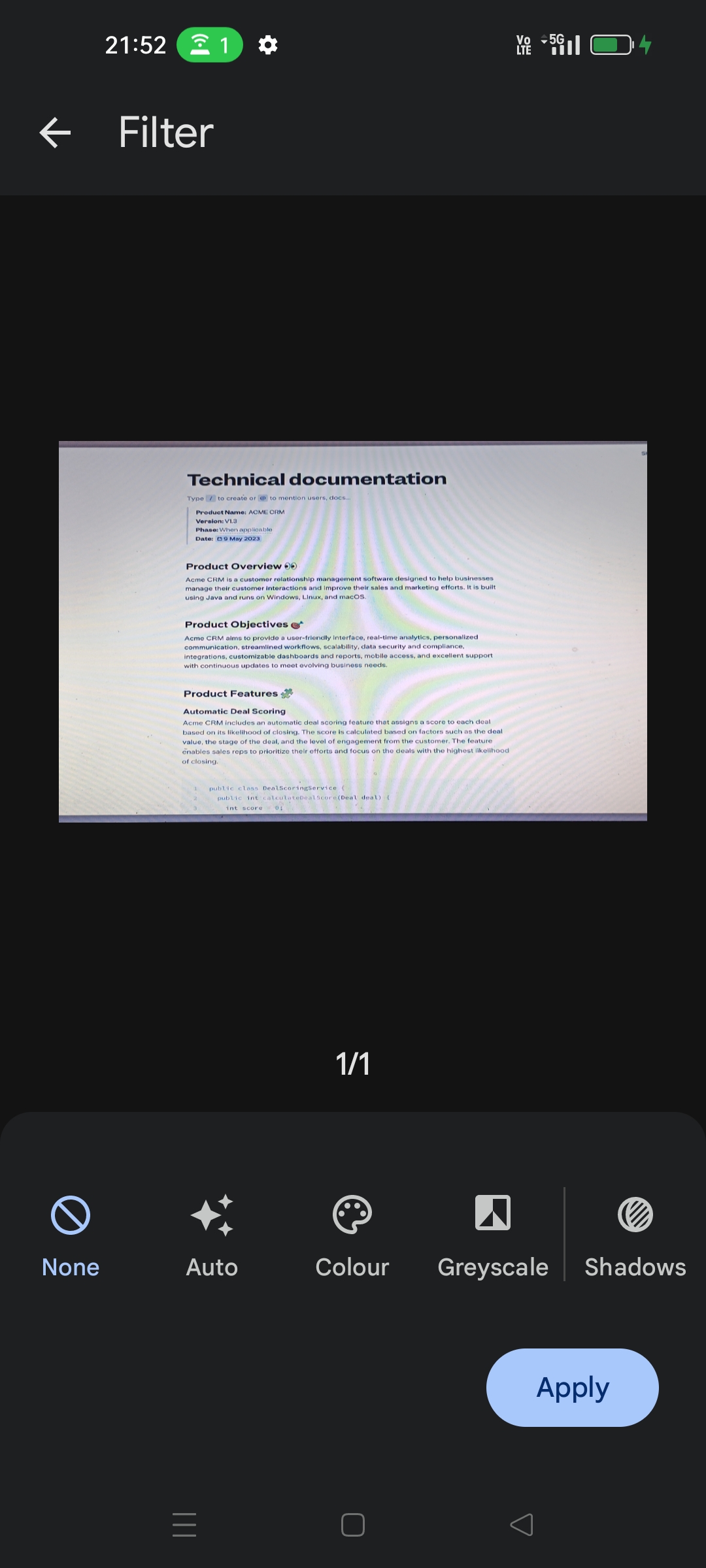
一個 Flutter 插件,透過利用 Google 的 ML Kit 文件掃描 API 與 Apple 的 VisionKit,在 Android 和 iOS 上實現文件掃描。它提供了一種無縫的方式,從影像中擷取並偵測文件邊緣,自動裁切與增強掃描的文件。此插件支援 Web、macOS、Windows 與 Linux 等多個平台,非常適合需要文件數位化的跨平台應用。設計時著重於整合的便利性,無需深入原生程式碼知識即可輕鬆加入智慧文件掃描功能。
適用情境
移動應用中的文件數位化
自動發票和收據掃描
帶有身分驗證的入職工作流程
從掃描文件生成PDF
手機銀行和表單處理
主要特色
使用 ML Kit 和 VisionKit 進行精確檢測
跨平台支援所有主要作業系統
用於影像擷取和處理的簡單 API
自動邊緣檢測和裁剪
支援 Android 和 iOS,具備原生效能
適合對象
開發文件密集型應用的開發者
初創企業需要快速入職
需要OCR就緒掃描的應用程式
跨平台團隊使用 Flutter
企業自動化文件處理
使用建議
需要行動裝置上的相機權限
效能可能在舊裝置上有所差異
Web 支援取決於瀏覽器功能
掃描UI的自訂選項有限
依賴外部 SDK(ML Kit、VisionKit)
原始 README
以下為關聯原始碼儲存庫的 README 原文快照,最新內容請造訪原始碼儲存庫。
flutter_doc_scanner
A Flutter plugin for document scanning on Android, iOS, and Web using ML Kit Document Scanner API and VisionKit.
Example
Check out the example directory for a sample Flutter app using flutter_doc_scanner.
Document Scanner Demo
Screenshots
Features
High-quality and consistent user interface for digitizing physical documents.
Accurate document detection with precise corner and edge detection for optimal scanning results.
Flexible functionality allows users to crop scanned documents, apply filters, remove fingers, remove stains and other blemishes.
On-device processing helps preserve privacy.
Support for sending digitized files in PDF and JPEG formats back to your app.
Ability to set a scan page limit.
Support for image(png,jpeg) format and PDF has been added through various methods.
Fast single-picture scanning mode via useAutomaticSinglePictureProcessing for quick one-document captures.
Installation
To use this plugin, add flutter_doc_scanner as a dependency in your pubspec.yaml file.
Use the following function for document scanning on Android and iOS:
Future<void> scanDocument() async {
//by default way they fetch pdf for android and png for iOSdynamic scannedDocuments;
try {
scannedDocuments = awaitFlutterDocScanner().getScanDocuments(page: 3) ??
'Unknown platform documents';
} onPlatformException {
scannedDocuments = 'Failed to get scanned documents.';
}
print(scannedDocuments.toString());
}
Note-: If you want to obtain only a PDF scanned document, call getScannedDocumentAsPdf(). Similarly, if you want to get a scanned document in image format, use getScannedDocumentAsImages().
Android result payloads
getScanDocuments / getScannedDocumentAsPdf: returns a map with pdfUri and pageCount.
getScannedDocumentAsImages / getScanDocumentsUri: returns a map with images (list of page URIs) and count (also exposed via legacy Uri / Count keys for backwards compatibility).
Project Setup
Follow the steps below to set up your Flutter project on Android, iOS, and Web.
Android
Minimum Version Configuration
Ensure you meet the minimum version requirements to run the application on Android devices.
In the android/app/build.gradle file, verify that minSdkVersion is at least 21. This setting specifies the minimum Android API level required to run your app, ensuring compatibility with a wide range of Android devices.
Ensure you meet the minimum version requirements to run the application on iOS devices.
In the ios/Podfile file, make sure the iOS platform version is at least 13.0. This setting specifies the minimum iOS version required to run your app, ensuring compatibility with a wide range of iOS devices.
platform :ios, '13.0'
Permission Configuration
Add a String property to the app's Info.plist file with the key NSCameraUsageDescription and the value as the description for why your app needs camera access. This step is required by Apple to explain to users why the app needs access to the camera, and it's crucial for App Store approval.
The permission_handler dependency used by flutter_doc_scanner uses macros to control whether a permission is enabled. To enable camera permission, add the following to your Podfile file. This step ensures that your app can request and handle camera permissions on iOS devices:
  post_install do |installer|
    installer.pods_project.targets.each do |target|
      ... # Here are some configurations automatically generated by flutter

      # Start of the permission_handler configuration
      target.build_configurations.each do |config|

        # You can enable the permissions needed here. For example, to enable camera
        # permission, just remove the `#` character in front so it looks like this:
        #
        # ## dart: PermissionGroup.camera
        # 'PERMISSION_CAMERA=1'
        #
        #  Preprocessor definitions can be found at: https://github.com/Baseflow/flutter-permission-handler/blob/master/permission_handler_apple/ios/Classes/PermissionHandlerEnums.h
        config.build_settings['GCC_PREPROCESSOR_DEFINITIONS'] ||= [
          '$(inherited)',

          ## dart: PermissionGroup.camera
          'PERMISSION_CAMERA=1',
        ]

      end
      # End of the permission_handler configuration
    end
  end
Web
Currently, we have removed web support for this library. For document scanning on the web, you can use the following library: flutter_doc_scanner_web.
Issues and Feedback
Please file issues to send feedback or report a bug. Thank you!
License
The MIT License (MIT) Copyright (c) 2024 Shirsh Shukla
Permission is hereby granted, free of charge, to any person obtaining a copy of this software and
associated documentation files (the "Software"), to deal in the Software without restriction,
including without limitation the rights to use, copy, modify, merge, publish, distribute,
sublicense, and/or sell copies of the Software, and to permit persons to whom the Software is
furnished to do so, subject to the following conditions:
The above copyright notice and this permission notice shall be included in all copies or substantial
portions of the Software.
THE SOFTWARE IS PROVIDED "AS IS", WITHOUT WARRANTY OF ANY KIND, EXPRESS OR IMPLIED, INCLUDING BUT
NOT LIMITED TO THE WARRANTIES OF MERCHANTABILITY, FITNESS FOR A PARTICULAR PURPOSE AND
NONINFRINGEMENT. IN NO EVENT SHALL THE AUTHORS OR COPYRIGHT HOLDERS BE LIABLE FOR ANY CLAIM, DAMAGES
OR OTHER LIABILITY, WHETHER IN AN ACTION OF CONTRACT, TORT OR OTHERWISE, ARISING FROM, OUT OF OR IN
CONNECTION WITH THE SOFTWARE OR THE USE OR OTHER DEALINGS IN THE SOFTWARE.