A flutter plugin for upload, download and manage files in the app's iCloud container.
Introduction
Documents and other data that is user-generated and stored in the <Application_Home>/Documents directory can be automatically backed up by iCloud on iOS devices, if the iCloud Backup setting is turned on. The data can be recovered when user sets up a new device or resets an existing device. If you need to do backup and download outside the forementioned scenarios, this plugin could help.
Prerequisite
The following setups are needed in order to use this plugin:
An apple developer account
Created an App ID and iCloud Container ID
Enabled iCloud capability and assigned iCloud Container ID for the App ID
Note: The 'startUpload' API is to start the upload process. The returned future completes without waiting for the upload to complete. Use 'onProgress' to track the upload progress. If the 'destinationRelativePath' contains a subdirectory that doesn't exist, it will be created.
Note: The 'startDownload' API is to start the download process. The returned future completes without waiting for the download to complete. Use 'onProgress' to track the download progress.
catch (err) {
if (err isPlatformException) {
if (err.code == PlatformExceptionCode.iCloudConnectionOrPermission) {
print(
'Platform Exception: iCloud container ID is not valid, or user is not signed in for iCloud, or user denied iCloud permission for this app');
} elseif (err.code == PlatformExceptionCode.fileNotFound) {
print('File not found');
} else {
print('Platform Exception: ${err.message}; Details: ${err.details}');
}
} else {
print(err.toString());
}
}
Support for macOS
When uploading and downloading files, make sure the File Access is enabled for the local files if App Sandbox is enabled. Access are enabled for the files in the app's container (/Users/{username}/Library/Containers/{bundle_identifier}). Files in other locations can be enabled from XCode.
Migrating from version 1.x.x to 2.0.0
Version 2 supports operations on multiple containers. Therefore, ICloudStorage.getInstance('iCloudContainerId') is no longer needed. Instead, you'll need to specifiy the iCloudContainerId in each method.
All methods in version 2 have been changed to static methods.
gatherFiles has been renamed to gather.
startUpload has been renamed to upload.
startDownload has been renamed to download.
FAQ
Q: I uploaded a file from a device. I signed in to a simulator using the same iCloud account. But the file is not showing up in the gatherFiles result.
A: From the menu 'Features' click 'Tigger iCloud Sync'.
Q: I uploaded a file from device A. I signed in to device B using the same iCloud account. But the file is not showing up in the gatherFiles result.
A: The API only queries files that's been synced to the iCloud container, which lives in the local device. You'll need to wait for iOS to sync the files from iCloud to the local container. There's no way to programmatically trigger iOS to Sync with iCloud.
Q: I removed a file using 'delete' method then called 'gatherFiles'. The deleted file still shows up in the list.
A: This is most likely to be an issue with the native code. However, if you call 'gatherFiles' first and listen the update, then do the deletion, the list is refreshed immediately in the onUpdate stream.
How to set up iCloud Container and enable the capability
Log in to your apple developer account and select 'Certificates, IDs & Profiles' from the left navigation.
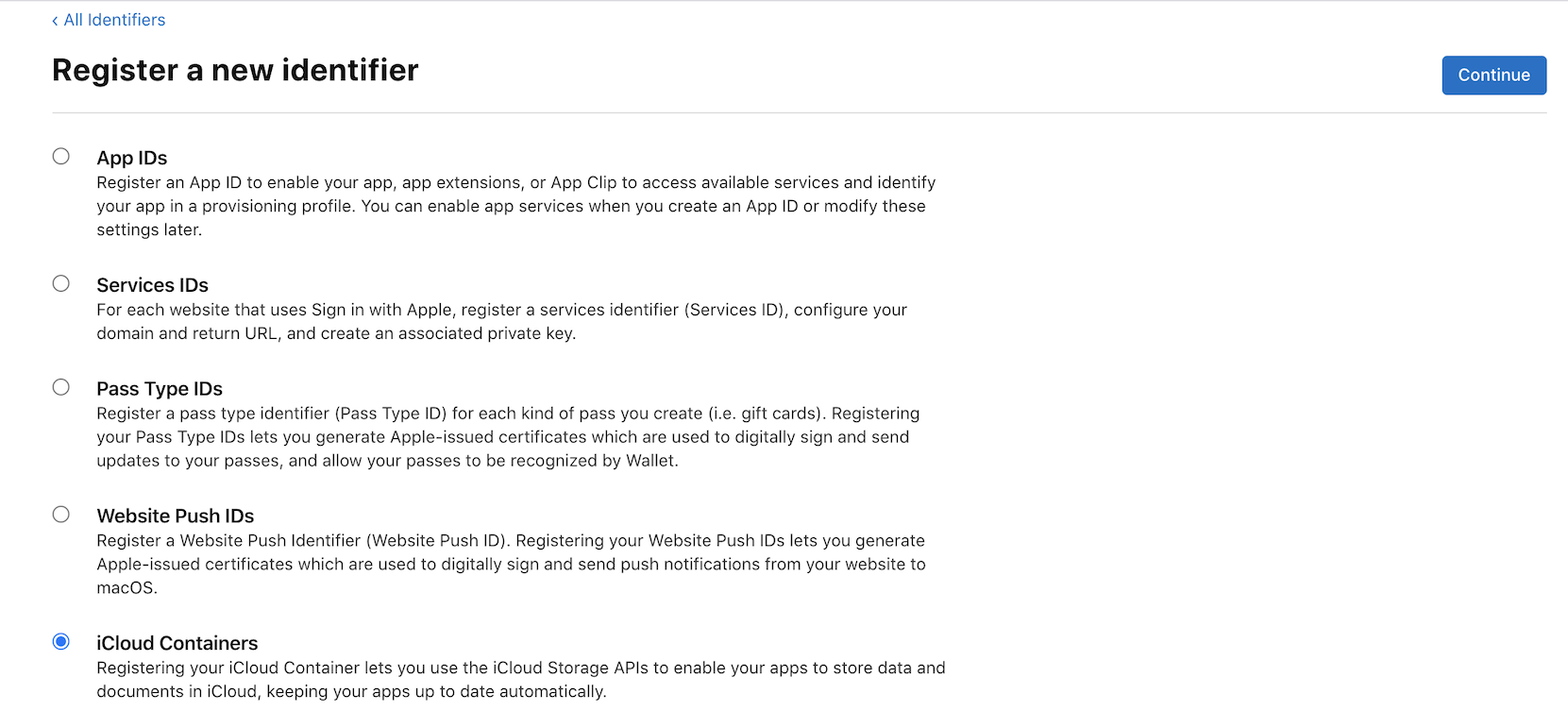
Select 'Identifiers' from the 'Certificates, IDs & Profiles' page, create an App ID if you haven't done so, and create an iCloud Containers ID.
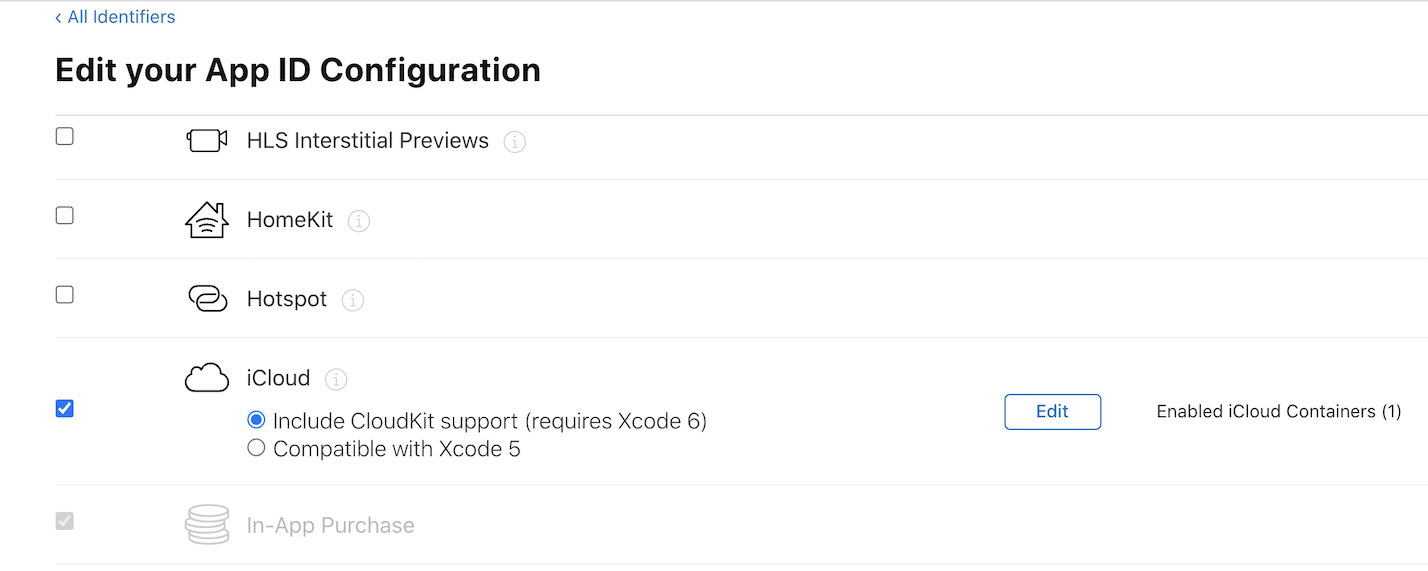
Click on your App ID. In the Capabilities section, select 'iCloud' and assign the iCloud Container created in step 2 to this App ID.
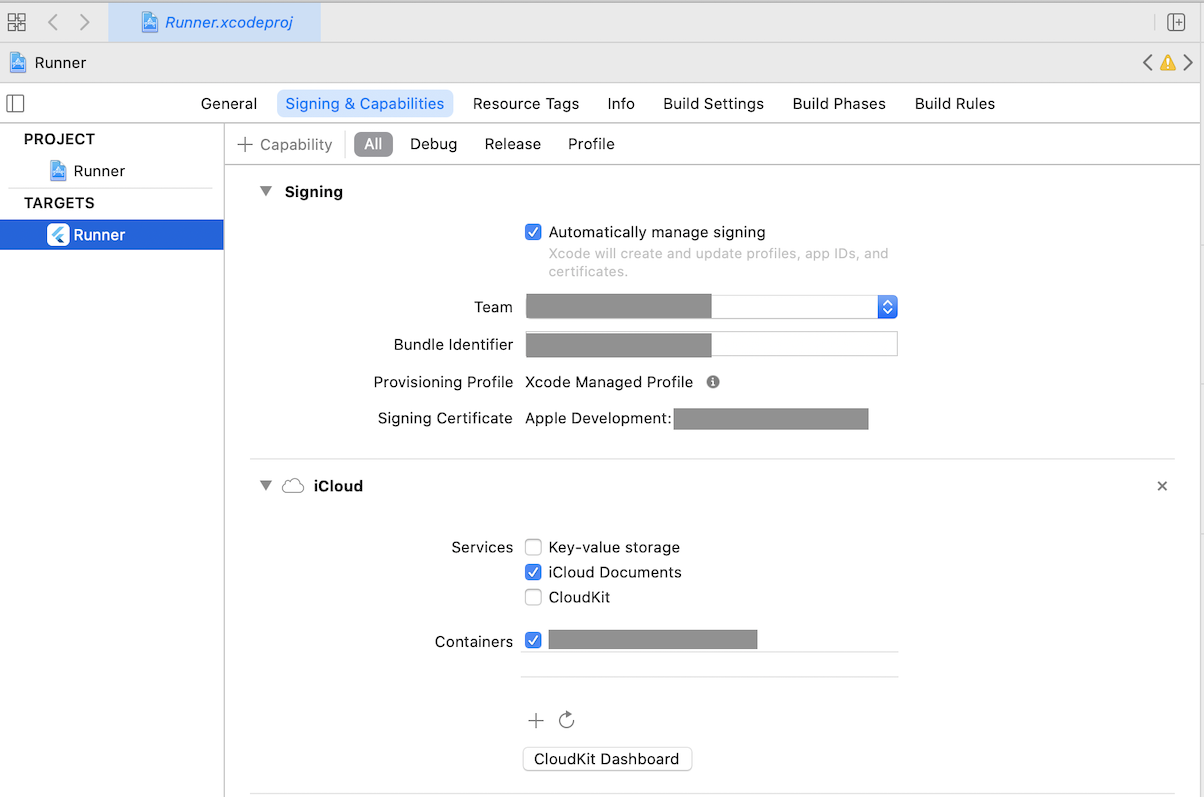
Open your project in Xcode. Set your App ID as 'Bundle Identifier' if you haven't done so. Click on '+ Capability' button, select iCloud, then tick 'iCloud Documents' in the Services section and select your iCloud container.