搜尋套件、儲存庫與 APP 分類

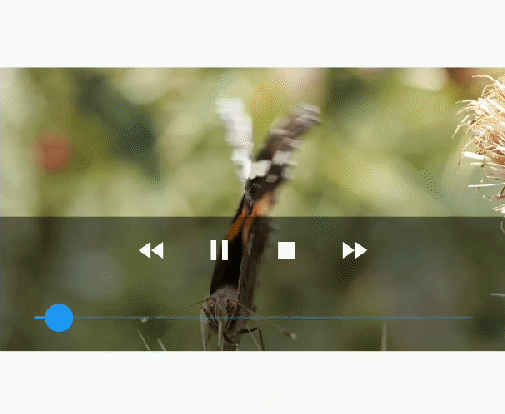
native_video_view 封面
套件詳情v1.0.5

native_video_view

使用平台原生播放器(Android 中的 VideoView 與 iOS 中的 AVPlayer)顯示的影片播放器組件。

AndroidiOS
近 30 天下載
60
喜歡數
51
Pub 分數
140

安裝套件

flutter pub add native_video_view

套件介紹

根據套件公開資料產生的選型評估,僅供參考。

一個 Flutter 套件,使用 Android 的 VideoView 和 iOS 的 AVPlayer 整合原生影片播放。它透過利用原生元件而非軟體解決方案,提供流暢、高效率的影片呈現。這確保與各種影片格式及硬體加速有更好的相容性。此組件專為尋求在 Android 與 iOS 平台上實現最佳影片播放品質與效能的開發者所設計。

適用情境

  • 使用硬體加速播放影片
  • 與原生影片控制項整合
  • 支援複雜視頻格式
  • 建構媒體密集型應用
  • 確保低延遲播放

主要特色

  • 在 Android 和 iOS 上使用原生影片播放器
  • 硬體加速影片渲染
  • Flutter 的最小開銷
  • 跨平台一致性
  • 支援全螢幕和背景播放

適合對象

  • 需要高性能量的媒體應用
  • 包含大量影片內容的應用程式
  • 開發者優先考慮原生播放品質
  • 需要最少自定義視頻邏輯的項目

使用建議

  • 與純 Flutter 小部件相比,自訂選項有限
  • 需要平台特定設定以啟用進階功能
  • 可能不支援所有影片編解碼器
  • 依賴原生平台更新
  • 對UI元素的控制不如自定義實現

原始 README

以下為關聯原始碼儲存庫的 README 原文快照,最新內容請造訪原始碼儲存庫。

native_video_view

A video player widget displayed using the platform native player (VideoView in Android and AVPlayer in iOS).

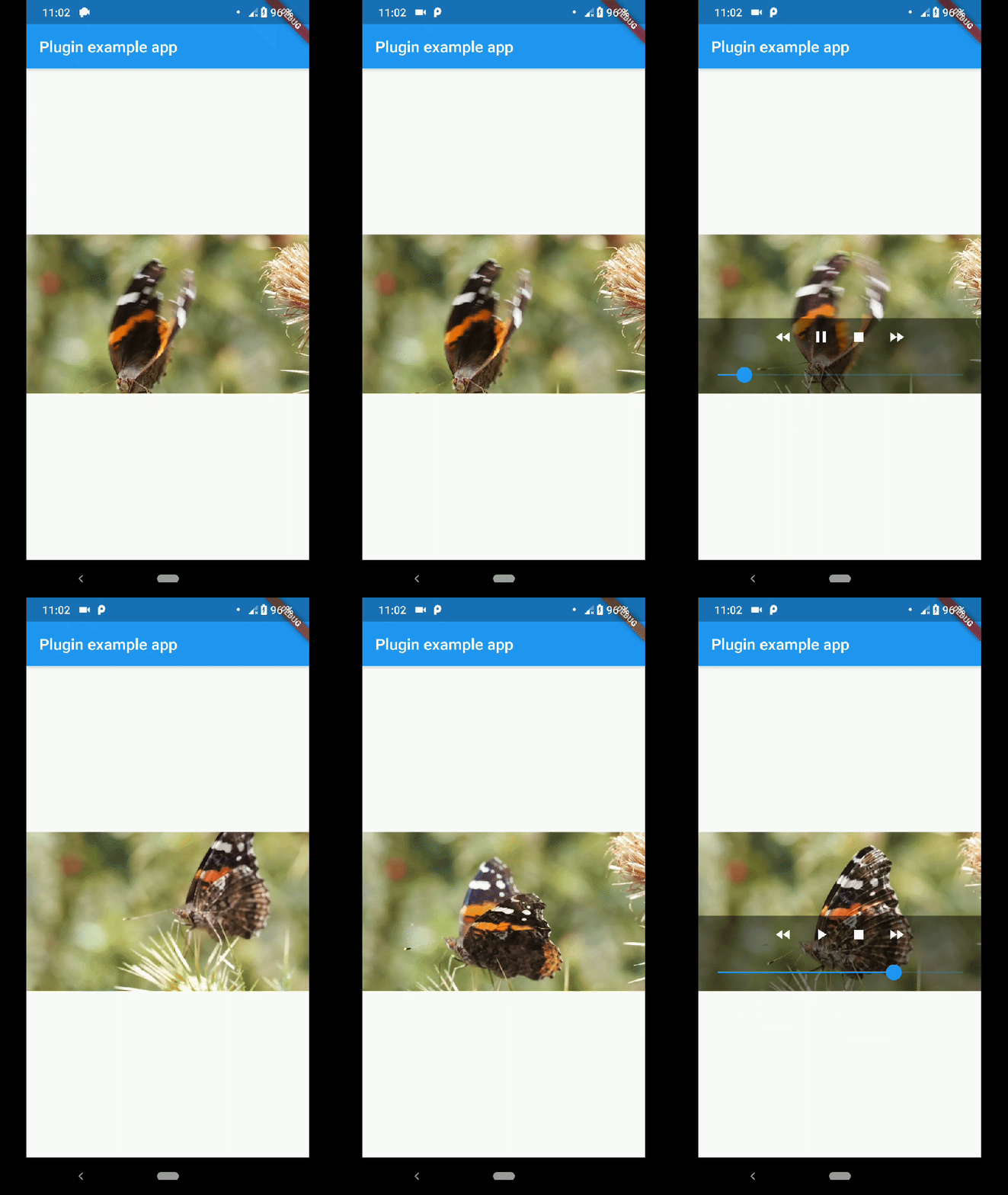
example_gif

Disclaimer

This plugin uses VideoView because in some devices the ExoPlayer plugin is not working correctly (due to decoders or something) and VideoView is a reasonable alternative. In iOS is sorta similar to Google's video_player so you should use their plugin if you want a player for iOS only.

Installation

First you need to add the dependency in your pubspec.yaml.

native_video_view: ^0.3.0

Then import the plugin in the .dart file you want to use it.

import 'package:native_video_view/native_video_view.dart';
Android

You need to add the necessary permissions to play the videos. If you are playing videos from the internet, you need to add the internet permissions in your AndroidManifest.xml located in the android folder in your project.

<uses-permission android:name="android.permission.INTERNET" />

If you are going to play videos from the device storage, you need to add the storage permissions.

<uses-permission android:name="android.permission.READ_EXTERNAL_STORAGE" />
iOS

In this platform you need to configure some options in your Info.plist file. This file is located in <project-root>/ios/Runner/ Info.plist.

First add the embedded views configuration.

<key>io.flutter.embedded_views_preview</key>
<true/>

If you want to play videos from the internet add the following.

<key>NSAppTransportSecurity</key>
<dict>
  <key>NSAllowsArbitraryLoads</key>
  <true/>
</dict>

Usage

This plugin has a widget to use in your dart files. Example:

@override
Widget build(BuildContext context) {
return Scaffold(
    appBar: AppBar(
    title: const Text('Plugin example app'),
    ),
    body: Container(
    alignment: Alignment.center,
    child: NativeVideoView(
        keepAspectRatio: true,
        showMediaController: true,
        onCreated: (controller) {
          controller.setVideoSource(
            'assets/example.mp4',
            sourceType: VideoSourceType.asset,
          );
        },
        onPrepared: (controller, info) {
          controller.play();
        },
        onError: (controller, what, extra, message) {
          print('Player Error ($what | $extra | $message)');
        },
        onCompletion: (controller) {
          print('Video completed');
        },
        onProgress: (progress, duration) {
          print('$progress | $duration');
        },
      ),
    ),
  );
}

keepAspectRatio: Wraps the video player in a AspectRatio widget. The aspect ratio is calculated once the video is loaded. By default the aspect ratio is 4/3.

showMediaController: Shows a default media controller overlay in the video player widget.

enableVolumeControl: Adds an option in the MediaController to control the volume of the playback.

useExoPlayer: Use ExoPlayer as the underlying player. Android Only.

autoHide: Automatically hides the media controller after a few seconds of no use. Default is true.

autoHideTime: The time after which the controller is hidden. Default is 2 seconds.

onCreated: (required) Callback called when the PlatformView is finished creating.

onPrepared: (required) Callback called when the player has finished loading the video.

onCompletion: (required) Callback called when the video reached the end.

onError: Callback called if an error occurs in the player.

onProgress: Callback used to notify progress in the video playback.

AudioFocus

To make the player get the audio focus of the system you just have to use the setting requestAudioFocus when setting the video source. See the example below.

@override
Widget build(BuildContext context) {
    return NativeVideoView(
       onCreated: (controller) {
         controller.setVideoSource(
             'assets/example.mp4',
             requestAudioFocus: true,
             sourceType: VideoSourceType.asset,
         );
       },
    );
}

所屬分類

依賴

依賴清單 2 項

原始碼儲存庫

使用此套件的專案

暫無相關資料。