A small dart library to generate Assets dart code from assets folder. It generates dart class with static const
variables in it which can be used to reference the assets safely anywhere in the flutter app.
This method allows no error scope for string typos. Also, it provides auto-complete in the IDE which comes very handy
when you have large amount of assets.
Installation
Install using pub
This is package is an independent library that is not linked to your project. So there's no need to add it to your
flutter project as it works as a global command line tool for all of your projects.
dart pub global activate spider
Install using Homebrew
brew tap birjuvachhani/spider
brew install spider
Run following command to see help:
spider --help
Usage
Create Configuration File
Spider provides a very easy and straight forward way to create a configuration file. Execute following command, and it
will create a configuration file with default configurations in it.
spider create
To append configs in pubspec.yaml file, execute following command.
spider create --add-in-pubspec
To use a custom directory path for configuration file, execute following command.
spider create -p ./directory/path/for/config
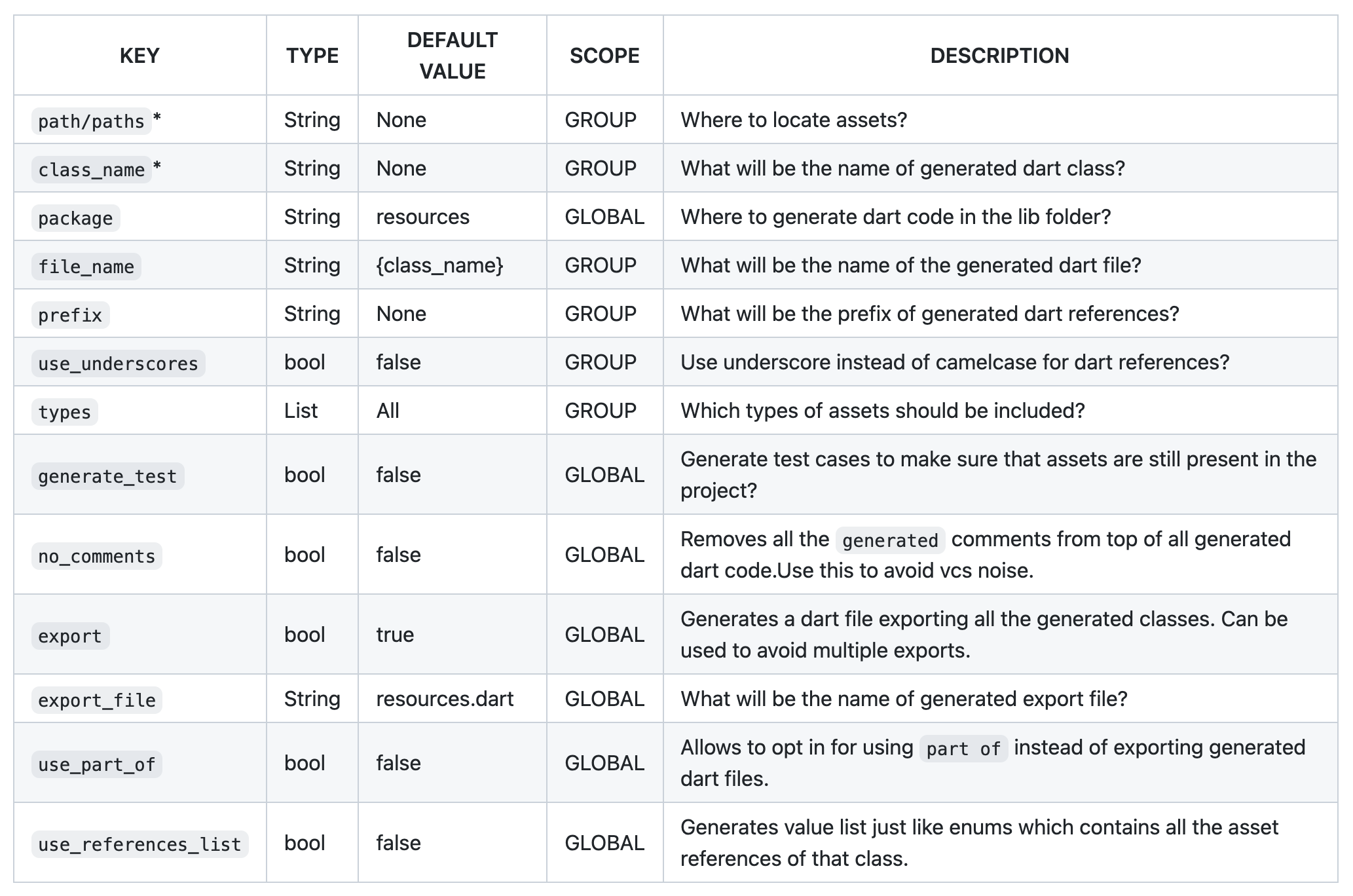
Now you can modify available configurations and Spider will use those configs when generating dart code.
Use JSON config file
Though above command creates YAML format for config file, spider also supports JSON format for config file. Use this
command to create JSON config file instead of YAML.
No matter which config format you use, JSON or YAML, spider automatically detects it and uses it for code
generation.
Here's the default configuration that will be in the config file:
# Generated by Spider# Generates unit tests to verify that the assets exists in assets directorygenerate_tests:true# Use this to remove vcs noise created by the `generated` comments in dart codeno_comments:true# Exports all the generated file as the one libraryexport:true# This allows you to import all the generated references with 1 single import!use_part_of:true# Location where all the generated references will be storedpackage:resourcesgroups:-path:assets/imagesclass_name:Imagestypes: [ .png, .jpg, .jpeg, .webp, .webm, .bmp ]
Generate Code
Run following command to generate dart code:
spider build
If you're using custom directory path for the configuration file, then you can specify the config file path like this:
spider -p ./path/to/config/file/spider.yaml build
Manual
Watch Directory
Spider can also watch given directory for changes in files and rebuild dart code automatically. Use following command to
watch for changes:
spider build --watch
see help for more information:
spider build --help
Smart Watch (Experimental)
The normal --watch option watches for any kind of changes that happens in the directory. However, this can be improved
my smartly watching the directory. It includes ignoring events that doesn't affect anything like file content changes.
Also, it only watches allowed file types and rebuilds upon changes for those files only.
Run following command to watch directories smartly.
spider build --smart-watch
Categorizing by File Extension
By default, Spider allows any file to be referenced in the dart code. but you can change that behavior. You can specify
which files you want to be referenced.
Spider provides supports for multiple configurations and classifications. If you want to group your assets by module, type
or anything, you can do that using groups in spider.
Example
Suppose you have both vector(SVGs) and raster images in your project, and you want to me classified separately so that
you can use them with separate classes. You can use groups here. Keep your vector and raster images in separate folder
and specify them in the config file.
Here, first item in the list indicates to group assets of assets/images folder under class named Images and the
second one indicates to group assets of assets/vectors directory under class named Svgs.
So when you refer to Images class, auto-complete suggests raster images only, and you know that you can use them
with AssetImage and other one with vector rendering library.
Multi-path configuration
From Spider v0.4.0, multiple paths can be specified for a single group to collect references from multiple directories
and generate all the references under single dart class.
By using paths, multiple source directories can be specified. Above example will generate references
from assets/images and assets/more_images/ under a single dart class named Images.
Generating Tests
Spider v0.4.0 adds support for generating test cases for generated dart references to make sure that the asset file is
present in the project. These tests can also be run on CI servers. To enable tests generation, specify generate_tests
flag in spider.yaml or spider.json configuration file as shown below.
generate_tests:true
This flag will indicate spider to generate tests for all the generated dart references.
Generate values list
Familiar with Enum.values list which contains all the enum values? Spider also provides support for generating values
list for all the asset references in given dart class.
Use use_references_list global config to enable values list generation. This is disabled by default as it can be
overwhelming to have this code-gen if you don't need it.
# global configuse_references_list:true
Enable Verbose Logging
Spider prefers not to overwhelm terminal with verbose logs that are redundant for most of the cases. However, those
verbose logs come quite handy when it comes to debug anything. You can enable verbose logging by using --verbose
option on build command.