搜尋套件、儲存庫與 APP 分類

套件詳情v1.2.5

universal_widget

一個通用的小部件,可放置在您的小部件樹中的任何位置,並完全支援動畫與輔助功能。

近 30 天下載
26
喜歡數
52
Pub 分數
35

安裝套件

flutter pub add universal_widget

套件介紹

根據套件公開資料產生的選型評估,僅供參考。

一個功能多樣的 Flutter 小部件,可無縫整合至小部件樹中的任何位置。它支援完整的動畫功能和無障礙功能,確保在不同情境下提供一致且包容的使用者體驗。非常適合需要動態行為和螢幕閱讀器相容性的可重複使用組件。此套件提升小部件的彈性,同時不犧牲效能或易用性。

適用情境

  • 可重複使用的 UI 元件
  • 動態內容渲染
  • 符合無障礙存取的介面
  • 跨平台 widget 結合
  • 動畫UI元素

主要特色

  • 完整的動畫支援
  • 內建可存取性
  • 在組件樹中的靈活定位
  • 輕量且高效
  • 可擴展的設計

適合對象

  • 開發可重複使用組件的開發者
  • 重視可存取性的團隊
  • 需要動畫UI的應用
  • 具有複雜 Widget 層次結構的專案
  • 跨平台 Flutter 應用

使用建議

  • 需要理解 Flutter 的 widget 生命週期
  • 可能需要額外設定以支援進階動畫
  • 未針對高頻率更新進行優化
  • 有限的平台特定自訂
  • 依賴於狀態管理流程中的正確整合

原始 README

以下為關聯原始碼儲存庫的 README 原文快照,最新內容請造訪原始碼儲存庫。

The Mighty UniversalWidget

I'm just so excited to introduce to you my superhero widget: UniversalWidget

You can find the package at: https://pub.dartlang.org/packages/universal_widget

  • Changelog: https://github.com/mrgoonie/flutter_universal_widget/blob/master/CHANGELOG.md

Why?

With UniversalWidget, you will have full control with it in the widget tree.

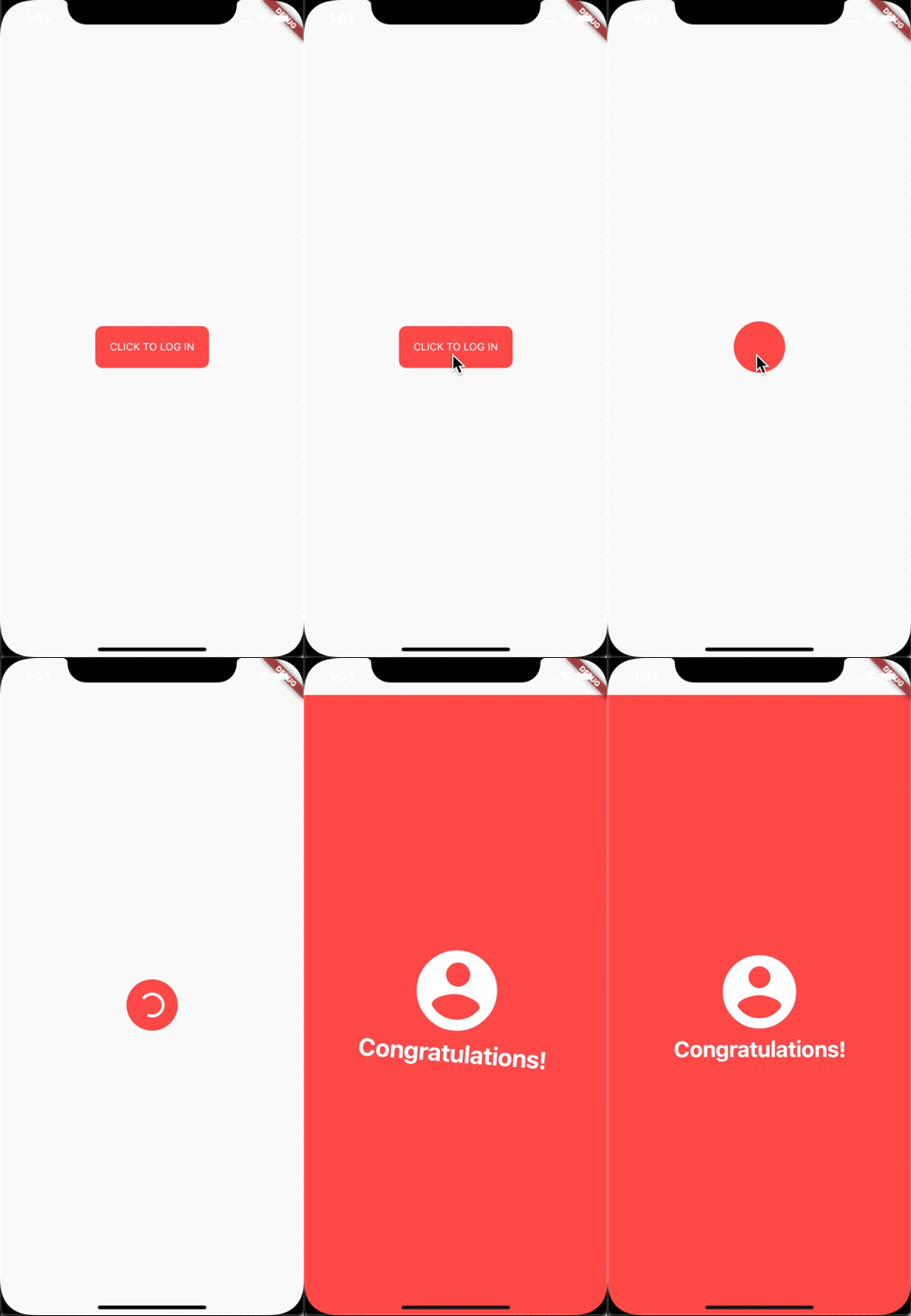
alt text

I made this login animation with UniversalWidget in only 8 lines of code. If you want to know how to do it with Flutter, see this cool tutorial: https://blog.geekyants.com/flutter-login-animation-ab3e6ed4bd19

Write less, do more.

For example, instead of:

Positioned(
  top: 10,
  left: 20,
  child: Container(
    height: 50,
    padding: EdgeInsets.all(20),
    decoration: BoxDecoration(
      color: Colors.blueAccent,
      borderRadius: BorderRadius.circular(10)
    ),
    transform: Matrix4()..identity()
      ..translate(20, 40)
      ..rotation(45 * math.pi),
    child: Text("Hello World")
  )
)

You can write:

UniversalWidget(
  x: 20,
  y: 40,
  rotation: 45, // degrees
  top: 10,
  left: 20,
  height: 50,
  padding: EdgeInsets.all(20)
  color: Colors.blueAccent,
  borderRadius: BorderRadius.circular(10),
  child: Text("Hello World")
)

Much shorter, right? Not stop from that, it's more helpful than you think. Please continue reading the next paragraph.

Flexibility

Let's say I have a widget in red:

UniversalWidget myWidget = UniversalWidget(
  color: Colors.red
);

What if I want to change its color into BLUE when I pressed a button? Easy as pie:

RaisedButton(
  child: Text("Change Me!"),
  onPressed: (){
    myWidget.update(
      color: Colors.blue
    )
  }
);

Think about how you will do this with StatefulWidget, I bet it would cost you at least 20 lines of code. Now looks back...

There are a lot more features that can unlock the true power of UniversalWidget. Such as:

To manage the UniversalWidget's visibility:

myWidget.update(visible: false);
// turns its visibility on by: myWidget.update(visible: true);

You can even change the child widget of UniversalWidget:

myWidget.update(
  child: Text("Holy Shiettttt!")
);

Masking (clipping) the child widget of UniversalWidget by setting mask flag:

myWidget.update(
  mask: true,
  child: Text("Holy Shiettttt!")
);

Animation

I admit that AnimatedContainer does a good job. But UniversalWidget can do animation much better:

UniversalWidget myWidget = UniversalWidget(
  color: Colors.red,
  height: 50
);
// let animate it:
myWidget.update(
  duration: 0.5 // seconds
  color: Colors.blue
);

It's just simple like that!

Advanced Animation

Apply easing type to the animation, listen to the widget to see when the animation is finished, see the progress of the animation, or make the animation repeated. Here you go:

myWidget.update(
  duration: 0.5, // in seconds
  delay: 2, // in seconds - wait 2 seconds then play the animation
  height: 100,
  ease: Curve.elasticEaseOut, // or your can use Ease.elasticEaseOut, it's the same
  onComplete: (widget){
    print("I finished changing my height!");
  },
  onUpdate: (progress){
    print("Animation progress is $progress");
  }
);

If you want to repeat the animation 5 times:

myWidget.update(
  ...
  repeat: 5,
  ...
);

If you want the animation to play in reverse after it's finish: (like the way playing Yoyo in real life)

myWidget.update(
  ...
  yoyo: true,
  ...
);

If you want to repeat the animation forever:

myWidget.update(
  ...
  repeat: -1,
  ...
);

Combining "repeat" and "yoyo", you will have the animation go forward & backward forever:

myWidget.update(
  ...
  repeat: -1,
  yoyo: true,
  ...
);

To stop the widget from animation:

myWidget.killAllTweens();

Additional Animation Easing Types

Yes, UniversalWidget has more easing type than Flutter framework, it supports:

  • Ease.backIn
  • Ease.backOut
  • Ease.backInOut
  • Ease.slowMo
  • Ease.sineIn
  • Ease.sineOut
  • Ease.sineInOut

Let play with it yourself! ;)

Accessibility

Let's take full control of your UniversalWidget, you can access to it everywhere, EVERYWHERE. (as long as it's still on your screen)

By give it a name:

UniversalWidget(
  name: "TheMightyWidgetEver",
  width: 100.0, height: 50.0
);

Now what if you want this widget to animate the height to zero when pressing on the button?

RaisedButton(
  child: Text("Collapse Me!"),
  onPressed: (){
    UniversalWidget.find("TheMightyWidgetEver").update(
      duration: 0.8,
      height: 0.0
    )
  }
);

Or just want to check for its properties:

UniversalWidget widget = UniversalWidget.find("TheMightyWidgetEver");
print(widget.get().width); // 100.0

Notes that the given name should be unique, if you have many UniversalWidget with the same name, only the latest one in the widget tree can be accessible by a name, the others won't. So please name it wisely.

Wait, there's more. If you want to check for the size of the widget, do this:

UniversalWidget(
  child: Text("Hello World!"),
  // because the widget size can only be calculated after the widget are build, you need to listen on this event:
  onWidgetBuilt: (context){
    print("My size is ${context.size}");
  }
);

Check whether the widget located on the screen:

UniversalWidget widget = UniversalWidget.find("TheMightyWidgetEver");
//...
print(widget.globalPosition);

Summary

Phewwww... that's it for now. Now you guys might understand why I called it "The Mighty Widget", not too brag, eh? Hopefully it will save you a bunch of time, as it's saving me right now.

If you have any feedback, or meet any troubles while using this widget, please feel free to reach me via this Github repo.

Happy Coding with Flutter guys! I'll be back.

所屬分類

原始碼儲存庫

使用此套件的專案

暫無相關資料。