Package selection guidance compiled from public package information, community data, and project usage.
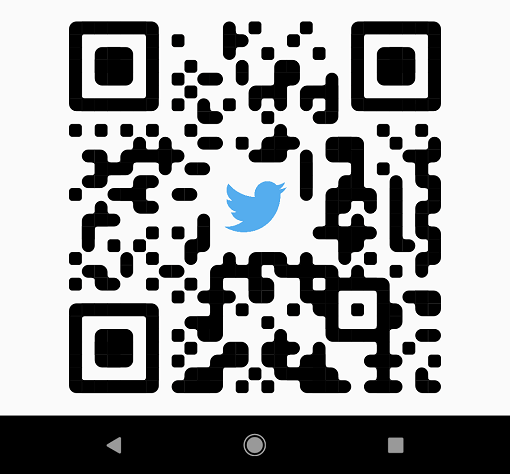
A highly customizable Flutter widget for rendering QR codes with ease. It allows developers to tailor the appearance of QR codes with options for size, color, shape, and logo integration. The package supports multiple platforms including Android, iOS, Web, macOS, Windows, and Linux, making it ideal for cross-platform applications. With a clean API and built-in styling features, it simplifies QR code generation without requiring external dependencies. Perfect for apps needing branded or interactive QR codes.
Use cases
Generating branded QR codes
Adding logos to QR codes
Embedding QR codes in web and mobile apps
Creating dynamic QR codes
Displaying QR codes in dashboards
Key features
Customizable colors and sizes
Logo overlay support
Cross-platform compatibility
Simple API
Highly configurable design
Built-in error correction
Suitable for
Mobile app developers
Web application creators
Design-focused projects
E-commerce and marketing apps
Apps requiring user-generated QR codes
Considerations
May require performance optimization for large batches
Limited advanced QR data encoding options
Logo scaling may affect readability
Not suitable for high-volume QR generation
Depends on platform-specific rendering capabilities
Original README
Original README snapshot from the linked source repository. Visit the repository for the latest content.
Pretty QR Code
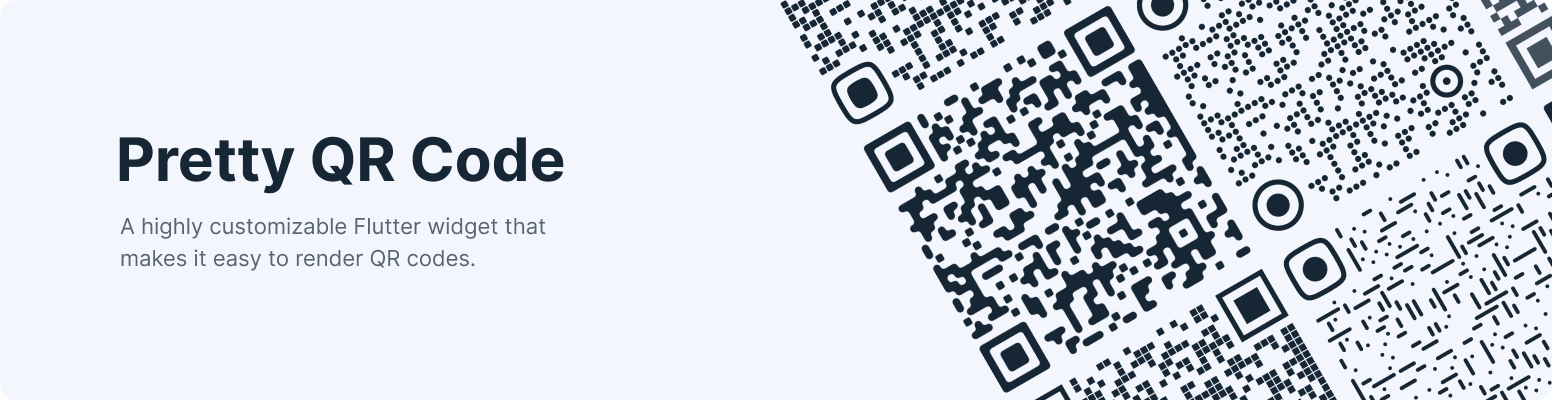
A highly customizable Flutter widget that makes it easy to render QR codes. Built on top of the qr package.
Shapes - The widget provides functionality for rendering various built-in shapes, namely smooth, squares and dots, or you can even create your patterns using the package API.
PrettyQrView.data(
data: 'lorem ipsum dolor sit amet',
decoration: constPrettyQrDecoration(
image: PrettyQrDecorationImage(
image: AssetImage('images/flutter.png'),
),
quietZone: PrettyQrQuietZone.standart,
),
)
If you want to pass non-string data or want to specify a QR version, consider using the default PrettyQrView constructor:
@protectedlateQrImage qrImage;
@overridevoidinitState() {
super.initState();
final qrCode = QrCode(
8,
QrErrorCorrectLevel.H,
)..addData('lorem ipsum dolor sit amet');
qrImage = QrImage(qrCode);
}
@overrideWidgetbuild(BuildContext context) {
returnPrettyQrView(
qrImage: qrImage,
decoration: constPrettyQrDecoration(),
);
}
Note: Do not create QrImage inside the build method; otherwise, you may have an undesired jank in the UI thread.
Combine several styles
To combine multiple styles in a single QR code, you can use PrettyQrCustomShape, as shown in the example below:
PrettyQrView.data(
data: 'lorem ipsum dolor sit amet',
decoration: constPrettyQrDecoration(
shape: PrettyQrShape.custom(
PrettyQrSquaresSymbol(),
finderPattern: PrettyQrSmoothSymbol(),
alignmentPatterns: PrettyQrDotsSymbol(),
),
),
)
Save the symbol as an image
You can save the QR code as an image using the toImage or toImageAsBytes extension methods that apply to QrImage. Optionally, the configuration parameter may be used to set additional saving options, such as pixel ratio or text direction.
final qrCode = QrCode.fromData(
data: 'lorem ipsum dolor sit amet',
errorCorrectLevel: QrErrorCorrectLevel.H,
);
final qrImage = QrImage(qrCode);
final qrImageBytes = await qrImage.toImageAsBytes(
size: 512,
format: ImageByteFormat.png,
decoration: constPrettyQrDecoration(),
);
See the example folder for more code samples of the various possibilities.
Contributing
Contributions are welcomed!
Here is a curated list of how you can help:
Fix typos/grammar mistakes
Report parts of the documentation that are unclear
Report bugs and scenarios that are difficult to implement