
 v1.1.1
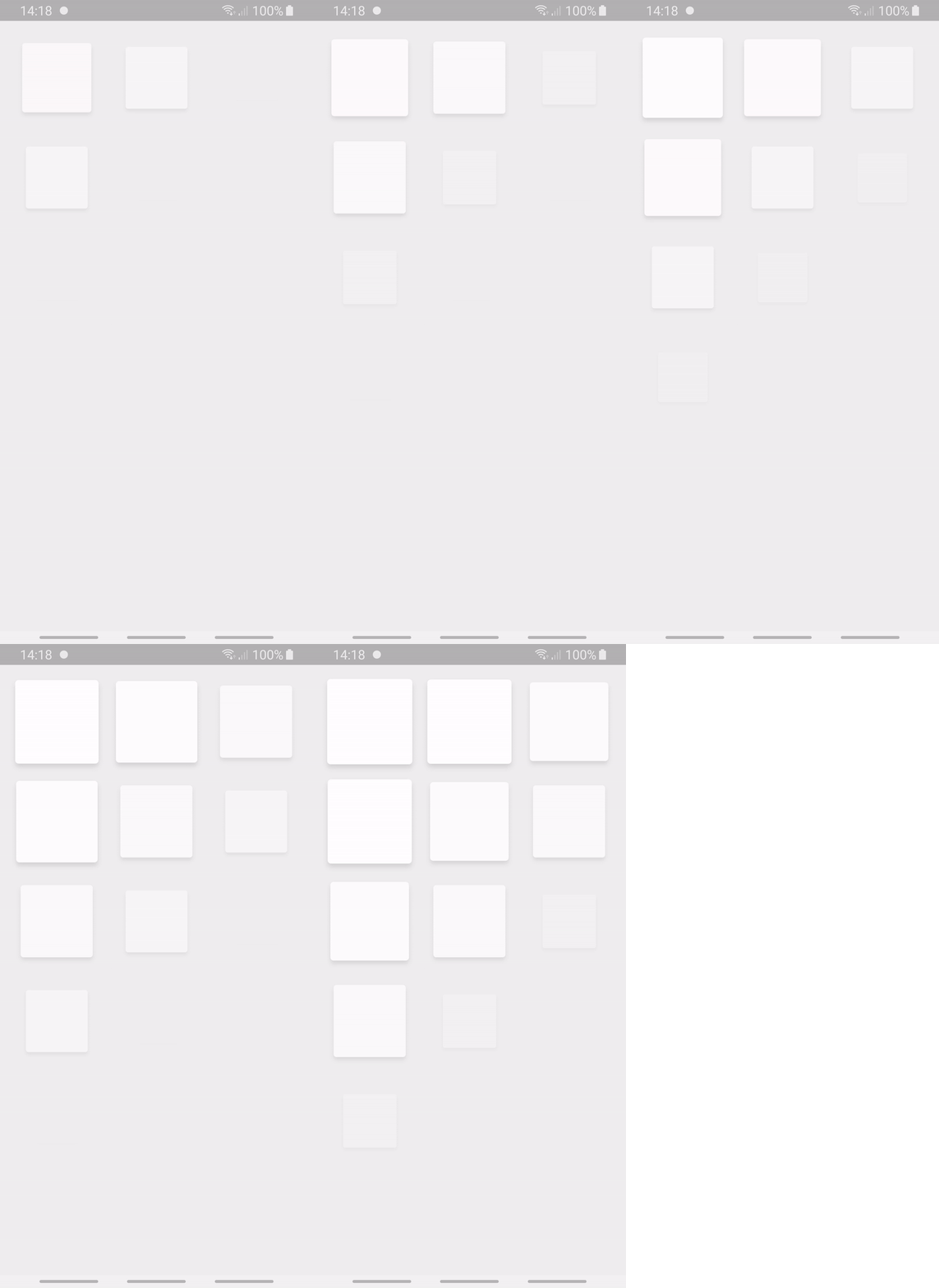
flutter_staggered_animations
Material Design 지침에 표시된 대로 ListView, GridView, Column 및 Row 자식 요소에 쉽게 스태거드 애니메이션을 추가하세요
2.2천좋아요 11.6만30일 다운로드160Pub 점수
AndroidiOSWebmacOSWindowsLinux
Laser Slides는 OSC(오픈 사운드 컨트롤)과 함께 작동하는 간단하면서도 강력한 크로스플랫폼 애플리케이션으로, 사용자가 태블릿 장치에서 BEYOND 소프트웨어의 레이저 슬라이드를 조작할 수 있도록 해줍니다.
 v1.1.1
Material Design 지침에 표시된 대로 ListView, GridView, Column 및 Row 자식 요소에 쉽게 스태거드 애니메이션을 추가하세요
 v2.0.10
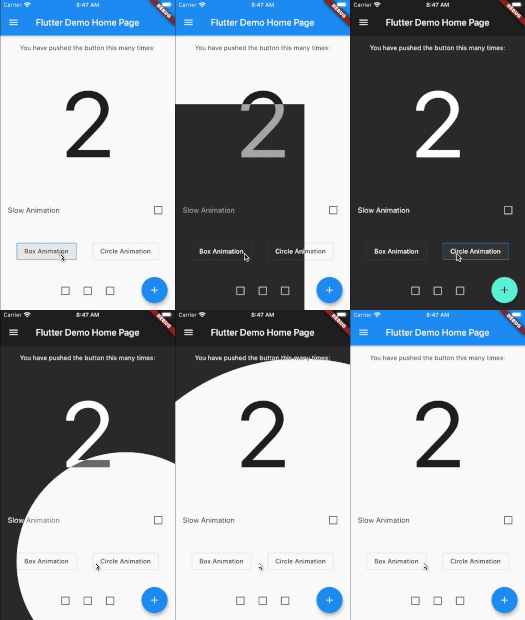
Flutter 애니메이션 테마 스위처로 테마 전환 시 아름다운 트랜잭션을 만들 수 있습니다.
 v1.3.0
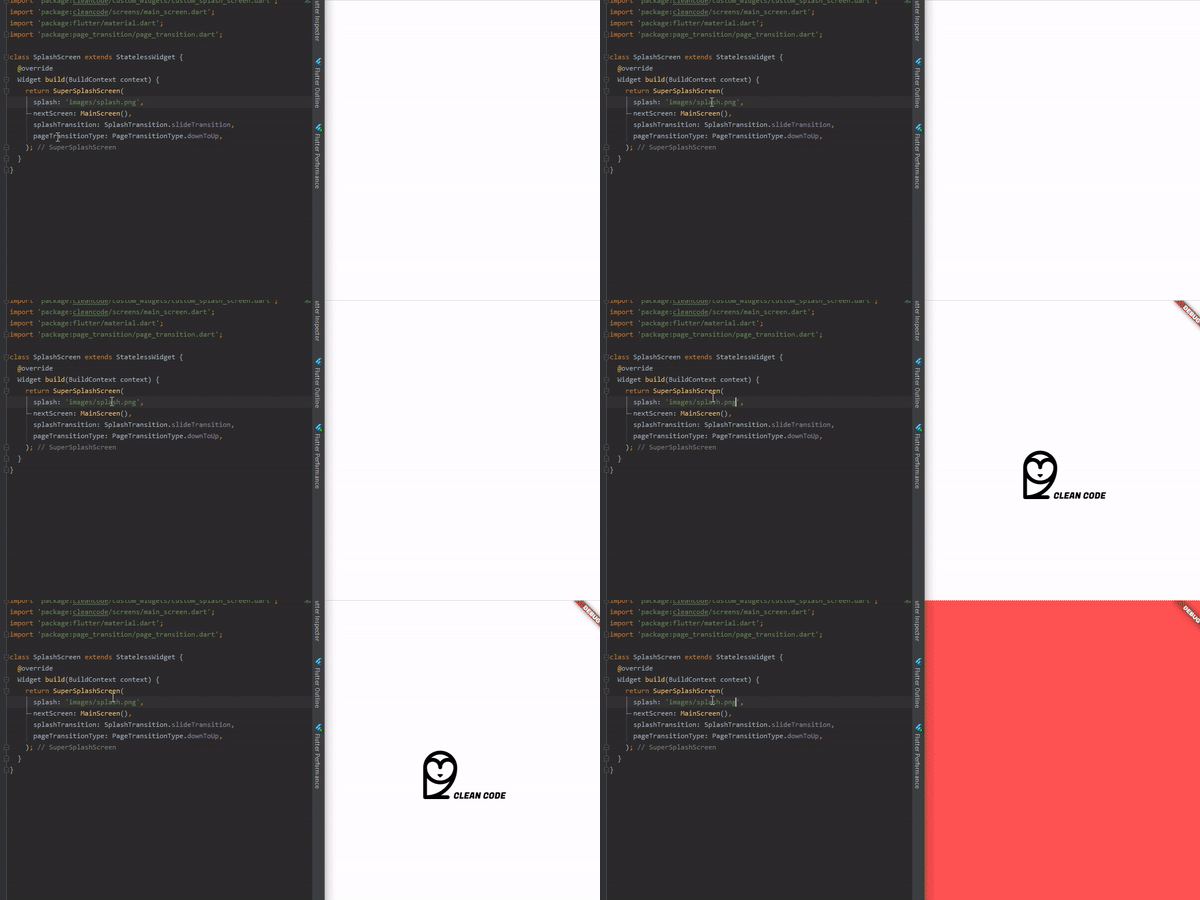
완전히 사용자 정의할 수 있는 방식으로 애니메이션 스플래시 화면을 만드는 가장 쉬운 방법입니다.
귀하의 프로젝트에 맞춤형 플로팅 스낵바를 제공하는 패키지입니다.
의존성 목록 18 개
^6.2.0^1.3.0^2.0.10^2.4.7^0.2.0+1^1.0.3+1{"sdk":"flutter"}^0.13.1^1.1.1^4.6.6^2.2.3^1.1.0^2.0.1^1.0.0^2.2.2^1.1.0{"sdk":"flutter"}^2.0.0아래는 영문 원문 스냅샷입니다. 최신 내용은 GitHub에서 확인하세요.
**Laser Slides Application **
Introduction: Laser Slides is a simple yet powerful cross-platform application which works with OSC(Open Sound Control), and allows users to manipulate the laser slides in the BEYOND software from a tablet device.
Getting Started: The application is compatible with all the latest android versions of android starting from v4.4. The laser slides application can be best viewed in Tablet devices with a minimum screen size of 8” inches.
Instructions:
-- Firstly, in order to use the laser slides application the system should have BEYOND software installed in the system.
-- On the BEYOND application we must go to the “setting” -> “OSC” -> “OSC settings” and then look up for the IP address such as “192.168.29.219”.
-- Once we know the IP address, start the laser slides application on a tablet device. We should configure the settings to control the slides in BEYOND software.
-- Now go to settings in the application enter the IP address and PORT as “8000”, After entering the values in the fields click on the “Save” button, if you see a popup with message “Connection Successful” you are good to go!!.
-- Now that we have made a successful connection with BEYOND, Go to the “Home” section in the app. Here you can control the slides with various buttons and customize with your desired functionality as well.
-- The Slides are generally manipulated using OSC commands, which you can assign to each button on “double tapping” on any button.
-- You can see a popup on your screen by double tapping on any button. The popup has various fields, Here enter the desired button name, and the OSC command such as “0 1” or “0 3” etc. once entered click on save button and the settings will be saved.
-- The initial digit in the OSC command represents the row number and the second number represents the cell number in that row.
All the OSC commands can be found at : OSC command
UI UX: On the start up of the laser slides application we could see an on-boading page with a quick introduction of the application. In the home page we could see 3 navigation buttons, “Home” directing to the buttons page, “About”button directing to the instructions page and “settings” page which will lead to opening of a bottom sheet to configure the settings of the application. The home page has buttons to manipulate the slides, the buttons are designed to showcase a 3d button press animation. On double tapping on any button it leads to opening of a popup with HERO animation enabling the user to edit the button.
Screenshot 2024-01-26 213803 1 Screenshot 2024-01-26 214146 1 Screenshot 2024-01-26 214242 1