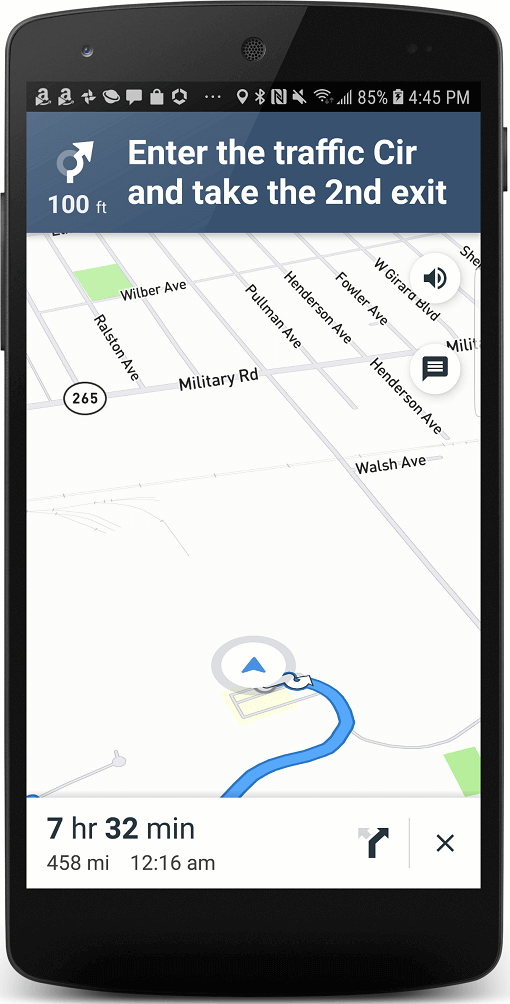
Orientação gerada a partir de informações públicas. Apenas para referência.
O pacote flutter_mapbox_navigation permite navegação passo a passo em aplicativos Flutter usando os serviços de roteamento e mapeamento do Mapbox. Ele permite que desenvolvedores integrem navegação em tempo real sem interrupções diretamente em seus aplicativos, eliminando a necessidade de alternar para aplicativos externos de mapas. Com suporte para Android e iOS, oferece uma experiência de navegação semelhante à nativa, incluindo visualização de rotas, instruções de voz e rastreamento ao vivo. O pacote foi projetado para facilitar a integração e personalização, sendo ideal para aplicativos que exigem funcionalidades de navegação baseadas em localização.
Casos de uso
Navegação no aplicativo
Aplicativos de carona
Rastreamento de Entrega
Aplicativos de Guias Turísticos
Gestão de Serviços no Campo
Principais recursos
Instruções passo a passo
Rastreamento de Localização ao Vivo
Orientação por voz
Integração do Mapbox
Interface personalizável
Indicado para
Aplicativos com navegação intensa
Serviços baseados em localização
Gerenciamento de Frota Móvel
Aplicativos de Viagem e Logística
Considerações
Requer chave da API do Mapbox
Suporte Offline Limitado
Dependente dos SDKs do Mapbox
Uso de bateria mais alto durante a navegação
Precisa de permissões para acesso à localização
README original
Snapshot do README original do repositório-fonte vinculado. Consulte o repositório para o conteúdo mais recente.
flutter_mapbox_navigation
Add Turn By Turn Navigation to Your Flutter Application Using MapBox. Never leave your app when you need to navigate your users to a location.
Features
A full-fledged turn-by-turn navigation UI for Flutter that’s ready to drop into your application
Go to your Mapbox account dashboard and create an access token that has the DOWNLOADS:READ scope. PLEASE NOTE: This is not the same as your production Mapbox API token. Make sure to keep it private and do not insert it into any Info.plist file. Create a file named .netrc in your home directory if it doesn’t already exist, then add the following lines to the end of the file:
where PRIVATE_MAPBOX_API_TOKEN is your Mapbox API token with the DOWNLOADS:READ scope.
Mapbox APIs and vector tiles require a Mapbox account and API access token. In the project editor, select the application target, then go to the Info tab. Under the “Custom iOS Target Properties” section, set MBXAccessToken to your access token. You can obtain an access token from the Mapbox account page.
In order for the SDK to track the user’s location as they move along the route, set NSLocationWhenInUseUsageDescription to:
Shows your location on the map and helps improve OpenStreetMap.
Users expect the SDK to continue to track the user’s location and deliver audible instructions even while a different application is visible or the device is locked. Go to the Capabilities tab. Under the Background Modes section, enable “Audio, AirPlay, and Picture in Picture” and “Location updates”. (Alternatively, add the audio and location values to the UIBackgroundModes array in the Info tab.)
Android Configuration
Mapbox APIs and vector tiles require a Mapbox account and API access token. Add a new resource file called mapbox_access_token.xml with it's full path being <YOUR_FLUTTER_APP_ROOT>/android/app/src/main/res/values/mapbox_access_token.xml. Then add a string resource with name "mapbox_access_token" and your token as it's value as shown below. You can obtain an access token from the Mapbox account page.
Add the MapBox Downloads token with the downloads:read scope to your gradle.properties file in Android folder to enable downloading the MapBox binaries from the repository. To secure this token from getting checked into source control, you can add it to the gradle.properties of your GRADLE_HOME which is usually at $USER_HOME/.gradle for Mac. This token can be retrieved from your MapBox Dashboard. You can review the Token Guide to learn more about download tokens
MAPBOX_DOWNLOADS_TOKEN=sk.XXXXXXXXXXXXXXX
After adding the above, your gradle.properties file may look something like this:
Update MainActivity.kt to extends FlutterFragmentActivity vs FlutterActivity. Otherwise you'll get Caused by: java.lang.IllegalStateException: Please ensure that the hosting Context is a valid ViewModelStoreOwner.
//import io.flutter.embedding.android.FlutterActivity
import io.flutter.embedding.android.FlutterFragmentActivity

class MainActivity: FlutterFragmentActivity() {
}
Add implementation platform("org.jetbrains.kotlin:kotlin-bom:1.8.0") to android/app/build.gradle