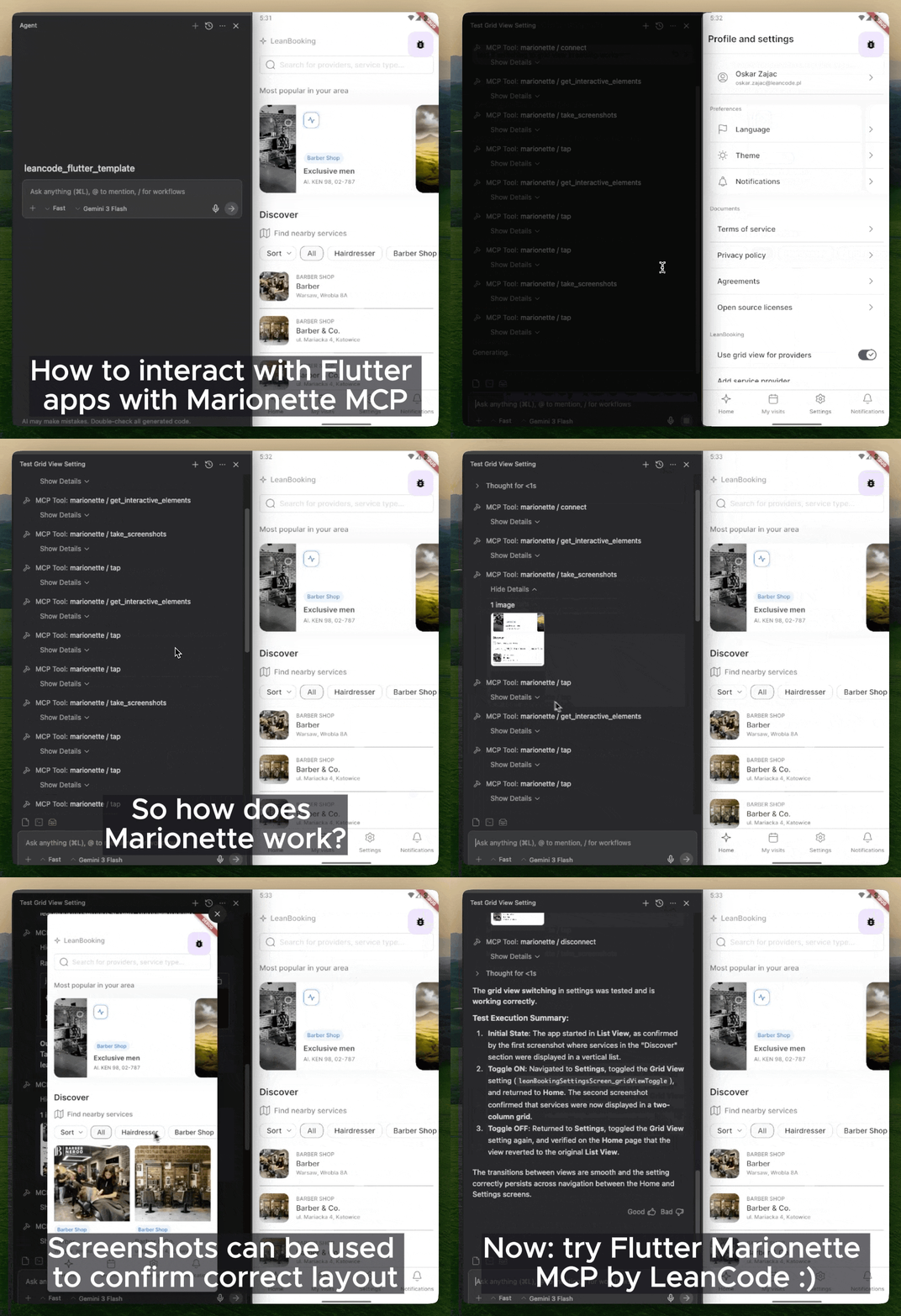
Extensões Flutter para interação com agente de IA por meio do MCP — permite que o Claude, Copilot e Cursor toquem, rolem, digitem e façam capturas de tela do seu aplicativo.
Orientação gerada a partir de informações públicas. Apenas para referência.
Marionette Flutter permite que agentes de IA interajam com aplicativos Flutter por meio do protocolo MCP, permitindo que ferramentas como Claude, Copilot e Cursor realizem ações como tocar, rolar, digitar e capturar telas. Ele amplia os aplicativos Flutter com capacidades para testes automatizados e interação da UI impulsionada por IA, melhorando os fluxos de trabalho de desenvolvimento. O pacote se integra perfeitamente em múltiplas plataformas, incluindo Android, iOS, Web, macOS, Windows e Linux. Projetado para desenvolvedores que utilizam modelos de linguagem grandes (LLMs) em testes ou automação de aplicativos, ele fecha a lacuna entre agentes de IA e comportamentos nativos de aplicativos.
Casos de uso
Testes automatizados de UI com agentes de IA
Exploração e depuração de aplicativos com inteligência artificial
Integração com o Copilot e o Claude para interação com aplicativos
Captura de tela em tempo real durante o teste
Interação de aplicativos multiplataforma por meio do MCP
Principais recursos
Suporte ao protocolo MCP para comunicação de agente de IA
Suporte para ações de toque, rolagem, digitação e captura de tela
Integração contínua com ferramentas de desenvolvimento impulsionadas por LLM
Extensões leves do Flutter para interação com agente
Indicado para
Desenvolvedores usando agentes de IA para testes
Equipes implementando automação de interface do usuário impulsionada por IA
Projetos Flutter que exigem orquestração avançada de testes
Integradores trabalhando com Copilot, Claude ou Cursor
Projetos focados em IA generativa no desenvolvimento de aplicativos
Considerações
Requer agente de IA compatível com suporte a MCP
Pode ser necessário configuração adicional para acesso seguro ao agente
Limitado a plataformas onde o MCP é suportado
Depende de ferramentas de IA externas para funcionalidade completa
Não destinado a interações de usuário em produção
README original
Snapshot do README original do repositório-fonte vinculado. Consulte o repositório para o conteúdo mais recente.
Marionette MCP
"Playwright MCP/Cursor Browser, but for Flutter apps"
Marionette MCP enables AI agents (Claude Code, Copilot, Cursor, Gemini CLI, and more) to inspect and interact with running Flutter applications. It connects your AI agent directly to a running app via the Model Context Protocol (MCP), so it can see the widget tree, tap elements, enter text, scroll, and capture screenshots for automated AI-driven smoke testing and interaction.
Marionette MCP keeps the surface area intentionally small. It exposes only a handful of high-signal actions and returns the minimum actionable data, which helps keep prompts focused and context sizes under control.
The official Dart & Flutter MCP server focuses on development-time tasks: searching pub.dev, managing dependencies, analyzing code, and inspecting runtime errors. It can also drive the UI, but it does so through Flutter Driver, which introduces extra instrumentation in your app. Marionette MCP focuses solely (and in an opinionated way) on runtime interaction: tapping buttons, entering text, scrolling, and taking screenshots, while requiring minimal changes to your app. Use Flutter MCP to build your app, use Marionette MCP to test and interact with it with minimal code changes.
Quick Start
[!NOTE]
Your Flutter app must be prepared to be compatible with Marionette. The steps below are the short version — the Getting Started guide walks through each one.
Prepare your app — add marionette_flutter and initialize MarionetteBinding in main.dart:
Run your app in debug mode — flutter run, then copy the VM service URI from the console (e.g. ws://127.0.0.1:9101/ws).
Connect and interact — ask your agent to connect using that URI and start driving the app.
[!IMPORTANT]
Standard Material widgets work out of the box. If your app uses a custom design system, configuration is required — otherwise the agent can't see or tap your custom buttons and fields. Start with the Production Setup Checklist.
What you can do
Once connected, an agent can drive your app with a small, focused toolset: inspect the widget tree (get_interactive_elements), tap / secondary_tap / double_tap / long_press / swipe / pinch_zoom / scroll_to, enter_text, press_back_button, take_screenshots, read get_logs, and hot_reload. Full list: MCP Tools.
Your app can also expose its own actions to the agent via Custom Extensions — navigate by route name, seed test data, toggle feature flags, and more.
Some real-world prompts:
"I implemented the Forgot Password screen — connect, navigate to login, tap 'Forgot Password', enter a valid email, submit, and check the logs that the API call fired."
"I refactored the routing. Run a smoke test: cycle through all bottom-nav tabs and verify each screen loads without exceptions in the logs."
"Investigate the unresponsive 'Clear Cache' button on Settings — find it via get_interactive_elements, tap it, and analyze the logs."