Orientação gerada a partir de informações públicas. Apenas para referência.
pangle_flutter é um plugin Flutter que integra o SDK Pangle da ByteDance para Android e iOS, permitindo que desenvolvedores implementem facilmente vários formatos de anúncios, como anúncios de splash e vídeos recompensados. Ele fornece uma interface unificada para gerenciar solicitações de anúncios, renderização e rastreamento em aplicativos Flutter. O plugin suporta as duas principais plataformas móveis e simplifica a integração com o ecossistema de monetização do Pangle. Com documentação clara e manutenção ativa, ajuda os aplicativos a gerar receita por meio de anúncios nativos de alto desempenho.
Casos de uso
Monetizando aplicativos móveis com anúncios de vídeo
Exibindo anúncios de splash no lançamento do aplicativo
Integrando conteúdo de vídeo recompensado
Melhorando o engajamento do usuário por meio de incentivos
Executando campanhas de anúncios multiplataforma
Principais recursos
Suporta anúncios de vídeo splash e recompensados
Compatibilidade multiplataforma com Android e iOS
API simples para integração de anúncios
rastreamento em tempo real do desempenho de anúncios
Configuração fácil por meio do pub.dev
Indicado para
Desenvolvedores Flutter procurando monetização por anúncios
Aplicativos direcionados ao mercado chinês ou global
Editores que usam a rede ByteDance Pangle
Projetos que exigem formatos de anúncios nativos
Aplicativos móveis com foco em alta retenção de anúncios
Considerações
Requer conta Pangle e configuração de unidade de anúncio
Pode ser necessário permissões adicionais no Android
A disponibilidade de anúncios depende da região e da taxa de preenchimento
Conformidade com as políticas do Pangle é obrigatória
Teste com anúncios de teste antes do lançamento em produção
README original
Snapshot do README original do repositório-fonte vinculado. Consulte o repositório para o conteúdo mais recente.
Thanks for non-commercial open source development authorization by JetBrains.
SplashView now has two distinct error callbacks instead of one:
onError — fires when the ad fails to load (network error, no fill, etc.)
onRenderFail — fires when the ad fails to render after loading (template rendering error)
If you were using onError to catch all splash failures, add an onRenderFail handler to cover render errors.
iOS touchable bounds semantics changed: addTouchableBounds / clearTouchableBounds now directly restrict which areas of the native ad view receive touch events. If the list is empty (default) all touches pass through normally. Previously this was a pass-through whitelist that only activated when FlutterOverlayView was detected — a mechanism that was already a no-op in Flutter 3+.
BannerView and FeedView now size themselves automatically from expressSize — no external AspectRatio or fixed height required. SplashView still needs a size-constraining wrapper (Container, SizedBox, Expanded, etc.).
Closing the ad (tapping the ✕ button) no longer auto-removes the view — handle removal in onClose.
SDK Versions
The SDK is bundled as a dependency — no manual import needed. To use a different SDK version, fork this project and update the dependency.
See PROPERTY.md for a full description of every configuration parameter.
Screenshots
Integration
1. Add the dependency
dependencies:pangle_flutter:latest
2. Platform setup
See SETUP.md for Android manifest changes and iOS Info.plist / CocoaPods configuration.
iOS note: This plugin depends on Ads-CN-Beta/BUAdSDK and Ads-CN-Beta/CSJMediation. These are the beta/mediation variants of the Pangle iOS SDK.
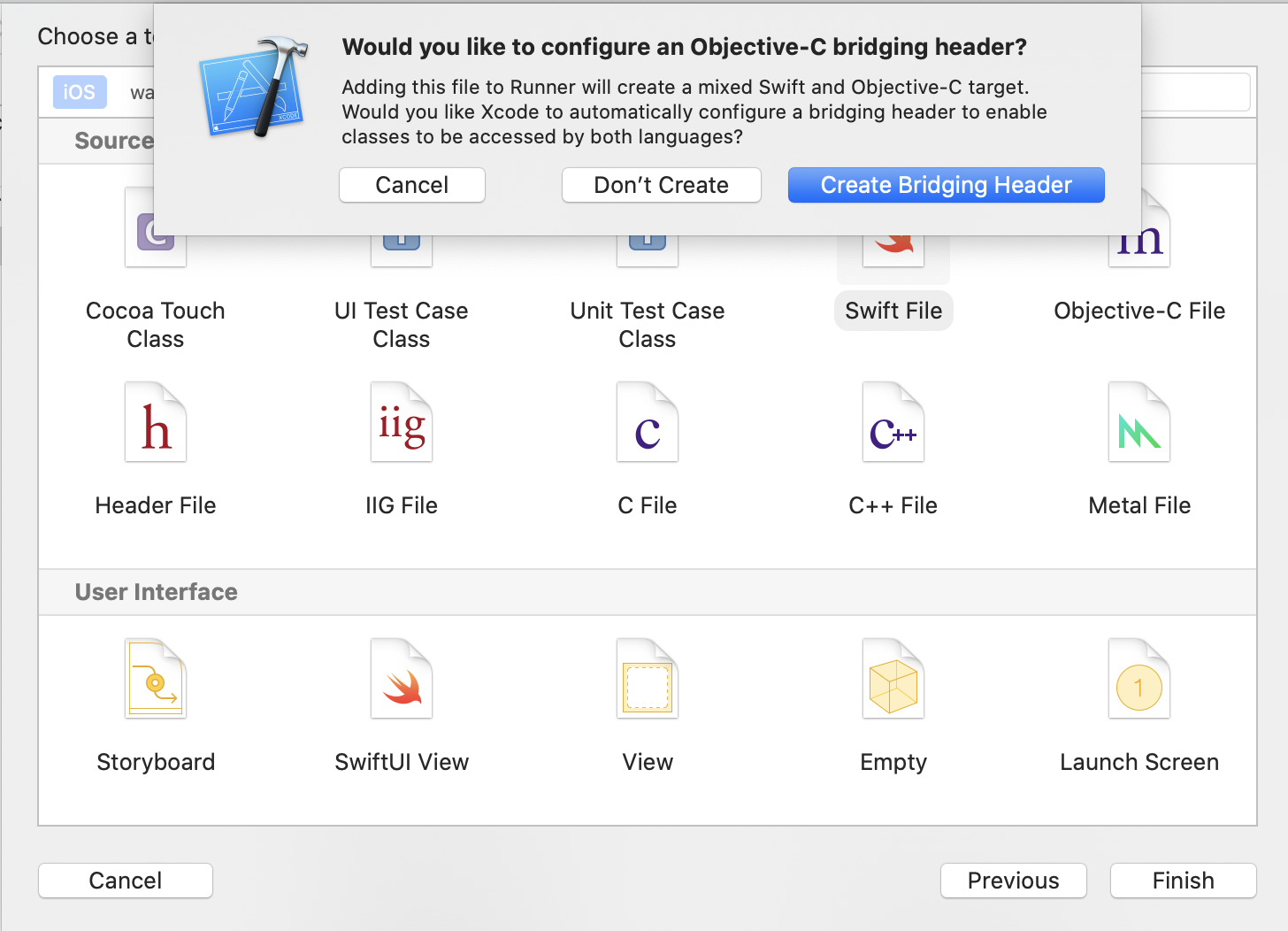
Pure Objective-C projects (iOS): Create an empty Swift file in your project and select Create Bridging Header when prompted. This is required for Swift-based plugins to work.
Usage
1. Initialization
import'package:pangle_flutter/pangle_flutter.dart';
// Call before runApp if initializing at startupWidgetsFlutterBinding.ensureInitialized();
await pangle.init(
iOS: IOSConfig(appId: kAppId),
android: AndroidConfig(appId: kAppId),
);
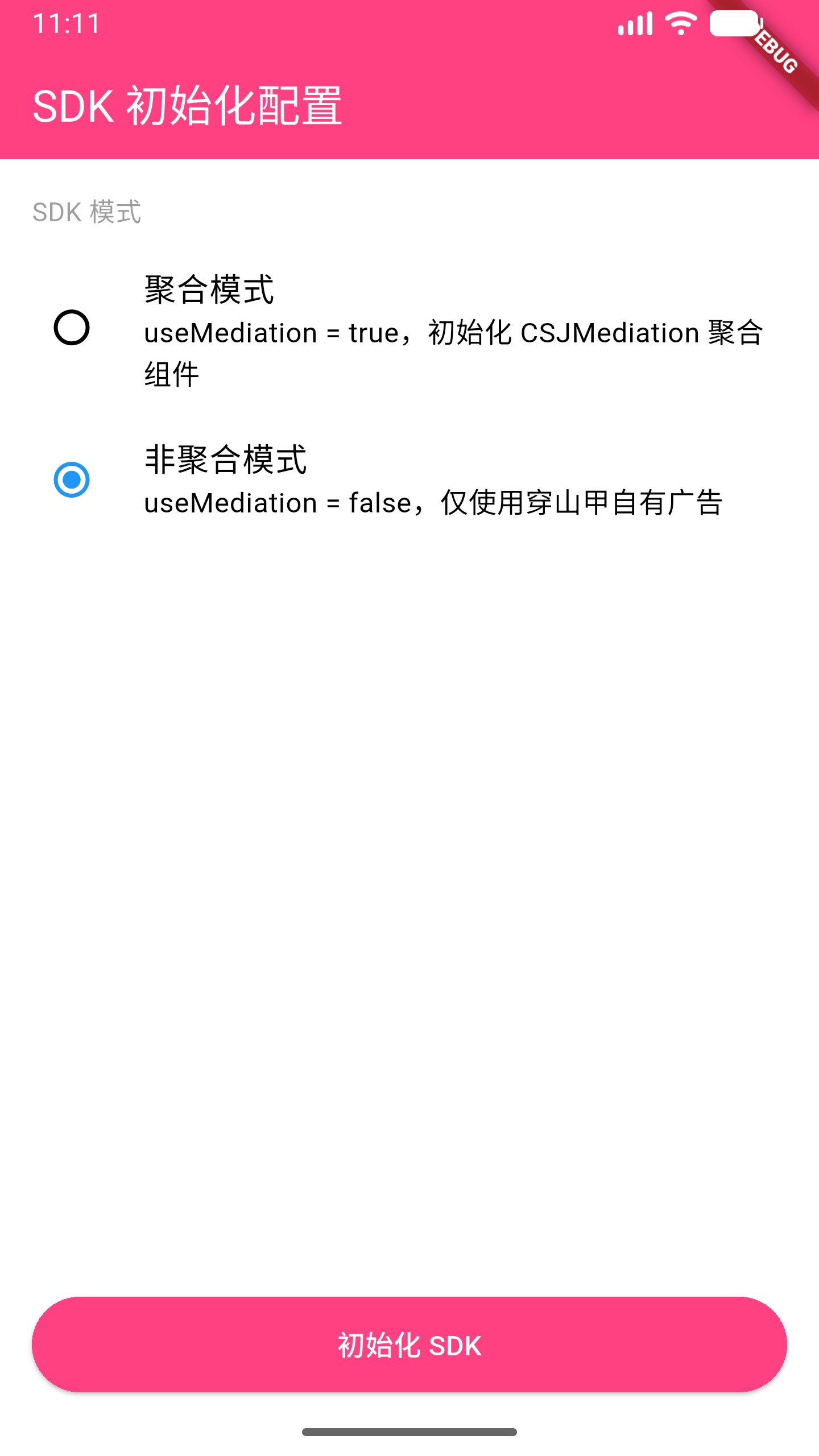
// To enable GroMore mediation:await pangle.init(
iOS: IOSConfig(appId: kAppId, useMediation: true),
android: AndroidConfig(appId: kAppId, useMediation: true),
);
SplashView(
  iOS: IOSSplashConfig(slotId: kSplashId, isExpress: false),
  android: AndroidSplashConfig(slotId: kSplashId, isExpress: false),
  onLoad: () {},          // Ad loaded successfully
  onShow: () {},          // Ad appeared on screen
  onClick: () {},         // User tapped the ad
  onClose: (type) {},     // Ad dismissed
  onError: (code, msg) {},       // Load failed
  onRenderFail: (code, msg) {},  // Render failed (after load)
);
3. Rewarded Video Ad
Use RewardedAd.load() + ad.show() for one-off load/show, or RewardedAdPool when you want ads preloaded and ready before the user triggers them.
One-off (load then show)
try {
final ad = awaitRewardedAd.load(
slotId: kRewardedVideoId,
iOS: constIOSRewardedVideoConfig(slotId: kRewardedVideoId),
android: AndroidRewardedVideoConfig(slotId: kRewardedVideoId),
);
// Reaching here means load succeededfinal result = await ad.show(
onEvent: (PangleAdEvent event) {
switch (event) {
caseAdRewardEvent(:final verified):
if (verified) grantReward();
caseAdClosedEvent():
// ad dismisseddefault:
break;
}
},
);
} onAdLoadExceptioncatch (e) {
debugPrint('load failed: $e');
}
Preload pool (recommended for better UX)
// Configure once at startup (e.g. in initState or main())awaitRewardedAdPool.instance.configure(
slotId: kRewardedVideoId,
poolSize: 2, // keep 2 ads cached
autoRefill: true, // reload automatically after each show
iOS: constIOSRewardedVideoConfig(slotId: kRewardedVideoId),
android: AndroidRewardedVideoConfig(slotId: kRewardedVideoId),
);
// Later, when the user earns an ad trigger:if (awaitRewardedAdPool.instance.isReady(kRewardedVideoId)) {
awaitRewardedAdPool.instance.show(
slotId: kRewardedVideoId,
onEvent: (event) {
if (event caseAdRewardEvent(:final verified) when verified) {
grantReward();
}
},
);
} else {
// Ad not ready yet — show a "try again later" message
}
4. Fullscreen Video Ad
Follows the same pattern as rewarded video. Use FullscreenAd for one-off or FullscreenAdPool for preloading.
The close button (✕) no longer auto-removes the item. Handle removal yourself in onDislike.
Request feed ads
// Returns a list of ad keys used to render FeedView widgetsPangleFeedAd feedAd = await pangle.loadFeedAd(
iOS: IOSFeedConfig(slotId: kFeedId, count: 2),
android: AndroidFeedConfig(slotId: kFeedId, count: 2),
);
// feedAd.data — list of ad identifiers
Display
Pass the same expressSize used in loadFeedAd — FeedView sizes itself automatically.
final result = await pangle.loadInterstitialAd(
  iOS: IOSInterstitialConfig(
    slotId: kInterstitialId,
    expressSize: PangleExpressSize(width: width, height: height),
  ),
  android: AndroidInterstitialConfig(slotId: kInterstitialId),
);
8. Touchable Bounds (iOS)
addTouchableBounds restricts which areas of a native ad view can receive touch events. When the list is non-empty, only touches within the declared rectangles are forwarded to the native view; all other touches pass through to Flutter widgets underneath.
Note: This API is iOS-only. Android platform views handle touch routing natively.
Container(
  height: 260,
  child: BannerView(
    iOS: IOSBannerConfig(
      slotId: kBannerId,
      expressSize: PangleExpressSize(width: 600, height: 260),
    ),
    android: AndroidBannerConfig(slotId: kBannerId),
    onBannerViewCreated: (BannerViewController controller) {
      // Allow touches only within these screen-coordinate rects
      controller.addTouchableBound(Rect.fromLTWH(0, 0, 300, 260));

      // Or clear all restrictions (all touches pass through to native view)
      controller.clearTouchableBounds();
    },
  ),
),
Use case: You have a floating button that overlaps the ad. Declare only the non-button area as touchable so the button remains tappable while the rest of the ad still receives clicks.
_initTouchableBounds(BannerViewController controller) {
if (!Platform.isIOS) return;
finalRenderBox buttonBox =
_floatingButtonKey.currentContext!.findRenderObject() asRenderBox;
final buttonBound = PangleHelper.fromRenderBox(buttonBox);
// Allow the ad area excluding the button region
controller.addTouchableBound(Rect.fromLTWH(
0,
buttonBound.top,
kPangleScreenWidth - buttonBound.width,
buttonBound.height,
));
}
9. Draw Ad
TikTok-style vertical full-screen video ads. Load a batch of IDs, then embed DrawView inside a full-screen PageView for swipeable playback.