Orientação gerada a partir de informações públicas. Apenas para referência.
PasswordGrid é um pacote Flutter que permite aos desenvolvedores criar grades de senhas seguras e personalizáveis para autenticação de usuários. Ele suporta múltiplas plataformas, incluindo Android, iOS, Web, macOS, Windows e Linux, tornando-o ideal para aplicativos multiplataforma que exigem entrada de senha baseada em grade. O pacote oferece uma interface intuitiva para digitar senhas por meio de um layout em grade, melhorando a usabilidade mantendo a segurança. Integra-se perfeitamente com o sistema de widgets do Flutter e pode ser facilmente personalizado para atender às necessidades de design do aplicativo.
Casos de uso
Interfaces de login seguras
Autenticação de dois fatores
Entrada de senha baseada em grade
Desenvolvimento de aplicativos multiplataforma
Autenticação amigável ao usuário
UI personalizável para entrada de senha
Principais recursos
Suporte multiplataforma
Layout de grade personalizável
Entrada de senha segura
Integração fácil com o Flutter
design responsivo
Suporta múltiplos sistemas operacionais
Indicado para
Aplicativos móveis e web
Sistemas de autenticação
Aplicações focadas em segurança
Desenvolvedores em busca de componentes UI reutilizáveis
Aplicativos que precisam de entrada baseada em grade
Projetos multiplataforma
Considerações
Requer manipulação cuidadosa de dados sensíveis
Pode ser necessário lógica de validação adicional
Não adequado para políticas de senha complexas
A personalização da interface pode exigir conhecimentos avançados em Flutter
Limitado à entrada de senha em estilo grade
Depende de código-fonte externo para atualizações
README original
Snapshot do README original do repositório-fonte vinculado. Consulte o repositório para o conteúdo mais recente.
PasswordGrid
A Flutter Package to Generate Password Grid. You can use this widget directly in your application UI.
Stay Secure with 2FA Passcode Grid
A password grid, also called a "passcode grid," is a table with rows and columns containing unique letters or numbers where you select specific combinations to authenticate, essentially acting as a visual password by choosing specific coordinates on the grid to form your login credentials; to use it, you would typically be presented with a grid, then asked to enter the letters or numbers from specific grid positions (like "A3, B2, C1") to log in, usually requiring you to save or print the grid for future use as it's unique to your account.
Key points about using a password grid:
Access your grid:
While designing a authentication system, you can ask your users to enter the values in the Password grid as a 2FA passcode.
The user will be prompted to access your grid, which you should generate and show them.
The password grid can be generated at the time of user signin and they should save it for future use. so that the user can use the grid for 2FA authentication.
Select coordinates:
The system will ask the user to enter the letters or numbers from specific grid positions, usually indicated by a combination of a column letter and row number (e.g., "B2", A8, etc).
Enter the code:
The user will enter the values from the requested grid coordinates into the 2FA login field to authenticate.
Benefits of a password grid:
Enhanced security:
Since the user selects multiple characters from a grid, it's harder for someone to guess your password compared to a simple text-based password.
Shoulder surfing resistant:
Less susceptible to "shoulder surfing" attacks where someone observes your password entry because the grid doesn't reveal the exact password sequence.
Accessibility for some users:
Can be easier for people who struggle with remembering complex passwords.
Usage
In your application,
import'package:passwordgrid/main.dart';
then pass grid configuration
GridConfig config = GridConfig(
numbers: true,
alphaUpper: true,
alphaLower: true,
symbols: false,
gridSize: 8, // max size is 8 and min size is 5
);
// or Optionally pass GridConfig or use default valuesGridConfig? config;
// and invoke thisPasswordGrid passwordGrid = PasswordGrid(config: config);
// sample code@overrideWidgetbuild(BuildContext context) {
// pass grid configurationGridConfig config = GridConfig(
numbers: true,
alphaUpper: true,
alphaLower: true,
symbols: false,
gridSize: 8, // max size is 8 and min size is 5
);
// or Optionally pass GridConfig or use default values// GridConfig? config;PasswordGrid passwordGrid = PasswordGrid(config: config);
returnScaffold(
appBar: AppBar(
title: Text('Password Grid Example'),
backgroundColor: Colors.green,
centerTitle: true,
titleTextStyle: TextStyle(
color: Colors.white,
fontSize: 24,
),
),
body: Center(
child: passwordGrid,
),
);
}
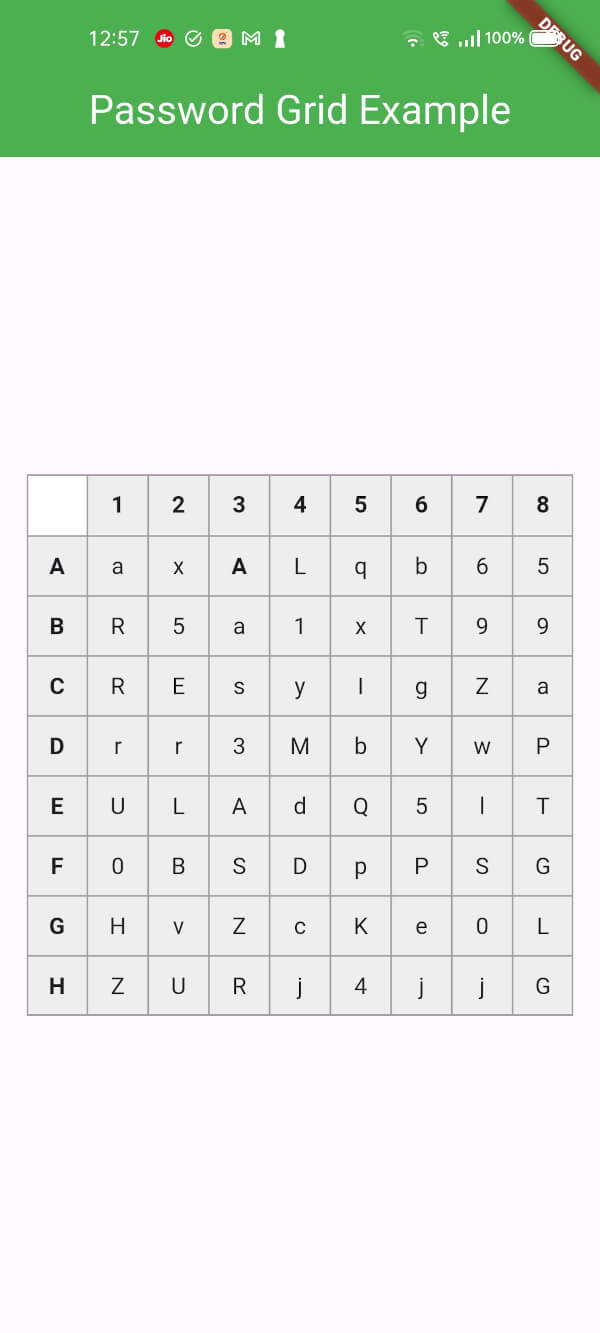
An example application of how to use this password grid package is included in the example folder.
This will generate a password grid similar to
Grid Configuration
While generating grid, you can configure the grid generation parameters.
  GridConfig config = GridConfig(
    numbers: false,
    alphaUpper: true,
    alphaLower: true,
    symbols: false,
    gridSize: 6, // max size is 8 and min size is 5
  );
If everything is set to false as below, then it is invalid, so grid parameters will be set to default. i.e., all falsg will be set to true