搜尋套件、儲存庫與 APP 分類

drishya_picker 封面
套件詳情v2.0.0

drishya_picker

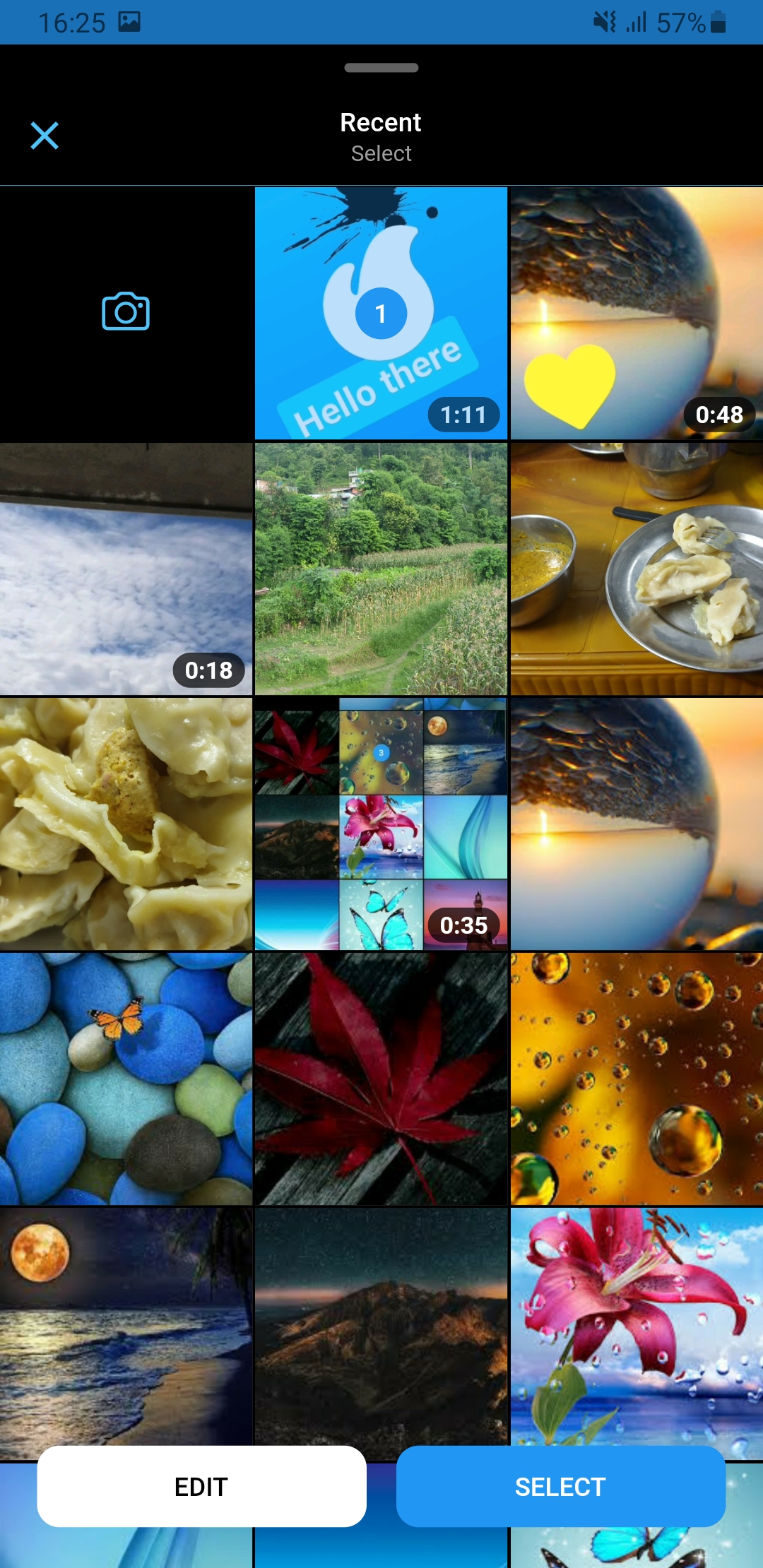
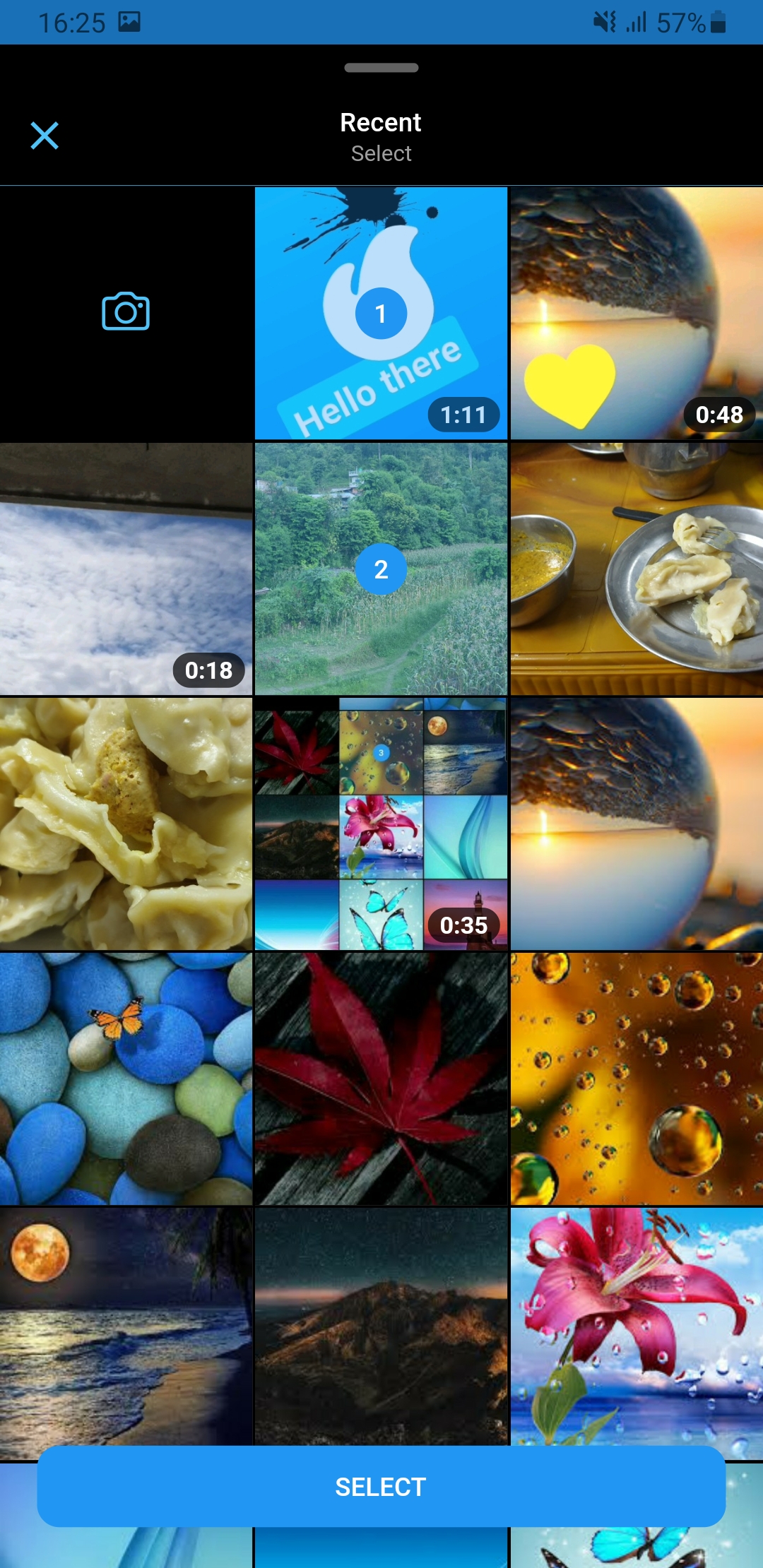
一個受 Messenger 相機和相冊啟發的資源選擇器。

近 30 天下載
93
喜歡數
92
Pub 分數
60

安裝套件

flutter pub add drishya_picker

套件介紹

根據套件公開資料產生的選型評估,僅供參考。

Drishya Picker 是一個 Flutter 套件,提供了一個受到訊息應用中相機與相簿介面啟發的資源選擇器。它能以乾淨直覺的介面讓使用者選取圖片與影片,實現無縫的媒體整合。此套件以 Flutter 建構,支援相機拍攝與相簿瀏覽之間的順暢切換,非常適合聊天或社群媒體應用。該套件輕量且易於整合,提供現代化使用者體驗,無需大量自訂。目前尚未指定平台限制,顯示具備廣泛相容性。

適用情境

  • 支援媒體分享的聊天應用
  • 社群媒體貼文建立
  • 使用者個人檔案照片與影片上傳
  • 內容創作工具
  • 豐富媒體表單提交

主要特色

  • 相機和相簿整合
  • Messenger 風格的使用者介面設計
  • 與 Flutter 的簡單整合
  • 輕量且高效
  • 直觀的媒體選擇流程

適合對象

  • 開發即時通訊應用的開發者
  • 需要快速上傳媒體的應用
  • 面向使用者介面的多媒體選擇器
  • Flutter 初學者尋找現成的組件
  • 希望獲得原生類似選擇器體驗的專案

使用建議

  • 未列出明確的平台支援
  • 可用文件有限
  • 可能需要額外的權限才能存取相機
  • 依賴外部相依性以實現完整功能
  • 尚未在生產環境中廣泛採用

原始 README

以下為關聯原始碼儲存庫的 README 原文快照,最新內容請造訪原始碼儲存庫。

Drishya Picker

Platform Pub Package likes Forks


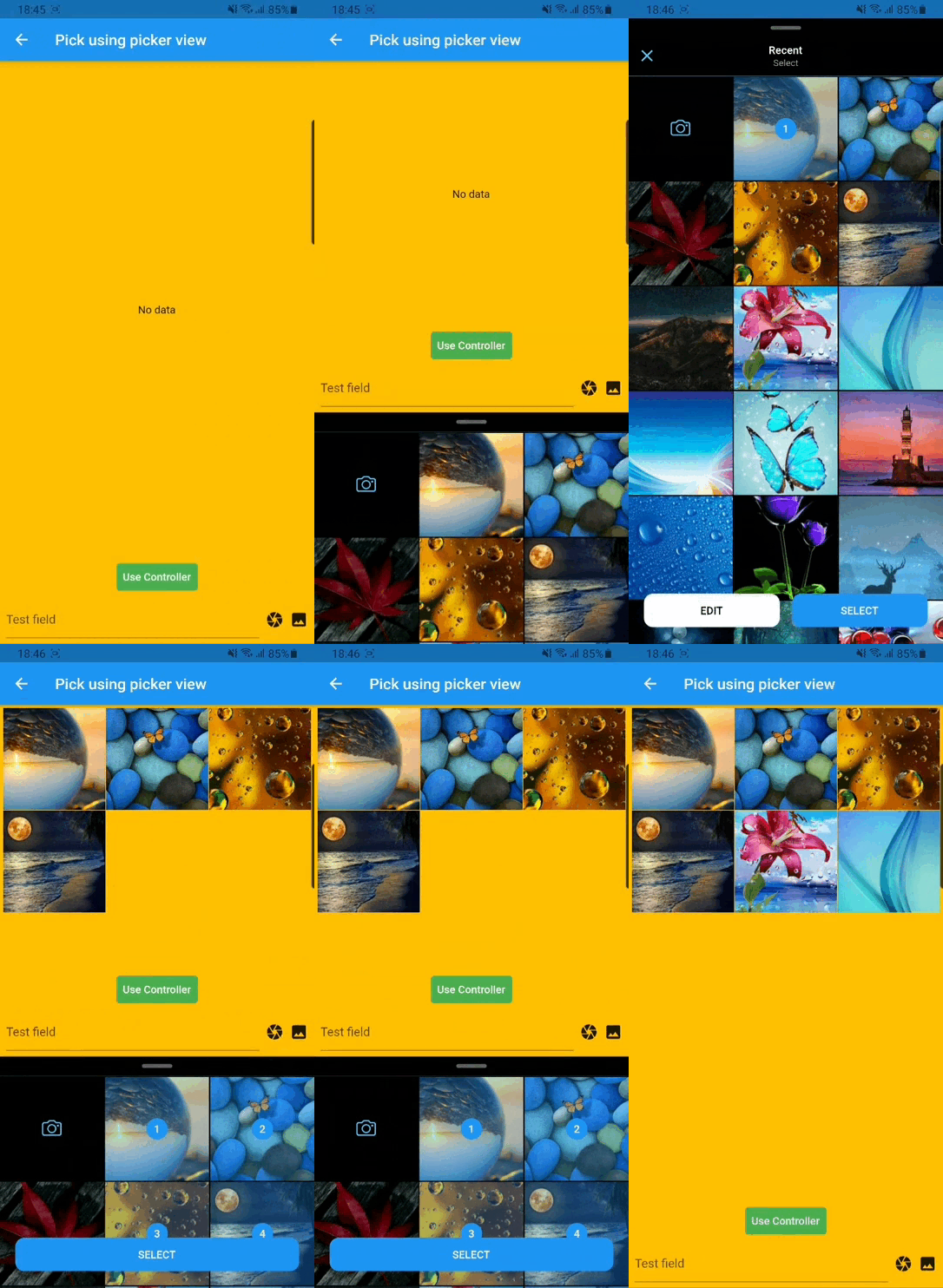
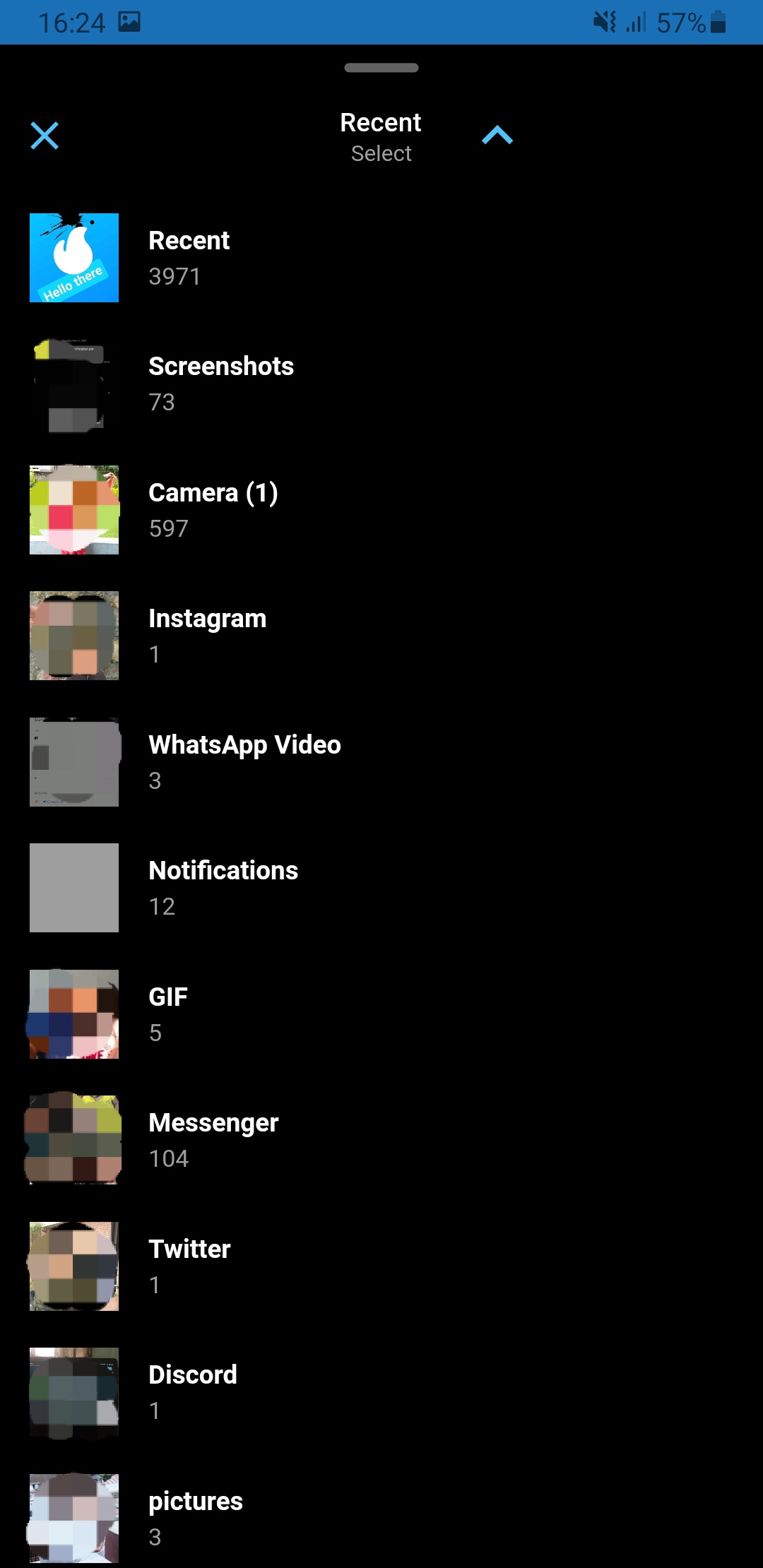
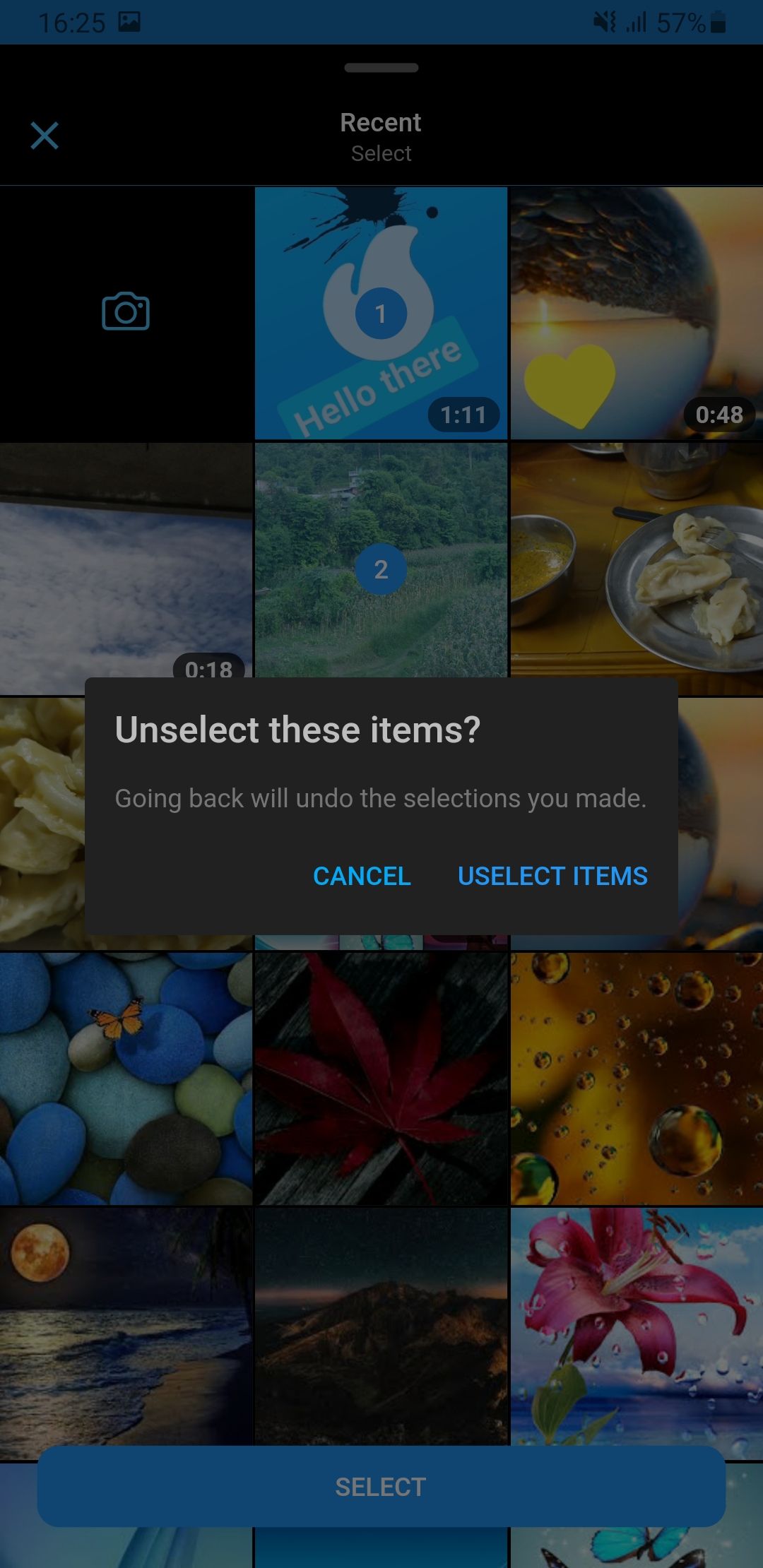
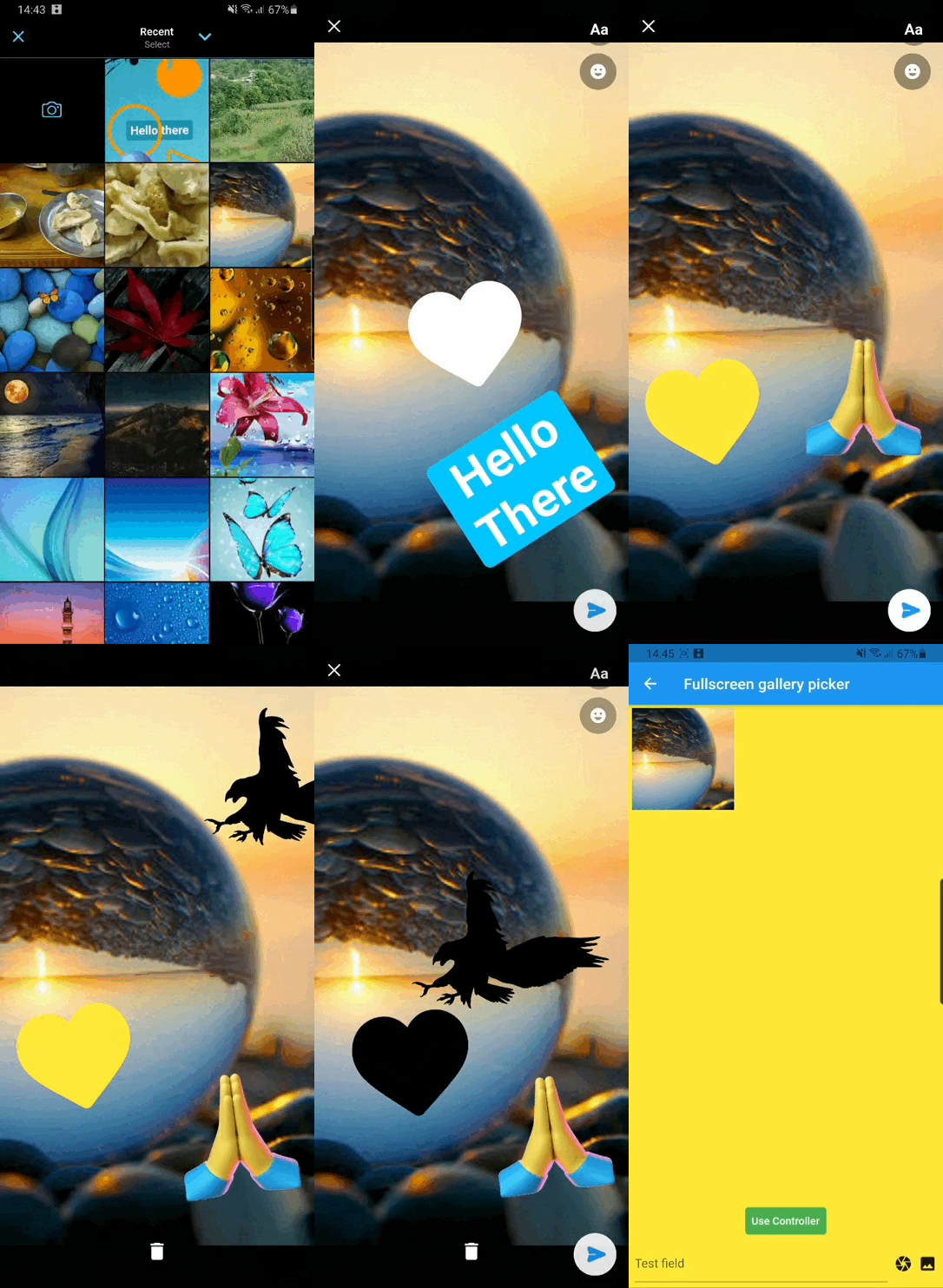
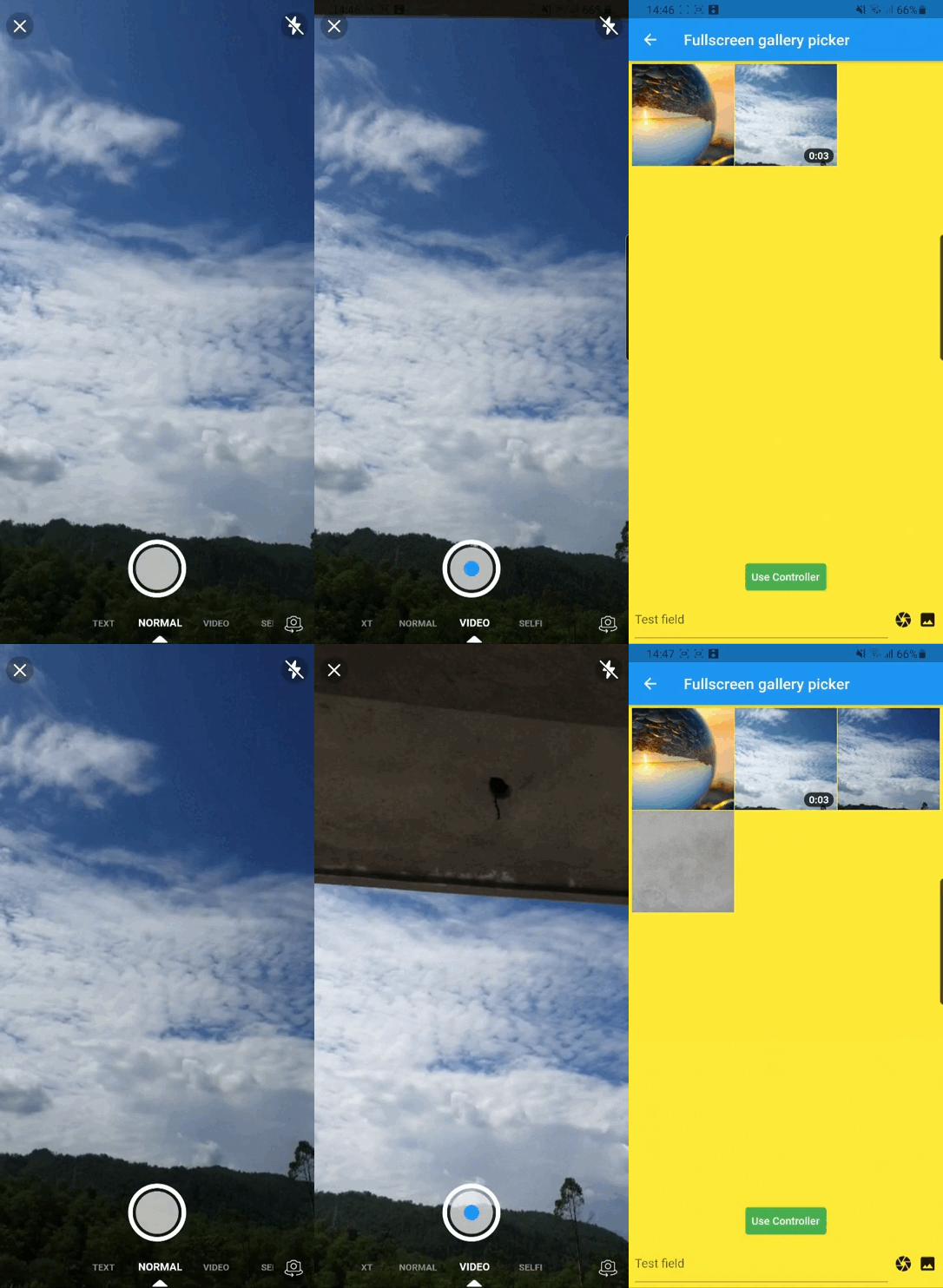
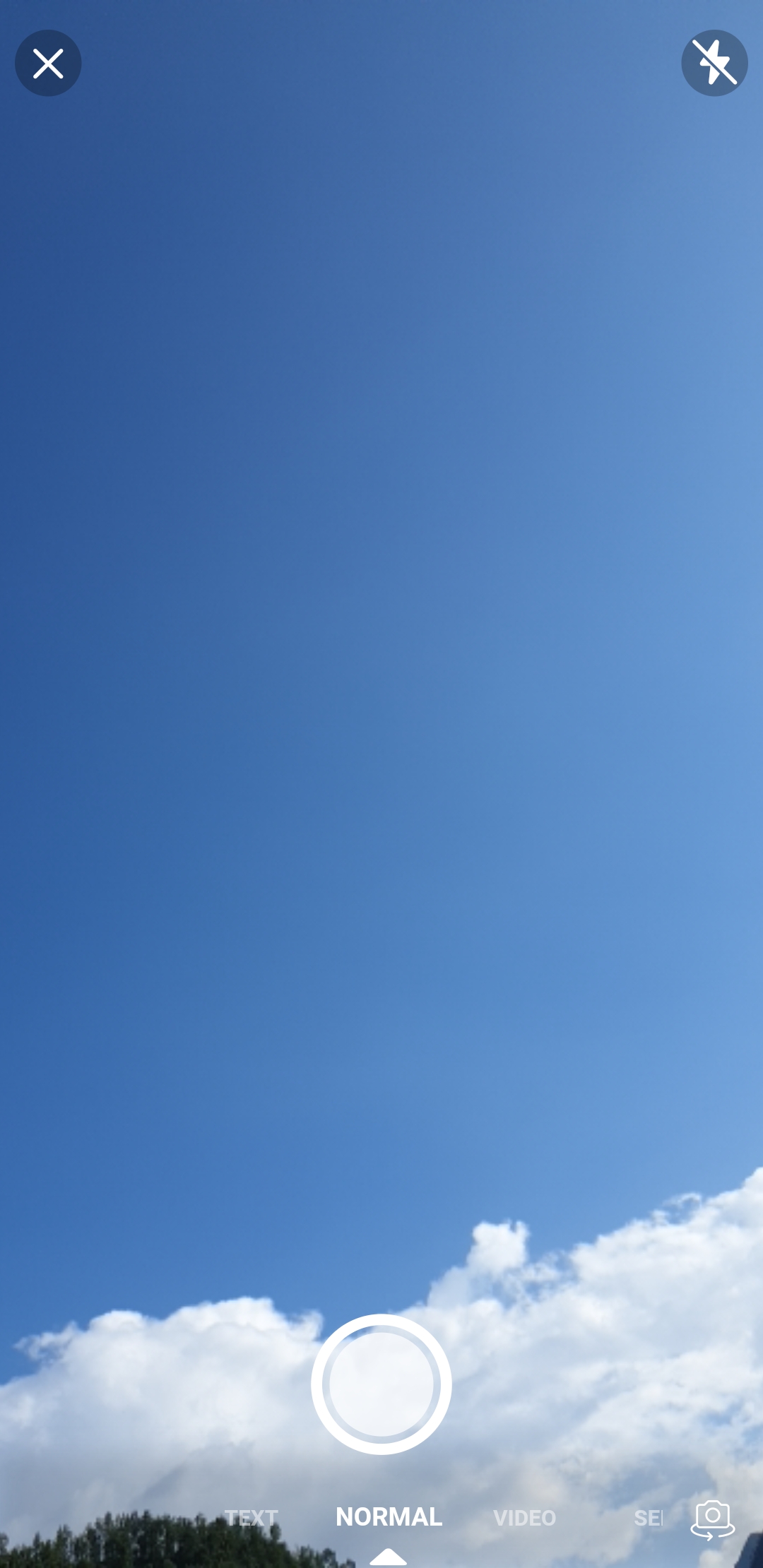
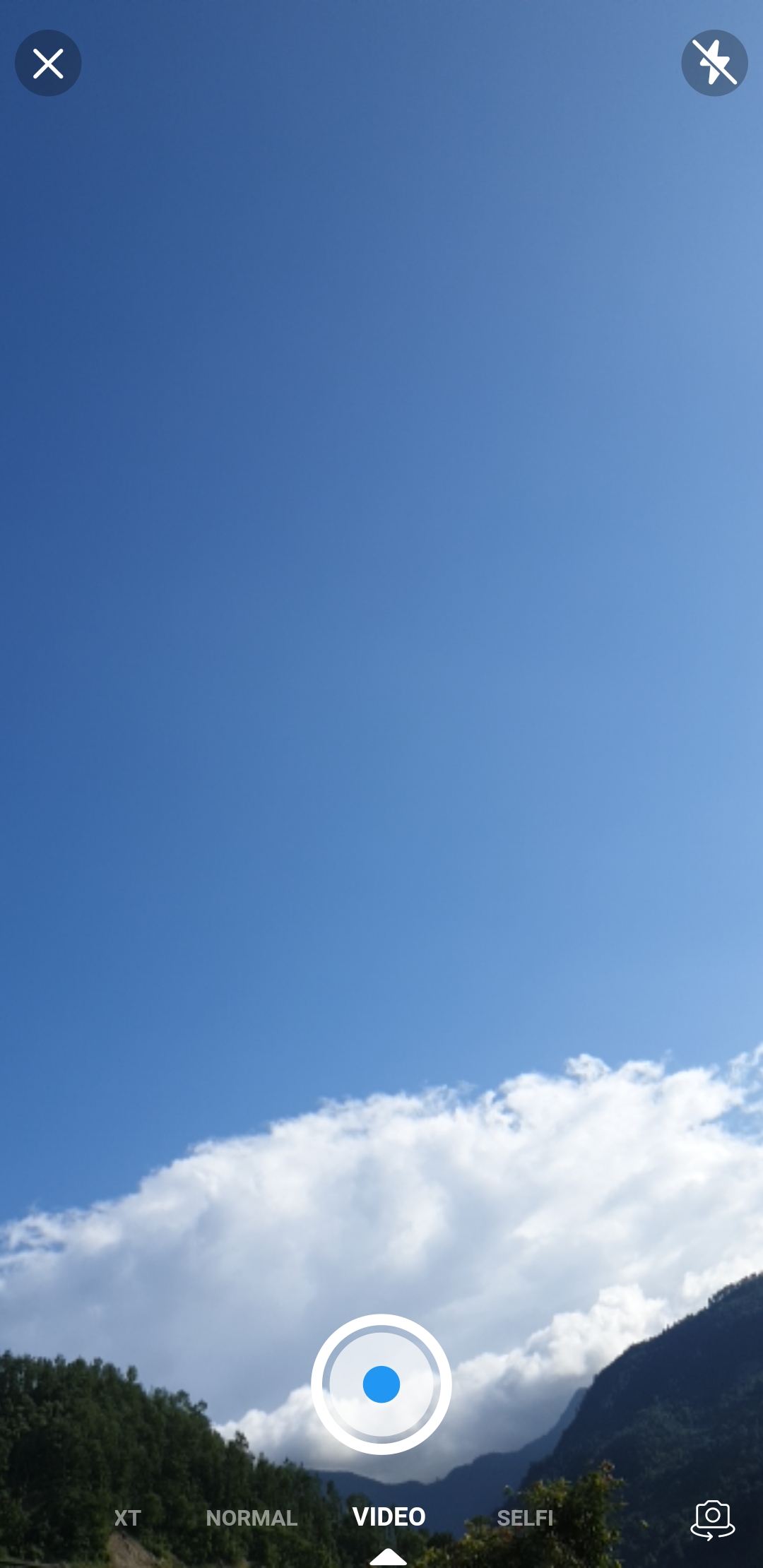
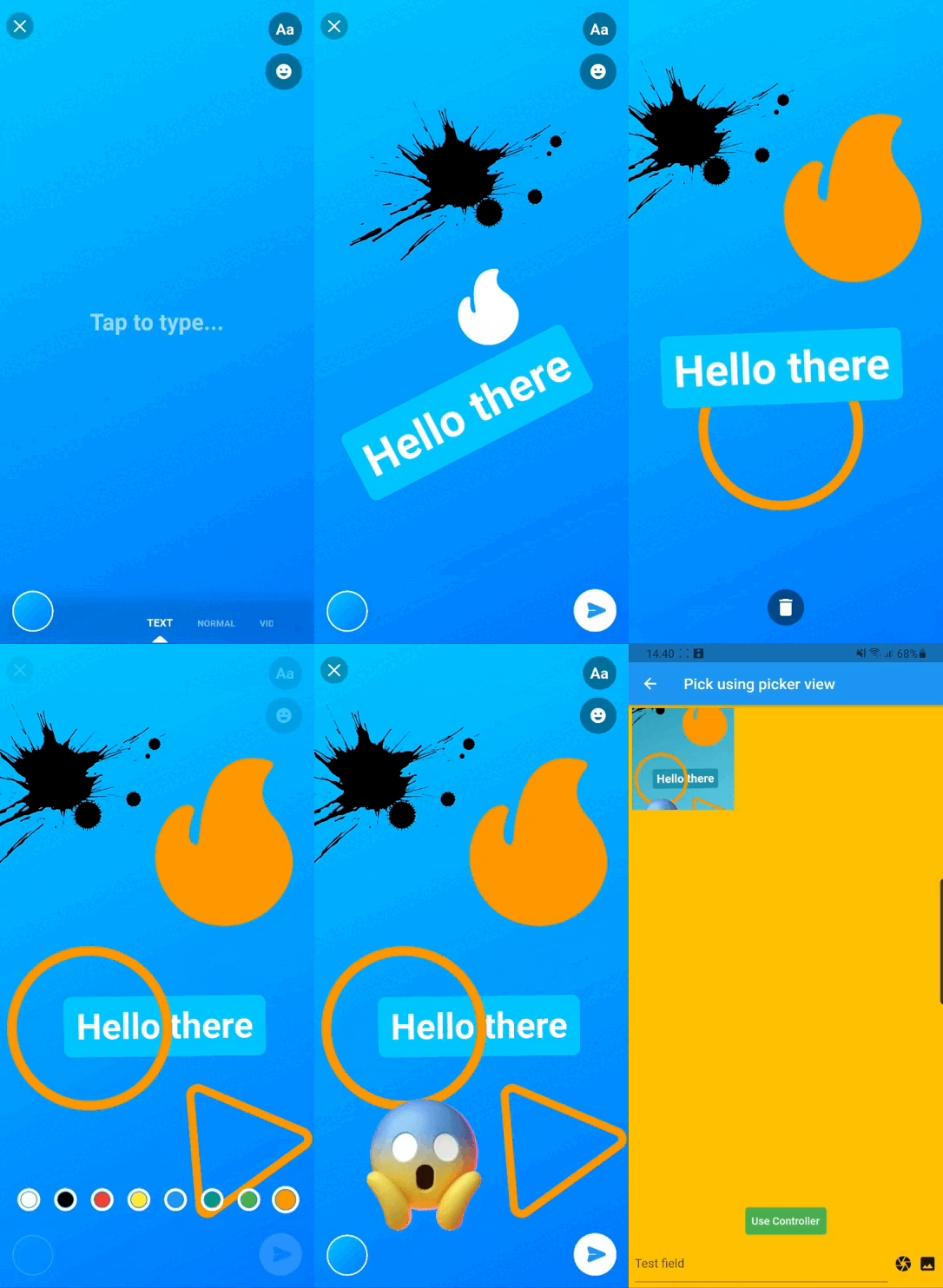
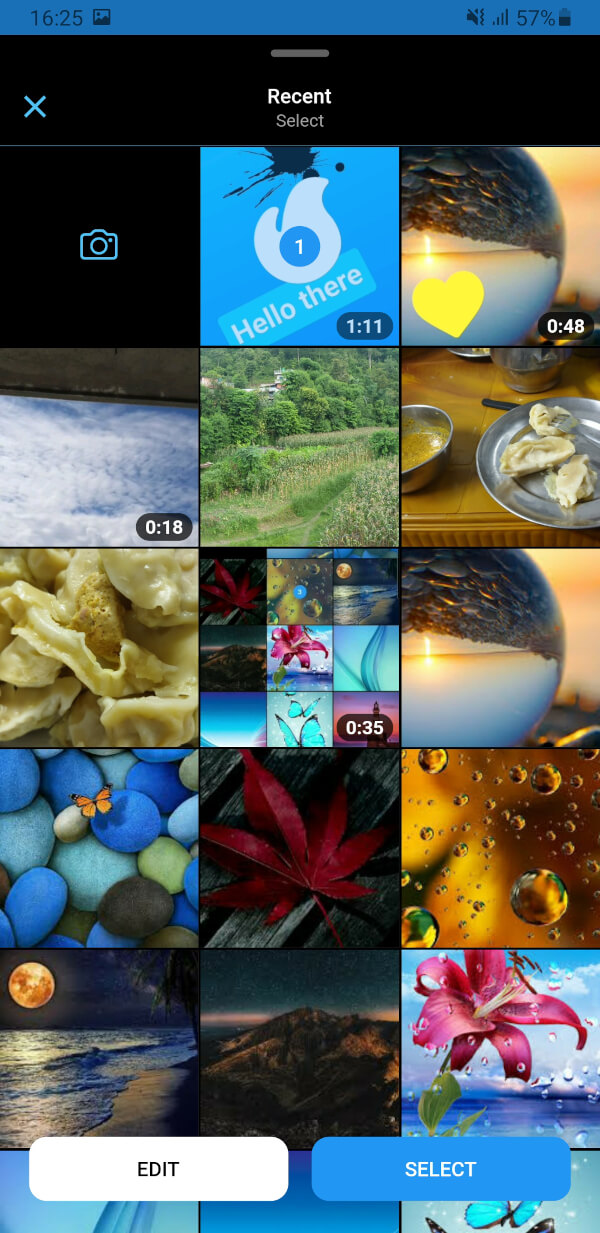
A flutter package which is clone of facebook messenger gallery picker and camera, combined as single component. Gallery view and Camera view can also be use as Flutter widget. Under the hood drishya picker used Photo Manager and Camera.


Table of contents


Installing

1. Add dependency

Add this to your package's pubspec.yaml file:

dependencies:
  drishya_picker: ^latest_version
2. Install it

You can install packages from the command line:

with pub:

$ pub get

with Flutter:

$ flutter pub get
3. Import it

Now in your Dart code, you can use:

import 'package:drishya_picker/drishya_picker.dart';

Platform Setup

For more details (if needed) you can go through Photo Manager and Camera readme section as well.

Android

Change the minimum Android sdk version to 21 (or higher) in your android/app/build.gradle file.

minSdkVersion 21

Required permissions: INTERNET, READ_EXTERNAL_STORAGE, WRITE_EXTERNAL_STORAGE, ACCESS_MEDIA_LOCATION. If you don't need the ACCESS_MEDIA_LOCATION permission, see Disable ACCESS_MEDIA_LOCATION permission.

glide

Android native use glide to create image thumb bytes, version is 4.11.0.

If your other android library use the library, and version is not same, then you need edit your android project's build.gradle.

rootProject.allprojects {

    subprojects {
        project.configurations.all {
            resolutionStrategy.eachDependency { details ->
                if (details.requested.group == 'com.github.bumptech.glide'
                        && details.requested.name.contains('glide')) {
                    details.useVersion '4.11.0'
                }
            }
        }
    }
}

And, if you want to use ProGuard, you can see the ProGuard of Glide.

Remove Media Location permission

Android contains ACCESS_MEDIA_LOCATION permission by default.

This permission is introduced in Android Q. If your app doesn't need this permission, you need to add the following node to the Android manifest in your app.

<uses-permission
  android:name="android.permission.ACCESS_MEDIA_LOCATION"
  tools:node="remove"
  />

If you found some warning logs with Glide appearing, then the main project needs an implementation of AppGlideModule. See Generated API.

IOS

Add following content to info.plist.

<key>NSPhotoLibraryUsageDescription</key>
<string>Replace with your permission description..</string>
<key>NSCameraUsageDescription</key>
<string>Replace with your permission description..</string>
<key>NSMicrophoneUsageDescription</key>
<string>Replace with your permission description..</string>

Gallery

  1. Use SlidableGallery to make gallery view slidable otherwise ignore it.
class PickerDemo extends StatelessWidget {
 late final GalleryController controller;
 
 ...

 @override
 Widget build(BuildContext context) {
   return SlidableGallery(
     controller: controller,
     child: Scaffold(
       body: ...
     ),
   );
 }
}
  1. GallerySetting can be used for extra setting while picking media.
  • Using pick() function on controller to pick media.
class PickerDemo extends StatelessWidget {
  late final GalleryController controller;

  @override
  void initState() {
    super.initState();
    controller = GalleryController();
  }

    
  final _gallerySetting = GallerySetting(
      enableCamera: true,
      maximumCount: 10,
      requestType: RequestType.all,
      editorSetting: EditorSetting(colors: _colors, stickers: _stickers1),
      cameraSetting: const CameraSetting(videoDuration: Duration(seconds: 15)),
      cameraTextEditorSetting: EditorSetting(
        backgrounds: _defaultBackgrounds,
        colors: _colors.take(4).toList(),
        stickers: _stickers2,
      ),
      cameraPhotoEditorSetting: EditorSetting(
        colors: _colors.skip(4).toList(),
        stickers: _stickers3,
      ),
    );

  ...

  onPressed : () async {
    final entities = await controller.pick(context,setting:setting);
  }

  ...
}
  1. Using GalleryViewField similarly to flutter TextField to pick media. (Recommended approach, as creating and disposing of the controller has been already cared-of )
  • onChanged – triggered whenever a user select/unselect media

  • onSubmitted – triggered when a user is done with the selection

GalleryViewField(
  selectedEntities: [],
  onChanged: (entity, removed) {
     ...
  },
  onSubmitted: (list) {
     ...
  }
  child: const Icon(Icons.camera),
),
  1. You can also use GalleryView as a Widget.

  2. Browse the example app for more in-depth implementation and customization.


Camera

  1. Using pick() function on CameraView to pick media.
  ...
  onPressed : () async {
    final entity = await CameraView.pick();
  }
  ...
  1. Using CameraViewField similarly as flutter TextField to pick media.
  • onCapture – triggered when photo/video capture completed
GalleryViewField(
  onCapture: (entity) {
     ...
  },
  child: const Icon(Icons.camera),
),
  1. You can also use CameraView as a Widget.

Bugs or Requests

If you encounter any problems feel free to open an issue. If you feel the library is missing a feature, please raise a ticket on GitHub and I'll look into it. Pull request are also welcome.


Maintainers

所屬分類

依賴

依賴清單 6 項

原始碼儲存庫

使用此套件的專案

暫無相關資料。