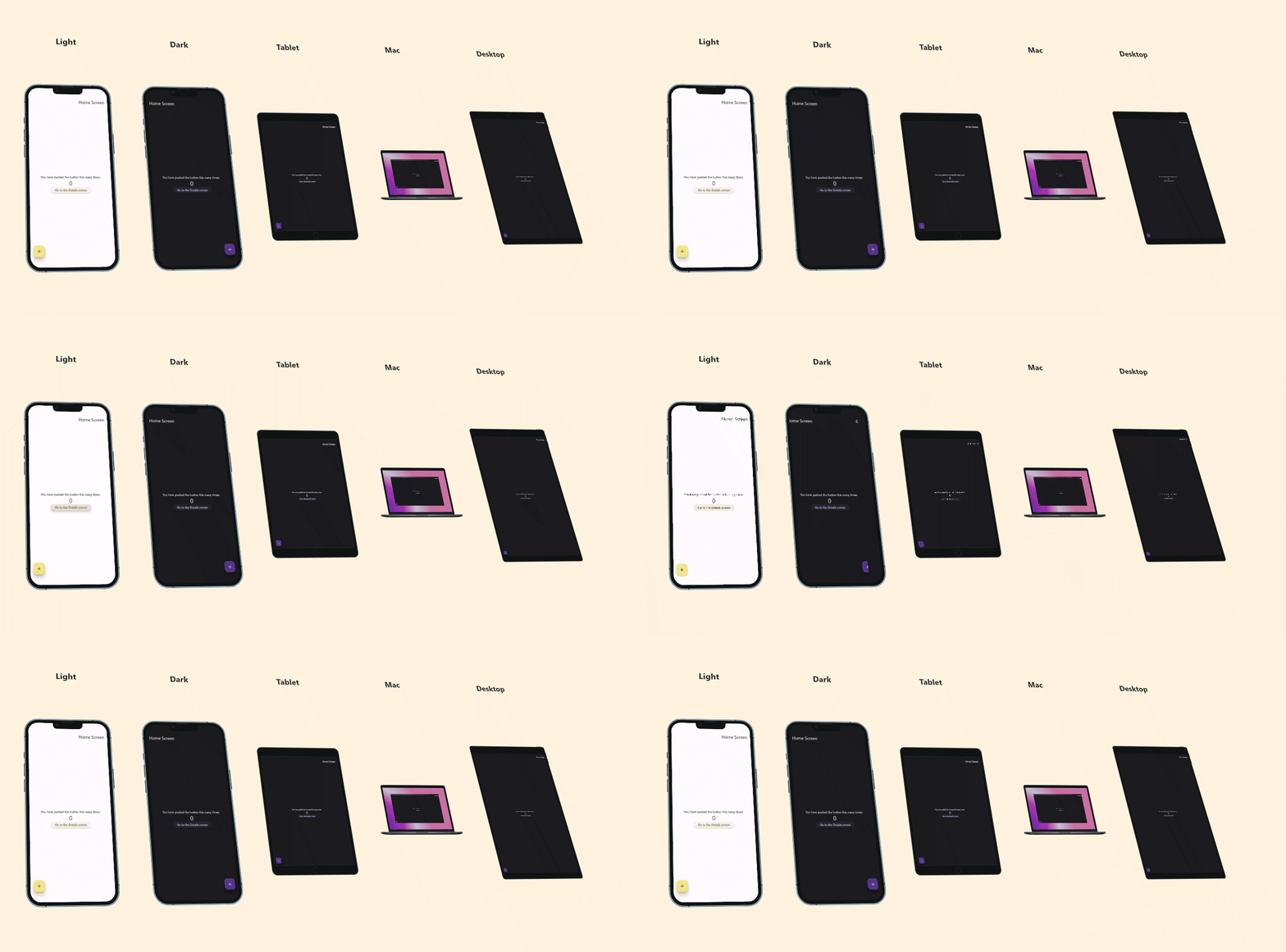
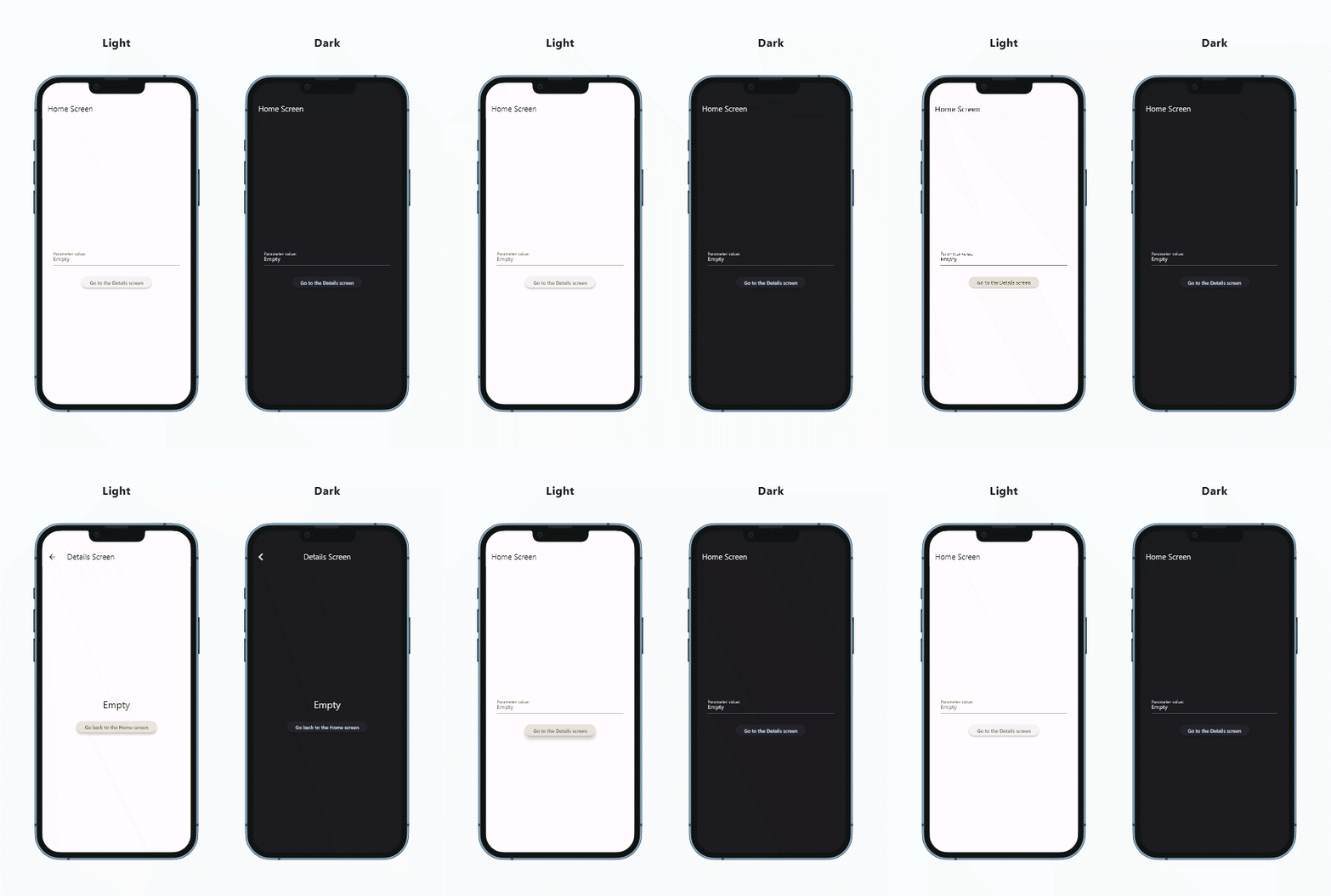
Multi App Viewer
Multi App View is a developer tool to view and navigate multiple instances of one app with
different visual settings, at the same time.
Web demo
Scenarios:
- easy and fast visual check of form factors and themes while developing
- showcasing responsive/adaptive apps
- self-service screenshots and animations creation
- design comparison and selection
Why?
- Lot of time and tons of boring repeating clicks spared by having multiple configurations visible
- Cool to see and capture several synchronized screens
Features
- show instances in row, column, stack or complex dashboard layouts
- navigate all instances together according to the master instance
- formatting, titles, comments, tilting
- state broadcast
Presentation features
- Full screen on/off
- Hide/show the app bar
- Preferred configuration list
- Text only instances: you can add HTML content to highlight certain topics without the app screen
Scripting
- Autostart and button click scripts
- Synchronized navigation, event broadcast and configuration change
- Auto-repeat option
Screenshot and screen-capture
- Save screenshots of the frame (excluding the MAV appbar)
- Record screen and convert to animated GIF
Items and configurations
Frame and item configurations
- in code,
- save and load config files,
- edit interactively
Frame configuration
- Title with HTML support
- Background color
- Tilt
Child configuration
- Title and description with HTML support
- Device frame
- Background color
- Tilt
- Light or dark mode
- Directionality (left-to-right, right-to-left)
- Platform mechanics
Getting started
Add the package to the project
Copy the example/lib/main.dart file with a new name into your project
Replace YourApp() with your top level widget
void main() {
runApp(const MavCounterDemo());
}
class MavCounterDemo extends StatelessWidget {
const MavCounterDemo({super.key});
@override
Widget build(BuildContext context) {
return MaterialApp(
title: 'MAV Demo',
debugShowCheckedModeBanner: false,
home: MavFrameWidget(
itemBuilder: (MavItem mavItem) {
return YourApp();
},
));
}
}
Create a new run configuration targeting the new file and run or debug it.
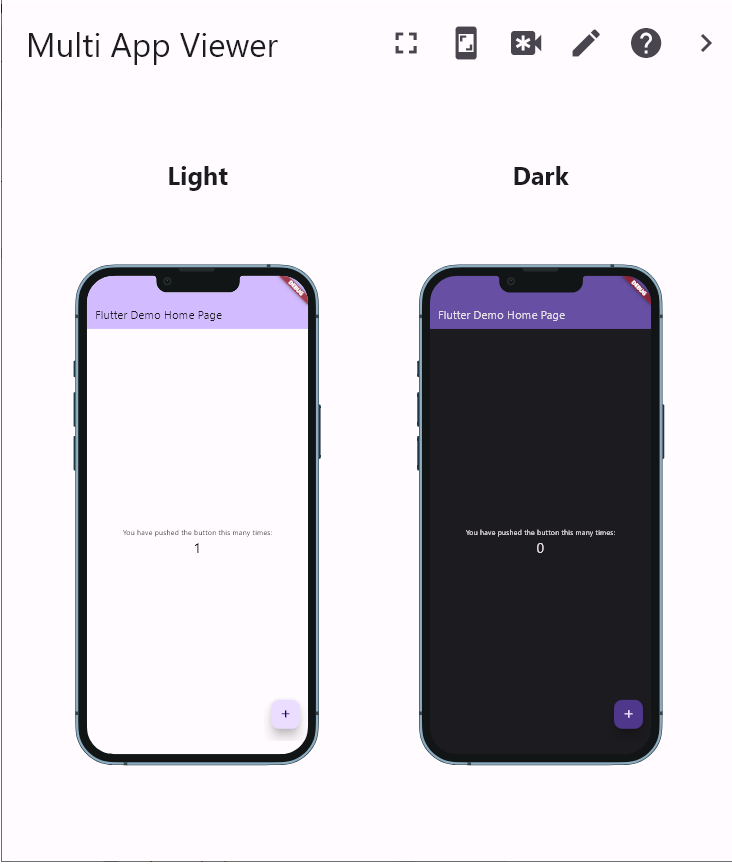
You'd see something like this, with your app on the device screens:
Apps will not run with Multi App View if they are non reentrant.
Usage
Interactive editor
Switch to edit mode on the toolbar and click on an item to configure or click on empty place to open the frame configuration dialog.
Initial view
To change the initial view, add MavFrame.loadConfiguration to the main function
- selecting one of the predefined configurations
- creating a configuration from code
- or loading from file.
void main() {
MavFrame.loadConfiguration(
FrameConfiguration.base(),
);
runApp(const MavCounterDemo());
}
While developing and debugging your app, during a hot reload the MAV frame should keep the
interactive formatting but on restart it will use the initial view.
Configurations are not app specific, you can reuse them in different projects.
Child customization
Add mavItem parameter to your root widget
class MyApp extends StatelessWidget {
  final MavItem? mavItem;
  MyApp({super.key, this.mavItem});
}
Use mavItem and mainly mavItem.configuration fields to customize each app instance, or add to your own logic based on item index.
MaterialApp.router(
builder: (context, rootWidget) {
return Directionality(
textDirection: item?.configuration.textDirection ?? TextDirection.ltr,
child: Theme(
data: Theme.of(context).copyWith(
platform: mavItem?.configuration.targetPlatform),
child: rootWidget!),
);
},
)
Synchronized navigation
To navigate all instances according to the master (the first instance) add NavigationObserver
late final GoRouter _router = GoRouter(
navigatorKey: mavItem?.navigatorKey,
observers:
mavItem?.navigatorObserver == null ? null : [mavItem!.navigatorObserver],
);
and an onNavigationCallback to handle and forward navigation events to the rest of the instances. The callback depends on the way of navigation in your app.
For example with go_router
MaterialApp.router(builder: (context, rootWidget) {
item?.onNavigationCallback =
(String routeName, int index, {Object? arguments}) {
if (index != mavItem?.index) {
if (arguments != null) {
_router.goNamed(routeName,
queryParameters: arguments as Map<String, dynamic>);
} else {
_router.goNamed(routeName);
}
}
};
})
Customization inside your app
If you want to use MavItem configuration inside the app, you can obtain it via MavItemInherited.
For example, to avoid Android restorationId conflicts:
  late final MavItem? mavItem = MavItemInherited.maybeOf(context)?.item;

@override
String get restorationId => 'bottom_app_bar_demo${mavItem?.identifier ?? ''}';
Further synchronization
Multi App Viewer has an entry level event bus. You can push labeled values from one MAV Item, and all others may listen to those values.
int _counter = 0;
late final MavItem? mavItem = MavItemInherited.maybeOf(context)?.item;
void _incrementCounter() {
setState(() {
_counter++;
});
mavItem?.publish('_counterValue', _counter);
}
@override
void dispose() {
super.dispose();
mavItem?.dispose('_counterValue');
}
@override
Widget build(BuildContext context) {
mavItem?.listen('_counterValue', (value) {
setState(() {
_counter = value;
});
});
return Scaffold(
);
}
If you use a state management solution, the MAV event bus might not be needed. For example, Provider counter example works out of the box when ' Providers are above MyApp instead of inside it. '
Scripts
Scripts are lists of navigation, configuration change and synchronization commands.
For example:
List script = [
FrameConfiguration.fourPiece(),
(-1, 'details', {'id1': '33'}),
(-1, '/', {'id1': '33'}),
('_counterValue', 99)
];
MavFrame.buttonScript = script;
MavFrame.autoRunScript = script;
MavFrame.autoRepeat = true;
Additional information
Mentions
Although the device_preview package is not used directly, it is still an exceptional inspiration for
Flutter development.
The dashboard package is used for complex layouts. That's a very promising solution.
Disclaimer
Showing the same app in multiple slots at the same time is not an end user scenario. Therefore, this
is a development tool not a release feature.
Most of the Flutter apps are not reentrant (and that's OK). Running them in parallel with themself has conflicts on
statics, globals, keys, local or server resources. These conflicts may result in data loss, endless loops,
tricky and hard to detect bugs.
The itemBuilder and the itemInherited permits further customization and isolation of the instances.
Performance degradations are natural as more and more items are started at the same time.
Make sure that Multi App View does not impact the release quality of your app by separating/removing all
related code from release builds and
have separate run configurations with and without Multi App View.
Screens and platforms
Of course, all instances run on the same platform even if the device frames are different.
Big screen is good. I use the desktop target where I develop.
If you want to make a distributable with the Multi App Viewer, swap the original main.dart file with the new you've created in the Getting Started.
Use it internally only, since the Multi App View is not for release versions.
This is a pure dart library, it should work on all platforms - more or less.
Multi App Viewer tries to minimize the impact on the hosting app, for example no additional permission are required. That's why the file save/load is a bit simplified...
The config file save and load was not tested on Linux, MacOs and IoS. Please submit an issue if you
encounter problems.
Lot of apps will not run with Multi App View if they are non reentrant. For example, in the Gallery App the Reply sample fails on a GlobalKey when running more than one instance, all others work.
Running on different platform may have different results. For example, an app running on Android may fail on restoration ids, but may run on Windows and on Web.