안드로이드 및 iOS 애플리케이션에 PayPal 결제를 통합하기 위한 네이티브 구현을 제공하는 플러터 패키지입니다. PayPal의 네이티브 SDK를 활용하여 앱 내에서 원활한 결제 처리를 가능하게 하며, 더 나은 성능과 플랫폼 고유 기능에 대한 접근을 보장합니다. 이 패키지는 플러터 앱 내에서 PayPal 거래의 설정 및 처리를 간소화하며, 두 모바일 플랫폼 모두에 일관된 API를 지원합니다. 웹 기반 흐름에 의존하지 않고 신뢰할 수 있고 안전하며 네이티브 수준의 PayPal 통합을 원하는 개발자를 위해 설계되었습니다.
사용 사례
앱 내 구매
모바일 상거래 앱
디지털 서비스 구독
전자상거래 앱에서의 결제 처리
주요 기능
네이티브 Android 및 iOS 지원
안전한 결제 처리
Flutter와의 간편한 통합
PayPal 결제 흐름 지원
실시간 거래 처리
적합한 대상
전자상거래 모바일 앱
안전한 결제가 필요한 앱
네이티브 PayPal SDK를 사용하는 개발자
PayPal 통합이 필요한 크로스 플랫폼 앱
고려 사항
PayPal 개발자 계정이 필요합니다
두 플랫폼 모두에서 올바른 구성이 필요합니다
추가 백엔드 검증이 필요할 수 있습니다
PayPal 결제 수단으로만 제한됨
원본 README
연결된 소스 저장소의 README 원문 스냅샷입니다. 최신 내용은 저장소에서 확인하세요.
Native Paypal integration with Flutter
A Flutter plugin that provides a method for PayPal payment natively (No Webview).
Add flutter_paypal_native as a dependency in your pubspec.yaml file. If you are targeting Android, make sure to read the Android Platform Views section [very important].
Android Platform Views
Paypal requires that you make changes to your AndroidManifest.xml
Prepare your app
Define the android.permission.INTERNET permission in the AndroidManifest.xml file of your application as follows:
android {
    ...

    compileOptions {
        sourceCompatibility JavaVersion.VERSION_1_8
        targetCompatibility JavaVersion.VERSION_1_8
    }

    defaultConfig {
        // You must have a minSdkVersion of API 21
        //(Android 5.0 Lollipop) or later.

        minSdkVersion 21
        ...
    }
}
Enable the SDK
Select your app from the My Apps & Credentials page on the Developer Dashboard.
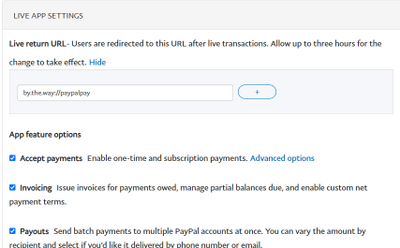
Enter a Return URL.
You can use an Android App Link registered within the Developer Console to handle SDK redirects.
Alternatively, you can use your application ID (typically referenced via BuildConfig.APPLICATION_ID) and register your application ID with ://paypalpay as the suffix. For example, if your application ID is com.paypal.app, input com.paypal.app://paypalpay in the Developer Console.
The return URL in the Developer Dashboard and the SDK must match exactly.
Note: If you change the return URL in the Developer Dashboard, PayPal must review your app again. The review period automatically begins any time the return URL changes.
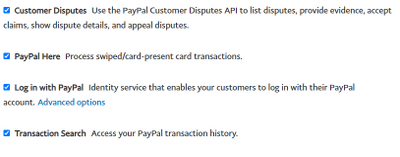
Select the Log in with PayPal checkbox and the Full name and Email checkboxes found within the Advanced options. These are scopes of the Identity API.
The version of the Cardinal Consumer Authentication library used in the PayPal SDK does not support AndroidX natively. To prevent runtime crashes when a buyer needs to be verified through 3D Secure, you should add android.enableJetifier=true to your android/gradle.properties file.
Application ID
Note: If your application ID contains underscores [ _ ] then you need to modify the returnUrl so that it forms a valid URI. For details, read this section or Customize return URL.
A return URL redirects users back to the originating page during a checkout flow. For most integrations, using your application ID and ://paypalpay is the simplest and best returnUrl to use as part of the CheckoutConfig. However, there are circumstances when you may need more control over the returnUrl, such as when your application ID has underscores.
Choose your custom return URL
Your custom return URL:
Can only use lowercase letters.
Can't contain any special characters.
Must end with ://paypalpay.
Must match the return URL on your developer dashboard.
To allow for seamless app switches, make your custom return URL unique. We recommend using reverse domain name notation.
If you're creating a custom return URL because your application ID contains underscores, replace the underscores with periods. For example, change com.paypal.example_payment_application to com.paypal.example.payment.application .
Modify the code
Copy the sample PayPal Mobile Checkout SDK code and paste it into the code for your mobile checkout page.
For both activities, replace YOUR-CUSTOM-SCHEME with the custom return URL that you chose in Step 1. In the example above, instead of com.paypal.example_payment_application, you'd use com.paypal.example.paypal.application.
Your app can now respond to authentication and web checkout deep links.
Migrating from V1?
If you are migrating from Plugin V0.x.x. or V1.x.x
You do not need to add custom activity to your flutter app anymore.
remove the following from your AndroidManifest.xml
import'dart:math';
import'package:flutter/material.dart';
import'package:flutter_paypal_native/flutter_paypal.dart';
import'package:flutter_paypal_native/str_helper.dart';
import'package:flutter_paypal_native/models/environment.dart';
import'package:flutter_paypal_native/models/currency_code.dart';
import'package:flutter_paypal_native/models/purchase_unit.dart';
import'package:flutter_paypal_native/models/user_action.dart';
import'package:flutter_paypal_native/models/order_callback.dart';
voidmain() async {
runApp(constMyApp());
}
classMyAppextendsStatefulWidget{
constMyApp({Key? key}) : super(key: key);
@overrideState<MyApp> createState() => _MyAppState();
}
class_MyAppStateextendsState<MyApp> {
final _flutterPaypalPlugin = FlutterPaypal.instance;
// log queueList<String> logQueue = [];
@overridevoidinitState() {
super.initState();
initPayPal();
}
voidinitPayPal() async {
//set debugMode for error loggingFlutterPaypal.isDebugMode = true;
//initiate payPal pluginawait _flutterPaypalPlugin.init(
//your app id !!! No Underscore!!! see readme.md for help
returnUrl:
"com.piccmaq.flutter.paypal.flutter.paypal.example://paypalpay",
//client id from developer dashboard
clientID: "AZzDS9l0jS.....",
//sandbox, staging, live etc
payPalEnvironment: FPayPalEnvironment.sandbox,
//what currency do you plan to use? default is US dollars
currencyCode: FPayPalCurrencyCode.usd,
//action paynow?
action: FPayPalUserAction.payNow,
);
//call backs for payment
_flutterPaypalPlugin.setPayPalOrderCallback(
callback: FPayPalOrderCallback(
onCancel: () {
//user canceled the paymentshowResult("cancel");
},
onSuccess: (data) {
//successfully paid//remove all items from queue
_flutterPaypalPlugin.removeAllPurchaseItems();
String orderID = data.orderId ?? "";
showResult("Order successful $orderID");
},
onError: (data) {
//an error occuredshowResult("error: ${data.reason}");
},
onShippingChange: (data) {
//the user updated the shipping addressshowResult(
"shipping change: ${data.shippingAddress?.addressLine1 ?? ""}",
);
},
),
);
}
@overrideWidgetbuild(BuildContext context) {
returnMaterialApp(
home: Scaffold(
appBar: AppBar(
title: constText('Plugin example app'),
),
body: Center(
child: Column(
children: [
for (String t in logQueue) Text(t),
ElevatedButton(
child: constText("Do payment"),
onPressed: () {
//add item to cart. Max is between 4 to 8if (_flutterPaypalNativePlugin.canAddMorePurchaseUnit) {
_flutterPaypalPlugin.addPurchaseUnit(
FPayPalPurchaseUnit(
// random prices
amount: Random().nextDouble() * 100,
///please use your own algorithm for referenceId. Maybe ProductID?
referenceId: FPayPalStrHelper.getRandomString(16),
),
);
// initPayPal();
_flutterPaypalPlugin.makeOrder(
action: FPayPalUserAction.payNow,
);
}
},
),
],
),
),
),
);
}
// all to log queueshowResult(String text) {
logQueue.add(text);
setState(() {});
}
}
Notice
Max Number of items you can add to purchase units is between 4-6.
Or else Paypal will throw an Exception!
  if (_flutterPaypalNativePlugin.canAddMorePurchaseUnit) {
    _flutterPaypalPlugin.addPurchaseUnit(
      FPayPalPurchaseUnit(
        // random prices
        amount: Random().nextDouble() * 100,

        ///please use your own algorithm for referenceId. Maybe ProductID?
        referenceId: FPayPalStrHelper.getRandomString(16),
      ),
    );
  }
Troubleshooting Tips
if you have trouble using this library, read these:
Make sure your applicationId is registered in the developer dashboard as applicationID://paypalpay e.g com.piccmaq.flutter.paypal.flutter.paypal.example://paypalpay . after registering it, you may have to wait 3 hours for paypal to review it. You may also have to register your privacy url too.
underscore is not allowed e.g com.piccmaq.flutter.paypal.flutter_paypal_example://paypalpay is not allowed, only com.piccmaq.flutter.paypal.flutter.paypal.example://paypalpay
if you are using an emulator or physical phone for testing in debug mode and you keep getting java.lang.ClassNotFoundException, make sure that all applications with the app id are uninstalled. if you have multiple account on your mobile phone, there is the possiblity that flutter installed a new app on your phone -so you have to uninstall that first.
Caused by: java.lang.ClassNotFoundException: Didn't find class "com.paypal.pyplcheckout.home.view.activities.PYPLInitiateCheckoutActivity" on path: DexPathList[[zip file "/data/app/com.piccmaq.flutter_paypal_native_example-not-b8OWFxjJhuMcKVK0gA==/base.apk"],nativeLibraryDirectories=[/data/app/com.piccmaq.flutter_paypal_native_example-not-b8OWFxjJhuMcKVK0gA==/lib/arm64, /data/app/com.piccmaq.flutter_paypal_native_example-not-b8OWFxjJhuMcKVK0gA==/base.apk!/lib/arm64-v8a, /system/lib64, /hw_product/lib64, /system/product/lib64]]
if you have a problem with the android:label after using the package, add these to the application tag of your Androidmanifest.xml