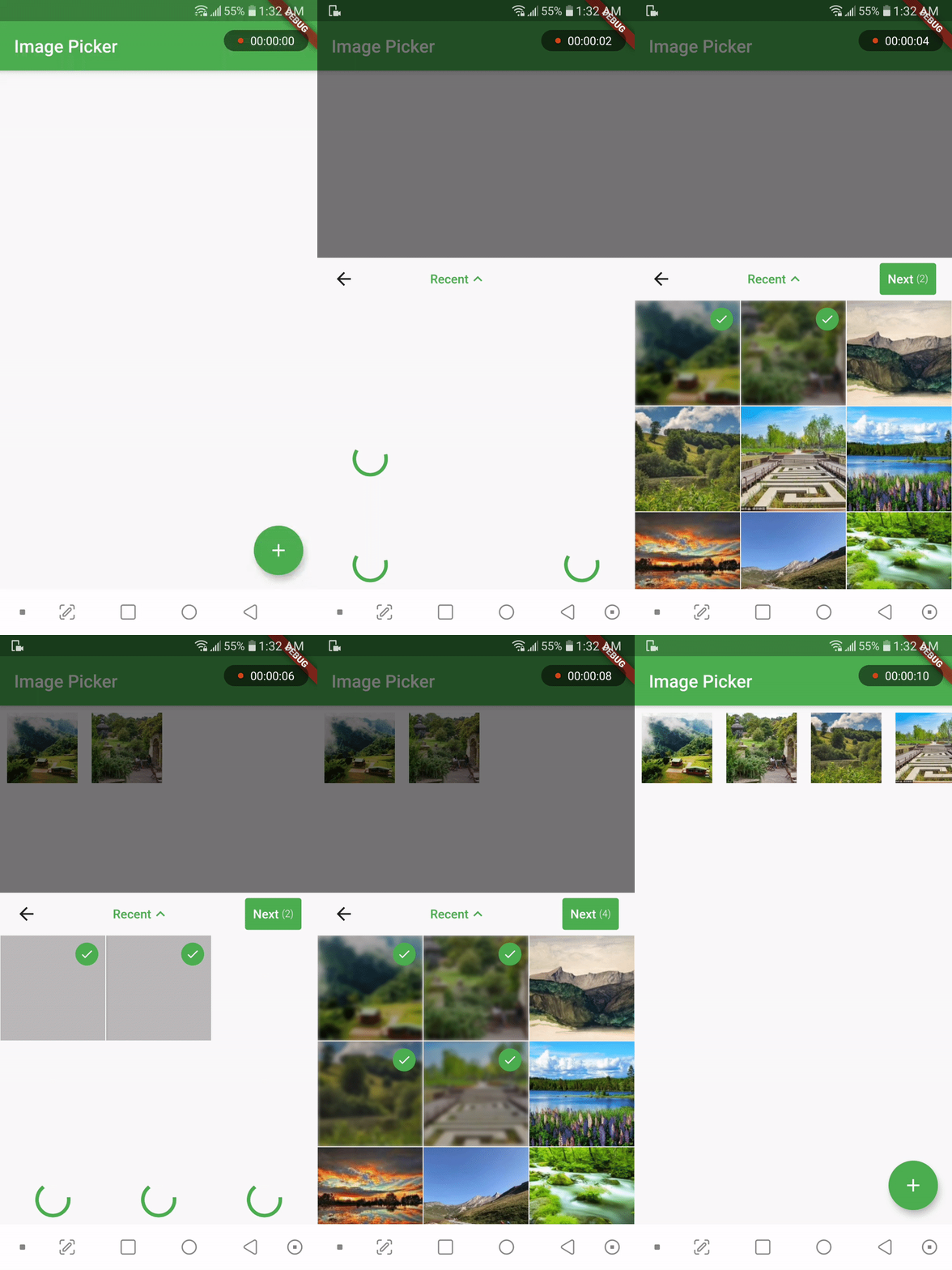
사용자가 장치 저장소에서 미디어 파일을 선택할 수 있도록 설계된 플러터 위젯입니다. 위젯 트리의 어디에든 배치할 수 있어 UI 통합에 유연성을 제공합니다. 최소한의 봐일러플레이트로 파일 선택을 처리하며, 이미지 및 비디오와 같은 다양한 미디어 형식을 지원합니다. 플랫폼 특수 지식 없이도 깔끔하고 재사용 가능한 미디어 선택 인터페이스를 제공합니다. 간단하고 일관된 방식으로 미디어 입력 기능이 필요한 앱에 이상적입니다.
사용 사례
폼에 미디어 선택 통합
사용자가 사진이나 비디오를 업로드할 수 있도록 허용
콘텐츠 생성 도구 구축
프로필 편집 화면에 미디어 선택기 추가
갤러리 또는 앨범 인터페이스 만들기
주요 기능
위젯 트리 전체에서 재사용 가능
최소 설정으로 간편한 통합
여러 미디어 형식을 지원합니다
경량화되고 핵심 기능에 집중
플랫폼별 코드 없이 작동합니다
적합한 대상
미디어 집약형 앱을 개발하는 개발자
사용자 업로드 콘텐츠가 필요한 앱
유연한 미디어 선택이 필요한 UI 컴포넌트
간결성과 재사용성을 우선시하는 프로젝트
고려 사항
미디어 처리 기능을 포함하지 않음
기본 파일 선택에 제한됨
내장된 미리보기 또는 자르기 없음
파일 경로의 수동 처리가 필요합니다
하위 플랫폼 권한에 의존
원본 README
연결된 소스 저장소의 README 원문 스냅샷입니다. 최신 내용은 저장소에서 확인하세요.
media_picker_widget
A widget that picks media files from storage and allows you to place it anywhere in the widget tree. You can use this widget in a dialog, bottom sheet, or anywhere else as you wish. It supports picking single or multiple images or videos. Use the PickerDecoration class to decorate the UI.
If you find this widget useful, consider supporting the developer by buying them a coffee.
Installation
Add the following line to your pubspec.yaml file:
media_picker_widget:$latest_version
The latest version of the package is
Android
To use this widget on Android, you need to add the following permissions to your AndroidManifest.xml file, located in <project root>/android/app/src/main/AndroidManifest.xml:
Starting with version 0.8.1 the iOS implementation uses PHPicker to pick (multiple) images on iOS 14 or higher.
As a result of implementing PHPicker it becomes impossible to pick HEIC images on the iOS simulator in iOS 14+. This is a known issue. Please test this on a real device, or test with non-HEIC images until Apple solves this issue. 63426347 - Apple known issue
Add the following keys to your Info.plist file, located in <project root>/ios/Runner/Info.plist:
NSPhotoLibraryUsageDescription - describe why your app needs permission for the photo library. This is called Privacy - Photo Library Usage Description in the visual editor.
NSCameraUsageDescription - describe why your app needs access to the camera. This is called Privacy - Camera Usage Description in the visual editor.
NSMicrophoneUsageDescription - describe why your app needs access to the microphone, if you intend to record videos. This is called Privacy - Microphone Usage Description in the visual editor.
To use the media_picker_widget, follow these steps:
Make sure your app's minSdkVersion is set to 21 in the app/build.gradle file.
Within your Flutter widget tree, simply add the MediaPicker widget, which extends StatefulWidget. Here's an example:
MediaPicker(
  mediaList: mediaList, //let MediaPicker know which medias are already selected by passing the previous mediaList
  onPicked: (selectedList){
    print('Got Media ${selectedList.length}');
  },
  onCancel: ()=> print('Canceled'),
  mediaCount: MediaCount.single,
  mediaType: MediaType.image,
  decoration: PickerDecoration(),
)
Customization
Customize the widget as needed. You can use the PickerDecoration class to decorate the UI.
Custom Header
New header customization have been added. MediaPicker widget has HeaderBuilder property. You can pass a HeaderBuilder to customize the header. HeaderBuilder is a function that returns a Widget. You can use HeaderBuilder to customize the header as you wish. You can use MediaPickerHeader class to get the default header. MediaPickerHeader class has a MediaPickerHeaderProps class that takes MediaPicker properties as parameters. You can use MediaPickerHeaderProps class to customize the header.
Like this,