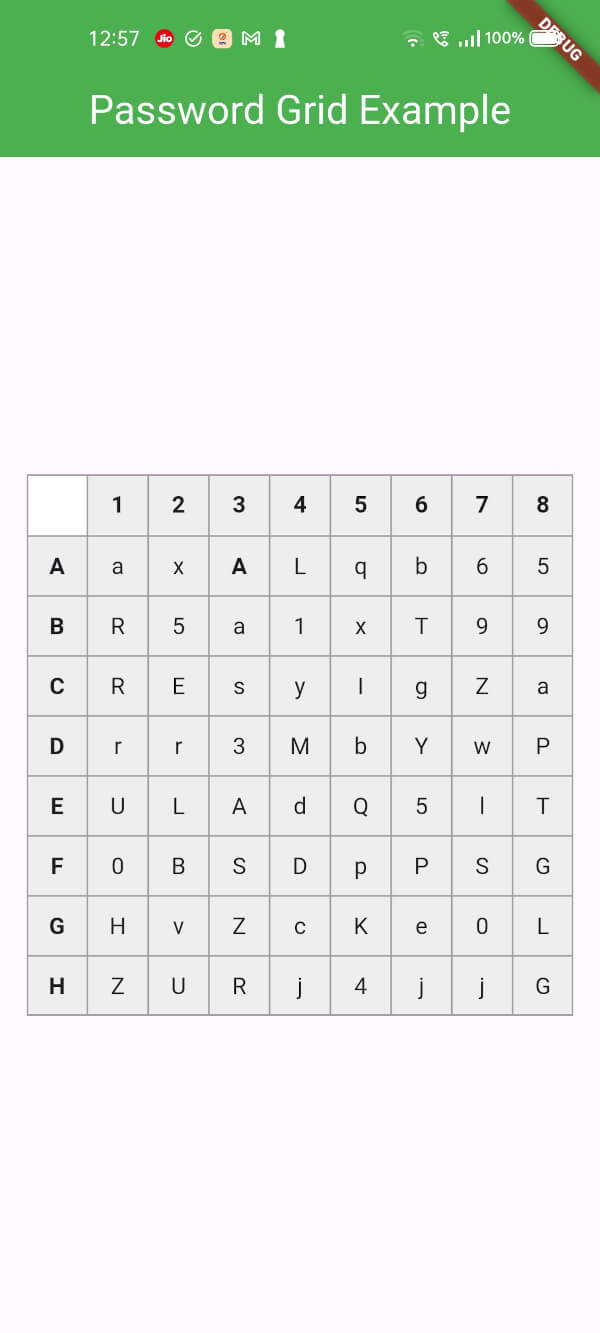
PasswordGrid는 개발자가 사용자 인증을 위한 안전하고 사용자 정의 가능한 비밀번호 그리드를 생성할 수 있도록 해주는 Flutter 패키지입니다. Android, iOS, Web, macOS, Windows, Linux 등 여러 플랫폼을 지원하여 그리드 기반의 비밀번호 입력이 필요한 크로스플랫폼 애플리케이션에 이상적입니다. 이 패키지는 그리드 레이아웃을 통해 비밀번호를 입력할 수 있는 직관적인 인터페이스를 제공하며, 사용성은 향상시키면서도 보안은 유지합니다. Flutter의 위젯 시스템과 원활하게 통합되어 앱 디자인 요구사항에 쉽게 맞춤화할 수 있습니다.
사용 사례
보안 로그인 인터페이스
이중 인증
그리드 기반 비밀번호 입력
크로스플랫폼 앱 개발
사용자 친화적인 인증
비밀번호 입력을 위한 사용자 정의 가능한 UI
주요 기능
크로스 플랫폼 지원
사용자 정의 가능한 그리드 레이아웃
보안 비밀번호 입력
Flutter와의 간편한 통합
반응형 디자인
여러 운영 체제를 지원합니다
적합한 대상
모바일 및 웹 앱
인증 시스템
보안 중심 애플리케이션
재사용 가능한 UI 컴포넌트를 찾는 개발자
그리드 기반 입력이 필요한 앱
다중 플랫폼 프로젝트
고려 사항
민감한 데이터를 신중하게 처리해야 합니다
추가 검증 로직이 필요할 수 있습니다
복잡한 암호 정책에 적합하지 않습니다
UI 맞춤 설정에는 고급 플러터 지식이 필요할 수 있습니다
격자 스타일의 비밀번호 입력에 제한됨
업데이트를 위해 외부 소스 코드에 의존합니다
원본 README
연결된 소스 저장소의 README 원문 스냅샷입니다. 최신 내용은 저장소에서 확인하세요.
PasswordGrid
A Flutter Package to Generate Password Grid. You can use this widget directly in your application UI.
Stay Secure with 2FA Passcode Grid
A password grid, also called a "passcode grid," is a table with rows and columns containing unique letters or numbers where you select specific combinations to authenticate, essentially acting as a visual password by choosing specific coordinates on the grid to form your login credentials; to use it, you would typically be presented with a grid, then asked to enter the letters or numbers from specific grid positions (like "A3, B2, C1") to log in, usually requiring you to save or print the grid for future use as it's unique to your account.
Key points about using a password grid:
Access your grid:
While designing a authentication system, you can ask your users to enter the values in the Password grid as a 2FA passcode.
The user will be prompted to access your grid, which you should generate and show them.
The password grid can be generated at the time of user signin and they should save it for future use. so that the user can use the grid for 2FA authentication.
Select coordinates:
The system will ask the user to enter the letters or numbers from specific grid positions, usually indicated by a combination of a column letter and row number (e.g., "B2", A8, etc).
Enter the code:
The user will enter the values from the requested grid coordinates into the 2FA login field to authenticate.
Benefits of a password grid:
Enhanced security:
Since the user selects multiple characters from a grid, it's harder for someone to guess your password compared to a simple text-based password.
Shoulder surfing resistant:
Less susceptible to "shoulder surfing" attacks where someone observes your password entry because the grid doesn't reveal the exact password sequence.
Accessibility for some users:
Can be easier for people who struggle with remembering complex passwords.
Usage
In your application,
import'package:passwordgrid/main.dart';
then pass grid configuration
GridConfig config = GridConfig(
numbers: true,
alphaUpper: true,
alphaLower: true,
symbols: false,
gridSize: 8, // max size is 8 and min size is 5
);
// or Optionally pass GridConfig or use default valuesGridConfig? config;
// and invoke thisPasswordGrid passwordGrid = PasswordGrid(config: config);
// sample code@overrideWidgetbuild(BuildContext context) {
// pass grid configurationGridConfig config = GridConfig(
numbers: true,
alphaUpper: true,
alphaLower: true,
symbols: false,
gridSize: 8, // max size is 8 and min size is 5
);
// or Optionally pass GridConfig or use default values// GridConfig? config;PasswordGrid passwordGrid = PasswordGrid(config: config);
returnScaffold(
appBar: AppBar(
title: Text('Password Grid Example'),
backgroundColor: Colors.green,
centerTitle: true,
titleTextStyle: TextStyle(
color: Colors.white,
fontSize: 24,
),
),
body: Center(
child: passwordGrid,
),
);
}
An example application of how to use this password grid package is included in the example folder.
This will generate a password grid similar to
Grid Configuration
While generating grid, you can configure the grid generation parameters.
  GridConfig config = GridConfig(
    numbers: false,
    alphaUpper: true,
    alphaLower: true,
    symbols: false,
    gridSize: 6, // max size is 8 and min size is 5
  );
If everything is set to false as below, then it is invalid, so grid parameters will be set to default. i.e., all falsg will be set to true