Bound Location Picker for Flutter
A Flutter package created by the official google_maps_flutter plugin, which can help you to picked locations within a boundary.
Highlighted feature
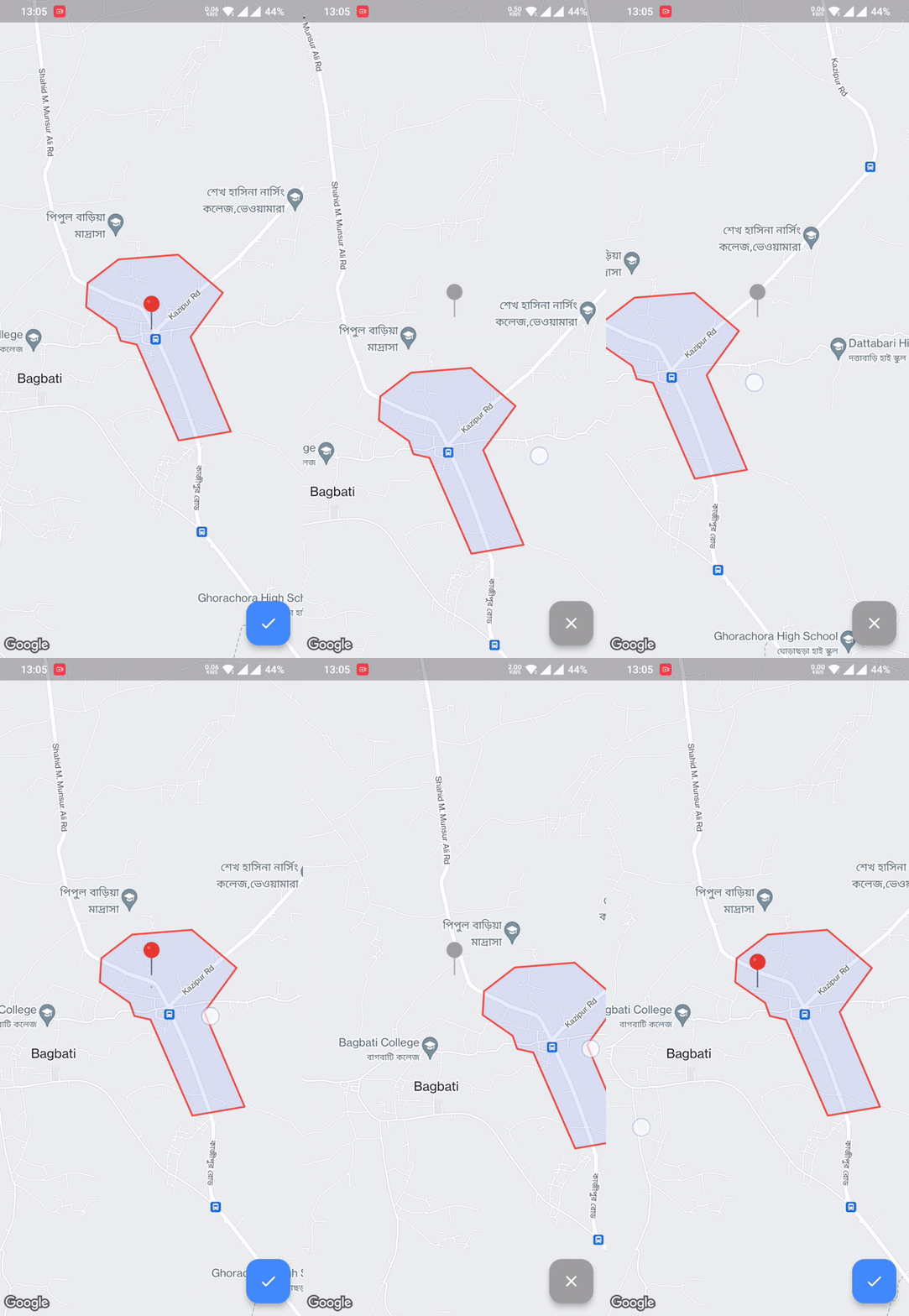
Pick location within the Polygon boundary
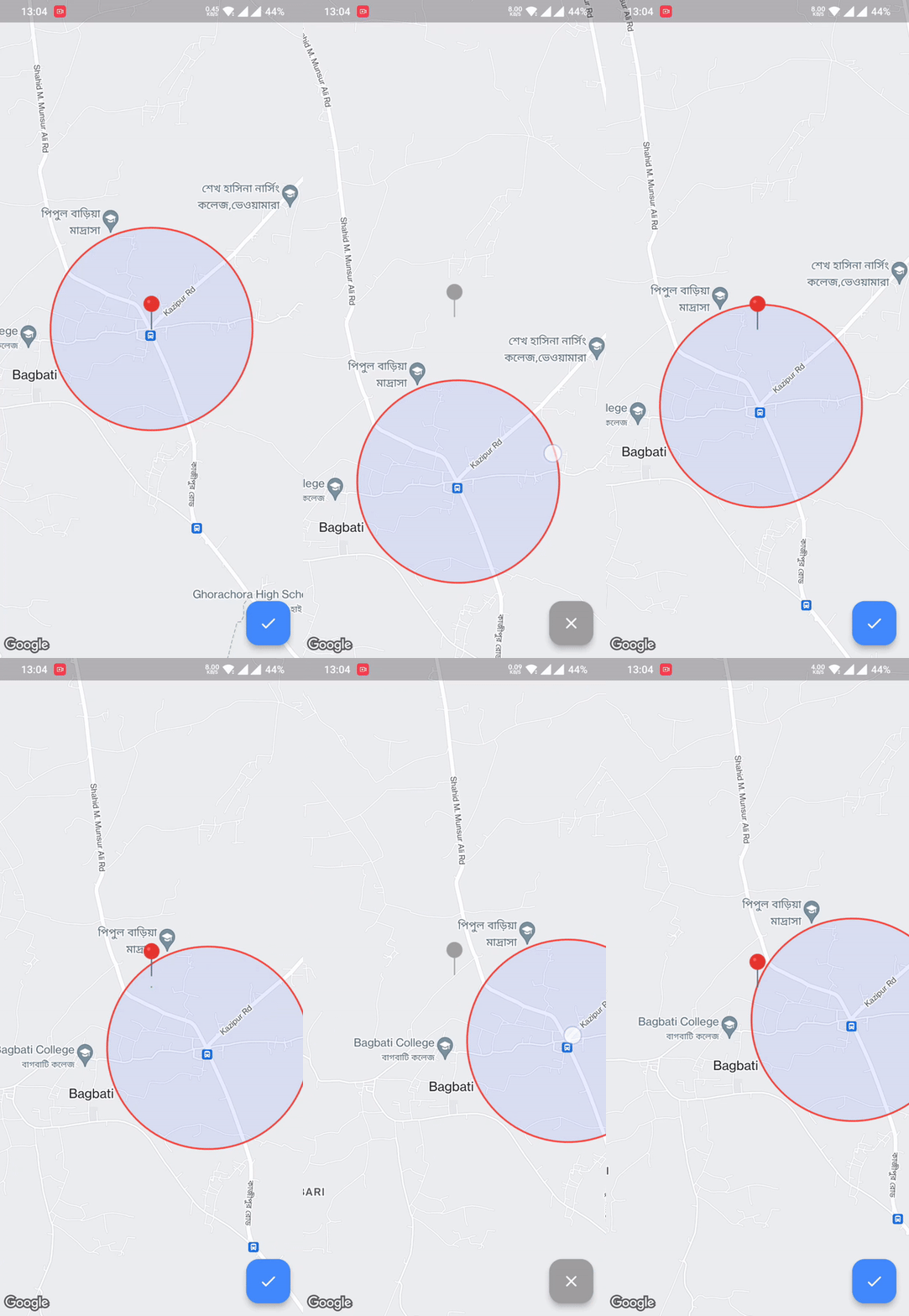
Pick location within the Circular Radius boundary
Made by @Hasan
Android
iOS
Web
Support SDK 20+
iOS 11+
Same as Flutter's
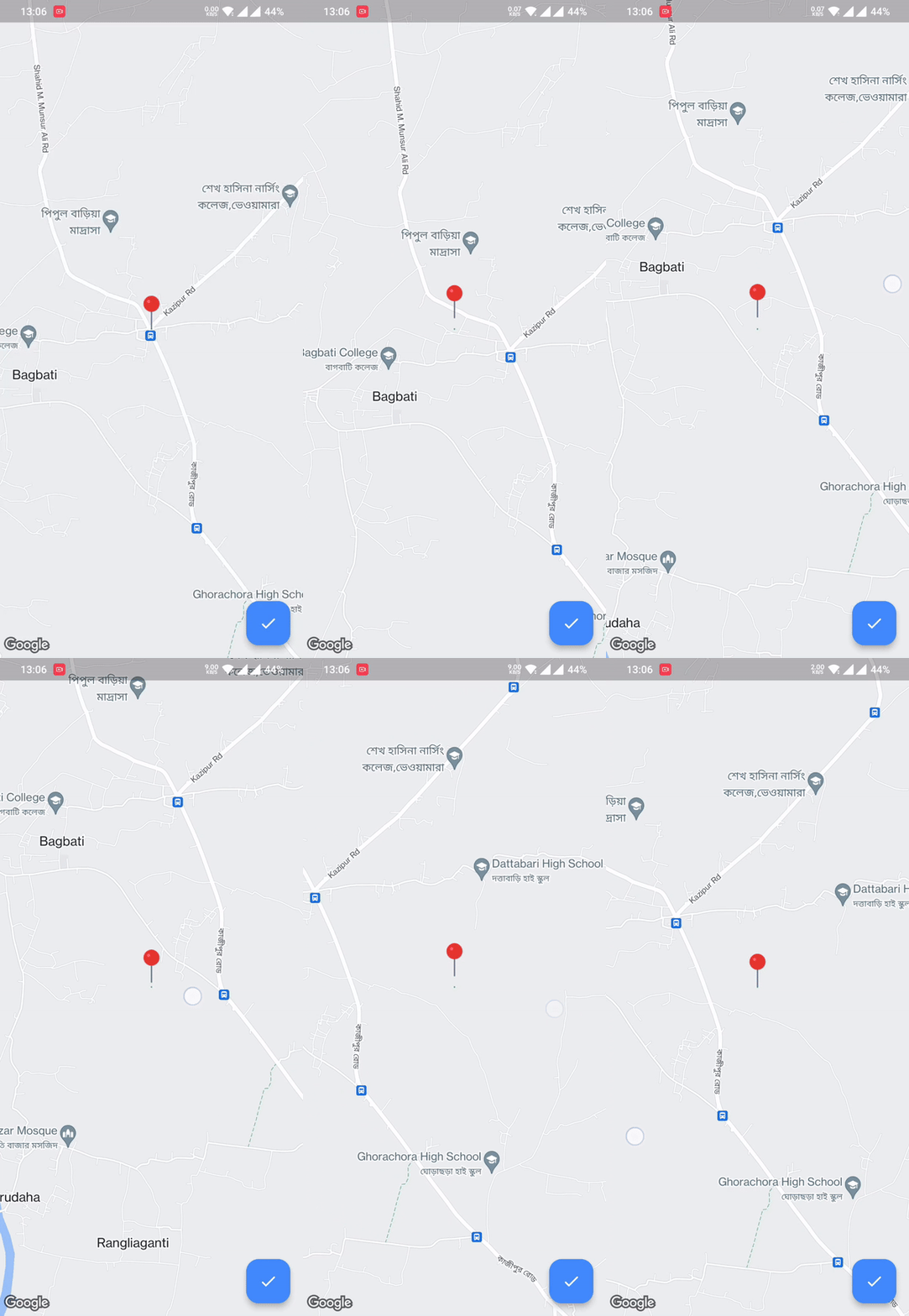
Regular Picker
Circle Boundary
Polygon Boundary
💻 Usage
First, add bound_location_picker as a dependency in your pubspec.yaml file.
dependencies:
  flutter:
    sdk: flutter

  bound_location_picker: ^update_version
Don't forget to flutter pub get.
Android
Set the minSdkVersion in android/app/build.gradle:
android {
    defaultConfig {
        minSdkVersion 20
    }
}
This means that app will only be available for users that run Android SDK 20 or higher.
Specify your API key in the application manifest android/app/src/main/AndroidManifest.xml:
<manifest ...
<application ...
<meta-data android:name ="com.google.android.geo.API_KEY"
android:value ="YOUR KEY HERE" />
iOS
To set up, specify your API key in the application delegate ios/Runner/AppDelegate.m:
#include "AppDelegate.h"
#include "GeneratedPluginRegistrant.h"
#import "GoogleMaps/GoogleMaps.h"

@implementation AppDelegate

- (BOOL)application:(UIApplication *)application
    didFinishLaunchingWithOptions:(NSDictionary *)launchOptions {
  [GMSServices provideAPIKey:@"YOUR KEY HERE"];
  [GeneratedPluginRegistrant registerWithRegistry:self];
  return [super application:application didFinishLaunchingWithOptions:launchOptions];
}
@end
Or in your swift code, specify your API key in the application delegate ios/Runner/AppDelegate.swift:
import UIKit
import Flutter
import GoogleMaps

@UIApplicationMain
@objc class AppDelegate: FlutterAppDelegate {
  override func application(
    _ application: UIApplication,
    didFinishLaunchingWithOptions launchOptions: [UIApplication.LaunchOptionsKey: Any]?
  ) -> Bool {
    GMSServices.provideAPIKey("YOUR KEY HERE")
    GeneratedPluginRegistrant.register(with: self)
    return super.application(application, didFinishLaunchingWithOptions: launchOptions)
  }
}
Web
You'll need to modify the web/index.html file of your Flutter Web application
to include the Google Maps JS SDK.
Check the google_maps_flutter_web README
for the latest information on how to prepare your App to use Google Maps on the
web.
Sample Usage
class MyApp extends StatefulWidget const MyApp ({super .key});
@override
State <MyApp > createState () => _MyAppState ();
}
class _MyAppState extends State <MyApp > @override
Widget build (BuildContext context) {
return MaterialApp (
debugShowCheckedModeBanner: false ,
home: Scaffold (
body: BoundLocationPicker (
initialCameraPosition: const LatLng (24.540725 , 89.631088 ),
onPickedLocation: (LatLng ? location) {
},
onLocationUpdateListener: (LatLng ? location) {
},
locationPickerImage: const AssetImage ("assets/pin_point.png" ),
circleBoundary: CircleBoundary (radius: 800 ),
enablePickedButton: true ,
),
),
);
}
}
👨🏻💻Contribute to the project
All contributions are welcome.