パッケージ、リポジトリ、アプリカテゴリを検索

flutter_physics のカバー
パッケージ詳細v0.2.3

flutter_physics

カスタマイズ可能なスプリングおよび重力シミュレーションを含む、物理ベースのアニメーションを提供するFlutterパッケージで、物理シミュレーションとしてもアニメーションカーブとしても使用できます。

AndroidiOSWebmacOSWindowsLinux
30日間ダウンロード
4470
いいね数
64
Pub ポイント
160

パッケージをインストール

flutter pub add flutter_physics

パッケージ概要

公開情報に基づく選定ガイドです。参考としてご利用ください。

flutter_physics は、カスタマイズ可能なスプリングおよび重力シミュレーションを備えた物理ベースのアニメーションを可能にするFlutterパッケージです。質量、剛性、減衰などの物理法則を利用して、リアルなモーション効果を作成できます。このパッケージはシミュレーションエンジンとしてだけでなく、アニメーションカーブのソースとしても使用でき、UI要素に滑らかで自然な遷移を提供します。ドラッグ可能なウィジェットやバウンス効果、ダイナミックレイアウトなどのインタラクティブコンポーネントに最適であり、Android、iOS、Web、macOS、Windows、Linuxなどすべての主要プラットフォームをサポートしています。

用途

  • インタラクティブなドラッグアンドドロップインターフェース
  • バウンシングまたはエラスティックUI要素
  • ダイナミックレイアウトのトランジション
  • アプリケーションで現実世界の物理学をシミュレートする
  • 滑らかなスクロール効果の作成

主な機能

  • カスタマイズ可能なスプリングダイナミクス
  • 重力に基づく運動シミュレーション
  • アニメーションカーブのサポート
  • クロスプラットフォーム互換性
  • リアルタイム物理の更新
  • 調整可能な質量、剛性および減衰

適している対象

  • インタラクティブなUIを構築する開発者
  • 自然な動きの効果を必要とするアプリ
  • 物理的な現実性を必要とするアニメーション
  • クロスプラットフォームのモバイルおよびウェブアプリ
  • 流れやすさを重視するデザインシステム

注意事項

  • 物理学パラメータの理解が必要です
  • 複雑なシミュレーションではパフォーマンスに影響する可能性があります
  • 単純な線形アニメーションには適していない
  • 望ましい動作を得るために注意深くチューニングが必要です
  • 基本的な例以外のドキュメントは限られている

元の README

関連するソースリポジトリの README 原文のスナップショットです。最新の内容はリポジトリをご覧ください。

Flutter Physics

Physics-based animation primitives for Flutter, with drop-in replacements for Flutter's animation controllers and implicitly animated widgets. Unify curves and physics in one powerful system!

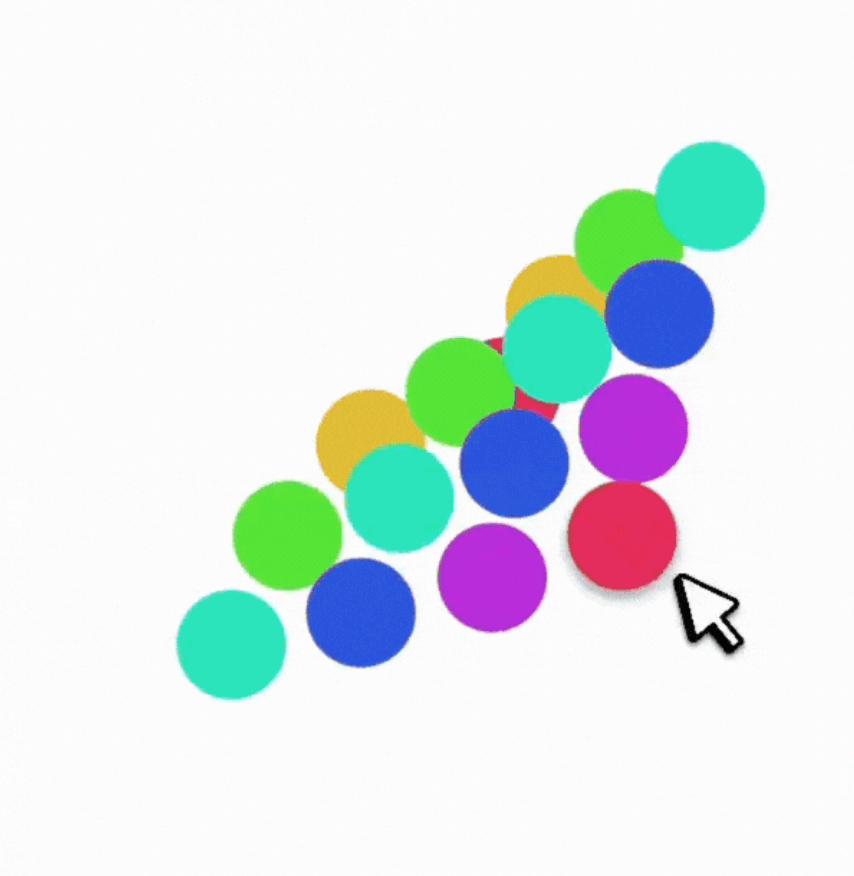
Physics Grid Demo

A springy grid of cells that:

  • Can be dragged around with Spring physics
  • Smoothly reacts to being "grabbed" mid-flight

AnimatedContainer vs. AContainer Observe how the physics-based AContainer's velocity is preserved when the container is resized mid-flight, while the standard AnimatedContainer results in a sudden jump in velocity.


Table of Contents

  1. Overview
  2. Installation
  3. Core Concepts
    1. Physics vs. Curves
    2. PhysicsSimulation = Simulation + Curve
    3. Implementing Your Own Physics
  4. Controllers
    1. PhysicsController (1D)
    2. PhysicsController2D (2D)
    3. PhysicsControllerMulti (Multi-Dimensional)
  5. Implicitly Physics Animated Widgets
    1. Physics-Animated Properties vs Tween-Animated Properties
    2. AContainer, APadding, AAlign, etc.
    3. ASize & ASwitcher
    4. AValue — Automatic Value Animation
    5. Gesture-Driven Animations
  6. PhysicsBuilder & PhysicsBuilder2D & PhysicsBuilderMulti
  7. Roll Your Own ImplicitlyPhysicsAnimatedWidget
  8. Custom Flutter Logo
  9. Side-by-Side Examples
  10. FAQ & Limitations

Overview

flutter_physics extends Flutter’s animation system with physics-based motion. It seamlessly merges curves (e.g. Curves.easeInOut) and dynamic simulations (e.g. Spring, Gravity) under a single type called Physics.(*) This means you can freely swap a spring simulation for a standard curve, without changing your widget structure or controller logic.

You’ll find:

  • 🎮 PhysicsController: A drop-in replacement for AnimationController that supports both curves and physics.
  • 🎨 ImplicitlyPhysicsAnimatedWidget and friends: Physics-based versions of Flutter's implicitly animated widgets (AContainer, APadding, ASize, ASwitcher, etc.).
  • 🏗️ PhysicsBuilder and PhysicsBuilder2D: Builder widgets for single or 2D animations with physics.
  • 🚀 Better velocity management: Physics simulations can preserve velocity on target changes, enabling fluid gesture-based UIs.
  • ⚡ Unified animations: Use standard duration for curve-based motion or let the physics simulation drive the timing automatically.

(*) Note: Physics is just an alias for Curve — but the PhysicsSimulation class implements both Curve and Simulation.


Installation

Add flutter_physics to your pubspec.yaml:

dependencies:
  flutter_physics: ^latest

Then run:

flutter pub get --no-example

And import it:

import 'package:flutter_physics/flutter_physics.dart';

Core Concepts

Physics vs. Curves

In traditional Flutter animations, you typically define a Curve (e.g., Curves.easeOut) and rely on a 0→1 tween. Physics animations replace or supplement that approach by calculating the object’s position over time based on forces like springs, gravity, or friction.

But in this library, Physics can be either a Curve or a PhysicsSimulation. Yes, that means you can do:

physics: Curves.easeInOut

or:

physics: Spring.elegant

…with no other code changes!


PhysicsSimulation = Simulation + Curve

Every built-in physics (e.g. Spring, Gravity) implements both:

This lets them plug into Flutter’s animation system as if they were just curves, while still offering dynamic velocity and “natural” motion.

Example code snippet that looks identical for both scenarios:

// PhysicsController
controller.animateTo(
  100.0, 
  physics: Spring.elegant, // or Curves.easeInOut
);

Implementing Your Own Physics

To roll your own simulation, extend PhysicsSimulation:

class MyWackyPhysics extends PhysicsSimulation {
  MyWackyPhysics() : super(start: 0, end: 100, initialVelocity: 10);

  @override
  double get duration {
    /* Solve for duration in seconds */
  }

  @override
  double x(double time) => /* compute position at time (in seconds) */;
  
  @override
  double dx(double time) => /* compute velocity at time (in seconds) */;

  @override
  bool isDone(double time) => /* return true if we've settled */;

  @override
  PhysicsSimulation copyWith({/* updated fields */}) {
    // Return new instance with updated fields
  }

  @override
  double solveInitialVelocity(double start, double end, double durationInSeconds) {
    // Recast the start-end in time
  }
}

You can now use your custom physics in PhysicsController or implicitly in AValue, AContainer, etc., just like a curve.


Controllers

PhysicsController (1D)

Drop-in replacement for AnimationController, but supports physics-based animations:

final _controller = PhysicsController(
  vsync: this,
  defaultPhysics: Spring.withDamping(
    mass: 1.0,
    dampingFraction: 0.8,
  ),
);

void _moveToEnd() {
  // No duration needed if using a physics simulation:
  _controller.animateTo(
    1.0,
    velocityDelta: 500.0, // add some velocity from a gesture
  );
}

Interruptions preserve velocity automatically:

_controller.animateTo(1.0);
// Halfway through, change target:
_controller.animateTo(0.2); // continues with momentum

PhysicsController2D (2D)

For two-dimensional motion (Offset), e.g., dragging a card around:

final _controller2D = PhysicsController2D.unbounded(
  vsync: this,
  defaultPhysics: Simulation2D(
    Spring.elegant, // X-axis
    Spring.elegant, // Y-axis
  ),
);

You get Offset value, velocity preservation, and animateTo(Offset). Perfect for freeform drag & fling:

void _onPanUpdate(DragUpdateDetails details) {
  final newOffset = _controller2D.value + details.delta;
  _controller2D.animateTo(newOffset);
}

PhysicsControllerMulti (Multi-Dimensional)

If you need N-dimensional motion (like 3D transforms, or more), use PhysicsControllerMulti. It handles arrays of doubles. It’s conceptually the same but scales to an arbitrary number of dimensions.


Implicitly Physics Animated Widgets

We provide physics-based alternatives to all of Flutter’s ImplicitlyAnimatedWidgets, collectively under ImplicitlyPhysicsAnimatedWidget. They animate changes in layout properties using either a curve or a physics simulation, without requiring you to manage a controller yourself.

Examples include:

  • AContainer (vs AnimatedContainer)
  • APadding (vs AnimatedPadding)
  • AAlign (vs AnimatedAlign)
  • AScale, ARotation, AOpacity, APositioned, etc.

Physics-Animated Properties vs Tween-Animated Properties

In standard implicitly animated widgets, you specify a duration and a curve. Whenever a property changes, the widget re-runs the animation from 0 to 1 via a "Tween" animation.

This approach has some limitations:

  1. Fixed Duration: The animation always takes exactly the specified duration, even if interrupted mid-way. This results in discontinuities when a value is changed successively.
  2. No Velocity Preservation: Each change restarts from 0, losing any momentum from previous animations. This makes interactive animations feel less fluid.
  3. 0→1 Constraint: Tweens must map everything to a 0→1 range, which can be unintuitive for properties like position or scale that have natural units. For example, a Tween<double> from 1 to 3 and another from 3 to 100 are treated as having the same length by the animation system.
  4. Curve Limitations: Standard curves can't react dynamically to changes or preserve physical properties like momentum and elasticity.

With a physics-based approach, you achieve dynamic, continuous motion, velocity preservation, and physics-driven timing.

With ImplicitlyPhysicsAnimatedWidget, you can specify either:

duration: Duration(milliseconds: 300), 
physics: Curves.easeOut

or let a simulation drive timing:

// No fixed duration needed
physics: Spring.swift

In cases where you need exact duration still, you can provide a duration parameter just like with a curve.

physics: Spring.swift,
duration: Duration(milliseconds: 300)

When the property changes, the widget re-runs the simulation from its current velocity, resulting in a fluid, interruptible motion.


AContainer, APadding, AAlign, etc.

All mimic the same API as their Flutter counterparts but with a physics property instead of a curve property. For example:

AContainer(
  width: 200,
  height: 200,
  color: Colors.red,
  physics: Spring.elegant,
  child: Text('Physics!'),
)

When you change width/height, it automatically animates with the specified spring.


Tweens are still supported

Certain properties (like BoxDecoration, Maxtrix4) are best handled with Tween internally.


ASize & ASwitcher

ASize is like AnimatedSize but:

  • Supports curves or physics
  • Maintains velocity if child resizes mid-animation
  • Doesn’t force a 0→1 tween

ASwitcher is like AnimatedSwitcher with physics. It can fade/scale new children in/out using real spring or friction:

ASwitcher(
  physics: Spring.buoyant,
  transitionBuilder: (child, animation) => FadeTransition(
    opacity: animation,
    child: child,
  ),
  child: showFirst ? _buildFirstChild() : _buildSecondChild(),
);

AValue — Automatic Value Animation

AValue<T> automatically animates between values of any type T, be it double, Color, Offset, or your own custom object (by providing normalize and denormalize):

AValue.color(
  value: _currentColor,
  physics: Curves.easeOut, // or Spring.gentle, Gravity.earth, etc.
  builder: (context, color, child) => Container(
    color: color,
    width: 100, 
    height: 100,
  ),
);

Whenever _currentColor changes, it animates smoothly with your chosen physics or curve.

Here's a more practical example using a custom type to animate a progress indicator with additional metadata:

// Define a custom progress type
class ProgressState {
  const ProgressState({
    required this.progress,
    required this.label,
    required this.color,
  });

  final double progress;
  final String label;
  final Color color;
}

// Use it in your widget
AValue<ProgressState>(
  value: ProgressState(
    progress: 0.7,
    label: 'Uploading...',
    color: Colors.blue,
  ),
  // We'll animate progress and color (5 values: 1 for progress, 4 for RGBA)
  normalizeOutputLength: 5,
  // Convert to animatable values
  normalize: (state) => [
    state.progress,
    ...AValue.normalizeColor(state.color),
  ],
  // Convert back to our type
  denormalize: (values) => ProgressState(
    progress: values[0],
    label: value.label, // Label changes instantly
    color: AValue.denormalizeColor(values.sublist(1)),
  ),
  physics: Spring.gentle,
  builder: (context, state, child) => Column(
    children: [
      LinearProgressIndicator(
      value: state.progress,
      color: state.color,
      ),
      Text(state.label),
    ],
  ),
)

Gesture-Driven Animations

Because physics naturally handles velocity, these widgets are perfect for gestures. Imagine a springy ball following the pointer:

class SpringyBall extends StatefulWidget {
  const SpringyBall({super.key});
  @override
  State<SpringyBall> createState() => _SpringyBallState();
}

class _SpringyBallState extends State<SpringyBall> {
  Offset _target = Offset.zero;
  Offset _velocity = Offset.zero;

  @override
  Widget build(BuildContext context) {
    return GestureDetector(
      onPanUpdate: (details) => setState(() {
        _target += details.delta;
        _velocity = details.velocity;
      }),
      child: PhysicsBuilder2D(
        // Animate to pointer position
        value: _target,
        // Add velocity from gesture
        velocityDelta: _velocity,
        physics: Spring.swift,
        builder: (context, offset, child) {
          return Stack(
            clipBehavior: Clip.none,
            children: [
              Positioned(
                left: offset.dx,
                top: offset.dy,
                child: Container(
                  width: 50,
                  height: 50,
                  decoration: BoxDecoration(
                    color: Colors.blue,
                    shape: BoxShape.circle,
                  ),
                ),
              ),
            ],
          );
        },
      ),
    );
  }
}

Every onPanUpdate sets a new target, and the spring-based builder moves there with velocity-based motion.


PhysicsBuilder & PhysicsBuilder2D & PhysicsBuilderMulti

If you want to animate a single scalar (double) or an Offset with physics (similar to a “manual AnimatedBuilder”), use these:

PhysicsBuilder(
  value: _sliderValue,
  physics: Spring.snap,
  onValueChanged: (val) => print('val is $val'),
  builder: (context, animatedVal, child) {
    return Slider(
      value: animatedVal,
      onChanged: (newVal) {
        setState(() => _sliderValue = newVal);
      },
    );
  },
);
  • PhysicsBuilder2D is the same concept for Offset (X/Y).
  • PhysicsBuilderMulti is the same concept for List<double> (N-dimensional).

Roll Your Own ImplicitlyPhysicsAnimatedWidget

If the built-in AContainer, AAlign, APadding, etc. aren’t enough, you can implement your own:

  1. Extend ImplicitlyPhysicsAnimatedWidget.
  2. Override createState() to return a subclass of PhysicsAnimatedWidgetBaseState.
  3. In forEachTween / forEachPhysicsProperty, define what’s animatable.

Here's the implementation of ASizedBox in the package:

class ASizedBox extends ImplicitlyPhysicsAnimatedWidget {
  const ASizedBox({
    super.key,
    this.width,
    this.height,
    super.duration,
    super.physics,
    super.onEnd,
    this.child,
  });

  final double? width;
  final double? height;
  final Widget? child;

  @override
  State<ASizedBox> createState() => _ASizedBoxState();
}

class _ASizedBoxState extends PhysicsAnimatedWidgetBaseState<ASizedBox> {
  PhysicsAnimatedProperty? _width, _height;

  @override
  void forEachPhysicsProperty(PhysicsPropertyVisitor visitor) {
    _width = visitor(_width, widget.width,
        (v) => PhysicsAnimatedProperty(key: 'width', initialValue: v));
    _height = visitor(_height, widget.height,
        (v) => PhysicsAnimatedProperty(key: 'height', initialValue: v));
  }

  @override
  List<String> get physicsAnimatedProperties => const ['width', 'height'];

  @override
  Widget build(BuildContext context) {
    return SizedBox(
      width: evaluate(_width),
      height: evaluate(_height),
      child: widget.child,
    );
  }
}

Then use it with:

ASizedBox(width: 200, height: 200, physics: Gravity());

Custom Flutter Logo

We even have a physics-based Flutter logo—FlutterPhysicsLogo—that animates size and style changes with real spring or curve:

FlutterPhysicsLogo(
  size: 96,
  style: FlutterLogoStyle.horizontal,
  physics: Spring.buoyant, // or Curves.easeIn
  duration: const Duration(milliseconds: 700),
)

FAQ & Limitations

  1. How do I ensure a fixed duration with a physics-based widget?
    Provide a duration if you’re using a curve. If you explicitly want a spring to finish in X seconds, you can set up a custom spring or use the copyWith(duration: ...) approach.

  2. Velocity handling
    By default, if you set a new target mid-animation, physics-based animations keep going with their prior velocity. If that’s not desired, you can pass velocityOverride: 0.0 in animateTo() calls.

  3. Performance
    For most use cases, it’s about the same as the standard animation system (the library piggybacks on the same Ticker logic). As is the case with any animation system, over-animating a huge number of items could degrade performance, so measure carefully.


Thanks for Checking Out flutter_physics!

We hope flutter_physics helps you build delightful, natural-feeling UIs with minimal boilerplate. Physics or curves? You don’t have to choose—this library merges them in one easy place.

Happy animating!


Enjoy building physically reactive Flutter apps!
Send me PRs, issues, and more demos if you come up with interesting new physics or widget patterns!

カテゴリー

ソースリポジトリ

このパッケージを使用しているプロジェクト

データはまだありません。