Convert Json to Form for Flutter apps.
:fire: Star and Share :fire: the repo to support the project. Thanks!
A flutter plugin to use convert Json to Form
Instalation
Add this to your package's pubspec.yaml file:
dependencies:
  json_to_form: "^0.0.1"
You can install packages from the command line:
with Flutter:
$ flutter packages get
Json to Form V2 Official!!!
Import it Now in your Dart code, you can use:
import 'package:json_to_form/json_schema.dart' ;
JsonSchema
new JsonSchema (
decorations: decorations,
form: form,
onChanged: (dynamic response) {
this .response = response;
},
actionSave: (data) {
print (data);
},
autovalidateMode: AutovalidateMode .always,
buttonSave: new Container (
height: 40.0 ,
color: Colors .blueAccent,
child: Center (
child: Text ("Login" ,style:TextStyle (color: Colors .white,fontWeight: FontWeight .bold)),
),
),
),
Attribute
form (Type String) Your form in String
onChanged (Type Function)(1 parameter) call the function every time a change in the form is made
padding (Type Double)
formMap (Type Map) Your form in Map
errorMessages(Type Map) change string for error of required
validations(Type Map) to add validation (TextInput,Input, Password, Email or TextArea)
decorations(Type Map) to add decoration (TextInput,Input, Password, Email or TextArea)
buttonSave(Type Widget) (not RaisedButton problem in onClick)
actionSave(Type Function) the function is called when you click on the widget buttonSave
autovalidateMode(Type AutovalidateMode) validation type of the form (autovalidate @Deprecated) use this instead
Form
Create Form String
String formString = json.encode ({
'title' : 'form example' ,
'description' :'' ,
'fields' : [
...
]
});
Create Form Map
Map formMap = {
'title' : 'form example' ,
'description' :'' ,
'fields' : [
...
]
};
Fields
All fields has attribute labelHidden(default false)
Important add key for all field for validation required
TextInput or Input
1.- Types?
Input
Password
Email (has default validation)
TextArea
TextInput
String formString = json.encode ({
'fields' : [
{
'key' : 'inputKey' ,
'type' : 'Input' ,
'label' : 'Hi Group' ,
'placeholder' : "Hi Group flutter" ,
'required' : true
},
{
'key' : 'inputKey' ,
'type' : 'Input' ,
'label' : 'Initial Value' ,
'value' : 'Hello'
'required' : true
},
]
});
String validationExample (field, value) {
if (value.isEmpty) {
return 'Please enter some text' ;
}
return null ;
}
Map formMap = {
'fields' : [
{
'key' : 'inputKey' ,
'type' : 'Input' ,
'label' : 'Hi Group' ,
'placeholder' : "Hi Group flutter" ,
'validator' : 'digitsOnly' ,
'required' : true ,
'decoration' : InputDecoration (
prefixIcon: Icon (Icons .account_box),
border: OutlineInputBorder (),
),
'validation' :validationExample,
'keyboardType' :TextInputType .number
},
]
};
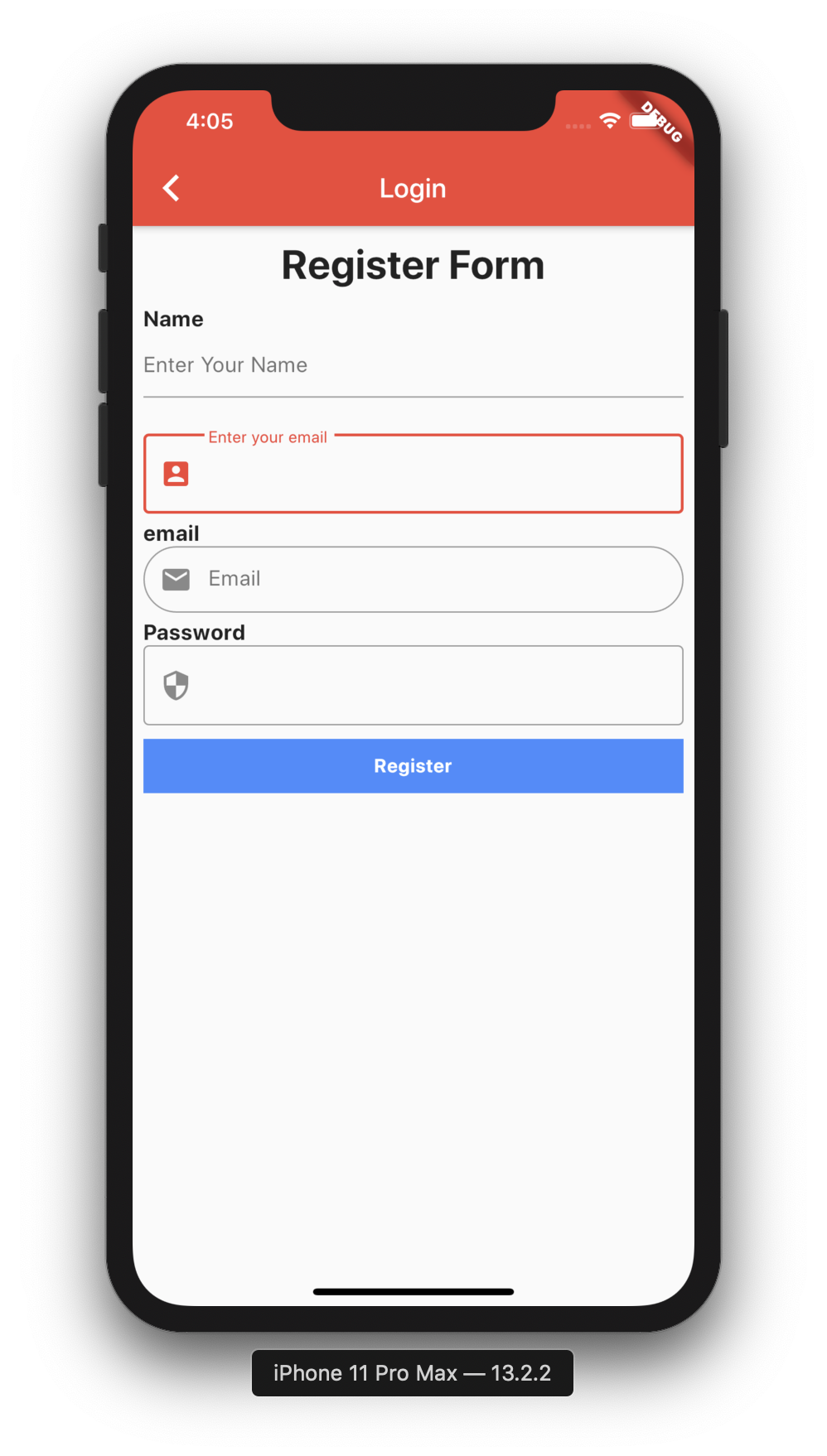
1.- How can I place validations for my form String?
Excellent :D.
In JsonSchema has attributes (validations, decorations)
Important that each field has to has its unique key
Map decorations = {
'inputKey' : InputDecoration (
labelText: "Enter your email" ,
prefixIcon: Icon (Icons .account_box),
border: OutlineInputBorder (),
),
};
Map validations = {
'inputKey' : validationExample,
}
dynamic response;
new JsonSchema (
decorations: decorations,
validations: validations,
form: formString,
onChanged: (dynamic response) {
this .response = response;
},
actionSave: (data) {
print (data);
},
buttonSave: new Container (
height: 40.0 ,
color: Colors .blueAccent,
child: Center (
child: Text ("Login" ,style:TextStyle (color: Colors .white,fontWeight: FontWeight .bold)),
,
),
)
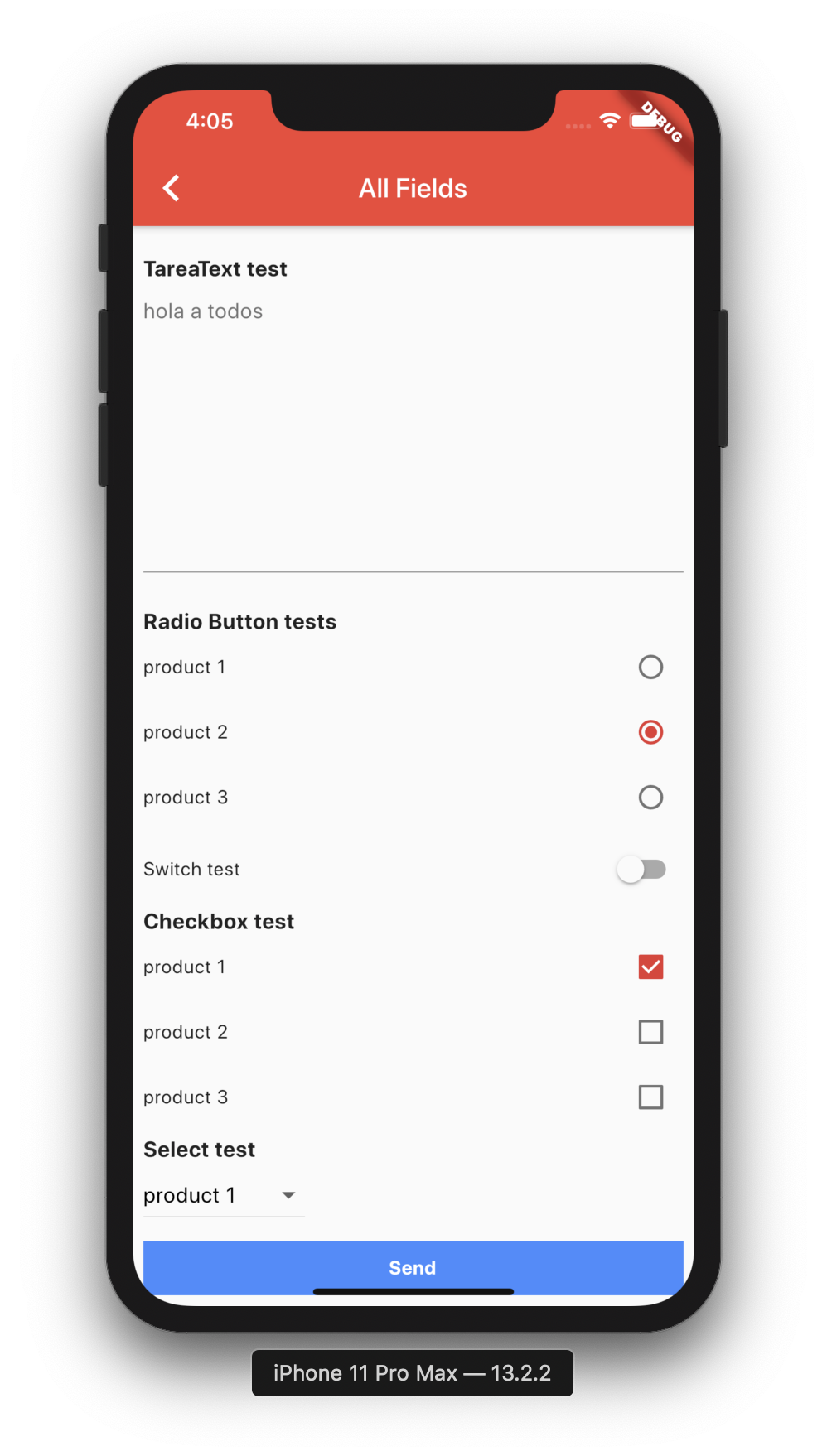
Radio
String formString = json.encode ({
'fields' : [
{
'key' : 'radiobutton1' ,
'type' : 'RadioButton' ,
'label' : 'Radio Button tests' ,
'value' : 2 ,
'items' : [
{
'label' : "product 1" ,
'value' : 1 ,
},
{
'label' : "product 2" ,
'value' : 2 ,
},
{
'label' : "product 3" ,
'value' : 3 ,
}
]
},
],
});
Switch
String formString = json.encode ({
'fields' : [
{
'key' : 'switch1' ,
'type' : 'Switch' ,
'label' : 'Switch test' ,
'value' : false ,
},
],
});
Checkbox
String formString = json.encode ({
'fields' : [
{
'key' : 'checkbox1' ,
'type' : 'Checkbox' ,
'label' : 'Checkbox test' ,
'items' : [
{
'label' : "product 1" ,
'value' : true ,
},
{
'label' : "product 2" ,
'value' : false ,
},
{
'label' : "product 3" ,
'value' : false ,
}
]
}
],
});
Select (New Field)
String formString = json.encode ({
'fields' : [
{
'key' : 'select1' ,
'type' : 'Select' ,
'label' : 'Select test' ,
'value' :'product 1' ,
'items' : [
{
'label' : "product 1" ,
'value' : "product 1" ,
},
{
'label' : "product 2" ,
'value' : "product 2" ,
},
{
'label' : "product 3" ,
'value' : "product 3" ,
}
]
}
],
});
when text is added to the TextField, add field called response
[{"type" :"Input" ,"label" :"Subject" ,"placeholder" :"Subject" },{"type" :"TextArea" ,"label" :"Message" ,"placeholder" :"Content" }]
[{type: Input , label: Subject , placeholder: Subject , value: hello}, {type: TextArea , label: Message , placeholder: Content , value: hi }]
Json to Form V1
Import it Now in your Dart code, you can use:
import 'package:json_to_form/json_to_form.dart' ;
Usage
String form = json.encode ([
{
'type' : 'Input' ,
'title' : 'Hi Group' ,
'placeholder' : "Hi Group flutter"
},
{
'type' : 'Password' ,
'title' : 'Password' ,
},
{
'type' : 'Email' ,
'title' : 'Email test' ,
'placeholder' : "hola a todos"
},
{
'type' : 'TareaText' ,
'title' : 'TareaText test' ,
'placeholder' : "hola a todos"
},
]);
String form = json.encode ([
{
'type' : 'RadioButton' ,
'title' : 'Radio Button tests' ,
'value' : 2 ,
'list' : [
{
'title' : "product 1" ,
'value' : 1 ,
},
{
'title' : "product 2" ,
'value' : 2 ,
},
{
'title' : "product 3" ,
'value' : 3 ,
}
]
},
]);
String form = json.encode ([
{
'type' : 'Switch' ,
'title' : 'Switch test' ,
'switchValue' : false ,
},
]);
String form = json.encode ([
{
'type' : 'Checkbox' ,
'title' : 'Checkbox test 2' ,
'list' : [
{
'title' : "product 1" ,
'value' : true ,
},
{
'title' : "product 2" ,
'value' : true ,
},
{
'title' : "product 3" ,
'value' : false ,
}
]
},
]);
String form_send_email = json.encode ([
{'type' : 'Input' , 'title' : 'Subject' , 'placeholder' : "Subject" },
{'type' : 'TareaText' , 'title' : 'Message' , 'placeholder' : "Content" },
]);
dynamic response;
@override
Widget build (BuildContext context) {
return new Scaffold (
appBar: new AppBar (
title: new Text (widget.title),
),
body: new SingleChildScrollView (
child: new Container (
child: new Column (children: <Widget >[
new CoreForm (
form: form,
onChanged: (dynamic response) {
this .response = response;
},
),
new RaisedButton (
child: new Text ('Send' ),
onPressed: () {
print (this .response.toString ());
})
]),
),
),
);
}
When there is a change in the form, the (dynamic response;) is updated,
onChanged: (dynamic response) {
this .response = response;
},
when text is added to the TextField, add field called response
[{"type" :"Input" ,"title" :"Subject" ,"placeholder" :"Subject" },{"type" :"TareaText" ,"title" :"Message" ,"placeholder" :"Content" }]
[{type: Input , title: Subject , placeholder: Subject }, {type: TareaText , title: Message , placeholder: Content , response: hi }]
Getting Started
For help getting started with Flutter, view our online documentation .
For help on editing package code, view the documentation .