The Flutter package that makes it super easy to integrate Paystack's payment gateway into your app with just few lines of code. Payment Options like Card, Bank Transfer, Bank, USSD, Mobile Money, etc.
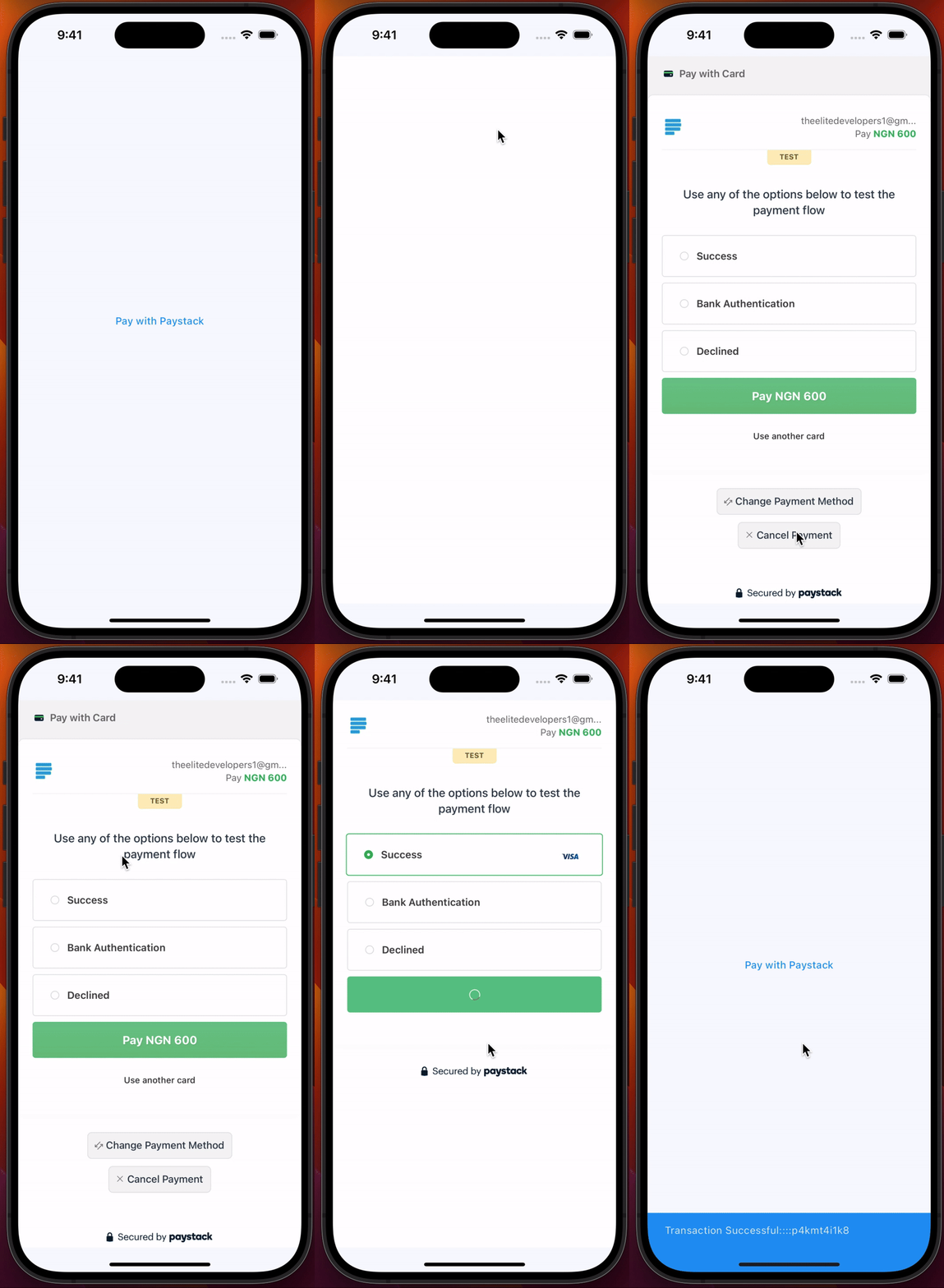
Screenshots
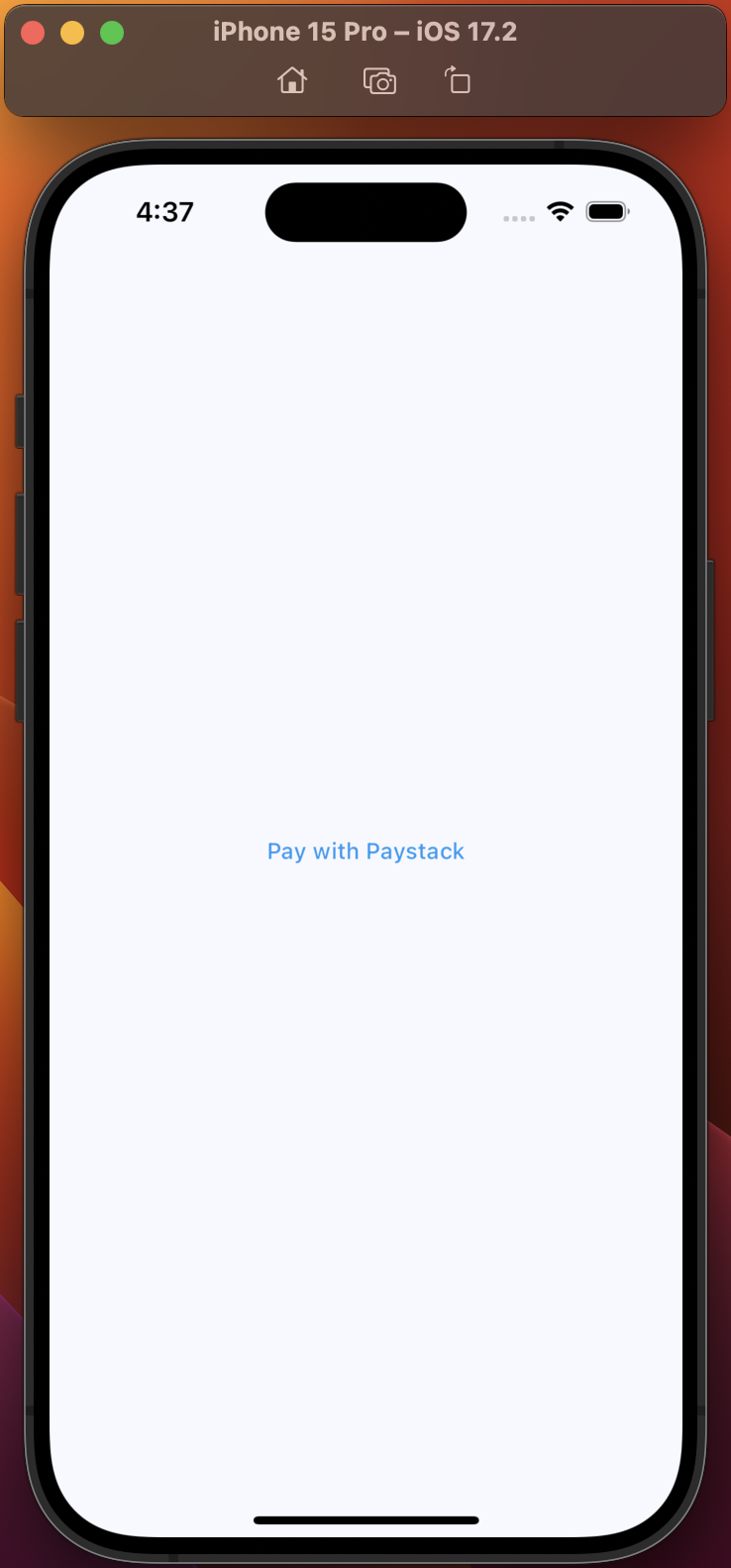
Initiate Payment
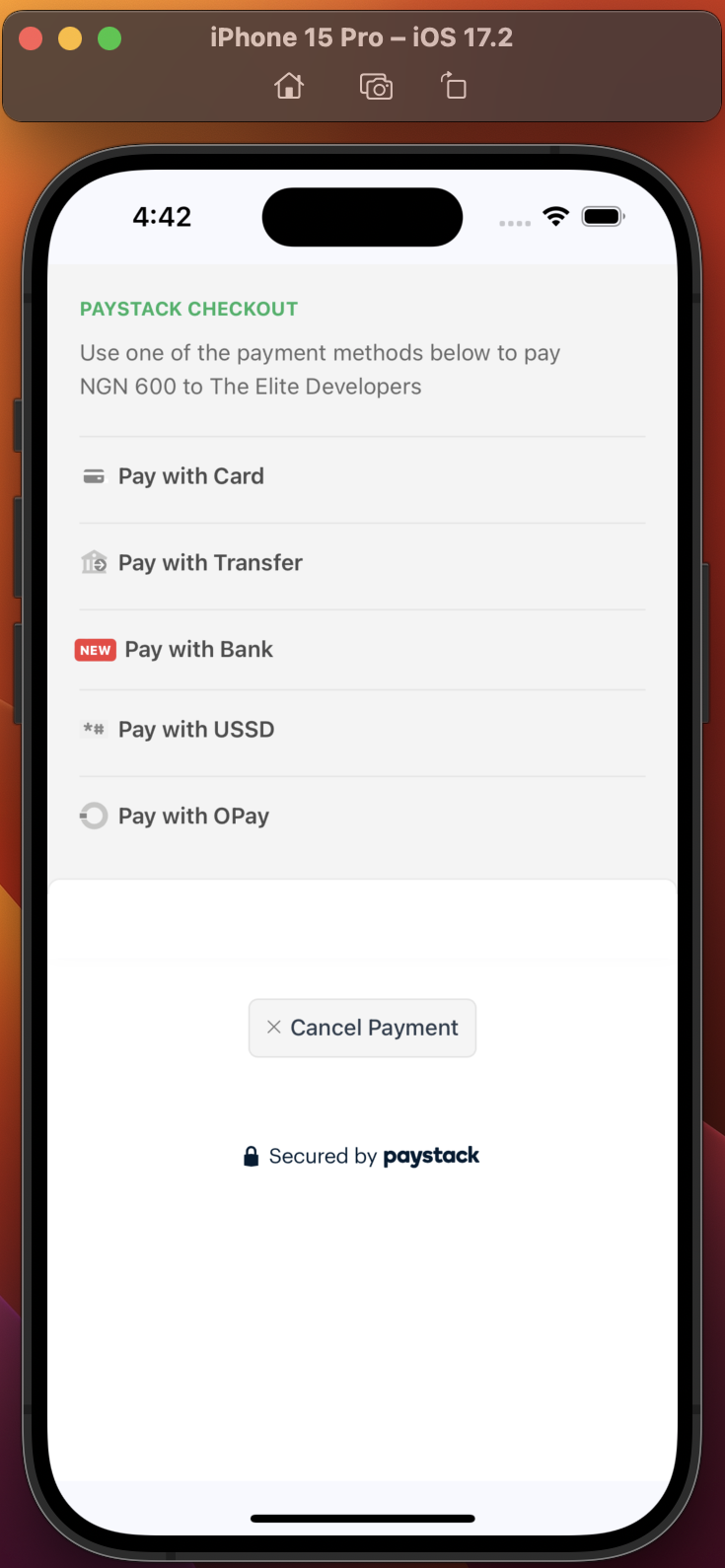
Payment Options
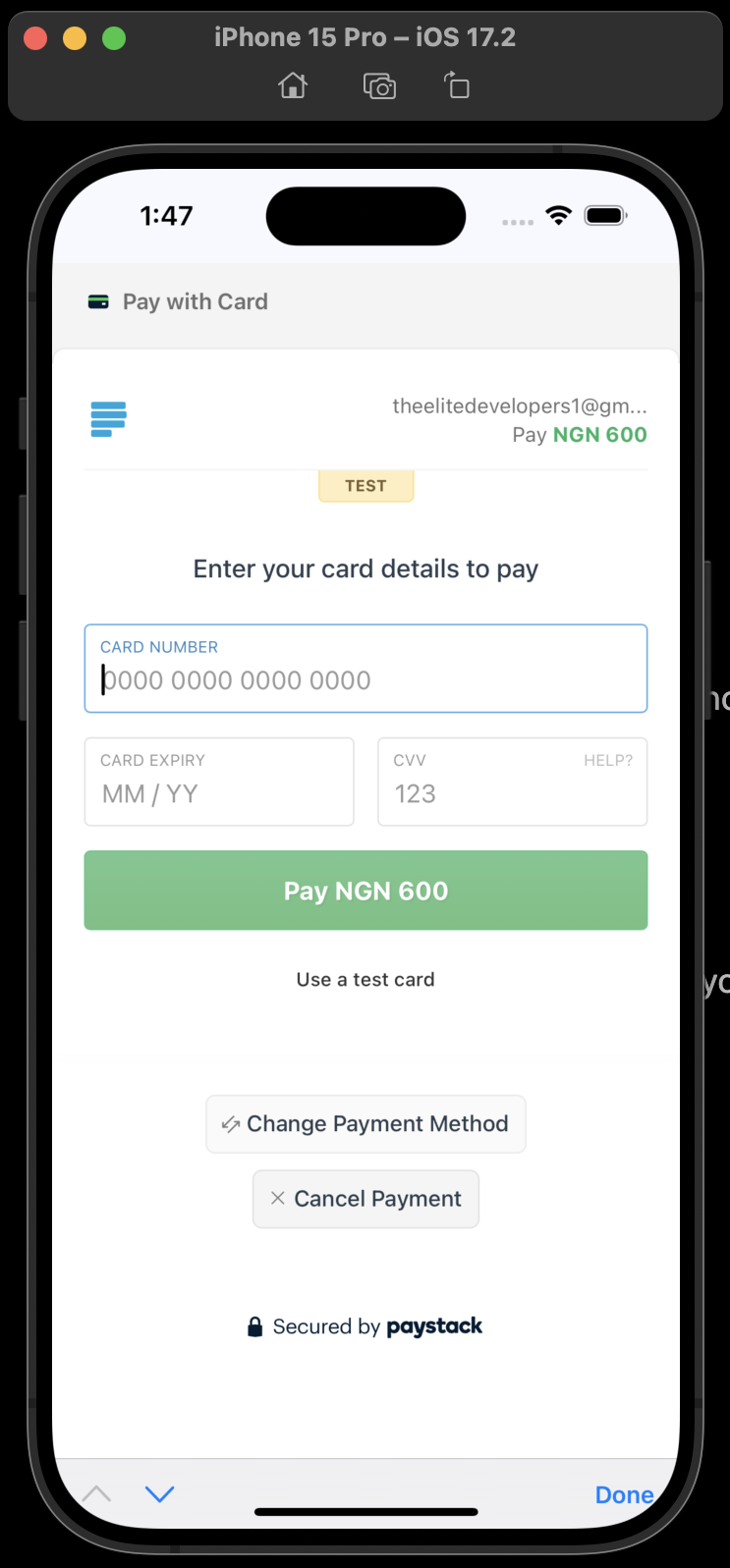
Pay With Card
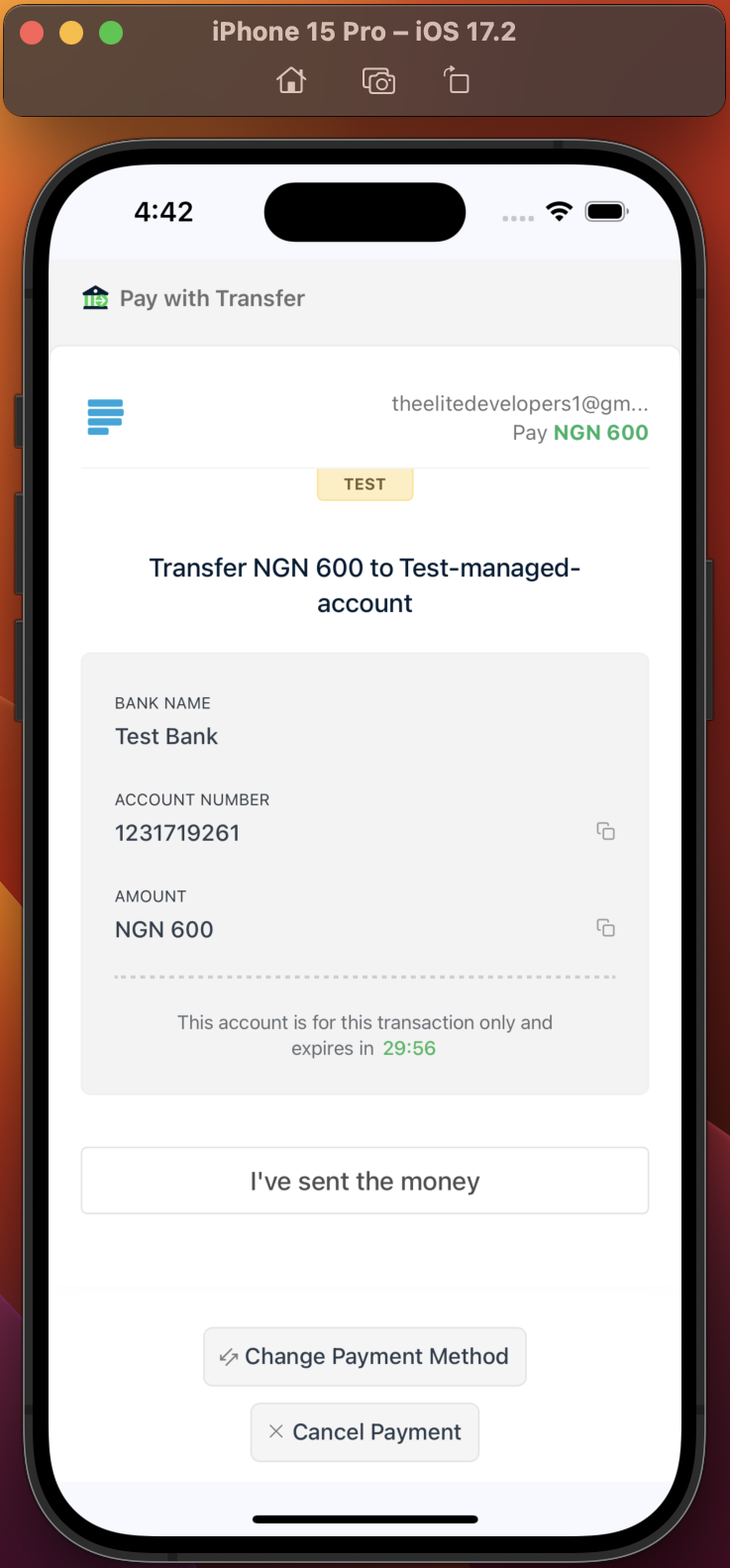
Pay With Bank Transfer
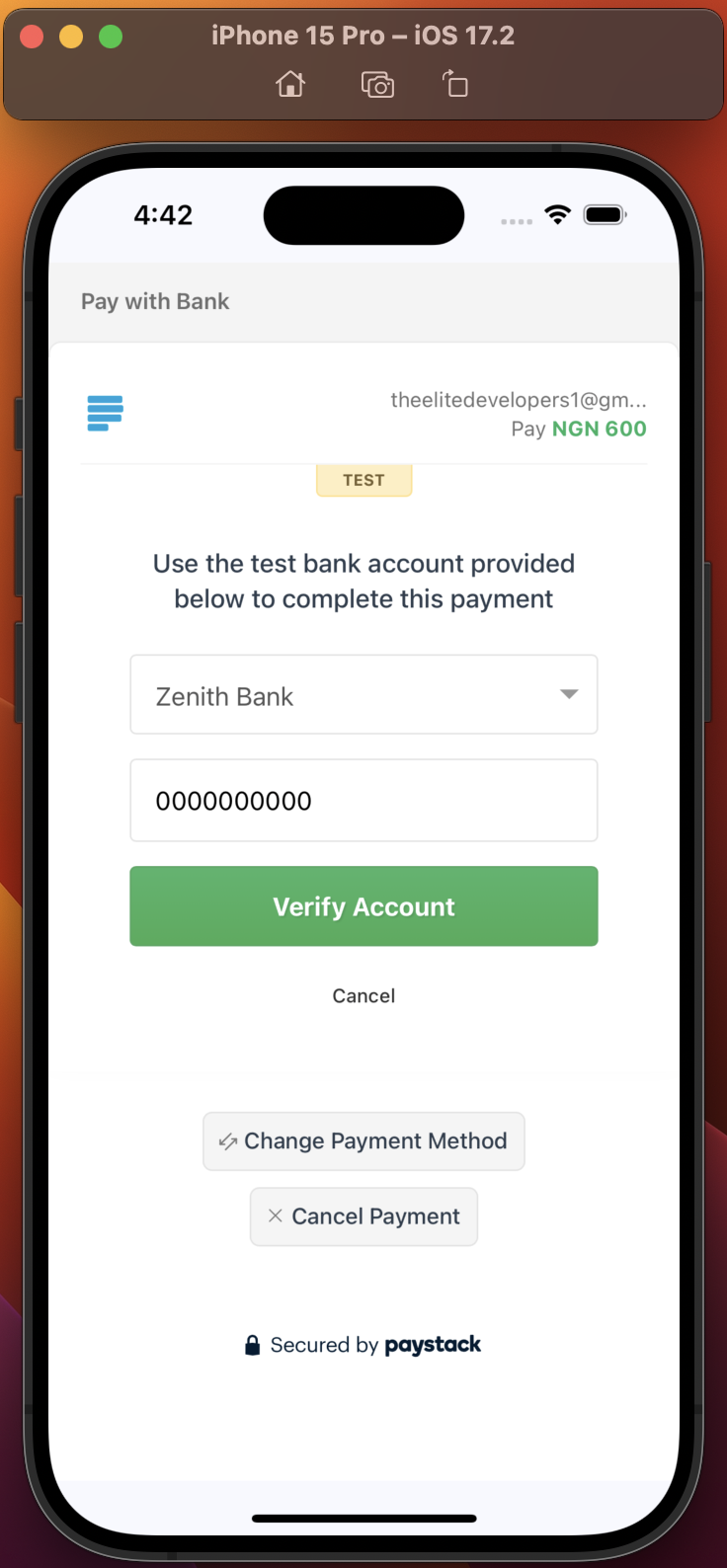
Pay With Bank
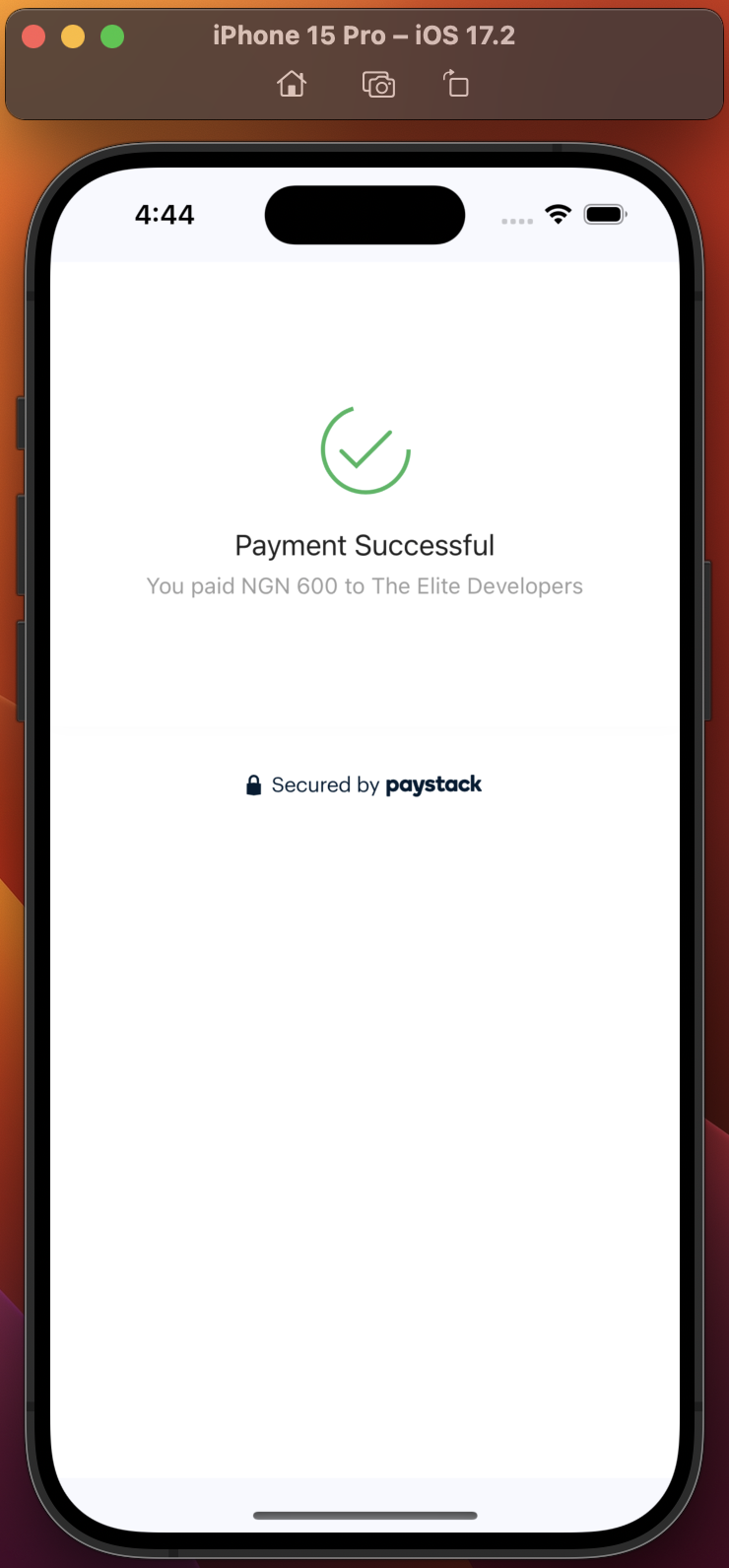
Payment Successful
Significant Changes:
You can now pass in customer's First name and Last name and have it saved on Paystack's end and you can see them from the dashboard.
Support for EURO currency added. Just pass Currency.EUR.
The README has been updated with instructions on how to test out the Bank transfer feature in the Test environment.
To use the Paystack package, all you need to do is call the package when a button is clicked. See example implementation below:
PaystackFlutter().pay(
    context: context,
    secretKey: 'YOUR_PAYSTACK_SECRET_KEY', // Your Paystack secret key gotten from your Paystack dashboard.
    amount: 60000, // The amount to be charged in the smallest currency unit. If amount is 600, multiply by 100(600*100)
    email: 'customeremail@gmail.com', // The customer's email address.
    firstName: 'Victor', // Customer's first name
    lastName: 'Ebuka', // Customer's last name
    callbackUrl: 'https://callback.com', // The URL to which Paystack will redirect the user after the transaction.
    showProgressBar: true, // If true, it shows progress bar to inform user an action is in progress when getting checkout link from Paystack.
    paymentOptions: [PaymentOption.card, PaymentOption.bankTransfer, PaymentOption.mobileMoney],
    currency: Currency.NGN,
    metaData: {
      "product_name": "Nike Sneakers",
      "product_quantity": 3,
      "product_price": 24000
    }, // Additional metadata to be associated with the transaction
    onSuccess: (paystackCallback){
      ScaffoldMessenger.of(context).showSnackBar(
          SnackBar(content: Text('Transaction Successful::::${paystackCallback.reference}'),
            backgroundColor: Colors.blue,
          ));
    }, // A callback function to be called when the payment is successful.
    onCancelled: (paystackCallback){
      ScaffoldMessenger.of(context).showSnackBar(
          SnackBar(
              content: Text('Transaction Failed/Not successful::::${paystackCallback.reference}'),
            backgroundColor: Colors.red,
          ));
  }, // A callback function to be called when the payment is canceled.
);
So, your widget could look something like this:
classMyHomePageextendsStatefulWidget{
constMyHomePage({super.key});
@overrideState<MyHomePage> createState() => _MyHomePageState();
}
class_MyHomePageStateextendsState<MyHomePage> {
@overrideWidgetbuild(BuildContext context) {
returnScaffold(
body: Center(
child: Column(
mainAxisAlignment: MainAxisAlignment.center,
children: [
TextButton(
onPressed: (){
PaystackFlutter().pay(
context: context,
secretKey: 'YOUR_PAYSTACK_SECRET_KEY', // Your Paystack secret key.
amount: 60000, // The amount to be charged in the smallest currency unit. If amount is 600, multiply by 100(600*100)
email: 'customeremail@gmail.com', // The customer's email address.
firstName: 'Victor', // Customer's first name
lastName: 'Ebuka', // Customer's last name
callbackUrl: 'https://callback.com', // The URL to which Paystack will redirect the user after the transaction.
showProgressBar: true, // If true, it shows progress bar to inform user an action is in progress when getting checkout link from Paystack.
paymentOptions: [PaymentOption.card, PaymentOption.bankTransfer, PaymentOption.mobileMoney],
currency: Currency.NGN,
metaData: {
"product_name": "Nike Sneakers",
"product_quantity": 3,
"product_price": 24000
}, // Additional metadata to be associated with the transaction
onSuccess: (paystackCallback){
ScaffoldMessenger.of(context).showSnackBar(
SnackBar(content: Text('Transaction Successful::::${paystackCallback.reference}'),
backgroundColor: Colors.blue,
));
}, // A callback function for when the payment is successful.
onCancelled: (paystackCallback){
  ScaffoldMessenger.of(context).showSnackBar(
      SnackBar(
          content: Text('Transaction Failed/Not successful::::${paystackCallback.reference}'),
        backgroundColor: Colors.red,
      ));
}, // A callback function for when the payment is canceled/unsuccessful.
);
},
child: constText(
'Pay with Paystack',
style: TextStyle(
color: Colors.blue,
),
),
),
],
),
),
);
}
}
:memo: Detailed explanation of parameters
Note that some of the parameters are optional. Below is a table giving exact details:
Parameter
Data type
Required
Details
context
BuildContext
Yes
Current build context
secretKey
String
Yes
Your Paystack's secret key. You can get this from your Paystack dashboard under Settings. Try not to save your key locally.
amount
double
Yes
The amount to be charged in the smallest currency unit. If amount is 600, multiply by 100(600*100)
email
String
Yes
Your customer's email
callbackUrl
String
Yes
The URL to which Paystack will redirect the user after the transaction. Your callback can be anything. Even if you have set the callbackUrl on your Paystack dashboard and you set something different in your code, Paystack overrides the one set on your dashboard. Your callback can be: https://callback.com or any other URL.
onSuccess
Function(PaystackCallback)
Yes
A callback function to be called when the payment is successful. This function returns an instance of a PaystackCallback class that has properties like reference and accessCode that you can access to confirm from your backend or do anything with.
onCancelled
Function(PaystackCallback)
Yes
A callback function to be called when the payment is unsuccessful. This function returns an instance of a PaystackCallback class that has properties like reference and accessCode that you can access to confirm if transaction was truly unsuccessful.
firstName
String
No
Customer's first name(You'll find it saved on your Paystack dashboard whenever you pass this for a customer)
lastName
String
No
Customer's last name
reference
String
No
A custom reference for the transaction. If you do not pass a reference, Paystack will generate one automatically for you.
confirmTransaction
bool
No
If set to true, the package checks with paystack using the reference to confirm if the transaction was truly successful. In most cases, you'll have to do this through the backend, but the package gives you the option to do it in your app. Default value is FALSE
metadata
dynamic(json)
No
Additional metadata to be associated with the transaction. This is usually the goods/services your customer is trying to make payment for. It's expected in json format. It makes it easy to provide value to your customer by just using the reference to get the data after confirming successful payment.
paymentOptions
List<PaymentOption(enum)>
No
A list of payment options allowed for the transaction. Please, leave empty or don't include if you want to use the payment options set from your dashboard. To use: [PaymentOption.card, PaymentOption.bankTransfer, PaymentOption.bank, PaymentOption.ussd]
currency
enum
No
The currency used for the transaction. If omitted, it uses the default Currency of the country associated with your Paystack account. Example: Currency.NGN. There are 5 currency enum options: NGN(Naira), USD(Dollars), EUR(Euro), GHS(Ghanian Cedi), ZAR(South African Rand), KES(Kenyan Shilling)
showProgressBar
bool
No
If true, it shows progress bar to inform user an action is in progress when getting checkout link from Paystack. Default value is TRUE
:grey_exclamation: Enums and their values
paymentOptions:
The paymentOptions parameter takes a List of PaymentOption enums like this:
Here's a detailed comment that describes what each of these enums represent.
/// - [paymentOptions] A list of payment options allowed for the transaction./// - **Available Payment Options:**/// - [PaymentOption.card] Allows payment with debit/credit cards./// - [PaymentOption.bank] Allows payment via bank./// - [PaymentOption.bankTransfer] Allows payment via bank transfer (alternative to `bank`)./// - [PaymentOption.ussd] Allows payment via USSD mobile banking./// - [PaymentOption.mobileMoney] Allows payment via mobile money wallets (e.g., Mpesa, MTN Mobile Money)./// - [PaymentOption.eft] Allows payment via EFT (Electronic Funds Transfer)./// - [PaymentOption.qr] Allows payment via QR codes.
NOTE: Don't forget that the paymentOptions is optional and that if you don't include it, Paystack will use the default payment options already set on your Paystack dashboard.
So, leave it empty if that is what you want.
currency:
The currency parameter takes a Currency enum like this:
currency: Currency.NGN
Here's the list of currency that Paystack supports:
/// - [currency] The currency used for the transaction. If omitted, it uses the default Currency of the country associated with your Paystack account./// - **Supported Currencies:**/// - [Currency.NGN] (Nigerian Naira)/// - [Currency.USD] (US Dollar)/// - [Currency.EUR] (Euro)/// - [Currency.GHS] (Ghanaian Cedi)/// - [Currency.ZAR] (South African Rand)/// - [Currency.KES] (Kenyan Shilling)
:grey_exclamation: Bank Transfer Payment Method(Testing it out)
It is possible to test the Bank transfer feature in Test mode. All you have to do is visit this Paystack's site, enter the account number you were provided and continue. Enter 0000 as the PIN and you'll see that the transaction will be confirmed immediately from your app.
Paystack recommends that you use the reference to make a call to your backend to confirm if transaction was indeed successful before you provide value to your customer.
The onSuccess callback makes it easy to get the reference or accessCode and make this call to your backend like this:
onSuccess: (paystackCallback){
//go ahead to provide value to the customer.ScaffoldMessenger.of(context).showSnackBar(
SnackBar(content: Text('Transaction Successful::::${paystackCallback.reference}'),
backgroundColor: Colors.blue,
));
}
:heavy_check_mark: Verifying Transaction with the Package
It's also possible to use the package to confirm if a transaction was successful by just including the confirmTransaction parameter like this:
confirmTransaction: true
When included, the package makes sure to confirm directly from Paystack if that transaction was truly successful. If it was, it will execute the onSuccess callback, and if it wasn't successful, it'll call the onCancelled callback.
:x: Cancelled/Unsuccessful Callback(After an Unsuccessful payment)
The onCancelled callback is executed when if the payment was unsuccessful. You can go ahead to either display a message to the customer or take the reference and do something with it like confirming if it was truly unsuccessful.
Remember that you can always get access to the reference and accessCode from the callback:
An example project has been provided for you in this package.
Clone this repo and navigate to the example folder. Open it with a supported IDE or execute flutter run from that folder in terminal.
:pencil: Contributing, :disappointed: Issues and :bug: Bug Reports
Your contributions are invaluable in making this library even better. If you're interested in contributing, please feel free to submit a pull request or open an issue on our repository link.
Did you experience an issue or you want to report a bug? Please, report it here. Please, be as descriptive as possible.