A Flutter plugin that provides assets abstraction management APIs without UI integration,
you can get assets (image/video/audio) on Android, iOS, macOS and OpenHarmony.
We ship this plugin with Kotlin 1.7.22.
If your projects use a lower version of Kotlin/Gradle/AGP,
please upgrade them to a newer version.
More specifically:
Upgrade your Gradle version (gradle-wrapper.properties)
to 7.5.1 or the latest version.
Upgrade your Kotlin version (ext.kotlin_version)
to 1.7.22 or the latest version.
Upgrade your AGP version (com.android.tools.build:gradle)
to 7.2.2 or the latest version.
Android 10 (Q, 29)
If you're not setting your compileSdkVersion or targetSdkVersion to 29,
you can skip this section.
On Android 10, Scoped Storage was introduced,
which causes the origin resource file not directly
inaccessible through it file path.
If your compileSdkVersion or targetSdkVersion is 29,
you can consider adding android:requestLegacyExternalStorage="true"
to your AndroidManifest.xml in order to obtain resources:
Note: Apps that are using the flag will be rejected from the Google Play.
This is not a requirement, the plugin can still work with caching files.
But you'll need to control caches on your own, the best practice is to clear file caches
each time when you start your app by calling PhotoManager.clearFileCache().
Glide
The plugin use Glide to create thumbnail bytes for Android.
If you found some warning logs with Glide appearing,
it means the main project needs an implementation of AppGlideModule.
See Generated API for the implementation.
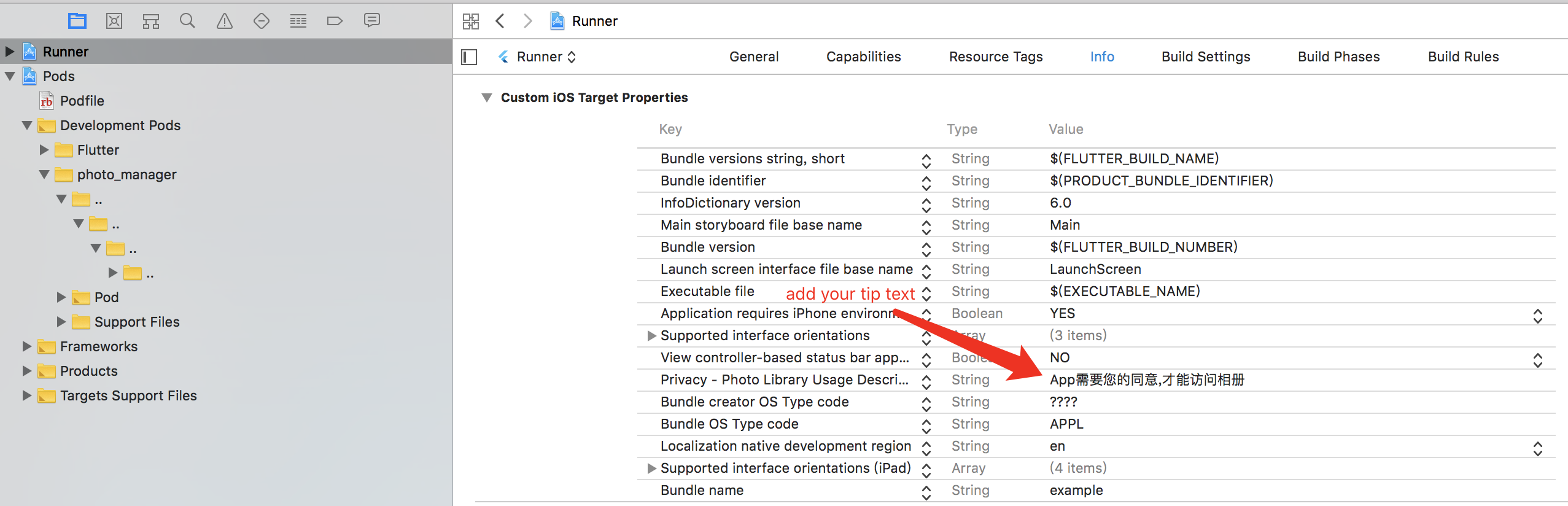
iOS config preparation
Define the NSPhotoLibraryUsageDescription
key-value in the ios/Runner/Info.plist:
<key>NSPhotoLibraryUsageDescription</key><string>In order to access your photo library</string>
If you want to grant only write-access to the photo library on iOS 11 and above,
define the NSPhotoLibraryAddUsageDescription
key-value in the ios/Runner/Info.plist.
It's pretty much the same as the NSPhotoLibraryUsageDescription.
Usage
Request for permission
Most of the APIs can only use with granted permission.
finalPermissionState ps = awaitPhotoManager.requestPermissionExtend(); // the method can use optional param `permission`.if (ps.isAuth) {
// Granted// You can to get assets here.
} elseif (ps.hasAccess) {
// Access will continue, but the amount visible depends on the user's selection.
} else {
// Limited(iOS) or Rejected, use `==` for more precise judgements.// You can call `PhotoManager.openSetting()` to open settings for further steps.
}
But if you're pretty sure your callers will be only called
after the permission is granted, you can ignore permission checks:
PhotoManager.setIgnorePermissionCheck(true);
For background processing (such as when the app is not in the foreground),
ignore permissions check would be proper solution.
You can also read the current permission state with
PhotoManager.getPermissionState. Make sure the same permission request option
is used between this request and other asset requests.
Limited entities access
Limited entities access on iOS
With iOS 14 released, Apple brought a "Limited Photos Library" permission
(PermissionState.limited) to iOS.
The PhotoManager.requestPermissionExtend() method will return PermissionState.
See PHAuthorizationStatus for more detail.
To reselect accessible entities for the app,
use PhotoManager.presentLimited() to call the modal of
accessible entities' management.
This method only available for iOS 14+ and when the permission state
is limited (PermissionState.limited).
To suppress the automatic prompting from the system
when each time you access the media after the app has restarted,
you can set the Prevent limited photos access alert key to YES
in your app's Info.plist (or manually writing as below):
Android 14 (API 34) has also introduced the concept of limited assets similar to iOS.
However, there is a slight difference in behavior (based on the emulator):
On Android, the access permission to a certain resource cannot be revoked once it is granted,
even if it hasn't been selected when using presentLimited in future actions.
Handling a limited grant that doesn't match the requested type
Neither iOS nor Android exposes which media kinds are inside the current limited
selection. If your app requests RequestType.image but the user picked only
videos while granting limited access, permission will still resolve to
PermissionState.limited, and querying images will legitimately return zero
results — the same as if the library truly had no images.
The recommended recovery is to prompt for reselection when this happens:
if (state == PermissionState.limited) {
// On Android 14+, `type` filters the picker to only the media kinds you need.// On iOS the picker cannot be filtered by type and `type` is ignored.awaitPhotoManager.presentLimited(type: RequestType.image);
}
Get albums/folders (AssetPathEntity)
Albums or folders are abstracted as the AssetPathEntity class.
It represents a bucket in the MediaStore on Android,
and the PHAssetCollection object on iOS/macOS.
To get all of them:
Set to true when you need an album containing all assets.
true
onlyAll
Use this property if you only need one album containing all assets.
false
type
Type of media resource (video, image, audio)
RequestType.common
filterOption
Used to filter resource files, see Filtering for details
FilterOptionGroup()
pathFilterOption
Only valid for iOS and macOS, for the corresponding album type. See PMPathFilterOption for more detail.
Include all by default.
PMPathFilterOption (Since 2.7.0)
[!NOTE]
This option is only valid for iOS and macOS.
finalList<PMDarwinAssetCollectionType> pathTypeList = []; // use your need typefinalList<PMDarwinAssetCollectionSubtype> pathSubTypeList = []; // use your need typefinal darwinPathFilterOption = PMDarwinPathFilter(
type: pathTypeList,
subType: pathSubTypeList,
);
PMPathFilter pathFilter = PMPathFilter();
Assets (images/videos/audios) are abstracted as the AssetEntity class.
It represents a series of fields with MediaStore on Android,
and the PHAsset object on iOS/macOS.
You can store the ID if you want to implement features
that's related to persistent selections.
Use AssetEntity.fromId to retrieve the entity
once you persist an ID.
Be aware that the created asset might have
limited access or got deleted in anytime,
so the result might be null.
From raw data
You can create an entity from raw data,
such as downloaded images, recorded videos, etc.
The created entity will show as a corresponding resource
on your device's gallery app.
finalUint8List rawData = yourRawData;
// Save an image to an entity from `Uint8List`.finalAssetEntity? entity = awaitPhotoManager.editor.saveImage(
rawData,
title: 'write_your_own_title.jpg', // Affects EXIF reading.
);
// Save an existed image to an entity from it's path.finalAssetEntity? imageEntityWithPath = awaitPhotoManager.editor.saveImageWithPath(
path, // Use the absolute path of your source file, it's more like a copy method.
title: 'same_as_above.jpg',
);
// Save a video entity from `File`.finalFile videoFile = File('path/to/your/video.mp4');
finalAssetEntity? videoEntity = awaitPhotoManager.editor.saveVideo(
videoFile, // You can check whether the file is exist for better test coverage.
title: 'write_your_own_title.mp4',
);
// [iOS only] Save a live photo from image and video `File`.// This only works when both image and video file were part of same live photo.finalFile imageFile = File('path/to/your/live_photo.heic');
finalFile videoFile = File('path/to/your/live_video.mp4');
finalAssetEntity? entity = awaitPhotoManager.editor.darwin.saveLivePhoto(
imageFile: imageFile,
videoFile: videoFile,
title: 'write_your_own_title.heic',
);
Be aware that the created asset might have limited access or got deleted in anytime,
so the result might be null.
iOS and macOS might set extra limitations when saving assets, it seems only
certain file types can be saved as a media assets. The limitation follows the definition of
AVFileType, when you saw PHPhotosErrorDomain Code=3302 (or 330x),
make sure the file type is supported.
From iCloud
Resources might be saved only on iCloud to save disk space.
When retrieving file from iCloud, the speed is depended on the network condition,
which might be very slow that makes users feel anxious.
To provide a responsive user interface, you can use PMProgressHandler
to retrieve the progress when load a file.
The preferred implementation would be the LocallyAvailableBuilder
in the wechat_asset_picker package, which provides a progress indicator
when the file is downloading.
There are several methods that can combine with PMProgressHandler
to provide responsive progress events, which are:
AssetEntity.thumbnailDataWithSize
AssetEntity.thumbnailDataWithOption
AssetEntity.getMediaUrl
AssetEntity.loadFile
PhotoManager.plugin.getOriginBytes
iCloud files can only be obtained when the Apple ID on the device are correctly authorized.
When the account requires to re-enter the password to verify, iCloud files that are not
locally available are not allowed to be fetched. The photo library will throws
CloudPhotoLibraryErrorDomain in this circumstance.
Cancel loading (Since 3.8.0)
[!NOTE]
This is only valid for iOS and macOS.
The cancelToken parameter has been added to various of methods for AssetEntity,
which can be used to cancel the loading process.
finalAssetEntity entity = livePhotoEntity;
// To play Live Photo's video.finalString? mediaUrl = await entity.getMediaUrl();
// Get files for normal displays like thumbnails.finalFile? imageFile = await entity.file;
finalFile? videoFile = await entity.fileWithSubtype;
// Get files for the raw displays like detail preview.finalFile? originImageFile = await entity.originFile;
finalFile? originVideoFile = await entity.originFileWithSubtype;
// Additionally, you can convert Live Photo's (on iOS) video file// from `mov` to `mp4` using:finalFile? convertedFile = await entity.loadFile(
isOriginal: true,
withSubtye: true,
darwinFileType: PMDarwinAVFileType.mp4,
);
Include hidden assets (iOS only)
Beginning with iOS 16, users can require authentication to view the hidden album, and the user setting is true by default. When this setting is enabled, the system doesn't return hidden assets in standard queries.
This plugin now supports including hidden assets in the results on iOS platforms through the includeHiddenAssets option:
Using with FilterOptionGroup
finalFilterOptionGroup filterOption = FilterOptionGroup(
// other options...
includeHiddenAssets: true, // Set to true to include hidden assets
);
// Use the filter option when getting assetsfinalList<AssetPathEntity> paths = awaitPhotoManager.getAssetPathList(
filterOption: filterOption,
);
Using with CustomFilter
final filter = CustomFilter.sql(
where: '${CustomColumns.base.width} > 100',
// other options...
);
filter.includeHiddenAssets = true; // Set to true to include hidden assets// Use the filter when getting assetsfinalint count = awaitPhotoManager.getAssetCount(filterOption: filter);
Note: This option only takes effect on iOS platforms. On other platforms, it will be ignored. If the user has enabled authentication for the hidden album on iOS 16+ (which is the default), third-party apps won't be able to access hidden assets even if this option is set to true.
Limitations
Android 10 media location permission
Due to the privacy policy issues on Android 10,
it is necessary to grant the location permission
to obtain the original data with the location info
and the EXIF metadata.
If you want to use the location permission,
add the ACCESS_MEDIA_LOCATION permission to your manifest.
Usage of the original data
The originFile and originBytes getter
will return the original data of an entity.
However, there are some cases that the original data is invalid in Flutter.
Here are some common cases:
HEIC files are not fully supported across platforms. We suggest you to
upload the JPEG file (.file if the file is HEIC) in order to keep
a consistent behavior between multiple platforms.
See flutter/flutter#20522 for more detail.
Videos will only be obtained in the original format,
not the exported/composited format, which might cause
some behavior difference when playing videos.
Long retrieving duration with file on iOS
There are several I/O methods in this library targeting AssetEntity,
typically they are:
All methods named with file.
AssetEntity.originBytes.
File retrieving and caches are limited by the sandbox mechanism on iOS.
An existing PHAsset doesn't mean the file located on the device.
In generally, a PHAsset will have three status:
isLocallyAvailable equals true, also cached: Available for obtain.
isLocallyAvailable equals true, but not cached: When you call I/O methods,
the resource will first cache into the sandbox, then available for obtain.
isLocallyAvailable equals false: Typically this means the asset exists,
but it's saved only on iCloud, or some videos that not exported yet.
In this case, the best practise is to use the PMProgressHandler
to provide a responsive user interface.
Entities change notify
Plugin will post entities change events from native,
but they will include different contents.
See the logs folder for more recorded logs.
To register a callback for these events, use
PhotoManager.addChangeCallback to add a callback,
and use PhotoManager.removeChangeCallback to remove the callback,
just like addListener and removeListener methods.
After you added/removed callbacks, you can call
PhotoManager.startChangeNotify method to enable to notify,
and PhotoManager.stopChangeNotify method to stop notify.
import'package:flutter/services.dart';
voidchangeNotify(MethodCall call) {
// Your custom callback.
}
/// Register your callback.PhotoManager.addChangeCallback(changeNotify);
/// Enable change notify.PhotoManager.startChangeNotify();
/// Remove your callback.PhotoManager.removeChangeCallback(changeNotify);
/// Disable change notify.PhotoManager.stopChangeNotify();
Filtering
Filtering assets are also supported by the plugin.
Below methods have the filterOption argument to define the conditions when obtaining assets.
PhotoManager
getAssetPathList (Accessible with AssetPathEntity.filterOption)
getAssetCount
getAssetListRange
getAssetListPaged
AssetPathEntity
constructor (not recommended to use directly)
fromId
obtainPathFromProperties (not recommended to use directly)
NOTE: The CustomFilter is still a newbie of the plugin that introduced in v2.6.0,
please help us to improve it by submitting issues if you've met any related problems.
CustomFilter provides flexible filtering conditions, and it's targeting host platforms.
The usages of the filter are more look close to native integrations,
which is a SQL-like filter.
The SQL columns name on Android and Darwin (iOS/macOS) are different,
you'll need to use CustomColumns.base, CustomColumns.android and CustomColumns.darwin
to get the columns name correctly.
An example for how to construct a CustomFilter:
CustomFiltercreateFilter() {
final filter = CustomFilter.sql(
where: '${CustomColumns.base.width} > 100 AND ${CustomColumns.base.height} > 200',
orderBy: [OrderByItem.desc(CustomColumns.base.createDate)],
);
// Include hidden assets in the results (iOS only)
filter.includeHiddenAssets = true;
return filter;
}
Advanced CustomFilter
AdvancedCustomFilter is a subclass of CustomFilter,
it has builder methods to help create the filter.
WhereConditionItem: The class of WHERE condition item.
WhereConditionGroup: Create a group of where condition.
TextWhereCondition: The text will not be verified if it's valid.
ColumnWhereCondition: The input column will be verified if it's valid.
DateColumnWhereCondition: Dates have different conversion methods on iOS/macOS, it helps to smoothest the platform differences.
CustomColumns: This class contains fields for different platforms.
base: The common fields are included here, but please note that the "id" field is invalid in iOS and may even cause errors. It is only valid on Android.
android: The columns of the Android platform.
darwin: The columns of iOS/macOS platforms.
Here is the flow chart to explain how advanced filter works:
Cache mechanism
Cache on Android
Because Android 10 restricts the ability to access the resource path directly,
image caches will be generated during I/O processes.
More specifically, when the file, originFile and any other I/O getters are called,
the plugin will save a file in the cache folder for further use.
Fortunately, on Android 11 and above, the resource path can be obtained directly again,
but you can still use requestLegacyExternalStorage
to access files in the storage without caching them.
See Android 10 (Q, 29) for how to add the attribute.
The attribute is not required.
Cache on iOS
iOS does not directly provide APIs to access the original files of the album.
So a cached file will be generated locally
into the container of the current application
when you called file, originFile and any other I/O getters.
If occupied disk spaces are sensitive in your use case,
you can delete it after your usage has done (iOS only).
import'dart:io';
Future<void> useEntity(AssetEntity entity) async {
File? file;
try {
file = await entity.file;
awaithandleFile(file!); // Custom method to handle the obtained file.
} finally {
if (Platform.isIOS) {
file?.deleteSync(); // Delete it once the process has done.
}
}
}
Clear caches
You can use the PhotoManager.clearFileCache() method
to clear all caches that generated by the plugin.
Here are caches generation on different platforms,
types and resolutions.
Platform
Thumbnail
File / Origin File
Android
Yes
Yes (Android 10+)
iOS
No
Yes
Native extra configs
Android extra configs
Glide issues
If your found any conflicting issues against Glide,
then you'll need to edit the android/build.gradle file:
See ProGuard for Glide
if you want to know more about using ProGuard and Glide together.
Android 14 (API 34) extra configs
When running on Android 14 (API level 34),
the following permissions needs to be added to the manifest
even if your targetSdkVersion and compileSdkVersion is not 34:
<manifest><uses-permissionandroid:name="android.permission.READ_MEDIA_VISUAL_USER_SELECTED" /><!-- If you want to use the limited access feature. --></manifest>
Android 13 (API 33) extra configs
When running on Android 13 (API level 33),
the following permissions needs to be added to the manifest
even if your targetSdkVersion and compileSdkVersion is not 33:
Note: READ_MEDIA_IMAGES and READ_MEDIA_VIDEO are both required whether requesting images or videos.
<manifest><uses-permissionandroid:name="android.permission.READ_MEDIA_IMAGES" /><!-- If you want to read images or videos--><uses-permissionandroid:name="android.permission.READ_MEDIA_VIDEO" /><!-- If you want to read videos or images--><uses-permissionandroid:name="android.permission.READ_MEDIA_AUDIO" /><!-- If you want to read audio--></manifest>
Android 12 (API 31) MANAGE_MEDIA (optional)
Android 12 introduced the MANAGE_MEDIA special
permission. When granted, PhotoManager.editor.deleteWithIds,
moveToTrash, and favorite operations no longer show the system
confirmation dialog on each call, which is useful for gallery / media
management apps that perform bulk operations.
To opt in, declare the permission in your AndroidManifest.xml:
The user must additionally toggle the switch for your app in
Settings > Apps > Special app access > Media management. There is no
runtime dialog; use the APIs below to check the state and route the user
to the settings page:
if (!awaitPhotoManager.canManageMedia()) {
awaitPhotoManager.requestManageMedia();
// Re-check canManageMedia() after the user returns from Settings.
}
Both methods return false on iOS/macOS/OpenHarmony and on Android
versions below 12. READ_MEDIA_* and ACCESS_MEDIA_LOCATION remain
prerequisites — MANAGE_MEDIA only suppresses the confirmation dialog.
iOS extra configs
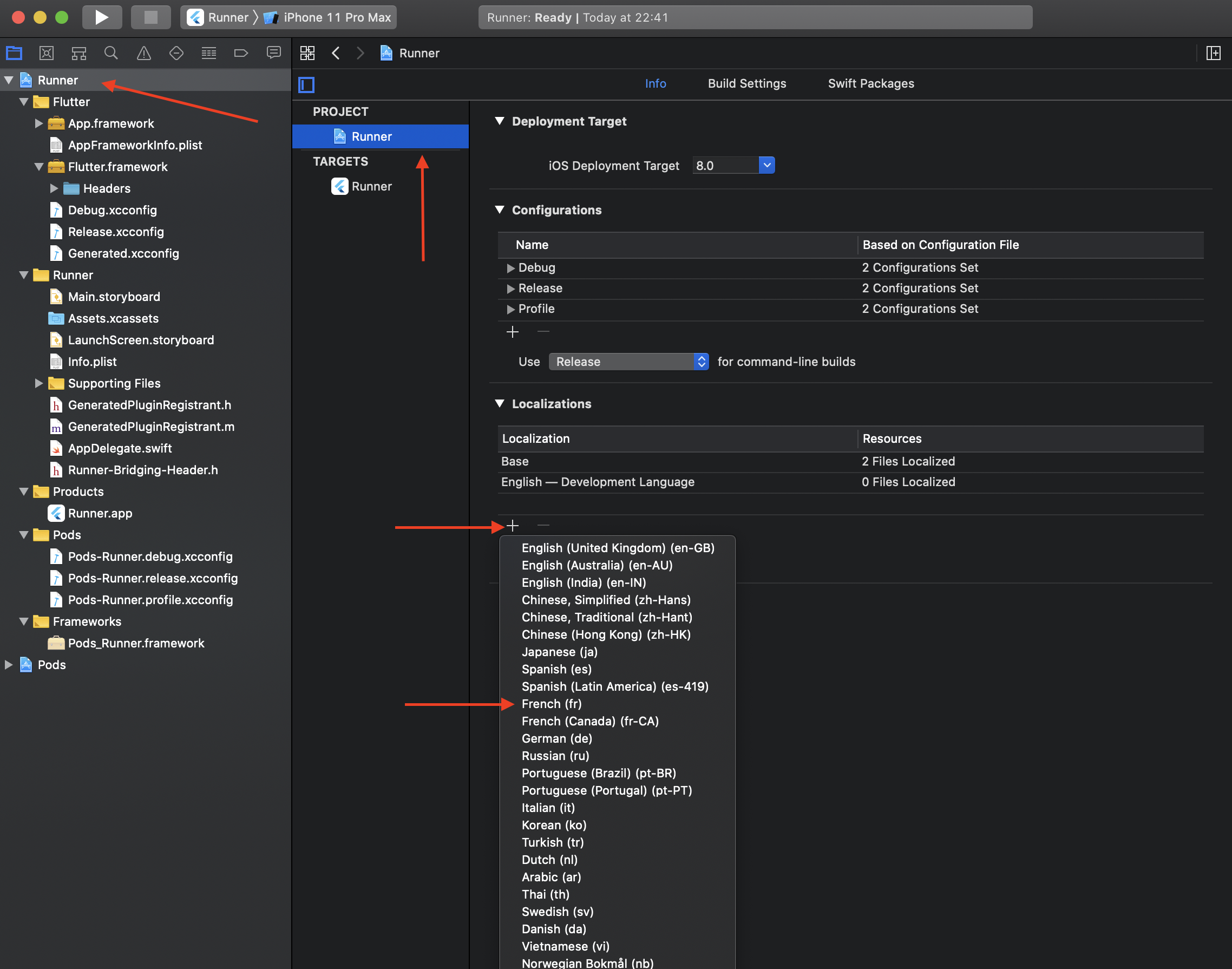
Localized system albums name
By default, iOS will retrieve system album names only in English
no matter what language has been set to devices.
To change the default language, see the following steps:
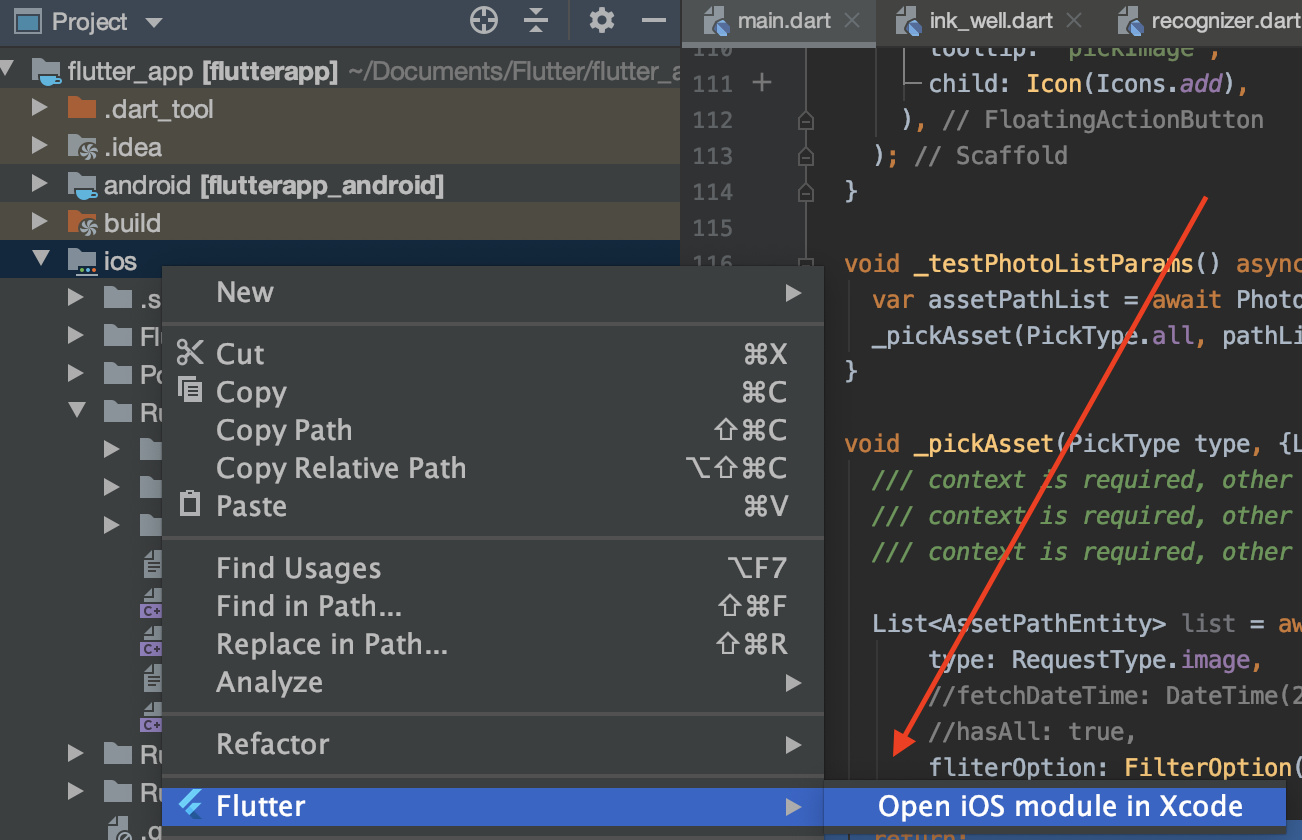
Open your iOS project (Runner.xcworkspace) using Xcode.
Select the project "Runner" and in the localizations table, click on the + icon.
Select the adequate language(s) you want to retrieve localized strings.
Validate the popup screen without any modification.
Rebuild your flutter project.
Now system albums label should display accordingly.
Note: Localize is not meant to customize albums name.
Experimental features
Warning: Features here aren't guaranteed to be fully usable
across platforms and OS versions,
since they involved with data modification.
They can be modified/removed in any time,
without following a proper version semantic.
Some APIs will make irreversible modification/deletion to data.
Please be careful and implement your own test mechanism when using them.
Preload thumbnails
You can preload thumbnails for entities with specified thumbnail options
using PhotoCachingManager.requestCacheAssets
or PhotoCachingManager.requestCacheAssetsWithIds.
And you can stop in anytime by calling
PhotoCachingManager().cancelCacheRequest().
Usually, when we're previewing assets, thumbnails will be loaded instantly.
But sometimes we want to preload assets to make them display faster.
The PhotoCachingManager uses the PHCachingImageManager on iOS,
and Glide's file cache on Android.
Delete entities
This method will delete the asset completely from your device.
Use it with extra caution.
// Deleted IDs will returned, if it fails, the result will be an empty list.finalList<String> result = awaitPhotoManager.editor.deleteWithIds(
<String>[entity.id],
);
After the deletion, you can call the refreshPathProperties method
to refresh the corresponding AssetPathEntity in order to get latest fields.
Copy an entity
You can use copyAssetToPath method to "Copy" an entity
from its current position to the targeting AssetPathEntity:
// Make sure your path entity is accessible.finalAssetPathEntity anotherPathEntity = anotherAccessiblePath;
finalAssetEntity entity = yourEntity;
finalAssetEntity? newEntity = awaitPhotoManager.editor.copyAssetToPath(
asset: entity,
pathEntity: anotherPathEntity,
); // The result could be null when the path is not accessible.
The "Copy" means differently here on Android and iOS:
For Android, it inserts a copy of the source entity:
On platforms <=28, the method will copy most of the origin info.
On platforms >=29, some fields cannot be modified during the insertion,
e.g. MediaColumns.RELATIVE_PATH.
For iOS, it makes a shortcut thing rather than create a new physical entity.
Some albums are smart albums, their content is automatically managed
by the system and cannot insert entities manually.
(For Android 30+, this feature is blocked by system limitations currently.)
Features for Android only
Move an entity to another album
// Make sure your path entity is accessible.finalAssetPathEntity pathEntity = accessiblePath;
finalAssetEntity entity = yourEntity;
awaitPhotoManager.editor.android.moveAssetToAnother(
entity: entity,
target: pathEntity,
);
(For Android 30+, this feature is blocked by system limitations currently.)
Remove all non-exist entities
This will remove all items (records) that's not existed locally.
A record in Android MediaStore could have the corresponding file deleted.
Those abnormal behaviors usually caused by operations from
file manager, helper tools or adb tool.
This operation is resource-consuming,
Please use the await keyword to call the cleaning process
before you call another one.
Some operating systems will prompt confirmation dialogs
for each entities' deletion, we have no way to avoid them.
Make sure you're using the correct method,
and your customers accept repeatedly confirmations.
The method supports Android 11 and above versions.
It will move the entities to trash.
Throws exception when calling on Android 11-.
Features for iOS or macOS
Create a folder
PhotoManager.editor.darwin.createFolder(
  name,
  parent: parent, // The value should be null, the root path or other accessible folders.
);
Create an album
PhotoManager.editor.darwin.createAlbum(
  name,
  parent: parent, // The value should be null, the root path or other accessible folders.
);
Remove the entity entry from the album
Remove the entry of the asset from the specific album.
The asset won't be deleted from the device, only removed from the album.
// Make sure your path entity is accessible.finalAssetPathEntity pathEntity = accessiblePath;
finalAssetEntity entity = yourEntity;
finalList<AssetEntity> entities = <AssetEntity>[yourEntity, anotherEntity];
// Remove single asset from the album.// It'll call the list method as the implementation.awaitPhotoManager.editor.darwin.removeInAlbum(
yourEntity,
accessiblePath,
);
// Remove assets from the album in batches.awaitPhotoManager.editor.darwin.removeAssetsInAlbum(
entities,
accessiblePath,
);
PhotoKit-specific reads are grouped under a .darwin accessor so the shared
entity classes stay lean. Accessing .darwin on a non-Darwin platform throws
an OSError, so guard with Platform (or only call it on iOS/macOS).
// Cloud identifiers are stable across devices sharing the same iCloud Photo// Library (iOS 15+/macOS 12+), unlike the per-device `AssetEntity.id`.finalString? cloudId = await entity.darwin.cloudIdentifier;
// Prefer the batch call when resolving many assets; it's far more efficient// than reading the getter in a loop. Returns a map keyed by localIdentifier.finalMap<String, String?> cloudIds =
awaitPhotoManager.plugin.getCloudIdentifiers(<String>[entity.id, ...]);
// Whether the asset has edits, plus the unedited base file.if (await entity.darwin.hasAdjustments) {
finalFile? base = await entity.darwin.baseFile();
}
// Parent folders containing an album/folder, for breadcrumb navigation.finalList<AssetPathEntity> parents = await path.darwin.getParentPathList();
Update an asset's creation date
Modify the creation date of an existing asset. Returns the updated
AssetEntity on success, or throws a StateError on failure.
iOS/macOS: updates PHAsset.creationDate.
Android Q (API 29)+: updates the MediaStore DATE_TAKEN field
(unsupported on API 28 and below).