패키지, 저장소 및 앱 카테고리 검색

패키지 상세v0.1.3

aad_b2c_webview

Azure AD B2C 사용자 흐름 엔드포인트에 액세스하기 위해 WebView를 내장하는 간단한 Flutter 패키지입니다.

30일 다운로드
694
좋아요
25
Pub 점수
110

패키지 설치

flutter pub add aad_b2c_webview

패키지 개요

공개 정보를 바탕으로 생성한 선택 가이드입니다.

Azure AD B2C와의 통합을 단순화하기 위해 사용자 흐름 엔드포인트에 액세스하기 위해 웹 뷰를 내장한 플러터 패키지입니다. 앱 내에서 회원가입, 로그인, 비밀번호 재설정과 같은 원활한 인증 흐름을 직접 지원합니다. 마이크로소프트의 아이덴티티 플랫폼을 사용하는 개발자를 위한 것으로, B2C 정책의 UI 렌더링을 네이티브 웹 뷰를 통해 처리하여 맞춤형 인증 로직의 필요성을 줄입니다. 이 패키지는 가볍고 플러터 앱과 Azure AD B2C 서비스 간의 간단한 다리 역할을 합니다.

사용 사례

  • Azure AD B2C 로그인 흐름 통합
  • B2C 정책을 통한 사용자 등록 활성화
  • 비밀번호 재설정 워크플로 지원
  • 모바일 앱에 B2C UI 삽입
  • 사용자 지정 인증 여정 처리

주요 기능

  • 간단한 웹 뷰 통합
  • B2C 사용자 흐름에 대한 직접 액세스
  • 최소한의 설정 필요
  • 보안 토큰 처리
  • Microsoft 식별 생태계를 위한 것

적합한 대상

  • Azure AD B2C를 사용하는 Flutter 앱
  • 보안 인증이 필요한 모바일 앱
  • B2C 정책에 익숙한 개발자
  • 기업용 앱을 개발하는 팀
  • 최소한의 사용자 정의 인증 코드가 필요한 프로젝트

고려 사항

  • 유효한 Azure AD B2C 구성이 필요합니다
  • 웹 뷰 기반 흐름에 제한됨
  • 내장된 토큰 지속성 없음
  • 외부 B2C 정책 URL에 의존
  • 완전한 네이티브 UI 인증에 적합하지 않음

원본 README

연결된 소스 저장소의 README 원문 스냅샷입니다. 최신 내용은 저장소에서 확인하세요.

Azure AD B2C Embedded Webview

Azure AD B2C Embedded Webview is a very simple Flutter package that demonstrates how to use the embedded web view to sign in users with Azure AD B2C. Currently, using Flutter packages - appAuth and flutter_azure_b2c redirects to browser and doesn't provide in-app experience.

This package embeds the web view of the user flow endpoint using flutter_appview and redirects the user as per onRedirect callback method.

📚 Features

  • Login Button
  • Webview Interaction
  • Flutter UI Customization
  • Dynamic Flutter Layout
  • Refresh Token

🚀 Getting started

To use the package in your Flutter app, add the following code to your main.dart file:

dependencies:
  aad_b2c_webview: <latest_version>

🛠️ Usage

Parameters

It is recommended to use env to save the keys securely

const aadB2CClientID = "<app-id>";
const aadB2CRedirectURL = "https://jwt.ms";
const aadB2CUserFlowName = "B2C_1_APPNAME_Signin";
const aadB2CScopes = ['openid', 'offline_access'];
const aadB2CTenantName = "<tenantName>";
const aadB2CUserAuthFlow = "https://$aadB2CTenantName.b2clogin.com/$aadB2CTenantName.onmicrosoft.com";
Where to find?
Configure parameters in the code
B2CWebViewParams params = B2CWebViewParams(
  responseType: Constants.defaultResponseType,
  tenantBaseUrl: aadB2CUserAuthFlow,
  clientId: aadB2CClientID,
  userFlowName: aadB2CUserFlowName,
  redirectUrl: aadB2CRedirectURL,
  scopes: aadB2CScopes,
  containsChallenge: true,
  isLoginFlow: true,
);
Send Optional Parameters

You have the flexibility to include optional parameters in order to customize the URL according to your specific requirements. The optionalParameters parameter allows you to pass a list of OptionalParam objects, where each object consists of a key and a value that represent the parameter name and its corresponding value, respectively.

Here's an example of how you can utilize the optionalParameters parameter to add new parameters to the URL:

optionalParameters: [
  OptionalParam(key: "parameter1", value: "value1"),
  OptionalParam(key: "parameter2", value: "value2"),
],

In the above example, we include two optional parameters: "parameter1" with the value "value1" and "parameter2" with the value "value2". You can include multiple OptionalParam objects within the list to incorporate multiple optional parameters in the URL.

These optional parameters provide you with the ability to customize the behavior of the URL and conveniently transmit additional information as per your needs.

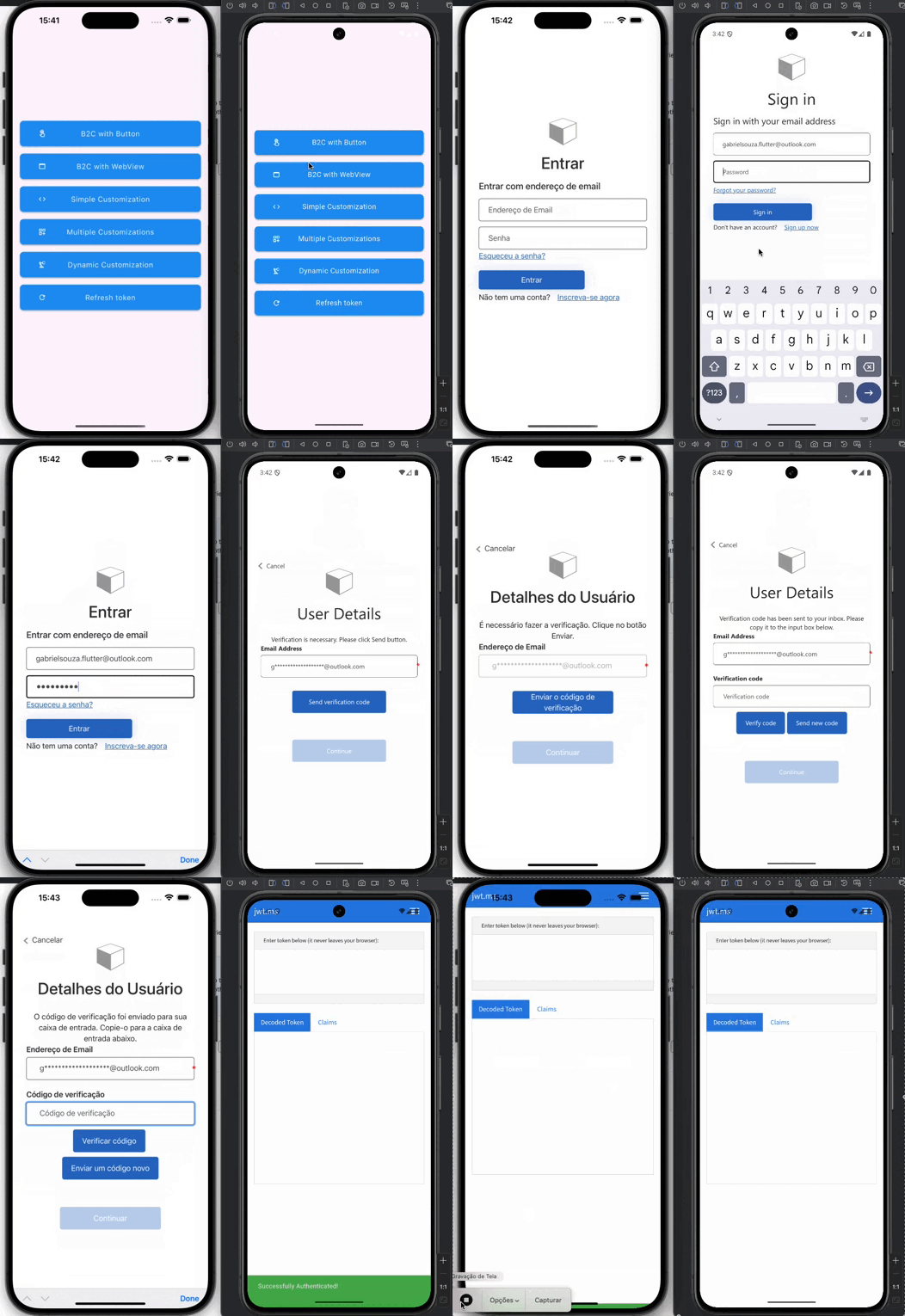
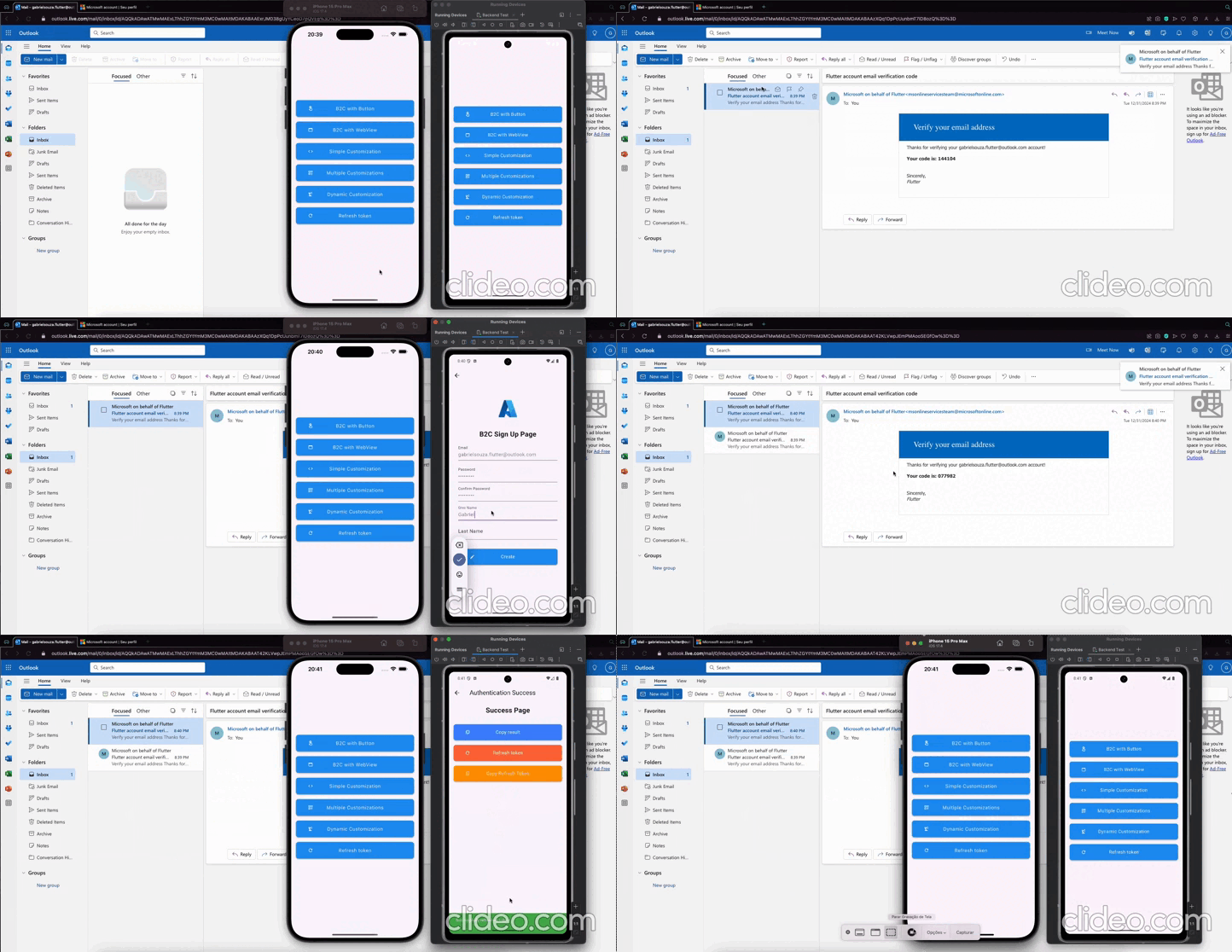
Login Button

To add the easy to use sign in with microsoft button simply use the AADB2CBase.button widget and a beautiful sign in button appears as shown below.

Configuration

Add the following /android/app/src/main/AndroidManifest.xml inside the tags:

<meta-data android:name="flutter_deeplinking_enabled" android:value="true" />
<intent-filter android:autoVerify="true">
<action android:name="android.intent.action.VIEW" />
<category android:name="android.intent.category.DEFAULT" />
<category android:name="android.intent.category.BROWSABLE" />
<data android:scheme="https" android:host="myurl.com" />
</intent-filter>
  • Add it to the redirect URL in the Azure AD B2C project. If you prefer, you can change the redirect URL in our Flutter code to yours (change it in the Azure AD B2C portal too)
Example
import 'package:aad_b2c_webview/aad_b2c_webview.dart';
import 'package:flutter/material.dart';

class B2CWithButton extends StatelessWidget {
  final B2CWebViewParams params;
  const B2CWithButton({super.key, required this.params});

  @override
  Widget build(BuildContext context) {
    return Scaffold(
      appBar: AppBar(),
      body: SafeArea(
        child: Padding(
          padding: const EdgeInsets.all(16.0),
          child: Column(
            mainAxisAlignment: MainAxisAlignment.center,
            children: [
              const Text(
                'Azure B2C Button',
                style: TextStyle(
                  fontSize: 24.0,
                  fontWeight: FontWeight.bold,
                ),
              ),
              const SizedBox(height: 16.0),
              AADB2CBase.button(
                params: params,
                settings: ButtonSettingsEntity(
                  onError: _onError,
                  onSuccess: _onSuccess,
                  onKeepLoading: _onKeepLoading,
                ),
              ),
            ],
          ),
        ),
      ),
    );
  }

  _onSuccess(
      BuildContext context,
      accessToken,
      idToken,
      refreshToken,
      ) {
    var snackBar = const SnackBar(
      content: Text('Successfully Authenticated!'),
      backgroundColor: Colors.green,
    );
    ScaffoldMessenger.of(context).showSnackBar(snackBar);
  }

  _onError(BuildContext context, String? error) {
    var snackBar = SnackBar(
      content: Text(error ?? ''),
      backgroundColor: Colors.redAccent,
    );
    ScaffoldMessenger.of(context).showSnackBar(snackBar);
  }

  bool _onKeepLoading(String? url) =>
      url?.startsWith(params.redirectUrl) ?? false;
}

Click here to access the full example

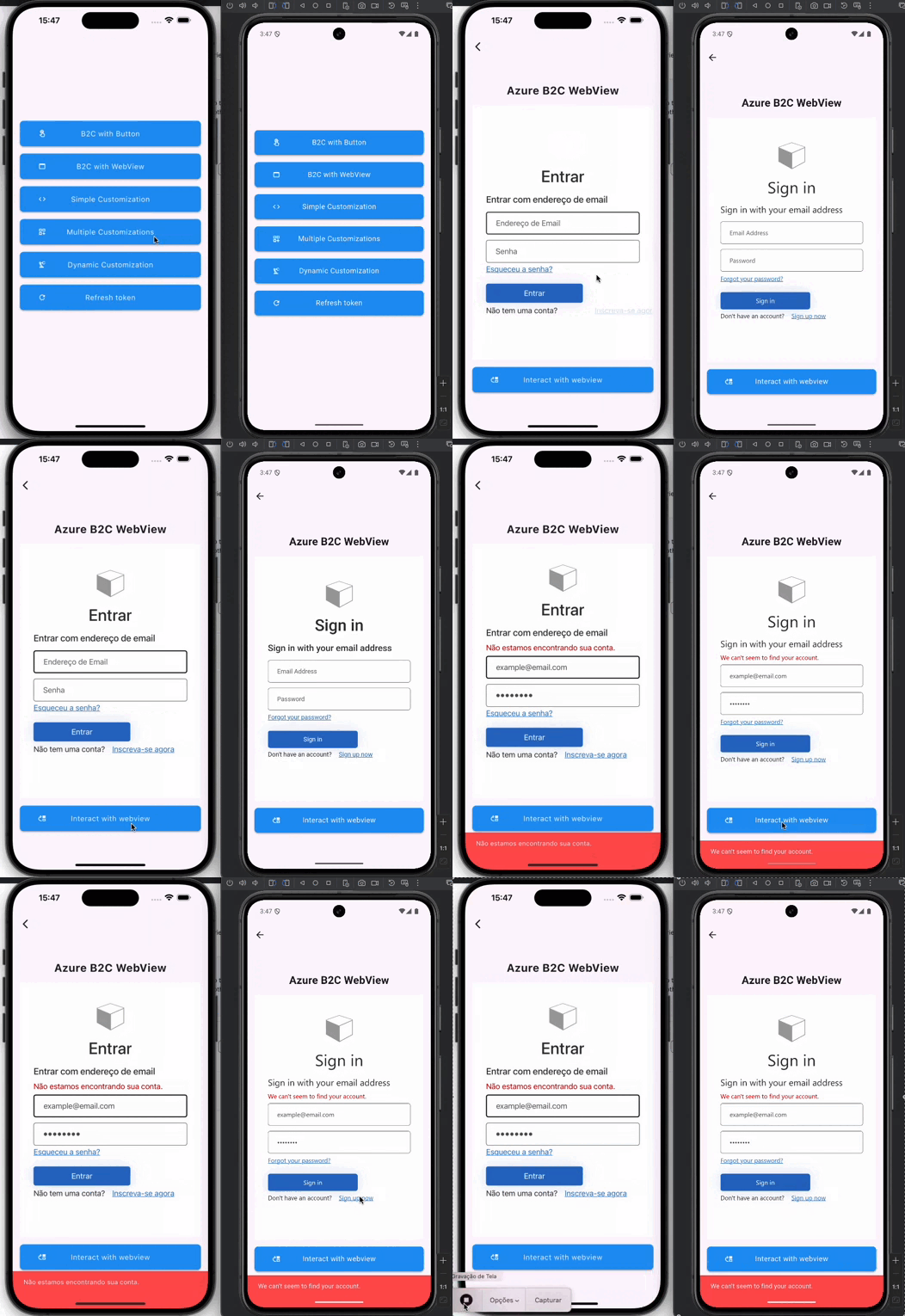
Webview Interaction

Custom build sign in button to call web view page

Example
import 'dart:developer';
import 'package:aad_b2c_webview/aad_b2c_webview.dart';
import 'package:flutter/foundation.dart';
import 'package:flutter/material.dart';
import 'widgets/button_widget.dart';

class B2CWithWebView extends StatefulWidget {
  final B2CWebViewParams params;
  const B2CWithWebView({super.key, required this.params});

  @override
  State<B2CWithWebView> createState() => _B2CWithWebViewState();
}

class _B2CWithWebViewState extends State<B2CWithWebView> {
  ActionController? _controller;

  @override
  Widget build(BuildContext context) {
    return Scaffold(
      appBar: AppBar(),
      resizeToAvoidBottomInset: false,
      body: SafeArea(
        child: Padding(
          padding: const EdgeInsets.symmetric(horizontal: 16.0),
          child: Column(
            mainAxisAlignment: MainAxisAlignment.center,
            children: [
              const Center(
                child: Text(
                  'Azure B2C WebView',
                  style: TextStyle(
                    fontSize: 24.0,
                    fontWeight: FontWeight.bold,
                  ),
                ),
              ),
              const SizedBox(height: 16.0),
              SizedBox(
                height: MediaQuery.sizeOf(context).height * 0.6,
                width: MediaQuery.sizeOf(context).width,
                child: AADB2CBase.webview(
                  params: widget.params,
                  settings: WebViewSettingsEntity(
                    onError: _onError,
                    onSuccess: _onSuccess,
                    controllerBuilder: (
                      BuildContext context,
                      ActionController action,
                    ) => _controller = action,
                  ),
                ),
              ),
              const SizedBox(height: 16.0),
              ButtonWidget(
                onTap: () async {
                  try {
                    await _controller?.insertAndClick(
                      listIdValue: [
                        ActionEntity(id: 'email', value: 'example@email.com'),
                        ActionEntity(id: 'password', value: '12345678'),
                      ],
                      buttonId: 'next',
                    );
                  } catch (error, trace) {
                    if (kDebugMode) log('Error: $error', stackTrace: trace);
                  }
                },
                title: 'Interact with webview',
                icon: Icons.move_up_outlined,
              ),
            ],
          ),
        ),
      ),
    );
  }

  _onSuccess(
    BuildContext context,
    accessToken,
    idToken,
    refreshToken,
  ) {
    var snackBar = const SnackBar(
      content: Text('Successfully Authenticated!'),
      backgroundColor: Colors.green,
    );
    ScaffoldMessenger.of(context).showSnackBar(snackBar);
  }

  _onError(BuildContext context, String? error) {
    var snackBar = SnackBar(
      content: Text(error ?? ''),
      backgroundColor: Colors.redAccent,
    );
    ScaffoldMessenger.of(context).showSnackBar(snackBar);
  }
}

Click here to access the full example

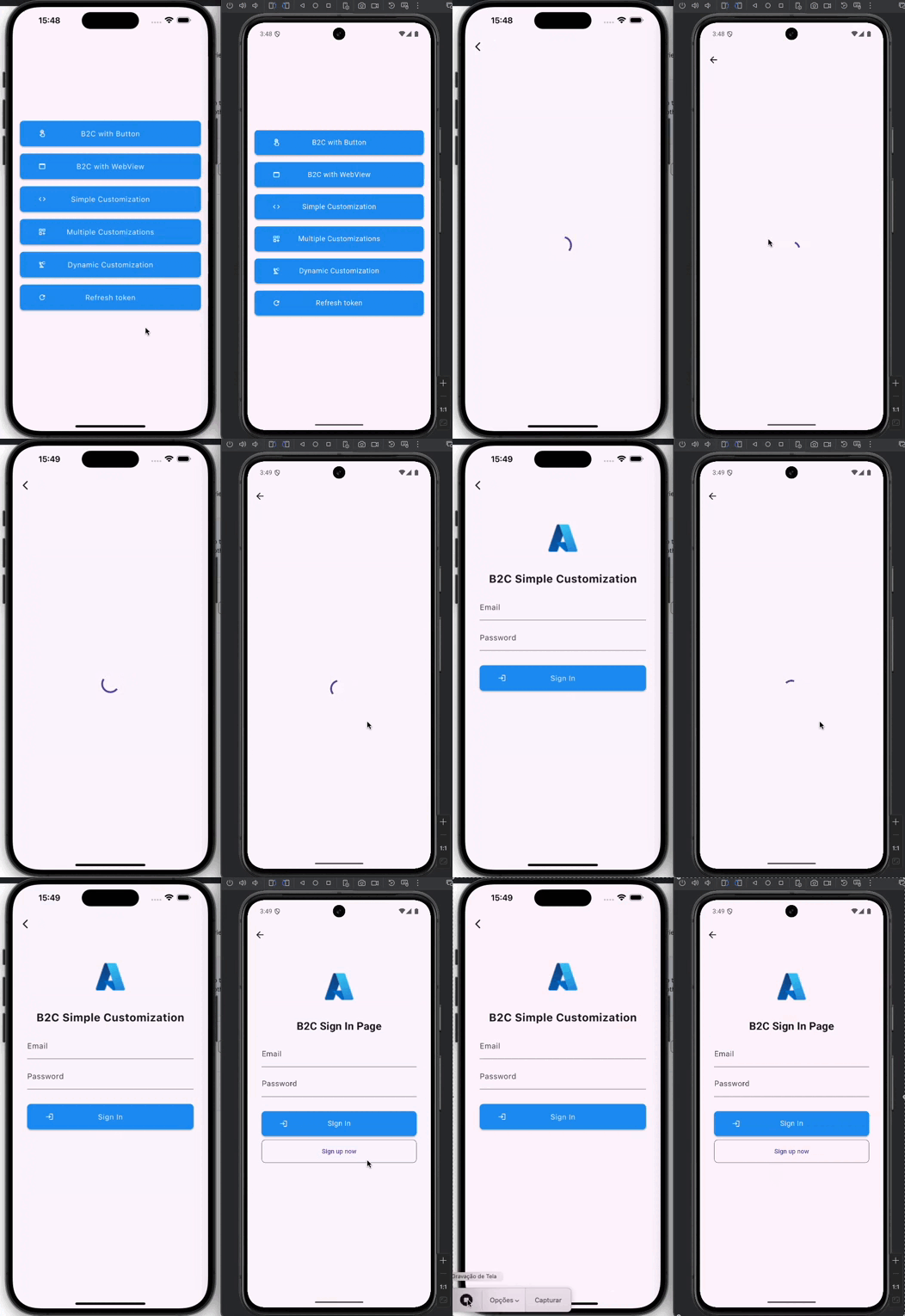
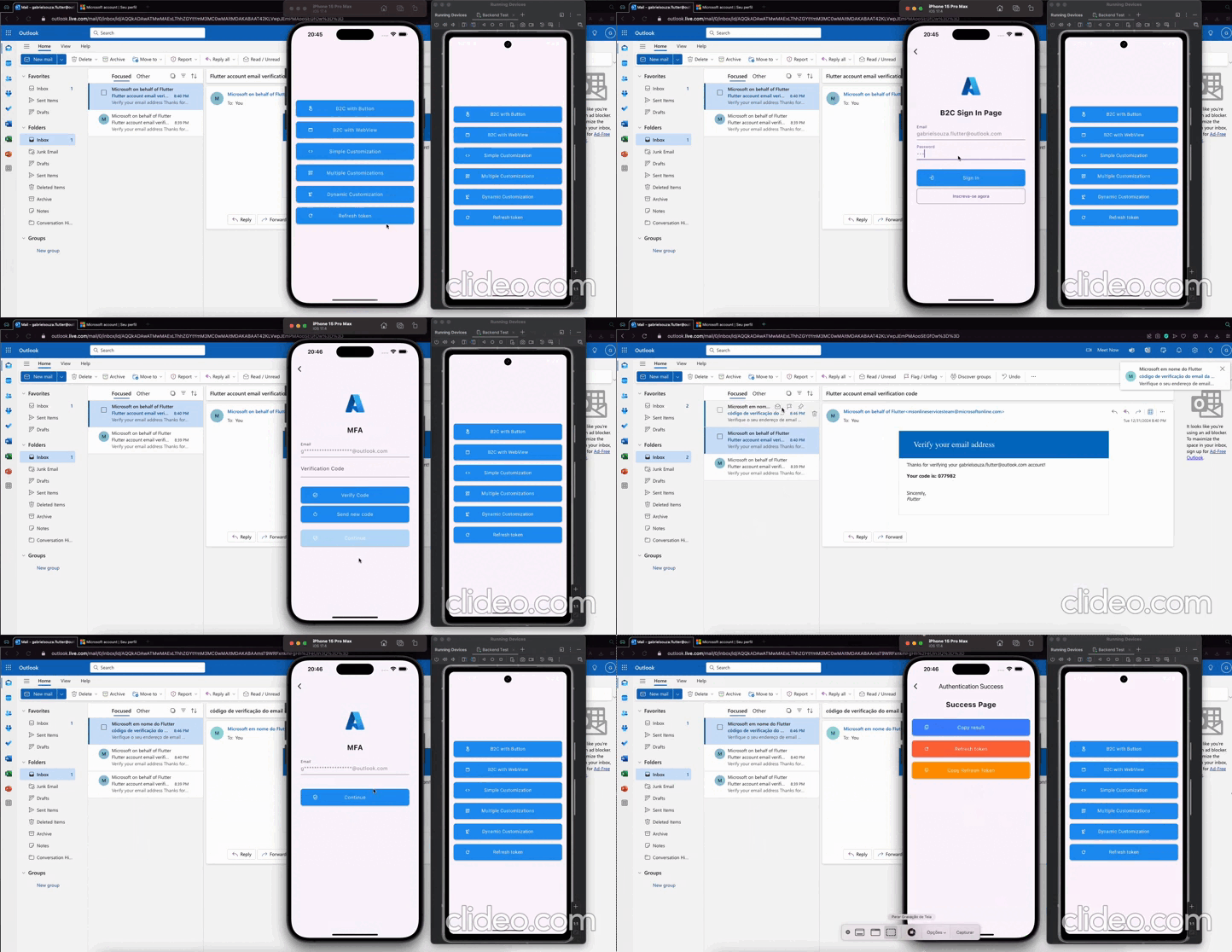
Flutter UI Customization

Get all the power of Flutter/Dart to customize the layout of Azure authentication screens

Sign In

Sign Up & Sign In & MFA

Full Examples

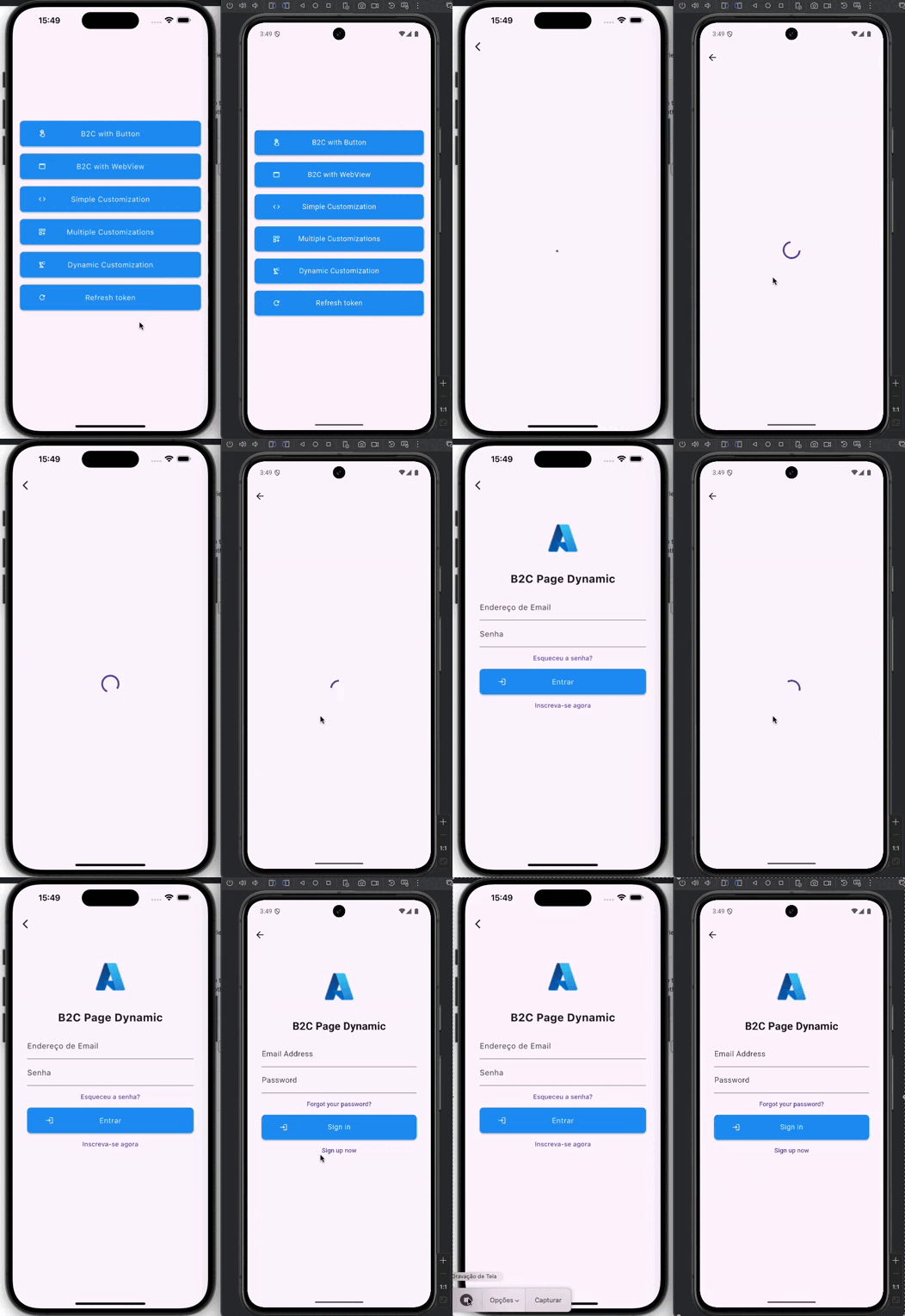
Dynamic Flutter Layout

Convert layout to flutter automatically

Example
import 'package:aad_b2c_webview/aad_b2c_webview.dart';
import 'package:example/core/commons.dart';
import 'package:flutter/material.dart';
import 'widgets/button_widget.dart';

class B2CWithDynamicCustomization extends StatefulWidget {
  final B2CWebViewParams params;
  const B2CWithDynamicCustomization({super.key, required this.params});

  @override
  State<B2CWithDynamicCustomization> createState() =>
      _B2CWithDynamicCustomizationState();
}

class _B2CWithDynamicCustomizationState
    extends State<B2CWithDynamicCustomization> {
  @override
  Widget build(BuildContext context) {
    return Scaffold(
      appBar: AppBar(),
      body: Scaffold(
        body: AADB2CBase.custom(
          params: widget.params,
          settings: CustomSettingsEntity(
            onError: (BuildContext context, String? error) {
              setState(() => _isLoading = false);
              var snackBar = SnackBar(
                content: Text(error ?? ''),
                backgroundColor: Colors.redAccent,
              );
              ScaffoldMessenger.of(context).showSnackBar(snackBar);
            },
            onSuccess: (context, accessToken, idToken, refreshToken) async {
              setState(() => _isLoading = false);
              var snackBar = const SnackBar(
                content: Text('Successfully Authenticated!'),
                backgroundColor: Colors.green,
              );
              ScaffoldMessenger.of(context).showSnackBar(snackBar);
            },
            pageBuilder: (_, __, controller, List<HtmlParseEntity>? htmlItems) {
              return Padding(
                padding: const EdgeInsets.all(32.0),
                child: Form(
                  key: _formKey,
                  child: CustomScrollView(
                    slivers: [
                      defaultImage(),
                      buildTitle('B2C Page Dynamic'),
                      SliverList.builder(
                        itemCount: htmlItems?.length ?? 0,
                        itemBuilder: (BuildContext context, int index) {
                          final item = htmlItems?[index];
                          if (item?.type == null) return const SizedBox();
                          return switch (item!.type) {
                            HtmlParseType.input => _inputBuilder(item),
                            HtmlParseType.button => _button(
                                controller,
                                item,
                                false,
                              ),
                            HtmlParseType.a => _button(
                                controller,
                                item,
                                true,
                              ),
                            HtmlParseType.none => const SizedBox(),
                          };
                        },
                      ),
                    ],
                  ),
                ),
              );
            },
          ),
        ),
      ),
    );
  }

  bool _isLoading = false;
  final GlobalKey<FormState> _formKey = GlobalKey<FormState>();
  final TextEditingController _emailController = TextEditingController();
  final TextEditingController _passwordController = TextEditingController();

  Widget _inputBuilder(HtmlParseEntity params) {
    return TextFormField(
      controller: TextEditingController(),
      enabled: !_isLoading,
      decoration: InputDecoration(
        labelText: params.name,
      ),
      keyboardType: TextInputType.text,
    );
  }

  Widget _button(
    ActionController controller,
    HtmlParseEntity params,
    bool isLink,
  ) {
    onTap() async {
      if (_formKey.currentState?.validate() ?? false) {
        setState(() => _isLoading = true);
        String email = _emailController.text.trim();
        String password = _passwordController.text.trim();
        await controller.insertAndClick(
          listIdValue: [
            ActionEntity(id: 'email', value: email),
            ActionEntity(id: 'password', value: password),
          ],
          buttonId: 'next',
        );
      }
    }

    if (_isLoading) return _buildLoading();
    if (isLink) {
      return TextButton(
        onPressed: onTap,
        child: Text(
          params.textContent,
          style: const TextStyle(
            decorationStyle: TextDecorationStyle.solid,
          ),
        ),
      );
    }
    return ButtonWidget(
      title: params.textContent,
      icon: Icons.login_outlined,
      onTap: onTap,
    );
  }

  Widget _buildLoading() {
    return const Column(
      mainAxisAlignment: MainAxisAlignment.center,
      crossAxisAlignment: CrossAxisAlignment.center,
      children: [
        CircularProgressIndicator(),
      ],
    );
  }
}

Click here to access the full example

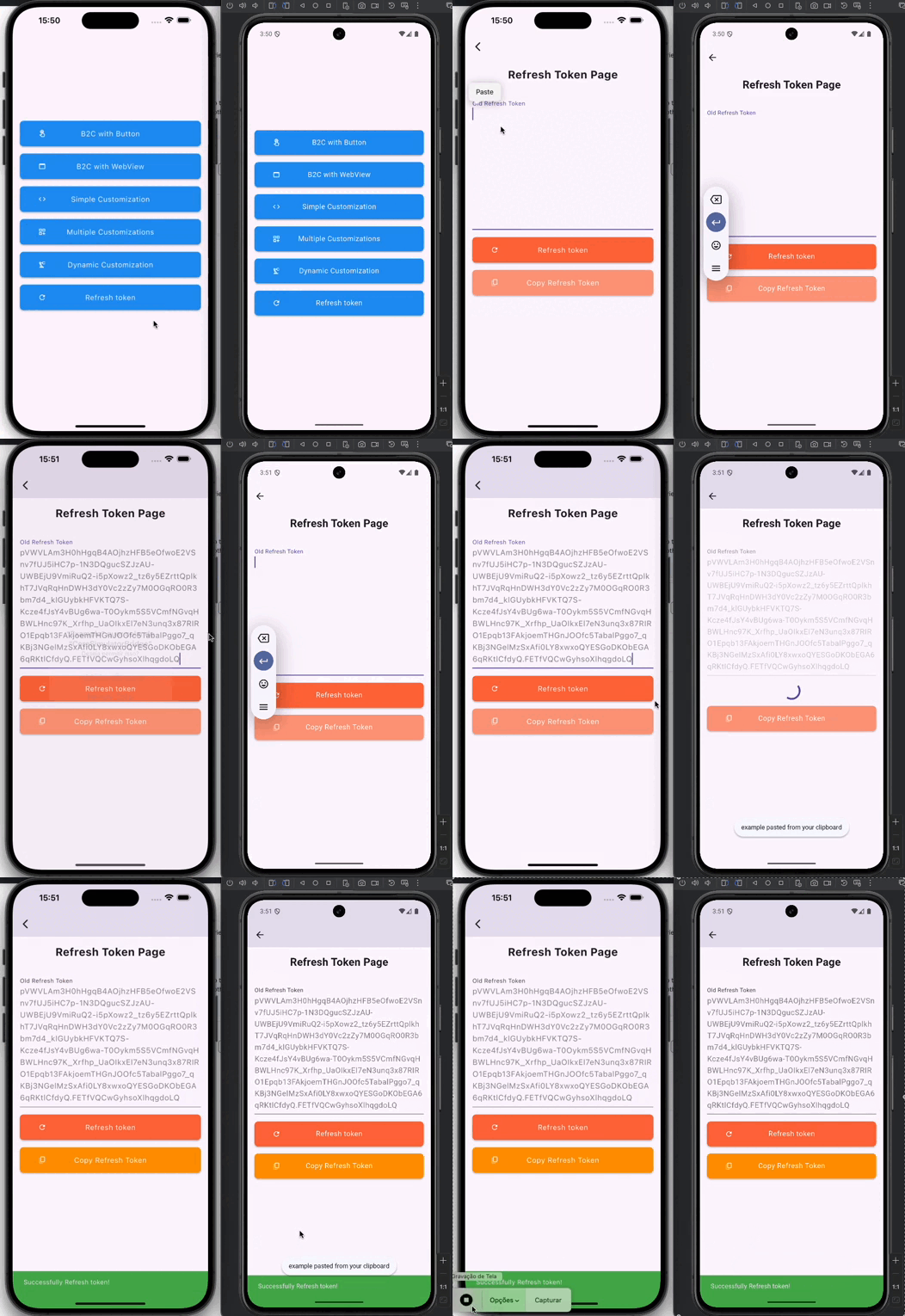
Refresh Token

Use the code below to refresh the token

Example
await controller.refreshToken(
  B2CAuthEntity(
    refreshToken: _refreshTokenController.text.trim(),
    userFlowName: aadB2CUserFlowName,
    tenantBaseUrl: aadB2CUserAuthFlow,
    clientId: aadB2CClientID,
  ),
);

Click here to access the full example

카테고리

의존성

의존성 목록 7 개

  • get_it^7.7.0
  • http^1.2.2
  • pkce^1.1.0+1
  • webview_flutter^4.10.0
  • webview_flutter_android^4.2.0
  • webview_flutter_platform_interface^2.10.0
  • webview_flutter_wkwebview^3.18.4

소스 저장소

이 패키지를 사용하는 프로젝트

아직 데이터가 없습니다.