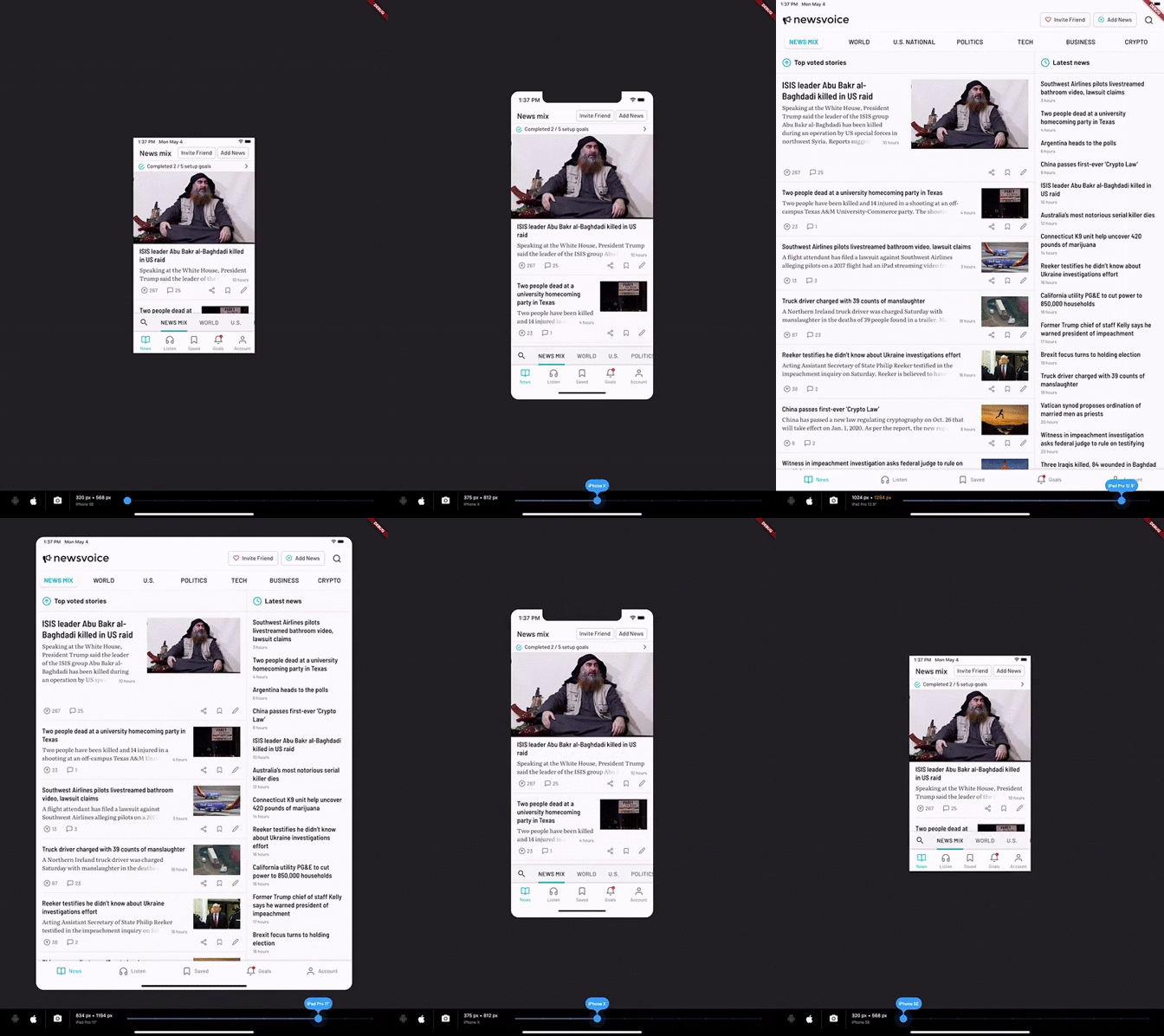
DeviceSimulator는 개발자가 개발 환경 내에서 다양한 화면 해상도 및 플랫폼에서 애플리케이션을 테스트할 수 있도록 해주는 Flutter 패키지입니다. 다양한 디바이스를 시뮬레이션할 수 있는 사용하기 쉬운 인터페이스를 제공하여 반응형 디자인과 일관된 사용자 경험을 보장합니다. 물리적 디바이스나 복잡한 설정 없이 동적 미리보기 조정을 지원합니다. UI 개발 중 빠른 반복에 이상적이며, 실제 디바이스 행동을 모방함으로써 테스트 효율성을 높입니다.
사용 사례
반응형 레이아웃 테스트
여러 기기에서 앱의 외관 미리보기
화면 크기에 걸쳐 UI 일관성 검증
빠른 UI 프로토타이핑
크로스 플랫폼 호환성 검사
레이아웃 문제 디버깅
주요 기능
실시간 장치 시뮬레이션
다양한 화면 해상도 지원
Flutter 프로젝트에의 간편한 통합
동적 미리보기 업데이트
필수 구성 최소화
플랫폼 독립적 설계
적합한 대상
UI/UX에 집중하는 플러터 개발자
다양한 기기에서의 테스트를 우선시하는 팀
초보자가 반응형 디자인 배우기
원격 개발 워크플로우
여러 기기 유형을 대상으로 하는 앱
고려 사항
실제 하드웨어 동작을 시뮬레이션하지 않습니다
시각적 미리보기만 가능하며, 전체 기능 테스트는 불가능
런타임 성능 메트릭 없음
레이아웃 변경 시 수동 새로 고침 필요
물리적 장치 테스트의 대체가 아님
원본 README
연결된 소스 저장소의 README 원문 스냅샷입니다. 최신 내용은 저장소에서 확인하세요.
DeviceSimulator
DeviceSimulator allows you to easily test your Flutter app for different screen resolutions and platforms. If you use this package, please consider downloading the Newsvoice app and giving us a five star review. Thanks!
With DeviceSimulator you will be able to get a quick look at what your app would look like on all iOS / iPadOS devices and a selection of common Android devices. In addition, there is a screenshot mode that makes it really easy to take screens in different resolutions for App Store and Google Play.
Getting Started
This project was born out of the frustration of testing apps on multiple devices to make sure that the layout looked good in all resolutions. DeviceSimulator will let you quickly emulate different device types. It works best if you run it on an iPad Pro, but it also works well on the iOS Simulator and smaller tablets.
To learn more about designing for multiple resolutions, check out the Medium article that I wrote on the topic.
Add DeviceSimulator to your widget tree
It's really easy to add DeviceSimulator to your app. Simply add it to the root of your widget tree, right under your App widget. Build the rest of the widget tree as you would normally do. This is a minimal example:
Hero animations may be broken while having the DeviceSimulator enabled. It will not affect the production ready app.
It's currently only possible to use the home route of MaterialApp. To get around this limitation, you can place another Navigator as a child to MaterialApp.
Caveats
I built DeviceSimulator for my own needs and it's working great for me, but it's not heavily tested and provided as is. Feedback and pull requests are most welcome.