Flutter Animate는 Flutter 앱에 부드럽고 사용자 정의 가능한 애니메이션 및 애니메이션 빌더를 추가하기 위한 간단하고 통합된 API를 제공합니다. 페이드, 슬라이드, 스케일 등 다양한 효과를 지원하며, 사용하기 쉬운 문법과 유연한 구성 옵션을 제공합니다. 미세하거나 드라마틱한 전환을 통해 UI를 강화하는 데 이상적이며, Android, iOS, Web, macOS, Windows, Linux 등 주요 플랫폼에서 모두 작동합니다. 복잡한 코드나 반복적인 보일러플레이트 없이 풍부한 애니메이션을 구현하고 싶은 개발자를 위해 설계되었습니다.
사용 사례
위젯에 입구 애니메이션 추가하기
인터랙티브 버튼 피드백 만들기
애니메이션 목록 및 스크롤 효과
동적 스플래시 화면 만들기
양식 전환 향상
주요 기능
통합 애니메이션 API
사용자 정의 가능한 시간 및 곡선
다양한 애니메이션 유형 지원
내장 애니메이션 빌더
크로스 플랫폼 호환성
기존 위젯과의 간편한 통합
적합한 대상
시각적 완성도를 추구하는 UI 디자이너
인터랙티브 앱을 개발하는 개발자
일관된 애니메이션 패턴을 원하는 팀
Flutter 애니메이션을 배우는 초보자
경량 애니메이션 솔루션이 필요한 프로젝트
고려 사항
패키지 크기가 약간 증가할 수 있습니다
중첩 애니메이션의 성능 영향
기본 애니메이션 개념에 대한 이해가 필요합니다
기본 AnimationController에 비해 고급 제어 기능이 제한됨
중간 정도의 애니메이션 복잡도와 함께 사용하는 것이 가장 좋습니다
원본 README
연결된 소스 저장소의 README 원문 스냅샷입니다. 최신 내용은 저장소에서 확인하세요.
Flutter Animate
A performant library that makes it simple to add almost any kind of animated
effect in Flutter.
Pre-built effects like fade, scale, slide, align, flip, blur, shake,
shimmer, shadows, crossfades, follow path, and color effects (saturation,
color, and tint)
Apply animated GLSL fragment shaders to widgets
Easy custom effects and simplified animated builders
Synchronize animations to scroll, notifiers, or anything
Integrated events
All via a simple, unified API without fussing with AnimationController and
StatefulWidget.
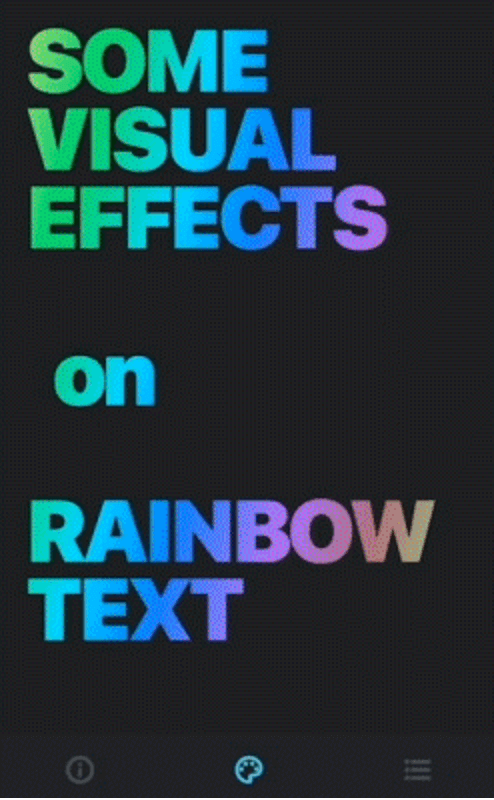
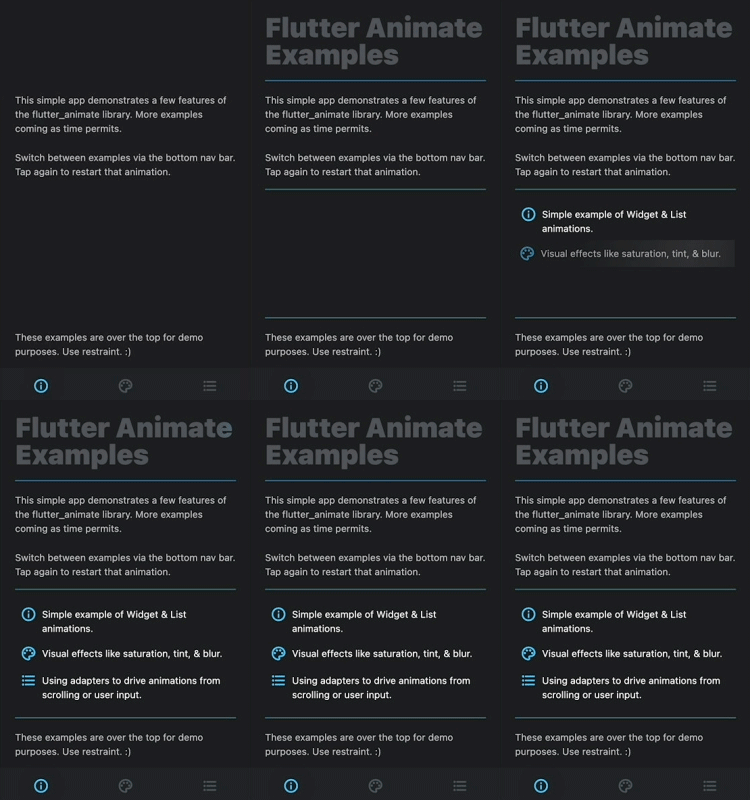
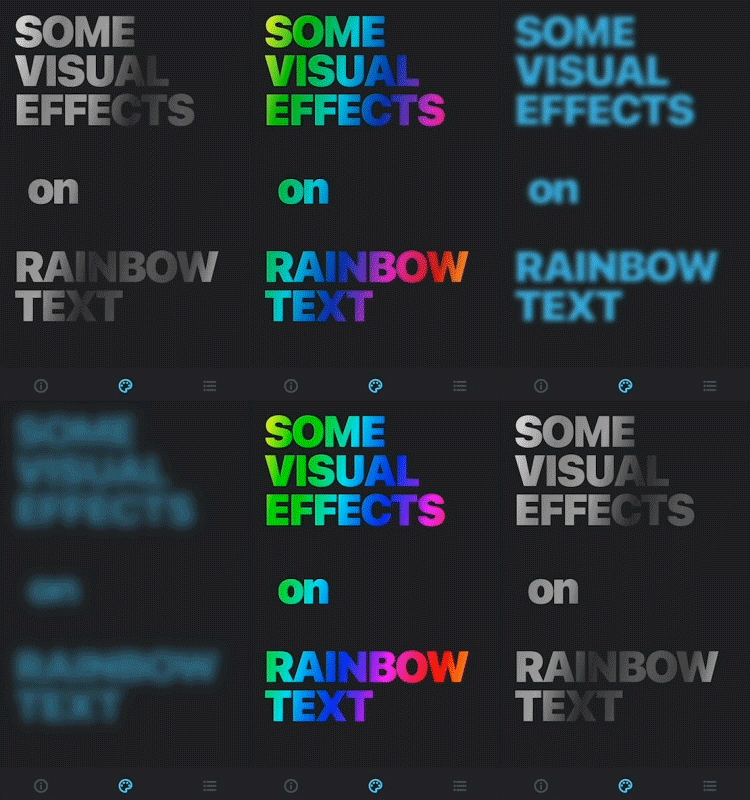
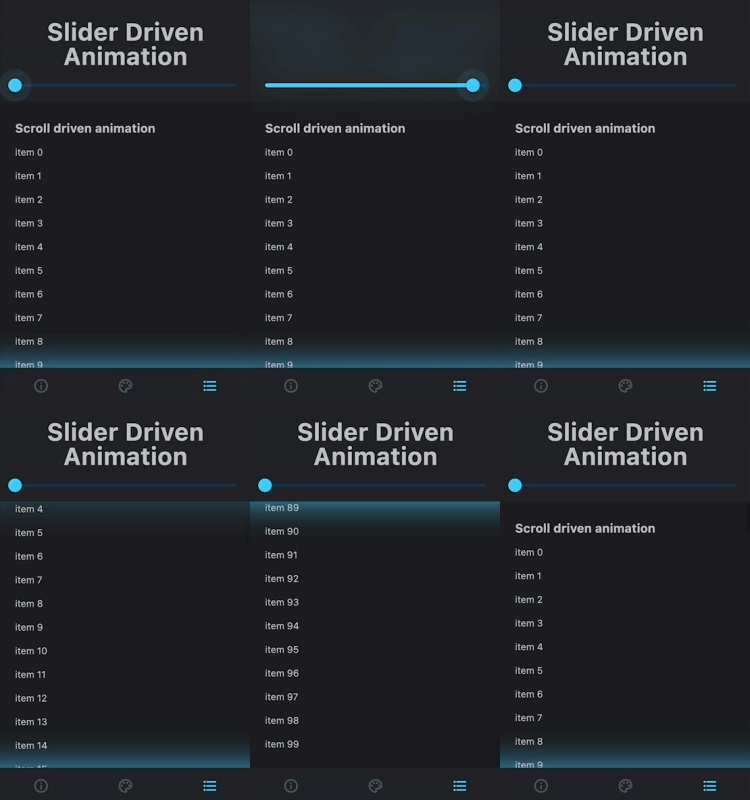
Above: The included example app.
Duration extensions
Extension methods for num, to make specifying durations easier. For example:
2.seconds, 0.1.minutes, or 300.ms.
AnimatedController extensions
A loop extension method for AnimatedController which is identical to
repeat, but adds a count parameter to specifiy how many times to play.
Basics
Syntax
To apply effects, wrap the target widget in Animate, and specify a list of
effects:
It also adds an .animate() extension method to all widgets, which wraps the
widget in Animate(). Each effect also adds a chainable extension method to
Animate to enable a shorthand syntax:
Text("Hello World!").animate().fade().scale()
NOTE: The shortform style is used in this README, but all functionality is
available in either format.
Delay, duration, curve
Effects have optional delay, duration, and curve parameters. Effects run
in parallel, but you can use a delay to run them sequentially:
Text("Hello").animate()
  .fade(duration: 500.ms)
  .scale(delay: 500.ms) // runs after fade.
Note that effects are "active" for the duration of the full animation, so for
example, two fade effects on the same target can have unexpected results
(SwapEffect detailed below, can help address this).
If not specified (or null), these values are inherited from the previous effect,
or from Animate.defaultDuration and Animate.defaultCurve if it is the first
effect:
Text("Hello World!").animate()
  .fadeIn() // uses `Animate.defaultDuration`
  .scale() // inherits duration from fadeIn
  .move(delay: 300.ms, duration: 600.ms) // runs after the above w/new duration
  .blurXY() // inherits the delay & duration from move
Animate has its own delay parameter, which defines a delay before the
animation begins playing. Unlike the delay on an Effect, it is only applied
once if the animation repeats.
Text("Hello").animate(
    delay: 1000.ms, // this delay only happens once at the very start
    onPlay: (controller) => controller.repeat(), // loop
  ).fadeIn(delay: 500.ms) // this delay happens at the start of each loop
Other Effect Parameters
Most effects include begin and end parameters, which specify the start/end
values. These are usually "smart" in the sense that if only one is specified
then the other will default to a "neutral" value (ie. no visual effect). If
both are unspecified the effect should use visually pleasing defaults.
// an opacity of 1 is "neutral"Text("Hello").animate().fade() // begin=0, end=1Text("Hello").animate().fade(begin: 0.5) // end=1Text("Hello").animate().fade(end: 0.5) // begin=1
Many effects have additional parameters that influence their behavior. These
should also use pleasant defaults if unspecified.
ThenEffect is a special convenience "effect" that makes it easier to sequence
effects. It does this by establishing a new baseline time equal to the previous
effect's end time and its own optional delay. All subsequent effect delays are
relative to this new baseline.
In the following example, the slide would run 200ms after the fade ended.
Because Effect instances are immutable, they can be reused. This makes it easy
to create a global collection of effects that are used throughout your app and
updated in one place. This is also useful for design systems.
It is easy to write new resuable effects by extending Effect, but you can also
easily create one-off custom effects by using CustomEffect, ToggleEffect,
and SwapEffect.
CustomEffect
CustomEffect lets you build custom animated effects. Simply specify a
builder function that accepts a context, value, and child. The child is
the target of the animation (which may already have been wrapped in other
effects).
For example, this would add a background behind the text and fade it from red to
blue:
Text("Hello World").animate().custom(
  duration: 300.ms,
  builder: (context, value, child) => Container(
    color: Color.lerp(Colors.red, Colors.blue, value),
    padding: EdgeInsets.all(8),
    child: child, // child is the Text widget being animated
  )
)
By default it provides a value from 0-1 (though some curves can generate
values outside this range), based on the current time, duration, and curve. You
can also specify begin and end values as demonstrated in the example below.
Animate can be created without a child, so you use CustomEffect as a
simplified builder. For example, this would build text counting down from 10,
and fading out:
ToggleEffect also provides builder functionality, but instead of a double,
it provides a boolean value equal to true before the end of the effect and
false after (ie. after its duration).
This can also be useful for creating sequential effects, by swapping the target
widget back in, effectively wiping all previous effects:
text.animate().fadeOut(300.ms) // fade out & then...// swap in original widget & fade back in via a new Animate:
.swap(builder: (_, child) => child.animate().fadeIn())
ShaderEffect
ShaderEffect makes it easy to apply animated GLSL fragment shaders to widgets.
See the docs for details.
myWidget.animate()
  .shader(duration: 2.seconds, shader: myShader)
  .fadeIn(duration: 300.ms) // shader can be combined with other effects
Events & callbacks
Animate includes the following callbacks:
onInit: the internal AnimationController has been initialized
onPlay: the animation has started playing after any Animate.delay
onComplete: the animation has finished
These callbacks return the AnimationController, which can be used to
manipulate the animation (ex. repeat, reverse, etc).
The above example works, because the listen effect inherits duration and curve
from the fade, and both use begin=0, end=1 by default.
Adapters and Controllers
By default, all animations are driven by an internal AnimationController, and
update based on elapsed time. For more control, you can specify your own
external controller, or use an adapter. You can also set autoPlay=false if
you want to start the animation manually.
Adapters synchronize the AnimationController to an external source. For
example, the ScrollAdapter updates an animation based on a ScrollController
so you can run complex animations based on scroll interactions.
You still define animations using durations, but the external source must
provide a 0-1 value.
Flutter Animate ships with a collection of useful adapters. Check them out for
more information.
Reacting to State Changes
Animate can react to state changes similar to "Animated" widgets (ex.
AnimatedOpacity). Simply set up your animation normally, but set a target
value. When the value of target changes, it will automatically animate to the
new target position (where 0 is the beginning and 1 is the end).
For example, combined with logic that toggles _over via setState, this will
fade and scale the button on roll over:
You can also update the value property to jump to that position.
Testing Animations
When testing animations, you can set Animate.restartOnHotReload=true which
will cause all animations to automatically restart every time you hot reload
your app.