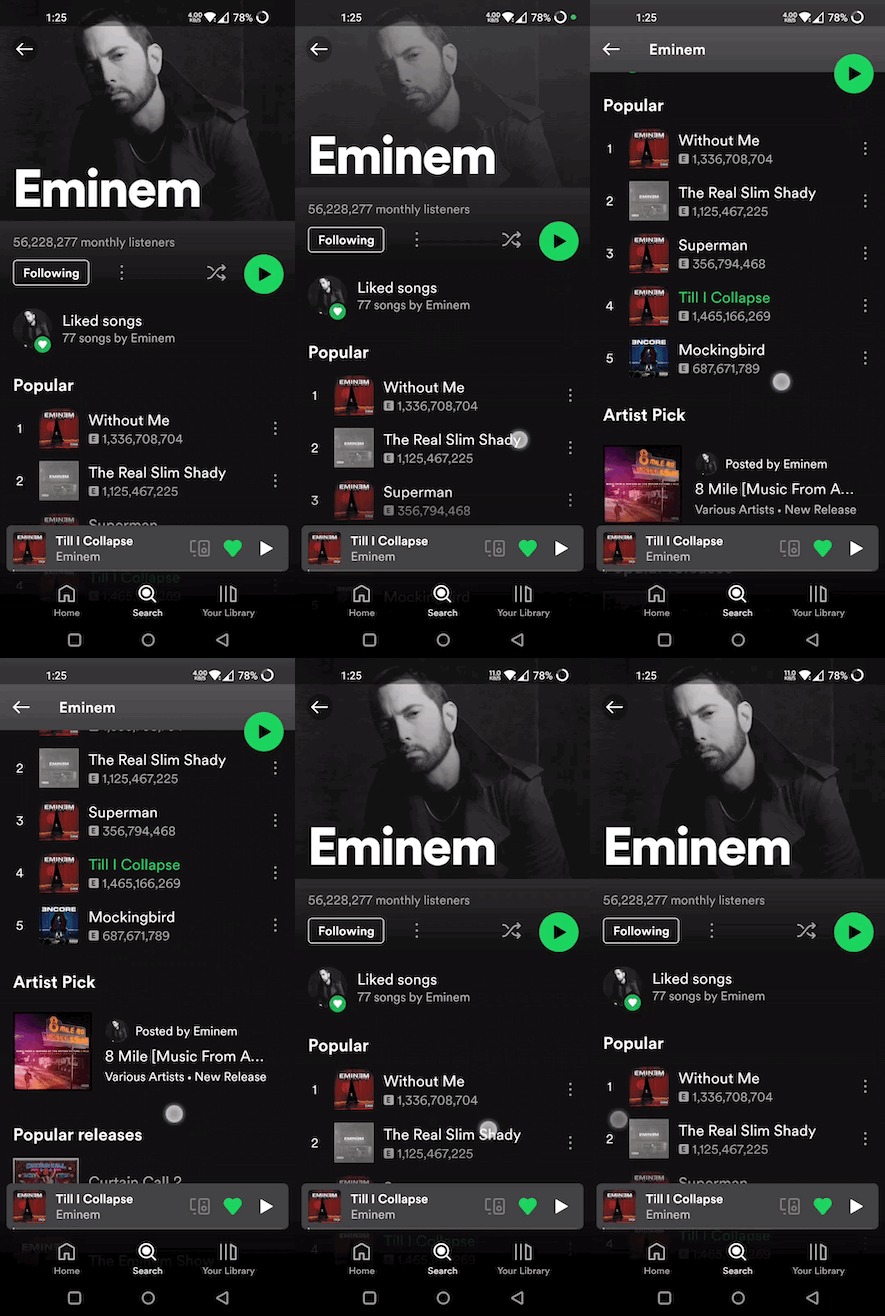
CSS 'position: sticky'처럼 위젯이 동작하도록 해주는 플러터 패키지입니다. 스크롤 중에 지정된 경계에 도달할 때까지 항상 보이게 됩니다. 헤더, 네비게이션 바 또는 콘텐츠가 스크롤될 때 화면에 계속 남아 있어야 하는 UI 요소에 이상적입니다. 이 패키지는 안드로이드, iOS, 웹, macOS, 윈도우, 리눅스 등 모든 주요 플랫폼에서 작동하며, 네이티브 플랫폼 전용 코드 없이 일관된 스티키 동작을 제공합니다. 기존 플러터 레이아웃에 최소한의 설정으로 원활하게 통합됩니다.
사용 사례
목록의 스크롤 헤더
스티키 네비게이션 바
지속적인 작업 버튼
스크롤 가능한 뷰에서 고정된 사이드 패널
사용자 스크롤에 따라 움직이는 동적 레이아웃 요소
양식 내 부유 도구 모음
주요 기능
CSS와 유사한 스틱키 위치 지정
크로스 플랫폼 호환성
최소 구성
자동 경계 감지
중첩 스크롤 뷰를 지원합니다
스크롤 중 부드러운 전환
적합한 대상
스크롤 가능한 인터페이스를 구축하는 개발자
고정형 UI 요소가 필요한 디자이너
긴 목록이나 양식을 포함한 앱
반응형 레이아웃을 필요로 하는 웹 및 모바일 앱
다중 플랫폼 간에 일관된 스틱 행동을 원하는 팀
고려 사항
큰 목록에서는 성능에 영향을 미칠 수 있습니다
신중한 레이아웃 중첩이 필요합니다
복잡한 겹치는 시나리오에 적합하지 않습니다
기본적인 스틱 행동 외의 사용자 정의 제한
단일 스크롤링 컨텍스트와 함께 사용하는 것이 가장 좋습니다
적절히 관리되지 않으면 다른 스크롤 컨트롤러와 충돌할 수 있습니다
원본 README
연결된 소스 저장소의 README 원문 스냅샷입니다. 최신 내용은 저장소에서 확인하세요.
With flutter_sticky_widgets you can use a widget as if it is position: sticky; in CSS.
Sticky widgets is an UI pattern where we want widgets to scroll along with the UI upto a certain point, and then stick to the screen instead of scrolling off the screen.
(Green play button in first image, and shuffle play button in second image are examples for position: sticky)
initialPosition (StickyPosition): indicates the position of the widget before the scrolling has started. Position is represented by a custom class StickyPosition.
finalPosition (StickyPosition): indicates the position of the widget where it will remain sticky after sufficient amount of scrolling. Widget will return to its initial position if scrolled in reverse direction.
controller (ScrollController): used by StickyWidget to detect scrolling. Same ScrollController must be attached to your Scrollable (ListView, SingleChildScrollView, CustomScrollView, ...) for StickyWidgets to work. It is also used to determine if the scroll axis is vertical or horizontal.
callback (Function(double)?) (optional): An optional callback function, which gets called on every scroll. It receives scrolloffset as parameter which can be used to animate the StickyWidget.
StickyContainer
It must be the parent element of the Scrollable widget used. StickyContainer's size is used as reference size by StickWidgets to position themselves. So make sure StickyContainer's size is same as the size of the Scrollable widget.
child (Widget): ideally Scrollable widget should be supplied for this parameter, if not you have to make sure StickyContainer's size is same as Scrollable's size.
stickyChildren (List<StickyWidget>): you can supply one or more StickyWidgets.
displayOverFlowContent (bool) (optional): true if you want to display the StickyWidgets overflowing outside of the StickyContainer's bounds.
StickyPosition
A Custom class used to represent initial and final positions of StickyWidget. It takes 4 parameters (top, bottom, left, right). But you should supply only 2 of them (top / bottom, right / left)
Note: Make sure to pass same set of parameters for StickyPosition used in initialPosition and finalPosition