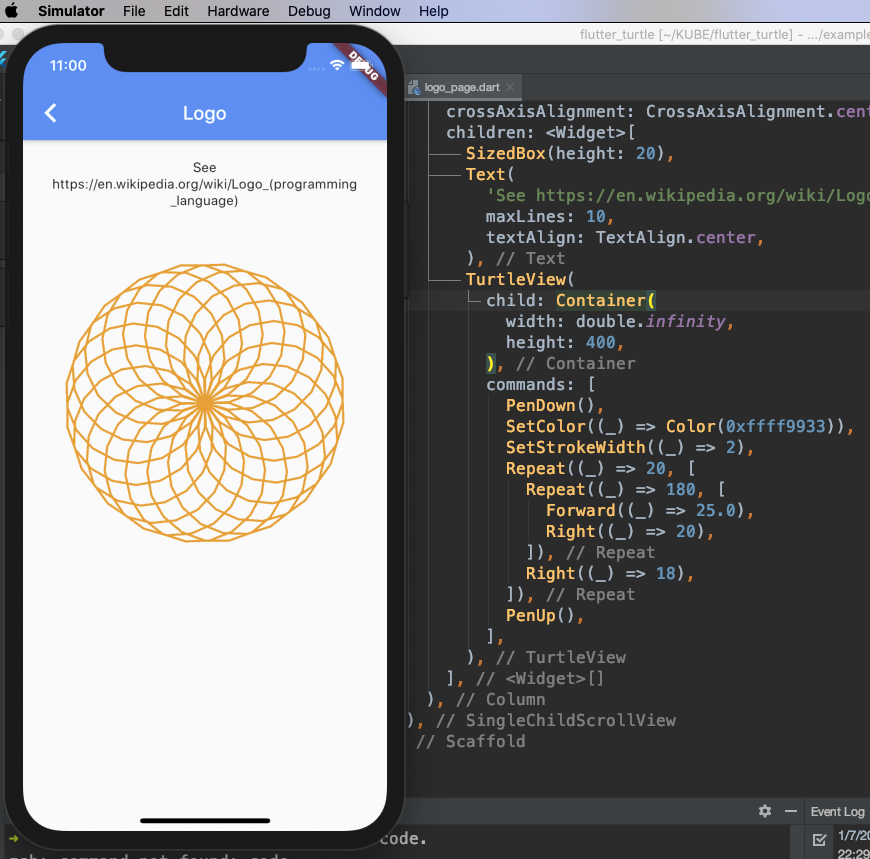
flutter_turtle는 Dart 생태계에 터틀 그래픽스를 도입하는 가벼운 Flutter 패키지로, 간단하고 로고를 연상시키는 명령어를 사용하여 모양과 패턴을 그릴 수 있게 해줍니다. 위젯 내에서 직접 그래픽을 렌더링하기 위해 사용자 정의 페인터를 활용하며, 교육 도구, 시각적 프로그래밍 실험, 창의적 코딩 프로젝트에 적합합니다. 이 패키지는 모바일, 웹, 데스크톱을 포함한 모든 주요 플랫폼을 지원하여 광범위한 호환성을 보장합니다. 직관적인 API는 초보자와 교사들이 시각적 피드백을 통해 프로그래밍 개념을 가르치는 데 도움을 줍니다.
사용 사례
프로그래밍 기초 교육
코드로 시각 예술 만들기
아이들을 위한 교육용 앱
인터랙티브 코드 튜토리얼
기하학적 패턴 생성
주요 기능
로고 유사 명령 구문
사용자 정의 페인터 기반 렌더링
크로스 플랫폼 지원
초보자를 위한 간단한 API
실시간 그림 업데이트
적합한 대상
프로그래밍을 가르치는 교육자
초보 프로그래머
크리에이티브 코더
어린이들이 프로그래밍을 배우고 있습니다
시각적 프로그래밍 실험
고려 사항
2D 벡터 그래픽에 제한
고성능 애니메이션에 최적화되지 않음
간단한 그림에 가장 적합
기본 기하학에 대한 이해가 필요합니다
내장된 되돌리기/다시실행 기능 없음
원본 README
연결된 소스 저장소의 README 원문 스냅샷입니다. 최신 내용은 저장소에서 확인하세요.
flutter_turtle
flutter_turtle is a simple yet powerful implementation of turtle graphics for Flutter. It leverages Flutter's CustomPainter to draw graphics using a declarative, Logo-like Domain-Specific Language (DSL) written entirely in Dart.
Turtle graphics is a popular method for introducing programming to beginners. It involves a "turtle" (an on-screen cursor) that carries a pen. By giving commands like "move forward," "turn right," and "pen down," you can create complex geometric shapes and intricate patterns. It was a key feature of the Logo programming language and remains a foundational concept in computer science education.
For further information about turtle graphics, please refer to Wikipedia:
Building a Domain-Specific Language (DSL) within Dart is an excellent exercise in API design, and turtle graphics are a universally engaging way to introduce programming concepts through visual feedback!
flutter_turtle provides two core visualization widgets:
TurtleView: Serves as your canvas and immediately renders the fully evaluated graphics based on the provided commands.
AnimatedTurtleView: An animated variant that sequentially visualizes the turtle's drawing process over time.
To use them, simply instantiate TurtleView or AnimatedTurtleView, pass your declarative commands via the commands parameter, and embed the widget directly into your Flutter widget tree.
Technical Details & Architecture
flutter_turtle is built to be efficient, extensible, and seamlessly integrated into Flutter's rendering pipeline. The architecture is primarily divided into three stages: the DSL Command Definition, the Compiler, and the Painter.
1. The Command DSL
The library provides a set of classes (e.g., Forward, Right, Repeat, IfElse) that represent Logo-like instructions. Unlike a traditional interpreter that reads a text script, the DSL is constructed using native Dart objects. This provides full type safety, code completion, and allows you to seamlessly mix Flutter logic (like using Flutter Color or BuildContext state) directly into your turtle commands.
2. Compilation
Before any graphics are drawn, the tree of nested TurtleCommand objects is processed by the TurtleCompiler. The compiler evaluates flow-control commands (Repeat, If, IfElse) and flattens the execution tree into a linear sequence of atomic Instruction objects.
Macros: Macros are managed during compilation. A SetMacro command registers a sub-tree of commands, which are injected and compiled in place whenever a RunMacro command is encountered.
State Management: While compiling, the framework does not draw anything. It simply prepares a highly optimized sequence of operations.
3. Rendering Pipeline
The actual drawing happens inside TurtlePainter, which is a CustomPainter implementation.
TurtlePainter receives the compiled list of Instruction objects.
It initializes a PaintContext (providing access to the Canvas and Paint objects) and a TurtleState (which tracks the turtle's position, degrees, isPenDown status, colors, and line widths).
As TurtlePainter iterates through the instructions, each instruction executes against the PaintContext, mutating the state and calling raw Canvas drawing methods.
4. Animation Mechanism
AnimatedTurtleView leverages Flutter's AnimationController and AnimatedBuilder. When built, it calculates the total number of compiled instructions. As the animation progresses from 0.0 to 1.0, the widget progressively passes a growing sublist of instructions (e.g., from index 0 to total_instructions * animation.value) to the TurtlePainter. This simple yet effective approach smoothly simulates real-time drawing without requiring complex frame-by-frame state serialization.
Flutter Turtle DSL
If you have Logo code like this:
repeat 5 [ fd 100 rt 144 ]
The equivalent code in the Flutter Turtle DSL would be:
Flow control commands are evaluated dynamically during compilation. You can use the IfElse class just like an if...else statement in Dart, and the Repeat class for loops.
An example of IfElse:
// If the condition evaluates to true, move forward; otherwise, move backward.IfElse((_) => true, [Forward((_) => 10.0)], [Back(() => 10.0)]),
While the DSL does not support traditional named functions natively, you can achieve reusable components using macros. Use the SetMacro command to register a parameterized block of commands:
SetMacro('macro', [Forward((_) => 10.0)]), // Registers a new macro named "macro".
You can then execute the macro dynamically using the RunMacro command:
You can pass arguments when calling a macro. These arguments are provided as a Dart Map and are accessible via the callback parameter _ to every command within the macro. For example:
SetMacro('macro', [Forward((_) => _['arg1'])]), // Uses the "arg1" value from the arguments map.RunMacro('macro', (_) => {'arg1': 10.0}),
Supported Commands
The currently supported primitives and logic structures include: