연결된 소스 저장소의 README 원문 스냅샷입니다. 최신 내용은 저장소에서 확인하세요.
Flutter Week View


Displays a highly customizable week view (or day view) which is able to display events, to be scrolled, to be zoomed-in & out and a lot more !
Flutter Week View is highly inspired by Android Week View.
Getting Started
Getting started with Flutter Week View is very straight forward.
You have the choice between two widgets : DayView and WeekView.
Use the first one to display a single day and use the second one to display
multiple days.
Example
If you want a real project example, you can check this one on Github.
Day View
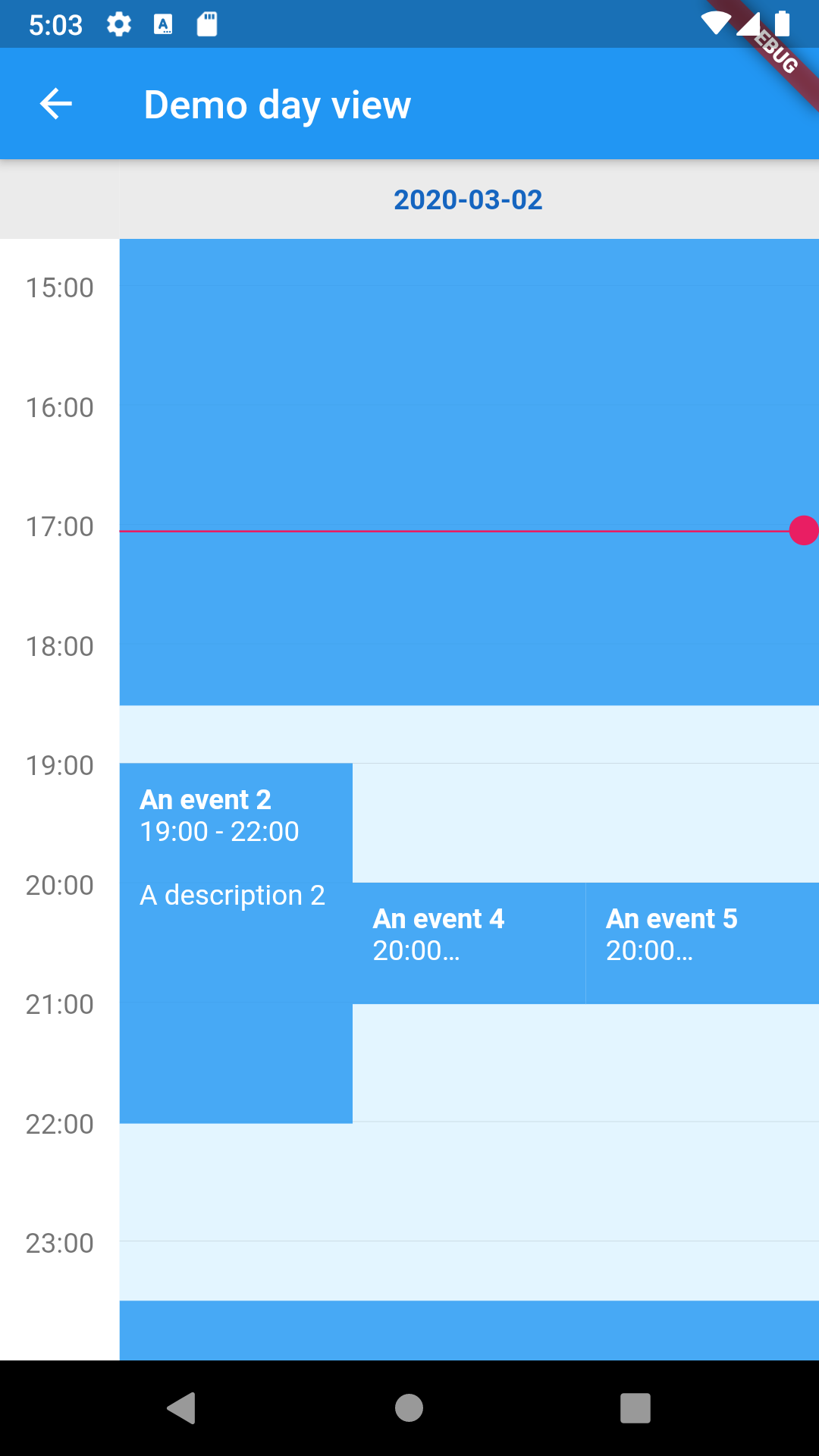
Snippet :
DateTime now = DateTime.now();
DateTime date = DateTime(now.year, now.month, now.day);
return DayView(
date: now,
events: [
FlutterWeekViewEvent(
title: 'An event 1',
description: 'A description 1',
start: date.subtract(Duration(hours: 1)),
end: date.add(Duration(hours: 18, minutes: 30)),
),
FlutterWeekViewEvent(
title: 'An event 2',
description: 'A description 2',
start: date.add(Duration(hours: 19)),
end: date.add(Duration(hours: 22)),
),
FlutterWeekViewEvent(
title: 'An event 3',
description: 'A description 3',
start: date.add(Duration(hours: 23, minutes: 30)),
end: date.add(Duration(hours: 25, minutes: 30)),
),
FlutterWeekViewEvent(
title: 'An event 4',
description: 'A description 4',
start: date.add(Duration(hours: 20)),
end: date.add(Duration(hours: 21)),
),
FlutterWeekViewEvent(
title: 'An event 5',
description: 'A description 5',
start: date.add(Duration(hours: 20)),
end: date.add(Duration(hours: 21)),
),
],
style: const DayViewStyle.fromDate(
date: now,
currentTimeCircleColor: Colors.pink,
),
);
Result :
Week view
Snippet :
DateTime now = DateTime.now();
DateTime date = DateTime(now.year, now.month, now.day);
return WeekView(
dates: [date.subtract(Duration(days: 1)), date, date.add(Duration(days: 1))],
events: [
FlutterWeekViewEvent(
title: 'An event 1',
description: 'A description 1',
start: date.subtract(Duration(hours: 1)),
end: date.add(Duration(hours: 18, minutes: 30)),
),
FlutterWeekViewEvent(
title: 'An event 2',
description: 'A description 2',
start: date.add(Duration(hours: 19)),
end: date.add(Duration(hours: 22)),
),
FlutterWeekViewEvent(
title: 'An event 3',
description: 'A description 3',
start: date.add(Duration(hours: 23, minutes: 30)),
end: date.add(Duration(hours: 25, minutes: 30)),
),
FlutterWeekViewEvent(
title: 'An event 4',
description: 'A description 4',
start: date.add(Duration(hours: 20)),
end: date.add(Duration(hours: 21)),
),
FlutterWeekViewEvent(
title: 'An event 5',
description: 'A description 5',
start: date.add(Duration(hours: 20)),
end: date.add(Duration(hours: 21)),
),
],
);
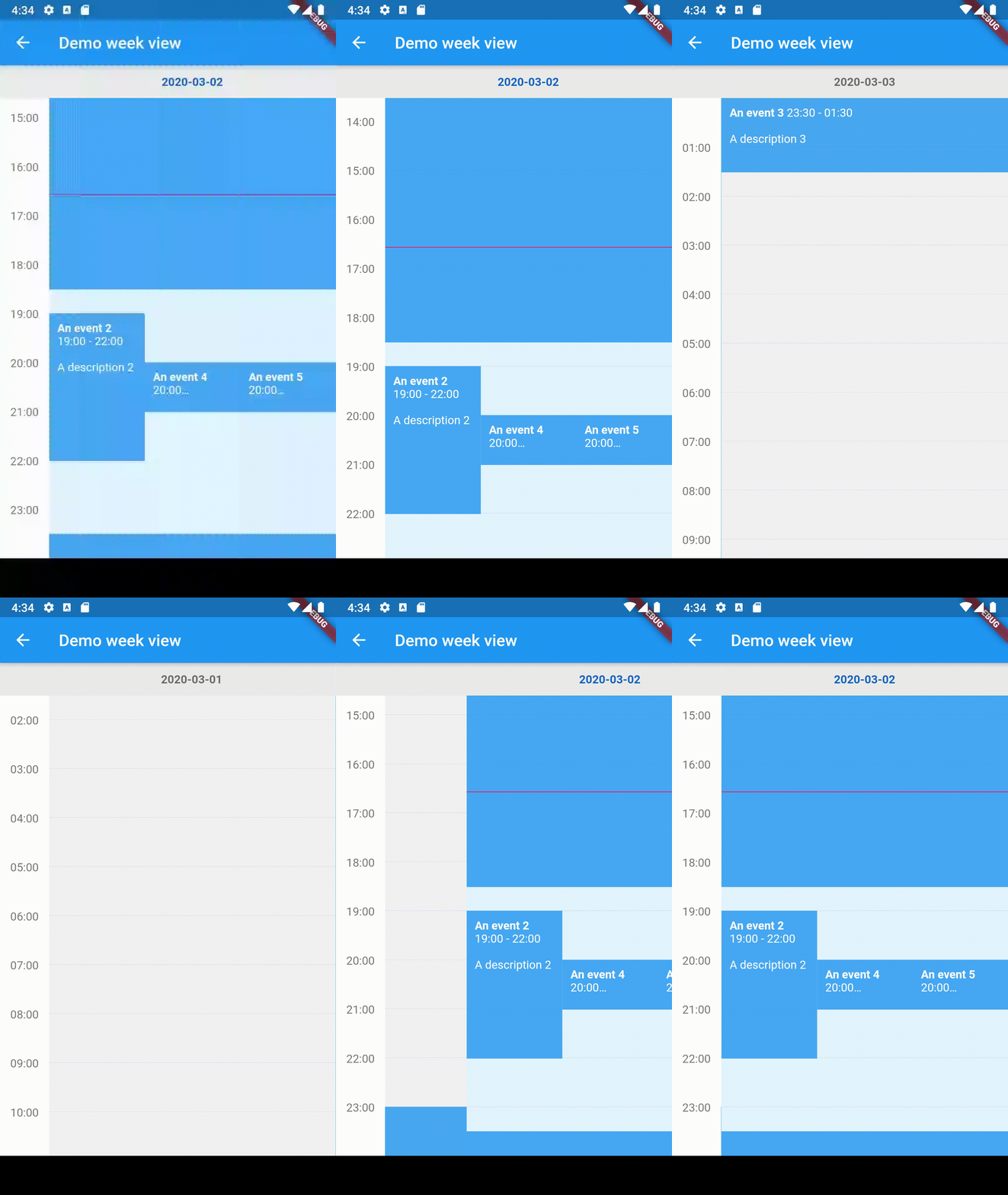
Result :
Options
Common options
Here are the options that are available for both DayView and WeekView :
events Events to display.style Allows you to style your widget. A lot of different styles are available so don't hesitate to try them out !hourColumnStyle Same, it allows you to style the hour column on the left.controller Controllers allow you to manually change the zoom settings.inScrollableWidget Whether to put the widget in a scrollable widget (disable if you want to manage the scroll by yourself).minimumTime The minimum hour and minute to display in a day.maximumTime The maximum hour and minute to display in a day.initialTime The initial hour and minute to put the widget on.userZoomable Whether the user is able to (un)zoom the widget.currentTimeIndicatorBuilder Allows you to change the default current time indicator (rule and circle).onHourColumnTappedDown Provides a tapped down callback for the hour column. Pretty useful if you want your users to add your own events at a specific time.onBackgroundTappedDown Provides a similar callback as the above, but when the user clicks on the background (an empty region of the calendar).onDayBarTappedDown Provides a tapped down callback for the day bar.dragAndDropOptions Enables drag-and-drop of events.resizeEventOptions Enables resizing events, by dragging the bottom of the event up/down.eventWidgetBuilder The widget builder that customizes how events are rendered.
Flutter day view
Here are the specific options of DayView :
date The widget date.dayBarStyle The day bar style.
Flutter week view
Here are the specific options of WeekView :
dates The widget dates.dayViewStyleBuilder The function that allows to build a Day View style according to the provided date.dayBarStyleBuilder The function that allows to build a Day Bar style according to the provided date.
Please note that you can create a WeekView instance using a builder.
All previous options are still available but you don't need to provide the dates list.
However, you need to provide a DateCreator (and a date count if you can, if it's impossible for you to do it then scrollToCurrentTime will not scroll to the current date).
Contributions
You have a lot of options to contribute to this project ! You can :