연결된 소스 저장소의 README 원문 스냅샷입니다. 최신 내용은 저장소에서 확인하세요.
gallery_picker
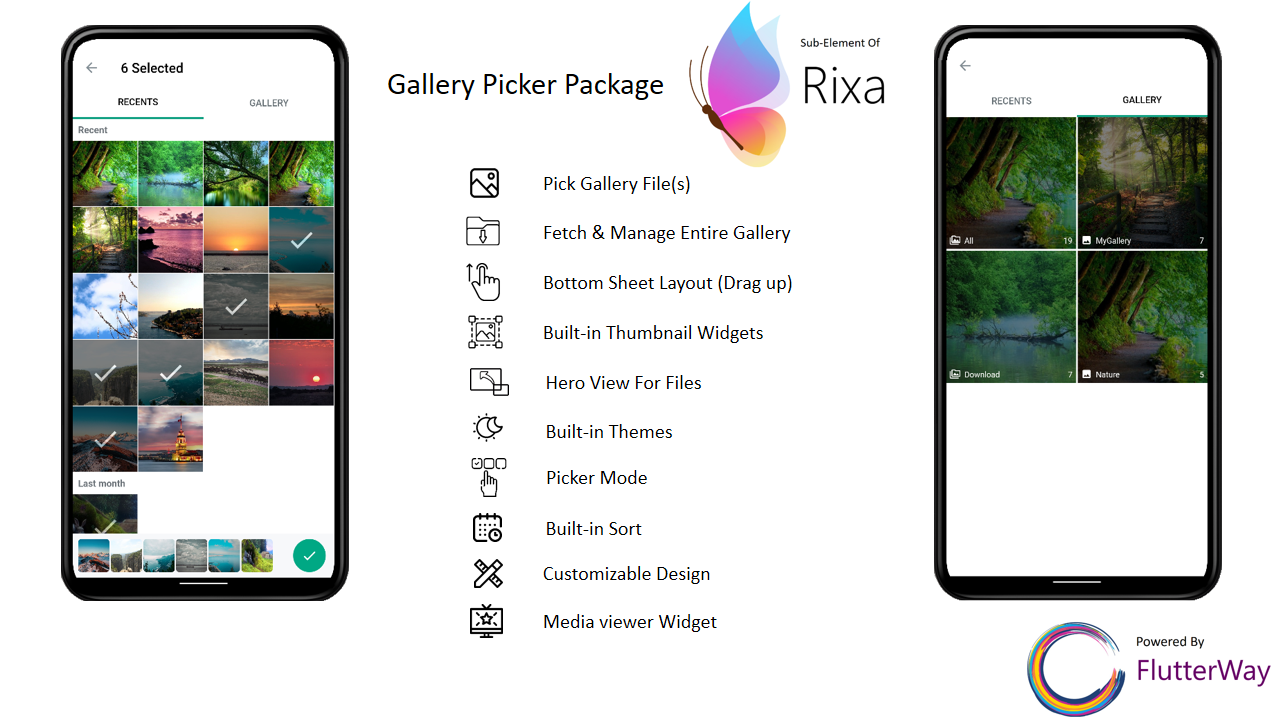
Gallery Picker is a flutter package that will allow you to pick media file(s), manage and navigate inside your gallery with modern tools and views.
Features
[✔] Modern design
[✔] Detailed documentation
[✔] Pick a media file
[✔] Pick multiple media files
[✔] BottomSheet layout
[✔] Auto localization for recent tabs
[✔] Fetch all media files from your phone
[✔] Comprehensively customizable design (desitination page, hero destination page...)
[✔] Gallery picker listener
[✔] Thumbnail widgets for media files
[✔] MediaProvider widgets to view video / image files
[✔] Gallery picker StreamBuilder to update your design if selects any file in gallery picker (GalleryPickerBuilder)
[✔] Ready-to-use widgets
[✔] Examples provided (example/lib/examples)
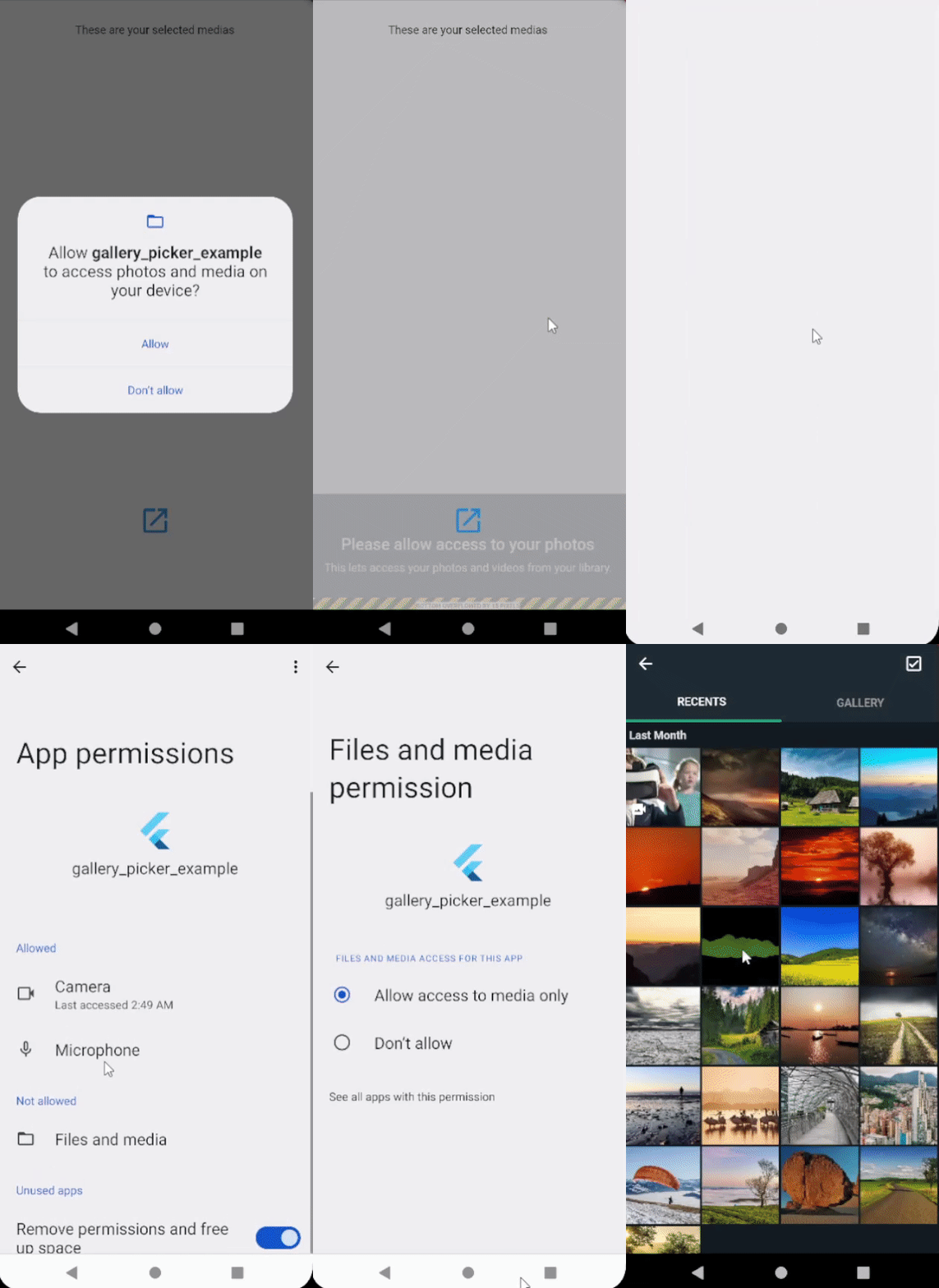
[✔] Permission requests handled within the library
[✔] Null-safety
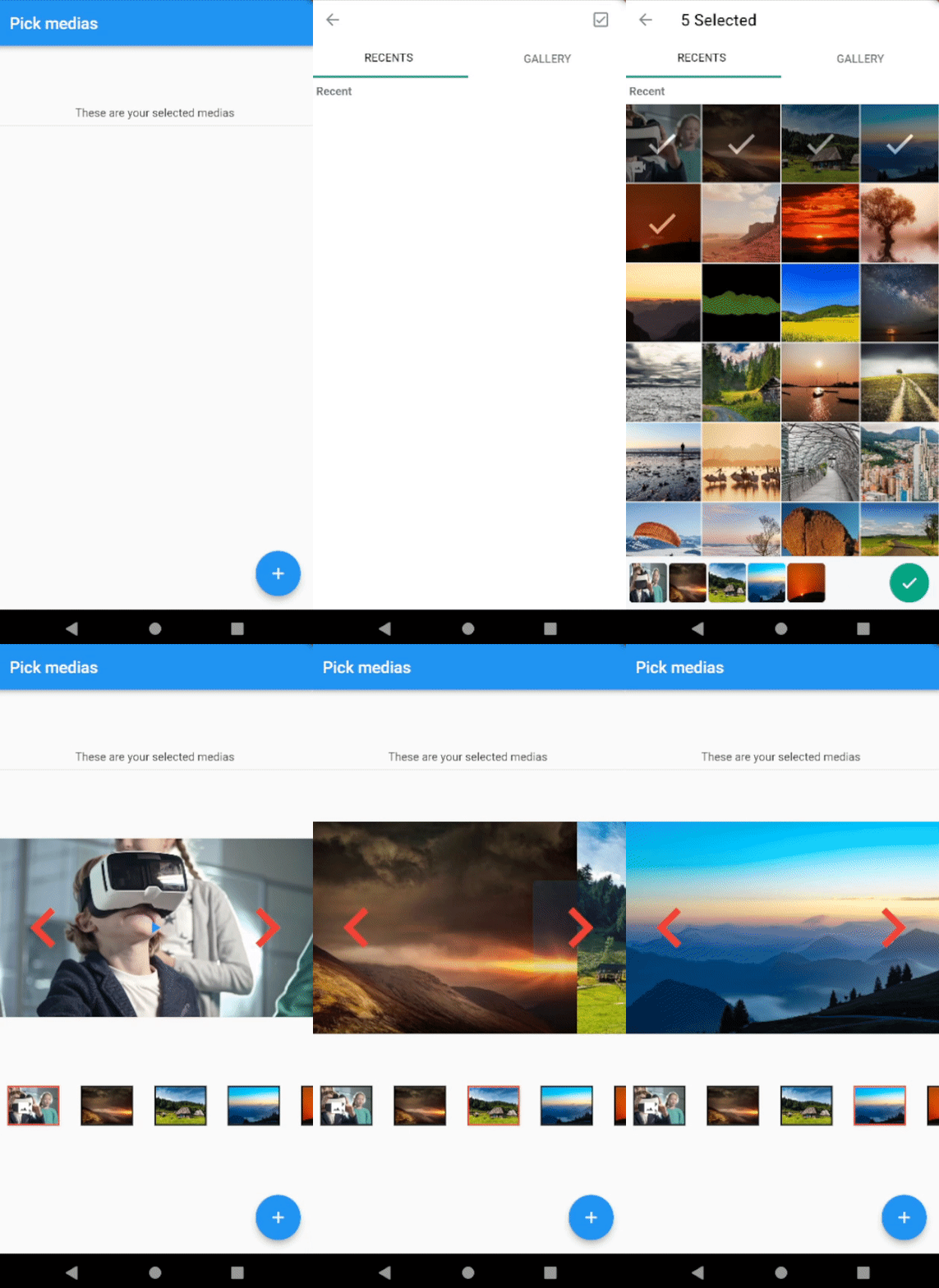
You could find the code samples of the given gifs below in /example/lib/examples folder.
Getting started
Update kotlin version to 1.6.0 and classpath 'com.android.tools.build:gradle:7.0.4' in your build.gradle
In android set the minSdkVersion to 25 in your build.gradle
Android
Add uses-permission android/app/src/main/AndroidManifest.xml file
<uses-permission android:name ="android.permission.READ_EXTERNAL_STORAGE" />
for android sdk 33 and above
<uses-permission android:name ="android.permission.READ_MEDIA_IMAGES" />
<uses-permission android:name ="android.permission.READ_MEDIA_VIDEO" />
Ios
Add these configurations to your ios/Runner/info.plist file
<key > NSPhotoLibraryUsageDescription</key >
<string > Privacy - Photo Library Usage Description</string >
<key > NSMotionUsageDescription</key >
<string > Motion usage description</string >
<key > NSPhotoLibraryAddUsageDescription</key >
<string > NSPhotoLibraryAddUsageDescription</string >
Usage
Quick and simple usage example:
Pick Single File
MediaFile ? singleMedia = await GalleryPicker .pickMedia (context: context,singleMedia: true );
Pick Multiple Files
List <MediaFile >? media = await GalleryPicker .pickMedia (context: context);
Get All Media Files in Gallery
GalleryMedia ? allmedia = await GalleryPicker .collectGallery ();
Listen selected files inside gallery picker
Stream stream = GalleryPicker .listenSelectedFiles;
Dispose listener
GalleryPicker .disposeSelectedFilesListener ();
PickerScaffold
Gallery Picker could also work as a bottom sheet. Use PickerScaffold instead your Scaffold.
There is an example at example/lib/examples/bottom_sheet_example.dart to see how it could be done.
@override
Widget build (BuildContext context) {
return PickerScaffold (
backgroundColor: Colors .transparent,
onSelect: (media) {},
initSelectedMedia: initMedia,
config: Config (mode: Mode .dark),
body: Container (),
)
}
Customizable destination page
Within the Gallery Picker you can design a page that will be redirected after selecting any image(s).
Note: There are two builder called multipleMediaBuilder and heroBuilder. If you designed both of them, multipleMediaBuilder will be shown after picking multiple media files, heroBuilder will be shown after picking a single media. If you only designed multipleMediaBuilder, multipleMediaBuilder will be shown after picking any file. Use given hero tag to view your Hero image. You can see a simple example below.
There is an example at example/lib/examples/pick_medias_with_builder.dart to see how it could be done.
GalleryPicker .pickMediaWithBuilder (
multipleMediaBuilder: ((media, context) {
return Scaffold (
appBar: AppBar (
title: const Text ('Flippers Page' ),
),
body: GridView .count (
crossAxisCount: 3 ,
mainAxisSpacing: 5 ,
crossAxisSpacing: 5 ,
children: [
for (var mediaFile in media)
ThumbnailMedia (
media: mediaFile,
)
],
),
floatingActionButton: FloatingActionButton (
onPressed: () {
Navigator .push (
context,
MaterialPageRoute (
builder: (context) => MyHomePage (
title: "Selected Medias" ,
medias: media,
)),
);
GalleryPicker .dispose ();
},
child: const Icon (
Icons .send,
color: Colors .white,
),
),
);
}),
heroBuilder: (tag, media, context) {
return Scaffold (
appBar: AppBar (
title: const Text ('Flippers Page' ),
),
body: Container (
color: Colors .lightBlueAccent,
padding: const EdgeInsets .all (16.0 ),
alignment: Alignment .topLeft,
child: Hero (
tag: tag,
child: Image .memory (media.thumbnail!),
),
),
floatingActionButton: FloatingActionButton (
backgroundColor: Colors .orange,
onPressed: () {
Navigator .push (
context,
MaterialPageRoute (
builder: (context) => MyHomePage (
title: "Selected Medias" ,
medias: [media],
)),
);
GalleryPicker .dispose ();
},
child: const Icon (
Icons .send,
color: Colors .white,
),
),
);
},
context: context);
Dispose Gallery picker
GalleryPicker .dispose ();
Customize your gallery picker
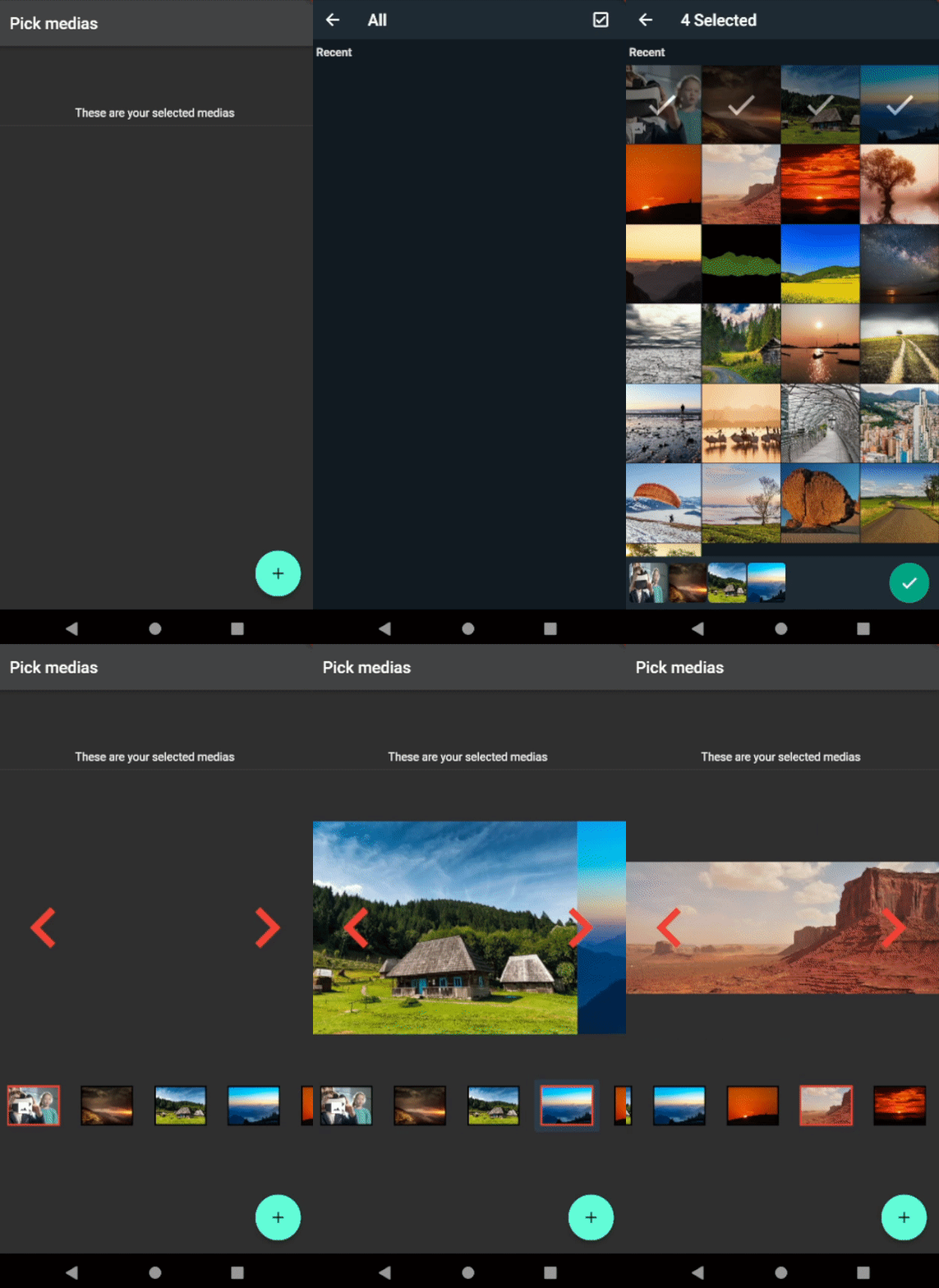
A Config class is provided to user to customize your gallery picker. You can customize any feature you want and select appearance mode.
Customizable appereance features
List <MediaFile >? media = await GalleryPicker .pickMedia (
context: context,
pageTransitionType: PageTransitionType .rightToLeft
config: Config (
backgroundColor: Colors .white,
permissionDeniedPage:PermissionDeniedPage (),
appbarColor: Colors .white,
bottomSheetColor: const Color .fromARGB (255 , 247 , 248 , 250 ),
appbarIconColor: const Color .fromARGB (255 , 130 , 141 , 148 ),
underlineColor: const Color .fromARGB (255 , 20 , 161 , 131 ),
selectedMenuStyle: const TextStyle (color: Colors .black),
unselectedMenuStyle:
const TextStyle (color: Color .fromARGB (255 , 102 , 112 , 117 )),
textStyle: const TextStyle (
color: Color .fromARGB (255 , 108 , 115 , 121 ),
fontWeight: FontWeight .bold),
appbarTextStyle: const TextStyle (color: Colors .black),
recents: "RECENTS" ,
gallery: "GALLERY" ,
lastMonth: "Last Month" ,
lastWeek: "Last Week" ,
tapPhotoSelect: "Tap photo to select" ,
selected: "Selected" ,
selectIcon: Container (
width: 50 ,
height: 50 ,
decoration: const BoxDecoration (
shape: BoxShape .circle,
color: Color .fromARGB (255 , 0 , 168 , 132 ),
),
child: const Icon (
Icons .check,
color: Colors .white,
),
),
),
)
Appearance Mode
List <MediaFile >? media = await GalleryPicker .pickMedia (
context: context,
config: Config (
mode: Mode .dark
),
)
Give an initial selected media files
List <MediaFile >? media = await GalleryPicker .pickMedia (
context: context,
initSelectedMedia: initSelectedMedia,
)
Give extra media files that will be included in recent
You can give extra pictures to appear on the recent page. You should define these files with MediaFile.file()
MediaFile file = MediaFile .file (id: "id" , file: File ("path" ), type: MediaType .image);
List <MediaFile >? media = await GalleryPicker .pickMedia (
context: context,
extraRecentMedia: [file],
)
Select your priority page
There are two pages called "Recent" and "Gallery". You could change the initial page.
List <MediaFile >? media = await GalleryPicker .pickMedia (
context: context,
startWithRecent: true ,
)
MediaFile
GalleryPicker returns MediaFile list. You can reach out features below.
[✔] Medium
[✔] Id
[✔] MediaType
[✔] Thumbnail
[✔] Check with thumbnailFailed if fetching thumbnail fails
[✔] Check with fileFailed if getting file fails
[✔] File
[✔] getThumbnail function
[✔] getFile function
[✔] getData function
[✔] Check if the file selected in gallery picker
Permission
Required permissions will be requested when gallery picker is launched. In case of user's rejection of request, the problem will be handled within gallery picker package.
Customizing Permission Denied Page
Config (
permissionDeniedPage: PermissionDeniedPage (),
)
Ready-to-use widgets
ThumbnailMedia
ThumbnailMedia (
media: media,
)
ThumbnailAlbum
ThumbnailAlbum (
album: album,
failIconColor: failIconColor,
mode: mode,
backgroundColor: backgroundColor,
)
PhotoProvider
PhotoProvider (
media: media,
)
VideoProvider
VideoProvider (
media: media,
)
MediaProvider
MediaProvider works with every media type
MediaProvider (
media: media,
)
GalleryPickerBuilder
You can listen and update your design through this builder
GalleryPickerBuilder (
builder: (selectedFiles, context) {
return child
},
)
BottomSheetBuilder
Use BottomSheetBuilder if you need to listen bottom sheet status to change something in your page.
BottomSheetBuilder (
builder: (status, context) {
return FloatingActionButton (
onPressed: () {
if (status.isExpanded) {
GalleryPicker .closeSheet ();
} else {
GalleryPicker .openSheet ();
}
},
child: Icon (!status.isExpanded
? Icons .open_in_browser
: Icons .close_fullscreen),
);
},
)
AlbumMediaView
View all media files in the album sorted by its creation date
GalleryMedia ? allmedia = await GalleryPicker .collectGallery ();
AlbumMediaView (
galleryAlbum: allmedia!.albums[0 ],
textStyle: textStyle,
)
AlbumCategoriesView
View all album categories
GalleryMedia ? allmedia = await GalleryPicker .collectGallery ();
AlbumCategoriesView (
albums: allmedia!.albums,
categoryBackgroundColor: categoryBackgroundColor,
categoryFailIconColor: categoryFailIconColor,
mode: mode,
onFocusChange: onFocusChange,
onHover: onHover,
onLongPress: onLongPress,
onPressed: onPressed,
)
Breaking Changes From 0.2.3
BottomSheetLayout changed into PickerScaffold
Before:
@override
Widget build (BuildContext context) {
return Scaffold (
appBar: AppBar (
title: Text (widget.title),
),
body: BottomSheetLayout (
config: Config ()
onSelect: (media) {},
child: Column (
children: [
Now:
@override
Widget build (BuildContext context) {
return PickerScaffold (
backgroundColor: Colors .transparent,
onSelect: (media) {},
initSelectedMedia: initMedia,
config: Config (mode: Mode .dark),
body: Container (),
)
}
Examples
Check out our examples!
Standart Gallery Picker
example/lib/examples/gallery_picker_example.dart
Pick Media Files With Destination Page
example/lib/examples/pick_medias_with_builder.dart
BottomSheet Example
example/lib/examples/bottom_sheet_example.dart
WhatsApp Pick Photo Page
example/lib/examples/whatsapp_pick_photo.dart
This package was possible to create with: