패키지, 저장소 및 앱 카테고리 검색

geofencing_api 표지
패키지 상세v2.0.0

geofencing_api

이 플러그인은 원형 및 다각형 지오페싱 서비스를 구현하는 데 사용됩니다.

AndroidiOSWeb
30일 다운로드
1.6천
좋아요
19
Pub 점수
150

패키지 설치

flutter pub add geofencing_api

패키지 개요

공개 정보를 바탕으로 생성한 선택 가이드입니다.

geofencing_api 패키지는 Android, iOS 및 웹 플랫폼에서 원형 및 다각형 기반의 지오페싱을 구현할 수 있도록 개발자를 지원합니다. 지리적 경계를 모니터링하고 사용자가 정의된 영역에 들어가거나 나갈 때 이벤트를 트리거하는 통합 인터페이스를 제공합니다. 위치 기반 애플리케이션에 적합하며 최소한의 설정으로 실시간 위치 추적과 영역 모니터링을 지원합니다. 플러터 앱과 원활하게 통합되며, 최적의 성능과 배터리 효율을 위해 네이티브 지오페싱 기능을 활용합니다.

사용 사례

  • 위치 기반 알림
  • 자산 추적
  • 근접 알림
  • 지오페인스드 체크인
  • 실시간 위치 모니터링

주요 기능

  • 원형 및 다각형 지오펜싱
  • 크로스 플랫폼 지원 (Android, iOS, Web)
  • 네이티브 성능 통합
  • 이벤트 기반 영역 모니터링
  • 영역 관리를 위한 간단한 API

적합한 대상

  • 위치 서비스를 갖춘 모바일 앱
  • 현장 운영 추적
  • 스마트 시티 애플리케이션
  • 소매 근접 마케팅
  • 물류 및 배송 시스템

고려 사항

  • 위치 권한 필요
  • 활성 모니터링 시 배터리 사용량이 증가할 수 있습니다
  • 웹 지원은 최신 브라우저에 한정됩니다
  • 다각형 정밀도는 장치의 정확성에 따라 달라집니다
  • 일부 플랫폼에서의 백그라운드 실행 제약

원본 README

연결된 소스 저장소의 README 원문 스냅샷입니다. 최신 내용은 저장소에서 확인하세요.

This plugin is used to implement circular and polygon geofencing service.

[!CAUTION] It does not use the geofencing api implemented in the platform. Therefore, battery efficiency cannot be guaranteed. Instead, this plugin can provide more accurate and real-time geofencing by navigating your location while your app is alive.

Features

  • Can create a circular type geofence.
  • Can create a polygon type geofence.
  • Can listen to geofence status changes in real-time.
  • Can listen to location changes in real-time.
  • Can request or check location permission.

Getting started

To use this plugin, add geofencing_api as a dependency in your pubspec.yaml file. For example:

dependencies:
  geofencing_api: ^2.0.0

After adding the plugin to your flutter project, we need to declare the platform-specific permissions to use for this plugin to work properly.

:baby_chick: Android

Since the geofencing service works based on location, we need to declare location permission.

Open the AndroidManifest.xml file and declare permission between the <manifest> and <application> tags.

<uses-permission android:name="android.permission.ACCESS_COARSE_LOCATION" />
<uses-permission android:name="android.permission.ACCESS_FINE_LOCATION" />
:baby_chick: iOS

Open the ios/Runner/Info.plist file and declare description within the <dict> tag.

<key>NSLocationWhenInUseUsageDescription</key>
<string>Used to collect location data.</string>
:baby_chick: Background Mode

To perform geofencing in the background, declare permissions and descriptions.

<uses-permission android:name="android.permission.ACCESS_BACKGROUND_LOCATION" />
<key>NSLocationAlwaysAndWhenInUseUsageDescription</key>
<string>Used to collect location data in the background.</string>
<key>NSLocationAlwaysUsageDescription</key>
<string>Used to collect location data in the background.</string>
<key>UIBackgroundModes</key>
<array>
    <string>fetch</string>
    <string>location</string>
</array>

Then use flutter_foreground_task to implement a background geofencing service.

demo: https://github.com/Dev-hwang/flutter_foreground_task_example/tree/main/geofencing_service

How to use

  1. Request location permission. To start the geofencing service, the permission result must be always or whileInUse.
Future<bool> requestLocationPermission({bool background = false}) async {
  if (!await Geofencing.instance.isLocationServicesEnabled) {
    // Location services is disabled.
    return false;
  }

  LocationPermission permission =
      await Geofencing.instance.getLocationPermission();
  if (permission == LocationPermission.denied) {
    // Android: ACCESS_COARSE_LOCATION or ACCESS_FINE_LOCATION
    // iOS 12-: NSLocationWhenInUseUsageDescription or NSLocationAlwaysAndWhenInUseUsageDescription
    // iOS 13+: NSLocationWhenInUseUsageDescription
    permission = await Geofencing.instance.requestLocationPermission();
  }

  if (permission == LocationPermission.denied ||
      permission == LocationPermission.deniedForever) {
    // Location permission has been ${permission.name}.
    return false;
  }

  // Web: Only allow whileInUse permission.
  if (kIsWeb || kIsWasm) {
    return true;
  }

  // Android: You must request location permission one more time to access background location.
  // iOS 12-: You can request always permission through the above request.
  // iOS 13+: You can only request whileInUse permission through the above request.
  // When the app enters the background, a prompt will appear asking for always permission.
  if (Platform.isAndroid &&
      background &&
      permission == LocationPermission.whileInUse) {
    // You need a clear explanation of why your app's feature needs access to background location.
    // https://developer.android.com/develop/sensors-and-location/location/permissions#request-background-location

    // Android: ACCESS_BACKGROUND_LOCATION
    permission = await Geofencing.instance.requestLocationPermission();

    if (permission != LocationPermission.always) {
      // Location permission must always be granted to collect location in the background.
      return false;
    }
  }

  return true;
}
  1. Set up the geofencing service.
  • interval: The millisecond interval at which to update the geofence status. This value may be delayed by device platform limitations. The default is 5000.
  • accuracy: The accuracy of the geofencing service in meters. The default is 100.
  • statusChangeDelay: The status change delay in milliseconds. GeofenceStatus.enter and GeofenceStatus.exit events may be called frequently when the location is near the boundary of the geofence. If the option value is too large, real-time geofencing is not possible, so use it carefully. The default is 10000.
  • allowsMockLocation: Whether to allow mock location. The default is false.
  • printsDebugLog: Whether to print debug logs in plugin. The default is true.
void setupGeofencing() {
  Geofencing.instance.setup(
    interval: 5000,
    accuracy: 100,
    statusChangeDelay: 10000,
    allowsMockLocation: false,
    printsDebugLog: true,
  );
}
  1. Create geofence regions. Use the .circular or .polygon constructor.
  • id: The unique id of the geofence region.
  • data: The data of the geofence region.
  • loiteringDelay: The delay between GeofenceStatus.enter and GeofenceStatus.dwell in milliseconds. The default is 30000.
  • center: The center coordinates of the geofence. (circular)
  • radius: The radius of the geofence. This value should be 10 meters or greater. (circular)
  • polygon: The polygon coordinates of the geofence. This value must have size 3 or greater. (polygon)
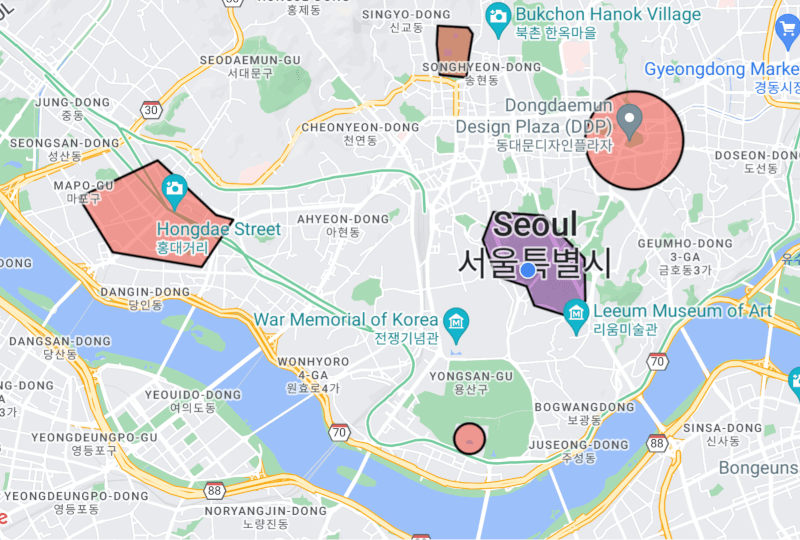
final Set<GeofenceRegion> _regions = {
  GeofenceRegion.circular(
    id: 'circular_region',
    data: {
      'name': 'National Museum of Korea',
    },
    center: const LatLng(37.523085, 126.979619),
    radius: 250,
    loiteringDelay: 60 * 1000,
  ),
  GeofenceRegion.polygon(
    id: 'polygon_region',
    data: {
      'name': 'Gyeongbokgung Palace',
    },
    polygon: [
      const LatLng(37.583696, 126.973739),
      const LatLng(37.583441, 126.979361),
      const LatLng(37.582506, 126.980198),
      const LatLng(37.579054, 126.979490),
      const LatLng(37.576112, 126.979061),
      const LatLng(37.576503, 126.974126),
      const LatLng(37.580959, 126.973568),
    ],
    loiteringDelay: 60 * 1000,
  ),
};
  1. Start the geofencing service. You can add geofence regions before starting the service using the regions parameter.
void startGeofencing() async {
  Geofencing.instance.addGeofenceStatusChangedListener(_onGeofenceStatusChanged);
  Geofencing.instance.addGeofenceErrorCallbackListener(_onGeofenceError);
  
  // You can add listeners as needed.
  Geofencing.instance.addLocationChangedListener(LocationChanged);
  Geofencing.instance.addLocationServicesStatusChangedListener(LocationServicesStatusChanged);
  
  await Geofencing.instance.start(regions: _regions);
}

Future<void> _onGeofenceStatusChanged(
  GeofenceRegion geofenceRegion,
  GeofenceStatus geofenceStatus,
  Location location,
) async {
  final String regionId = geofenceRegion.id;
  final String statusName = geofenceStatus.name;
  print('region(id: $regionId) $statusName');
}

void _onGeofenceError(Object error, StackTrace stackTrace) {
  print('error: $error\n$stackTrace');
}
  1. You can add or remove regions even after the service starts.
void addRegions() {
  Geofencing.instance.addRegion(GeofenceRegion);
  Geofencing.instance.addRegions(Set<GeofenceRegion>);
}

void removeRegions() {
  Geofencing.instance.removeRegion(GeofenceRegion);
  Geofencing.instance.removeRegions(Set<GeofenceRegion>);
  Geofencing.instance.removeRegionById(String);
  Geofencing.instance.clearAllRegions();
}
  1. You can pause or resume the service.
void pauseGeofencing() {
  Geofencing.instance.pause();
}

void resumeGeofencing() {
  Geofencing.instance.resume();
}
  1. Stop the geofencing service. If you want to keep added regions, set keepsRegions to true.
void stopGeofencing() async {
  Geofencing.instance.removeGeofenceStatusChangedListener(_onGeofenceStatusChanged);
  Geofencing.instance.removeGeofenceErrorCallbackListener(_onGeofenceError);
  Geofencing.instance.removeLocationChangedListener(LocationChanged);
  Geofencing.instance.removeLocationServicesStatusChangedListener(LocationServicesStatusChanged);
  Geofencing.instance.clearAllListeners();
  
  await Geofencing.instance.stop(keepsRegions: true);
}

More Documentation

Go here to learn about the models provided by this plugin.

Go here to migrate to the new version.

Support

If you find any bugs or issues while using the plugin, please register an issues on GitHub. You can also contact us at <hwj930513@naver.com>.

카테고리

의존성

의존성 목록 4 개

소스 저장소

이 패키지를 사용하는 프로젝트

아직 데이터가 없습니다.