iOS 및 macOS 앱에서 앱의 iCloud 컨테이너 내 파일을 업로드, 다운로드 및 관리할 수 있도록 해주는 플러터 플러그인입니다. 사용자 데이터를 장치 간에 원활하게 동기화할 수 있도록 iCloud 파일 저장소 시스템과 상호작용할 수 있는 간단한 인터페이스를 제공합니다. 이 플러그인은 Apple 플랫폼 전용으로 설계되어 신뢰성 있고 안전한 파일 처리를 위해 네이티브 iCloud API를 활용합니다. 개발자는 복잡한 클라우드 인프라를 관리하지 않고도 문서, 미디어 또는 앱 전용 데이터를 iCloud에 저장할 수 있습니다. pub.dev를 통해 플러터 프로젝트에 직접 통합할 수 있습니다.
사용 사례
Apple 기기 간 사용자 문서 동기화
iCloud에 앱 전용 데이터 저장하기
미디어 파일 자동 백업
iCloud에 저장된 콘텐츠에 대한 오프라인 액세스 활성화
iCloud에서 파일 버전 관리
주요 기능
iOS 및 macOS에서의 네이티브 iCloud 통합
간단한 업로드 및 다운로드 방법
앱 컨테이너 내 파일 관리
자동 장치 동기화
보안 및 암호화된 스토리지
적합한 대상
iCloud 지원이 필요한 iOS 및 macOS Flutter 앱
크로스 디바이스 데이터 동기화가 필요한 앱
iCloud를 사용하는 문서 기반 애플리케이션
애플 생태계에만 초점을 맞춘 개발자
최소한의 클라우드 인프라스트럭처가 필요한 프로젝트
고려 사항
iOS 및 macOS 플랫폼에서만 사용 가능
앱 구성에서 iCloud 권한이 필요합니다
애플의 iCloud 서비스에 한정
Android 또는 웹 플랫폼 지원 없음
사용자의 iCloud 계정 및 저장 용량 제한에 따라 다릅니다
원본 README
연결된 소스 저장소의 README 원문 스냅샷입니다. 최신 내용은 저장소에서 확인하세요.
icloud_storage
A flutter plugin for upload, download and manage files in the app's iCloud container.
Introduction
Documents and other data that is user-generated and stored in the <Application_Home>/Documents directory can be automatically backed up by iCloud on iOS devices, if the iCloud Backup setting is turned on. The data can be recovered when user sets up a new device or resets an existing device. If you need to do backup and download outside the forementioned scenarios, this plugin could help.
Prerequisite
The following setups are needed in order to use this plugin:
An apple developer account
Created an App ID and iCloud Container ID
Enabled iCloud capability and assigned iCloud Container ID for the App ID
Note: The 'startUpload' API is to start the upload process. The returned future completes without waiting for the upload to complete. Use 'onProgress' to track the upload progress. If the 'destinationRelativePath' contains a subdirectory that doesn't exist, it will be created.
Note: The 'startDownload' API is to start the download process. The returned future completes without waiting for the download to complete. Use 'onProgress' to track the download progress.
catch (err) {
if (err isPlatformException) {
if (err.code == PlatformExceptionCode.iCloudConnectionOrPermission) {
print(
'Platform Exception: iCloud container ID is not valid, or user is not signed in for iCloud, or user denied iCloud permission for this app');
} elseif (err.code == PlatformExceptionCode.fileNotFound) {
print('File not found');
} else {
print('Platform Exception: ${err.message}; Details: ${err.details}');
}
} else {
print(err.toString());
}
}
Support for macOS
When uploading and downloading files, make sure the File Access is enabled for the local files if App Sandbox is enabled. Access are enabled for the files in the app's container (/Users/{username}/Library/Containers/{bundle_identifier}). Files in other locations can be enabled from XCode.
Migrating from version 1.x.x to 2.0.0
Version 2 supports operations on multiple containers. Therefore, ICloudStorage.getInstance('iCloudContainerId') is no longer needed. Instead, you'll need to specifiy the iCloudContainerId in each method.
All methods in version 2 have been changed to static methods.
gatherFiles has been renamed to gather.
startUpload has been renamed to upload.
startDownload has been renamed to download.
FAQ
Q: I uploaded a file from a device. I signed in to a simulator using the same iCloud account. But the file is not showing up in the gatherFiles result.
A: From the menu 'Features' click 'Tigger iCloud Sync'.
Q: I uploaded a file from device A. I signed in to device B using the same iCloud account. But the file is not showing up in the gatherFiles result.
A: The API only queries files that's been synced to the iCloud container, which lives in the local device. You'll need to wait for iOS to sync the files from iCloud to the local container. There's no way to programmatically trigger iOS to Sync with iCloud.
Q: I removed a file using 'delete' method then called 'gatherFiles'. The deleted file still shows up in the list.
A: This is most likely to be an issue with the native code. However, if you call 'gatherFiles' first and listen the update, then do the deletion, the list is refreshed immediately in the onUpdate stream.
How to set up iCloud Container and enable the capability
Log in to your apple developer account and select 'Certificates, IDs & Profiles' from the left navigation.
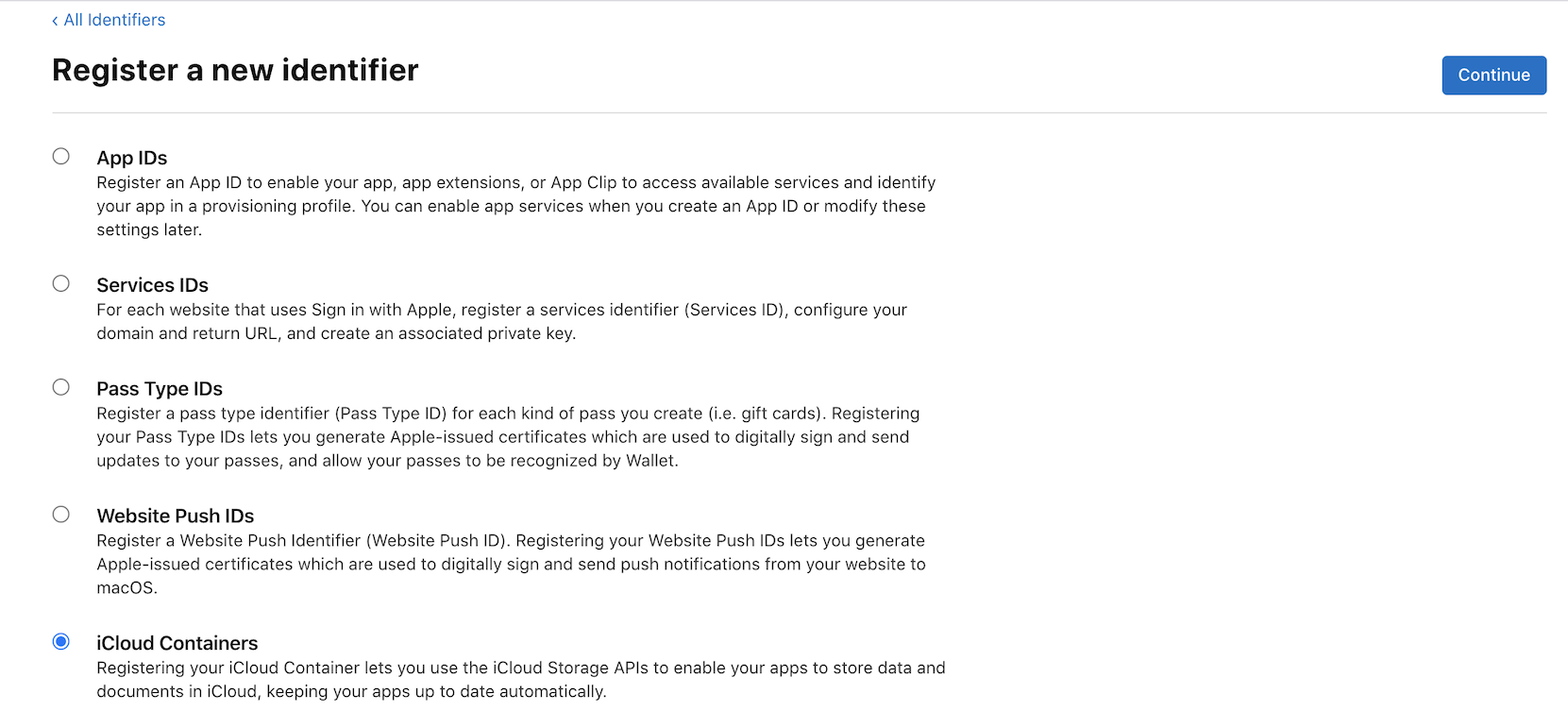
Select 'Identifiers' from the 'Certificates, IDs & Profiles' page, create an App ID if you haven't done so, and create an iCloud Containers ID.
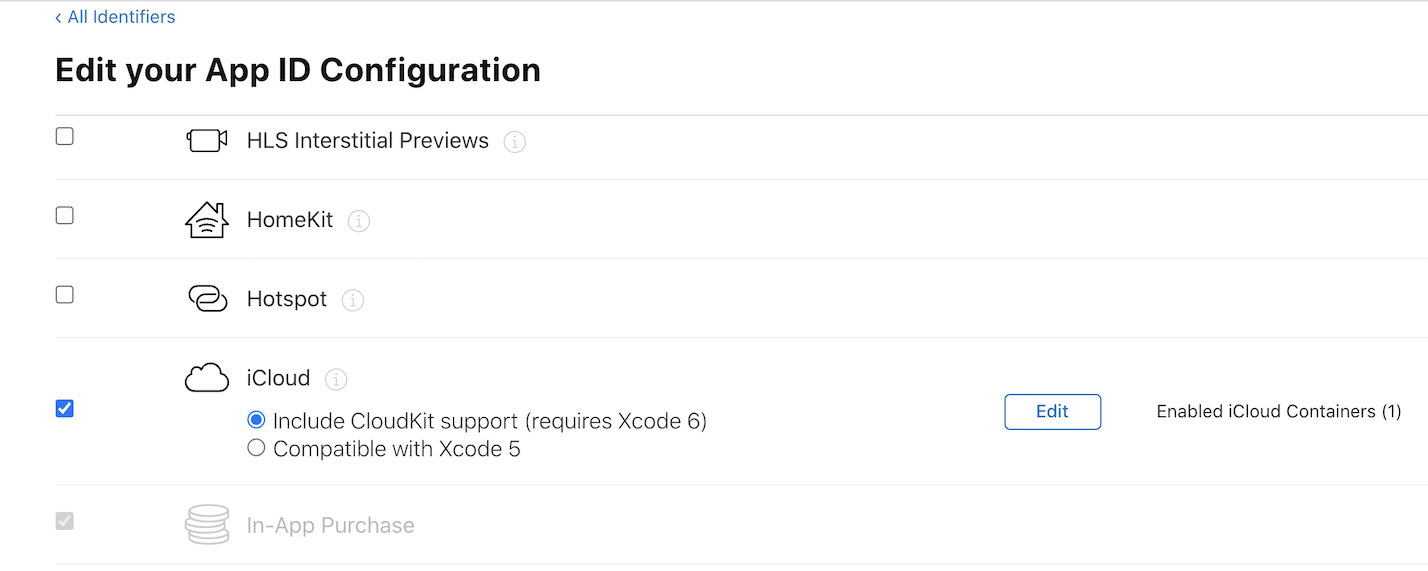
Click on your App ID. In the Capabilities section, select 'iCloud' and assign the iCloud Container created in step 2 to this App ID.
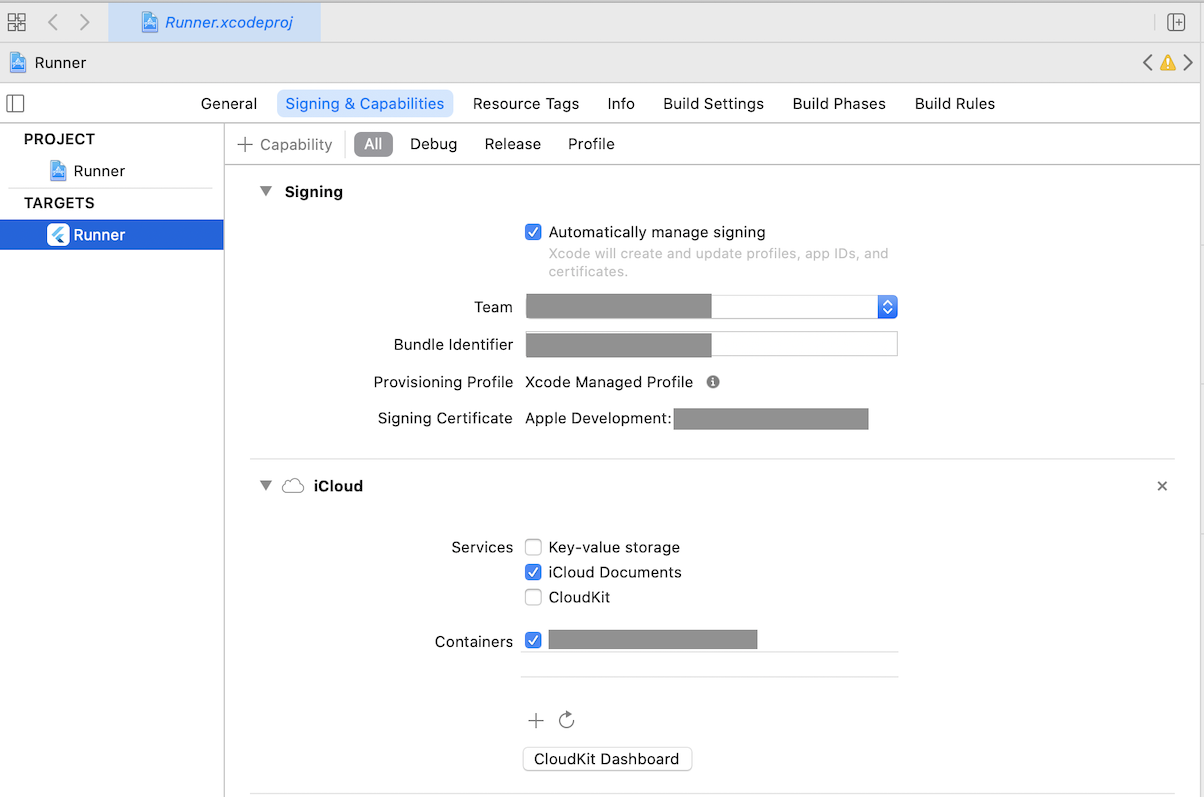
Open your project in Xcode. Set your App ID as 'Bundle Identifier' if you haven't done so. Click on '+ Capability' button, select iCloud, then tick 'iCloud Documents' in the Services section and select your iCloud container.