패키지, 저장소 및 앱 카테고리 검색

infinite_calendar_view 표지
패키지 상세v2.14.0

infinite_calendar_view

이 패키지를 사용하면 캘린더의 다양한 뷰를 쉽게 만들 수 있습니다. 월, 주, 여러 날짜, 하루, 목록 등과 캘린더 위젯의 많은 기능을 제공합니다.

AndroidiOSWebmacOSWindowsLinux
30일 다운로드
7.1천
좋아요
130
Pub 점수
160

패키지 설치

flutter pub add infinite_calendar_view

패키지 개요

공개 정보를 바탕으로 생성한 선택 가이드입니다.

월, 주, 다일, 단일일 및 목록 레이아웃을 지원하는 사용자 정의 가능한 캘린더 뷰를 생성하기 위한 유연한 Flutter 패키지입니다. 최소한의 설정으로 개발자가 동적이고 상호작용 가능한 캘린더를 쉽게 구현할 수 있도록 합니다. 날짜 선택, 탐색, 이벤트 통합과 같은 광범위한 기능을 제공하여 일정 관리 및 계획 앱에 이상적입니다. 크로스플랫폼 사용을 위해 설계되어 Android, iOS, Web, macOS, Windows, Linux에서 원활하게 작동합니다.

사용 사례

  • 스케줄링 애플리케이션
  • 작업 관리 도구
  • 이벤트 기획자
  • 예약 시스템
  • 일일 계획표

주요 기능

  • 여러 뷰 모드
  • 크로스 플랫폼 지원
  • 사용자 지정 가능한 UI
  • 날짜 선택 및 탐색
  • 이벤트 통합

적합한 대상

  • 캘린더 기반 앱을 개발하는 개발자
  • 유연한 날짜 보기 필요 앱
  • 다중 플랫폼 호환성이 필요한 프로젝트

고려 사항

  • Flutter 레이아웃 개념에 대한 이해가 필요합니다
  • 복잡한 디자인의 경우 추가 스타일링이 필요할 수 있습니다
  • 이벤트를 처리하기 위해 외부 상태 관리에 의존

원본 README

연결된 소스 저장소의 README 원문 스냅샷입니다. 최신 내용은 저장소에서 확인하세요.

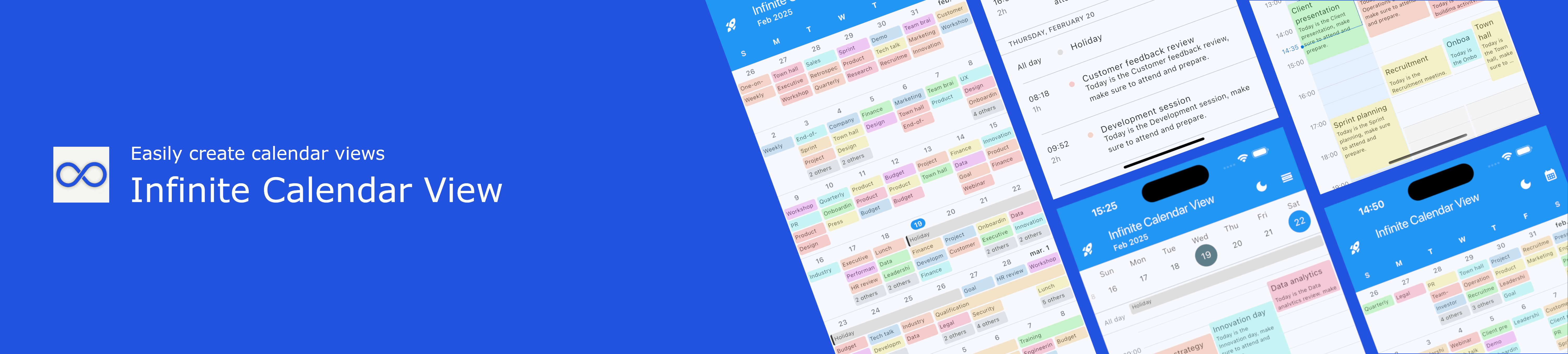
Plugin Banner

infinite_calendar_view

Build infinite_calendar_view

A Flutter Calendar package that allows you to easily implement all calendar UI and calendar views. Infinite Calendar View is a highly customizable calendar widget for Flutter that supports multiple calendar layouts. If this package helps you, consider giving it a 👍 on pub.dev

Web Demo

drawing

https://pickywawa.github.io/infinite_calendar_view_demo/

Features

  • 💙 Inspired by Outlook and Teams mobile. Easy to use calendar interface
  • 👍 No external dependencies. No dependency conflict, easy maintenance
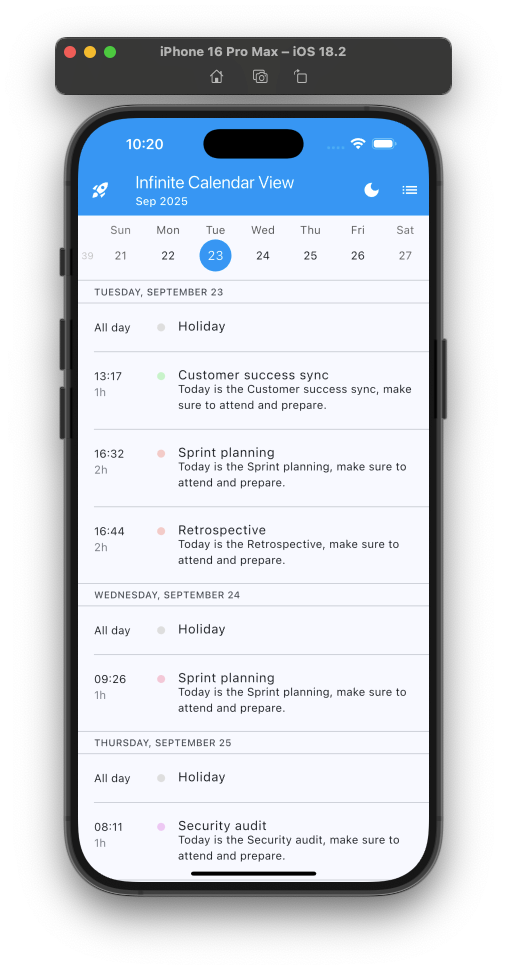
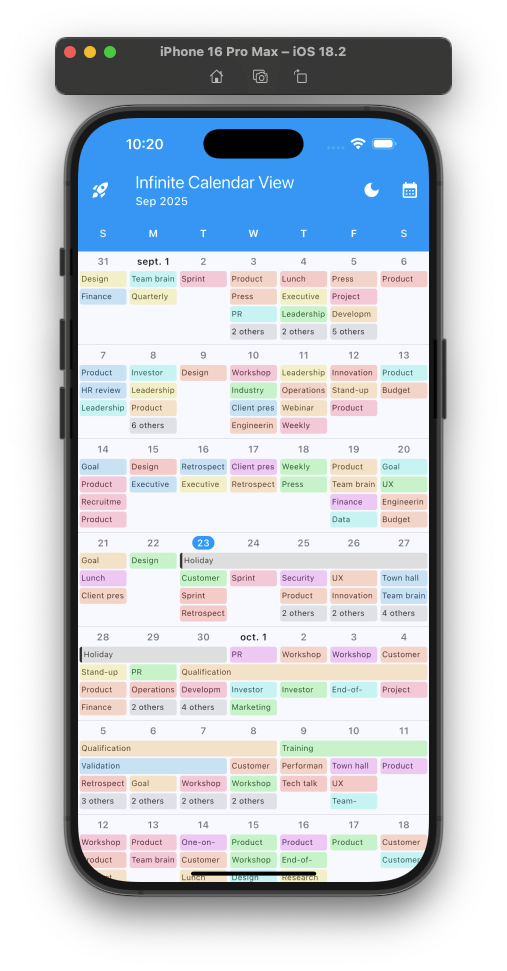
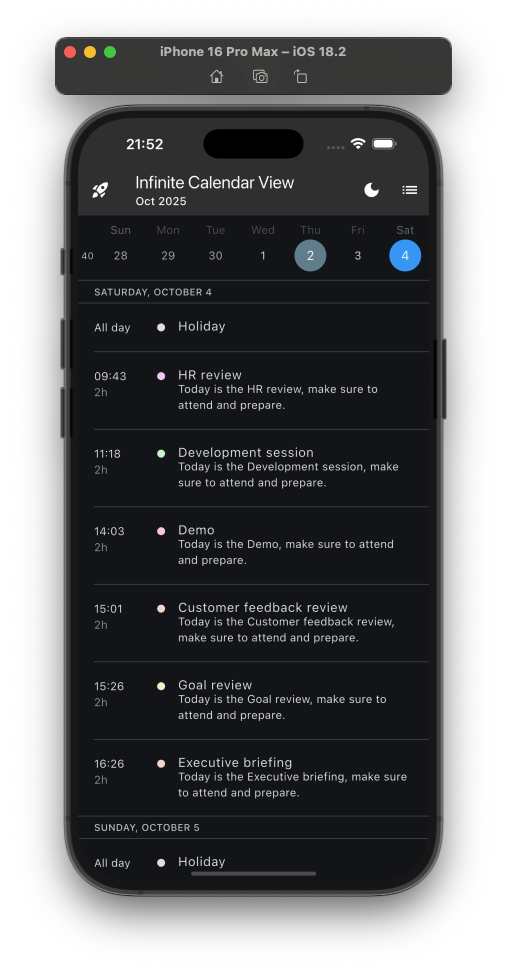
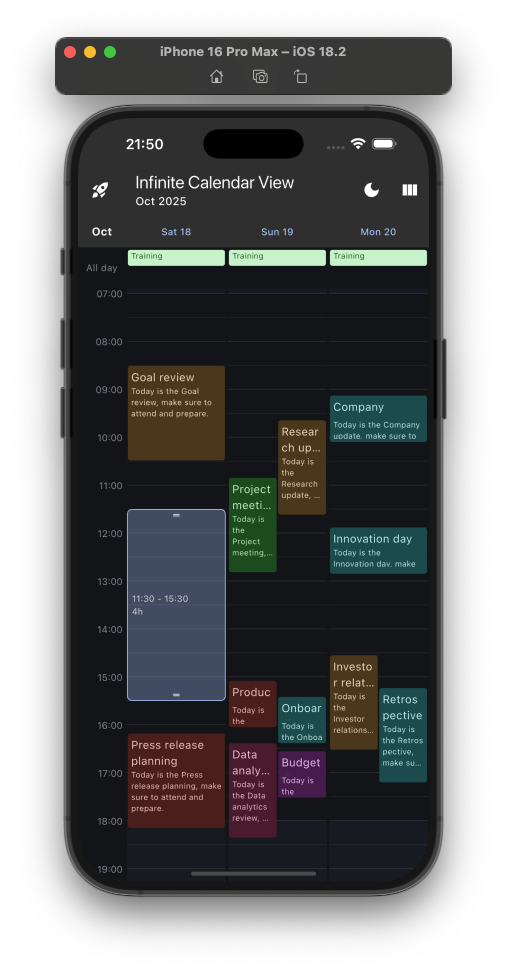
  • 🍻 Three calendar views. Calendar Planner, Calendar Month and Calendar List views
  • ♾️ Infinite scroll. Lazy build and best user experience
  • 🚀 Good performance. With several dozen appointments per day
  • ✏️ All configurable. Everything is configurable!
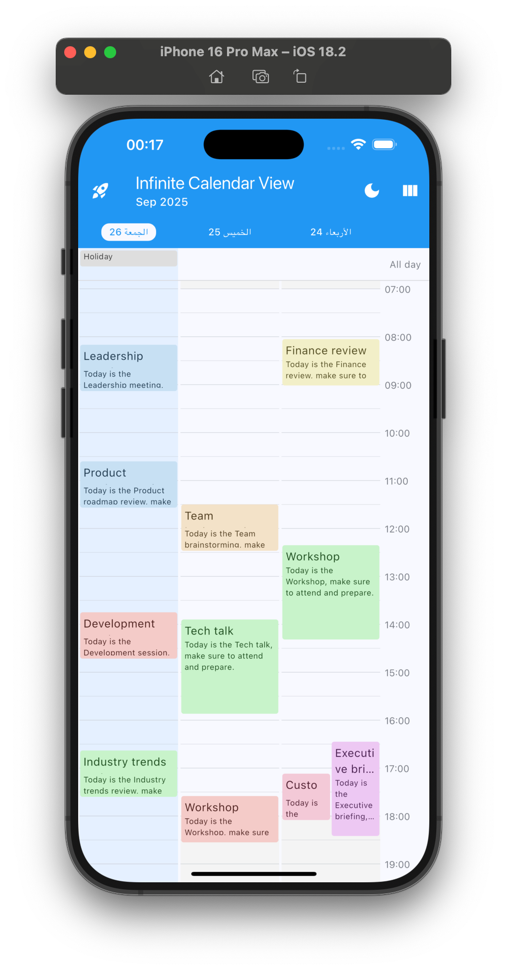
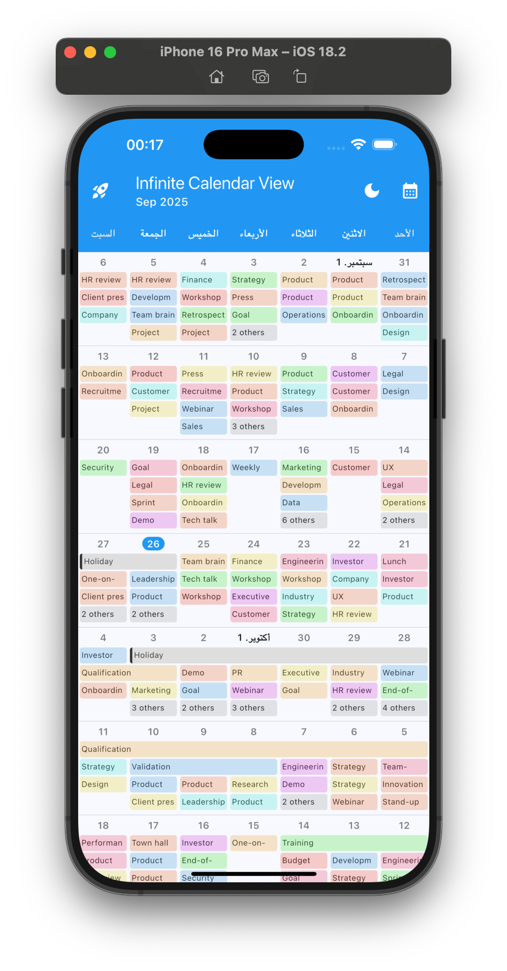
  • 🌍 RTL Support (Arabic, Hebrew etc. text/scroll direction)
  • 🗂️ Events filter. Easy filter calendar day events
  • 🗓️ Calendar events types. Managing all-day events and multi-day events. Possibility of having several types of events with different placement algorithms
  • 🎲 Customizable number of days. Depending on the screen size
  • 🤏 Pinch to zoom. Change the time scale with two fingers or ctrl/cmd + mouse wheel
  • 👆🏼 Drag and drop. Move calendar appointments easily
  • 👆🏼 Interactive slot selection. Move appointments easily
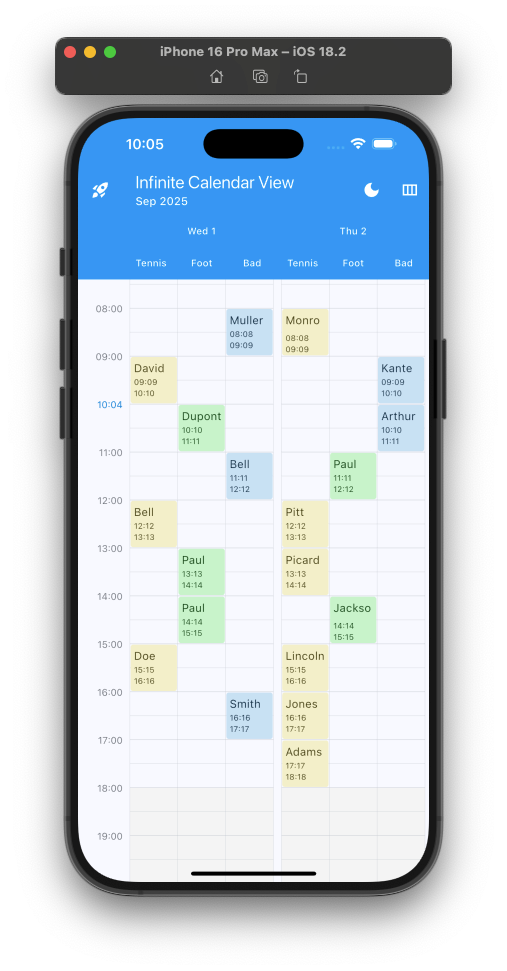
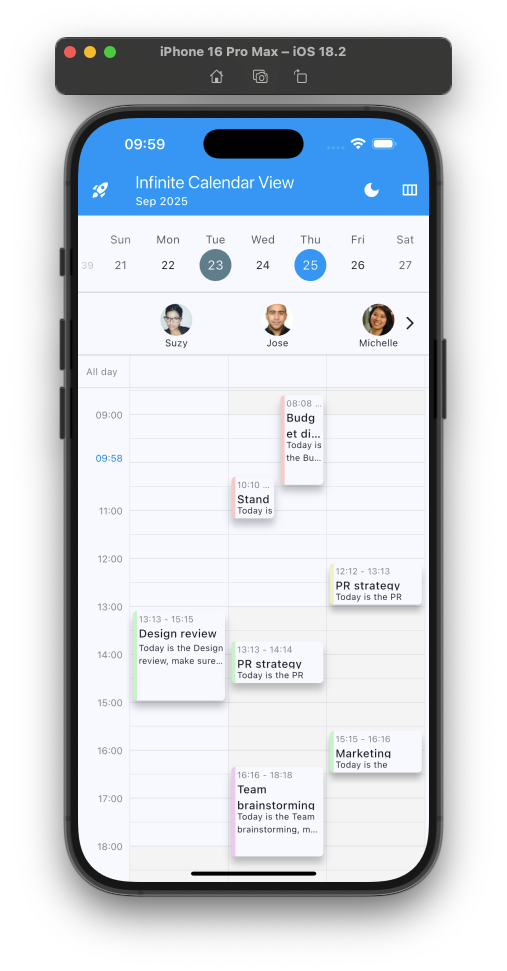
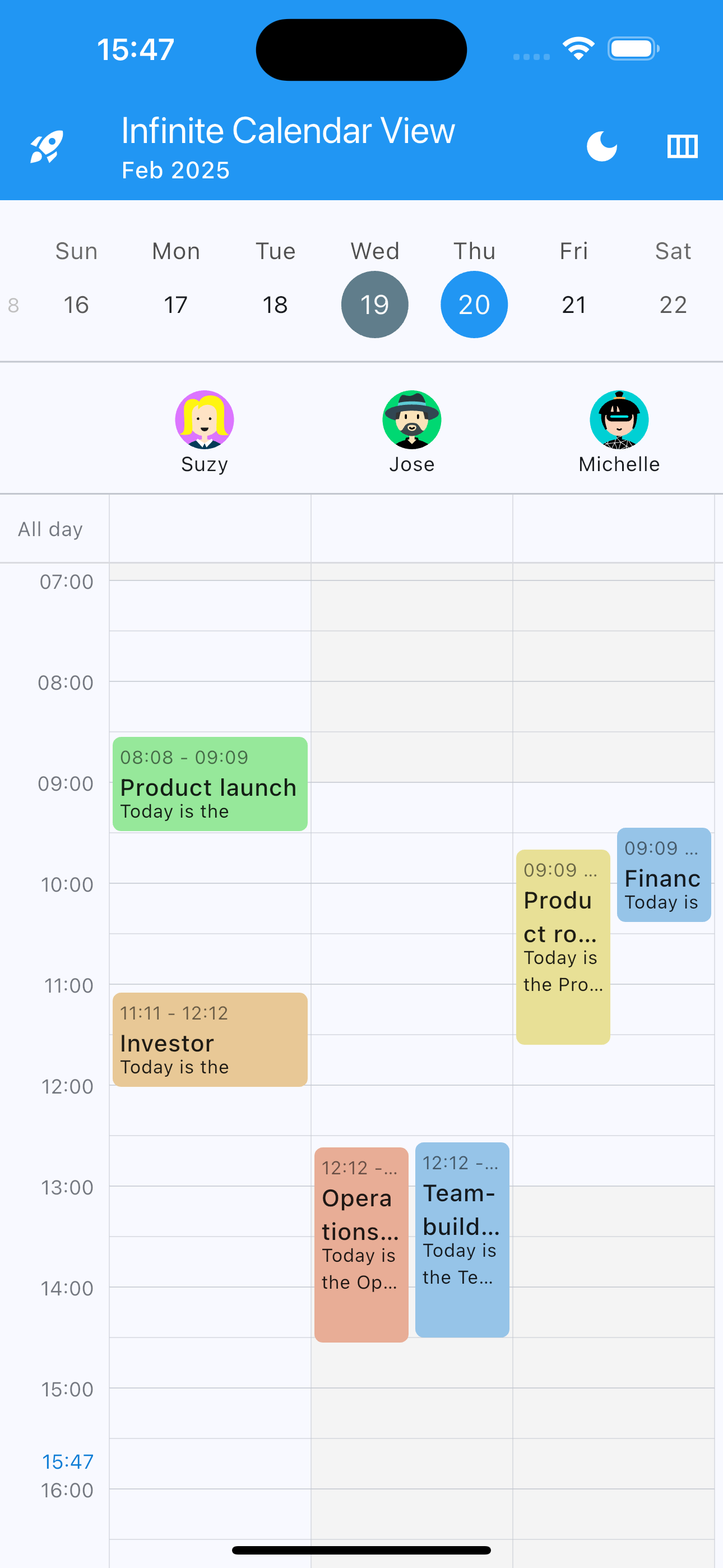
  • 👩‍👧‍👦 Multi columns. Manage multiple calendars in the same calendar view !
  • 🗓️ Events arranger. Customize the placement of appointments (for each event type) in the schedule
  • ➕ many other features
  • 🇫🇷 Made by Pickywawa with ❤️

Showcase

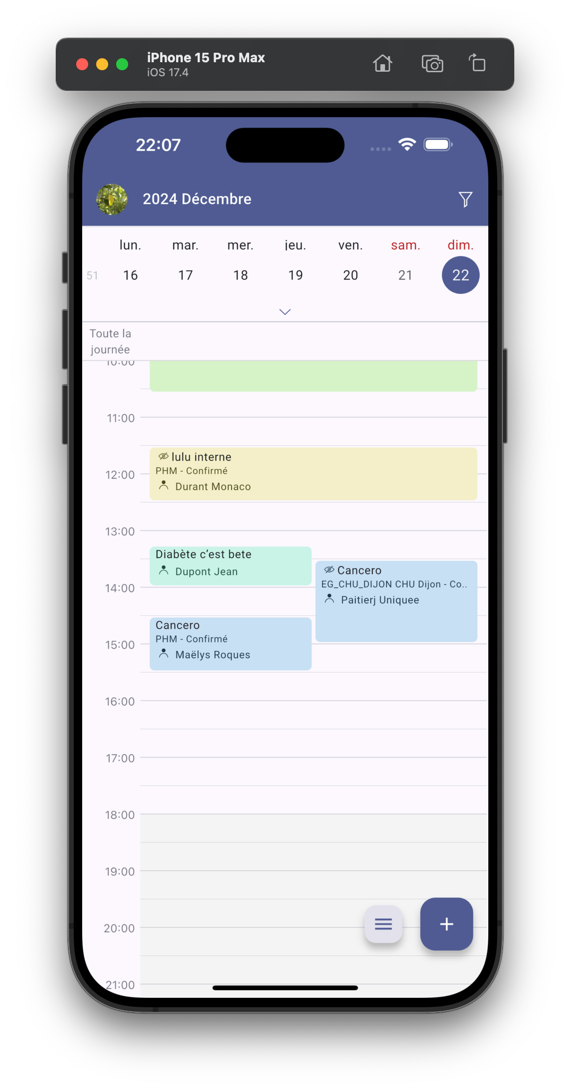
One day
drawing
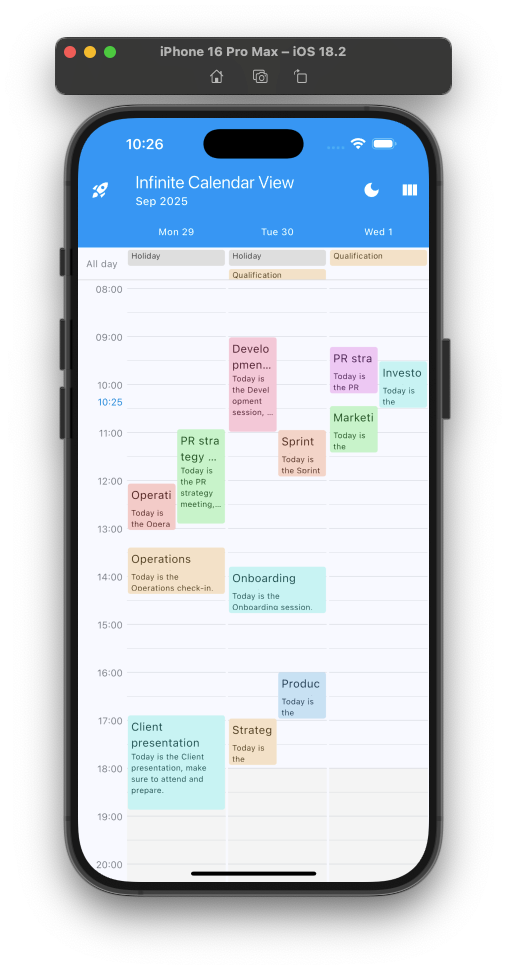
Multi days
drawing
Multi days RTL
drawing
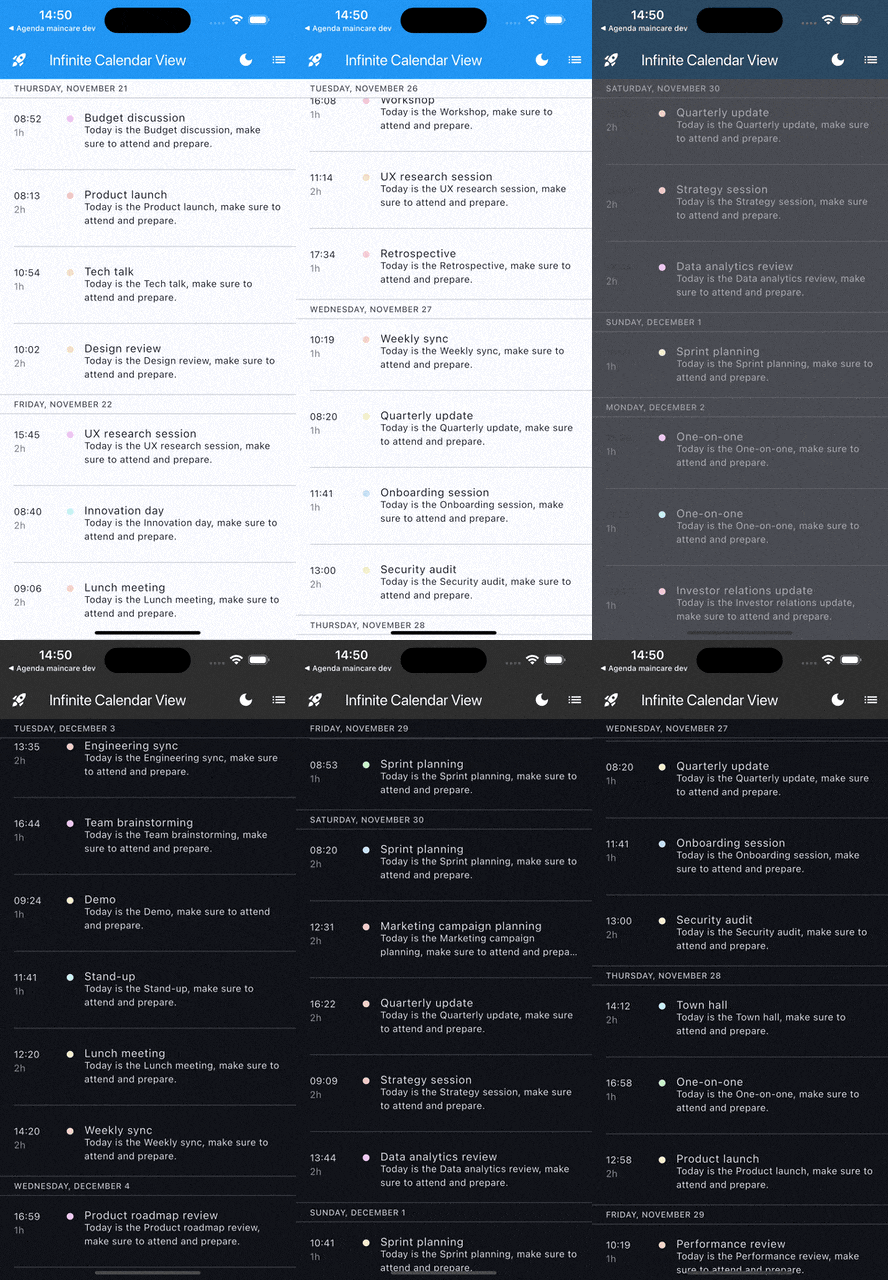
List with sticky header
drawing
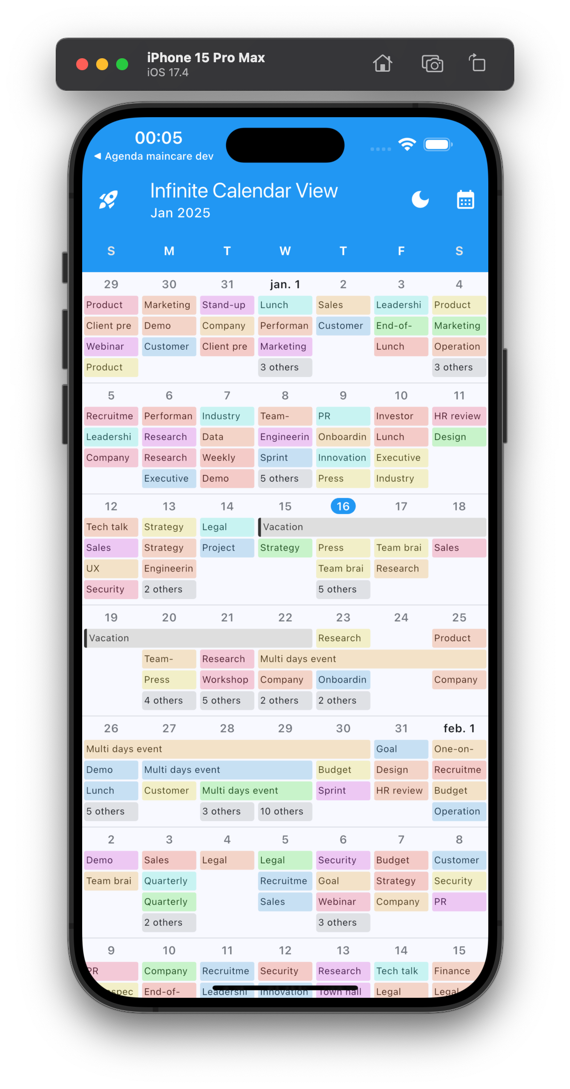
Month
drawing
Month RTL
drawing
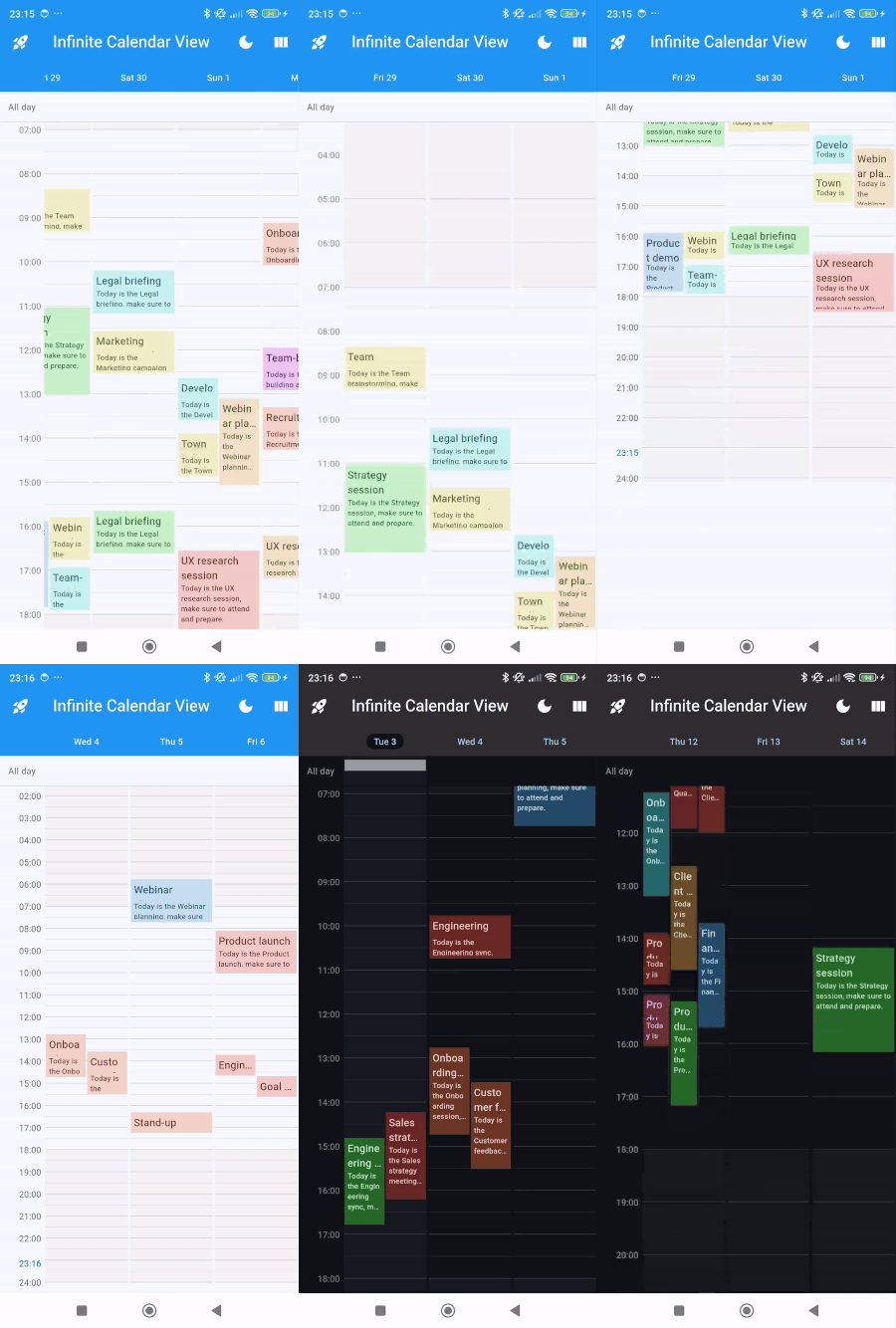
Multi Columns - 2 days
drawing
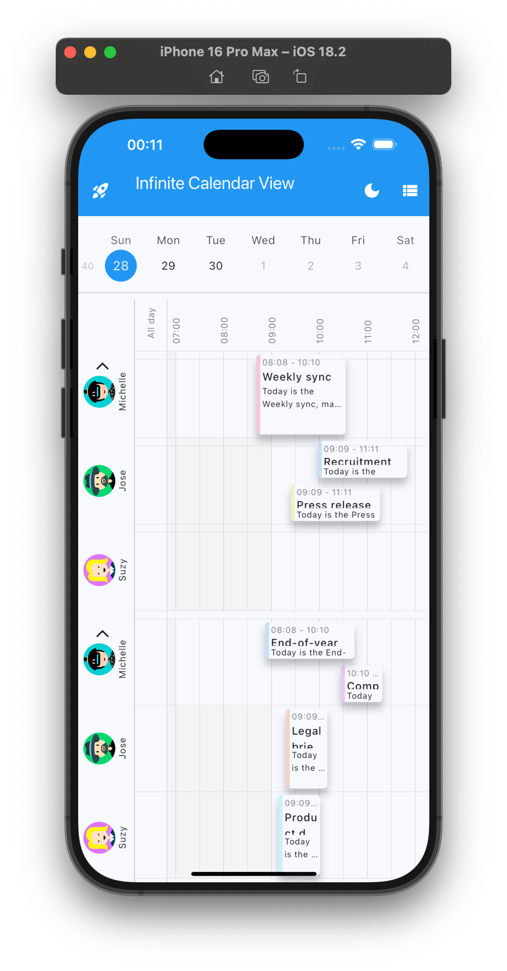
Columns (multi agendas)
drawing
Columns other example
drawing
Multi event types
drawing
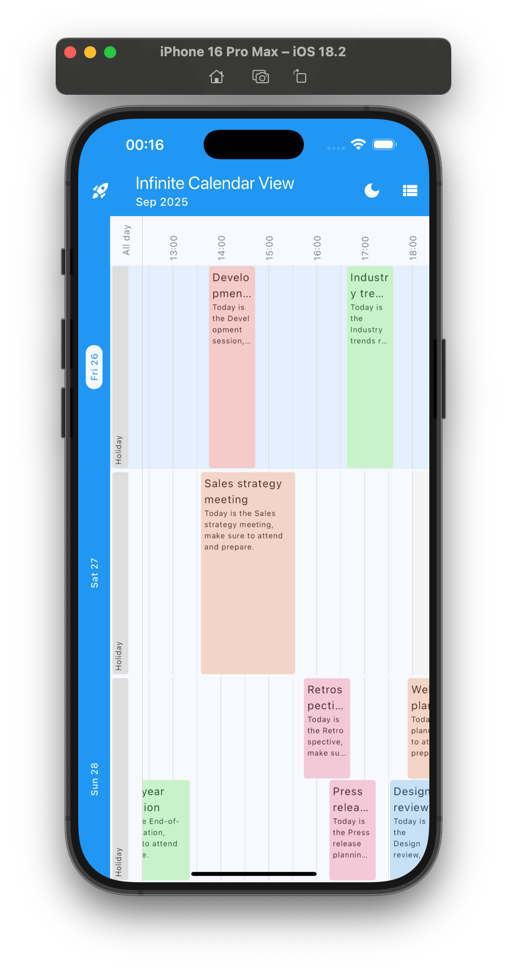
Rotated planner (3 days)
drawing
Rotated planner multi-row
drawing
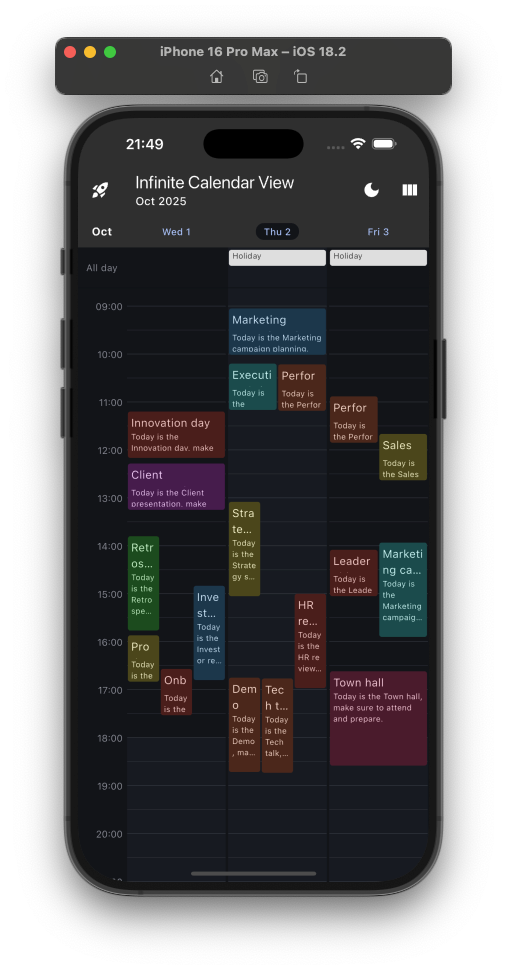
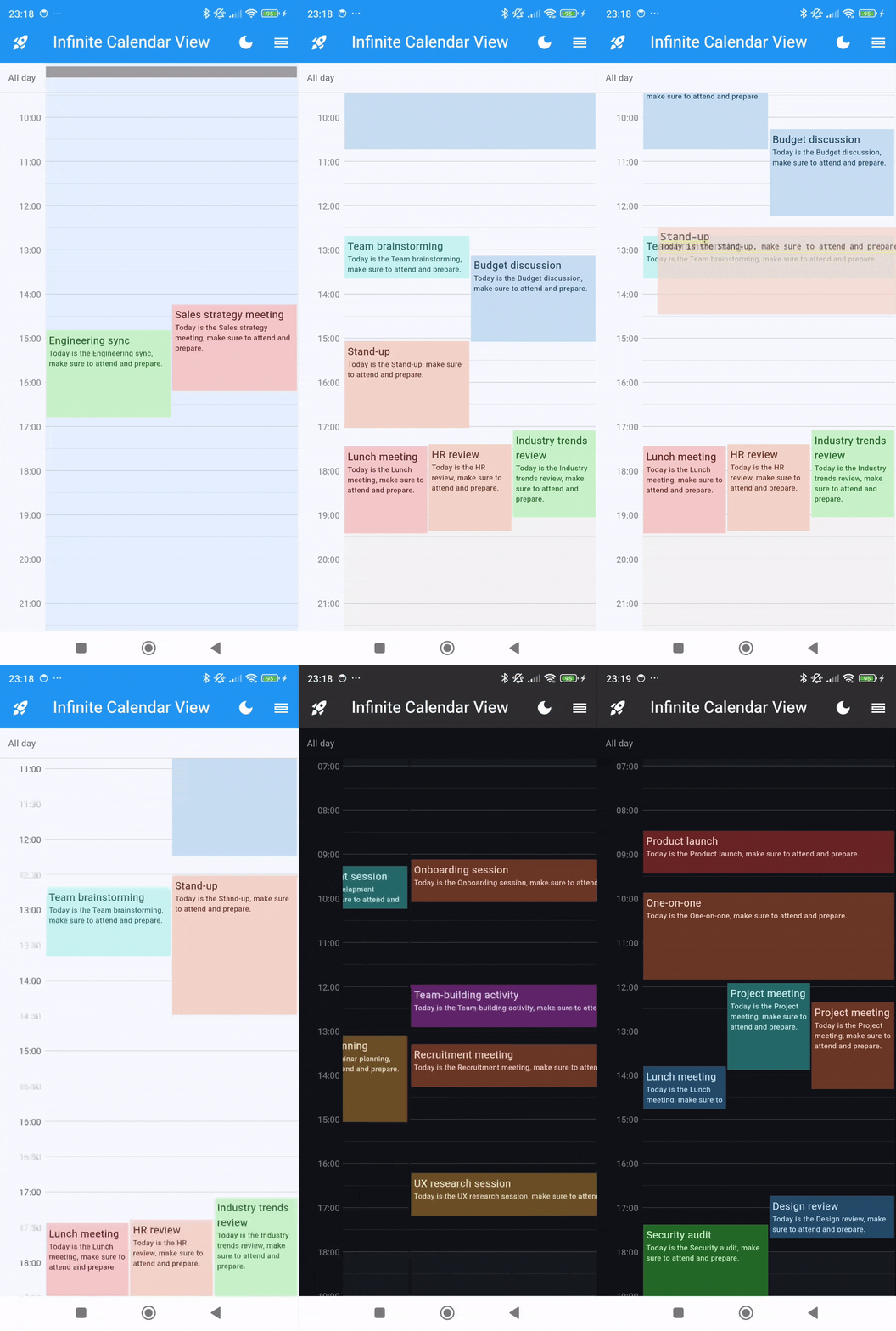
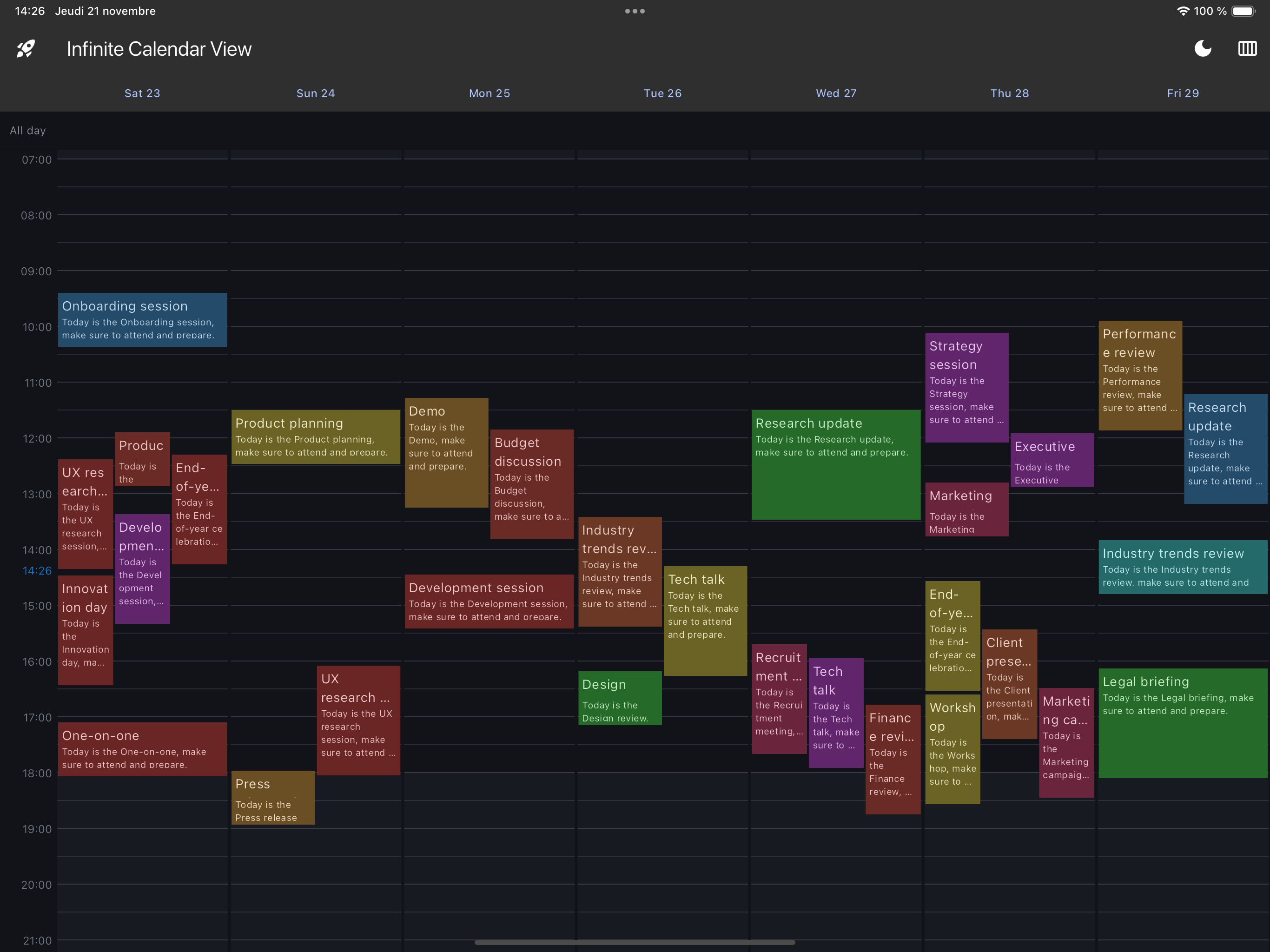
Dark Mode - Planner
drawing
Dark Mode - List
drawing
Interactive slot selection
drawing

Preview

Calendar views
1 day
drawing
3 days
drawing
Month
drawing
List
drawing
7 day (web or tablet)
drawing

Installing

  1. Add dependencies to pubspec.yaml

    Get the latest version in the 'Installing' tab on pub.dev

    dependencies:
        infinite_calendar_view: <latest-version>
    
  2. Run pub get.

    flutter pub get
    
  3. Import package.

    import 'package:infinite_calendar_view/infinite_calendar_view.dart';
    

Implementation

Make sure to check out examples and API docs for more details.

  1. Init controller.

     EventsController controller = EventsController();
    
  2. Add calendar views.

    For 1 Day Calendar Planner View

    Scaffold(
        body: EventsPlanner(
          controller: controller,
          daysShowed : 1
        ),
    );
    

    For 3 Days Calendar Planner View

    Scaffold(
        body: EventsPlanner(
          controller: controller,
          daysShowed : 3
        ),
    );
    

    For Calendar Month View

    Scaffold(
        body: EventsMonths(
          controller: controller,
        ),
    );
    

    For Calendar List View

    Scaffold(
        body: EventsList(
          controller: controller,
        ),
    );
    
  3. Use controller to add or remove events when you want.

    To Add event:

    final event = Event(
       startTime: DateTime(2024, 8, 10, 8, 0),
       endTime: DateTime(2024, 8, 10, 9, 0),
       title: "Event1"
    );
    
    controller.updateCalendarData((calendarData) {
      calendarData.addEvents([event]);
    });
    

    To Add full day event:

    final event = Event(
       isFullDay: true,
       startTime: DateTime(2024, 8, 10),
       title: "Full Day Event"
    );
    
    controller.updateCalendarData((calendarData) {
      calendarData.addEvents([event]);
    });
    

    As soon as you add or remove events from the controller, it will automatically update the calendar view assigned to that controller.

  4. Use GlobalKey to jump to a specific date.

     GlobalKey<EventsPlannerState> key = GlobalKey<EventsPlannerState>();
    

    Add key in EventsPlanner or EventsList

     EventsPlanner(
       key : key
       ...
     )
    

    Jump to date

     key.currentState?.jumpToDate(DateTime(2024, 8, 10))
    

More on the infinite calendar view

  1. For Pinch To Zoom

    EventsPlanner(
       controller: controller,
       pinchToZoomParam: PinchToZoomParameters(
          pinchToZoom: true,
          onZoomChange: (heightPerMinute) {},
          pinchToZoomMinHeightPerMinute: 0.5,
          pinchToZoomMaxHeightPerMinute: 2.5,
          pinchToZoomSpeed: 1,
       ),
    );
    
  2. For Draggable Calendar Event

    EventsPlanner(
       controller: controller,
       dayParam: DayParam(
         dayEventBuilder: (event, height, width, heightPerMinute) {
           return DraggableEventWidget(
             event: event,
             height: height,
             width: width,
             heightPerMinute: heightPerMinute,
             onDragEnd: (exactStartDateTime, exactEndDateTime, roundStartDateTime, roundEndDateTime) {
               moveEvent(event, roundStartDateTime, roundEndDateTime);
             },
             child: DefaultDayEvent(
               height: height,
               width: width,
               title: event.title,
               description: event.description,
             ),
           );
         },
       ),
    );
    
    void moveEvent(Event oldEvent, DateTime roundStartDateTime, DateTime roundEndDateTime) {
      controller.updateCalendarData((calendarData) {
        calendarData.updateEvent(
          oldEvent: oldEvent,
          newEvent: oldEvent.copyWith(
            startTime: roundStartDateTime,
            endTime: roundEndDateTime,
          ),
        );
      });
    }
    
  3. For interactive calendar slot selection

    Active enableTapSlotSelection init slot selection on tap Active enableLongPressSlotSelection for draggable slot selection Set onSlotMinutesRound for round slot to nearest slot

    EventsPlanner(
       dayParam: DayParam(
         onSlotMinutesRound: 30,
         slotSelectionParam: SlotSelectionParam(
           enableTapSlotSelection: true,
           enableLongPressSlotSelection: true,
         ),
       ),
    )
    
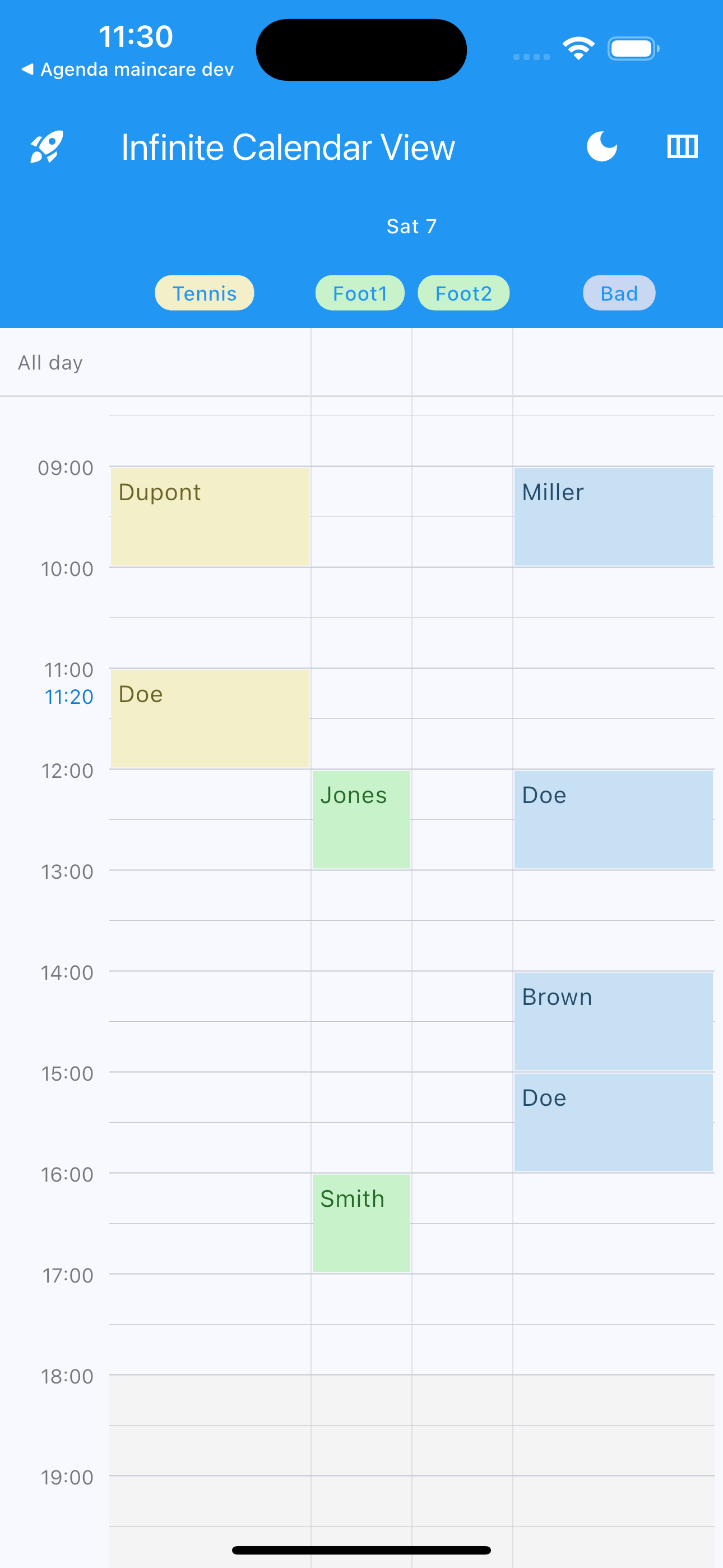
  4. Manage multiple calendars in the same calendar view with multiple columns

    Set columnIndex in Calendar Event

    Event(
       columnIndex: 2,
       ...
     )
    

    Set columns number, labels, colors and ratio (optional)

    EventsPlanner(
       controller: controller,
       columnsParam: ColumnsParam(
         columns: 4,
         columnsLabels: ["Tennis", "Foot", "Bad"],
         columnsWidthRatio: [1 / 3, 1 / 3, 1 / 3],
         columnsColors: [
           Colors.yellow.pastel,
           Colors.green.pastel,
           Colors.blueAccent.pastel,
         ],
       ),
    );
    
    drawing drawing drawing

All Calendar Parameters

  1. Calendar Events Planner all parameters

    EventsPlanner(
       key: GlobalKey<EventsPlannerState>(),
       controller: controller,
       daysShowed: 3,
       initialDate: DateTime.now(),
       maxNextDays: 365,
       maxPreviousDays: 365,
       heightPerMinute: 1.0,
       initialVerticalScrollOffset: 1.0 * 7 * 60,
       daySeparationWidth: 3,
       onDayChange: (firstDay) {},
       onVerticalScrollChange: (offset) {},
       automaticAdjustHorizontalScrollToDay: true,
       onAutomaticAdjustHorizontalScroll: (day) {},
       horizontalScrollPhysics: const BouncingScrollPhysics(
         decelerationRate: ScrollDecelerationRate.fast,
       ),
       dayEventsArranger: SideEventArranger(paddingLeft: 0, paddingRight: 0),
       daysHeaderParam: DaysHeaderParam(
         daysHeaderVisibility: true,
         daysHeaderHeight: 40.0,
         daysHeaderColor: Theme.of(context).appBarTheme.backgroundColor,
         dayHeaderBuilder: (day, isToday) {
           return DefaultDayHeader(
             dayText: DateFormat("E d").format(day),
             isToday: isToday,
             foregroundColor: Colors.white,
           );
         },
       ),
       offTimesParam: OffTimesParam(
         offTimesAllDaysRanges: [
           OffTimeRange(
             TimeOfDay(hour: 0, minute: 0),
             TimeOfDay(hour: 7, minute: 0),
           ),
           OffTimeRange(
             TimeOfDay(hour: 18, minute: 0),
             TimeOfDay(hour: 24, minute: 0),
           )
         ],
         offTimesDayRanges: {
           DateTime(2024, 10, 8): [
             OffTimeRange(
               TimeOfDay(hour: 8, minute: 0),
               TimeOfDay(hour: 18, minute: 0),
             ),
           ],
         },
         offTimesColor: Color(0xFFF4F4F4),
         offTimesAllDaysPainter: (isToday, heightPerMinute, ranges, color) =>
             OffSetAllDaysPainter(
                 isToday, heightPerMinute, [], Color(0xFFF4F4F4)),
         offTimesDayPainter: (isToday, heightPerMinute, ranges, color) =>
             OffSetAllDaysPainter(
                 isToday, heightPerMinute, [], Color(0xFFF4F4F4)),
       ),
       dayParam: DayParam(
         todayColor: Colors.black12,
         dayTopPadding: 10,
         dayBottomPadding: 15,
         onSlotMinutesRound: 15,
         onSlotTap: (columnIndex, exactDateTime, roundDateTime) {},
         onSlotLongTap: (columnIndex, exactDateTime, roundDateTime) {},
         onSlotDoubleTap: (columnIndex, exactDateTime, roundDateTime) {},
         onDayBuild: (day) {},
         dayEventBuilder: (event, height, width, heightPerMinute) {
           return DefaultDayEvent(
             height: height,
             width: width,
             title: event.title,
             description: event.description,
           );
         },
         dayCustomPainter: (heightPerMinute, isToday) => LinesPainter(
           heightPerMinute: heightPerMinute,
           isToday: isToday,
           lineColor: Colors.black12,
         ),
       ),
       fullDayParam: FullDayParam(
         fullDayEventsBarVisibility: true,
         fullDayEventsBarLeftText: 'All day',
         fullDayEventsBarLeftWidget: Text('All day'),
         fullDayEventsBarHeight: 40,
         fullDayEventsBarDecoration: const BoxDecoration(
             border: Border(bottom: BorderSide(color: Colors.black12))),
       ),
       timesIndicatorsParam: TimesIndicatorsParam(
         timesIndicatorsWidth: 60.0,
         timesIndicatorsHorizontalPadding: 4.0,
         timesIndicatorsCustomPainter: (heightPerMinute) => HoursPainter(
           heightPerMinute: 1.0,
           showCurrentHour: true,
           hourColor: Colors.black12,
           halfHourColor: Colors.black12,
           quarterHourColor: Colors.black12,
           currentHourIndicatorColor: Colors.black12,
           halfHourMinHeightPerMinute: 1.3,
           quarterHourMinHeightPerMinute: 2,
         ),
       ),
       currentHourIndicatorParam: CurrentHourIndicatorParam(
         currentHourIndicatorHourVisibility: true,
         currentHourIndicatorLineVisibility: true,
         currentHourIndicatorColor: Colors.blue,
         currentHourIndicatorCustomPainter: (heightPerMinute, isToday) =>
             TimeIndicatorPainter(heightPerMinute, isToday, Colors.blue),
       ),
       pinchToZoomParam: PinchToZoomParameters(
         pinchToZoom: true,
         onZoomChange: (heightPerMinute) {},
         pinchToZoomMinHeightPerMinute: 0.5,
         pinchToZoomMaxHeightPerMinute: 2.5,
         pinchToZoomSpeed: 1,
       ),
       columnsParam: ColumnsParam(
         columns: 2,
         columnsLabels: ["Tennis", "Foot"],
         columnsColors: [Colors.blue, Colors.red],
         columnsForegroundColors: [Colors.white, Colors.white],
         columnsWidthRatio: [1 / 2, 1 / 2],
         columnHeaderBuilder: (day, isToday, columIndex, columnWidth) {
           return DefaultColumnHeader(
             backgroundColor: Colors.transparent,
             foregroundColor: Colors.white,
             columnText: ["Tennis", "Foot"].elementAt(columIndex),
             columnWidth: columnWidth,
           );
         },
         columnCustomPainter : (double width, int colum) => ColumnPainter(
            width: width,
            columnsParam: columnsParam,
            lineColor: Colors.gray,
         ),
       ),
    );
    
  2. Calendar Events List all parameters

    EventsList(
       controller: controller,
       initialDate: DateTime.now(),
       maxPreviousDays: 365,
       maxNextDays: 365,
       onDayChange: (day) {},
       todayHeaderColor: const Color(0xFFf4f9fd),
       verticalScrollPhysics: const BouncingScrollPhysics(
         decelerationRate: ScrollDecelerationRate.fast,
       ),
       dayEventsBuilder: (day, events) {
         return DefaultDayEvents(
           events: events,
           eventBuilder: (event) => DefaultDetailEvent(event: event),
           nullEventsWidget: DefaultDayEvents.defaultEmptyEventsWidget,
           eventSeparator: DefaultDayEvents.defaultEventSeparator,
           emptyEventsWidget: DefaultDayEvents.defaultEmptyEventsWidget,
         );
       },
       dayHeaderBuilder: (day, isToday) => DefaultHeader(
         dayText: DateFormat.MMMMEEEEd().format(day).toUpperCase(),
       ),
    );
    

Local

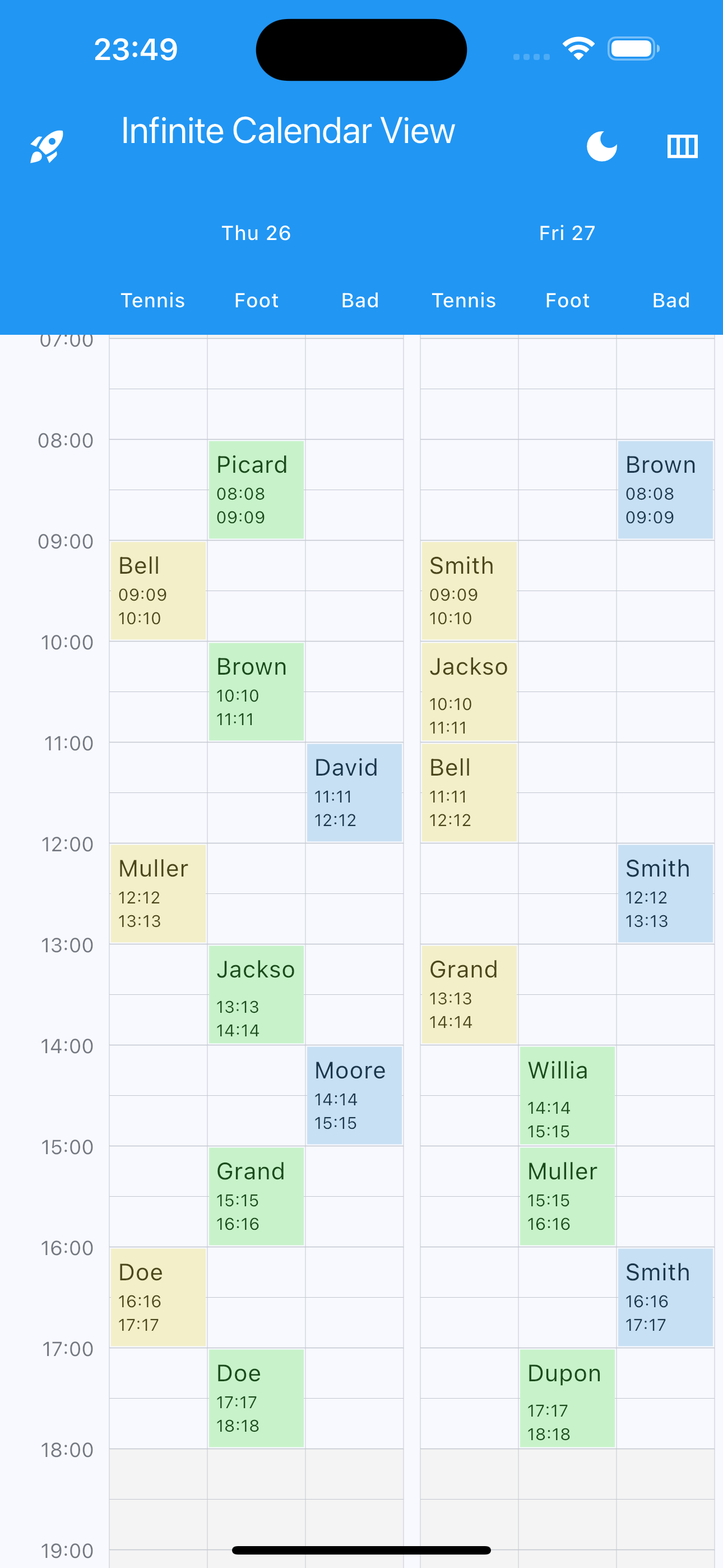
The package does not support locales itself, so as not to import additional dependencies like intl which may cause dependency conflicts.

However, all texts are easily customizable. You can use intl to translate the texts into the desired language. Local example

License

MIT License

Copyright (c) 2026 Pickywawa

Permission is hereby granted, free of charge, to any person obtaining a copy
of this software and associated documentation files (the "Software"), to deal
in the Software without restriction, including without limitation the rights
to use, copy, modify, merge, publish, distribute, sublicense, and/or sell
copies of the Software, and to permit persons to whom the Software is
furnished to do so, subject to the following conditions:

The above copyright notice and this permission notice shall be included in all
copies or substantial portions of the Software.

THE SOFTWARE IS PROVIDED "AS IS", WITHOUT WARRANTY OF ANY KIND, EXPRESS OR
IMPLIED, INCLUDING BUT NOT LIMITED TO THE WARRANTIES OF MERCHANTABILITY,
FITNESS FOR A PARTICULAR PURPOSE AND NON INFRINGEMENT. IN NO EVENT SHALL THE
AUTHORS OR COPYRIGHT HOLDERS BE LIABLE FOR ANY CLAIM, DAMAGES OR OTHER
LIABILITY, WHETHER IN AN ACTION OF CONTRACT, TORT OR OTHERWISE, ARISING FROM,
OUT OF OR IN CONNECTION WITH THE SOFTWARE OR THE USE OR OTHER DEALINGS IN THE
SOFTWARE.

Tags

calendar, schedule, scheduler, date, planner, planning, timeline, week-view, day-view, multi days, month-view, events, appointment, booking, calender, calendrier, time, viewer

카테고리

소스 저장소

이 패키지를 사용하는 프로젝트

아직 데이터가 없습니다.