연결된 소스 저장소의 README 원문 스냅샷입니다. 최신 내용은 저장소에서 확인하세요.
inspector





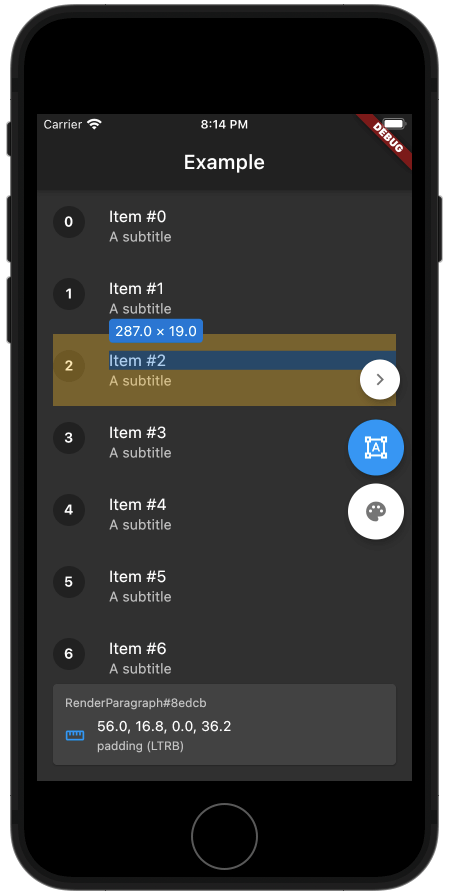
A Flutter package for inspecting widgets. Also comes with an eyedropper and a magnifying glass. Useful for debugging widgets and for QA testing.
Supports keyboard shortcuts if you're using a physical keyboard.
Check out the example web app!
Inspired by inspx.
WIP
Warning, the development of this package is still in progress and some things may break your app.
Features
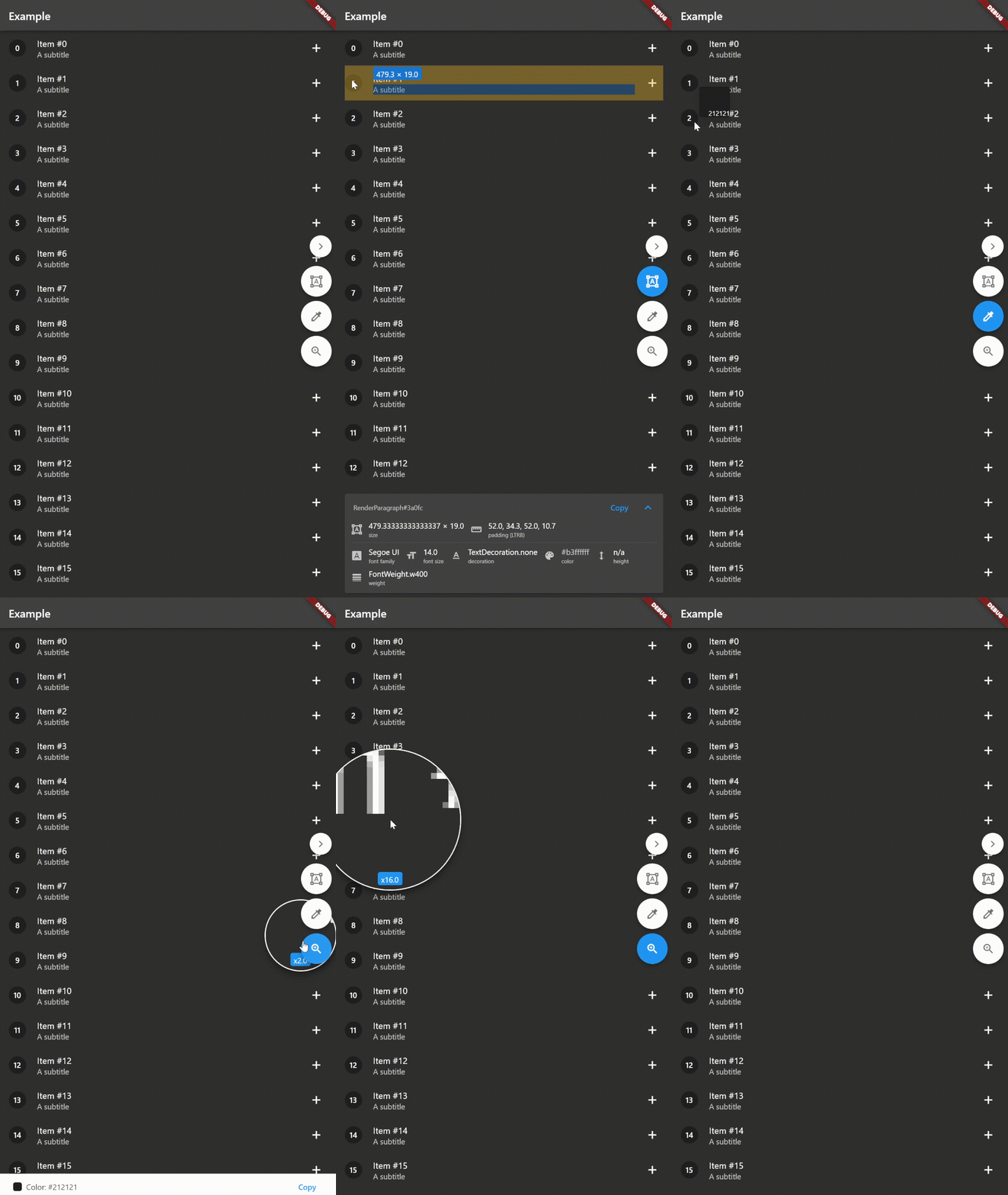
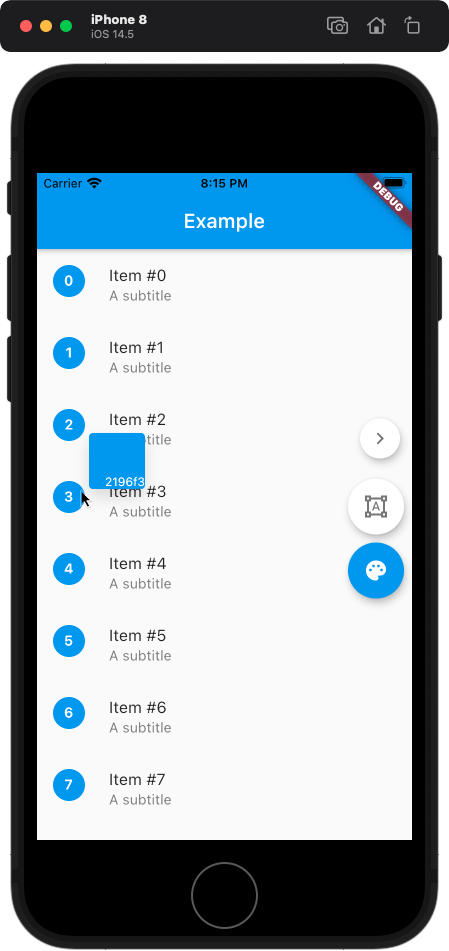
- [x] Color picker
- [x] Size inspection
- [x] Padding inspection
- [x] Keyboard shortcuts
- [x] Zooming
- [ ]
BorderRadius inspection
- [x]
TextStyle inspection
Installing
Add the dependency:
$ flutter pub add inspector
Import the package:
import 'package:inspector/inspector.dart';
Wrap MaterialApp.builder or WidgetsApp.builder with Inspector:
MaterialApp(
home: ExampleApp(),
builder: (context, child) => Inspector(child: child!),
),
Optionally, you can pass isEnabled to the Inspector to disable it. By default, the inspector is disabled when kReleaseMode == true.
Usage
If the inspector is enabled, then a panel appears on the right side of the screen,
with buttons to toggle size inspection and the color picker.
It's quite straightforward to use, just tap on the widget that you want to measure
or tap on the pixel to get its color.
You can also use keyboard shortcuts - Shift will toggle the color picker, Z will toggle the zoom, and Alt or Cmd will toggle the widget inspector.
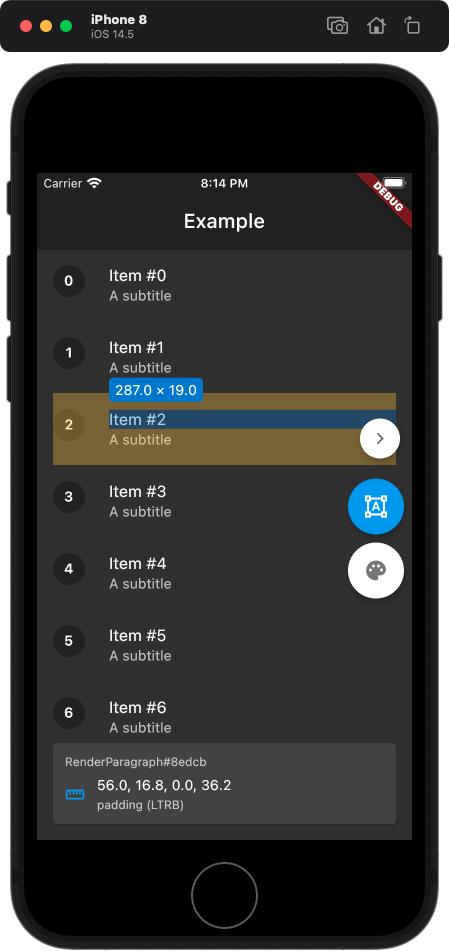
Examples
Contact me
Feel free to contact me at:
E-mail: kk.erzhan@gmail.com