연결된 소스 저장소의 README 원문 스냅샷입니다. 최신 내용은 저장소에서 확인하세요.
Intelligence


Add support for Apple's AppIntents framework to your Flutter application. For details on how to add integration with Siri, Shortcuts app, and Apple Intelligence, see Recipes.
Installation
Copy and paste the following snippet into your shell when in the target project directory.
dart pub add intelligence
Usage
To add support for AppIntents framework, you will have to perform one-time setup which differs for different use-cases. See Recipes for more details.
iOS Configuration
After installing the package, you need to set the minimum iOS version to 16.0 on XCode.
For more details, follow these steps:
-
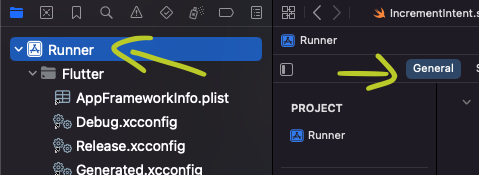
Open the iOS project in Xcode

-
Click on Runner & then general tab
-
Under the General tab & minimum deployments section, set the iOS version to atleast 16.0

Once set up, the plugin will let you act on each App Intent trigger.
E.g. while setting the selection listener in a Stateful widget:
Intelligence().selectionsStream().listen(_handleSelection);
Note: the Intelligence class behaves like a singleton, so you do not have to maintain the same class instance throughout the app/use-case.
Recipes
List of practical applications of intelligence in your project. Click the Details dropdown to see the implementation.
Allow the Shortcuts app to open a specific page in your application
Will let your app to be automated via Shortcuts workflow.
- Open the iOS project in Xcode
- Add a new Swift file and paste:
import AppIntents
import intelligence

struct OpenHeartIntent: AppIntent {
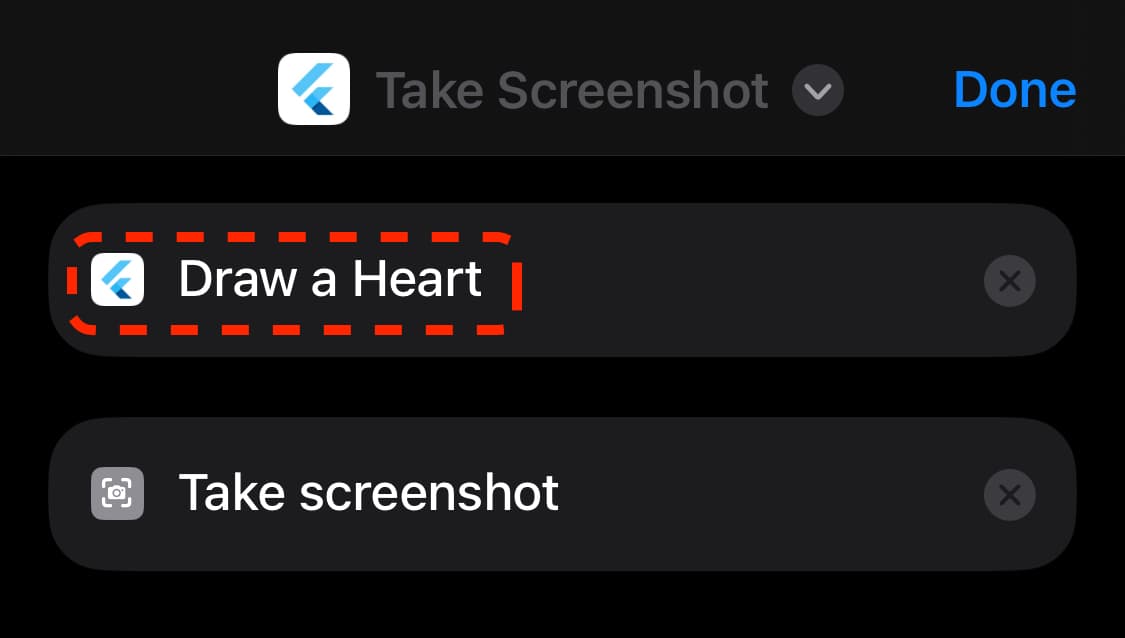
  static var title: LocalizedStringResource = "Draw a Heart"
  static var openAppWhenRun: Bool = true

  @MainActor
  func perform() async throws -> some IntentResult {
    IntelligencePlugin.notifier.push("heart")
    return .result()
  }
}
Switch out the struct's name, title, and the .pushed value to ones that match your use-case.
Once added, your App Intent will show up in the Shortcuts app:
Optionally: Add a Siri voice shortcut to for the App Intent
To trigger the App Intent declared above by speaking a specific phrase to Siri, append:
struct OpenHeartShortcuts: AppShortcutsProvider {
  static var appShortcuts: [AppShortcut] {
    AppShortcut(
      intent: ExampleAppIntent(),
      phrases: [
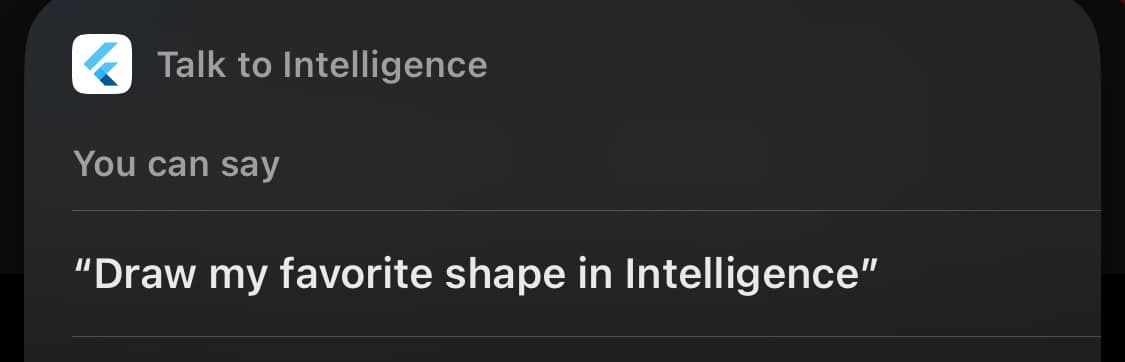
        "Draw my favorite shape in \(.applicationName)"
      ]
    )
  }
}
Once deployed to the device, Siri can understand the trigger phrase and run the App Intent declared above:
Let Siri open a specific entity from your app domain
Siri is capable of understanding the entities your application revolves around, letting you implement App Intents with variables.
See full implementation in the example project.
- Define an
AppEntity. It should contain a unique identifier and a text representation fields, as follows:
import CoreSpotlight
import AppIntents

struct RepresentableEntity: AppEntity {
  static var defaultQuery: RepresentableQuery = RepresentableQuery()
  static var typeDisplayRepresentation = TypeDisplayRepresentation(name: "Shape")

  var displayRepresentation: DisplayRepresentation {
    DisplayRepresentation(stringLiteral: representation)
  }

  let id: String
  let representation: String
}

extension RepresentableEntity: IndexedEntity {
  var attributeSet: CSSearchableItemAttributeSet {
    let attributes = CSSearchableItemAttributeSet()
    attributes.displayName = self.representation
    return attributes
  }
}
- Create a matching
EntityQuery, like so:
import AppIntents
import intelligence

struct RepresentableQuery: EntityQuery {
  func entities(for identifiers: [String]) async throws -> [RepresentableEntity] {
    return IntelligencePlugin.storage.get(for: identifiers).map() { item in
      return RepresentableEntity(
        id: item.id,
        representation: item.representation
      )
    }
  }

  func suggestedEntities() async throws -> [RepresentableEntity] {
    return IntelligencePlugin.storage.get().map() { item in
      return RepresentableEntity(
        id: item.id,
        representation: item.representation
      )
    }
  }
}

extension RepresentableQuery: EnumerableEntityQuery {
  func allEntities() async throws -> [RepresentableEntity] {
    return IntelligencePlugin.storage.get().map() { item in
      return RepresentableEntity(
        id: item.id,
        representation: item.representation
      )
    }
  }
}
- Create an
AppIntent using the entity as a parameter.
import AppIntents
import intelligence

struct ExampleAppIntent: AppIntent {
  static var title: LocalizedStringResource = "Draw shape"
  static var openAppWhenRun: Bool = true

  @Parameter(title: "Shape")
  var target: RepresentableEntity

  @MainActor
  func perform() async throws -> some IntentResult {
    IntelligencePlugin.notifier.push(target.id)
    return .result()
  }

  static var parameterSummary: some ParameterSummary {
    Summary("Draw \(\.$target)")
  }
}


struct AppShortcuts: AppShortcutsProvider {
  static var appShortcuts: [AppShortcut] {
    AppShortcut(
      intent: ExampleAppIntent(),
      phrases: [
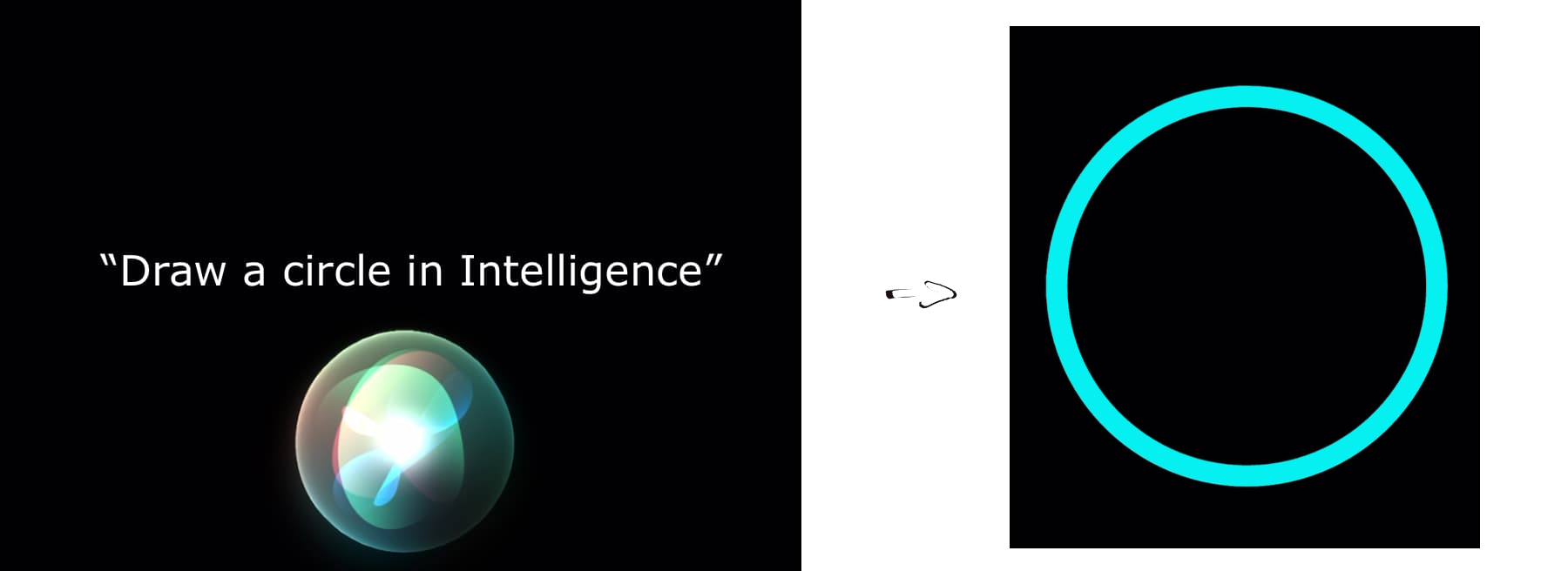
        "Draw a \(\.$target) in \(.applicationName)"
      ]
    )
  }
}
- In your
AppDelegate file, add the following code to the didFinishLaunchingWithOptions method:
  IntelligencePlugin.storage.attachListener {
    AppShortcuts.updateAppShortcutParameters()
  }
  if #available(iOS 18.0, *) {
    IntelligencePlugin.spotlightCore.attachEntityMapper() { item in
      return RepresentableEntity(
        id: item.id,
        representation: item.representation
      )
    }
  }
- In your Dart code, use the
.populate method to let the operating system know about the entities available in your app:
await IntelligencePlugin().populate(const [
  Representable(representation: 'Heart', id: 'heart'),
  Representable(representation: 'Circle', id: 'circle'),
  Representable(representation: 'Rectangle', id: 'rectangle'),
  Representable(representation: 'Triangle', id: 'triangle'),
]);
Note: each call to .populate overwrites previous entities. Call .populate([]) once the entities are not accessible anymore, e.g. after a logout.
Result:
Further reading