MorphableShape는 반응형이고 동적인 모양을 만들 수 있게 해주는 Flutter 패키지로, 다양한 형태 사이에서 부드럽게 전환할 수 있습니다. 인터랙티브하고 애니메이션 가능한 UI를 위해 설계되었으며, 개발자가 사용자 정의 경로를 정의하고 여러 플랫폼에서 실시간으로 변형 애니메이션을 구현할 수 있도록 합니다. 시각 효과, 로딩 표시기 또는 창의적인 인터페이스에 적합하며, 직관적인 API를 통해 복잡한 경로 애니메이션을 간단하게 만듭니다. 이 패키지는 모든 주요 Flutter 플랫폼을 지원하여 모바일에서 데스크톱 및 웹까지 일관된 동작을 보장합니다.
사용 사례
애니메이션 UI 요소
인터랙티브한 형태 전환
로딩 애니메이션
창의적인 인터페이스 디자인
반응형 모양 컴포넌트
주요 기능
형태 간의 부드러운 전환
반응형 디자인 지원
크로스 플랫폼 호환성
사용자 정의 경로 정의
실시간 애니메이션 제어
적합한 대상
동적인 시각 효과를 찾는 UI/UX 디자이너
인터랙티브 앱을 개발하는 개발자
유동적인 형태 애니메이션을 필요로 하는 프로젝트
실험적 인터페이스 프로토타이핑
시각적 서사에 중점을 둔 앱
고려 사항
복잡한 경로로 인한 성능 영향
부드러운 전환을 위해서는 경로 정의에 신중해야 합니다
저사양 기기용 최적화가 필요할 수 있습니다
기본 예제 외에 문서가 제한적
중간 복잡도의 애니메이션에 가장 적합
원본 README
연결된 소스 저장소의 README 원문 스냅샷입니다. 최신 내용은 저장소에서 확인하세요.
morphable_shape
A Flutter package for creating various shapes that are responsive
and can morph between each other.
Notice: This class uses the dimension package but only the px and percent units are respected since ShapeBorder has no access to the build context and the screen size.
Getting Started
First, you need to create a ShapeBorder instance. The responsive feature means that
you can have a single ShapeBorder instance that adapts to different sizes without you calculating the desired dimensions. For example, the following
code will give you a rounded rectangle border with a 60 px circular radius at the top left corner and a (60 px, 10%) elliptical corner at the bottom right corner.
(for more information of how to use the Length class, see dimension).
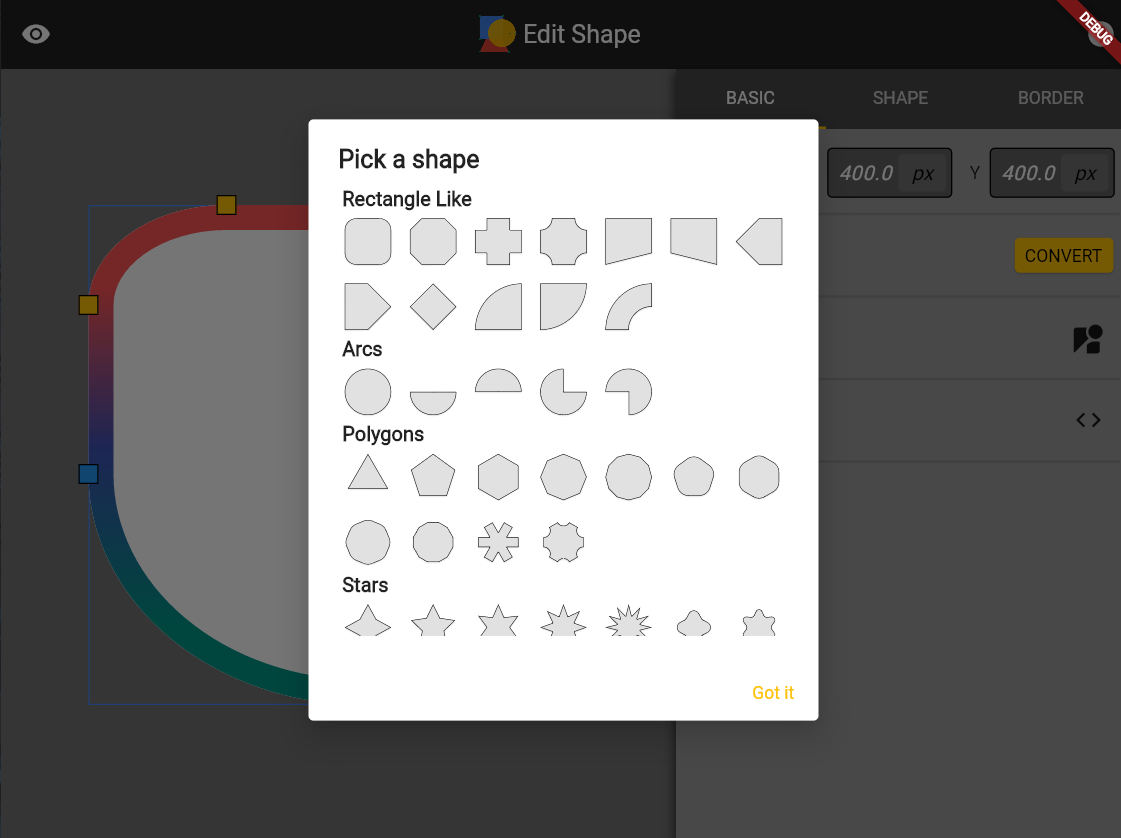
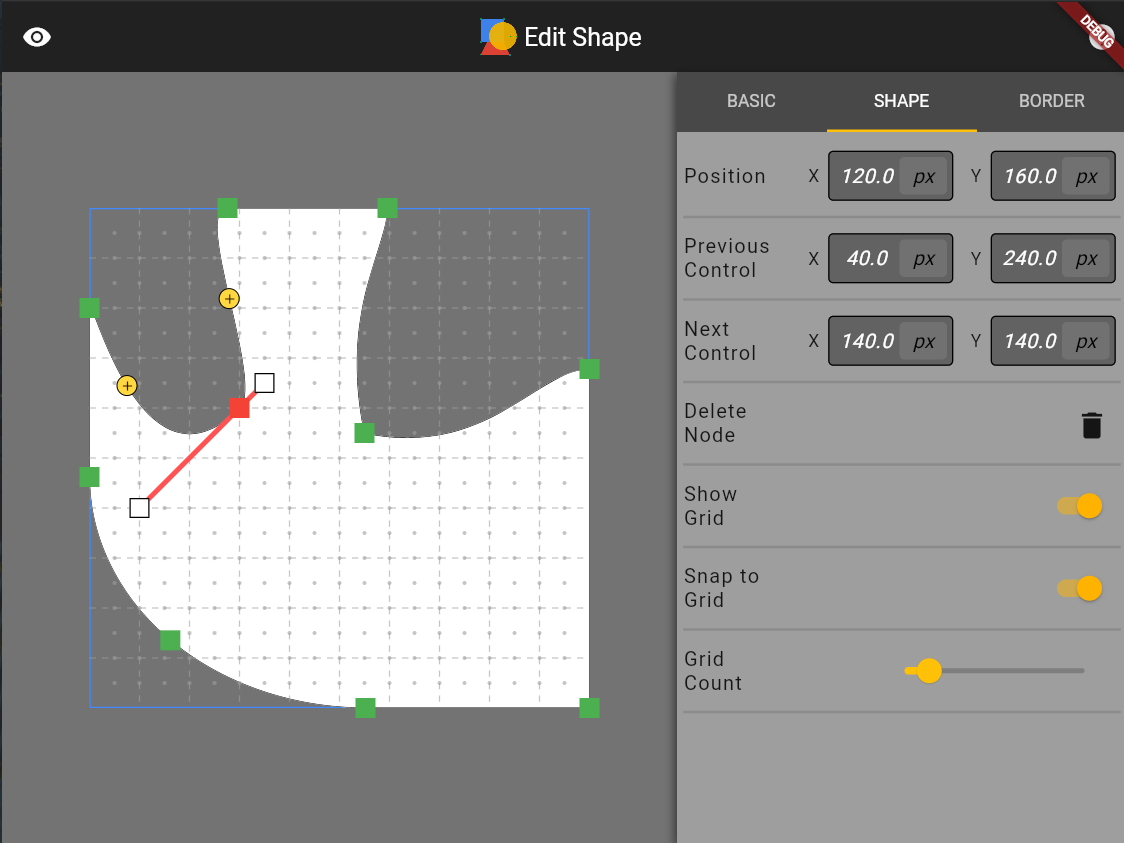
You can run the example app to create a local shape editing tool to see the various shapes supported by this package (also hosted online at https://fluttershape.com/).
DynamicBorderSide
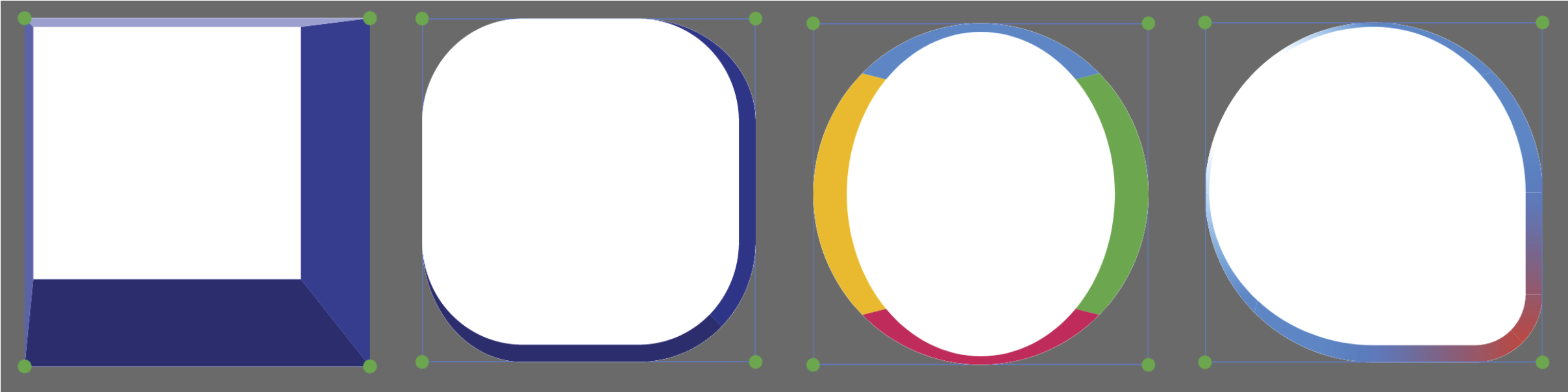
The DynamicBorderSide is an extension to the built-in BorderSide class. It supports gradient filling in addtion to single color filling. It also supports painting partially by specifing the begin, end and offset parameters (e.g. paint only the first half of the border side). You can change the strokeJoin and strokeCap paramter as well.
This class is used to configure how the borders are painted with different shapes.
The most powerful and commonly used one should be the RectangleShapeBorder class. It allows to you configure each corner of the rectangle individually or at once.
It also automatically scales all sides so that they don’t overlap (just like what CSS does). The RectangleShapeBorder supports four different corner styles:
You can make a triangle, a diamond, a trapezoid, or even an arrow shape by just using the RectangleShapeBorder class and providing the right corner style and border radius.
CircleShapeBorder
CircleShapeBorder gives you a circle. Simple as that.
RoundedRectangleShapeBorder
If you use the RoundedRectangleShapeBorder class, then the four border sides can be configured individually. The four border sides can be styled independently or at once, similar to what CSS offers:
Below are some border designs using this class. This class is very similar to what CSS
offers and is a combination of the BoxBorder and RoundedRectangleBorder class that Flutter
offers.
PolygonShapeBorder
PolygonShapeBorder supports changing the number of sides as well as corner radius and corner style:
These shape borders are also supported and responsive. Check out their constructors to see how to make them.
PathShapeBorder
Accepts a DynamicPath instance to draw a custom path border. Right now only straight line and cubic Bezier curves are supported. Arcs need to be translated to cubic Beziers first. In the future I may let this class accept close SVG path as well.
Shape Morphing
Every shape in this package can be morphed into one another, including the border side(s). Hence the name of this package. To morph between two shapes you first need to create a ShapeBorderTween:
The MorphMethod.weighted tries to use as little control
points as possible to do the morphing and takes into account the length of each side of a shape. The MorphMethod.unweighted uses more points
but do not utilize the length information. The MorphMethod.auto will choose either
one of the two methods based on some geometric criteria to make the morphing
process to look more natural. The auto method generally works well, but you can
try other ones if the morphing looks weird.
Shapes with the same geometry can be morphed faster and in a more consistent way. For example, rectangles and rounded rectangles, or polygons with the same number of sides. For other shapes, the morphing takes more time and may not look great especially for two very distinct shapes.
Shape Serialization
Every shape in this package supports serialization. If you have designed some shape you like, just call toJson() on it. Then you can reuse it by writting.
As I mentioned before, the example app in this package is a shape editing tool for
you to quickly design the shape you want and generate the corresponding code. Below are
some screenshots of the interfaces of this tool. I put about equal amount of effort
into developing this tool compared to developing this package so I strongly recommend you
to check it out. You can either build it locally or visit:
https://fluttershape.com/.