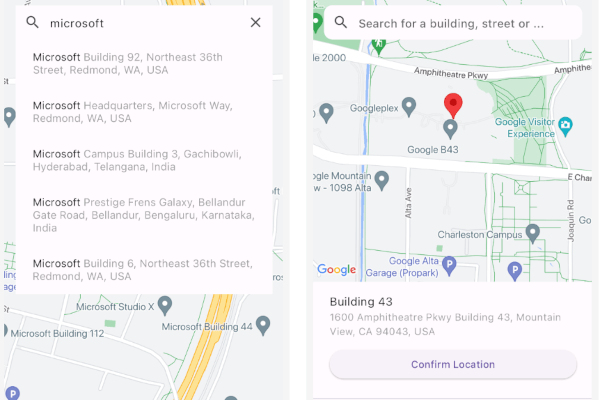
Dart로 완전히 구현된 플러터 패키지로, Google 지도의 장소 선택을 원활하게 통합할 수 있습니다. Android 및 iOS 플랫폼 모두를 지원하며, Google 지도에서 위치를 선택할 수 있는 직관적인 인터페이스를 제공합니다. 이 패키지는 플러터 앱 내에서 Google 지도 API를 직접 활용하여 주소 또는 좌표 선택 과정을 단순화합니다. 배달 서비스, 여행 앱, 이벤트 계획 도구와 같은 위치 입력이 필요한 애플리케이션에 적합합니다.
사용 사례
배달 앱에서 위치 선택
여행 예약을 위한 주소 입력
이벤트 기획을 위한 위치 정보
사용자 프로필 주소 설정
지도 기반 폼 입력
주요 기능
완전히 Dart로 작성됨
Google Maps API와의 통합
Android 및 iOS를 지원합니다
장소 선택을 위한 간단한 API
사용자 정의 가능한 UI 컴포넌트
적합한 대상
위치 인식 가능한 Flutter 앱을 개발하는 개발자
Google 지도 통합이 필요한 앱
주소 선택 기능이 필요한 프로젝트
지리 정보 기능을 갖춘 모바일 앱
크로스 플랫폼 위치 입력 솔루션
고려 사항
Google Maps API 키가 필요합니다
인터넷 연결에 따라 다름
위치 액세스를 위해 추가 권한이 필요할 수 있습니다
중량 지도 렌더링으로 인한 성능 영향 가능성
고급 구성 없이 제한된 사용자 정의
원본 README
연결된 소스 저장소의 README 원문 스냅샷입니다. 최신 내용은 저장소에서 확인하세요.
Place Picker Google
A comprehensive, cross-platform google maps place picker library for Flutter.
The package provides common operations for Place picking,
Places autocomplete, My Location, and Nearby places from google maps given you have enabled
Places API, Maps SDK for Android, Maps SDK for iOS and Geocoding API for your API key.
The following permissions are not required to use Google Maps Android API v2, but are recommended.
android.permission.ACCESS_COARSE_LOCATION Allows the API to use WiFi or mobile cell data (or both) to determine the
device's location. The API returns the location with an accuracy approximately equivalent to a city block.
android.permission.ACCESS_FINE_LOCATION Allows the API to determine as precise a location as possible from the
available location providers, including the Global Positioning System (GPS) as well as WiFi and mobile cell data.
On iOS you'll need to add the following entries to your Info.plist file (located under ios/Runner) in order to access the device's location.
Simply open your Info.plist file and add the following:
<key>NSLocationWhenInUseUsageDescription</key><string>This app needs access to location when open.</string><key>NSLocationAlwaysUsageDescription</key><string>This app needs access to location when in the background.</string><key>NSLocationAlwaysAndWhenInUseUsageDescription</key><string>This app needs access to location when open and in the background.</string>
Web
You'll need to modify the web/index.html file of your Flutter Web application to include the Google Maps JS SDK.
Get an API Key for Google Maps JavaScript API.
Get started here.
Modify the <head> tag of your web/index.html to load the Google Maps JavaScript API, like so:
<head><!-- // Other stuff --><!-- TODO: Add your Google Maps API key --><scriptsrc="https://maps.googleapis.com/maps/api/js?key=YOUR_API_KEY"></script></head>
Check the google_maps_flutter_web README
for the latest information on how to prepare your App to use Google Maps on the
web.
Note
Browser-based apps can't use dart:io library for the Platform API.
Only servers, command-line scripts, and Flutter mobile apps can import and use dart:io.
A native solution to switch between the platforms would be to use the flutter/foundation library.
import'package:flutter/foundation.dart';
if (kIsWeb) {
/// Web specific code
}
elseif (defaultTargetPlatform == TargetPlatform.iOS || defaultTargetPlatform == TargetPlatform.android) {
/// Android/iOS specific code
}
Google places API prevents CORS. So we can't make a request from client-side.
And As the PlacesAutocomplete widget makes http request to the Google places API like this:
This client-side request will be prevented.
The Google API was not made to be call from browser.
You need to use a proxy server that add the CORS to your request. e.g cors-anywhere.
Deploy the proxy server in Heroku or Vercel. You'll get a URL after deployment.
After that you need to add the URL before your API endpoint while making the calls. i.e "proxy_server_url/google_api_endpoint".
The proxy server will add the necessary headers.
For example with the proxy server it would look like
You can use PlacePicker by pushing to a new page using Navigator, OR put as a child of any widget.
When the user picks a place on the map, it will return result to onPlacePicked with LocationResult type.
Alternatively, you can build your own way with selectedPlaceWidgetBuilder and fetch result from it (See the instruction below).
If you do want to fetch places from a custom location or refresh them when the user moves the map, you must enable /nearbysearch queries in Place Picker.
To do that, enable enableNearbyPlaces flag in the package.
Customizing selected place UI
By default, when a user selects a place by using auto complete search or dragging/tapping the map,
we display the information at the bottom of the map.
However, if you don't like this UI/UX, simply override the builder using selectedPlaceWidgetBuilder.
Note that using this customization WILL NOT INVOKE onPlacePicked callback
Free Geocoding (Reduce Google API Billing)
This package supports free geocoding using the geocoding package, which leverages the device’s native geocoding capabilities on iOS and Android.
Set useFreeGeocoding in PlacePicker as true to access geocoding API's.
Benefits
Avoids Google Geocoding API calls → Reduce billing costs
On-device geocoding for common address lookups
Works offline for some platforms (cached or approximated results)
Note:
Native geocoding may provide less detailed results than Google Geocoding API.
For precise or international addresses, use Google’s API as a fallback.
Not available on the web.
Packages Used
Below are the information about the packages used.